Invoices are composed of Charges, which can be generated in several ways; some are generated automatically as part of the Billing Process, and others are entered manually or uploaded. We will focus on manual entry, editing, & adjusting of charges, and uploading charges here.
Common manually entered / uploaded charges often include: Guest meals, utility fees, beauty shop fees, replacement key charges, assorted charges for a new admit, etc.
Review a Resident's Charges
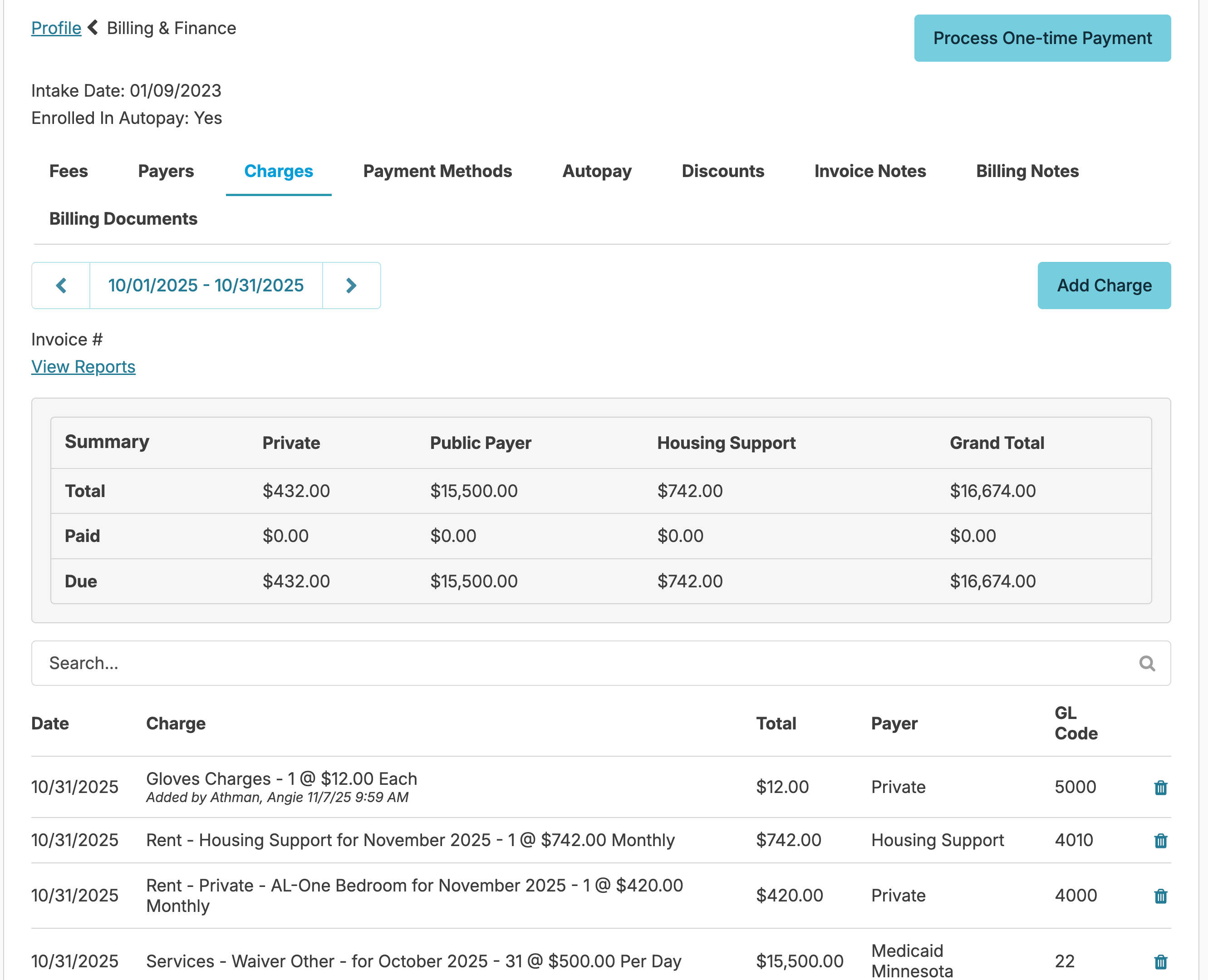
From the resident profile > Billing & Finance screen, you can
- View charge details for any month for the selected resident.
- If charges for your selected month have been created, but not posted, you can delete them (by clicking on the trashcan icon) or you can click on a charge to view/edit its details.
Adjust Charges, Apply Refunds
If you have already Posted charges, but need to make corrections or refund charges:
- You can click on an individual charge to apply an adjustment -OR-
- You can press the Adjust Charges button to adjust multiple charges en masse.
After this, you can generate a 'memo statement', or unpost & repost a statement for the resident in question.
Manually Enter Charges
Manually entered charges can be edited or deleted, and won't be cleared even if you repopulate billing for a month.
Enter a Charge for a Single Resident
From the Charges screen, click the Add Charge button. Fill in the details for the charge, and press the Save button. Services set to Free or No charge will not appear on the screen to select.
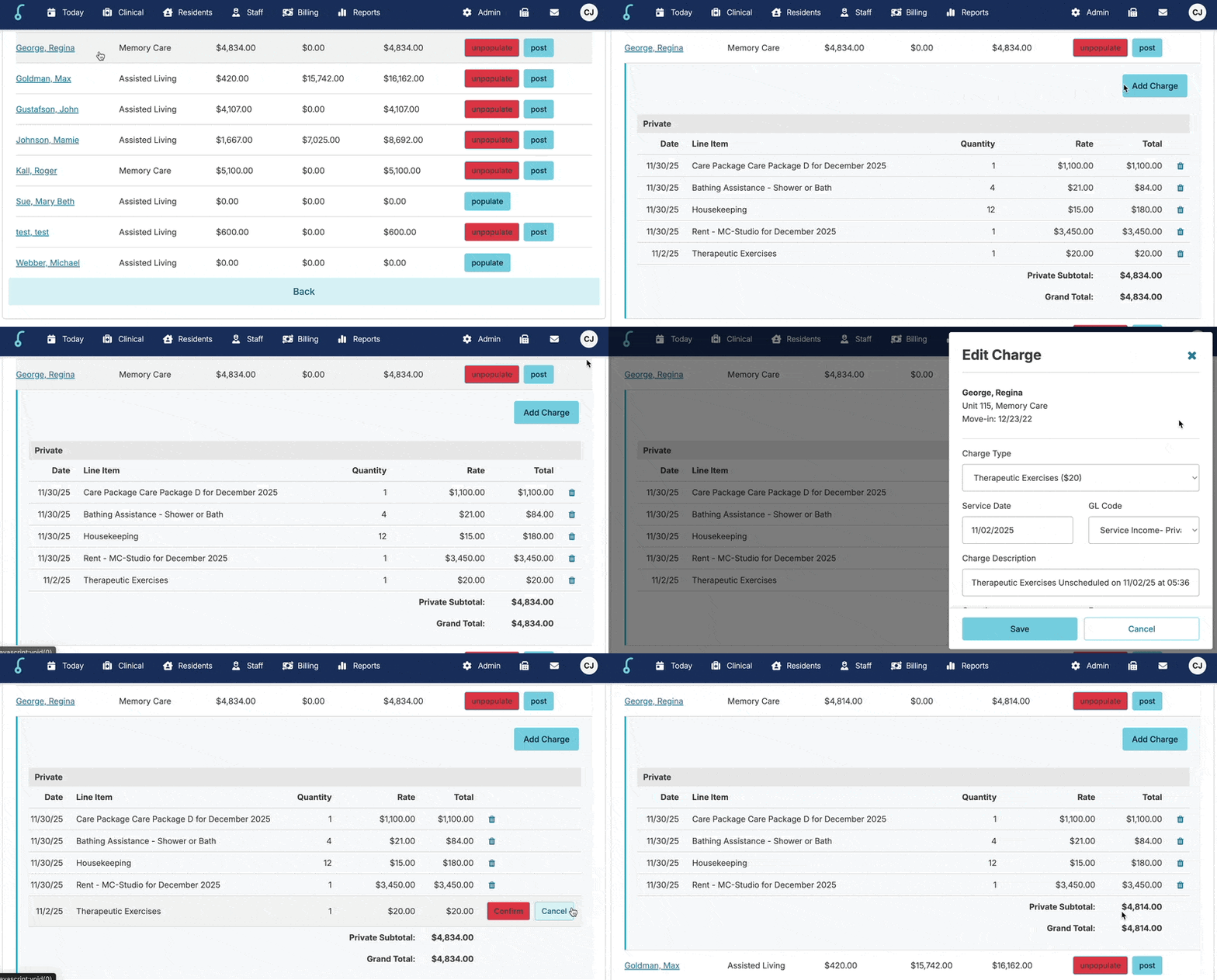
Once you have populated invoices on the the Billing Cycle screen, you will also have the option to add charges for an individual resident by clicking on that resident line item and selecting Add Charge. In addition to adding a charge, this option also allows you to quickly view the resident's charges for the month and edit or remove charges as needed.
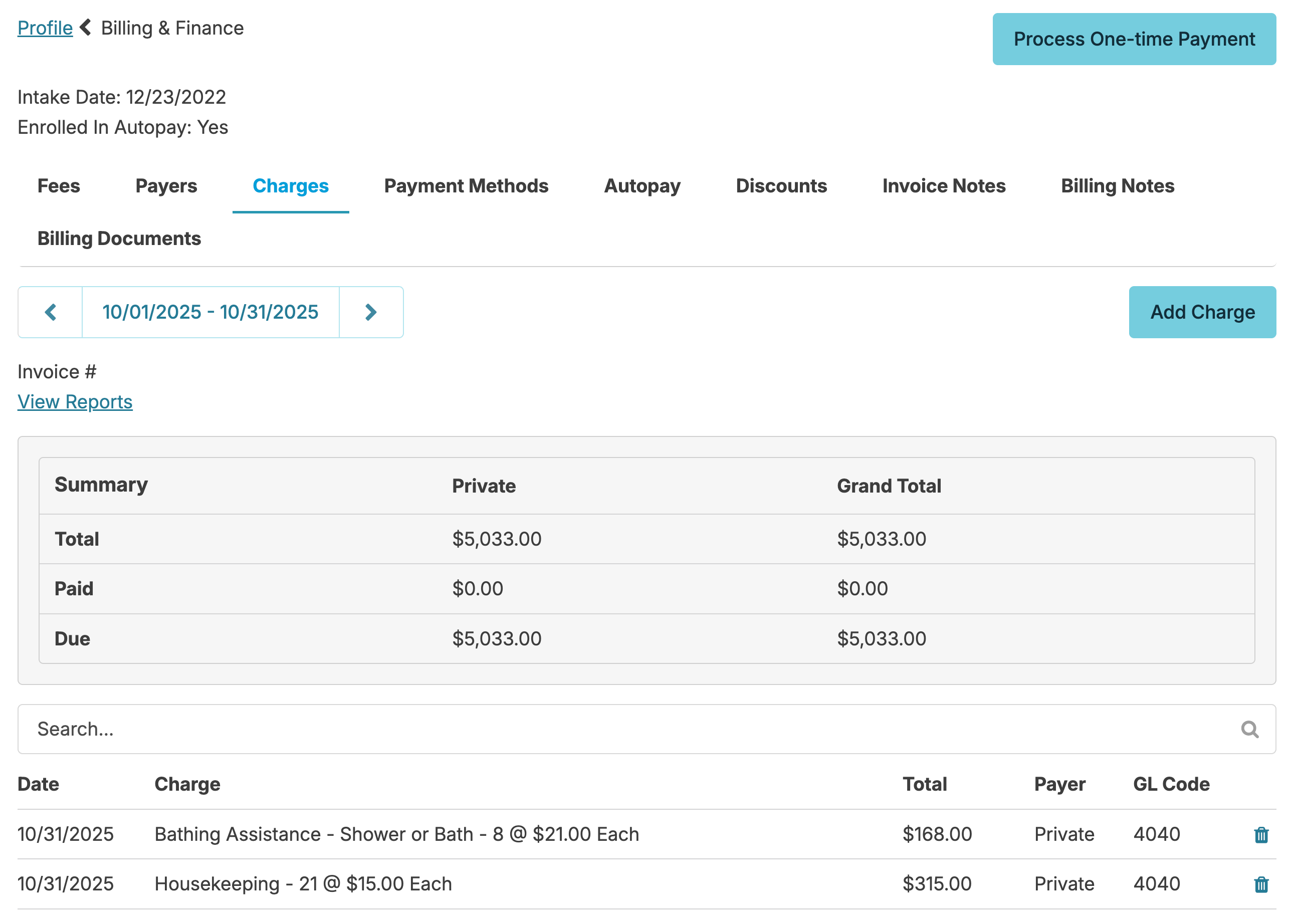
Alternatively, a charge may also be added for an individual resident from that resident's Profile > Charges screen > choosing the current billing Cycle > Click the Add Charge button.
Enter a Charge for Multiple Residents
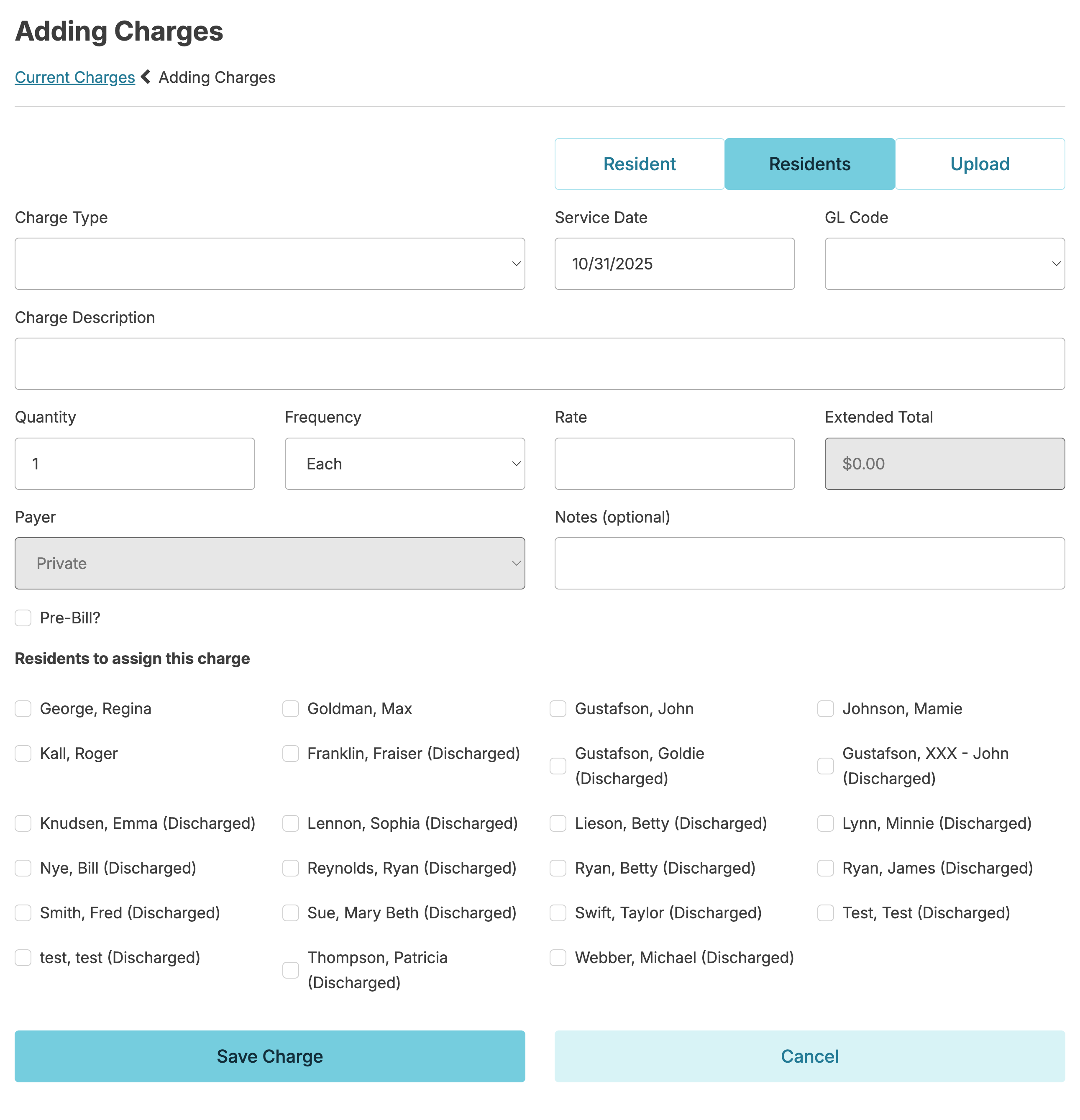
You can assign the same charge to multiple residents all at once:
- From the Charges screen, click the New Charges button
- Select the Residents option
- Fill in the details for the charge
- Select all of the residents to assign this charge - an identical copy of this charge will be added for each individual resident.
- Press the Save Charge button.
Upload Charges
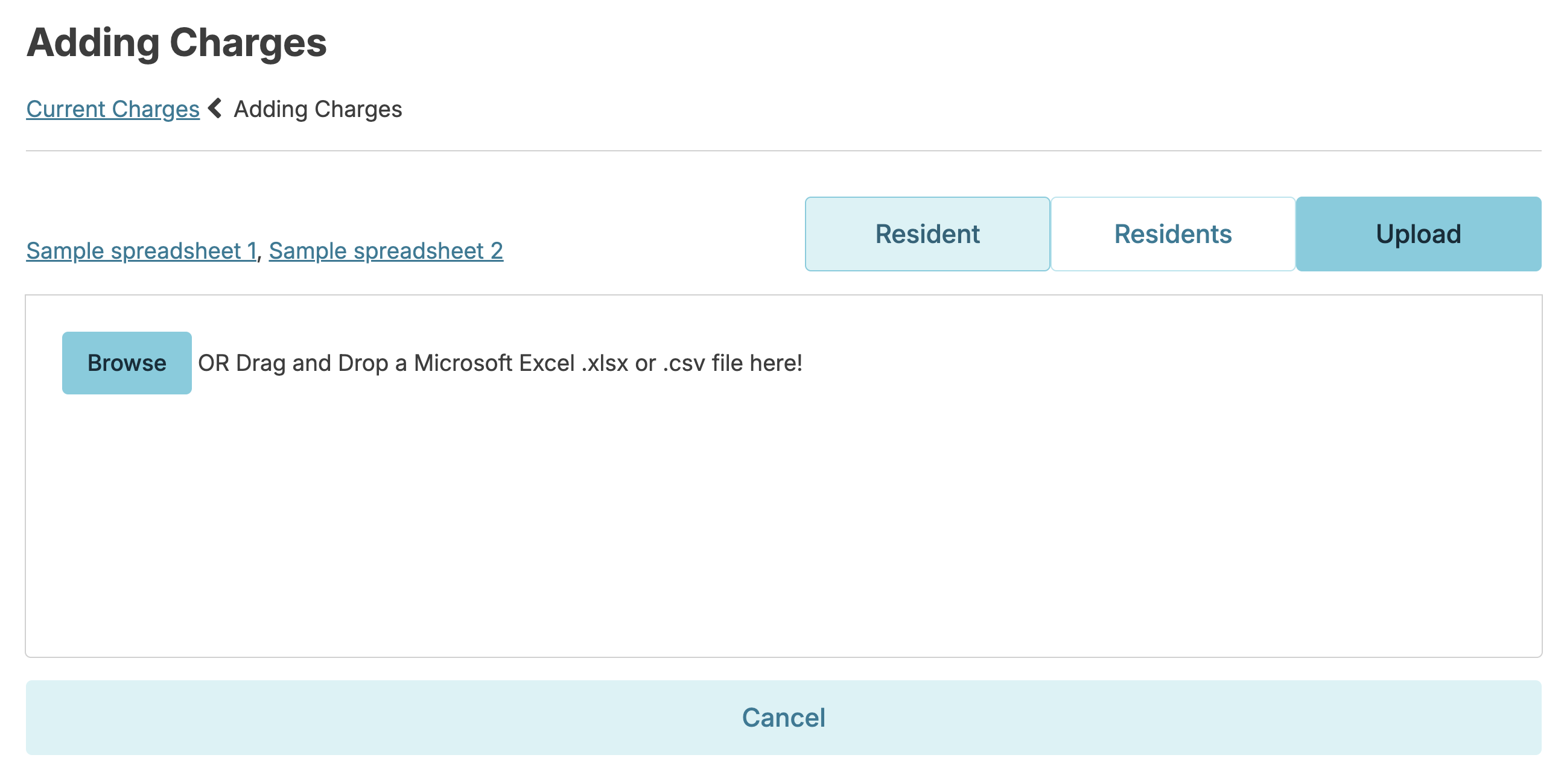
If you track any of your charges on a spreadsheet throughout the month (for example: Beauty shop charges or guest meals) you can upload the spreadsheet directly into Residex so all of the charges are entered at the same time. To upload charges:
- From the Billing > Process Billing > Charges screen, click the New Charges button
- Select the Upload option
- Browse to find a file or drag and drop the file in the target
- The charges from your spreadsheet will be visible in a list - you can correct any errors/mismatches.
- Specify a Charge Type, and Save
Format for uploading charges
The spreadsheet to upload must have 3 columns in this order:
| Name | Amount | Description |
You can download a sample spreadsheet from the upload page and modify that if you are unsure.
Charges can be entered such that:
- Each resident only has one line on the spreadsheet, which lists the sum of multiple charges across multiple dates in the billing period for one resident, with multiple dates possibly listed in the description field.
-OR- - A single resident could have more than one charge line in the spreadsheet, each for a different item on a different date.
Automatic Retroactive Adjustments
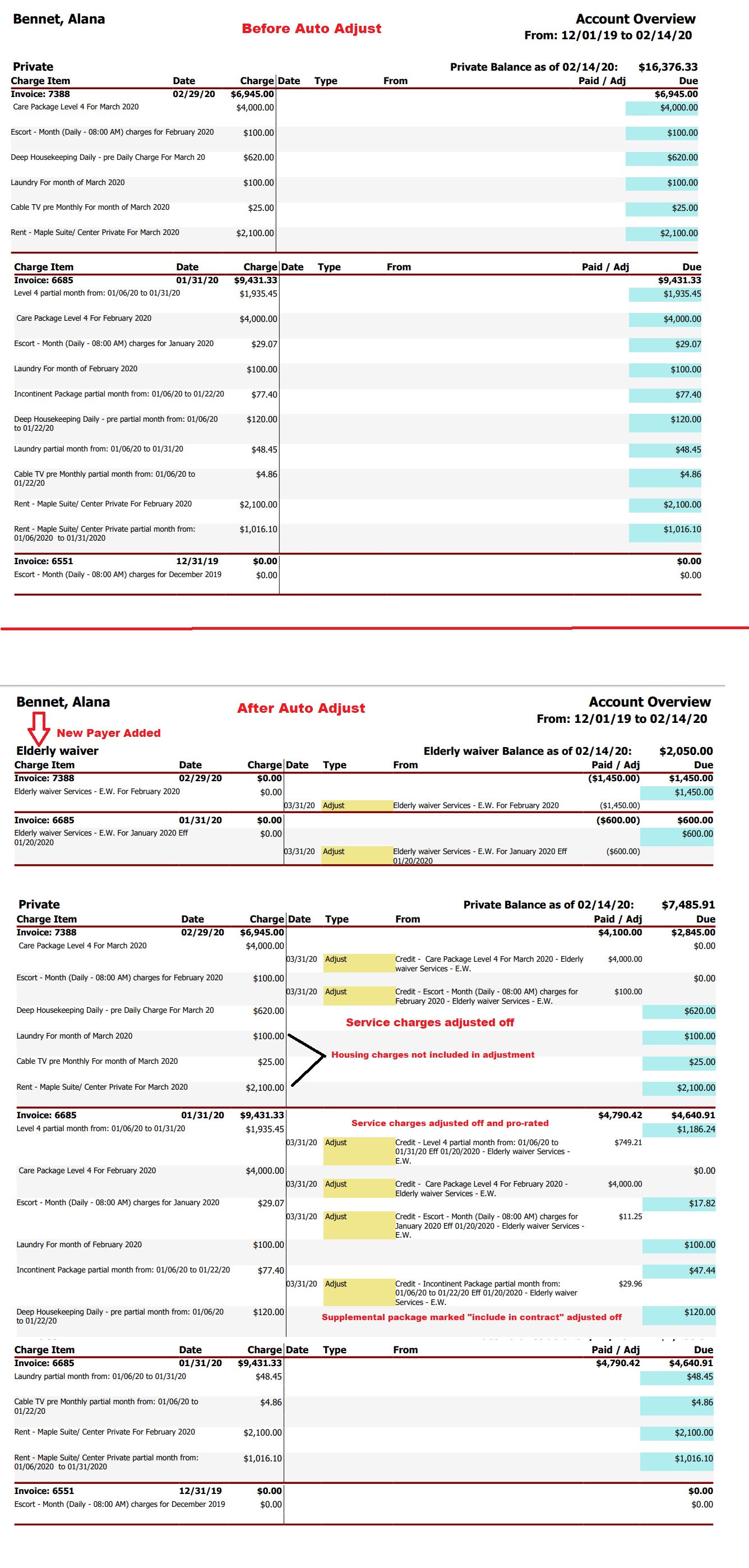
When a resident contracted Payer changes the contract rate retroactively, it can wreak havoc on your historical billing. To avoid this, all that needs to be done is an update to the Payer record in the resident's Profile > Billing > Payers tab.
- Select a payer
- Update Contract amounts / Effective dates
- Enable the Auto apply adjustment for the new amount option and Save
This will retroactively update all previous charges back to the effective date.
Retroactive Auto-Adjustments to a Rent Payer
-
The Rent contract payer (e.g., GRH) will have invoice adjustment charges added for each invoice dating back to contract effective date
-
All Private Pay Rent charges from the effective date will be adjusted off; once done, a new Private Rent Contract amount can be added and retroactively updated to invoices.
-
No adjustments will be made to Service charges
-
No adjustments will be made to "Service" supplemental packages
-
No Adjustments will be made to Supplemental packages NOT marked 'included in contract"
Retroactive Auto-Adjustments to an existing services Payer.
- The Services Contract payer amounts will be adjusted from the effective date forward
- Private Pay Services amounts will be adjusted off. Afterwards, they may be added/edited and "auto-adjusted" in the same manner to retroactively update the amount owed by the private payer.
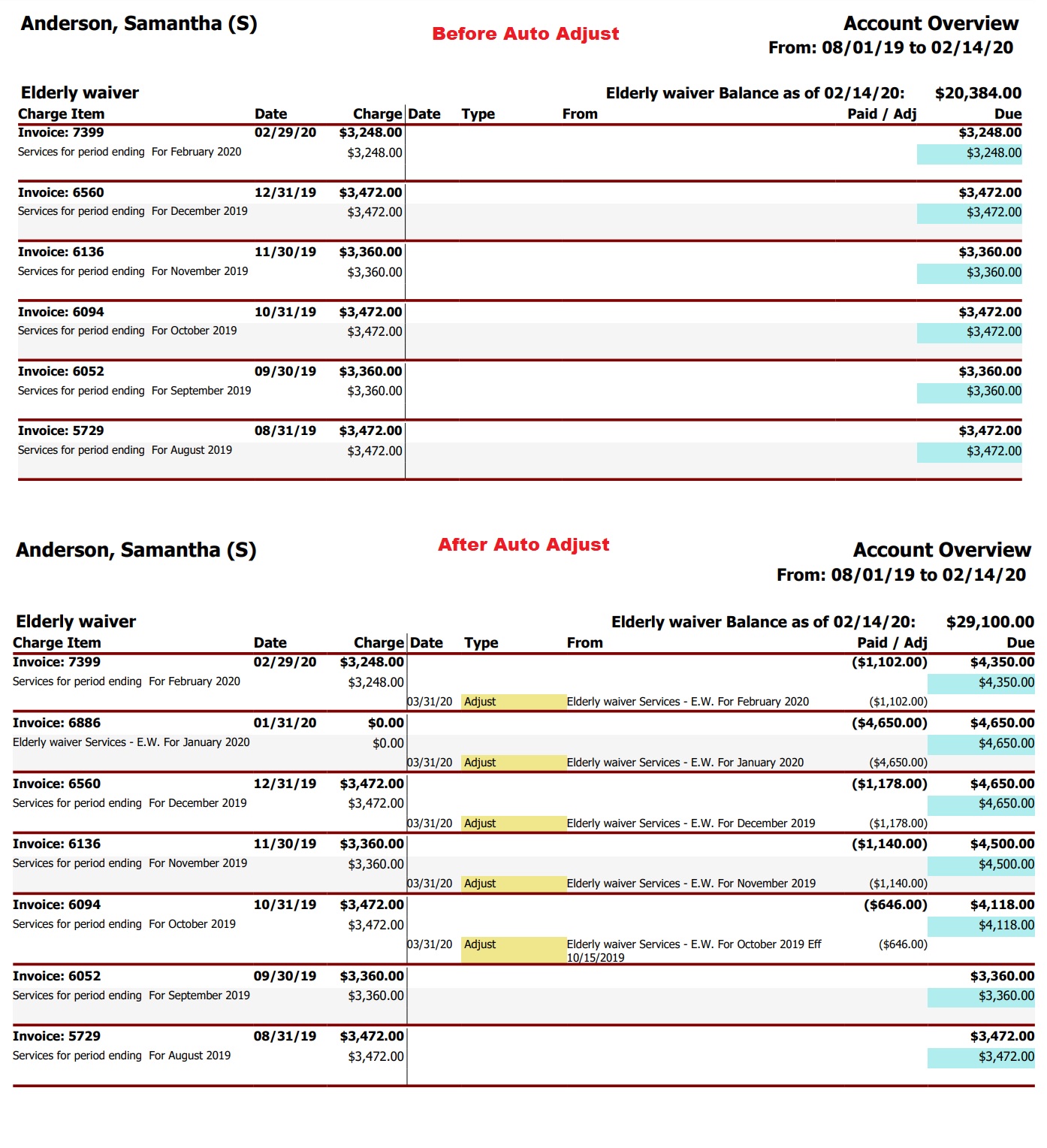
Retroactive Auto-Adjustment when adding a NEW Services Payer
If a waiver payer authorizes coverage to begin retroactively, you likely had already billed for the charges as "private pay". You can add a NEW "Services" contract payer with a retroactive start date.
- Will retroactively update Service charges from the effective date
- All private pay "service charges" will be retroactively adjusted as of the effective date
- No adjustments will be made to "Rent" charges
- No adjustments will be made to Supplemental packages NOT marked "include in contract."
- No adjustments will be made to Housing Supplemental packages