
Resident admission and discharge are time-intensive and require specific documentation. This article will guide you through steps you might follow to ensure a smooth and complete process.
Admission
Admission can actually start prior to admission - and Residex's 'Prospects' provides that first step.
- Pre-Admission - When you hear of a possible move-in, consider adding that individual as a Prospect in 'Lead' status. There is little data entry required to create the prospect profile, and it can allow you to continue to gather data on that individual (diagnoses, notes, pre-admission assessment) so that you can determine whether you will be able to meet that person's needs.
- At the point that you determine that they will move in, consider changing that prospect to a resident by clicking the Admit button. We recommend choosing a date far enough ahead of the anticipated move-in (to account for unexpected delays). This will move that profile from prospect to resident, but in Reserved status. Note that all the data you entered as a prospect will move with them to their resident profile! At this point, you can update the resident profile to enter additional information (allergies, diet, etc.) and continue to gather data. If they do NOT move in, you can revert the resident profile back to a prospect.
- Enter resident Contacts, Diagnoses, and Resources. It is most important to enter the primary care physician and the pharmacy/pharmacies. The quality and completeness of the data entered will be reflected in the quality of the data that pulls into reports!
- Enter Resident Services. These can be done by entering directly into the resident service plan, or can be added while doing the admission assessment. If adding into the service plan, there are a couple of entry options that can speed things up. You can copy services from an existing resident, or use Service Sets to add a group of services (e.g. vital signs) at a given time. Both options are time savers. Don't worry about entering the exact date and time services should begin. Let it default to the current date and time. These won't become visible for staff to chart until you change the resident status to 'active'.
- Enter medications for the resident. You may be receiving these from the physician or clinic, from the resident/family, and/or from the pharmacy. These can be entered manually under the resident profile > Medications, or you can use the Pharmacy Connect interface to process meds as entered by your pharmacy. Another feature that can speed entry - Med Sets, used for routine standing orders. If you have standing orders, it will allow you to add that group of PRNs all at once.
- Once medications and services are entered, you are able to create Provider Orders. This allows you to create a comprehensive document that includes diagnoses, allergies, diet, code status, meds, and services - and send them to the primary care provider to review and sign. This ensures you are operating under signed orders and provides valuable information to the physician. Once you receive the signed order back save it under resident profile > Documents.
- Enter a Resident Note We recommend using a note type of "Admission"; your administrative user with Role 411 can create a template for this note type that will remind you each time of what should be included in this note. We suggest including details such as the fact that the resident was oriented to the facility and schedule, provided required documents and notifications, provided means for summoning assistance, etc.
- Perform the Admission assessment. Your own state regulations will guide you on how soon this needs to be completed. Items that were asked in the pre-admission assessment will automatically flow into the admission assessment. Simply review those items, answer the new ones, and complete the assessment. The process of doing this assessment will automatically do the following: push a care plan out to staff to review from the Today > Assignments screen (meeting the requirement that they have been oriented to the care plan); complete the required assessment; creates the Individual Abuse Prevention Plan that addresses resident vulnerabilities; creates other reports such as the Individual Medication Management Plan (required in MN) that details the plan for med management.
- Enter the Resident billing information.
- Create the resident Service Plan for signature by navigating to Reports > Reports > Category: Agreements > Report: Agreement > Select Resident > Select Agreement Type > Click Create Report You are only able to run create a service agreement up to 14 days in the past.
- Optional: Consider delegating the resident bio/history assessment to a caregiver, activity staff, or housing director. This does NOT have to be completed by a nurse. These will push out a 'Bio/History' to staff to review and acknowledge.
Discharge
Documentation at discharge can vary based upon whether the resident is voluntarily leaving or has passed away, OR whether the resident is being asked to leave and their discharge is involuntary. In the latter case, additional steps likely need to be documented.
For Involuntary Discharges
- Provide notice of a planned meeting with the resident and family to discuss concerns that may be precipitating the discharge and relocation. A note type of 'Pre-Termination Meeting Notice' can be added or used to enter data and provide notice to the resident and/or family of the meeting to be held. There is a report available Pre Termination Meeting Notice' that can be printed to send.
- Once the Termination meeting has been held, the details of that meeting can be documented in a note type 'Pre-Termination Meeting Summary. The report Pre-Termination Meeting Summary can be printed and provided to the resident and family.
-
If your state requires a 'Relocation Plan' in the event of an involuntary discharge, a subset assessment can be used (this can be added if you do not have this option) allowing you to document the plan for relocating the resident to another facility or site.
-
Follow your own state's regulations and your facility policy in continuing with the involuntary discharge process.
For All Discharges (Voluntary and Involuntary)
Regardless of whether this is a voluntary or involuntary discharge, the following steps can be used to document a resident's discharge.
-
Update the Resident's Care Status to "Hold" if he/she is not on-site during the process; otherwise, place him/her on hold upon his/her exit from the building.
-
Document the details of medications (med name, Rx#, count of meds) that are being released to the resident/family/facility OR destroyed (in the event of a death). Residex's Medication Disposition feature will allow you to document this accordingly, and those meds will be included in the printed discharge assessment.
-
Discharge Assessment - can specify details and resident condition at time of discharge. The Discharge Summary can be printed and provided to the resident/family/and others.
-
Discharge Note - like the admission note, you may choose to make a note type of "Discharge Note" and include a template with the details you want included in that note (discharge instructions, meds provided, etc.)
-
Make the resident inactive - from the Resident Profile. You will still have full access to their record as an inactive resident. When a resident is discharged, all Services are automatically ended; this includes Medication Administration Services.
-
Notify the resident's Primary Care Provider using the Discharge / Transfer Summary report. The Discharge Care Plan report can be sent to a receiving facility or agency, if applicable.
Transfers
Transferring a resident from one room to another can easily be accomplished in Residex by clicking the Transfer button in the resident's profile and entering the date and reason for transfer.
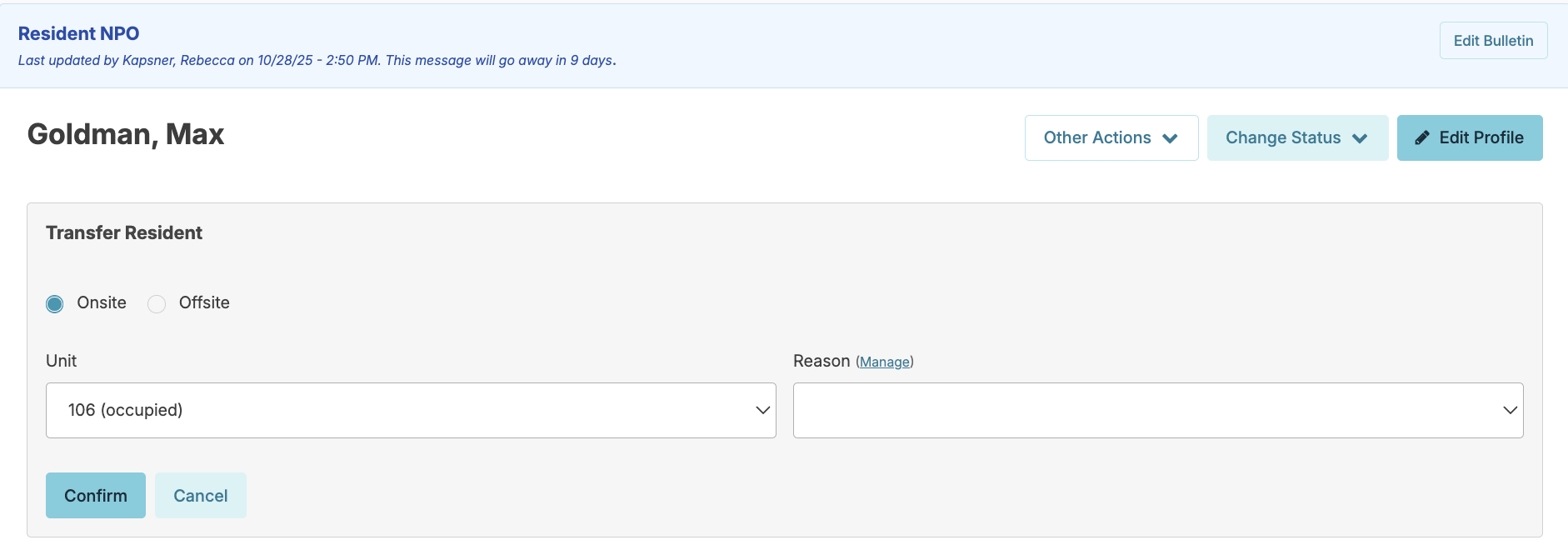
If your state requires notice be given before transferring a resident within a facility, a note type can be added - Intra-Facility Transfer Notice. The note template can include details of the transfer. Once details are entered, the report 'Intra-Facility Transfer Notice' can then be printed and provided to the resident and/or their legal representative.