
- Login Trouble/Forgotten Password
- Permissions Within Residex
- Computer/Browser Issues
- Resetting Location Services
- Printing Troubleshooting
Login Trouble/Forgotten Password
If you are unable to login to Residex, please ask a supervisor within your organization to reset your password for you. For your organization's security, Residex Software Support does not reset passwords for users.
If your username is an email address, you can reset your own password with the 'forgot my password' link.
A supervisor may also need to ensure that staff access has been granted in Staff > Security > Login and Access by following this link Grant Access
Resetting a user's password
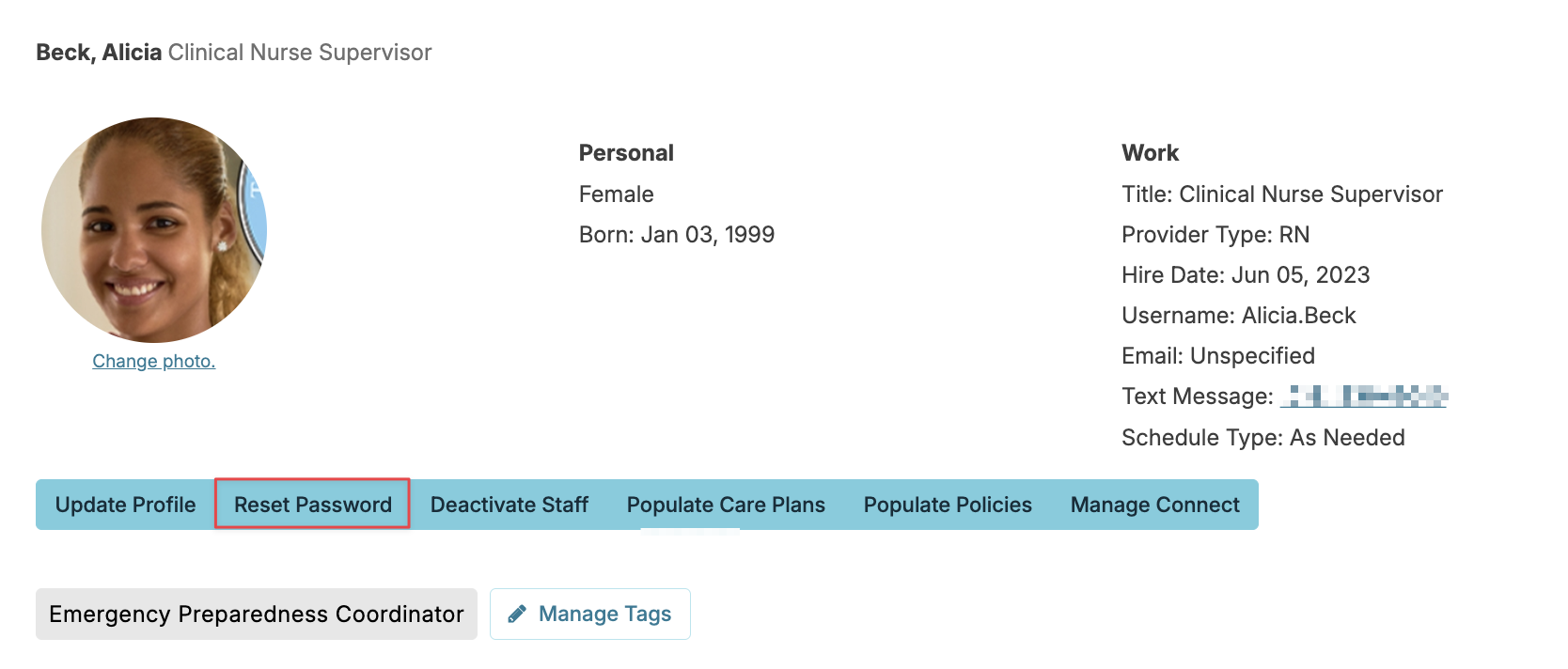
To reset the password for one of your users, navigate to:
- Staff > Staff, and select a staff member
- Select the Reset Password button near the top of the profile
- Provide a one-time-use temporary password (a default temporary password will appear, this can be overwritten if you prefer)
- Press Save
This staff member can now log in with the temporary password you have provided, at which point they will need to create a new password.
Delete Saved Passwords
As a web application, app.residex.ai is accessed through your browser—no installation needed. The web browser you use may offer to save your Residex password for you, so you don't have to type it in whenever you are logging in. This can cause problems if you share a device with other people. In this case, you do not want the browser to save your password because then other people will be able to log in with your account. If this happens, you can remove your saved credentials from a web browser:
Google Chrome
- At the top right of Google Chrome, click the 'More' icon (" ⋮ ")
- Select History
- Select Clear browsing data; this will open a new window.
- In the Clear browsing data window, make sure "Passwords and other sign-in data" is checked, and press the Clear data button
Firefox
- Click the menu button (" ☰ ") and select the Options button
- Select the Security tab
- Select the Saved Passwords button
- Select the site(s) to remove passwords for
- Press the Remove button, or press the Remove All button to wipe all passwords for all websites
Internet Explorer
- In Internet Explorer, click on the gear icon (" ⚙" ) in the upper right corner
- Select Internet Options from the menu
- Make sure only the Passwords option is checked, and then press the Delete button
Permissions Within Residex
Supervisors within your organization can update your security settings & expand or reduce your access to information and capabilities within Residex if needed. If you believe you need a permission change, please consult with your supervisor.
For your organization's security, Residex Support does not expand permissions for users directly.
Computer/Browser Issues
Complete a Hard Refresh
If you are not seeing what you should on a Residex screen or the screen appears blank, you may need to complete a hard refresh. Occasionally, when an update is made to Residex, your browser will store the old version of the webpage until you complete the hard refresh.
To complete a hard refresh, use the following keyboard shortcut:
MAC: Shift + Cmd + R
PC: Shift + Ctrl + R
Other devices (phones or tablets): Use any web browser to search for specific instructions on how to perform a hard refresh
Check Your Internet Connectivity
If your internet speed is down or slow, it could cause Residex to appear to be working slowly.
Can you go to any other website? If you cannot access any website, you are not connected to the internet.
Check Your Internet Speed
Check your internet speed here. If the speed test rates your speed as very slow, you could have issues with internet speed - either with your ISP, your data connection, or perhaps with your network.
Clear Your Cache
If things do not appear to be loading correctly in Residex, you should try clearing your cache.
Clearing your Cache in Google Chrome
- In Google Chrome, click the 'More' icon (" ⋮ ")
- Click More tools > Clear browsing data
- At the top, choose a time range. To delete everything, select All time
- Check the boxes next to 'Cookies and other site data' and 'Cached images and files'
- Click Clear data
Clearing your Cache in Mozilla Firefox
- In Firefox, click the menu button (" ☰ ") and select the Options button
- Select the Privacy & Security panel
- In the Cookies and Site Data section, click the Clear Data button
- Remove the check mark in front of Cookies and Site Data
- Check the Cached Web Content checkbox, then press the Clear button
- Close the About: Preferences page.
Clearing your Cache in Apple Safari
- Click on the Safari drop-down menu and select Preferences
- Click on the Advanced tab. Select the 'Show Develop menu in menu bar' checkbox and close the Preferences window
- Select the Develop drop-down menu. Click Empty Cache
If staff can't log in on an Ipad/Iphone try to Clear History/Data
- Open Settings. On the Home Screen, tap the Settings app (gray gear icon). Steps are identical on iPhone and iPad.
- Tap Safari. Scroll down the left-hand list and tap Safari.
- Tap Clear History and Website Data. Scroll down and tap this option, then confirm when prompted. This clears cache, cookies, and saved login sessions for all sites in Safari — not just one site.
- Force-close Safari. Swipe up from the bottom of the screen (or double-click the Home button on older devices) to see open apps, then swipe Safari away to fully quit it.
- Reopen Safari and log in. Relaunch Safari, go back to the login page, and sign in again. This ensures a completely fresh session with no leftover cached data.
Resetting Location Services
If your organization uses Electronic Visit Verification (EVV)/Time Clock location tracking services, Residex needs permission from your web browser to pull in location data for your device. You can direct your web browser to block app.residex.ai from accessing location data; if you do so, Residex will prevent you from clocking in. You can resolve this issue by authorizing Residex to access location data within your browser.
Resetting Location data access in Google Chrome
- In Google Chrome, click the 'More' icon (" ⋮ ")
- Click Settings > Advanced
- Under Privacy and Security, select Site Settings > Location
- Select "app.residex.ai" from the list
- Click the Reset Permissions button and confirm you want to proceed.
Resetting location data access in Mozilla Firefox
- In Firefox, click the menu button (" ☰ ") and select the Options button
- Select the Privacy & Security panel
- Select Location > Settings
- Select "app.residex.ai" from the list and set the configuration dropdown menu to Allow; save changes.
Printing Troubleshooting
If you can VIEW but not PRINT a report
If you can view a Residex report but cannot send it to your printer, then the problem is either with your device, your network, or your printer. Common steps that resolve these issues:
- Contact your IT department, if you have one
- Verify your printer is turned on, does not have a printer jam, and is not displaying any other error message
- Clear your print queue
- Power your printer off completely and turn it back on
- Verify your default printer is set correctly via your device's settings
Report is not returning data
Please verify the parameters you have selected (date range, resident(s), etc) are correct.
Slow speed
If you are having trouble getting timely results:
- Please verify you have a stable and sufficiently fast internet connection
- If you are trying to print reports over a large date range or a large group of residents, try narrowing the date range or selecting fewer residents. If you select wide-ranging parameters for a report that would require hundreds of pages, it could take some time to generate; starting with a smaller block will help.