
Tasks streamline staff-specific tasks, record issues for discussion in staff meetings, and set objectives (goals) to align everyone toward common targets, promoting improved coordination and collaboration.
About Tasks
- Tasks are jobs assigned to a specific staff person to complete (as opposed to a service or chore that was added to an assignment list).
- A task may be associated with an individual resident, a prospect, a prospect/resident and contact, an organization, or a resource professional. A task can be a one-off job such as 'give an initial tour to a specific prospect' or 'call a prospect to discuss next steps.' They can also be used by staff to track their administrative duties such as ‘follow up with HR about new hiring policy.'
- Tasks associated with a contact will also appear as a task for the related resident or prospect.
- Task types can be managed by users with the Administrator (Role 411) or Administrator Assistant (Role 410) by navigating to your name in the upper right hand corner > Tasks > New task > blue Manage link . They can be configured to recur at a desired frequency and allow templates to be created.
- Recurring facility tasks (cleaning, maintenance, etc.) that should be assigned to an assignment list rather than individual staff members should be scheduled as a chore instead of a task.
Creating a New Resident/Prospect Task
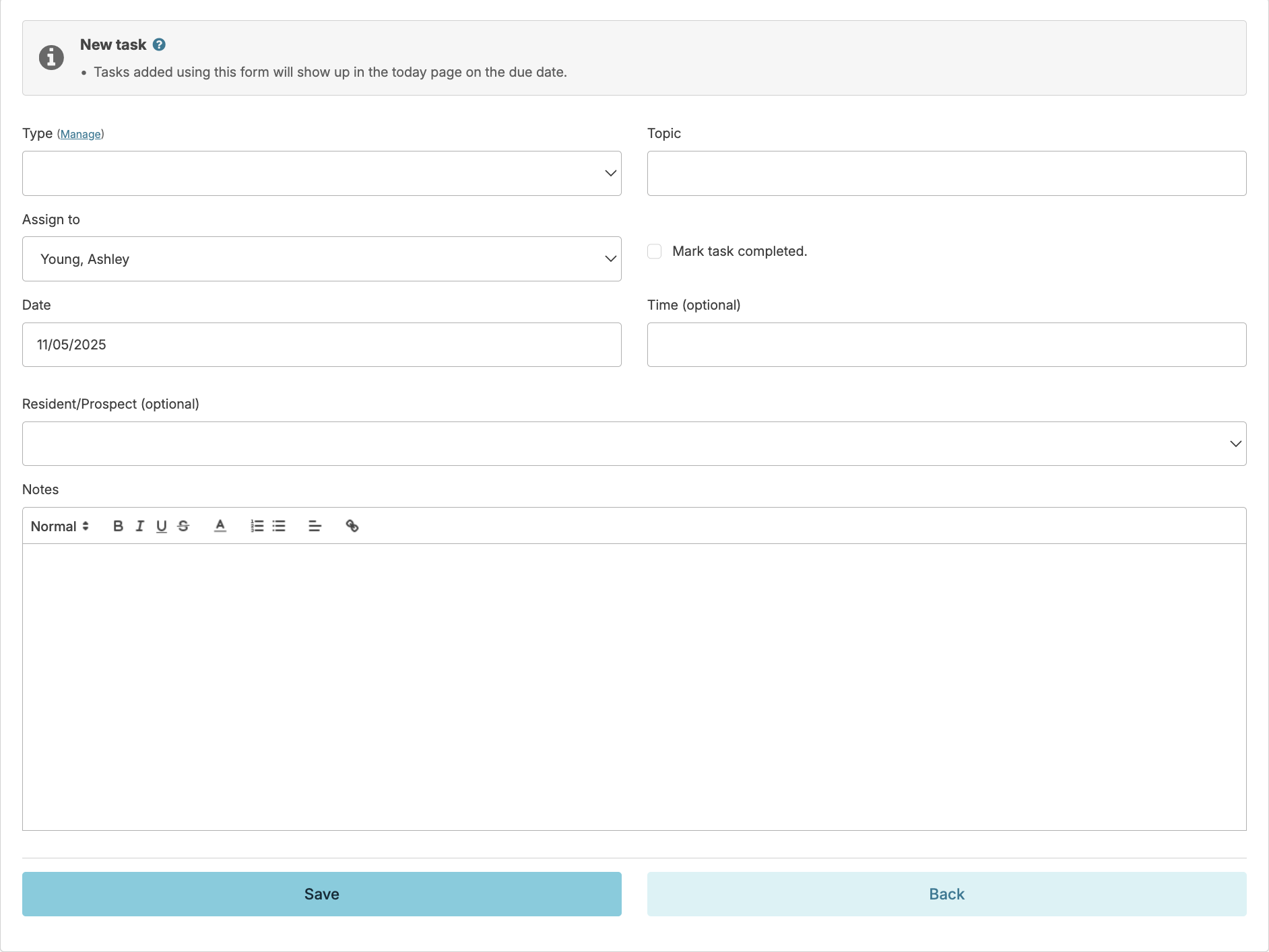
- To create a new resident/prospect task, navigate to your name in the upper right corner > Tasks > New Task
- Specify the type of task from the Type dropdown and give the task a Topic name
- Select the person responsible for the task from the Assign to dropdown. It will be assigned to you by default.
- If you are recording work you have already finished, check the box Mark task completed
- Enter the due date of the task
- Enter a specific time for the task (optional)
- Associate a task with a resident, prospect, or a resident/prospect contact from the Resident/Prospectdropdown, if applicable
- Enter details about the task in Notes
- Click Save
Creating an Organization Task
- Navigate to Residents > Resources > Organizations and click on the organization to create and organization related task
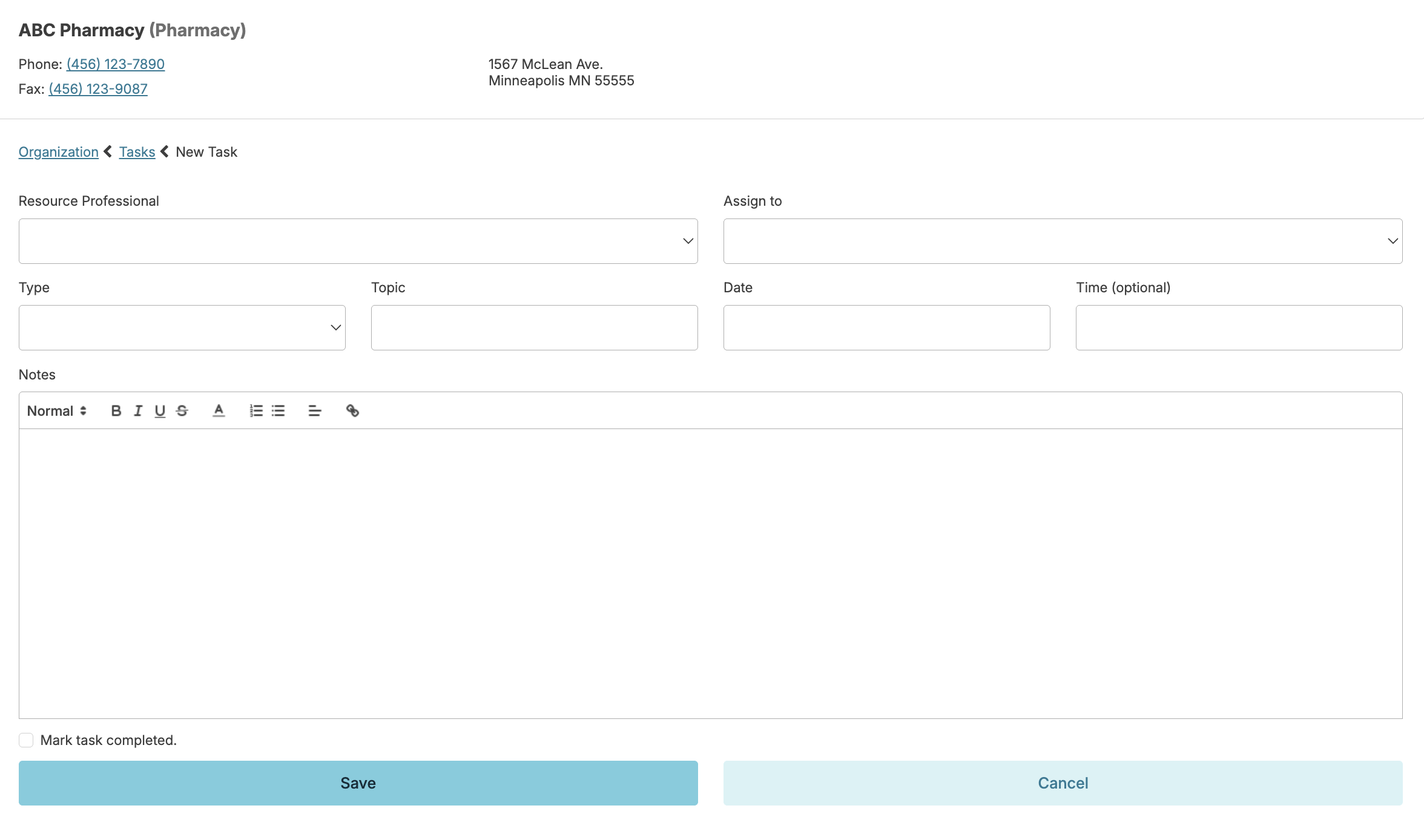
- Select + New Task
- Choose the associated Resource Professional from the menu
- Select the person responsible for the task from the Assign to menu.
- Specify what type of task from the Type dropdown and give the task a Topic name.
- Enter the due date of the task
- Enter a specific time for the task (optional)
- Enter details about the task in Notes
- If you are recording work you have already finished, check the box Mark task completed
- Select Save
Viewing Tasks
Today > Assignments
When you are assigned a task, it will show up in the Today > Assignments screen for you on the scheduled due date, regardless of what assignment you may select, and will stay in your to-do list until marked done or rescheduled.
Resident Profile & Prospect Profile
You can view tasks associated with an individual resident or prospect by opening their profile and selecting the Tasks section of the profile.
From this section, you can view all tasks associated with the individual (or their contacts), regardless of which staff members they are assigned to. Additionally, you can view completed tasks.
Organization Profile
You can view tasks associated with an organization and resource professional by navigating to Residents > Resources > Organizations and selecting the organization.
[Your Name] > Tasks
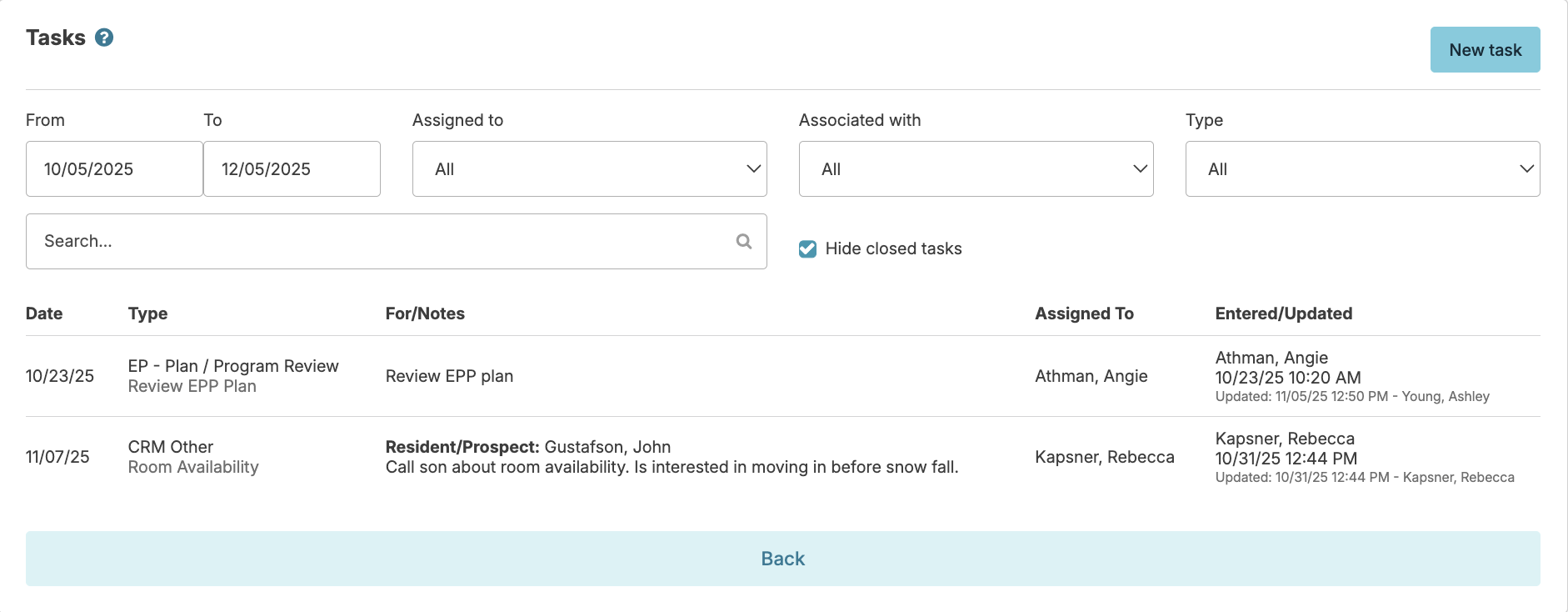
Your task list can also be viewed by navigating to your name in the upper right corner > Tasks. This view is different from the Assignments screen in that it will focus only on tasks, and will not display any other duties such as chores, services, medication administration, etc.
In the Tasks screen you can filter your tasks by date range, view tasks assigned to your staff, filter/sort tasks to view only those associated with a specific selection, of certain types, or containing certain words, as well as scheduling new tasks for yourself or assigning new tasks to other staff on your team.
Task Details
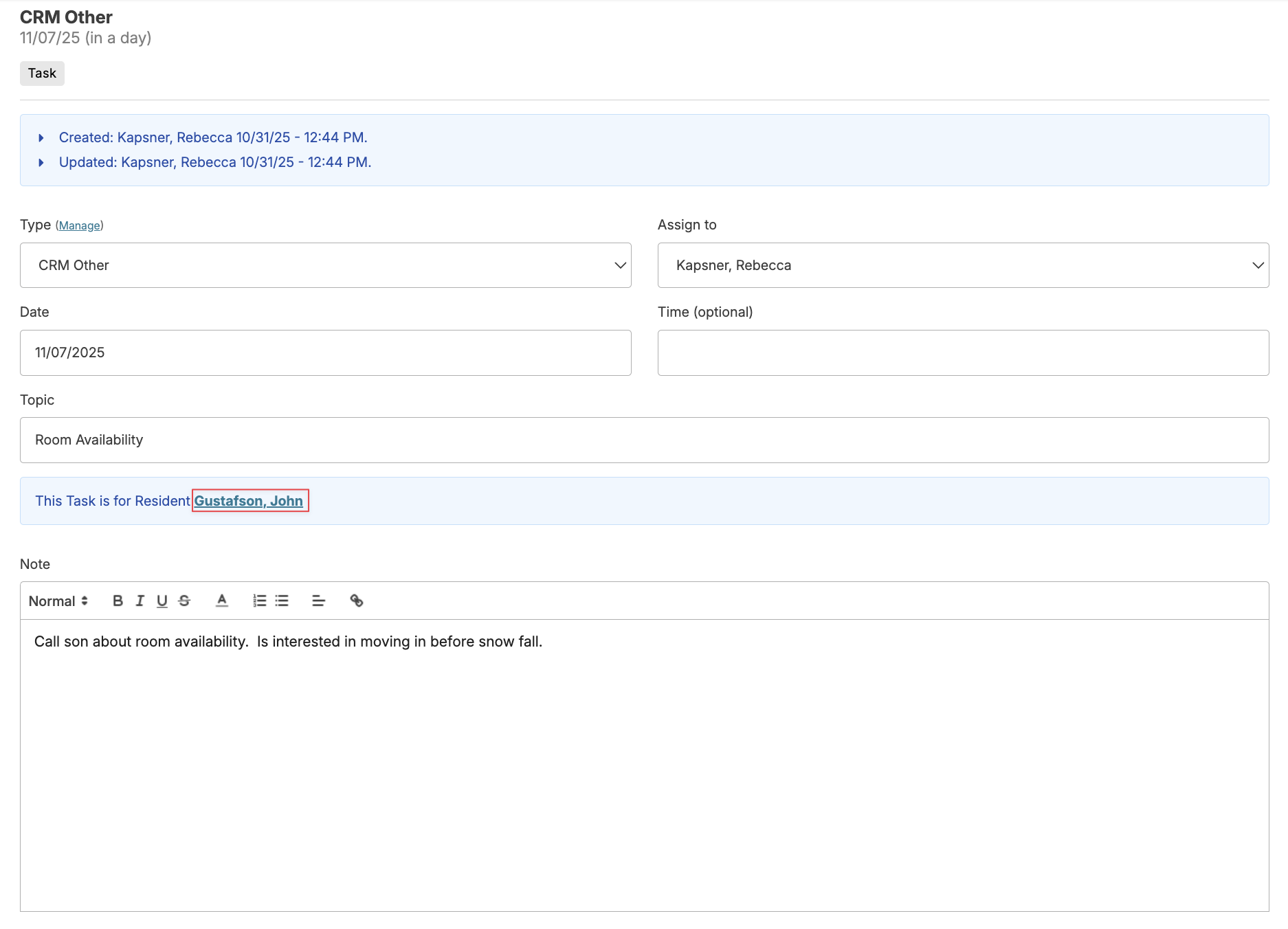
When viewing the task details, there are clickable links to provide you with additional information on the resident/prospect, contact, organization or resource professional.
Marking a Task Complete
You can click on any task from any view to mark it as complete, cancel the task, or reschedule and update notes as appropriate.
