
Preparing for Survey
- Survey Binder
This is a folder or 3-ring binder that contains copies of your license, waivers, and other documents that are required on survey and are 'static' (do not change). - Review Reports
Tag: State Of Folders - this folder contains commonly requested reports for survey. Review these and familiarize yourself with these reports! - Campus Documents
You can save important campus documents here - and give access by provider type - so that if key staff (e.g. administrators) are not on site at the time of survey, those documents are readily available and not locked in a desk drawer. - Audits
Audits can be used (and others created) to document periodic fire drills, infection control, food safety, and other activities that may be required in your state. Contact ResiDex support team if you have audits you would like to have added.
Remote or Limited Access
While most routine and regularly scheduled surveys occur on-site, there may be complaint-driven surveys that can be handled remotely. Either way, you may opt to give the surveyor limited access in Residex. This offers a couple of advantages:
- In the case of complaint-driven surveys, survey teams are able to evaluate whether a visit is warranted - and save both you and the survey team the time and expense of a more extensive, on-site survey.
- You are in control of what access they have. Bringing a team on site unnecessarily can expose you, unnecessarily, to further investigation.
- Less time (and paper) is spent printing reports for viewing.
The process for setting up Limited Access:
- Enter the Surveyor as a Staff Person, Provider type 'Surveyor'. Do NOT setup a generic login. Enter each surveyor as an individual using their own name giving their own unique access.
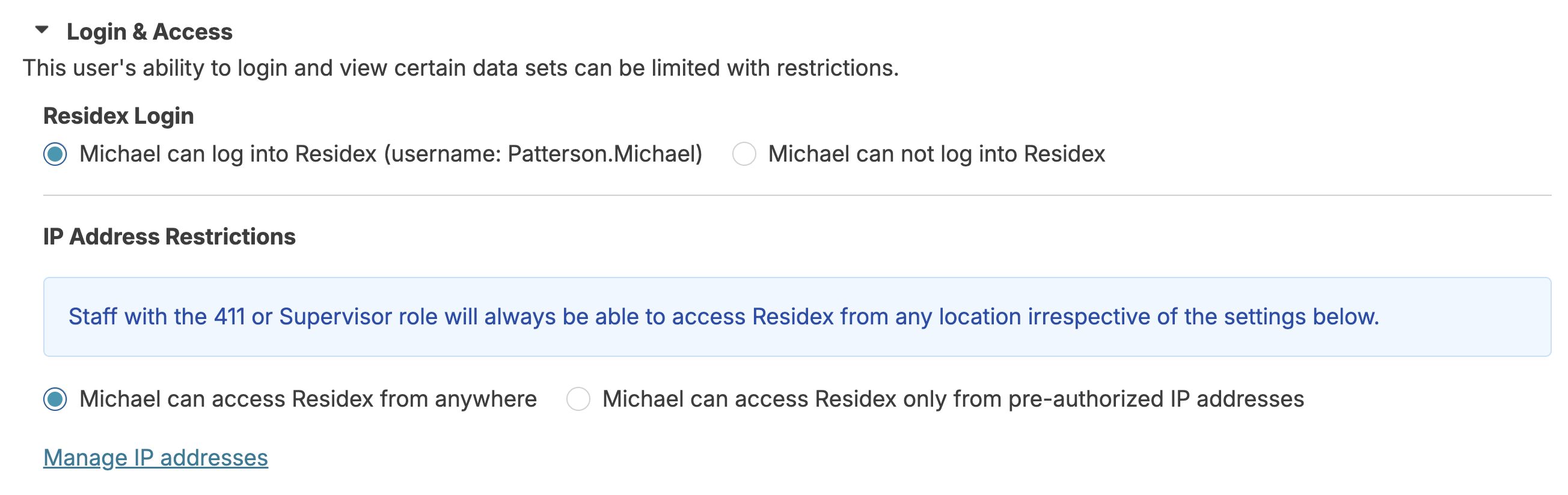
In Security > 'Login and Access':
- Provide access for that person to login
- Do not check IP Address restrictions (to allow for a remote survey)
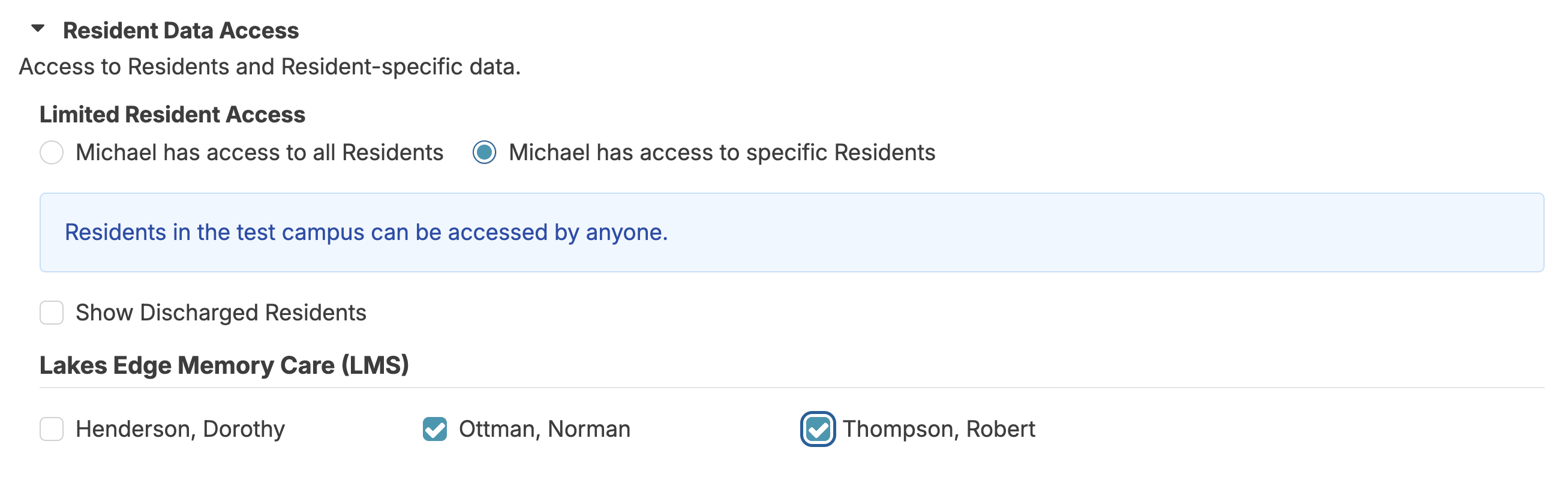
- Limit campus access to only the campus needed.
- Under 'Resident Data Access', select ONLY the residents needed for survey.
- Do NOT give any resident, staff, or other roles.
Assist the surveyor in logging in for the first time. Their view will be limited. They will:
- Not see a Login Report/Dashboard
- Not see services on the Today > Assignments screen (the provider type 'Surveyor' is at or near the bottom of the hierarchy)
- ONLY see the residents for whom they have been given access
- ONLY see the reports for which the provider type 'Surveyor' has been given access
This article can be provided them to provide a quick overview of Residex.
Any additional report that may be needed can be managed by your Administrator with (Role 411).