
Table of Contents:
Security in Residex
Residex has detailed controls that allow administrators to set exactly what each staff member can view, add to, or change. Users with Staff Data Entry (Role 14) AND Staff Security Manager (Role 15) can manage the access levels of other users, allowing precise control of what each of your users can see and do within the system.
Staff Security
You can view a user's permissions by going to Staff > Staff > staff profile > Security. User's permissions are broken down across a few sections: provider type, login & access, resident data access, staff data access, and other roles.
Provider Type
Provider types define each user's system capabilities: which services are visible for eCharting, charting time restrictions (how far backward or forward they can chart services and medication passes), and available report access. Each user must have a 'provider type,' the list of provider types can be customized per client and may be different than shown here.
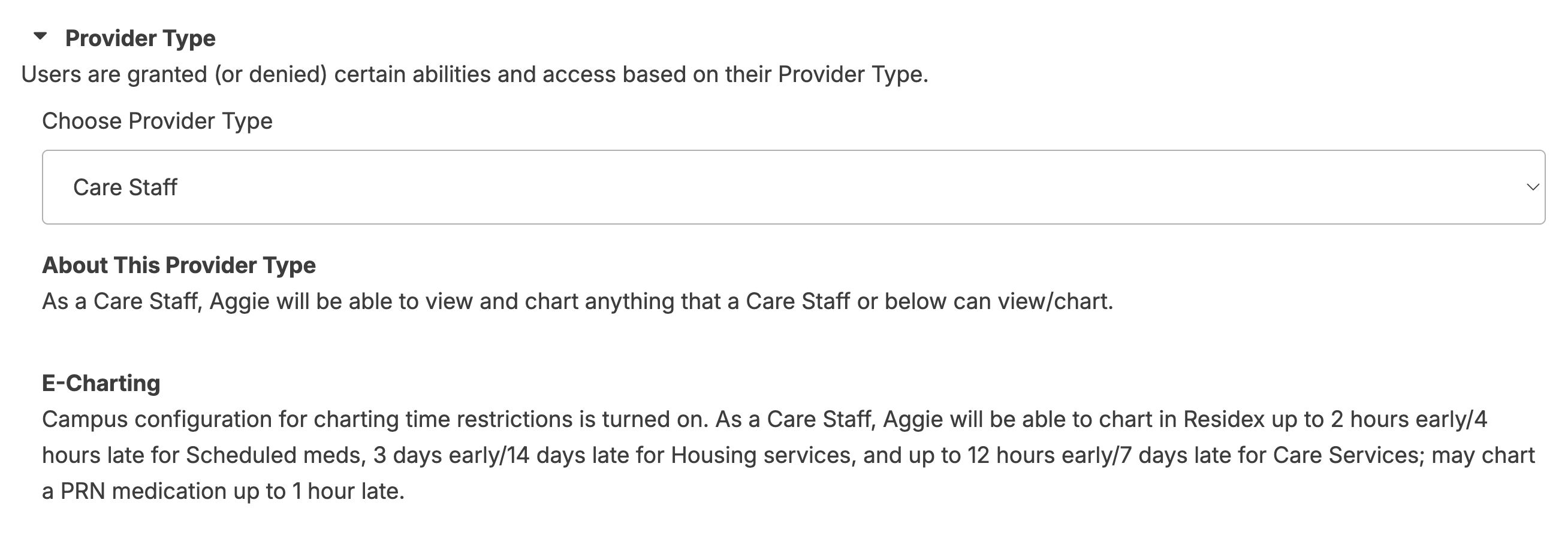
Login & Access
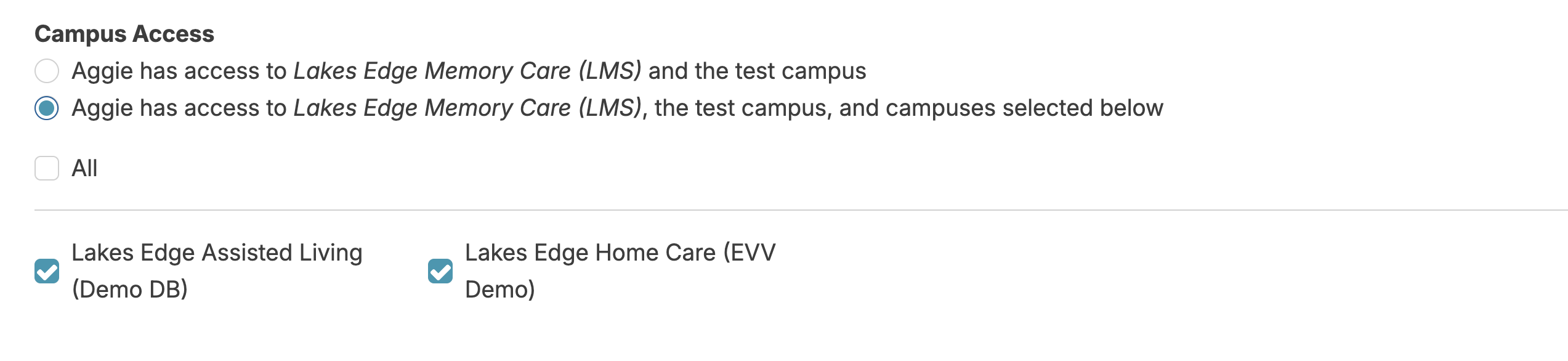
This section will allow you to specify if a user can login to app.residex.ai, if they are restricted from the physical locations they can log into app.residex.ai from, and which campuses they can access (if you have more than one campus).

Campus Access
If you have more than one location or 'campus,' you can grant users the ability to access one campus only, multiple campuses, or all campuses as you see fit.
Users with the Supervisor (Role 13) will automatically have access to all campuses.
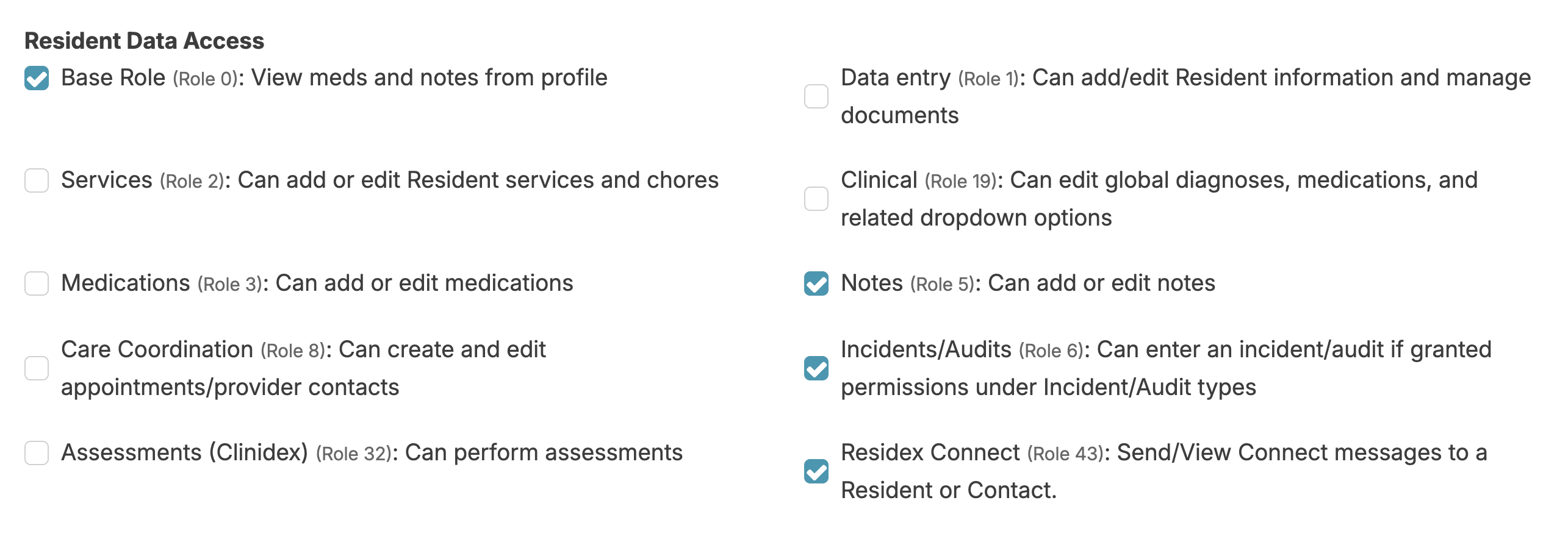
Resident Data Access
- Specify what types of resident data a user can view and edit by assigning roles.
- Specify if a user only has access to certain residents within a campus (typically used to grant access to third party care providers like hospice staff, pharmacy techs, rounding doctors, or others who only should have access to health care information for certain individuals.)
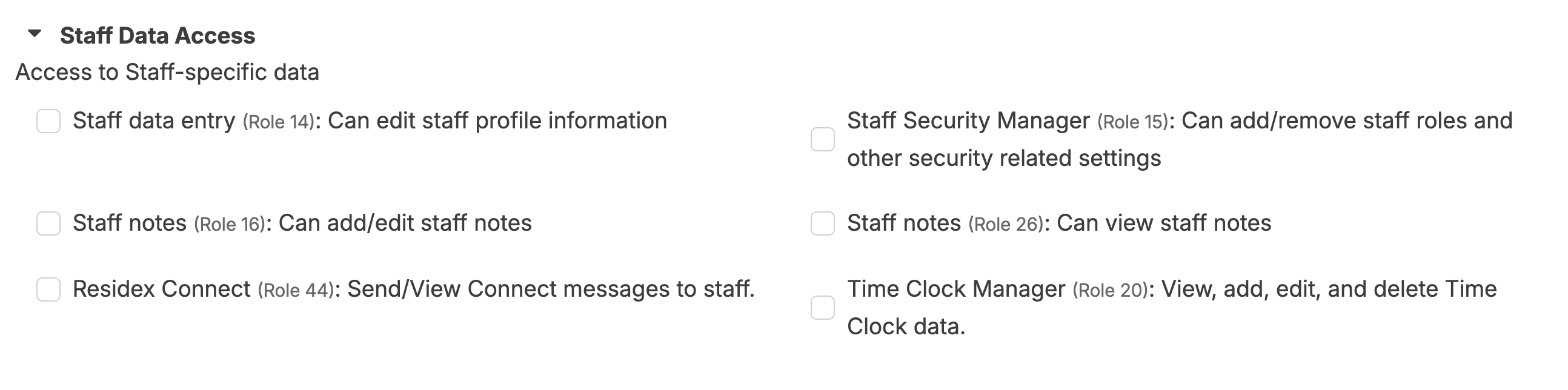
Staff Data Access
Specify what types of staff data a user can view (for other staff members).
Faxing/Files Roles
If your campus has licensed eFax, permission to send and/or receive faxes in Residex can be granted through role assignment. The ability to receive faxes OR files via Residex Send can be granted here as well.

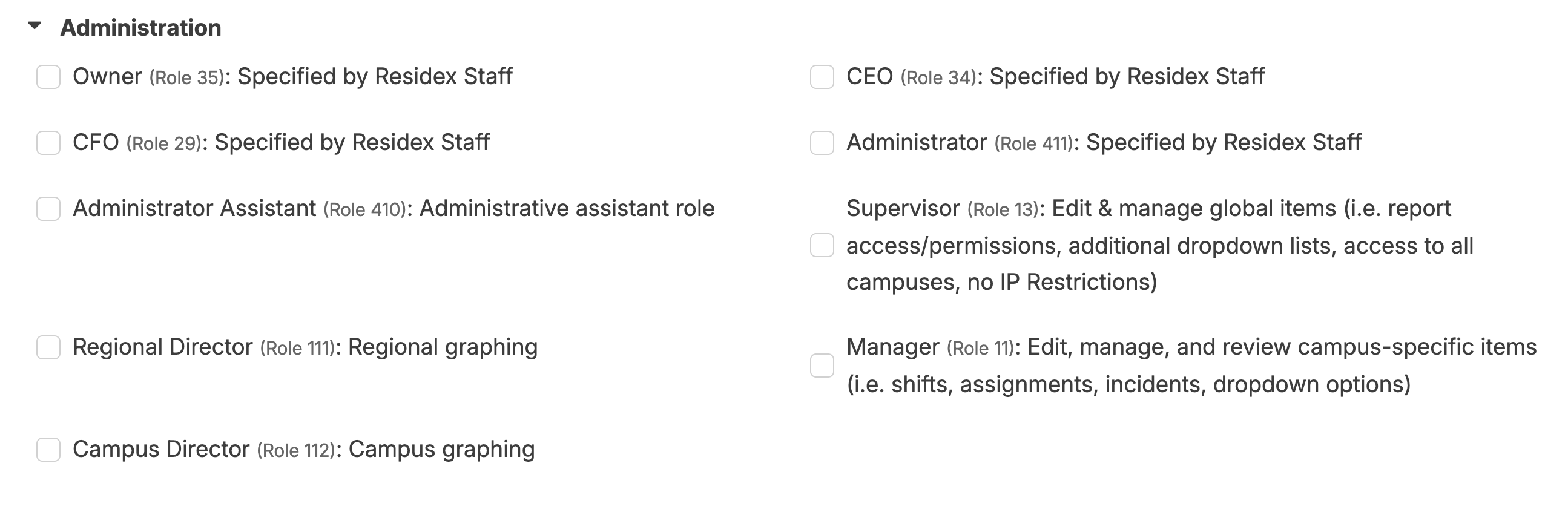
Administration
❗️⚠️ Important: Administrative roles provide extensive system access and must be granted with caution. Only assign these roles to key decision-makers and authorized personnel in your organization."
Other Roles
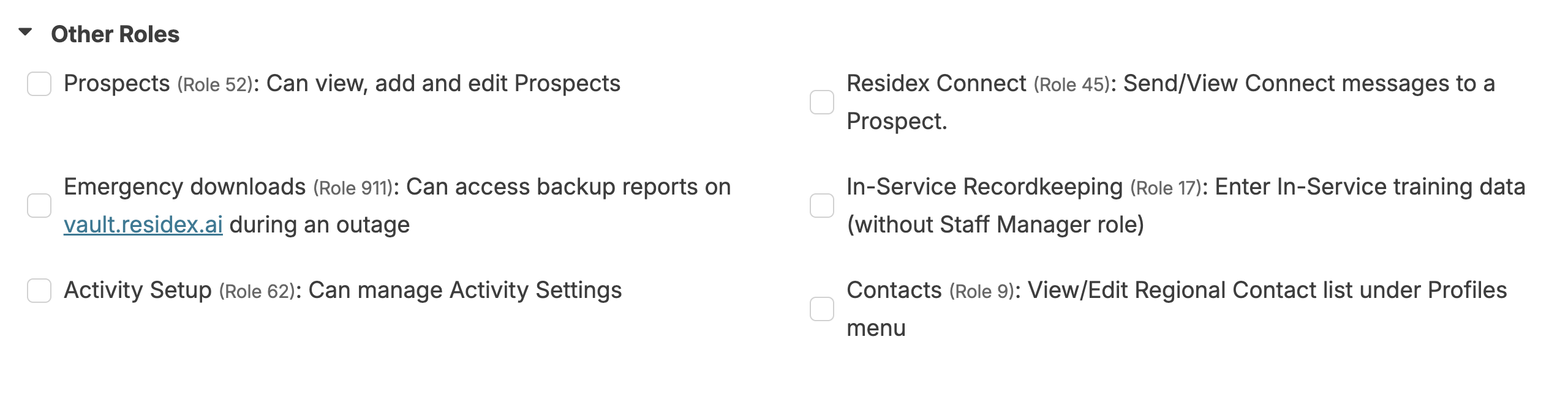
Additional permissions can be granted in the 'Other Roles' section
Keep in mind when granting Staff Roles
Role changes are logged for security
Whenever permissions are added or removed, a record is created, so changes can be traced.
Start small
Limit a user's permissions to the bare minimum needed to do their job, you can always add more later.
Limit access to powerful roles
The following roles control sensitive capabilities and settings and should only be granted to people who have specific responsibility and training: Administrator (Role 411) and Staff Security Manager (Role 15).
Security Details
Provider Types
Provider Types are a hierarchical list of the types of staff within your organization.
They allow you to setup a template of permissions that determine access to some Residex features. Your provider type determines:
- What reports you can view
- What types of work you can chart, and how early/late you can chart
- What dashboard/login report you see when you log in
- What incident types you can enter and view
- What documents you can upload or view
- What alerts you will receive
- Nurse provider types will allow users to:
- Turn on the alerts feature for him/herself
- Strike their own notes
- Create 'provider orders'
- Push out policies to staff from Admin > Policies/Procedures
- Review PRN meds administered, declined medication, meds sent out of facility, out of range vital signs
- Record staff supervision
- Complete incident clinical reviews
- View campus details and update campus information
- View only access for community setup, global services, global medications
- View Pharmacy Connect setup and link residents
- From the Today > Assignments screen 'Done' list, you will see the redo option for a service IF:
- You originally completed the service
- You have the Manager (Role 11) or Supervisor (Role 13) OR are a Nurse provider type
A user's provider type will determine the reach and scope which that provider should have. Provider types are hierarchical, a user can do anything assigned to their provider type or below.
Resident Data Access Roles
Your roles In Residex determine much of what you can see and do in Residex. You can view any staff member's roles by going to Staff > Staff > staff profile > Security.
We typically recommend that nurses are granted all 'Resident Data Access' roles.
There are role templates that can be set up, automatically assigning a set of roles by provider type. Users with Administrator (Role 411) can access and edit these templates by navigating to Admin > Provider Types > and clicking 'edit' to the right of each provider type.
Base Role (Role 0)
- Allows the user view-only access to the resident notes and medications in the resident profile
Data Entry (Role 1)
- Add a new resident
- Import a resident from another campus
- Manage resident resources
- Manage any documents (authorized for your provider type)
- Upload resident photo
Services (Role 2)
- Manage resident service plans
- Manage campus chores
Clinical (Role 19)
- Add new medications to the global medications list
- Manage options for types of resource professionals
- Create or delete assessment snippets
Medications (Role 3)
- Manage resident medications and process Pharmacy Connect
Notes (Role 5)
- Record new resident notes and edit notes you entered (but not notes entered by someone else)
Care Coordination (Role 8)
- Can create and edit appointments/provider contacts
Incidents (Role 6)
- Record an incident/audit if granted permissions under Admin > Incident/Audit Types
Assessments (Role 32)
- Record clinical assessments
Residex Connect (Role 43)
- Send/view Connect messages to client or contact
Staff Data Access
Staff Data Entry (Role 14)
- Manage the list of staff (create and edit staff profiles)
- Perform staff supervision (for users with a nursing provider type)
- Access the staff meetings screen
Staff Security Manager (Role 15)
- Manage staff access (including your own)
- Manage staff roles of staff members other than yourself
- Reset passwords of other staff member if you also have Staff Data Entry (Role 14)
- Manage your own roles if you also have Supervisor (Role 13) - (excluding Base Role (Role 0), Administrator Assistant (Role 410), and Administrator (Role 411)
- Note: Staff Data Entry (Role 14) is required to see this role option
Staff Notes (Role 16)
- Allows the ability to enter/edit notes about staff members other than yourself
- Note: Staff Data Entry (Role 14) is required to see this role option
Time Clock Manager (Role 20)
- Allows the ability to view, add, edit, and delete time clock data
- Note: Staff Data Entry (Role 14) is required to see this role option
Staff Notes (Role 26)
- Allows the ability to view notes about staff members other than yourself
- Staff Data Entry (Role 14) is required to see this role option
Residex Connect (Role 44)
- Send/View Connect messages to staff
Billing/Financial
Billing (Role 4)
- Allows for the billing tab to be visible
- Allows for view-only access of the billing tab
- Allows for the billing notes, billing documents, discounts, and invoice notes tabs to be visible on the fees/payers screen
- Billing Supervisor (Role 23) is required to adjust general invoice notes. Billing (Role 4) only allows a user to adjust individual resident invoice notes
Billing Supervisor (Role 23)
- Gives access to edit campus-specific billing configurations, including general configurations, rent, care packages, supplemental packages, other charges, and GL codes.
Billing Manager (Role 28)
- Gives the ability to edit global and campus-specific billing configurations
Personal Funds (Role 27)
- Allows for personal funds management
Fees and Payers (Role 21)
- Gives access to resident fees/payers screen in order to add and update rent, packages, and payers
Accounts Receivable (Role 22)
- Gives access to Accounts Receivable to be able to enter receipts and apply to accounts, the user also would need Billing (Role 4)
Faxing
Send Faxes (Role 41)
- Allows the ability to send faxes
Receive Fax/Files (Role 42)
- Allows the ability to receive and process faxes
Administration
Owner (Role 35)
- Only Residex staff can grant this role
CEO (Role 34)
- Only Residex staff can grant this role
CFO (Role 29)
- Gives access to the merchant account screen (only Residex staff can grant this role)
Administrator (Role 411)
The Residex Administrator (Role 411) is the most powerful permission that can be granted to a Residex user. This role provides access to sensitive, critical configuration settings and should be restricted to as few users as possible.
Requesting Role 411: To have Role 411 activated for a new user, a current Role 411 holder or the Residex contract signer must submit an email request to support@residex.ai.
A current Role 411 holder or the Residex contract signer emails support@residex.ai to request the role for a specific staff member.
Once the request is received, Residex Support will assign the Residex Administrator (Role 411) course to that staff member in Residex LMS.
Upon course completion, Role 411 is automatically assigned to the user.
This role controls:
- Manage configurations that could affect all campuses in large multi-campus organizations
- Manage/edit community information
- Manage a community-type list
- Request assessment & incident configuration
- Manage the global services list (which impacts billing from Residex)
- Manage the global medications list
- Set up staff role templates
- Manage policies/procedures
- Manage document type options
- Manage incident/audit type options
- Add new resource professionals and organizations
- Deleting/merging resource professionals and organizations
- Gives control of details that affect quality management, regulatory compliance, and the overall performance of the software
- Full control over dashboard/login reports, alerts, QA status configuration
- View reports enabled for provider type in the 'All Campus' category
- Manage report permissions
- Manage resident tag options
- Manage prospect tag options
- Manage task types
- Delete a resident contact completely from the system
- Delete a resident profile completely from the system (only if no services have been charted)
- Request the Administrator (Role 411) for other staff members (only Residex staff can grant this role)
- Add, edit, or delete the reasons a prospective client has been marked 'closed,' 'lost,' or 'not interested'
- Manage units
- Manage note types
- Edit and delete campus memos
- Manage multi-database access
- Manage provider type options
- Manage activity groups
- Manage adjustment types and reasons
- Manage medication sets
- Manage service sets
- Manage hold reason types
Administrator Assistant (Role 410)
Can be granted by users with Administrator (Role 411).
- Manage report permissions
- Manage in-service training mode
- Manage supply lists
- Manage policies
- Manage medication disposal reasons and methods
- Manage care coordination types
- Manage resident profile items (gender, code status, religion, housing type, case manager, diet)
- Add/remove resident tag options
- Manage contact relationship options
- Manage chore types
- Manage units
- Add new resource professionals and organizations
- Deleting/merging resource professionals and organizations
- Manage staff profile lists (schedule types, certification/competencies, vaccination types)
- Manage prospect lists (needs/reasons, current location, lead source type, status reason and category)
- Manage task types
- Manage note types
- Manage multi-database access
- Manage/edit community information
- Manage a community-type list
- Manage medication sets
- Manage service sets
- Edit and delete campus memos
- Manage hold reason types
Supervisor (Role 13)
A very powerful role that enables users to change significant settings in the system.
- View all campuses (in multi-campus organizations)
- Log into Residex from anywhere (IP restrictions do not apply to users with Role 13)
- Manage and edit assignments & shifts for ALL campuses
- Turn on alerts for him/herself
- View campus details and update campus Information for ALL campuses
- Strike resident notes
- Create and edit 'provider orders'
- Manage report permissions (enable reports, disable reports not in use, grant report access by provider type)
- View reports enabled for provider type in the "All Campus" category
- Users with both Staff Security Manager (Role 15) and Supervisor (Role 14) permissions may manage their own permissions, excluding Base (Role 0), Administrator Assistant (Role 410), and Administrator (Role 411), and grant the Supervisor (Role 13) to other staff members
- Push out policies/procedures to staff
- Review incident reports - If staff also has Incidents (Role 6)
- Review PRN & declined medications
- Manage units
- Assign LMS courses (if additional configuration allows)
- View only access to community setup, global services list, and global Medications list
- View Pharmacy Connect setup and link residents
- Edit and delete campus memos
- Manage multi-database access
Manager (Role 11)
- Manage assignments & shifts for a campus
- Manage personal alerts
- View campus details and update campus information
- Review incident reports, if staff also has Incidents (Role 6)
- Review PRN & declined medications
- Create and edit provider orders
- Perform staff supervisions
- Push out policies/procedures to staff
- Assign LMS courses (if additional configuration allows)
- Mark care coordination as reviewed
- View only access to community setup, global services list, global medications list
- View Pharmacy Connect setup and link residents
- Edit and delete campus memos
Regional Director (Role 111)
- Use regional-specific analytics dashboards (for users who supervise multiple homes)
Campus Director (Role 112)
- Use campus-specific analytics dashboards
Other Roles
Prospect (Role 52)
- Gives users the ability to view, add, and edit prospective residents and revert a resident back to prospect
- Add new resources
Residex Connect (Role 45)
- Send/view Connect messages to a prospect
Emergency Downloads (Role 911)
- Gives access to the Residex Vault (<https://vault.residex.ai> to download/print key charting documents for use during or in preparation for an emergency.
- Should be granted to key individuals in your organization; typically nurses, directors, & regional oversight.
In-Service Recordkeeping (Role 17)
- Record in-service training
Activity Setup (Role 62)
- Required for creating activity schedules and managing activity groups
Contacts (Role 9)
- View & manage resident contacts under Residents > Contacts
Charting Restrictions
Medications
- HHA/RA/ULPs may chart a scheduled medication up to 2 hours early or up to 4 hours late; a note is required if a scheduled med is charted more than 1 hour late. A medication scheduled with a simplified time (AM, PM, etc.) may be marked complete any time the same calendar day it was scheduled.
- Users with nursing provider types or the Supervisor (Role 13) may chart a scheduled medication up to 12 hours early or up to 14 days late. A note is required if charting a scheduled med over 2 hours early or over 4 hours late.
- Users with a nursing provider type may add a comment to any medication marked as administered, declined, or missed, which will remove a missed med from being flagged as missed.
PRN / Unscheduled Medications
- A PRN medication may not be charted as having been given at any future time
- HHA/RA/ULPs may not chart a PRN medication as having been given more than 1 hour ago
- Users with a nursing provider type, Supervisor (Role 13), or Manager (Role 11) may chart a PRN up to 3 days late
Services
- Anyone may chart housing services (housekeeping, laundry, etc.) up to 3 days early or up to 14 days late
- HHA/RA/ULPs may chart care services up to 12 hours early or up to 7 days late
- Users with a nursing provider type, Supervisor (Role 13), or Manager (Role 11) may chart care services up to 3 days early or up to 14 days late
Incidents
- HHA/RA/ULPs may record an incident report up to 4 days following the incident
- Users with a nursing provider type, Supervisor (Role 13), or Manager (Role 11) may record an incident report up to 2 weeks late
- The clinical review may be completed within 30 days of the initial incident entry (not based on the reported date of the incident)
Staff Security Review
Login History
The Login History view can help in understanding a staff person's Residex use, verify if Residex is being used appropriately, as well as assist in troubleshooting.
Login history information is available to users with the Staff Data Entry (Role 14).
Viewing Login History
To view a user's Residex login history, go to Staff > Staff > staff profile > Login History
The login history screen gives visibility to:
- Date and time of the login/login attempt
- IP address from which the user logged into/attempted to log into Residex.
Depending on your organization's configuration, different IP addresses may be benign or may demonstrate the user is attempting to access Residex from an inappropriate location/device. - The web browser name & version used at login. This can be helpful in troubleshooting.
- The result of login (successful, or reason unsuccessful). Repeated failed login attempts will eventually show the staff person to be locked out and will require a password reset by the supervisor.
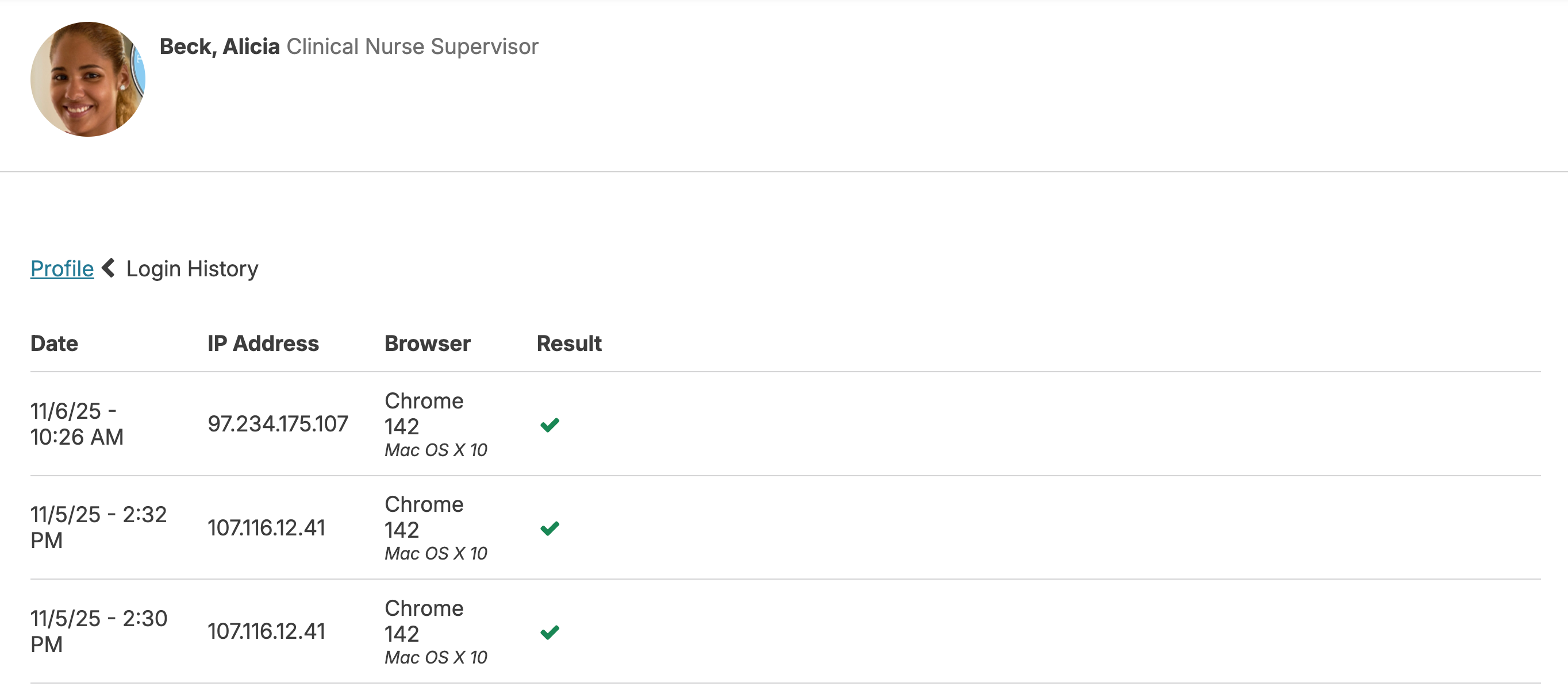
A printable version of this screen is also available from the Reports > Reports
Staff Activity Trail
There are times that an Residex user's documentation and actions within Residex needs to be reviewed, perhaps for performance review or disciplinary purposes. The report staff activity trail can be very helpful in viewing the 'trail' of documentation an employee left in Residex.
In Residex, go to Reports > Reports > search for 'activity trail.'
This report will allow you to review in great detail the Residex activity of a by staff member for a specified date range, specifically:
- Residex login history with IP address user connected from
- Time clock records of clock-ins/clock-outs (if time clock feature is in use)
- Service Plan Changes: What resident services were entered, updated, or discontinued by this user
- Resident Medication Changes: what medications were entered, or discontinued by this user
- Charting: what services and medications were charged by this user
- Resident Notes: what resident notes were entered by this user
- Other Resident Profile Changes: what changes were made by this user to resident diagnoses, resident health professionals, organizations, or health plans?
- Resident Care Status: What changes to care status were made by this user (e.g. did this user put a resident on hold, discharge a resident, etc.?)
- What resident profiles were visited by this user
- What staff profiles were visited by this user
- What reports were viewed by this user
- What staff were added by this user
- What staff roles were added or removed by this user (e.g. did this user grant new permissions to, or revoke permissions from, any other staff members?)
- Staff Notes: What staff notes were recorded by this user
- What staff supervisions were completed by this user?
- What report configurations were changed by this user (dashboard/login reports added or report access permissions changed?)
This is a very wide-ranging, in-depth report. We recommend you start by running it for a short date range to get an idea of the size of the report you can expect.
Review User Permissions
From the Reports > Reports screen, select the category "Staff Roles - Security" - you will then have a library of reports you can run to analyze your security settings and access of your users.
IP Address Restriction
Residex is a web-based application, and as such, it can be accessed anywhere there is access to the internet.
For HIPAA compliance, it's important to restrict access to Residex for some users so they may only access Residex from pre-authorized locations (e.g. the facility). This can be achieved with our IP address restriction controls.
This feature makes it possible to allow some users (such as on-call nurses or administrators) to log in from anywhere, and restrict others (HHAs, CNAs, housekeeping, etc.) so they can only log in from your pre-authorized network.
Please note, this feature requires that you have a static IP address from your internet service provider at whatever locations your restricted staff need to access. Proceeding without having a static IP may prevent staff with IP restrictions from being able to log in.
Staff with the Manager (Role 11) or Supervisor (Role 13) permissions can manage this setting.
Enable IP Address Restriction
- Go to the navigation bar and click on your name icon in the top right corner
- Select Settings from the dropdown menu
- From the section Location Based Controls, select Manage IP addresses
- This screen will display your current IP address and report if it is part of the 'whitelist' or 'approved' IP addresses in use by your database
- Below, it will display a list of all IP Addresses that have been pre-authorized
- Click Add my current location to allow all staff to access Residex through your current IP address, or type in a specific IP address or subnet below and press Add
- Add a note to indicate which campus the IP address is for if needed
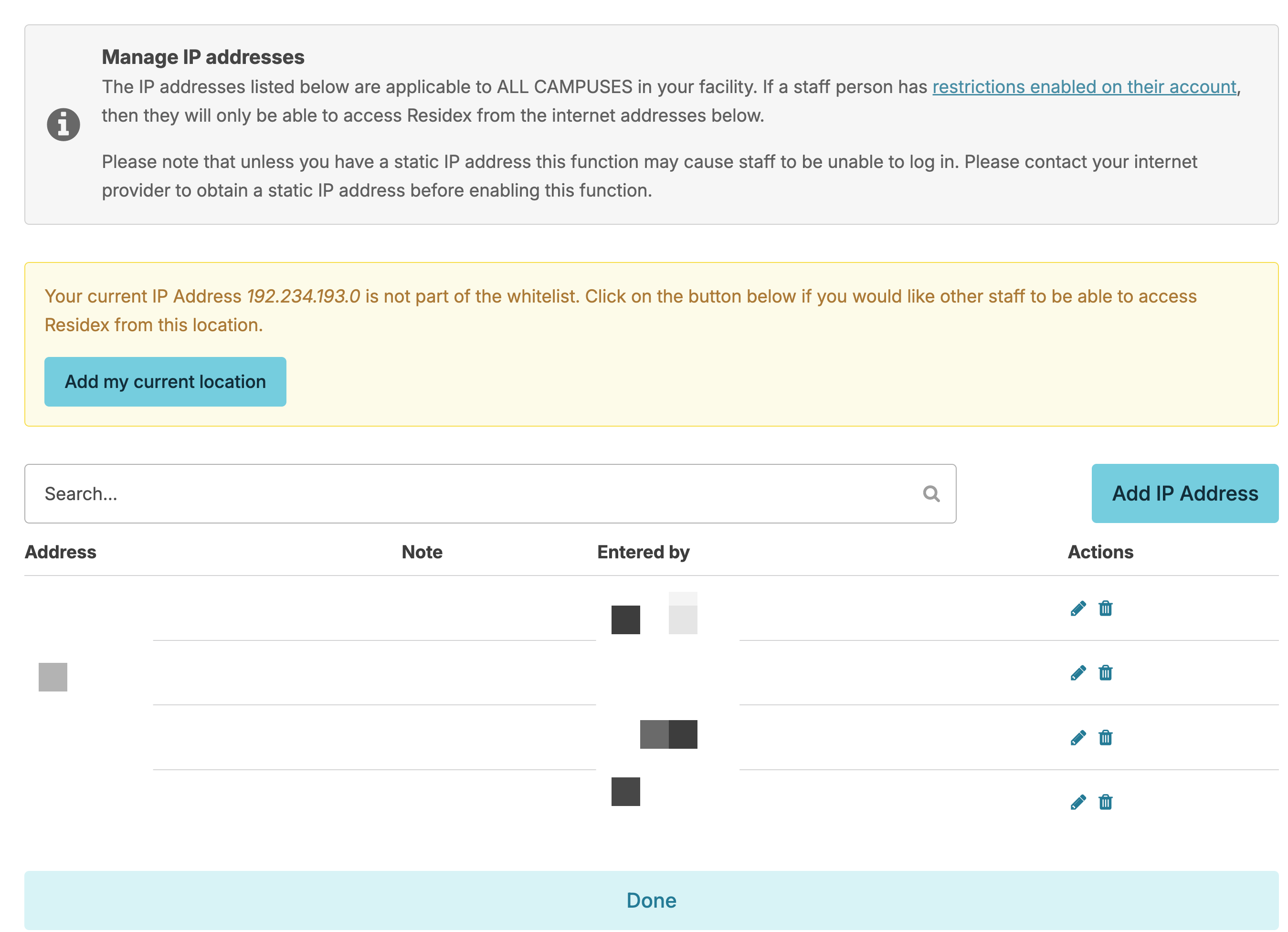
Keep in mind that IP addresses can vary from device to device, so this step may need to be repeated for each device that needs access to Residex.
Enabling IP Address Restriction in Residex for IPv6
1. Click your name icon in the top right corner of the navigation bar.
2. Select Settings from the dropdown menu.
3. Under Location-Based Controls, select Manage IP Addresses.
4. This screen will display your current IP address and indicate whether it is part of your whitelist (approved IP addresses) for your database. DO NOT delete any current IP addresses from this list as your network can/may go back and forth between the OLD IPv4 IP address and the NEW IPv6 IP.
5. Click the " Add My IPv6 Prefix button
6. If you manage multiple locations, once you have added the prefix, you may want to use the blue pencil to edit that address and add a note to indicate which campus and device each IP address is associated with.
One thing to be aware of: IP addresses can sometimes change from an IPv4 format (e.g., 192.168.1.1) to an IPv6 format (a longer string of numbers and letters). If staff were previously able to log in but are suddenly locked out again, this type of change is often the culprit. Simply checking your current IP address again and re-adding it to your whitelist should resolve it.
It's worth noting that IP address changes from IPv4 to IPv6 are not caused by anything on your end or within Residex; they are the result of security updates made by your Internet Service Provider (ISP). As providers continue to modernize their networks, they may automatically transition devices to IPv6 addressing. When this happens, a previously whitelisted IP address may no longer be recognized, which can result in staff being unexpectedly locked out. Simply checking your current IP address and re-adding it to your whitelist will restore access.
Making IP Address Restriction the Default Setting
If you prefer to make restrictions by IP address the default setting when entering all new staff, contact Residex support; we'd be happy to set this up!
Remove an IP Address
The Manage IP Addresses screen will display all previously authorized IP addresses. To remove one of these, press the red Remove button next to any IP address.
Manage Staff Access
From the Setting screen, select Manage staff access
Check or uncheck the Restrict access by IP address checkbox next to each staff members' names as appropriate. Note: if the staff person is a Supervisor (Role 13), they, by default, are unrestricted.
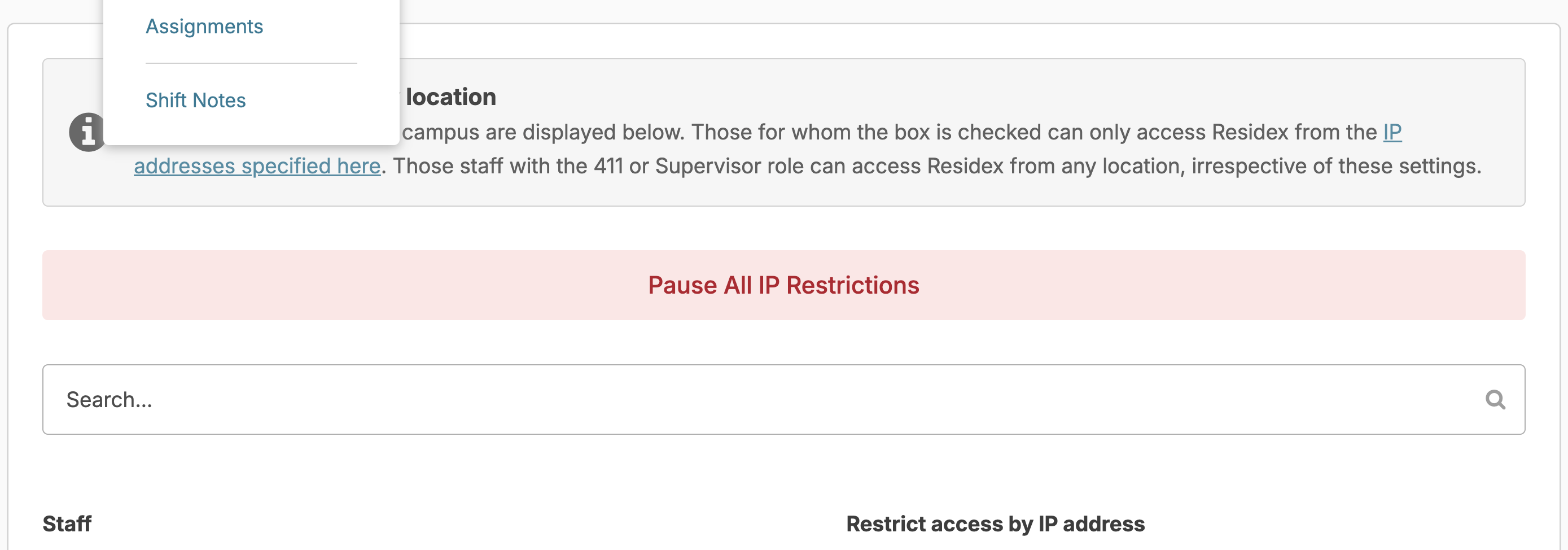
In the event your internet has an outage, you can Pause ALL IP Restrictions for all of your staff so that they can work from a hotspot.
You can also manage each individual user's settings by going to Staff > Staff > staff profile > Security 'Login & Access'.