
Schedule templates are a great tool to use especially for those with rotational schedules, such as a 4 on 2 off or XYZ rotation. Templates are also a good way to save time scheduling in Residex.
Prior to starting, here are a few important things to note:
- The schedule and template are NOT directly connected. Any changes you make on your schedule do not affect the template, and vice versa.
- You can create a template from your existing schedule, or you can start from scratch.
- You can have 1 template per department.
- Templates can range from 1-13 weeks in length.
- Applying your template goes on top of existing shifts. It does not replace existing shifts.
How to create a template:
- Go to the "Weekly by Shift Time" view of the schedule, click on the toolbox icon and click "Create template from schedule" to get started.
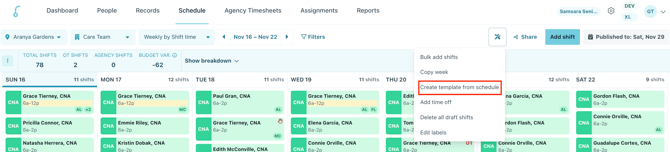
- Next, you will choose to either start with a blank template or create your template from an existing schedule. You will also need to select how many weeks your template will be, and a start date if you create your template based on an existing schedule.
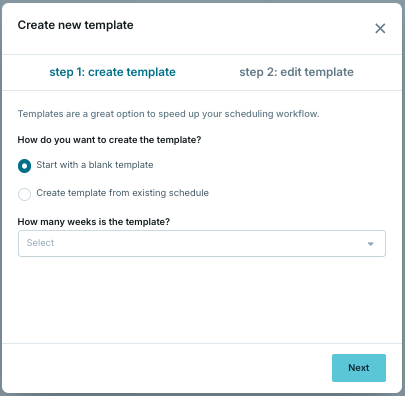
- The length can range from 1-13 weeks. Keep in mind that the next step is to choose the start date from your existing schedule. For example, a 4 on 2 off schedule repeats every 6 weeks.
- For the start day, if your schedule repeats every 2 weeks you will want to select a date where you have at least 2 weeks of a schedule built through.
- Choosing to start with a blank template means you will need to create everything from scratch.
- After making your selections, you will get a summary of what will be created in the template, click "Next"
- Now you will be able to preview and edit your template. You should also double check that all of the weeks in your template are correct and as you’d like them to be. Your template will automatically save as you go, so click "Back to schedule" to exit.
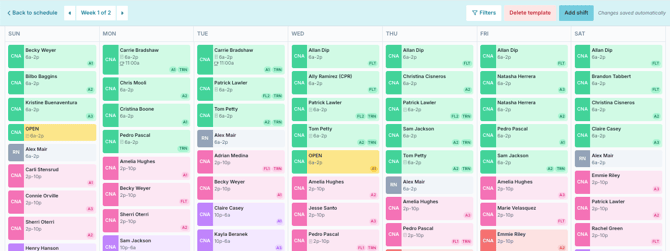
- You've successfully created a schedule template for your department!
Applying your template:
After creating your template you can apply it to your schedule:
- From the schedule click on the toolbox icon, then "Apply template"
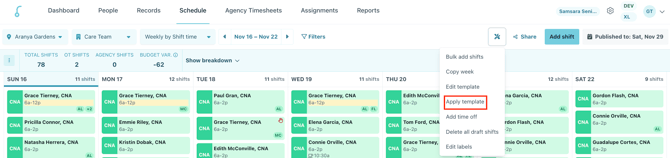
- Choose a start date and how many weeks you want to apply the template for.
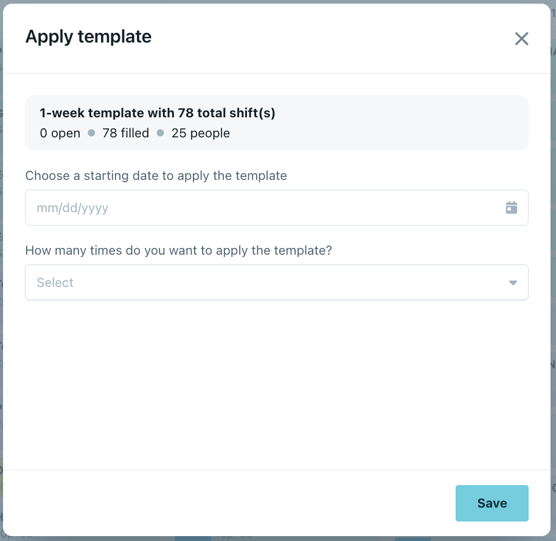
- Please be sure to select a week with no existing shifts, the template will not override what is currently on your schedule. Once you click save, the template will apply to your schedule. It will respect any shift sharing rules and current publish date.
- Click "Save" to apply your template.
Editing your template:
If you need to make edits to an existing template follow these instructions:
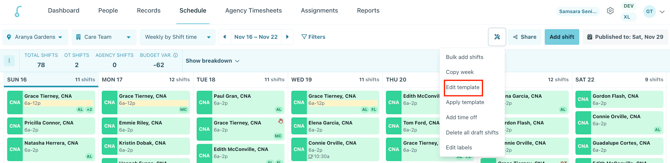
- From the schedule, click the toolbox icon, then "Edit template"
- Click on any shift to make edits.
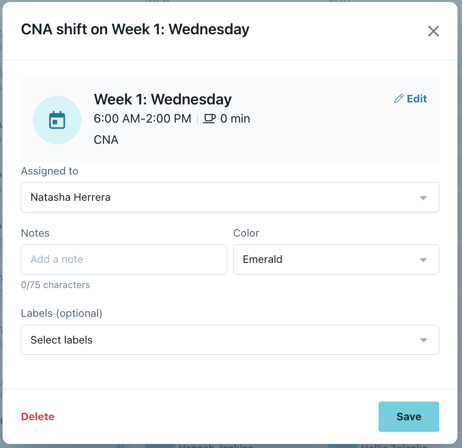
- Click "Add shift" to create shifts for your template.
- You can use the checkboxes to select multiple shifts and perform bulk actions.
- Your template will automatically save as you go, so click "Back to schedule" to exit.
Deleting your template:
Need to create a new template? You can delete your template and start over.
- From the schedule, click the toolbox icon, then "Edit template"
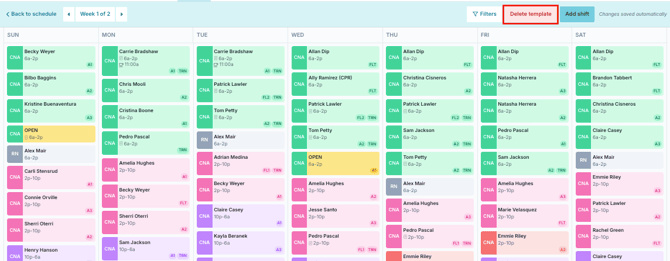
- Click "Delete"
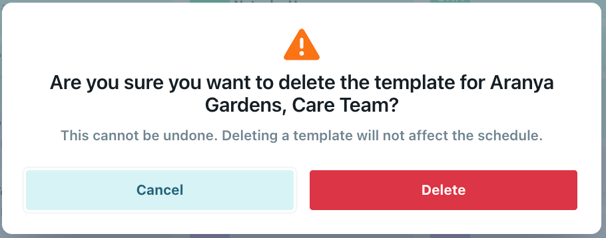
- Confirm by clicking "Delete" again
- Click "Back to schedule" at any time to leave this process.
- Start over by following the instructions to create a template.