Table of Contents
Clocking In and Out
- When staff log in, they are presented with a clock in screen.
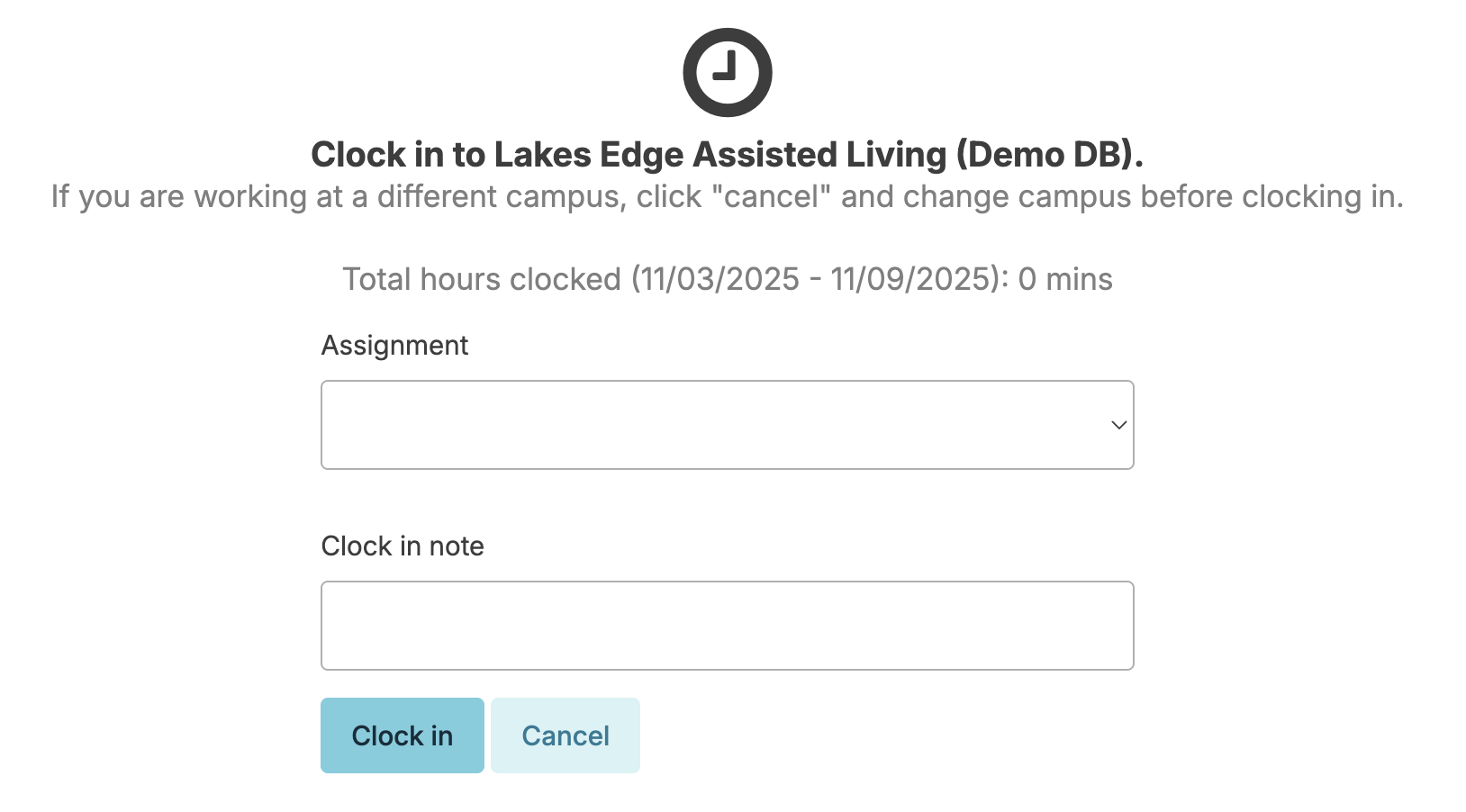
- Staff choose their assignment, add an optional clock-in note, then select Clock in
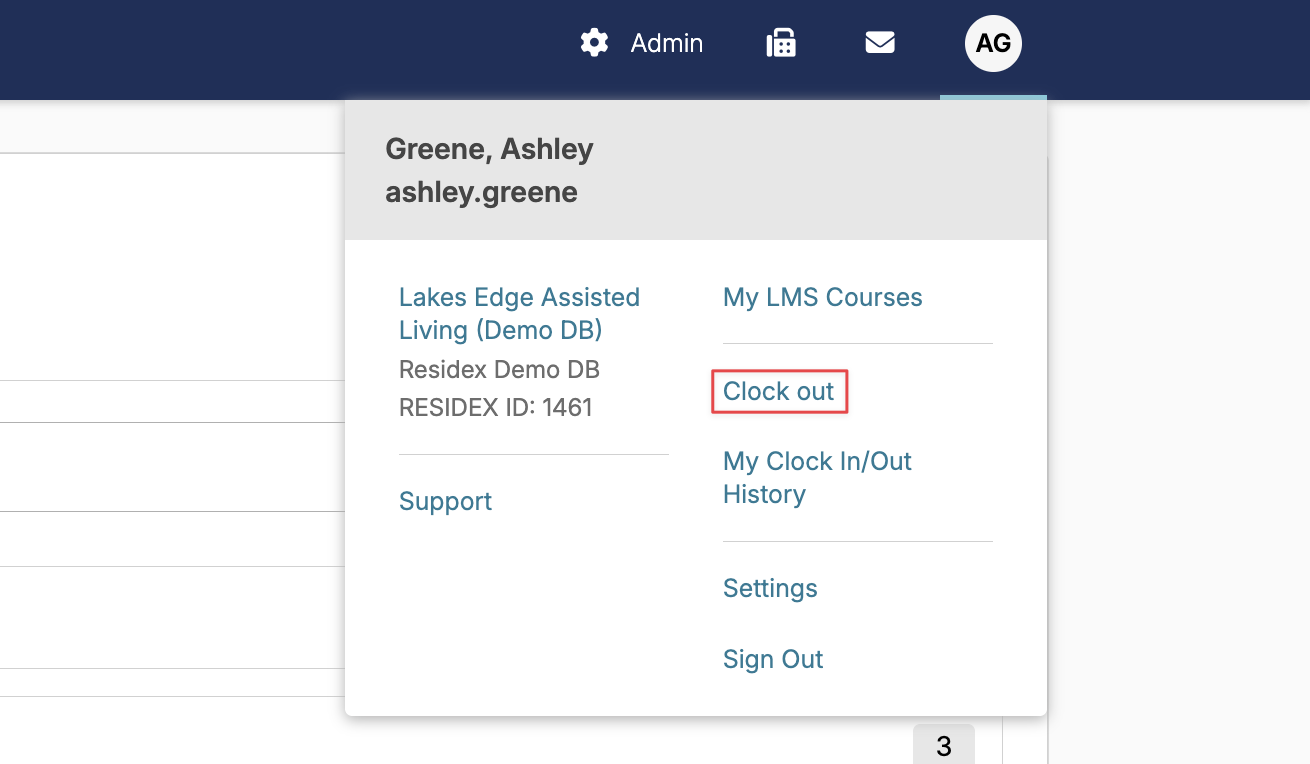
- To end their shift, staff click their name icon (upper right corner) and select Clock out
Viewing Time Clock History
- Staff can view their own time clock history by navigating to their name icon in the upper right hand corner > My Clock In/Out History. This is a view-only screen.
- Users with Time Clock Manager (Role 20) or Administrator (Role 411) can manage time clock history by navigating to Staff > Edit Staff Clock In/Out History
Edit Staff Clock In/Out History
This screen will show you a history of all time clock records within a specified date range. You can further filter this list by your preferred date range or search for specific individuals.
Each record in the history represents one complete block of time worked for one person, from their clock in through their clock out.
Click Edit next to any time clock record to change any details about it, including:
- Clock in date/time
- Clock out date/time
- Provider worked
- Shift differential
- Clock in/clock out notes
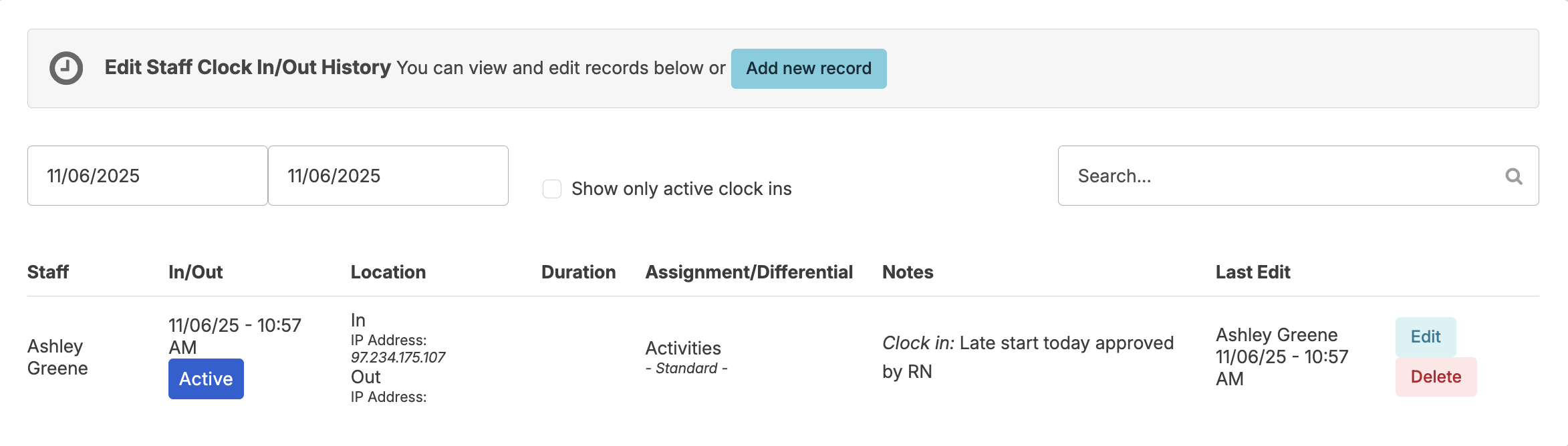
You may permanently delete any time clock record by pressing the Delete button for that record and confirming. Note: This is not reversible.
Add a new Time Clock Record
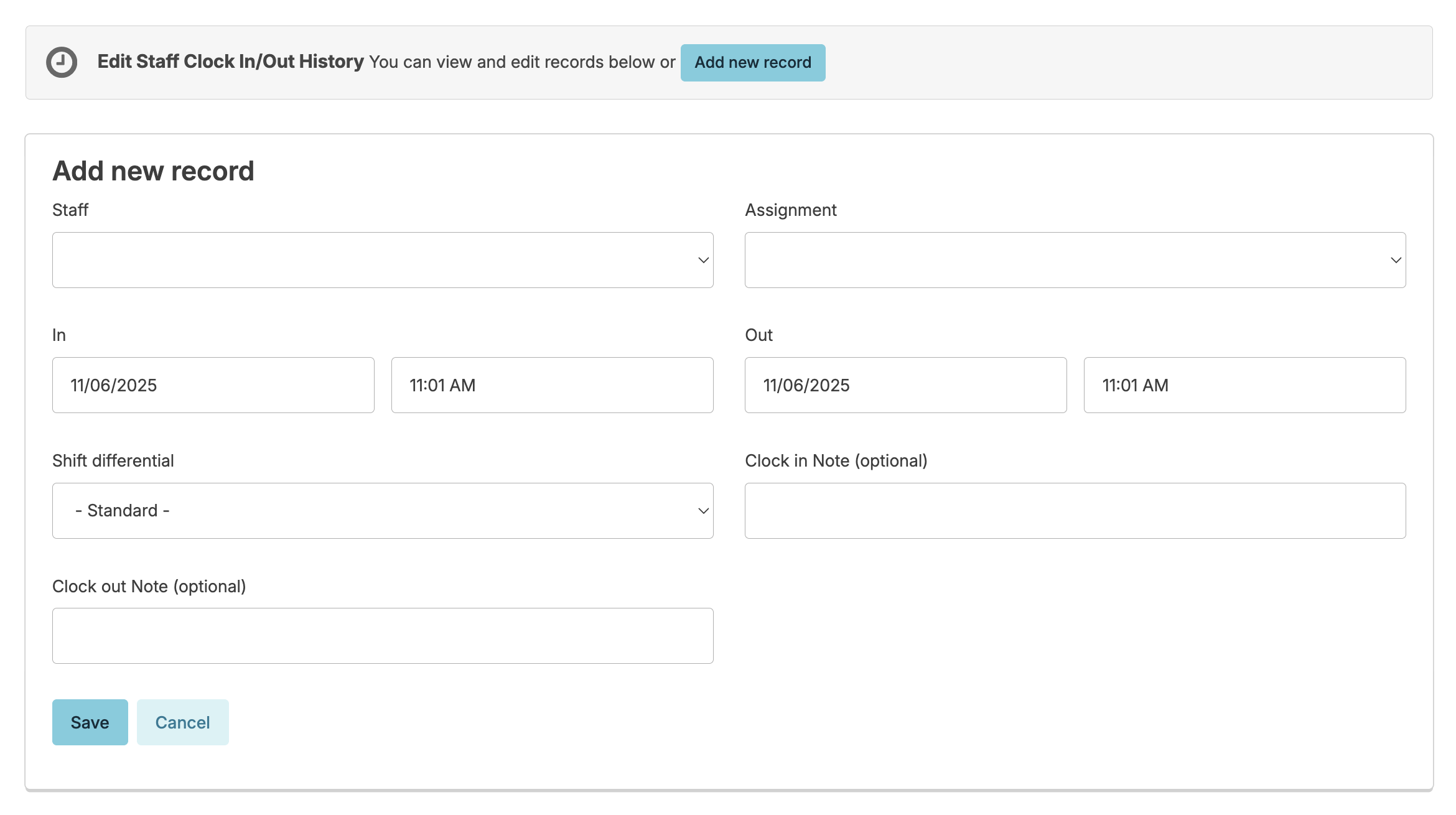
If a staff member did not clock in/out at all, you can create a record of a shift worked on their behalf.
- Click Add new record at the top of the time clock history screen
- Fill in the required details for the record and Save
Manage Holidays
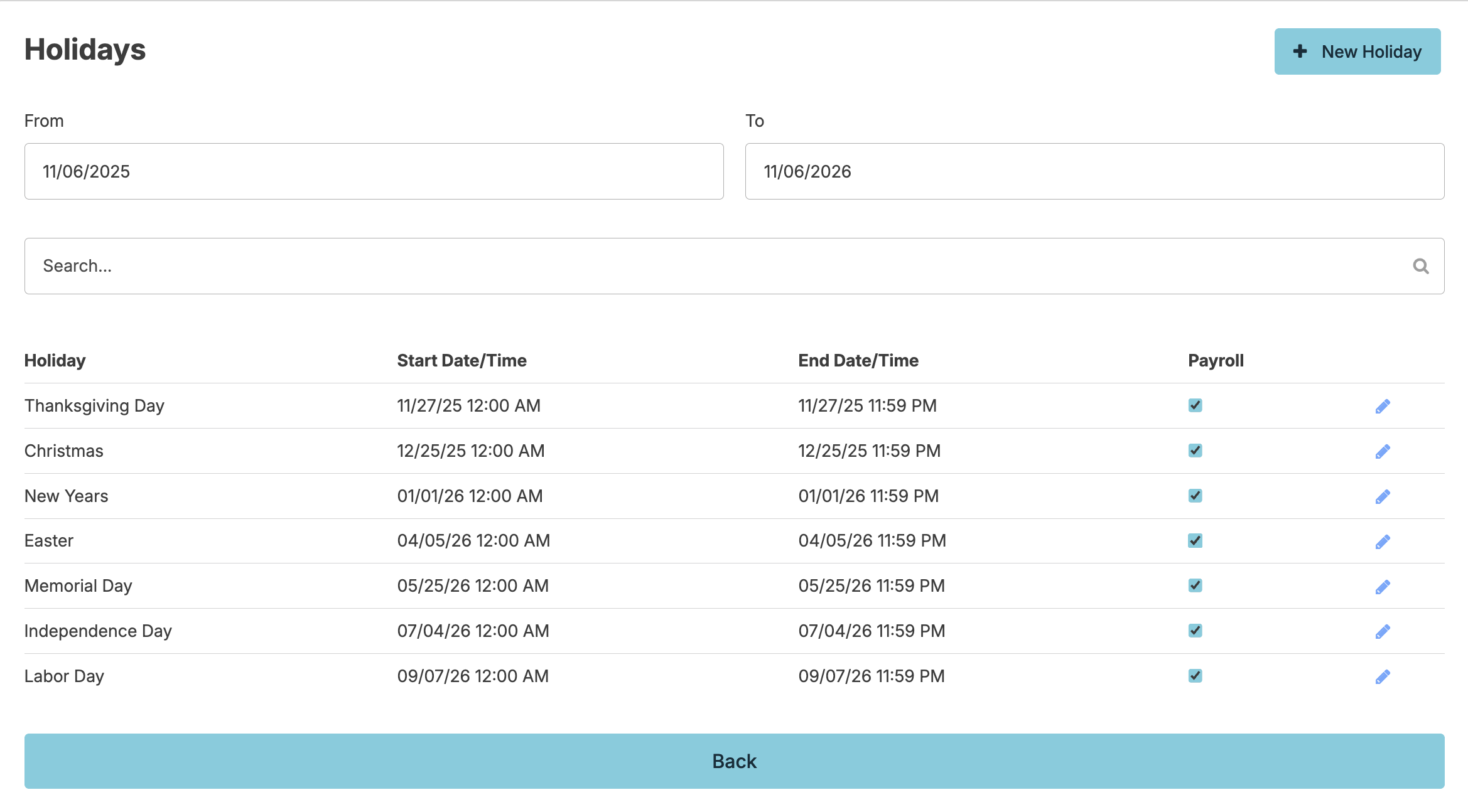
Holidays can be managed by navigating to Admin > Holidays. Here you will be able to edit the holiday name, start date, end date, start time, and end time. You can also indicate whether that holiday is counted in your payroll. If there are other holidays that you would like to add to your list, this can be done by clicking the + New Holiday button, entering the holiday details, and clicking save.
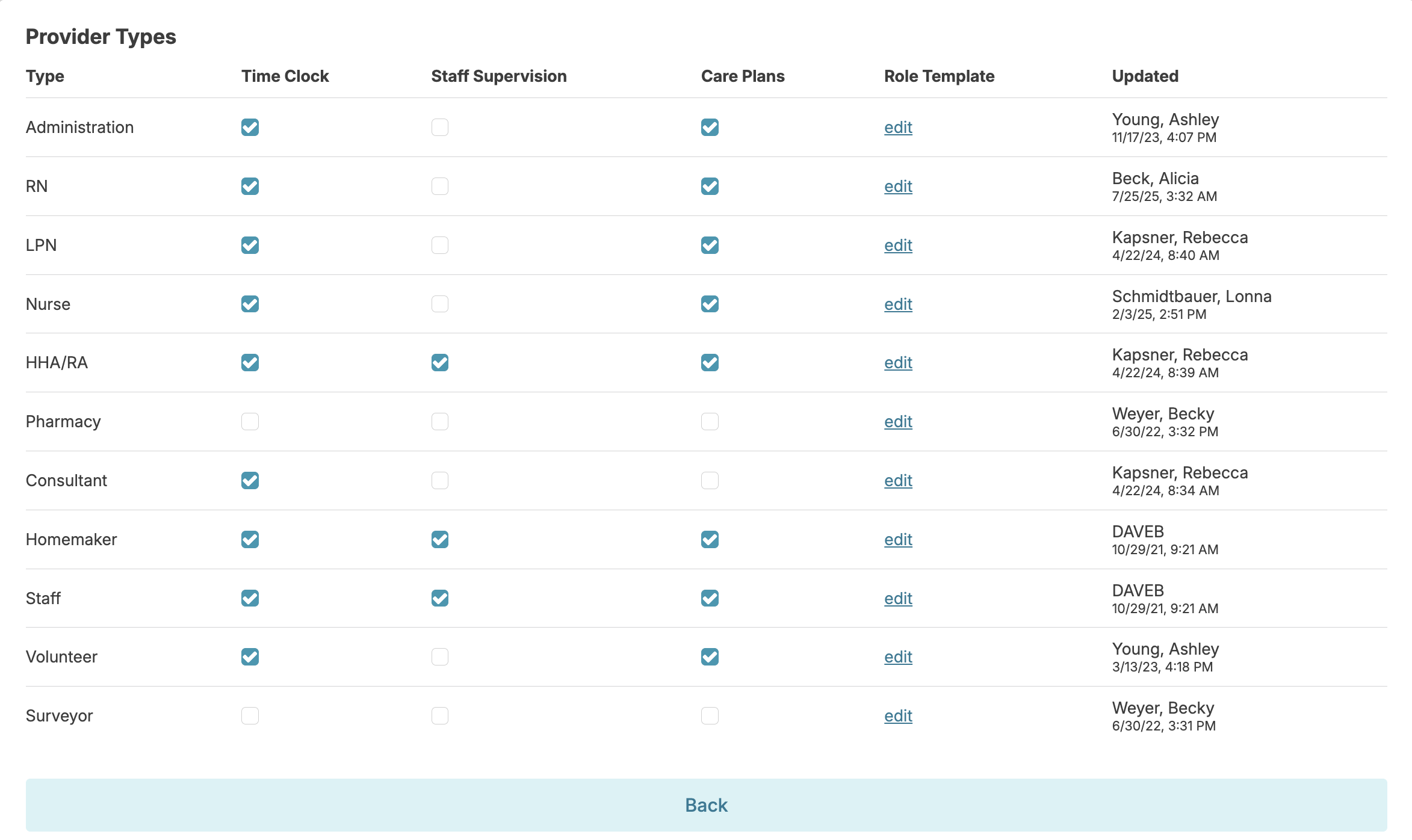
Manage Time Clock Use by Provider Type
Salaried staff may not be required to clock in/out. Users with the Administrator (Role 411) can manage which provider types will clock in by navigating to the Admin > Provider Types screen and checking the appropriate boxes next to each provider type under Time Colck.