Table of Contents:
- Overview
- What is changing
- How to complete the login update
- Frequently Asked Questions
- Troubleshooting
Overview
As part of our ongoing security enhancements, on July 28th, 2026, Residex is upgrading to a new sign-in system and a new URL: app.ehr.residex.ai. This change is happening because the current platform runs on a development platform that has reached end of life. The update moves Residex to a modern, secure identity platform (Auth0) and a current technical foundation.
What is changing
Your current username and password will continue to work, and there is nothing you need to do ahead of time. Accounts are updated automatically the first time you log in at the new URL.
Here is what to expect:
- Your existing login (username or email, and password) continues to work as it does today.
- The first time you log in to the new URL, your account is automatically connected to the updated identity system.
- If your existing password meets the updated security requirements, you will not see an extra step.
- If your password does not meet updated security requirements, you will be asked to update it at first login.
- The new standard is at least 8 characters, using at least 3 of: (lowercase, uppercase, numbers, and special characters).
- If you use a bookmark, saved link, or home screen icon to reach Residex, update it to the new URL once you confirm it works.
- Set your Residex PIN
- Starting August 11th, 2026, the old URL (app.residex.ai) will automatically redirect to: app.ehr.residex.ai.
How to Complete the Login Update
- Navigate to app.ehr.residex.ai.
- Enter your current username. Click Next.
- Enter your current password. Click Sign In.
- If your password already meets the new security requirements, then you will be signed in to Residex. If it does not, then you will be directed to update your password before continuing.
- The next time you sign-in using the new URL, you will enter your username and click Next.
- You will then be directed to an updated sign-in screen with a white background. This is our updated sign-in system, enter your password to sign in.
- Once you have signed in successfully, bookmark app.ehr.residex.ai for future use. How to Add a Residex Shortcut
Email Address logins vs Non-Email logins
We strongly recommend using a verified email address for your username when logging into Residex. However, we continue to retain the option of using usernames, instead of email addresses, as the preferred log in method.
We recommend email-based logins going forward because they support:
- Self-service password resets without administrator assistance.
- Support Single-Sign-On (SSO), which your organization may support and require an email, or other identifier, that matches your identity provider.
This is a recommendation, not a requirement.
New staff members can now be configured with either login identifier on a per-account basis.
What Administrators Should Know
- Ensure fiirewall/network settings allow *.residex.ai
-
Login identifier (username or email) can now be configured per account. This is different from today, where login identifier is set for a customer’s entire database.
- Password resets are dependent on login type.
- Email-based accounts can reset their own password using an emailed link.
- Username-based accounts require an administrator to reset the password.
- Multi-factor authentication (MFA / 2FA) is not changing as part of this release.
A Note on the Technical Update
The new application at app.ehr.residex.ai runs on an enhanced technical architecture to deliver improved performance, scalability, and security support going forward.
Frequently Asked Questions
Do I log in with my username or my email? Whichever you already use. Nothing changes for existing users, unless your password needs to be updated to meet new security requirements.
Why did I have to log in twice? This affects users who have both a Residex EHR and a Workforce account which use the same email address. The first login links the two accounts. After that, you will use your Workforce password and only need to log in once.
I forgot my password. If you have an email-based login, use the emailed reset link to reset it yourself. If you have a username-based login, contact your administrator to reset it.
What about my Witness PIN (for controlled medications)? Your PIN will be set to your old Residex password. You can update it anytime by navigating to Your Initials > Settings > Set Residex PIN. This PIN is used to sign off as a witness on controlled medication counts. Set Residex PIN
What about vault.residex.ai and connect.residex.ai? These are not affected by this migration. They continue to use your old Residex password to sign in.
Does MFA/2FA still work? Yes. The existing MFA solution is not changing as part of this release.
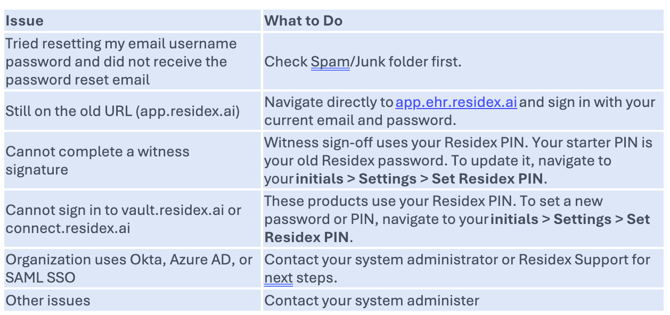
Troubleshooting