
Residex learning management system includes a series of videos and support documents that can be assigned to staff on the Residex Today > Assignments screen. Videos are broken into short segments that are easily viewed. Questions asked after viewing the video are designed to highlight key points; incorrect answers simply re-explain and guide the staff person to the correct answer. Reports are available showing staff trainings completed and those assigned but not yet completed.
Table of Contents:
- Manage/Assign Courses
- Delete Courses
- Completing the Assignment
- My Courses
- LMS Reports
- Residex LMS Auto Assign
Manage Courses
Users with Manager (Role 11) or Supervisor (Role 13) are able to click on a desired course to view staff to whom the course has been assigned, whether they have completed the course, and the date/time the course was completed. Alternatively, we can limit the management of course assignments to users with Staff Security Manager (Role 15).
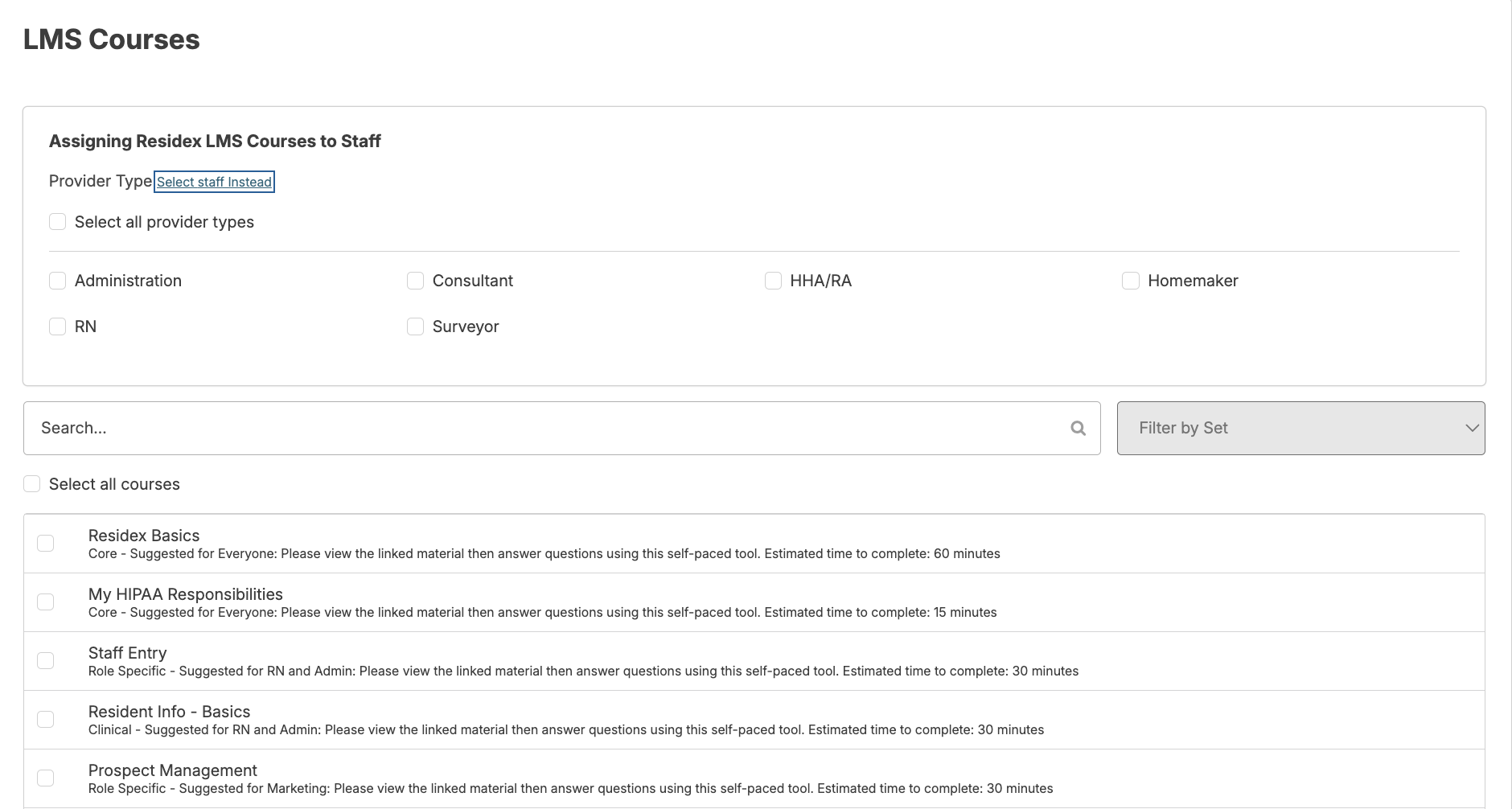
One or multiple courses can be assigned to one or more staff by navigating to Staff > Assign LMS Courses. Click on the course(s) that you wish to assign > select staff by name or provider type > click Save.
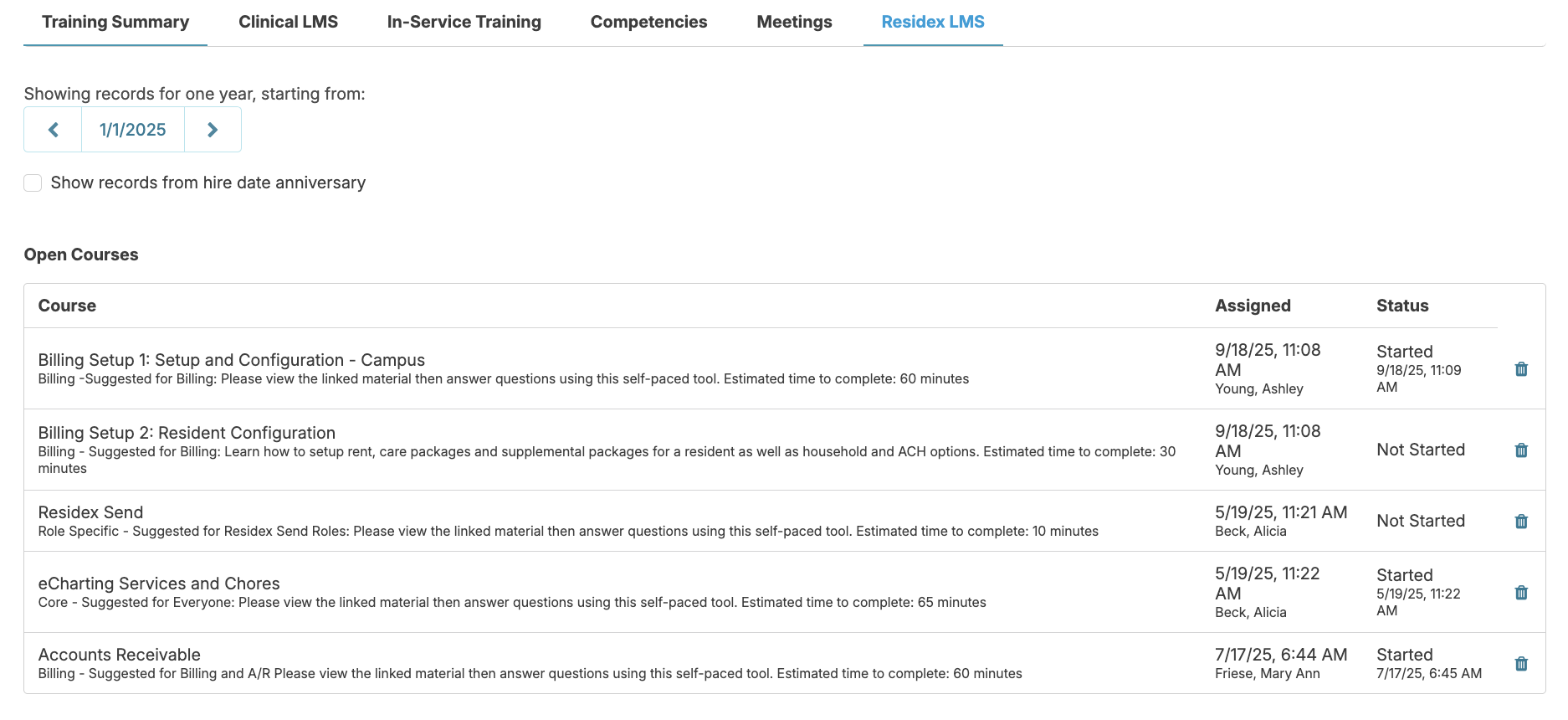
You can delete courses assigned in error by navigating to Staff > Staff > staff profile > Training > select the Residex LMS tab > scroll to 'Open Courses' > click the blue trash can to the right of the course you wish to delete.
Completing the Assignment
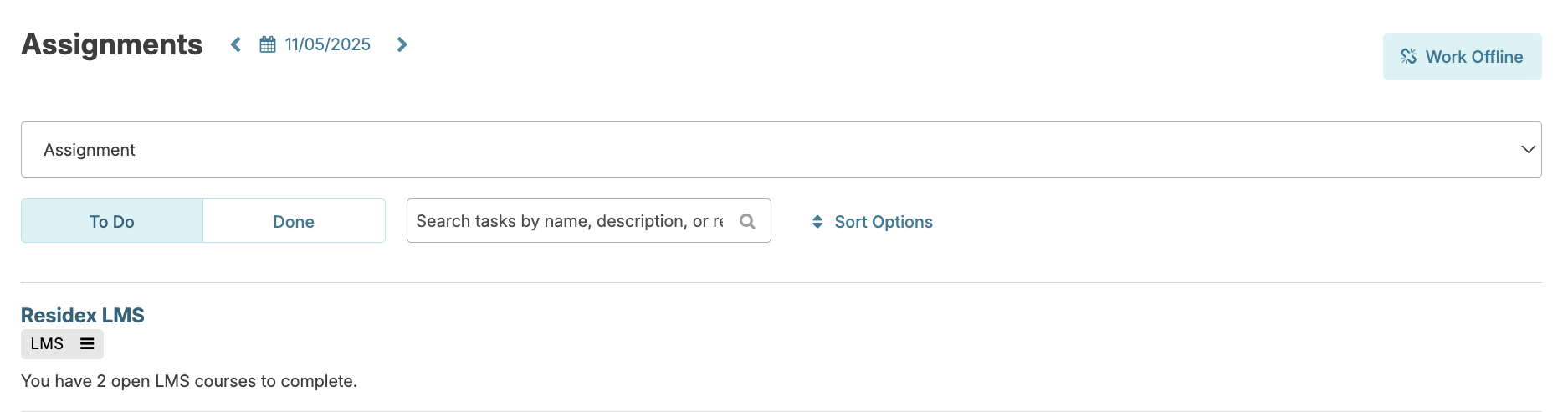
The assigned courses will appear as an item on the staff person’s Today > Assignments screen notifying them of how many courses are left to complete, and will remain there until all assigned courses have been completed.
The staff person clicks to select the course and to view the assignments. Training materials may include videos and/or documents to read.
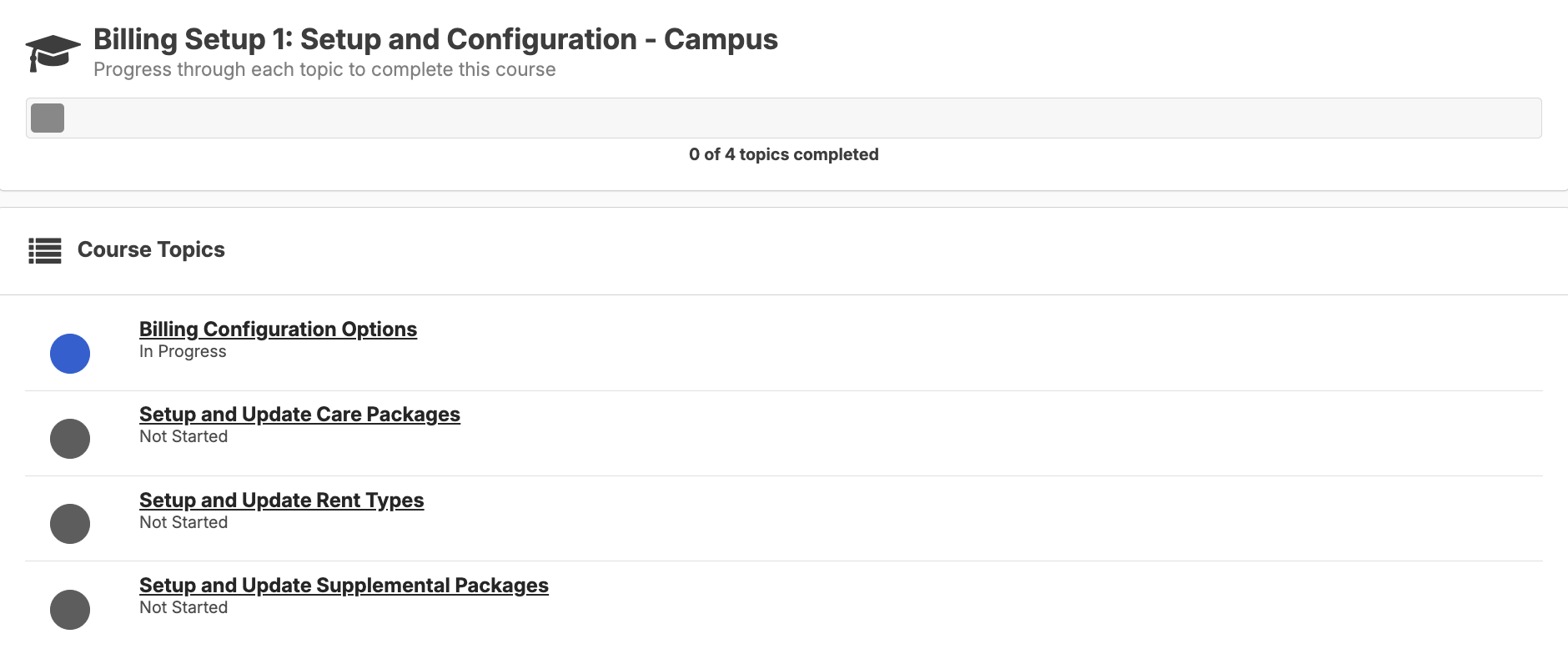
Click on a topic to view the video or view the support document. Once you've viewed or read the material, close the screen and answer the assigned questions. The questions are user-friendly; Residex provides learning objectives related to the question whether the answer was correct or not. At the end, we invite feedback regarding the video or questions. Click the Complete button; you can continue on to the next topic when ready.
My Courses
All users can navigate to their name icon in the upper right hand corner > My LMS Courses to view the courses they've been assigned, see those they have completed, and even reassign a course to themselves by clicking the Redo button.

LMS Reports
You can go to Reports > Reports and locate the category LMS: Residex LMS to access various reports showing which staff completed specific training or track staff progress on assignments such as 'LMS Results Overview.'
Automated Onboarding Training - Residex LMS Auto Assign
Control which courses are automatically assigned to staff based on their provider type or the role assigned to them, so the right training reaches the right people without manual assignment.
Auto Assign is managed by staff with the Administrator (Role 411).
⚠️ This is a global change
Any update you make in Manage Residex LMS Auto Assign applies to all campuses in the database, not just one. Confirm the change is intended for every campus before you save.
How Auto Assign Works
Manage Residex LMS Auto Assign lets you decide which courses are assigned automatically to staff. You can set courses up in two ways:
- By Provider Type: staff with that provider type are assigned the course.
- By Role: staff who have that role assigned to them are assigned the course.
Each provider type or role is set up separately. Adding a course to one does not add it to any other.
Where to Find It
Admin → Manage Residex LMS Auto Assign
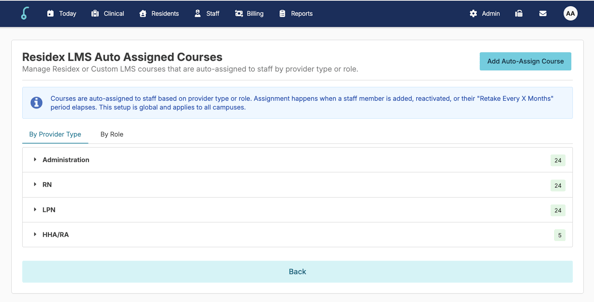
Add a Course to a Provider Type
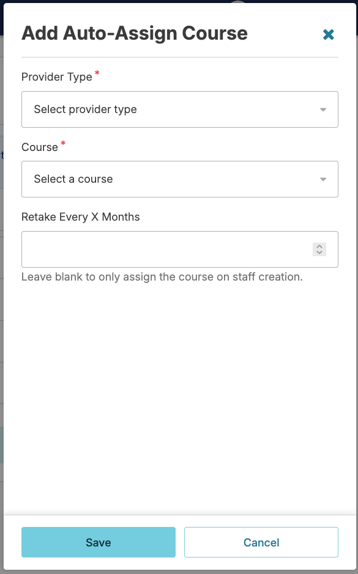
- Go to Admin → Manage Residex LMS Auto Assign.
- Select the By Provider Type tab.
- Click Add Auto Assign Course.
- Select the provider type you want to add the course to.
- Choose the course.
- Enter how many months out you want staff to take the course again. Leave this blank if staff should only take the course once, when their profile is added.
- Click Save.
- Repeat for each additional course.
- Repeat for each provider type that needs the course, since each one is set up separately.
Add a Course to a Role
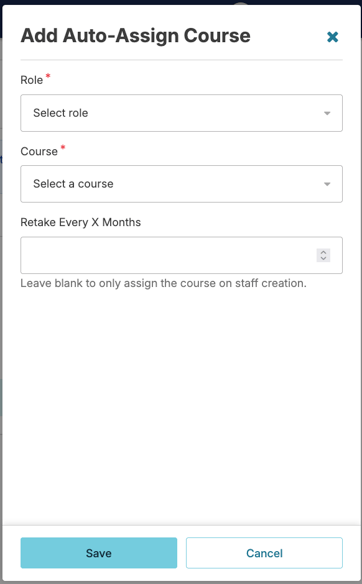
Setting up courses by role uses the same steps as a provider type. The only difference is the tab: select By Role instead of By Provider Type, then select the role wherever the steps say to select a provider type.
Example
To assign the Supervisor (Role 13) course to anyone who has that role, open the By Role tab, follow the add steps above, and select Supervisor (Role 13) as the role. Every staff member assigned that role will then be auto-assigned the course.
Remove a Course from a Provider Type or Role
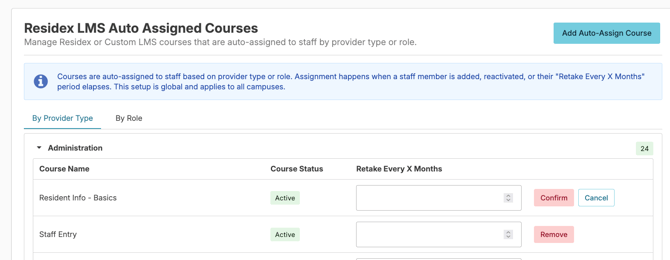
- Go to Admin → Manage Residex LMS Auto Assign.
- Select the By Provider Type or By Role tab, depending on where the course was set up.
- Choose the provider type or role you want to remove a course from.
- Find the course.
- Click Remove.
- Click Confirm.
Check Your Setup With a Report
After you add or remove a course, use the Residex LMS - Auto Assign - By Provider Type report to confirm your setup looks the way you expect. It is a good habit to run it after any change, and any time you want to review which courses are set up for each provider type.
- Run the Residex LMS - Auto Assign - By Provider Type report.
- Review the results for each provider type. Confirm the right courses are listed, and that no course is missing or listed by mistake.
- Correct anything that looks wrong using the add or remove steps above, then run the report again to confirm.
This report covers courses set up By Provider Type. Courses set up on the By Role tab are reviewed on that tab in Manage Residex LMS Auto Assign.
Troubleshooting
| What you see | What to do |
|---|---|
| A course is assigned to one provider type or role but not another | Each provider type and each role is set up separately. Repeat the add steps for every provider type or role that needs the course. |
| I cannot find the course I set up | Check that you are on the correct tab. Courses added under By Provider Type do not appear under By Role, and the reverse is also true. |
| Staff are not being asked to take a course again | Open the course under its provider type or role and check the repeat setting. If the months field was left blank, staff take the course only once, when their profile is added. |
| A change showed up at campuses I did not intend | Auto Assign changes are global and apply to all campuses in the database. Review the setting, then remove or correct the course as needed. |
| I am not sure my setup is correct | Run the Residex LMS - Auto Assign - By Provider Type report and review the courses listed for each provider type. Make any corrections, then run the report again. |
| I do not see Manage Residex LMS Auto Assign under Admin | Auto Assign is managed by staff with the Administrator (Role 411). Ask your Residex administrator to review your roles, or contact Residex Support. |