
Residex learning management system includes a series of videos and support documents that can be assigned to staff on the Residex Today > Assignments screen. Videos are broken into short segments that are easily viewed. Questions asked after viewing the video are designed to highlight key points; incorrect answers simply re-explain and guide the staff person to the correct answer. Reports are available showing staff trainings completed and those assigned but not yet completed.
Manage Courses
Users with Manager (Role 11) or Supervisor (Role 13) are able to click on a desired course to view staff to whom the course has been assigned, whether they have completed the course, and the date/time the course was completed. Alternatively, we can limit the management of course assignments to users with Staff Security Manager (Role 15).
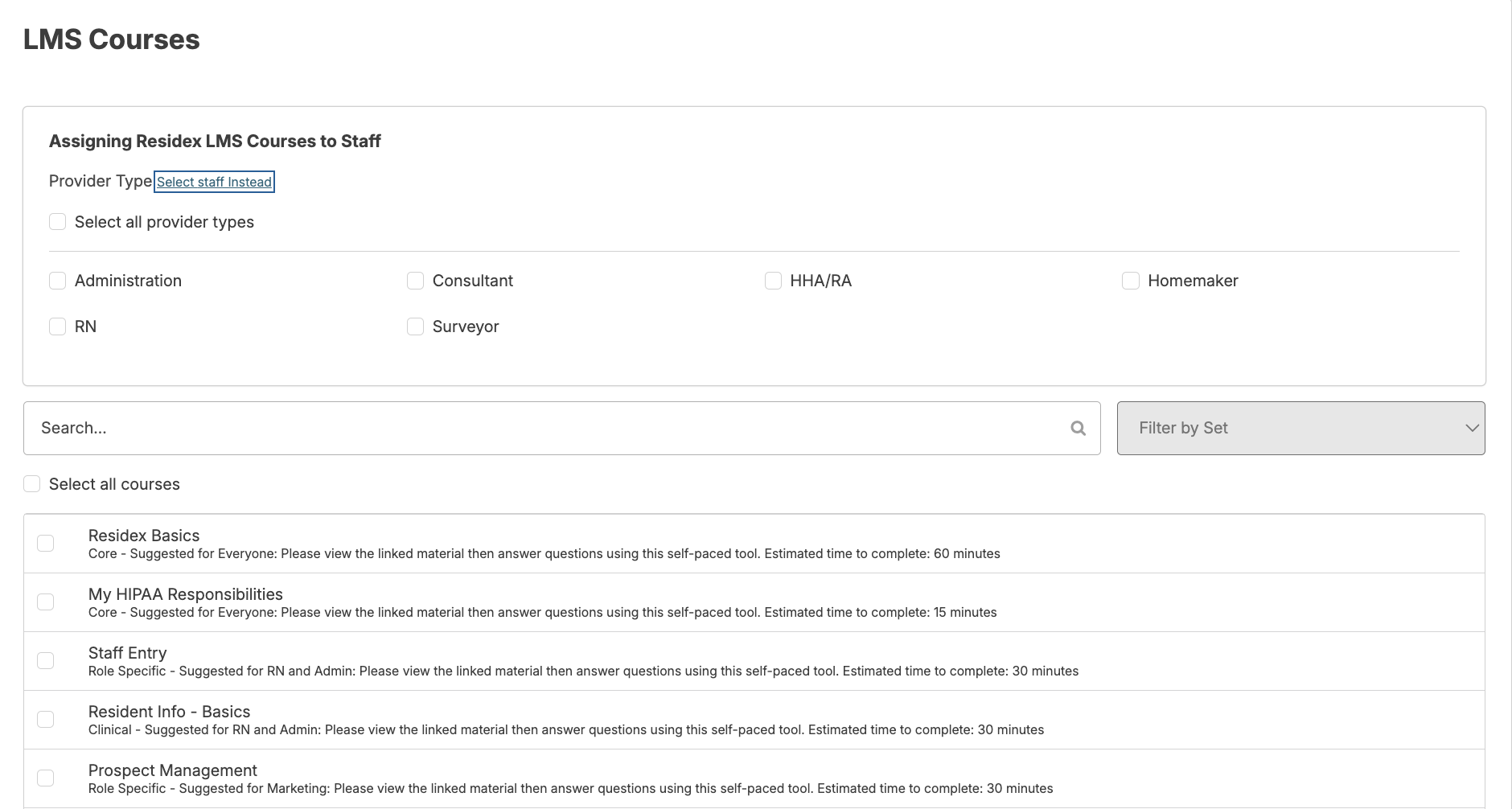
One or multiple courses can be assigned to one or more staff by navigating to Staff > Assign LMS Courses. Click on the course(s) that you wish to assign > select staff by name or provider type > click Save.
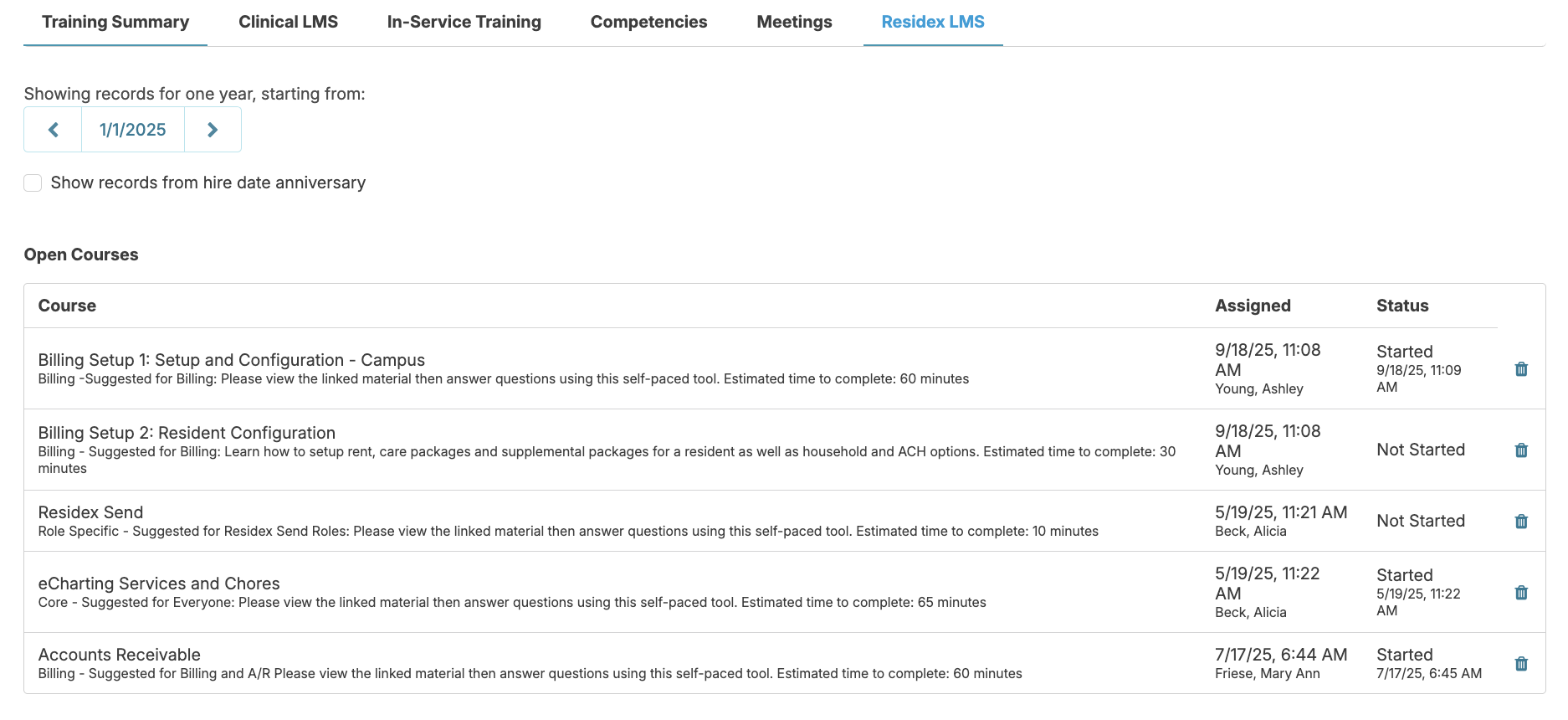
You can delete courses assigned in error by navigating to Staff > Staff > staff profile > Training > select the Residex LMS tab > scroll to 'Open Courses' > click the blue trash can to the right of the course you wish to delete.
Completing the Assignment
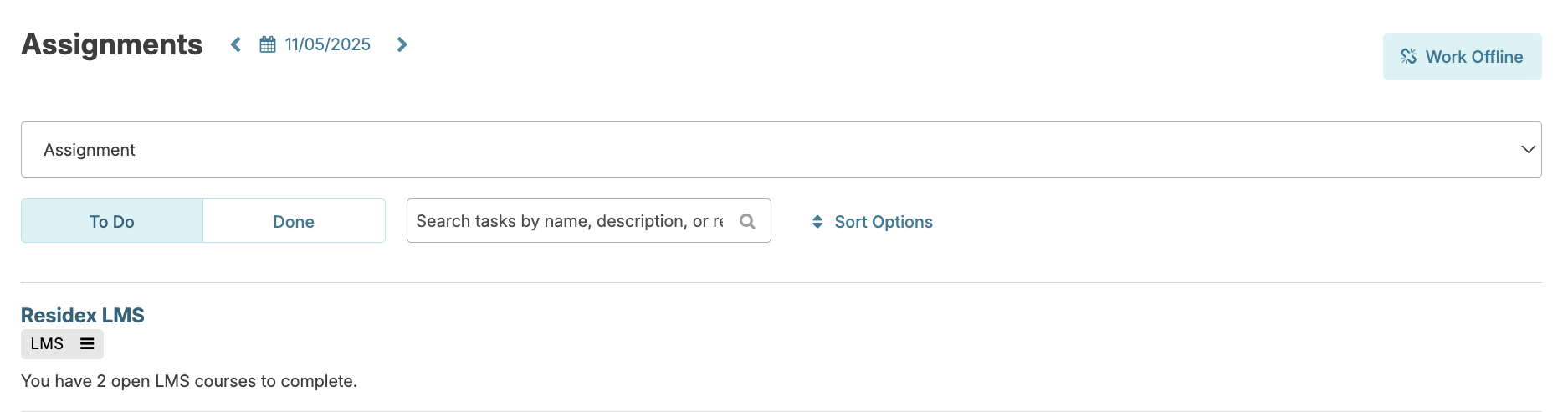
The assigned courses will appear as an item on the staff person’s Today > Assignments screen notifying them of how many courses are left to complete, and will remain there until all assigned courses have been completed.
The staff person clicks to select the course and to view the assignments. Training materials may include videos and/or documents to read.
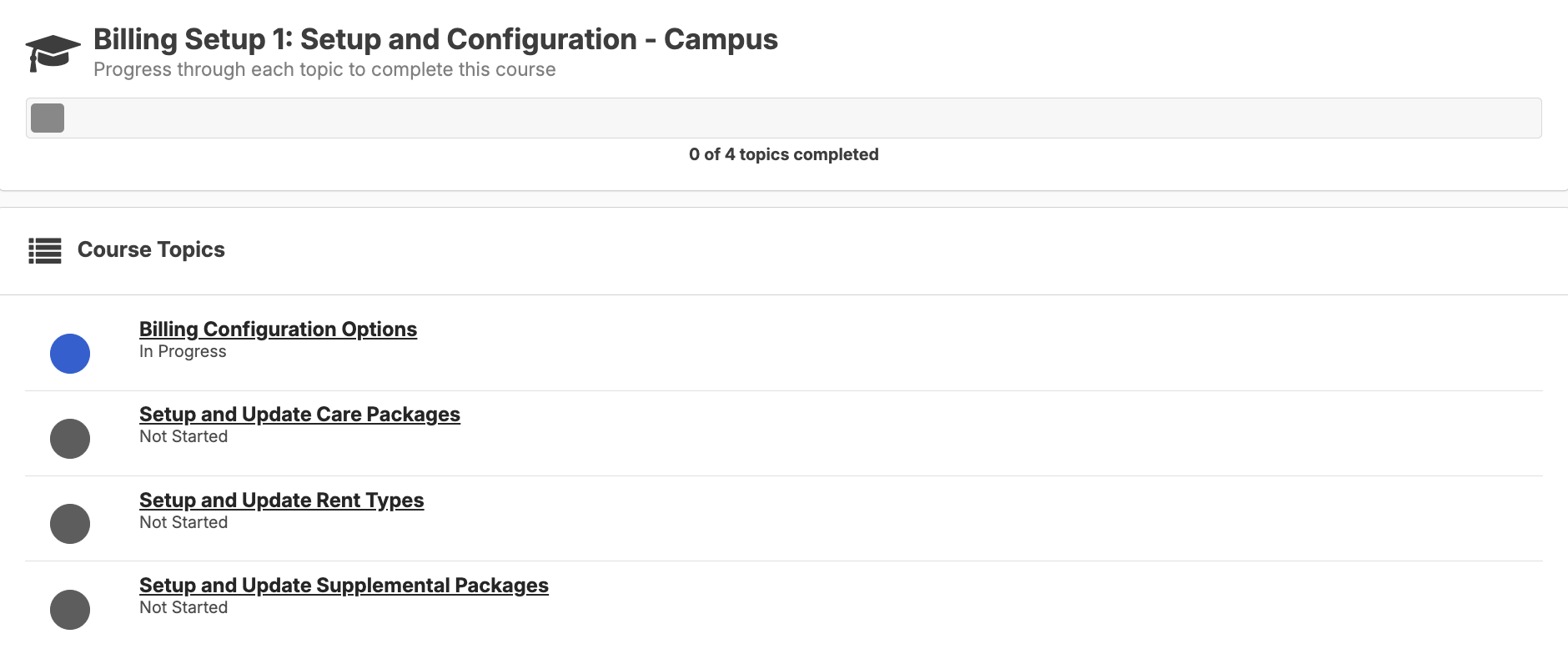
Click on a topic to view the video or view the support document. Once you've viewed or read the material, close the screen and answer the assigned questions. The questions are user-friendly; Residex provides learning objectives related to the question whether the answer was correct or not. At the end, we invite feedback regarding the video or questions. Click the Complete button; you can continue on to the next topic when ready.
My Courses
All users can navigate to their name icon in the upper right hand corner > My LMS Courses to view the courses they've been assigned, see those they have completed, and even reassign a course to themselves by clicking the Redo button.

LMS Reports
You can go to Reports > Reports and locate the category LMS: Residex LMS to access various reports showing which staff completed specific training or track staff progress on assignments such as 'LMS Results Overview.'
Automated Onboarding Training
Simplify new staff onboarding by having Residex configure automatic training course groups based on provider type. Contact Residex to set up this feature for your facility.