Table of Contents:
Global Resource MangagementManaging Global Information
Administrative users can view and manage a master list of every organization and resource professional connected to any resident. Navigate to Residents > Resources and use the tabs at the top to switch between Organizations and Resource Professionals. From there you can search for a resource, view its details, or click it to update it.
CAUTION: CHANGES TO A RESOURCE AFFECT EVERY CONNECTED RESIDENT
Updating a resource changes it for all residents connected to it. Merging a resource changes the record on every connected resident and prospect. Deleting a record that is not connected to anyone is permanent.
When you update a resource, an alert reminds you that the change affects all residents associated with it. Make sure you are working with the correct record before you save or delete.
Organizations
Organizations include hospitals, pharmacies, clinics, hospices, and other businesses connected to your residents.
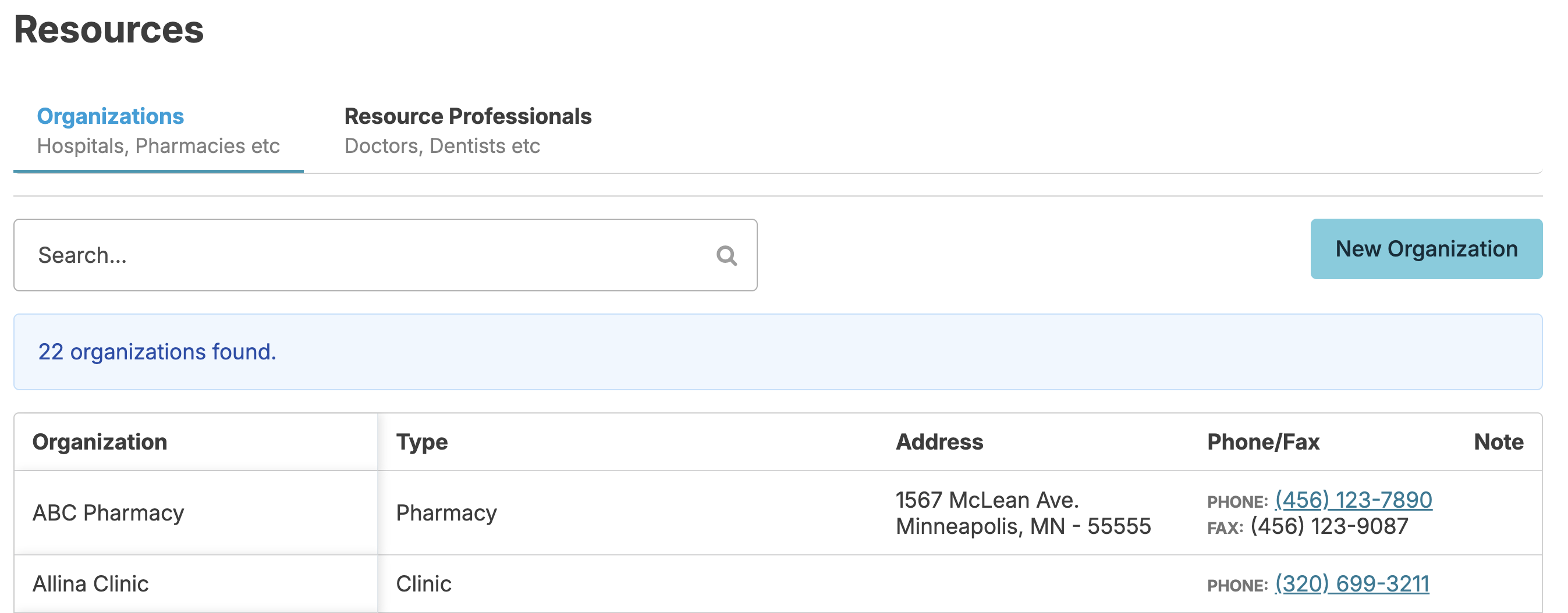
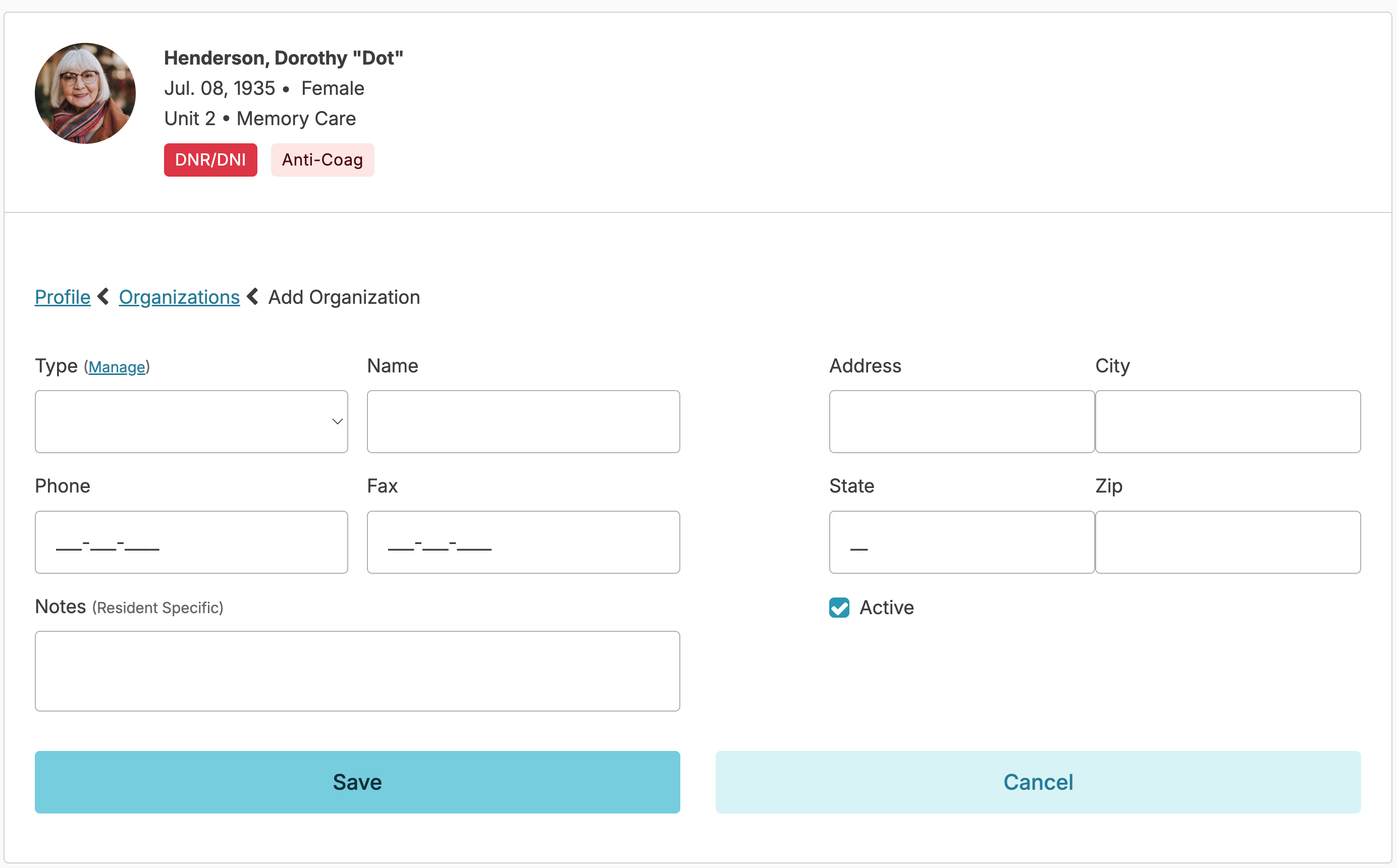
To add a new organization
Navigate to Residents > Resources and open the Organizations tab.
- Click New Organization at the top of the screen.
- Select the organization Type and enter the organization's Name and any other details you have.
- Click Save.
To edit an organization
- Navigate to Residents > Resources and open the Organizations tab.
- Find the organization. Use the Search field, or scroll the list, then click the organization to open its profile.
- Click the blue Edit button at the top right of the profile.
- Update the organization's details. When you update an organization, an alert reminds you that the change affects all residents connected to it.
- Click Save.
To merge an organization
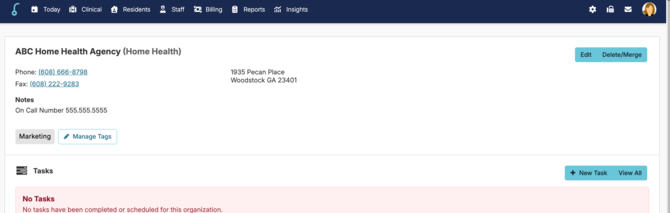
Users with the Administrator Assistant role (Role 410) or the Administrator role (Role 411) can merge organizations. Use a merge when an organization is a duplicate, or when it is connected to residents or prospects and you want to replace it with another organization. Every resident and prospect connected to the organization you remove is updated and connected to the replacement.
- Navigate to Residents > Resources and open the Organizations tab.
- Find the organization you want to remove. Use the Search field, or scroll the list, then click the organization to open its profile.
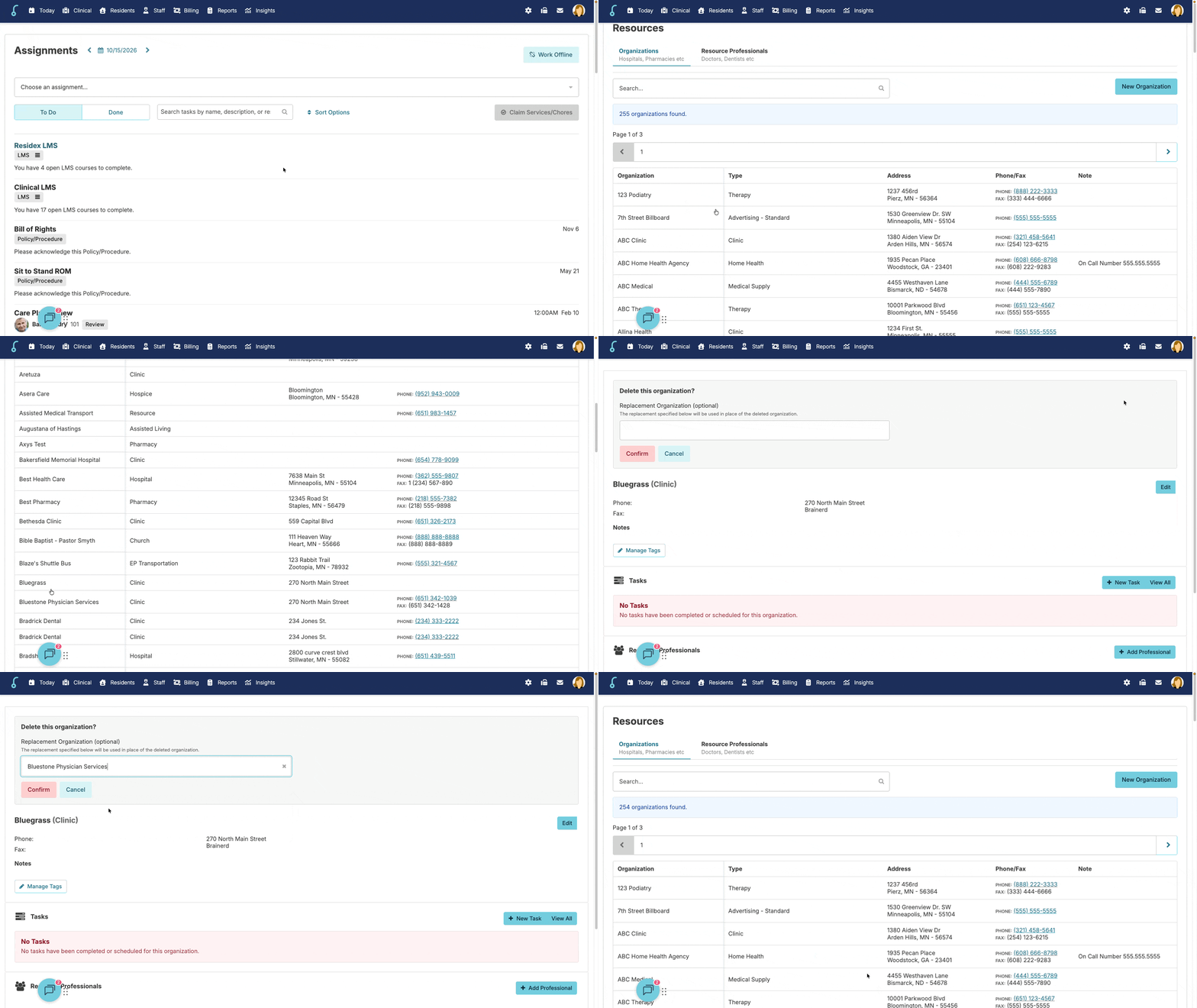
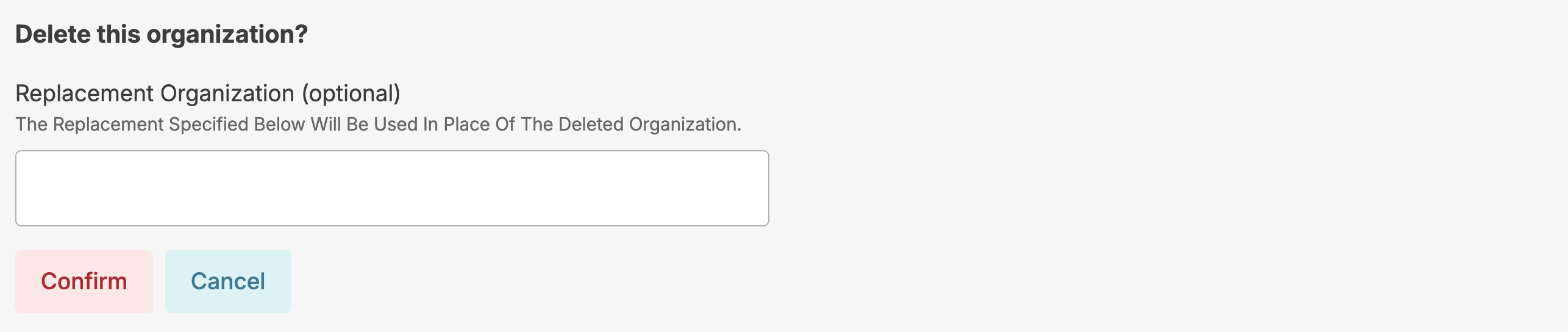
- Click the blue Delete/Merge button at the top right of the profile. A Delete this organization? box opens above the profile.
- In the Replacement Organization (optional) field, start typing the name of the organization you want to keep. Click it in the list. The list shows each organization's type and address to help you choose the right one.
- Check that the correct replacement is shown in the field. The replacement is used in place of the organization you are removing.
- Click Confirm. Click Cancel to stop without making any changes.
- A green Organization deleted message appears, and you return to the list of organizations. The organization you removed is gone, and its residents and prospects are now connected to the replacement.
To delete an organization
Users with the Administrator Assistant role (Role 410) or the Administrator role (Role 411) can delete an organization. Delete an organization that was entered in error or is no longer used. An organization that is in use cannot be deleted. If it is connected to residents or prospects, you must merge it into another organization instead (see above).
- Navigate to Residents > Resources and open the Organizations tab.
- Click the organization you want to delete to open its profile.
- Click the blue Delete/Merge button at the top right of the profile. A Delete this organization? box opens above the profile.
- Leave the Replacement Organization (optional) field blank.
- Click Confirm. Click Cancel to stop without making any changes.
- If the organization is not in use, a green Organization deleted message appears, and you return to the list of organizations.
If the organization is in use: right after you click Confirm, a red message appears at the top of the screen telling you the organization is in use. You must select a replacement organization instead of deleting. Select a replacement in the Replacement Organization field, and click Confirm again. The residents and prospects connected to the organization are updated to the replacement.
Organization types
Each organization has a type, such as Clinic, Hospital, Pharmacy, or Hospice. Users with the Administrator role (Role 411) can manage the list of available organization types.
❗CAUTION: ADD A NEW ORGANIZATION TYPE INSTEAD OF EDITING AN EXISTING ONE
Some organization types, such as Clinic, Hospital, Hospice, and Pharmacy, are linked to reports. These are examples, and other types may also be linked. Editing the name of one of these types does NOT remove the organizations of that type from the reports. For example, if you edit Hospice to something else, those organizations still appear on the Hospice reports.
If an organization is not one of these types, or you are not sure whether a type is linked to reports, add a new type or select a different type for that organization. Do not edit an existing type to do this.
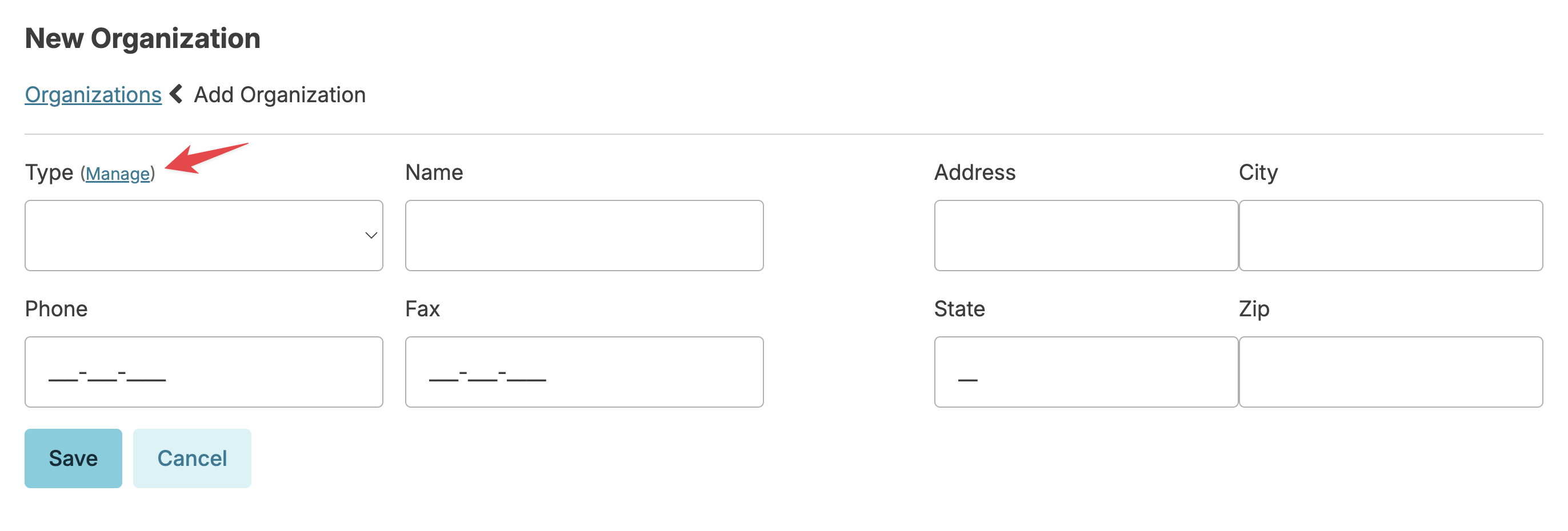
To open the Organization Types screen
- Navigate to Residents > Resources and open the Organizations tab.
- Click New Organization, or open an existing organization and click Edit.
- Click Manage next to Type. The Organization Types screen opens with the list of your organization types. Each type has an Edit button and a Delete button.
To add an organization type
- On the Organization Types screen, click Add Type at the top right.
- Enter the name of the new type.
- Save your changes.
To edit an organization type
Read the caution above before you edit a type. If you need a different type, add a new one instead.
- On the Organization Types screen, find the type in the list.
- Click Edit next to the type.
- Update the name and save your changes.
To delete an organization type
- On the Organization Types screen, find the type in the list.
- Click Delete next to the type.
- Click Confirm.
If the type is in use: after you click Confirm, an alert appears telling you the type is in use by one or more organizations and cannot be deleted. To remove the type, first change those organizations to a different type, then delete it.
Resource Professionals
Resource professionals are the doctors, dentists, specialists, and other professionals connected to your residents. To manage them, navigate to Residents > Resources, then click Resource Professionals. Click a resource professional to open the Edit Resource Professional screen.
CAUTION: CHANGES TO A RESOURCE PROFESSIONAL ARE GLOBAL
Making changes to a resource professional is a global change. It affects all residents connected to that resource professional, across all campuses. The screen lists the connected residents and asks you to check I understand and wish to proceed before you can save or delete.
To add a resource professional
The Resource Professionals tab under Residents > Resources is for viewing and editing resource professionals. It does not have an add button. You add a new resource professional from an organization profile, which links the professional to that organization.
- Navigate to Residents > Resources and open the Organizations tab.
- Find the organization. Use the Search field, then click the organization to open its profile.
- In the Resource Professionals section, click Add Professional. The New Resource Professional screen opens, with the organization's name at the top.
- Start typing the professional's name in the First name field. A list of matching resource professionals appears. Each one shows the professional's type and organization.
- If the professional you need is in the list, click them.
- If the professional is not in the list, finish typing the name. A new professional is added to the list.
- Enter the Last name and select the Type. First name, Last name, and Type are required.
- Enter any other details you have, such as Phone, Fax, Email, UPIN/License (optional), and NPI (optional).
- Click Save. Click Cancel to stop without making any changes.
To add a resource professional from a resident's profile
You can also add a resource professional while you are working in a resident's profile. The professional is added to your database and linked to that resident.
- Navigate to Residents > Residents and click the resident to open their profile.
- Click Resources.
- Click Resource Professionals.
- Click Add Resource Professional. The Add Resource Professional screen opens.
- Start typing the professional's name in the First name field. A list of matching resource professionals appears. Each one shows the professional's type and organization.
- If the professional you need is in the list, click them.
- If the professional is not in the list, finish typing the name. A new professional is added to the list.
- Enter the Last name, select the Type, and select the Organization. These are required. Enter any other details you have, such as Phone, Fax, Email, and NPI (optional).
- Click Save. Click Cancel to stop without making any changes.
To edit a resource professional
- Navigate to Residents > Resources and open the Resource Professionals tab.
- Click the resource professional you want to edit. The Edit Resource Professional screen opens.
- Update the details you need: First name, Last name, Type, Phone, Fax, Email, UPIN/License (optional), NPI (optional), and Organization. First name, Last name, and Organization are required.
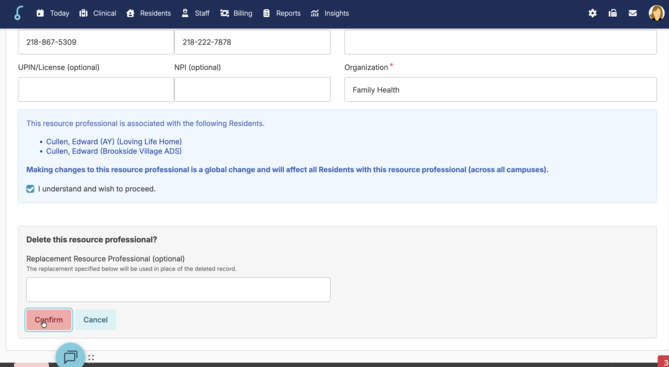
- Read the blue message below the fields. It lists the residents connected to this resource professional and warns that the change affects all of them across all campuses.
- Check I understand and wish to proceed. The Save button stays gray until you do.
- Click Save. Click Cancel to stop without making any changes.
To edit a resource professional from an organization profile
Use these steps to move a resource professional to a different organization.
- Navigate to Residents > Resources and open the Organizations tab.
- Find the organization. Use the Search field, then click the organization to open its profile.
- In the Resource Professionals section, click the resource professional you want to edit. The Edit Resource Professional screen opens.
- To move them to a different organization, click in the Organization field and clear the current name. Start typing the name of the new organization, then click it in the list.
- Read the blue message. It lists the residents connected to this resource professional and warns that the change affects all of them across all campuses.
- Check I understand and wish to proceed. The Save button turns blue once you do.
- Click Save. You return to the list of resource professionals, and the professional now shows under the new organization.
To delete a resource professional
Delete a resource professional who was entered in error or is no longer used. If the resource professional is in use, you cannot delete them. You must select another resource professional to replace them (see below).
- Navigate to Residents > Resources, then click Resource Professionals.
- Click the resource professional to open the Edit Resource Professional screen.
- Check I understand and wish to proceed. The Delete button turns red once you do.
- Click Delete.
If the resource professional is in use: a message appears telling you the resource professional is in use and you need to select a resource professional to replace them. Follow the steps below to replace them.
To replace a resource professional
If a resource professional is in use, or is a duplicate, replace them with another resource professional. Every connected resident and prospect is updated to the professional you choose.
- Navigate to Residents > Resources, then click Resource Professionals.
- Click the resource professional you want to remove.
- Check I understand and wish to proceed, then click Delete.
- When the message says the resource professional is in use, select the resource professional you want to replace them with. This is the one that will be kept.
- Follow the instructions on the screen to confirm.
Resource professional types
Each resource professional has a type, such as Cardiologist, Dentist, or Dermatologist.
CAUTION: ADD A NEW TYPE INSTEAD OF EDITING AN EXISTING ONE
Editing the name of a resource professional type changes it for every resource professional with that type, across all campuses. It does not move them to a different type.
Only edit a type to fix a spelling error or to correct a type that is incorrect. If a resource professional needs a different type, add a new type or select a different type for that resource professional.
To add or edit a resource professional type
- Navigate to Residents > Resources and open the Resource Professionals tab.
- Click a resource professional, then click manage next to Type. The Manage Resource Professional Types screen opens. It lists each type with the date it was last updated and who updated it.
- To add a type, click New Type at the top right, enter the name, and save.
- To edit a type, click the pencil icon at the end of its row, update the name, and save.
Marketing Capability
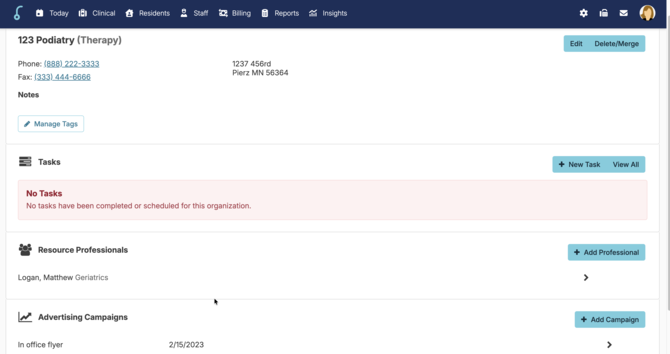
Marketing campaigns can be added to specific organizations. This will allow you to indicate how a prospect heard about your facility and track the effectiveness of marketing efforts.
To add a campaign to an organization, navigate to:
- Residents > Resources > Organizations
- Select the Organization
- Click + Add Campaign
- Enter the campaign name, start date, and optional end date
- Enter a note as needed
All campaigns are visible on the organization screen. Ended campaigns will be greyed out. Campaigns will sort by date on the organization screen.
Marketing reports can be found under the Prospect category on the reports screen.