
Residents > Contacts
Add a New Contact
- Navigate to Residents > Contacts.
- Click Add Contact. The New Contact screen opens.
- Enter the contact's First name and Last name.
- Enter a Phone number. Select the phone type from the drop-down list, enter the number, and enter an extension if there is one. To enter more than one number, click Add another phone.
- Enter the contact's Email address.
- Enter the Address, City, State, and Zip. Check Do not mail if the contact should not receive mailings.
- Enter any Notes.
- Click Save. Click Cancel to stop without making any changes.
Click any contact record to view the contact's profile.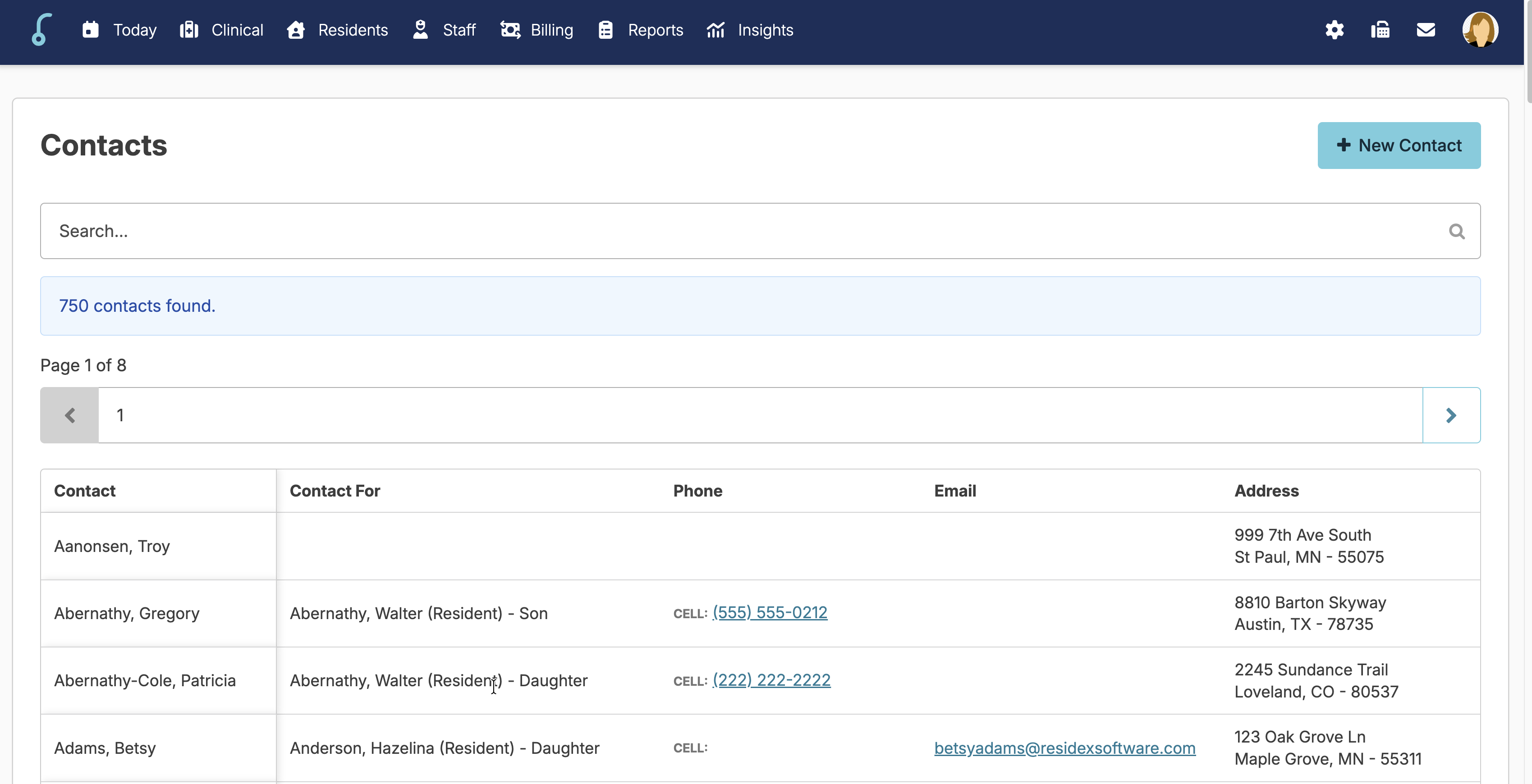
To delete a contact
Users need both the Administrator role (Role 411) and the Contacts role (Role 9).
You can completely delete a contact from the Residents > Contacts screen only if the contact is not connected to a resident. If the contact is in use, you must merge it into another contact instead (see below).
- Navigate to Residents > Contacts.
- Click the contact.
- Click the blue Delete/Merge button.
- Follow the instructions on the screen to confirm.
If the contact is in use: right after you confirm, a red message appears at the top of the screen telling you the contact is in use. You must select a replacement contact instead of deleting.
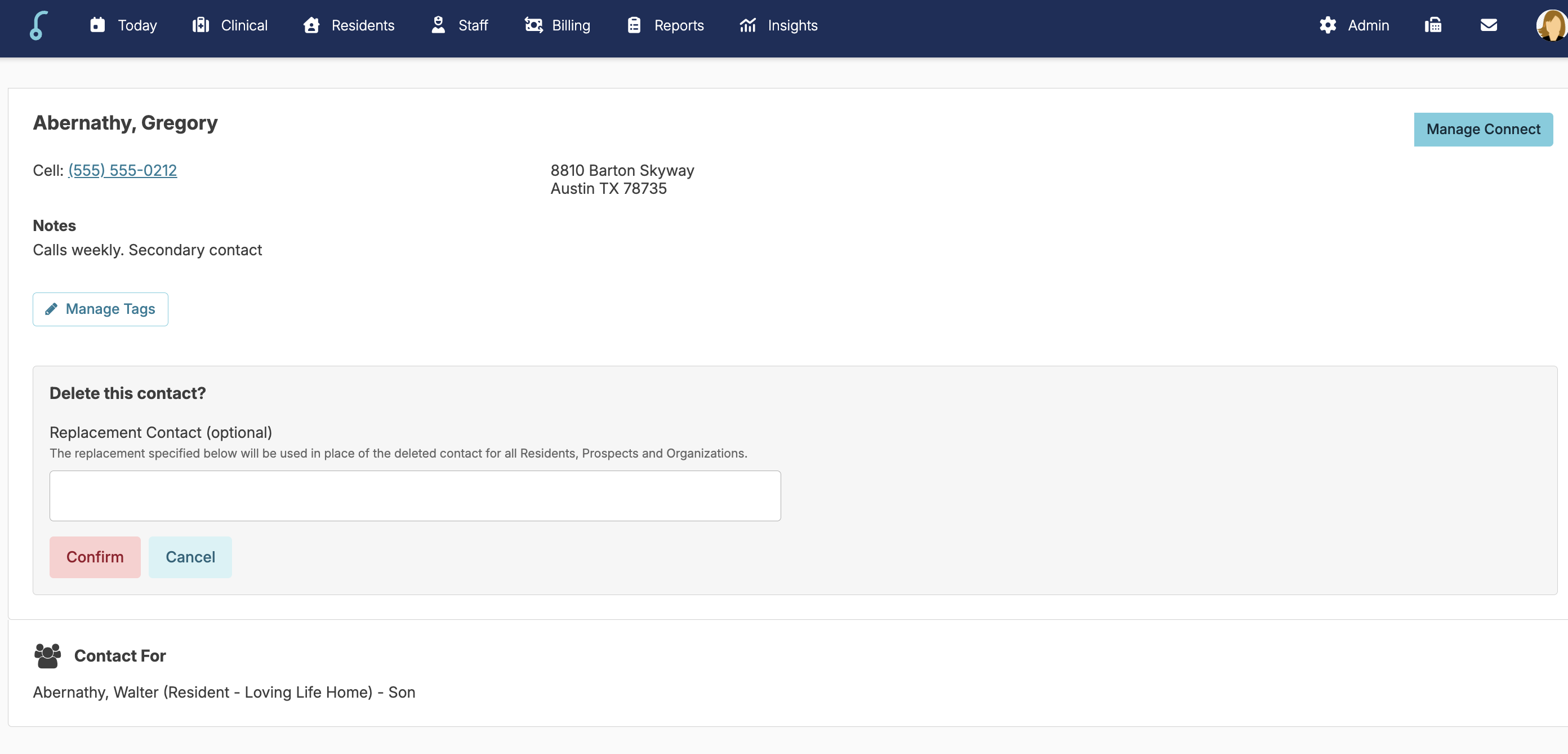
To merge a contact
If the contact is already connected to a resident or prospect, you can replace it with another contact. This also merges duplicate contact entries. Every connected resident and prospect is updated and connected to the contact you choose.
- Navigate to Residents > Contacts and click the contact you want to remove.
- Click the blue Delete/Merge button.
- Choose the contact you want to replace it with. This is the contact that will be kept.
- Follow the instructions on the screen to confirm.