
Table of Contents:
Policies and Procedures
Creating policies and procedures in Residex allows an agency to electronically share them with their staff for review and acknowledgement and allows access to procedures at their fingertips by linking a them to a service, chore, or task, allowing your staff to review the steps of a procedure upon delivery of a specific service, chore, or task.
Drafting a Policy or Procedure
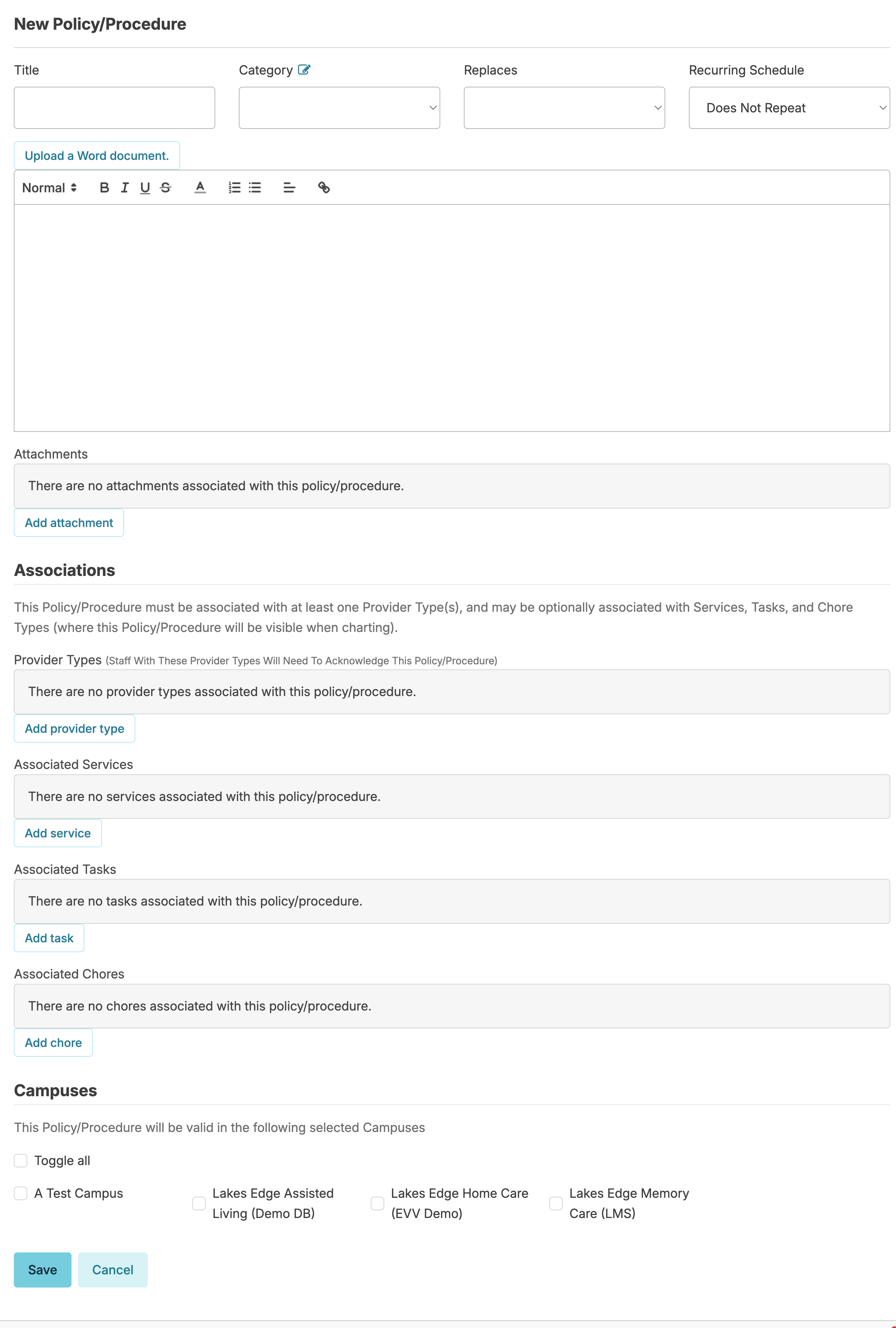
You can create a policy/procedure in Residex by navigating to Admin > Policies/Procedures > New Policy/Procedure. From this screen, specify:
- Title
- Category - A category type with the term Procedure in the name will allow this procedure to appear as an available competency to choose from and document from the staff profile > Training > Competency tab.
- Replaces - When renewing a policy/procedure, you can select which policy/procedure is being replaced.
- Recurring Schedule - Allows the policy to be pushed to staff for review and acknowledgement on a recurring schedule.
- Details of the policy or procedure. You can copy and paste details from another source, add rich text, embed links, and make edits as you need OR upload an electronic document by selecting Upload a Word document.
- Add any attachments, if applicable.
- Add the Provider Types to which the policy/procedure should be pushed for review and acknowledgement for.
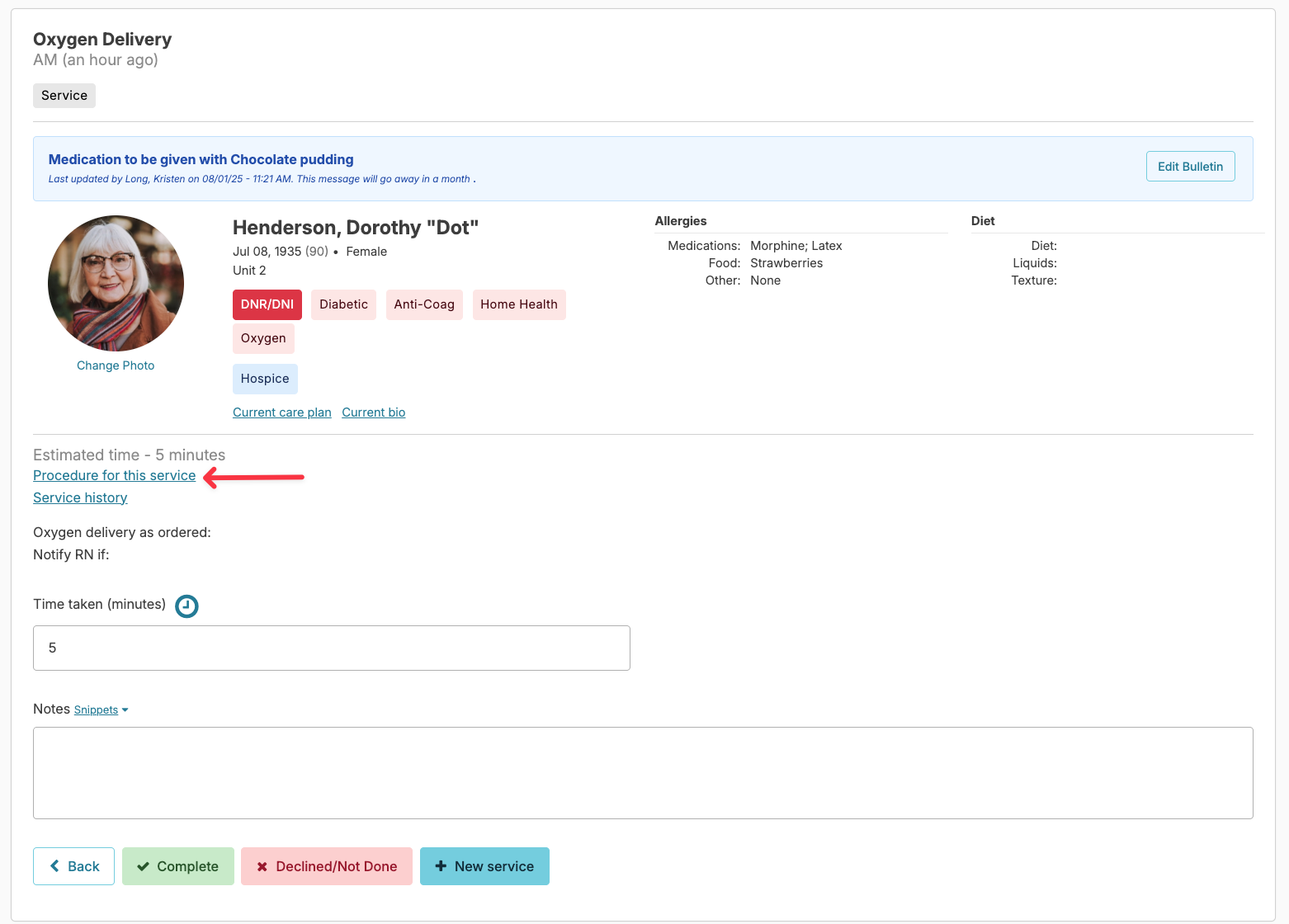
- Associate to a service, chore, or task, if applicable. This allows staff to access the procedure when charting a specified service, chore, or task from the Today > Assignments screen.
- Select which campus the policy/procedure is associated with.
- Press Save. This will place the policy/procedure under a saved 'draft' status.
Publishing and Staff Review/Acknowledgement
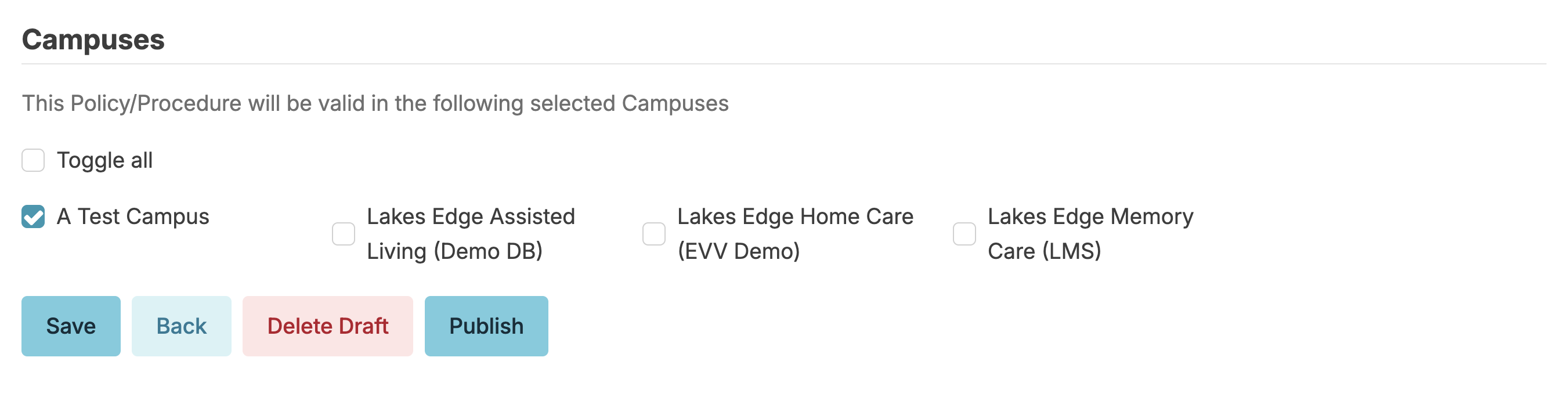
Once you have saved the policy/procedure as a draft, select the Publish button. This will finalize the policy/procedure, no longer allowing edits to be made. If the draft was entered in error, select Delete Draft.
Once you select the Publish button, you will be prompted to Set Review Reminder.
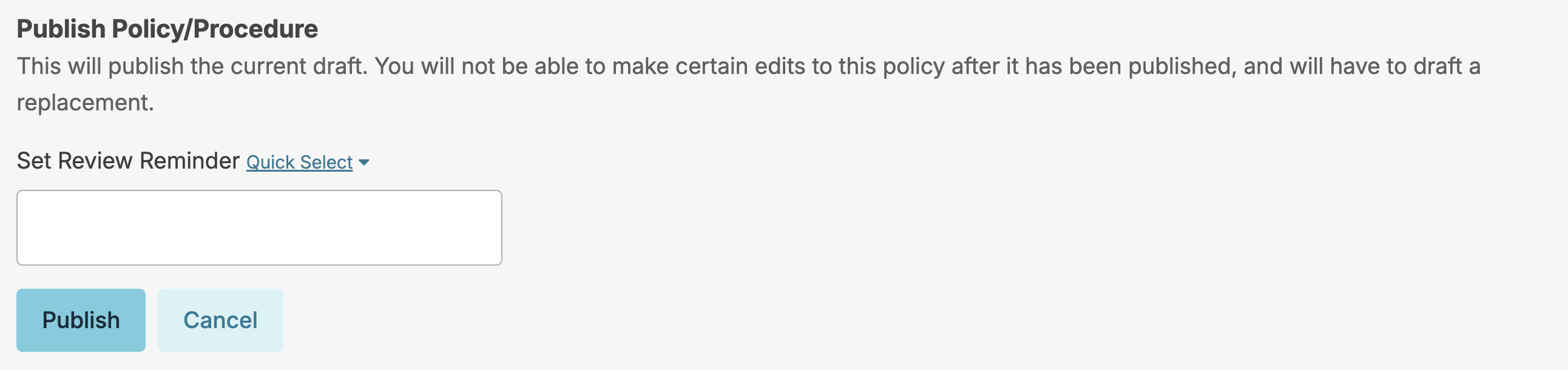
Select Publish a second time to confirm that you would like to publish the current draft.
If this is a policy/procedure you want staff to review and acknowledge, select the Push Policy/Procedure for Review button > determine to whom the policy/procedure should be pushed to for review and acknowledgement > select Push policy/procedure. Note: You can select who will receive the policy/procedure by campus, by individual staff, or by staff provider type. Additionally, if you want to push multiple policies to a new staff person, navigate to their staff profile and select Populate Policies. Here you can choose individual policies to push for review and acknowledgement.
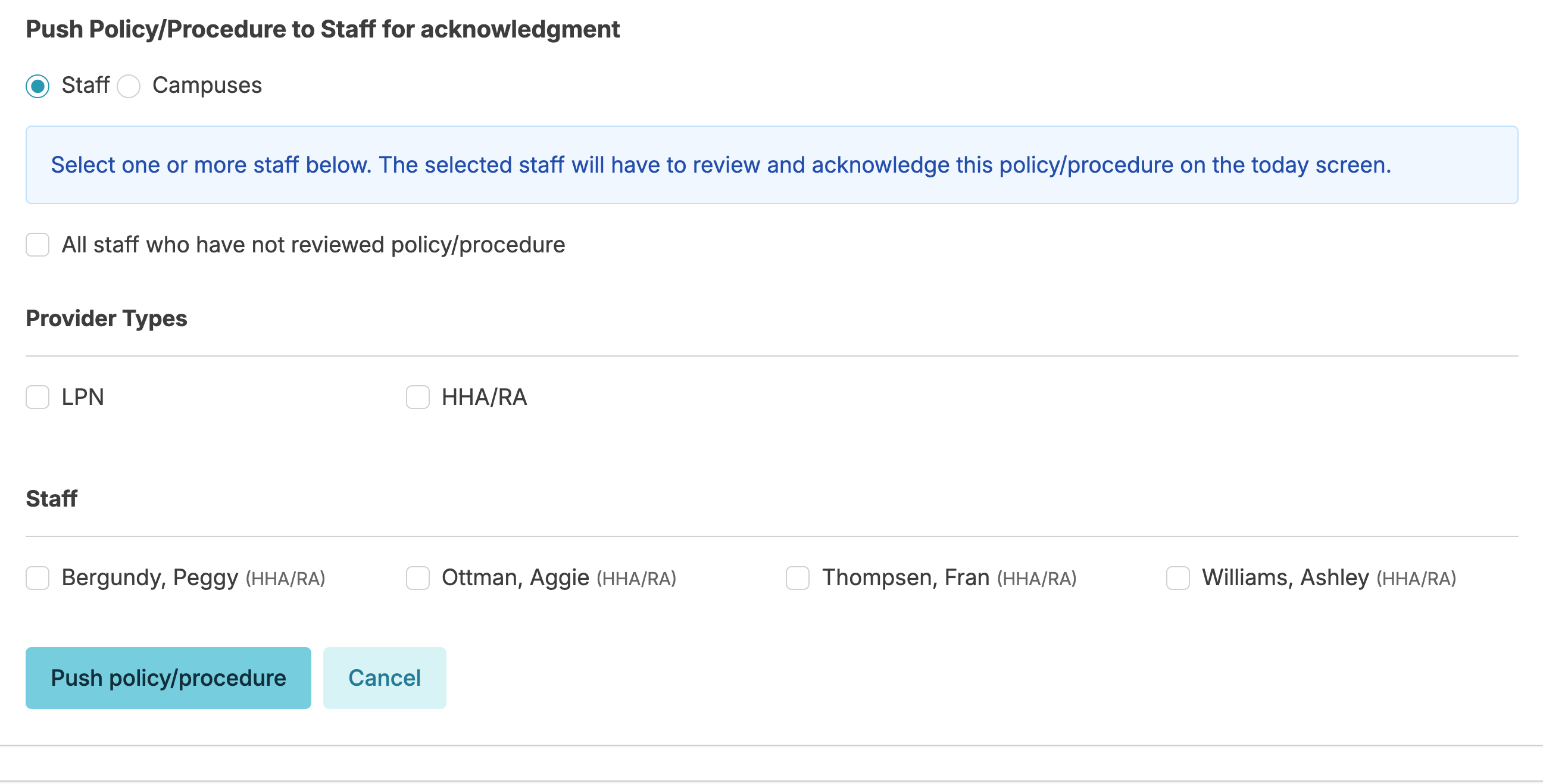
Once Policies/Procedures are pushed to staff, they will need to review/acknowledge these from the Today screen.
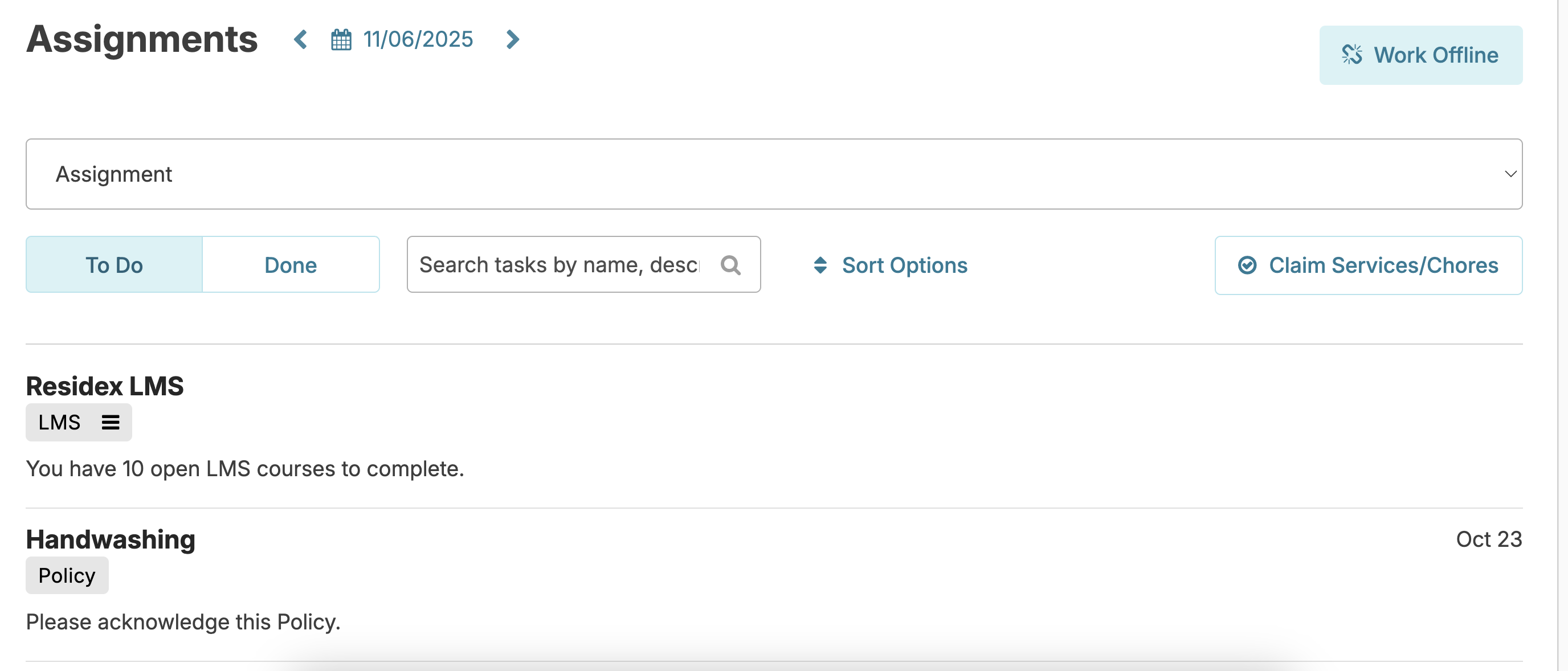
Additionally, these Policies/Procedures will be available to those staff to view at any time by navigating to Initials > Policies.
NOTE: Associating policies with services makes them readily accessible to staff—they can view the relevant policy with a single click while charting.
For policies/procedures that need to be reviewed on a scheduled basis, you can do so by navigating to Admin > Policies/Procedures > Select the policy/procedure you wish to review > review contents for accuracy. If no changes are necessary, simply select Mark Reviewed.
The dashboard report: Policy/Procedure Administrative Review Reminder next 14 days is will help alert you when the review is needed.
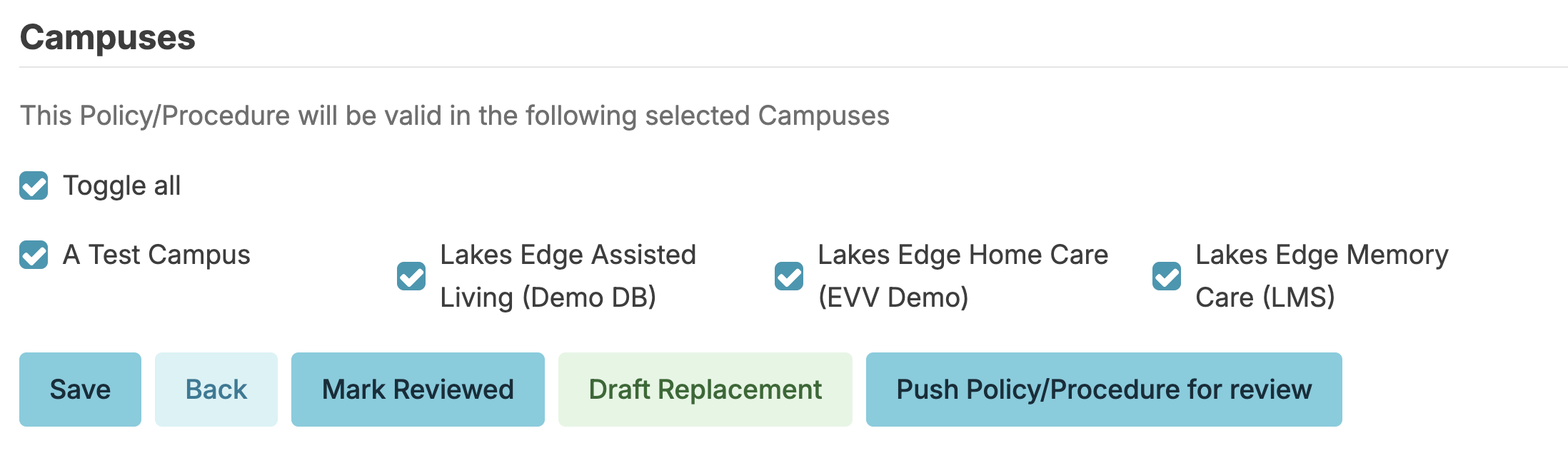
Draft Replacement
For policies/procedures that require updating, select the Draft Replacement button. This will copy the details of the existing policy/procedure into a new draft for editing. Once published, the original policy/procedure the draft was copied from will automatically end, and this new policy/procedure will take it's place. Likewise, any staff who previously had the ended policy/procedure to review, will now have the new policy/procedure to review instead.
Clinical LMS Competencies
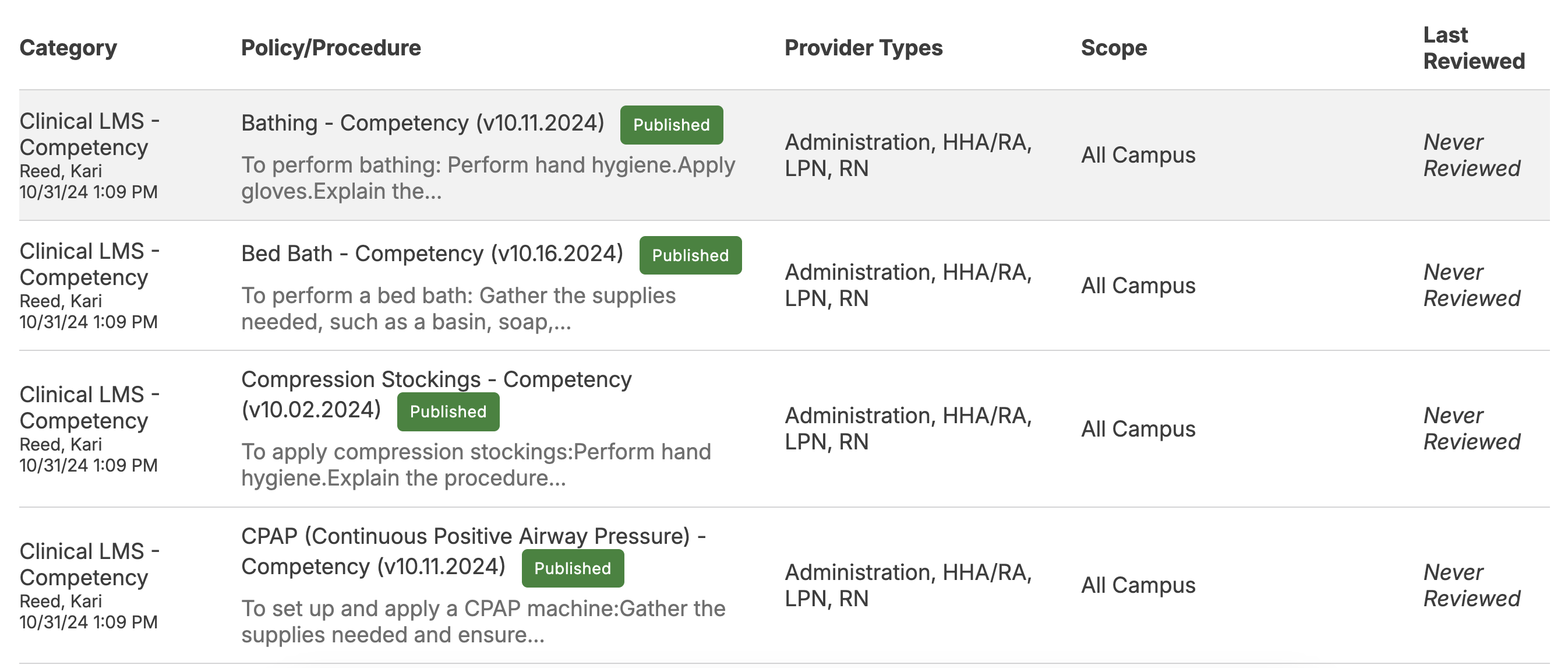
For facilities using Clinical LMS, a set of competencies to go with the courses are available and can be found by navigating to Admin > Policies/Procedures > Category: Clinical LMS - Competency.
These competencies can be modified to meet facility-specific requirements by selecting the competency and drafting a replacement. You will be required to select a different category from the drop-down list to draft the replacement under.
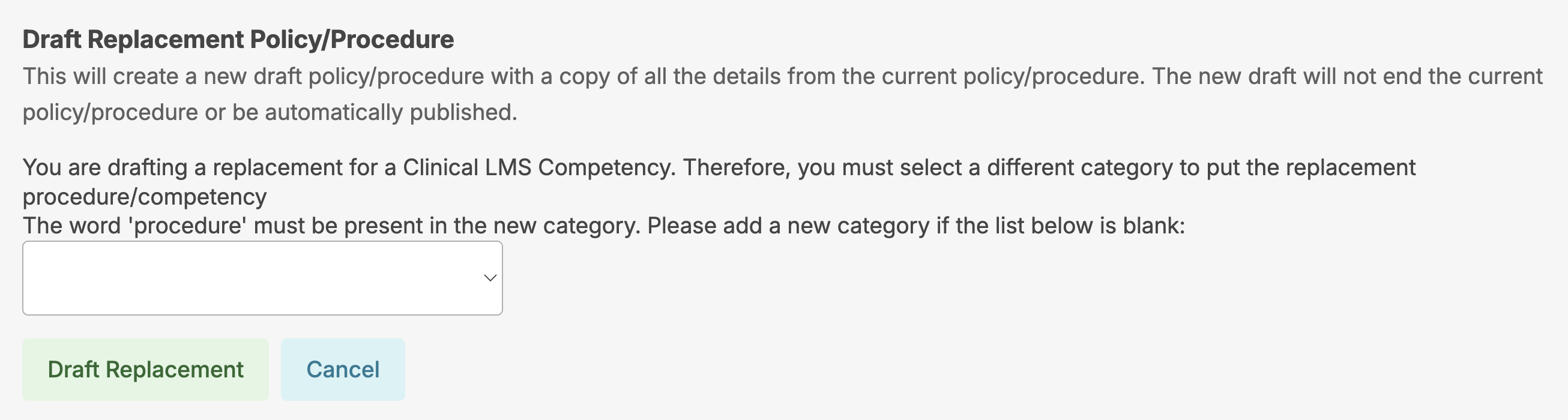
Once you select the category you want your replacement procedure/competency under, make any necessary edits to the draft, then click Publish and Replace. If you need to leave and come back at a later time to finish your draft, simply hit Save, and it will remain as a draft until published. Once you click Publish and Replace, the original procedure/competency in the 'Clinical LMS - Competency' category will end.