
Table of Contents:
PRODUCT OVERVIEW
What is Pharmacy Connect?
Pharmacy Connect is a software integration licensed to both long-term care (LTC) pharmacies and to the senior living communities they serve. It replaces manual fax, phone, and email workflows with structured, real-time medication data exchange — powered by the Residex platform.
How does Pharmacy Connect work?
Pharmacy Connect uses an application installed on-premise behind the pharmacy's firewall. This app listens for HL7 traffic from the pharmacy's existing software and routes medication data securely through the Residex API to the connected senior living community's eMAR. No replacement of existing software is required.
- Medication orders are submitted to a LTC pharmacy.
- Pharmacy staff enter orders into LTC pharmacy software.
- Pharmacy software transmits data to the Residex Pharmacy Connect application, a program provided by Residex software, which is installed on the same server or same network as the pharmacy's software platform. The Pharmacy Connect program validates the data is in the correct format, then transmits the data to Residex via an SSL secured connection.
- Medication order data transmitted to Residex is routed to the correct clients; duplicate messages (if any) are filtered out, and then new orders and changed orders are presented to nurses within Residex for review and approval.
Supported LTC Pharmacy Software Platforms
We are able to interface with the following LTC pharmacy software platforms:
| ComputerRX | Framework by Softwriters | IPS, by SuiteRX |
| LibertyRX | Omnicare | Pharmaserv by McKesson |
| PioneerRx | Prodigy | QS1 |
| RX30 | RXAxis | RXGensys |
| TWRX |
We are also interested in adding support for additional platforms.
Does Pharmacy Connect replace our existing pharmacy software?
No. Pharmacy Connect works alongside the system you already use. Orders flow directly into Residex for the care team to review without manual re-entry, transcription errors, or disruption to existing infrastructure — just a clean technical bridge between systems.
What types of medication data are exchanged through Pharmacy Connect?
Pharmacy Connect supports bi-directional sharing of real-time medication order data, including new orders, change orders, holds, and discontinuations. Pharmacies also receive updates on resident admissions and discharges, keeping the pharmacy up to date and the care plan current.
INTEGRATION & IMPLEMENTATION
Will Pharmacy Connect integrate with our existing systems?
Yes. Pharmacy Connect was designed for system interoperability. A simple on-premise installation connects your existing pharmacy software directly to your clients' Residex eMAR — no middleware required, just a direct, secure integration that keeps medication data flowing accurately between systems.
What is the typical timeframe for software implementation and deployment?
Implementation timelines vary based on the size and configuration of each pharmacy. Our team works directly with your staff to plan and execute a smooth rollout. Contact us at pharmacyconnect@residex.ai to discuss your specific situation and get a timeline estimate.
Do you provide technical support?
Yes. Residex provides full implementation support and ongoing service support directly to your team. Both pharmacies and senior living communities have a single team to call when something needs attention.
Does the senior living community need to do anything to activate the connection?
If your community already uses Residex, Pharmacy Connect is bundled as part of your EHR platform license. When your pharmacy is also licensed and the software is installed, the connection activates automatically — no additional setup is required on the community's end.
VALUE & OUTCOMES
What value does Pharmacy Connect bring to LTC pharmacies?
Pharmacy Connect automates and streamlines pharmacy workflows for timely and safe medication ordering, dispensing, and administration — specifically tailored to LTC facility residents. Value for pharmacies includes:
- Improvement in operational efficiency: Order management is streamlined and electronic, reducing or eliminating manual faxing, paper, and calls.
- Reduction in errors: Electronic ordering reduces transcription errors and enables tracking of orders through the workflow.
- Time savings for pharmacy staff: Pharmacy Connect reduces the staff time needed to ensure accurate dispensing by reducing back-and-forth communications, manual entry, faxing, and incorporating QA functionality. ROI analysis estimates approximately 270 pharmacy hours saved per month when compared to a manual phone/fax model.
- Transparency: Pharmacy Connect provides visibility into changes that impact the pharmacy and care team updates by removing duplicate messages and reflecting new and ant order changes clearly improving pharmacy and LTC facility communication.
- Improved resident outcomes: LTC residents receive their medications faster, with fewer errors, improving both care quality and overall experience.
- Safer medication management: Direct, structured data from the pharmacy eliminates transcription errors that come with manual entry, so caregivers can administer with confidence.
- Time back for the care team: Phone tag, faxes, and duplicate data entry are eliminated — caregivers spend less time chasing the pharmacy and more time with residents.
- Always-current resident records: New orders, holds, discontinuations, and changes appear in Residex in real time, keeping the eMAR accurate and the care plan current.
- Single point of support: Communities don't manage the pharmacy relationship alone. Residex supports both sides of every connection.
- Pharmacies license the Pharmacy Connect software application and install it on-premise to integrate with the Residex platform used by the senior living communities they serve.
- Senior living communities access Pharmacy Connect as part of their existing Residex EHR platform subscription, on a licensed capacity basis.
- Residex signs Business Associate Agreements (BAAs) with its covered entity customers.
- All data exchanged between the pharmacy connector and Residex is encrypted in transit using TLS.
- Stored data is encrypted at rest, ensuring PHI is protected at every point in the pipeline.
- The platform includes access controls, transmission logs, and audit trails to support requests for access disclosures, in accordance with state data privacy laws.
What value does Pharmacy Connect bring to senior living communities?
When a pharmacy is connected through Residex, the community care team gets accurate orders in real time — along with the documentation to back them up. Specific benefits include:
LICENSING & PRICING
How is Pharmacy Connect licensed?
Pharmacy Connect is licensed to both sides of the connection:
How is Pharmacy Connect priced?
LTC facilities pay a monthly package fee, inclusive of Pharmacy Connect, on a licensed capacity basis. Pharmacies pay a monthly fee on a per-connected-resident basis. This pricing structure is designed to capture the fair market value and cost of services to each party, without any connection to the number or value of prescriptions transmitted through the platform.
COMPLIANCE & DATA PRIVACY
Does Pharmacy Connect support compliance with HIPAA and state patient privacy laws?
Yes. The Pharmacy Connect platform was built to support HIPAA compliance. Specifically:
Where is PHI stored, and does it leave the pharmacy's systems?
The Pharmacy Connect app is installed behind the pharmacy's firewall and listens for HL7 traffic from the pharmacy's existing systems. Medication data is routed through the Residex API to the connected senior living community's eMAR. All data transmitted is encrypted in transit and at rest. Pharmacies and communities with compliance questions regarding their specific configurations should consult with their compliance counsel.
LEGAL & REGULATORY
Is it fee-splitting or an illegal kickback to charge a pharmacy for the Pharmacy Connect integration and services?
No. Pharmacy Connect is a software platform that benefits and provides services to both LTC facilities and pharmacies. The integration is bidirectional, and the functionality is built to support operations of parties on both sides of the connection. Both LTC facility users and pharmacy users pay for the Pharmacy Connect platform and services. LTC facilities pay a monthly package fee, inclusive of Pharmacy Connect, on a licensed capacity basis. Pharmacies pay a monthly fee on a per-connected-resident basis. This captures the fair market value and cost of the services, without any connection to the number or value of prescriptions transmitted through the platform (i.e., no payment for referrals).
Kickback arrangements include those where the pharmacy provides items or services for free to LTC facilities to induce referrals (e.g., free eMAR systems). This is not the same as pharmacies paying for Pharmacy Connect, because pharmacies are not covering the LTC facilities' costs. Both pharmacies and LTC facilities are charged for Pharmacy Connect because both parties receive services and benefits. Pharmacies are paying fair market value for their use of Pharmacy Connect.
Like most businesses, Residex does not provide services for free. The charge model is structured to assess costs to entities on both sides of the connection. Residex is confident that its charges are fair and legal and accurately capture the value delivered to pharmacies.
GETTING STARTED
How does a pharmacy get connected?
Contact the Residex team to learn about licensing and getting connected. We'll walk you through the process, discuss the communities you serve, and plan an implementation that works for your pharmacy. Reach us at sales@residex.ai.
How does a senior living community activate Pharmacy Connect?
If your community is already a Residex customer, reach out to your account team to activate Pharmacy Connect. If you're not yet on Residex, contact us to schedule a demo — we'd love to talk about how the full platform can support your community.
Can we request a product demo?
Absolutely. We are happy to offer a product demo upon request. Contact us at sales@residex.ai or visit residex.ai to schedule time with our team.
The Pharmacy Connect Application
Most pharmacy software platforms require an application be installed on the pharmacy’s network in order to support an interface. Our Application allows your pharmacy software to securely transmit medication order data in the form of HL7 messages over the internet to Residex. Read how to install the application here.
How does it work
The Pharmacy Connect application is a small program that runs in the background as a Windows Service. It listens on a pharmacy specified port number, waiting for messages. When messages are received, they are securely related to Residex Software via our API.
The Residex Pharmacy Connect application has no user interface and doesn’t require a user to be logged in.
It will be configured to restart every time the server restarts and requires little in terms of supervision/maintenance.
Security & Limitations
The Residex Pharmacy Connect application simply takes messages it is given, validates messages to verify they are in the correct format (HL7), and then passes validated messages on securely to the Residex cloud network for processing and routing to clients.
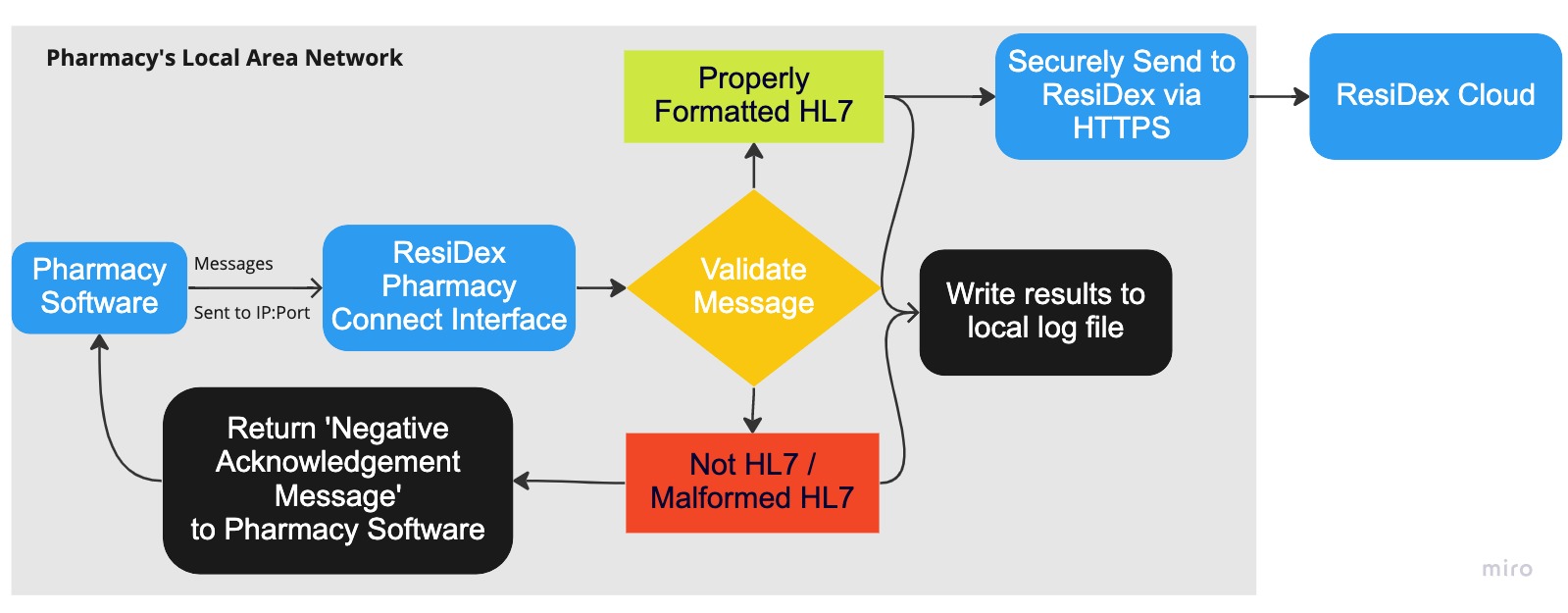
Detailed breakdown of Pharmacy interface process
It is a one-way secure relay for HL7 messages only, and has no other capabilities.
- It can NOT request data from a pharmacy system; It can NOT query, look up, search for, or otherwise call for any data from any pharmacy software.
- It has NO access to data stored in pharmacy software, only messages transmitted to it are accessible.
- It has NO special access to the server or network it is installed on; It can NOT search, scan, map, or otherwise record any data on or about your Operating System, network, other programs installed or user activity.
- It can NOT alter any other programs or files on the pharmacy's system(s).
- It can NOT change any data stored in pharmacy software or elsewhere on the pharmacy's network.
- It can NOT store any credentials for any systems.
Installation
This documentation is intended for pharmacies, and is not relevant for Residex users.
- In addition to installing the Residex Pharmacy Connect application, your pharmacy software will also need to be configured to transmit data.
Requirements
The Residex Pharmacy Connect application can be installed on Windows systems: Windows 7 and later (32 bit and 64 bit), Windows Server 2003 and later (32 bit and 64 bit). The application must be installed on the same server or the same network as your pharmacy software.
Firewalls
If the Residex Pharmacy Connect application is installed on a separate machine from your pharmacy software, you may have to create exceptions within internal Firewalls and Antivirus programs to allow communications between the systems.
If you need to make any firewall changes to allow outgoing traffic to leave your network, an exception to allow outgoing traffic to residexapi.com will be needed.
Installation Process
- Download the installer
- Run the installer, & follow prompts to allow the installer to proceed.
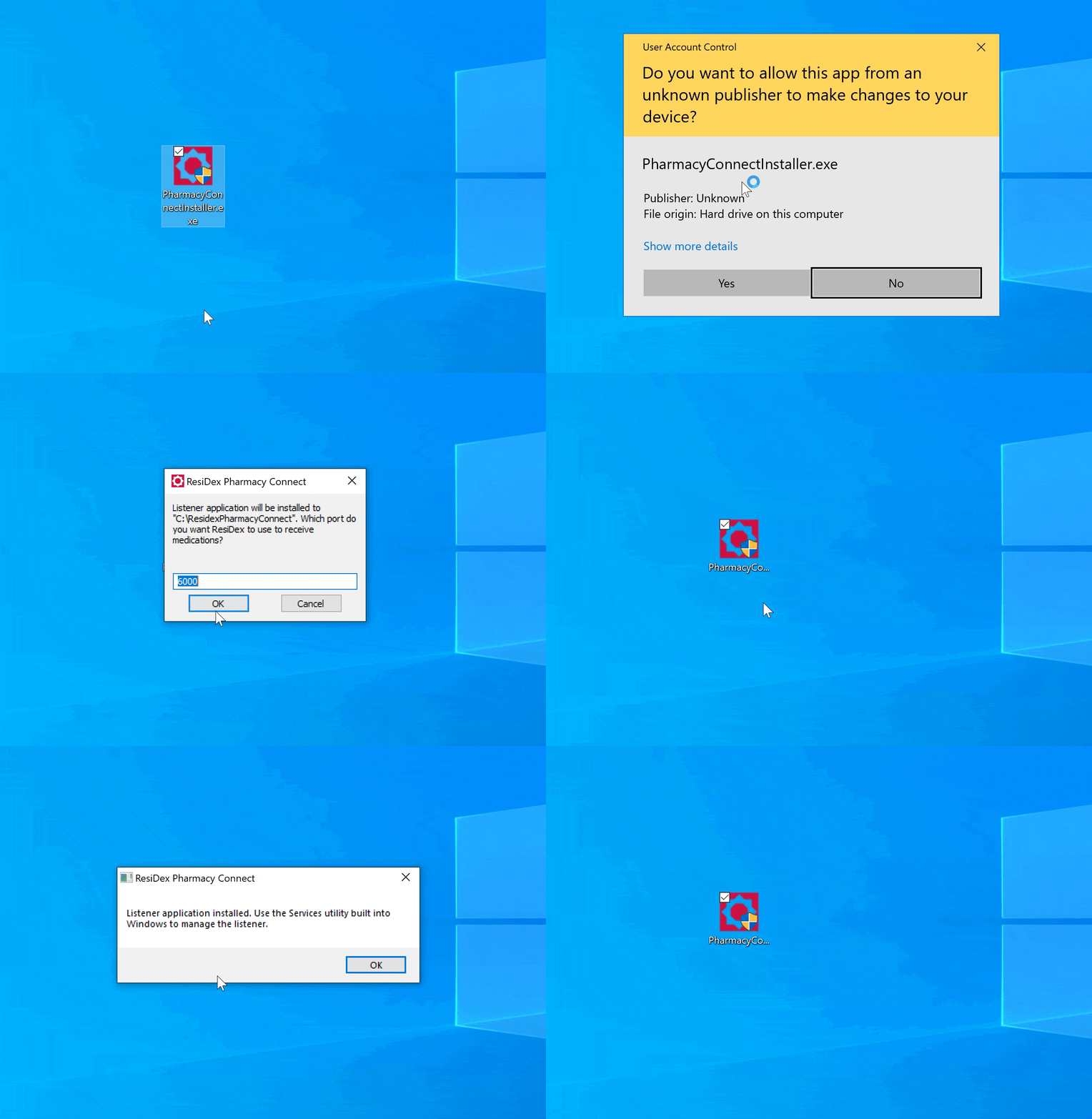
- The Residex Pharmacy Connect application will listen for messages on a Port (the default Port it will use is "6000"). You will be given the option to change the Port number used; you may optionally change this if you prefer a different default Port. Press OK to proceed.
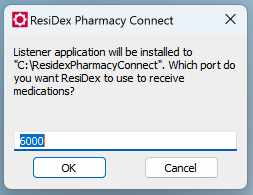
FYI Regarding the Port: If the port is unavailable or If you are unsure if the default Port is available, you can check by using the Command Prompt system to run the following command.
CHECK TO SEE IF A PORT IS IN USE
netstat -na | find “6000”
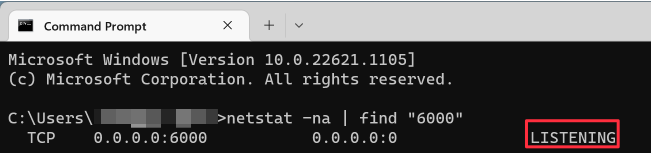
If this command returns no results, the default Port is available.
If it returns any results that say "LISTENING," the port is not available.
You can repeat this command for different Port numbers until you find an available port. For example: 6001, 6002, 6003 and so on.
The installation should take just a moment, and will notify you when complete. You're done! You can delete the installer .exe at this point.
The installer will create:
- A directory, C:\ResidexPharmacyConnect, which will contain all relevant files needed by the installer, including a log file which can be reviewed to view the application's activity.
- A Windows Service called "Residex Pharmacy Connect" that will run in the background.
Reviewing the Log
You can optionally confirm the system is up and running by checking the log file, located at C:\ResidexPharmacyConnect\log.txt.
This log is a continually updated text file. It contains basic metadata about the Residex Pharmacy Connect application's activity; it does NOT ever contain any sensitive information The log will display a message like the below if it is up and running. The log will also indicate when messages are received, and if any errors are encountered.
EXAMPLE LOG
2021-03-15 10:35:00,147 - INFO - Listening on 127.0.0.1:6000
2021-03-15 10:35:19,538 - INFO - Message received on 127.0.0.1:6000.
2021-03-15 10:35:19,977 - INFO - Message received for facility code TEST.
Configure your Pharmacy Software
Your pharmacy software system will need to be configured to transmit data to the Residex Pharmacy Connect application. Residex Staff cannot assist much with this step, so we refer you to your pharmacy software's support team.
They will need to know:
- Port Number (this will be 6000 unless you've specified a different Port)
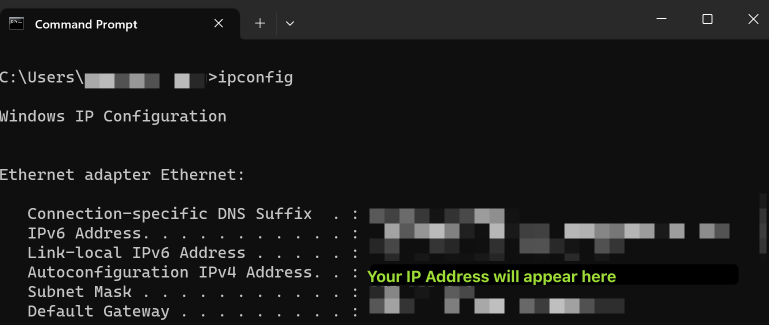
- IP Address of the machine on which the Residex Pharmacy Connect application is installed If you don't know the IP Address, you can find this by using the Command Line on that machine to run the command "ipconfig"
- What homes you want to begin transmitting data to Residex for.
Find your IP Address
ipconfig
Among the results this command returns will be your "IPV4 Address," which is the IP Address of the machine you're connected to.
Facility Codes
When you begin transmitting data, please provide Residex Software with any Facility Codes you are transmitting data for. These are identification codes for homes that we need in order to ensure correct routing of the data you send us.
Get Help
Please email pharmacyconnect@residexsoftware.com or call 866.512.8369 with any questions or for assistance.
Troubleshoot, Update, Remove
Reading the log
The Residex Pharmacy Connect application maintains a log file at C:\ResidexPharmacyConnect\log.txt.
This log is a continually updated text file. It contains basic metadata about the application's activity; it does NOT ever contain any sensitive information The log will display a message like the below if it is up and running. The log will also indicate when messages are received, and if any errors are encountered.
EXAMPLE LOG
2021-03-15 10:35:00,147 - INFO - Listening on 127.0.0.1:6000.
2021-03-15 10:35:19,538 - INFO - Message received on 127.0.0.1:6000.
2021-03-15 10:35:19,977 - INFO - Message received for facility code TEST.
2021-03-15 10:35:37,913 - INFO - Service stopped.
Every time the application receives and successfully processes an HL7 message, it will be indicated in the log. The message received logs will indicate the date & time of each successful message receipt, the IP Address and Port the application was listening on when the message was received, and the Facility Code contained within the message.
Service stopped: Last time Residex Pharmacy Connect application was stopped.
If the last post to the log is 'Service stopped', the needs to be restarted before data transmission can resume.
Port busy: The Residex Pharmacy Connect application needs to be reconfigured to use a new port.
If the log indicates a port is busy, another system is already using the specified Port number. The application needs to be reconfigured to use a different Port.
Can't connect to Residex API: The ResiDex application cannot send messages outside of your network.
If the application cannot connect to residexapi.com, outbound firewalls or other security systems are likely blocking outbound traffic, OR there could be an authentication issue resulting from a missing Windows Update.
To resolve:
- Check to see if the machine running the Residex application needs any Windows Updates, apply any needed
- Verify there are no firewalls or security systems blocking outbound connections to residexapi.com
Connection aborted / ConnectionResetError/ An existing connection was forcibly closed by the remote host
If you see these Error messages in the log file, it most likely means your network has a firewall that is blocking outbound connections from your network to Residex.
Example error message
ERROR - Message rejected for facility code 45.
('Connection aborted.', ConnectionResetError(10054, 'An existing connection was forcibly closed by the remote host', None, 10054, None))
To resolve:
Stop / Restart the Residex Pharmacy Connect Application
When properly configured, the ResiDex Pharmacy Connect application will automatically be restarted each time the server it is installed on reboots.
As part of any troubleshooting process, you can restart the Residex application on demand. If changes are made to the Config file, you will need to restart the application for the changes to take effect.
Restart
- Go to the Start menu and search for “Services"
- Select “Services” from the search results
- From the Services screen, select the “Residex Pharmacy Connect” Windows Service
- Press Restart
Stop the application
The Pharmacy can disable data transfer all together or for an individual client at any time with no notice, completely independently and without assistance from Residex Software.
Disabling data transfer for an individual client is done within Pharmacy Software settings.
Disabling data transfer to the Residex application all together can be done via the Pharmacy Software settings, OR can be done by turning off the ResiDex application
- Go to the Start Menu and select Services
- From the Services screen, select "Residex Pharmacy Connect" and press Stop)
Outbound Firewall Troubleshooting
For the Residex Pharmacy Connect application to connect with us from your network, it needs to be able to reach out of your network to residexapi.com. If your network blocks this URL, it will result in errors and failure to transmit messages from your network.
To resolve this, please allow network traffic to reach the domain residexapi.com
Notes:
- Residex does not use static IP addresses for our API; any IP addresses for residexapi.com will change over time. Exceptions must be made for the domain, not specific IP addresses.
- The Residex Pharmacy Connect application does not require any special ports be opened.
Testing
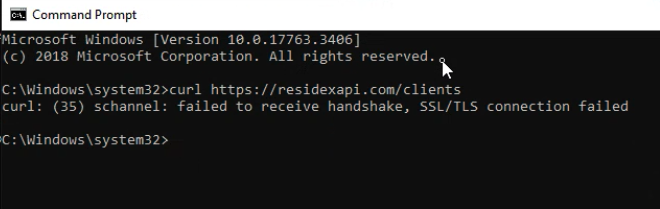
You can test any firewall rules you create by using one of the following commands in the Terminal, if Curl is installed (should be installed by default on current versions of Microsoft Windows).
Command line test of accessibility of residexapi.com
curl https://residexapi.com/clients
- OR -
VERBOSE Command line test
curl -v https://residexapi.com/clients
Successful Response
Either of the Curl prompts above should return the message "The server could not verify that you are authorized to access the URL requested." This indicates a successful connection to our API (since you are not connecting with any permissions, we expect this rejection.
Unsuccessful Response
If residexapi.com is blocked, you will see a failure message like the below example. This means your network is not able to connect to residexapi.com.
Configure your Pharmacy Software
Configure your pharmacy software to transmit messages to the IP Address of the server running Residex Pharmacy Connect, and Port 6000 (or a custom Port number if specified). Your pharmacy software support team will be able to help you with this.
Ideally, Pharmacy Software will be configured to send only NW (New Order) and XO (Changed Order) messages to Residex; if additional types of orders are transmitted to Residex, they will be ignored.
Specifications for what facilities have data transmitted to the application is always controlled in the Pharmacy Software, so data is only ever transmitted only for appropriate clients.
Facility Codes
When you begin transmitting data, please provide Residex Software with any Facility Codes you are transmitting data for. These are identification codes for homes that we need in order to ensure correct routing of the data you send us.
Update Residex Pharmacy Connect Application
Updating your version of the Residex Pharmacy Connect application is very simple and should just take a few minutes.
- No uninstallation step is required
- No Reboots / restarts are required
- Updating Pharmacy Connect will not impact your pharmacy software or normal operations.
Updating your installed version of the Residex Pharmacy Connect application is as simple as repeating the installation process!
Uninstall Residex Pharmacy Connect Application
The Pharmacy can disable Residex Pharmacy application entirely on demand at any time without notice, completely independently without assistance from Residex.
- Download the Uninstaller
- Run the uninstaller and follow prompts to uninstall the Pharmacy Connect application.
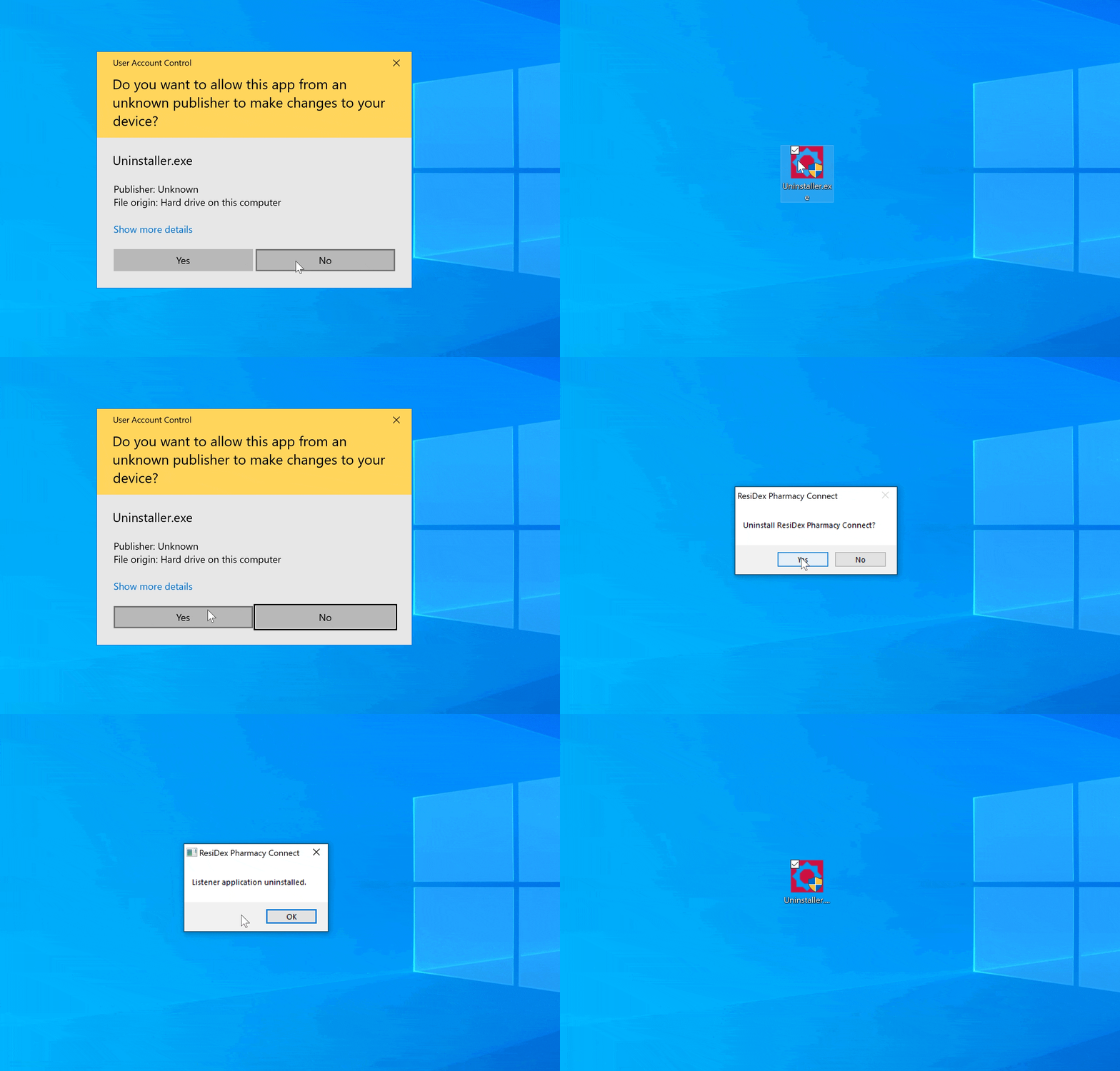
Uninstalling the Residex Pharmacy Connect application
Get Help
Please email integrations@residexsoftware.com or call 866.512.8369 with any questions or for assistance with the interface.
HL7 Specifications
Interface Types
Residex Software presently supports two different ways of interfacing:
- Residex Pharmacy Connect application ("listener application") - Our most common interface type. Integration is handled by an executable application provided by Residex that runs as a Windows Service on the same server or network as pharmacy software.
- Polling We can 'check in' to mailboxes maintained by the pharmacy software vendor to see if there are new messages for us to download (this is the least common method of interfacing that we use as it is available with few pharmacy software systems. Polling is setup by the Residex Software Integrations team when needed.
Encryption
Our application will use the highest available TLS version supported by the Windows installation it is running on.
Our 'listener application' is installed on a pharmacy server, and receives HL7 messages from pharmacy software, which it validates as HL7 and passes on over the public internet to systems via our API. All connections to our API / over the public internet are secured via TLS. We use TLS 1.2 and higher. Though our API supports itself supports TLS 1.1 and 1.0 because we want all pharmacies to send us data even if they are running older versions of Windows, our application will automatically use the highest supported version of TLS based on the operating system it is running on.
HL7 Message Detail
Message Types
- HL7 V2.x messages are supported.
- Custom HL7 fields can be supported in some circumstances.
- Script 10.6 (NCPDP) messages are not presently supported.
RDE^O01 New orders and refills The RDE^O01 messages sent to Residex should consist of the following HL7 segments.
- MSH
- PID
- ORC
- RXE
- PV1
- {TQ1} Optional
- The individual HL7 segments and their contents are described below
MSH Message Header Segment
| # | Description | Example | |
|---|---|---|---|
| 1 | Field Separator | ` | ` (ASCII 124) |
| 2 | Encoding Characters | ^~\& (ASCII 94, 126, 92, and 38) |
|
| 3 | Sending Application | RESIDEX |
|
| 4 | Sending Facility | Customer number as identified by pharmacy | |
| 5 | Receiving Application | Pharmacy Software Identifier | |
| 6 | Receiving Facility | Pharmacy identifier/number | |
| 7 | Date/Time of Message | YYYMMDDHHMMSS | |
| 9 | Message Type | ADT^A01 Resident admit, ADT^A08 Resident update, ADT^A03 Resident discharge, OMP^O09 – Medication new order/refill From Residex |
|
| 10 | Message Control ID | Unique ID identifying this message | |
| 11 | Processing ID | P = Production, T = Testing |
|
| 12 | Version ID | HL7 version ID. Residex supports all HL7 V2.X messages and we will set this to the same version as used by pharmacy | |
| Remaining fields ignored. |
PID - Patient Identification
| # | Description | Example |
|---|---|---|
| Fields 1, 2 ignored | ||
| 3 | Patient Identifiers | PI = Pharmacy Patient IDSS= Social Security Number.Delimited by ~.E.g. 123456789^^^^SS~333333333^^^^^PI |
| 4 | Alternate Patient ID | N/A |
| 5 | Patient Name | Last Name^First Name^Middle Name |
| 6 | Mother's Maiden Name | N/A |
| 7 | Date of Birth | YYYYMMDD |
| 8 | Sex | M/F |
| 9 | Nickname / Alias | N/A |
| 10 | Race | N/A |
| Remaining fields ignored |
PV1 - Patient Visit Segment
| Fields 1, 2 ignored | ||
| 3 | Current Patient Location | Nursing Station^Room^Bed^Facility code |
| 7 | Doctor | Last Name^First Name |
| Fields 8-43 ignored | ||
| 44 | Admit Date / Time | YYYYMMDDHHMMSS |
| 45 | Discharge Date / Time | YYYYMMDDHHMMSS |
| Remaining fields ignored |
ORC - Common Order Segment
| # | Description | Example |
|---|---|---|
| 1 | Order Control Code | NW = New OrderXO = Change Order.RF (Refill) & DC (Discontinue) messages are ignored. |
| 2 | Place Order Number | N/A |
| 3 | Prescription Number | Specified for refills and ignored for new orders |
| Fields 4-8 ignored | ||
| 9 | Date/Time Entered | YYYYMMDDHHMMSS |
| Fields 10 & 11 ignored | ||
| 12 | Ordering Provider | ^Last Name^First Name |
| Remaining fields ignored |
RXE - Medication / Treatment Encoded Order Segment
| # | Description | Example |
|---|---|---|
| 1 | Quantity, Timing | Example: BID&08:00,20:00 |
| 2 | Drug Information | NDC^Drug Name^^^^ |
| Fields 3-5 ignored | ||
| 6 | Dosage Form | Tablet, Capsule, etc |
| 7 | Instructions | |
| 15 | Prescription | Specified for refills and ignored for new orders |
| Remaining fields ignored |
The RXE timing and quantity segment can be used to specify dates or week days. Examples: Weekly Monday, Tuesday & Friday = W^Mon,Tue,Fri Specific day(s) of the month (15th and 21st) = M^15 ,21.
TQ1 - Timing and Quantity Segment
| # | Description | Example |
|---|---|---|
| 1 | Segment Counter | |
| 2 | Dosage Form & Quantity | Example: 1^TAB |
| 3 | Duration | Example: D^1 (every day) |
| 4 | HOA Times | Example: 07:30, 15:00 |
| Fields 5 & 6 ignored. | ||
| 7 | Start Date Time | YYYYMMDDHHMMSS |
| 8 | End Date Time | YYYYMMDDHHMMSS |
| 9 | Priority | S = Scheduled, PRN = As Needed |
| Field 10 ignored. | ||
| 11 | Instructions | |
| Remaining fields ignored |
ADT Messages
ADT messages are ignored, for now.
Residex can receive ADT messages ( ADT^A01 Resident admit, ADT^A08 Resident update, & ADT^A03 Resident discharge). However, presently there is no reason for pharmacies to transmit these messages to Residex. We have not yet nationally encountered a case where receiving ADT messages from a pharmacy would be useful for a client.
Learn more
To learn more about Residex Pharmacy Connect, please reach out to us at pharmacyconnect@residexsoftware.com!