
Table of Contents:
- Schedule a Medication
- Edit, Reschedule, Hold or Discontinue
- Med Set
- Complex Medications
- Reordering Medications
- Controlled Medications
- Medication Counting
- Receive Medications
- Medication Disposition
- Medication Setup/Review
- Managing Late or Missed Medications
- Pharmacy Connect
- Pharmacy Connect Outbound Faxing
- Controlled Medication - FAQ
Medication Management
Schedule a Medication for a Resident
Navigate to Residents > Select a Resident > Medications > Add New Medication
If you have a pharmacy interface, you may enter medications through the Pharmacy Connect process.
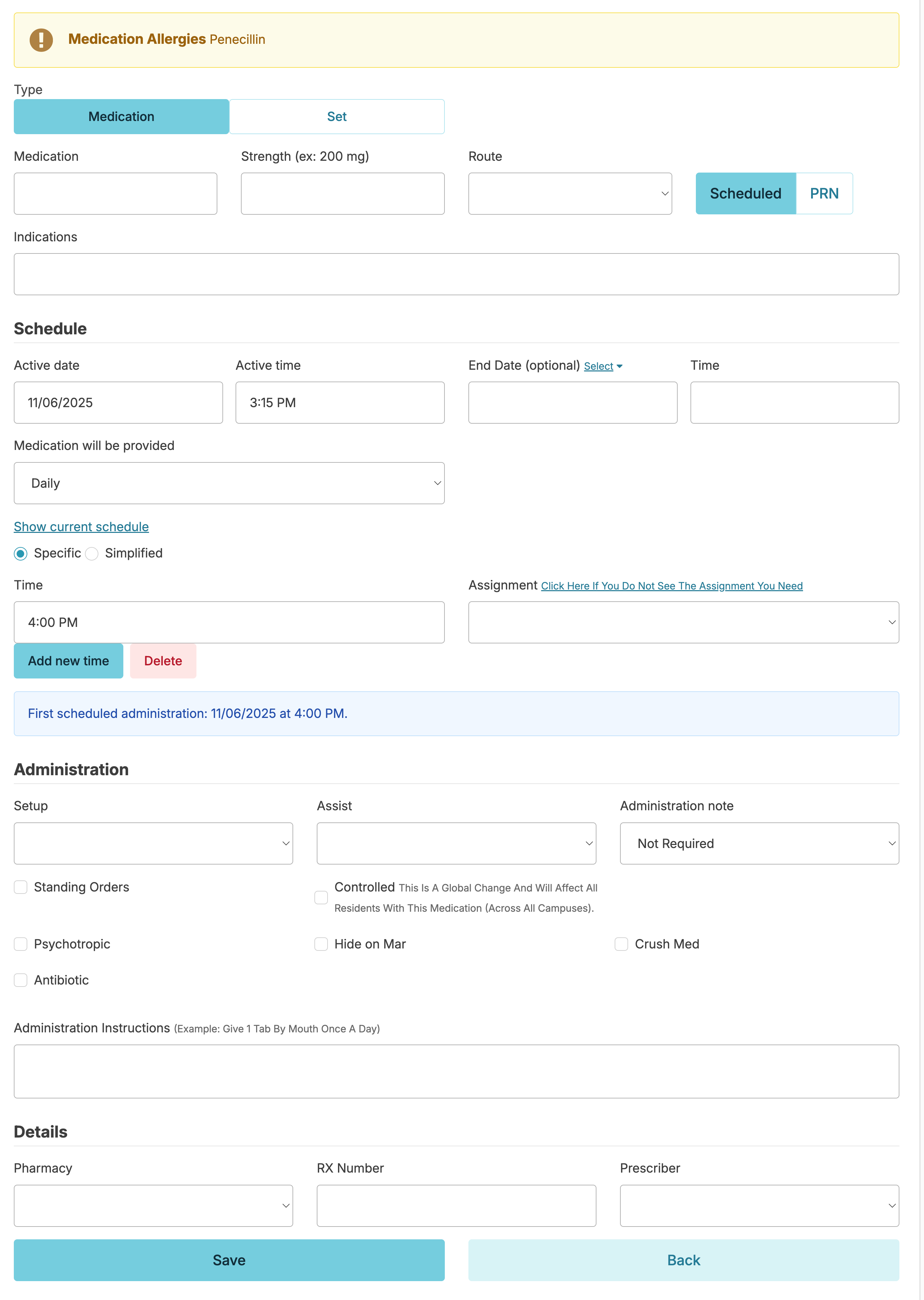
Medication Entry
- Start typing the name of the medication, if it appears in the dropdown list, hover over it and click on it. This will auto-fill the rest of the name for you and prevent adding an additional same-name medication to your Global Medications List.
- If the medication you are adding does not appear in the dropdown list, verify the spelling is correct and complete the entry of the name (this will automatically add this medication name to your Global Medications List).
- Matching the name on the pharmacy label is best practice, especially when this label is used by the med passer when verifying the medication at the time of administration.
- Strength
- The strength is entered with both quantity and unit (i.e. 325 mg, 20mg/5mL, 25 mcg, etc.).
- For best practice, the strength should match the pharmacy label and allow for the medication passer to clearly verify 'right dose' at the time of administration.
- Route
- Administration route. For an order that has more than 1 prescribed route, add the additional route options to the Administration Instructions
- Scheduled or PRN
- Different scheduling fields will appear depending on this selection. Medications with both a scheduled and PRN component will need to be entered twice, once for each schedule type.
- Indications
- Type out the indication(s) for the medication, and/or select one of the resident's diagnoses from the dropdown list.
Schedule
- Active Date & Active Time
These will determine when the first administration of this medication will appear in the eMAR.- Today's date & current time will default in, but can be edited for a medication order of a future date if the medication will not be administered right away.
- When scheduling a medication for a future date, be mindful of the active time so that it falls before the scheduled time. You can run the report Simplified Schedules to determine the sort time if using simplified times.
- If a resident is on Reserved or Hold status, you do not need to match the start date & time to their return; the medication will not appear for administration in the eMAR until the resident is active.
- End Date/Time
When the last medication administration for this medication will appear in the eMAR.- Common for short-term medications such as antibiotics, pre-procedural medications, and tapers.
- If not all doses will be given on that last day, then you will edit the time to be after the last dose. The most common would be the antibiotic that is 2 x daily for 7 days with the first dose being given at the time of 2nd daily dose (meaning the last dose will be a morning dose).
- Medication will be provided
The Frequency of scheduling for scheduled medications including daily or less frequently. For PRN medications, fields will allow you to set limits on frequency. Some Examples:- Daily: Used anytime a medication is scheduled daily, whether it is 1 x day, 2 x day, 3 x day, etc
- Every X Days: Used for medications scheduled with a set amount of days in between. Ex: Every other day would be Every 2 days
- Even Days / Odd Days: NOTE: We recommend to update order to Every X days (2) in the place of Even / Odd days due to potentially 2 even or odd dates at month-end/start
- X Days On / Y Days Off: Can be used for medications with a defined number of days of administration followed by a defined set of 'hold' days Ex: Give the med for 7 days, then hold for 14 days
- Weekly (Specific Days): Orders for specific days of the week. Ex: M, W, F
- Monthly: Can be used for medications ordered for a specific date of the month (15th) or day of the month (1st Friday).
- Time
- Enter the time of administration for scheduled medications.
- Click Show current schedule to see the times this resident is already receiving medications.
- Specific is the most common option for medication administration times that specifies the hour and minute it is due. There is still the traditional grace period to administer and chart it before or after the specific scheduled time.
- Simplified is a broader scheduled time, such as AM, Midday, PM, and Bedtime. This is not encouraged to be used for medications administered more than 1 x in a day.
- Use the dropdown to choose the hour, minute, and AM/PM or a simplified option.
- Add new time for medications administered more than 1 x in a day.
- If a medication is to be given 3 x daily and you want to schedule it for 7:30 AM, 2 PM, and Bedtime, then you will need to enter the medication twice (once to schedule it for the 2 specific times & again to schedule it for the simplified time).
- Parameters: if a blood sugar or other vital sign is needed for determining if this medication should be held or administered, schedule that service for the same time and to the same assignment as the medication.
- Tip: The blue box below the 'Time' field will display the date and time of the first scheduled dose to be administered based on the schedule active time and medication administration time.
- Assignments
- Using the dropdown options, choose which assignment list to add this service to.
- Assignments in this list will only appear if that assignment shift is during the administration time (this prevents errors such as accidentally assigning a midday medication to an overnight assignment).
- If any other medications are assigned for the time already, then you will be limited to that option (this is a safeguard to prevent multiple staff from being tasked with administering medications to the same client at the same time and helps to prevent medication errors). Simply change the administration time (even if only by 5 minutes) if this needs to be accommodated.
Administration
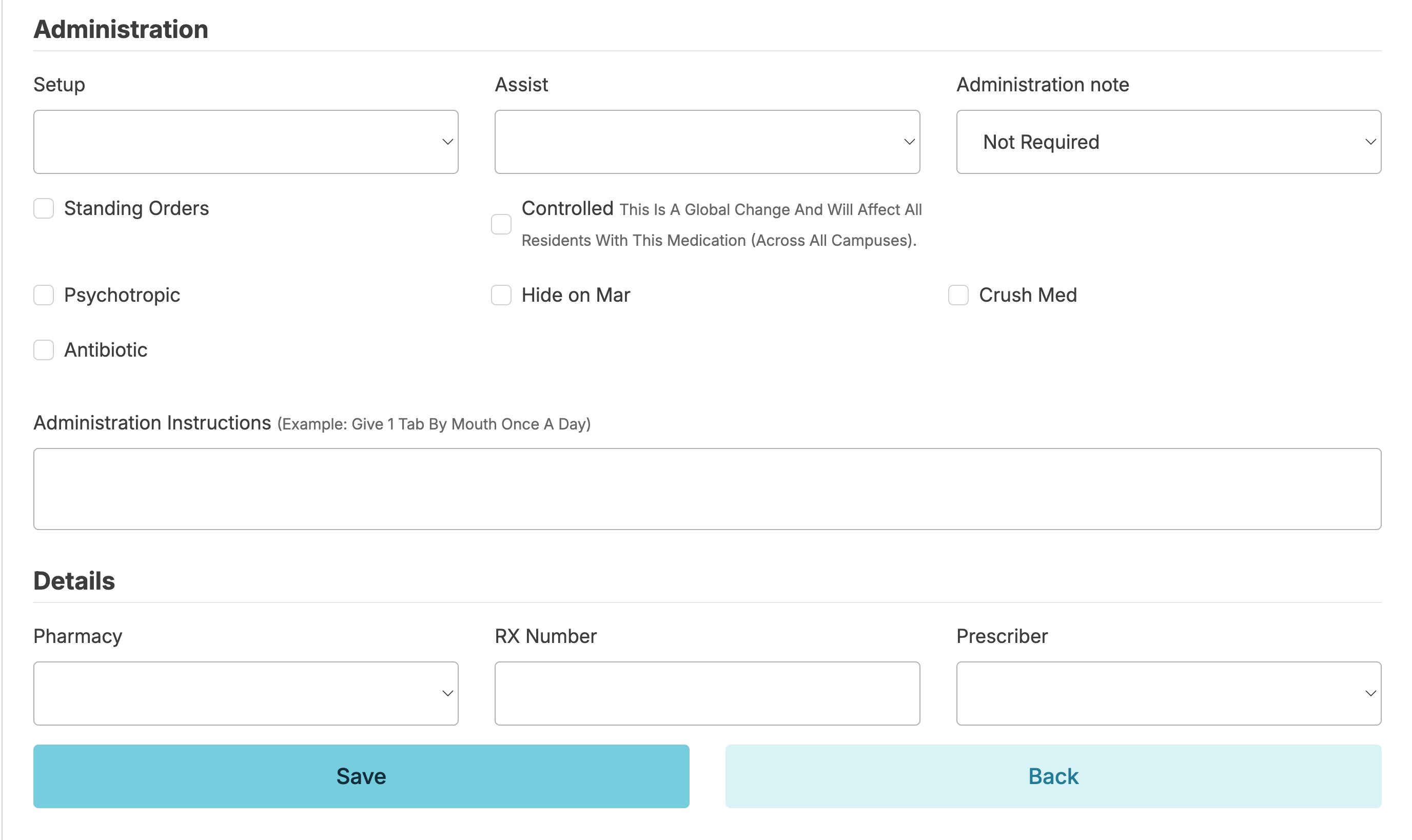
- Setup
- Family: use when a personal contact for the resident sets up his/her medications (This medication will not be available on the Setup/Review medication screen)
- Nurse: use when you or any nurse at your facility is setting up a resident's medications (typically used for medications that are not in a single-dose package or from the pharmacy).
- Pharmacy: use this when the pharmacy sets up medications in a single-dose packaging by time or medication and time.
- Self: use when the resident sets up his/her own dose for administration.
Note: Medications that are set up by "Self", "Family", or "Other" will not appear in the Med Setup screen for documentation of setup.(This medication will not be available on the Setup/Review medication screen)
- Assist
- Family, Home Care Agency, Self, and Other are non-facility staff and will not generate a Medication Administration Service for staff to sign off completion of.
- Facility staff, such as HHA/RA and Nurse will generate a Medication Administration Service on the electronic MAR & are used with their hierarchy in mind.
- HHA/RA: use this if the lowest hierarchy type for medication administration is permitted to administer this medication. It will allow you to schedule to provider types of both HHA/RA and Nurses since HHA/RA is lower in heirarchy.
- Nurse: use this when the medication will only be assigned to a Licensed Practical/Vocational Nurse (LPN/LVN) or Registered Nurse (RN) that is part of your facility staff. If the medication is being assigned to a nurse simply because of the time it is scheduled and not related to scope of practice or policy, we recommended choosing HHA/RA to prevent problems in the future from staff schedule changes.
Administration Note
Notes can always be entered during the med pass, but are not required for most medications. If you do require a note for a medication administration to be complete, select the type of note (the note type will reflect which Snippet options are available for the med passer to choose, and additional free-text notes is always an option at administration time as well)
- Checkboxes
- HHA Verify: this is a place for the med passer to indicate Medication Administration Rights have been verified as correct at the time of the med pass. It places an extra checkbox under this medication in the Medication Administration Service. (For those nurses familiar with paper MARs, this is equivalent to putting a dot in the initial box to keep track that the medication dose is in the med cup but not yet administered as your initials would otherwise indicate.)
- Psychotropic and Antibiotic: appropriately indicating if a medication is in one of these categories will assist you later with proper reports and quality assurance.
- Standing Order: identifies if the medication is part of routine standing orders.
- Hide on MAR: this box will prevent this item from showing up in the Medication Administration Service. This is wonderful for those prescription items that you don't want to lose track of but don't need anyone to sign off as administering, but you still need all of the information for re-ordering and medication management tasks (lancets, pen needles, or even incontinent products for those using a Veterans Affairs Pharmacy!)
- Crushable: this is to indicate if it is approved to crush this medication for this resident
- Controlled: this will add this medication to the "Medication Counting" list and require the med passer to enter the quantity administered & the quantity remaining each time the medication is administered. This is for your "double-locked" medications. Only a facility staff person with the Administrator (Role 411) is able to edit this checkbox if it is incorrect.
- Administration Instructions
Individualized instructions for the medication pass (e.g. give "2 tablets by mouth three times daily," "give 1.5 teaspoons by mouth two times daily -- okay to mix in 2 ounces of apple juice and watch to ensure she drinks all of it.", "give 1 tablet by mouth every morning (do not give if pulse is less than 60).") - Pharmacy, Rx Number and Prescriber
The final fields allow you to select the appropriate pharmacy and prescriber. The Rx Number is not a required field and need not be entered on medicaton entry. The number will automatically populate if imported using Pharmacy Connect, OR if entered on controlled medications when documenting as received under Clinical > Received Medications.
Medication Editing, Rescheduling, Hold, & Discontinuation
To make changes to a medication, navigate to the resident profile > Medications > select medication.
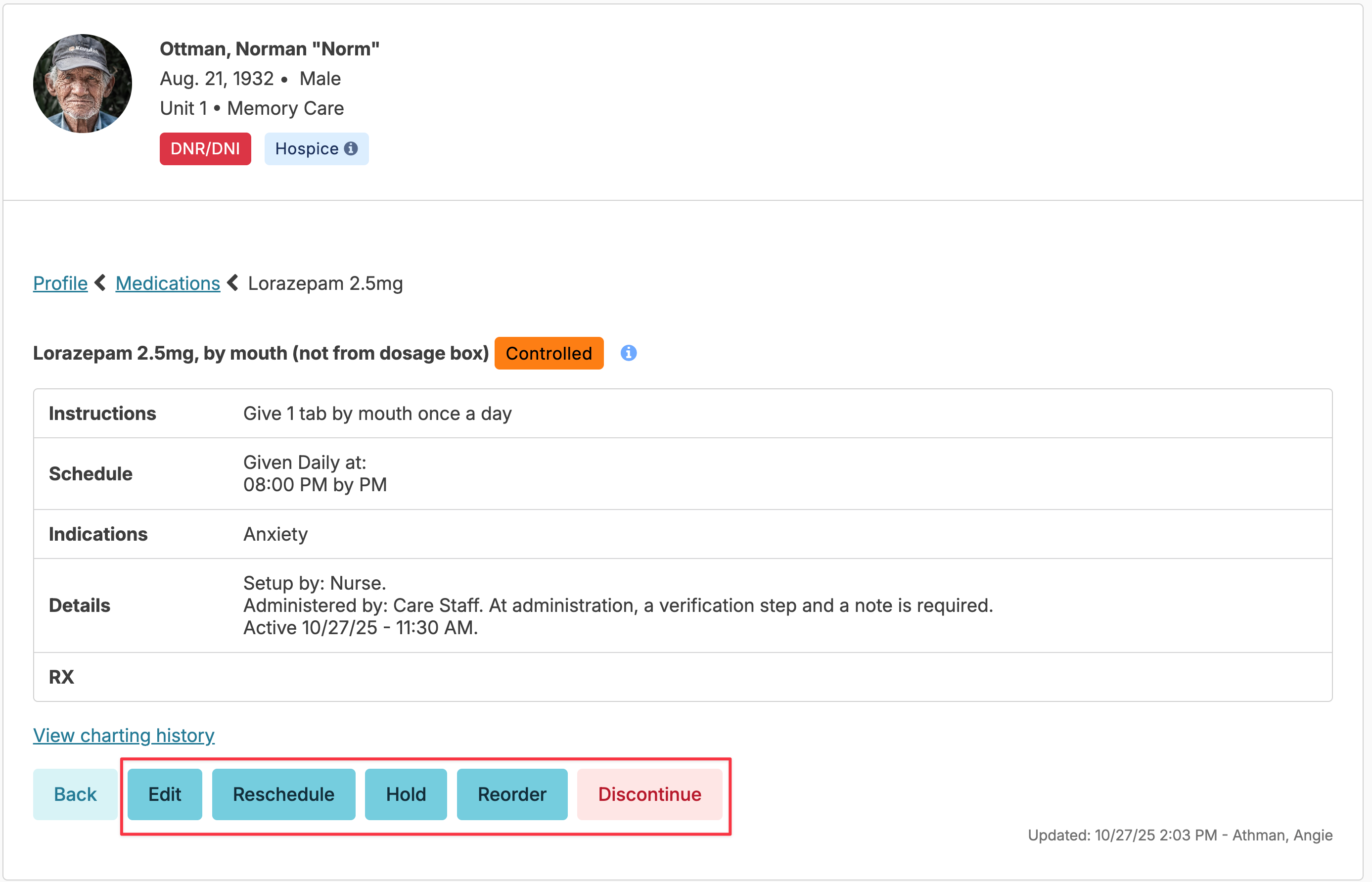
- The Edit button will allow you to update strength, route, indications, and administration details for a medication. Changes that are more than minor edits or additional details will alert you to the need for a discontinue and restart of the medication to preserve an accurate history. You can chose to confirm the change by clicking Save or cancel.
- The Reschedule button will allow you to change when a medication administration is scheduled.
Note: If a controlled medication warrants a discontinue and restart or is rescheduled, the count will transfer from the old record to the new record.
❗️NOTE: When a medication is edited or rescheduled to a different time or assignment, the previously setup medications will be cleared. The setup/review process will need to be completed again for the updated medications by navigating to Clinical > Setup/Review Medications. This step will ensure that the medication is set up appropriately for the changes that were made.
Troubleshooting Med Scheduling
Residex only allows 1 assignment for each med time. If you are not seeing the assignment you need when rescheduling/assigning a med assist from a single medication, you will need to use a different time OR reschedule En Masse from the Schedule tab.
Definite Hold
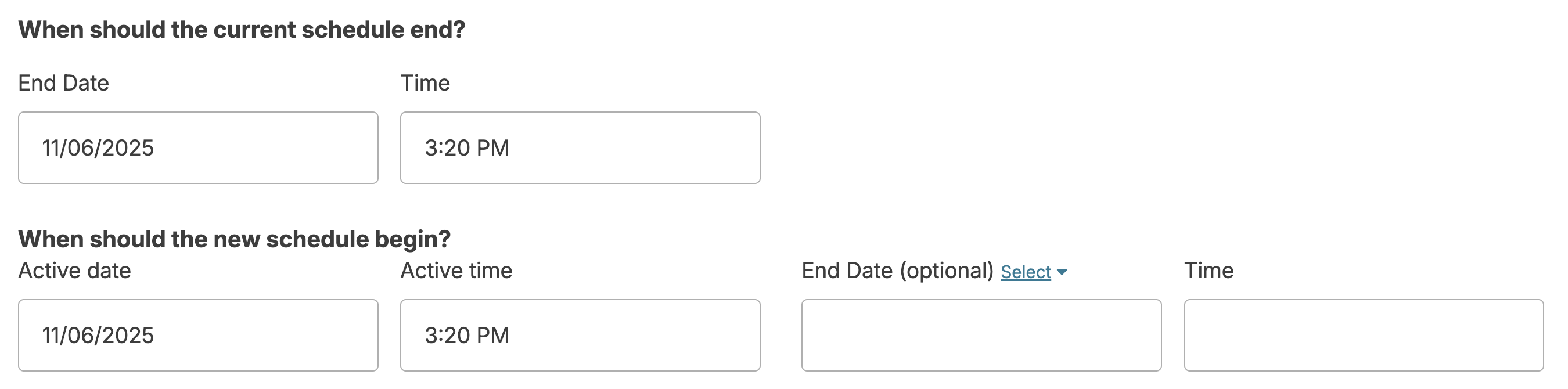
If the prescriber specifies a set time frame for which a medication should be held, use the 'Reschedule' option to enter an end date and time for the medication, and then the date and time the medication is to be restarted. This creates a gap in time during which the medication will not be able to be marked as administered. The advantage to this method is that the medication will restart automatically at the selected date and time without additional action.
Indefinite Hold
The Hold button will immediately put the medication on hold indefinitely, after a second confirmation step. The medication will then display in the current medication list and eMAR as being on hold, and staff will not be able to record administrations.
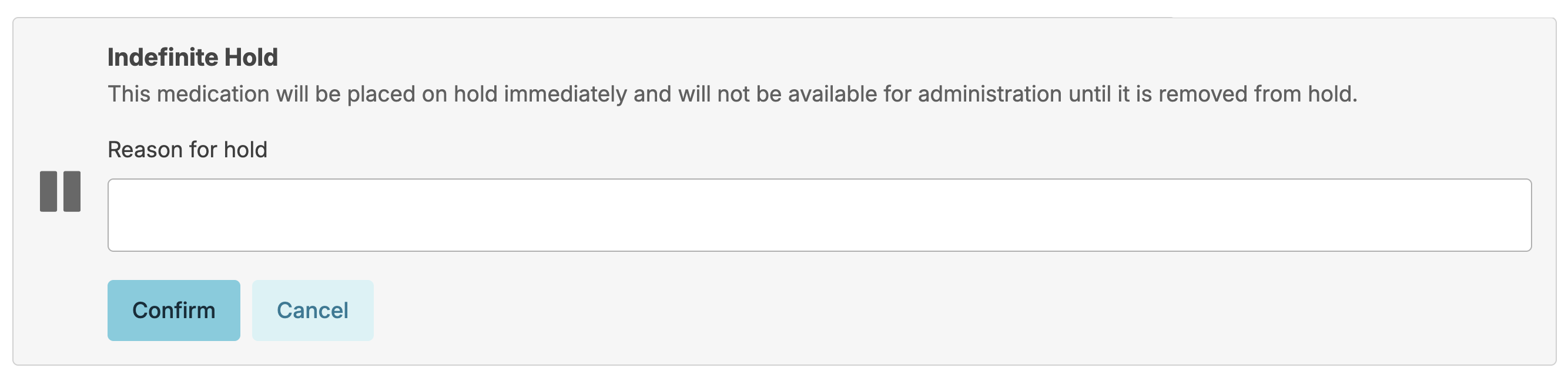
To remove a Hold, simply reverse the process - select the medication from the resident medications screen, and press the Remove Hold button.
The Dashboard/Login Report, Meds on Hold, can help remind nurses of meds that are in this temporary hold status.
Removing a Medication from Hold — Same-Day Administration
If a medication is taken off hold and you need it to appear for administration on the same day, simply removing the hold is not enough. You will also need to reschedule the medication to ensure it populates correctly for that day's administration time.
Steps:
- Locate the medication currently on hold and remove the hold.
- Locate the medication on the Current Medications list.
- Click Reschedule.
- When rescheduling, you will be prompted to enter an end date/time and a start date/time. The following order must be maintained for the med to appear correctly:
- The end date/time must be before the start date/time
- The Active date/time must be before the scheduled administration time
Example: If the medication is scheduled to be administered at 8:00 AM on 2/5/26, you would set:
- End date/time: 2/5/26 at 1:00 AM
- Active date/time: 2/5/26 at 6:00 AM
This ensures the medication is active and appears on the administration record in time for the 8:00 AM pass.
Discontinue Medication
The Discontinue button will end the medication after a confirmation step where you specify the End Date & Time & optionally a reason.
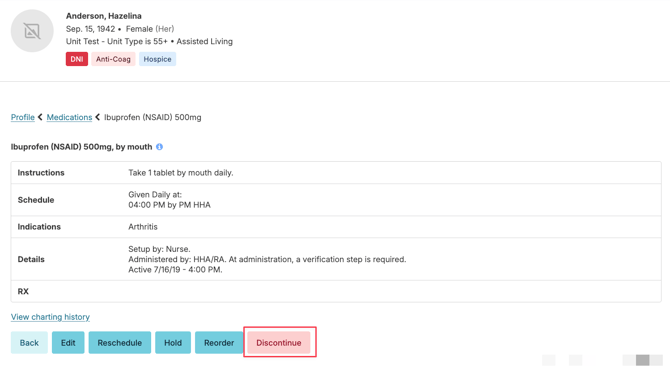
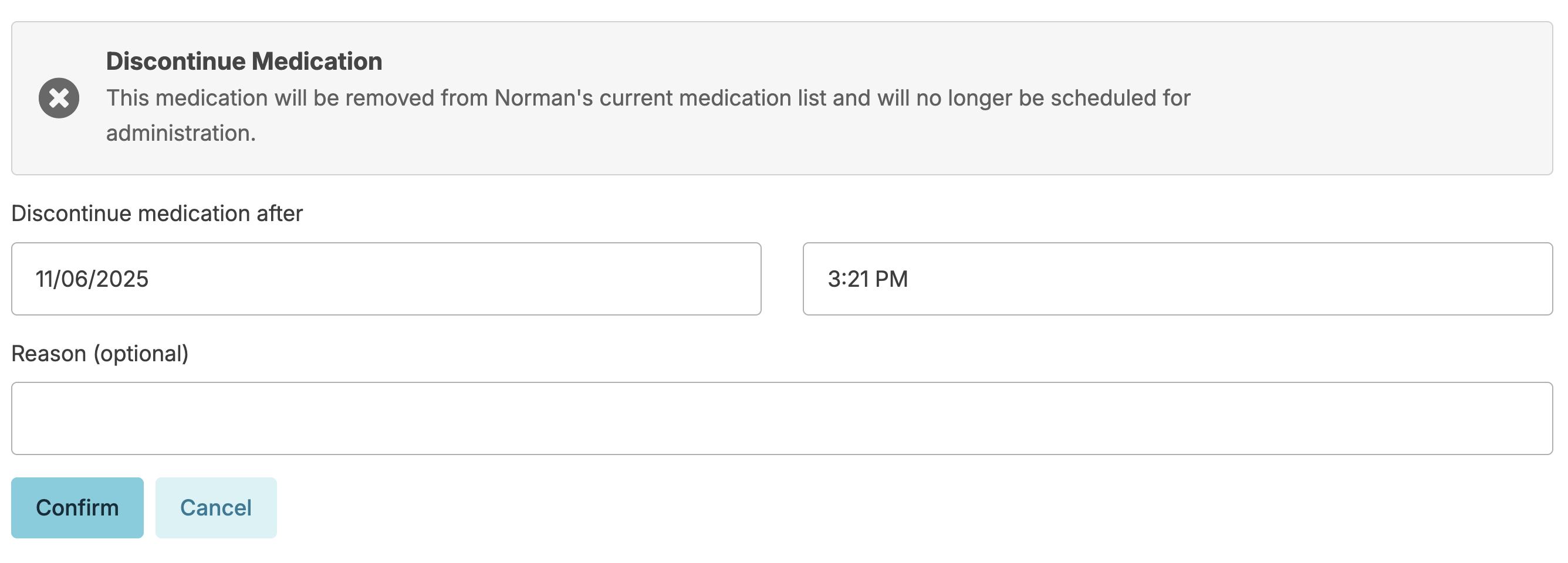
Note: When discontinuing a controlled medication, the medication will remain on the Medication Counting screen until the count remaining is 0. Navigate to Clinical > Medication Disposition to dispose of the discontinued medication.
Reschedule Med Administrations En Masse
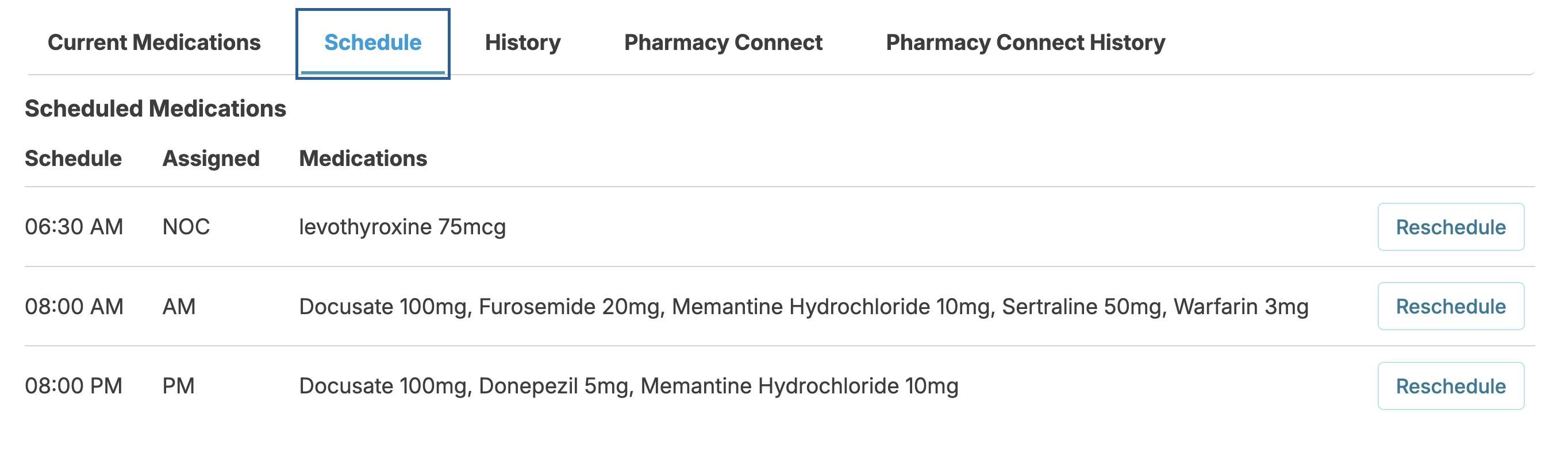
You can reschedule groups of medications to a new administration time and/or a new assignment very easily. From the resident Profile > Medications screen, select the Schedule tab; this will show you all medication administrations for a resident grouped by time.
Press the Reschedule button to reschedule/reassign all medications for a given time and assignment.
Medication Assessments
The first step to managing medications for a resident is to determine what his/her needs are regarding all medications. Reports such as the Individualized Medication Management Plan (IMMP) and Self Administered Medication Management (SAMM) Plan are created from information entered in the resident's assessment.
Med Set
Med Sets simplify adding a standard group of PRN meds, such as Standing House Orders or Hospice PRN Orders.
Med Set Addition
From the Resident Profile > Medications > select Add New Medication. From this screen select Set instead of selecting a single medication. This will allow you to select from any Med Set you have setup in your database.
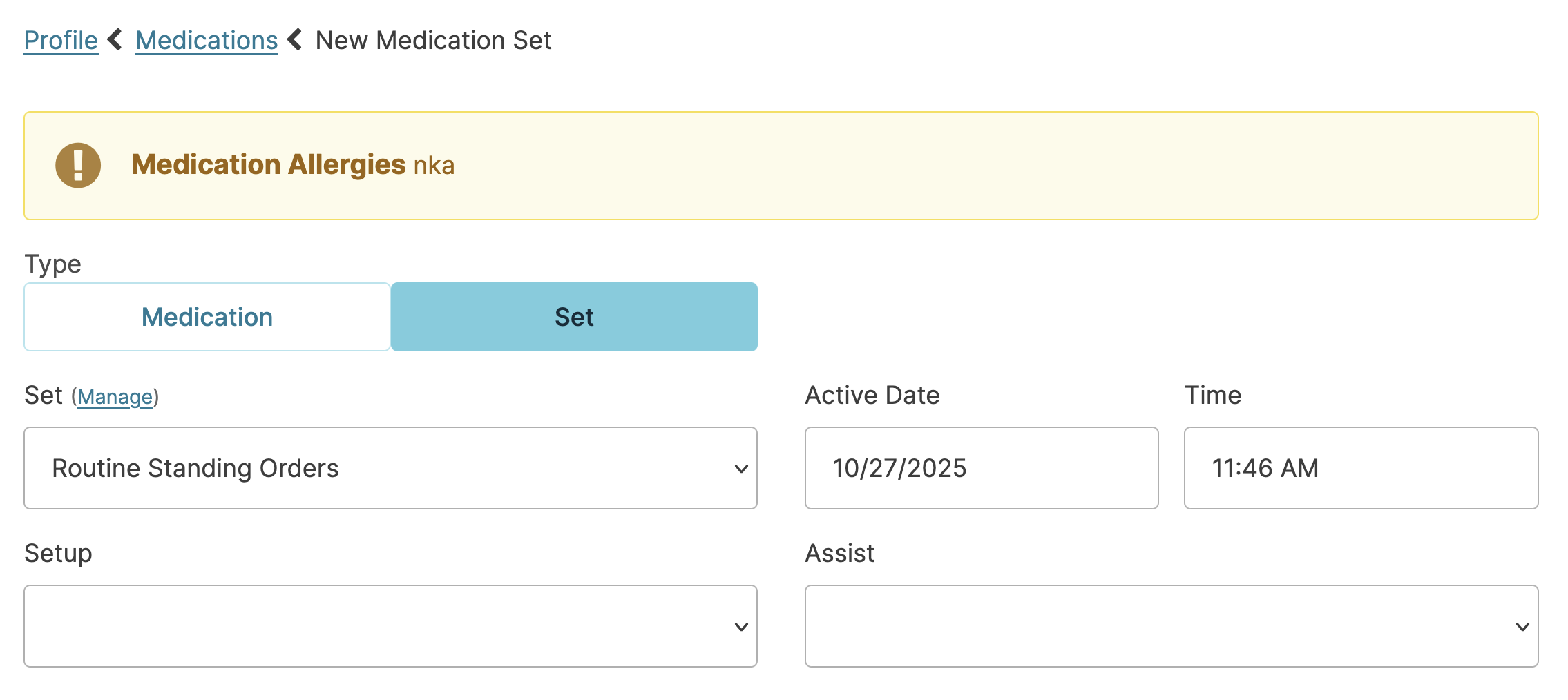
Once a med set is selected, the medications in that med set will populate. Review medications, unselecting Include Medication for any medication that may not apply > click Save. If the prescriber does not approve one of the medications for use and the Include Medication box was not unselected, navigate to the Current Med list to discontinue that medication.
Medications identified as part of the standing orders set will appear in their entirety in Provider Orders (and so you can get approval from the prescriber there) but will not appear in all current med lists (e.g. on referrals) to simplify lists.
Medication Set Creation
Users with the Administrator (Role 411) or the Administrator Assistant (Role 410) can create, edit and delete Medication Sets. To add a new Med Set, navigate to:
- Admin > Medication Sets
- Click New Medication Set
- Enter the Medication Set name
- Click Add Medication to add each medication to the list
- Click Save
To edit a Medication Set, navigate to the above screen and click the blue pencil to the right of the medication set you wish to edit. You can add new medications to the set or remove medications from the set. You cannot edit existing medication information.
Note: Changes made will apply for future use only. Updates to previously entered resident Medication Sets will need to be done manually for each resident.
Complex Medications
Some medications require additional entry considerations (e.g. sliding scale insulins, steroid tapers, and transdermal patch removal)
Sliding Scale Insulin
- Enter the sliding scale insulin as a scheduled medication with specific medication times that correspond with the same times that blood glucose monitoring is being scheduled. Scheduling these at the same time will require staff to document the blood glucose before documenting insulin administration.
- Selecting Require a Note and Injection location will allow staff to document the administration site.
- The Med instructions should include detailed instructions for the sliding scale:
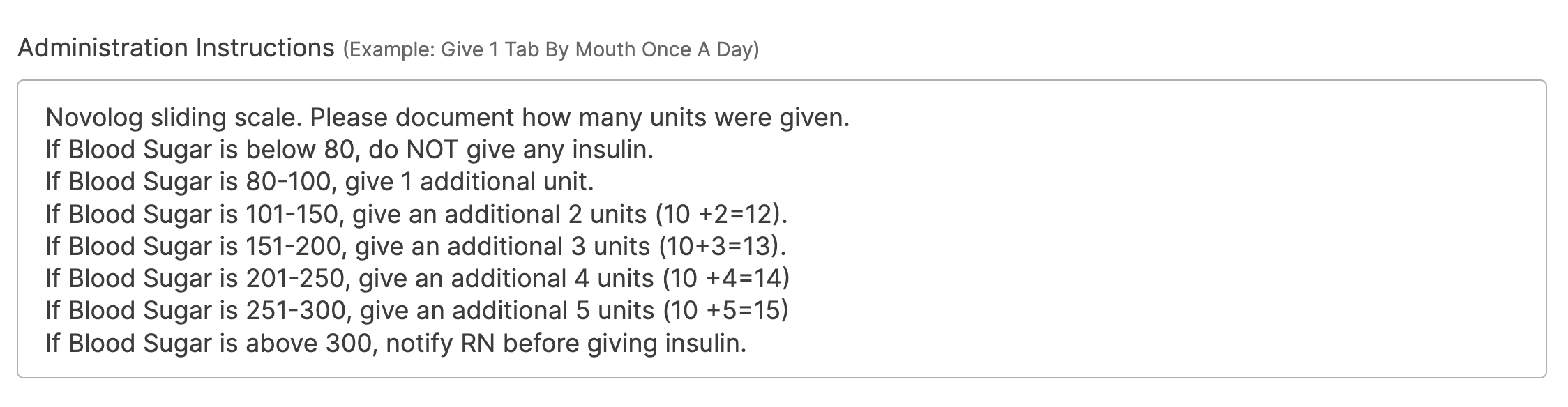
Reports such as Insulin and Blood Glucose Summary are helpful in reviewing blood glucose values and insulin administered.
Days On/Days Off
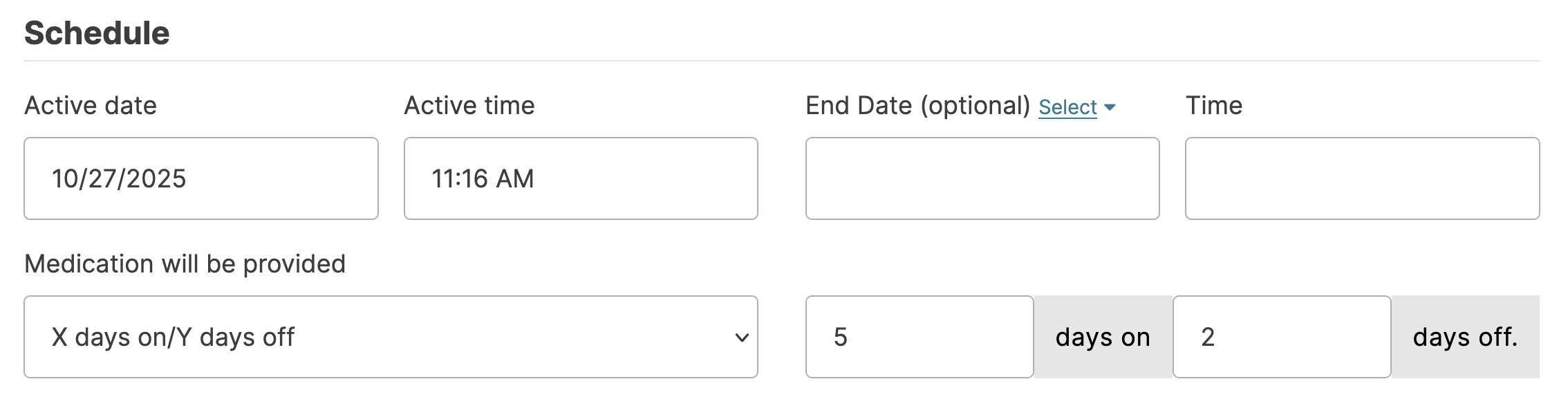
Occasionally prescribers will order a complex set of instructions such as 'Administer daily for 5 days every 20 days'. The option 'X days on / Y days off' will allow you to specify both the active days for that med (5) as well as the span of time the resident is NOT to receive the medication (10). When entered in this way, Residex will track the schedule and present it to staff on the appropriate days to administer.
Steroid Tapers
Steroid tapers are complex orders with varying doses over a period of days. It may be helpful to set up a grid to view the doses. The example below is a grid setup for a tapering dose of Prednisone 4mg. Note that the order specified:
Dosing on Day 1 of 2 tabs at 8:00 am and 8:00 pm and 1 tab at 12:00 pm and 6:00 pm, then reducing dosing each day by 1 -4 mg tab, then finishing the taper on Day 6.
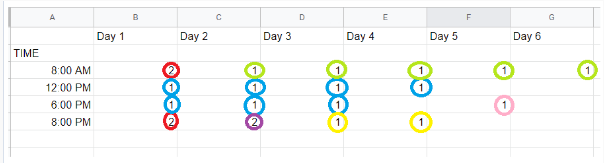
The med will need to be entered multiple times, using the start date/time and end date/time to define the active period for each dose. Doses circled by color represent a single med entry.
Red: Prednisone 4mg - 2 tabs- BID X 1 day starting on Day 1
Blue: Prednisone 4mg - 1 tab - BID X 3 days starting on Day 1 with an end time after the AM dose on Day 4
Green: Prednisone 4mg QD - 1 tab - with start day on Day 2 and End day on Day 6
etc...
It is very helpful, once all doses are entered, to be able to preview a paper MAR (Reports > category Paper MAR - Med Assist) to review the entry. Residex will gray out dates/times the med will not be given, and it's allows you to review your entry accuracy.
Transdermal Patches
If a transdermal patch is removed and replaced at the same scheduled time each day, instructions for application and removal can simply be entered as medication instructions.
If a transdermal patch is applied but removed at a different time, consider adding a 'medication' named 'Removal of Transdermal Patch' and scheduling that at the appropriate time for removal.
If a transdermal patch is PRN, include additional medication instructions for the medication, directing staff to enter a future unscheduled service of "Remove Patch" for the time/assignment at the appropriate time. This 'Remove Patch' service may need to be added to your Global Service List by an administrator/supervisor with the 411 Role.
Alternatively, a scheduled service 'Transdermal Patch Removal' could be added to the Global Service List and scheduled at the appropriate time.
Reordering Medications
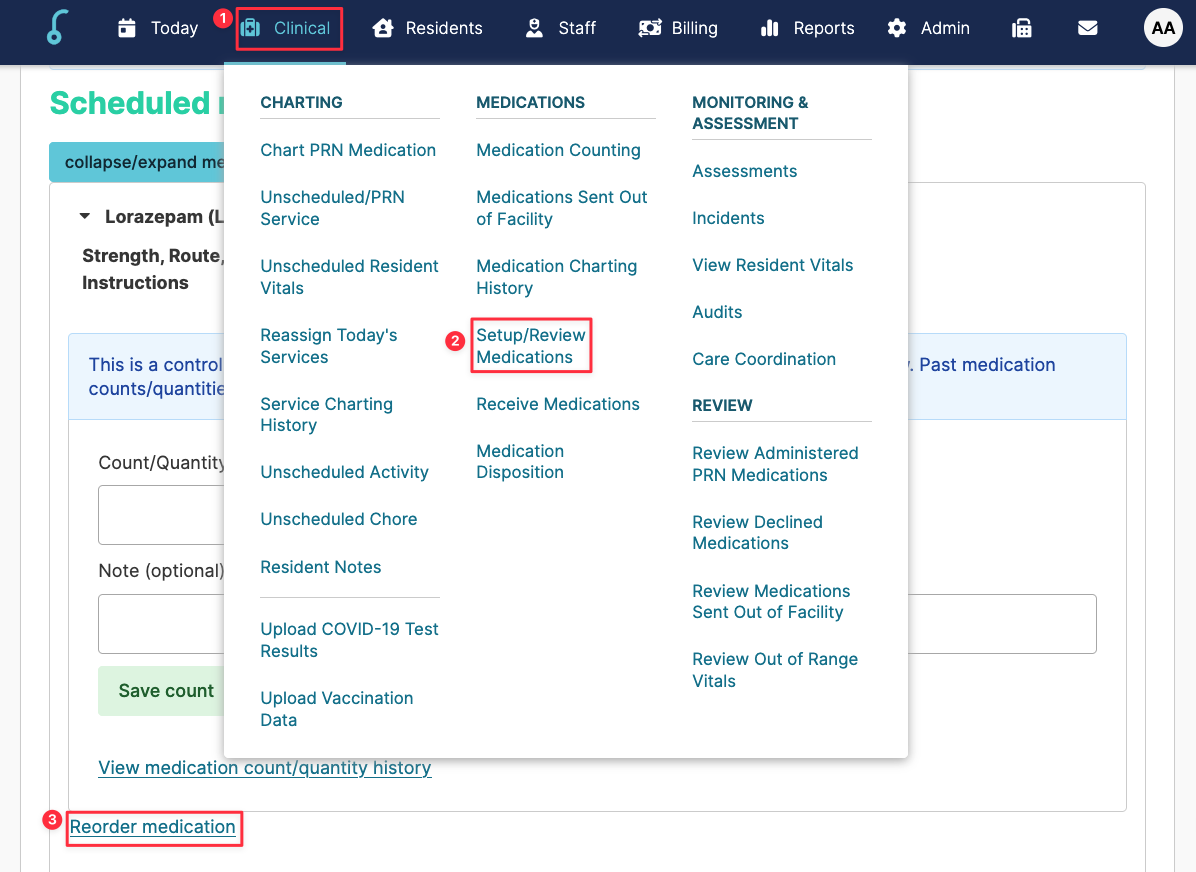
Medications can be reordered from the Resident Profile > Medications screen, the Clinical > Med Setup/Review screen, or from the EMAR itself. If you prefer that the Reorder button ONLY appear in the Resident Profile > Medications screen, contact ResiDex support and we can set this configuration.
Residex also has a feature called Pharmacy Connect - Outbound Faxing. Click here for more information.
Reordering Medications from the Resident Profile
From Resident Profile > Medications, select a medication from the list. The Reorder button can be selected and data entered:
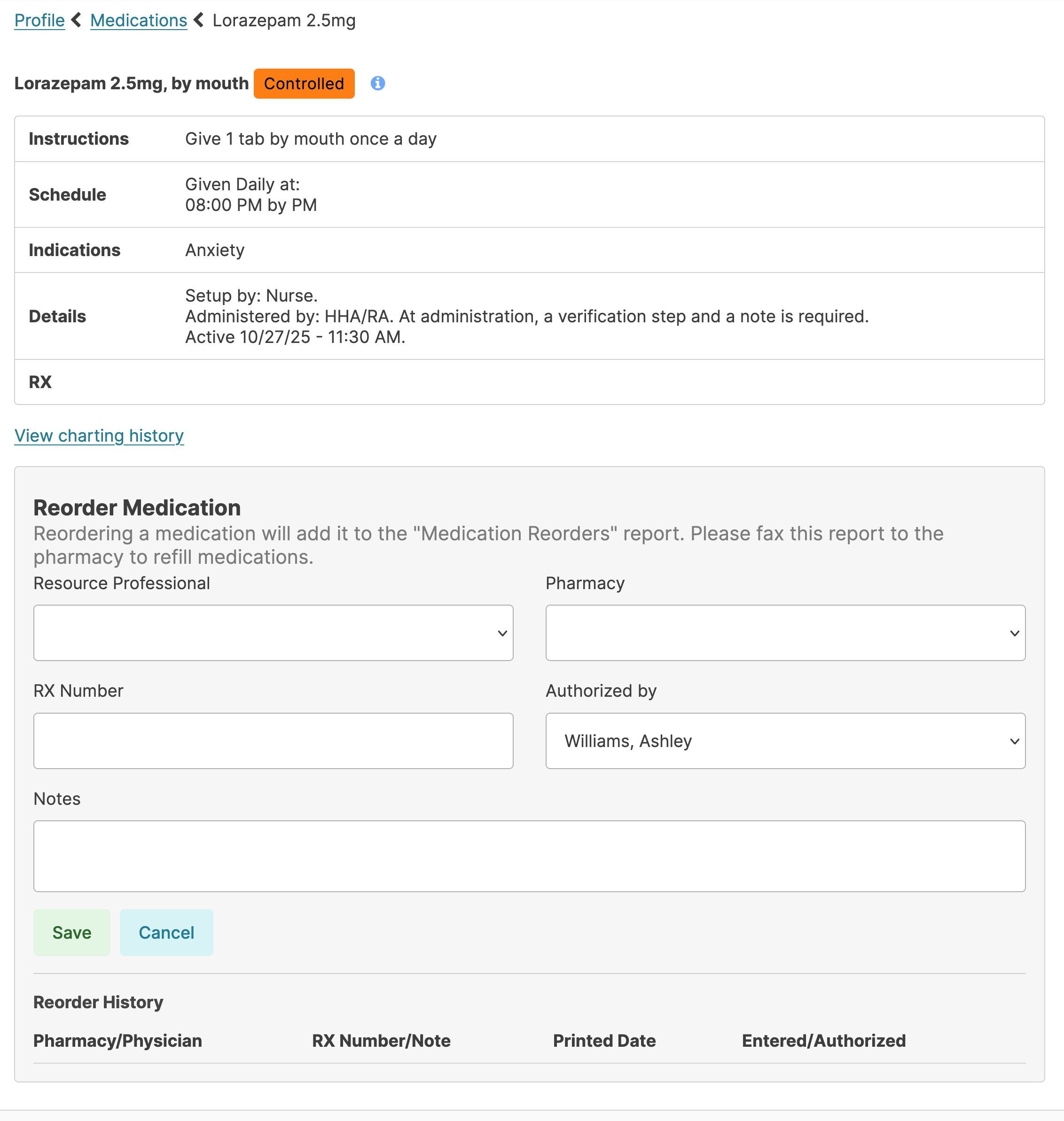
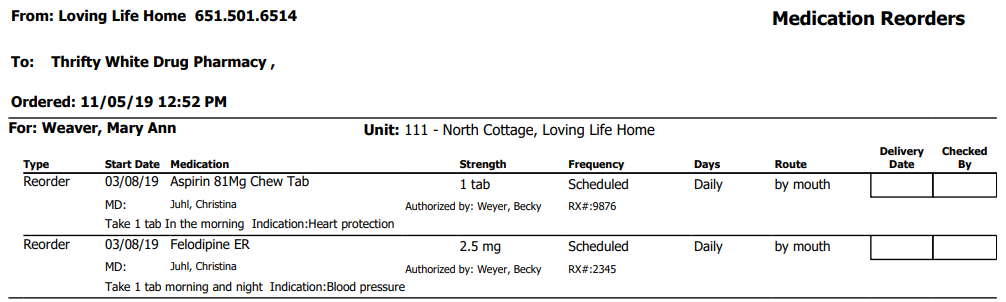
Continue with other medications for the order. When finished, go to Reports > Medication Reorders and select the pharmacy and the date for which the orders were entered. You can fax directly from this screen with Residex's fax feature, or print and fax to each pharmacy.
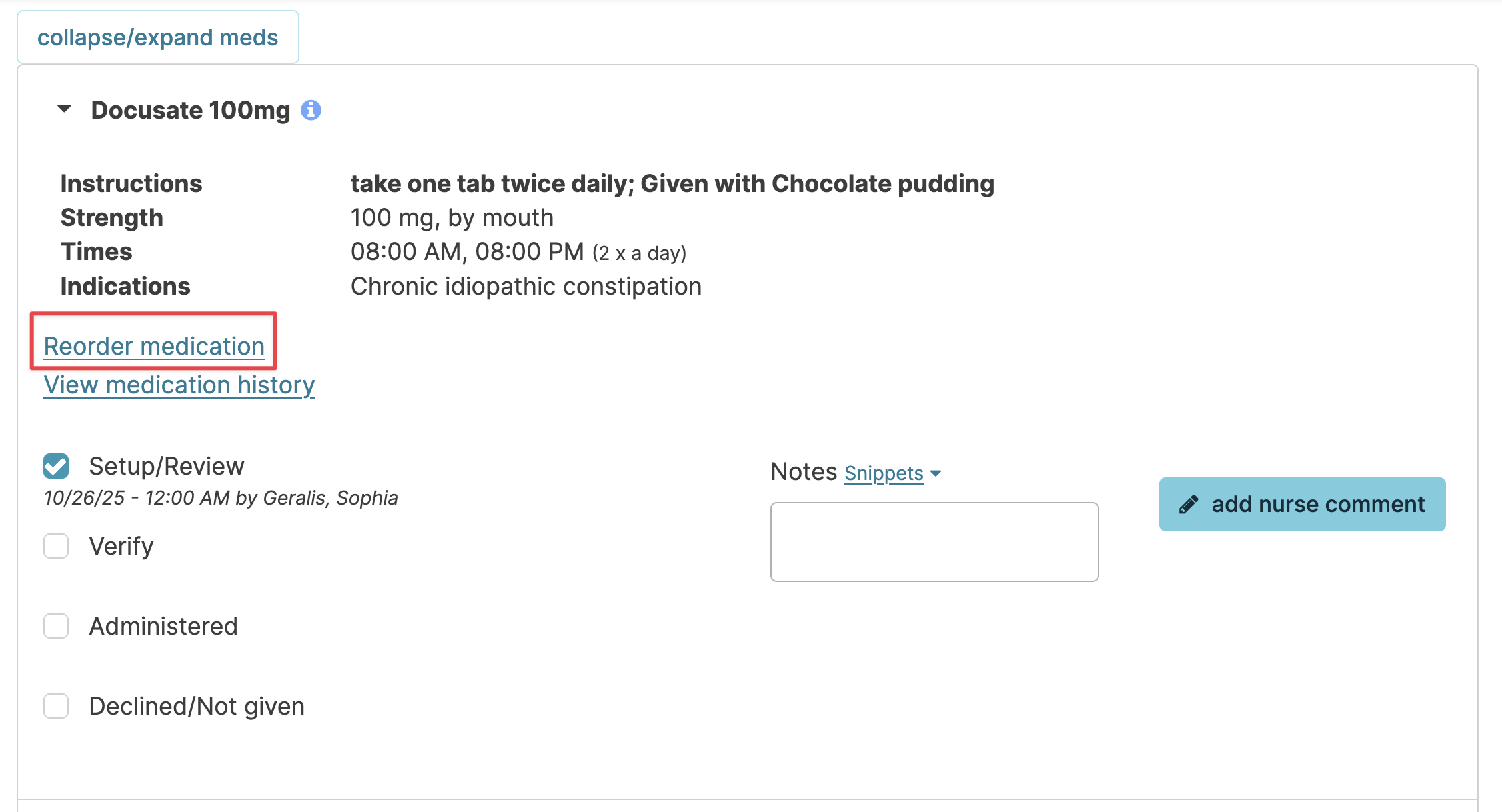
Reordering Medications from the eMAR
From any Medication Administration service, open the service and view the medications to be administered at that time. Click the Reorder Medications button for any med you'd like to add to the pharmacy order.
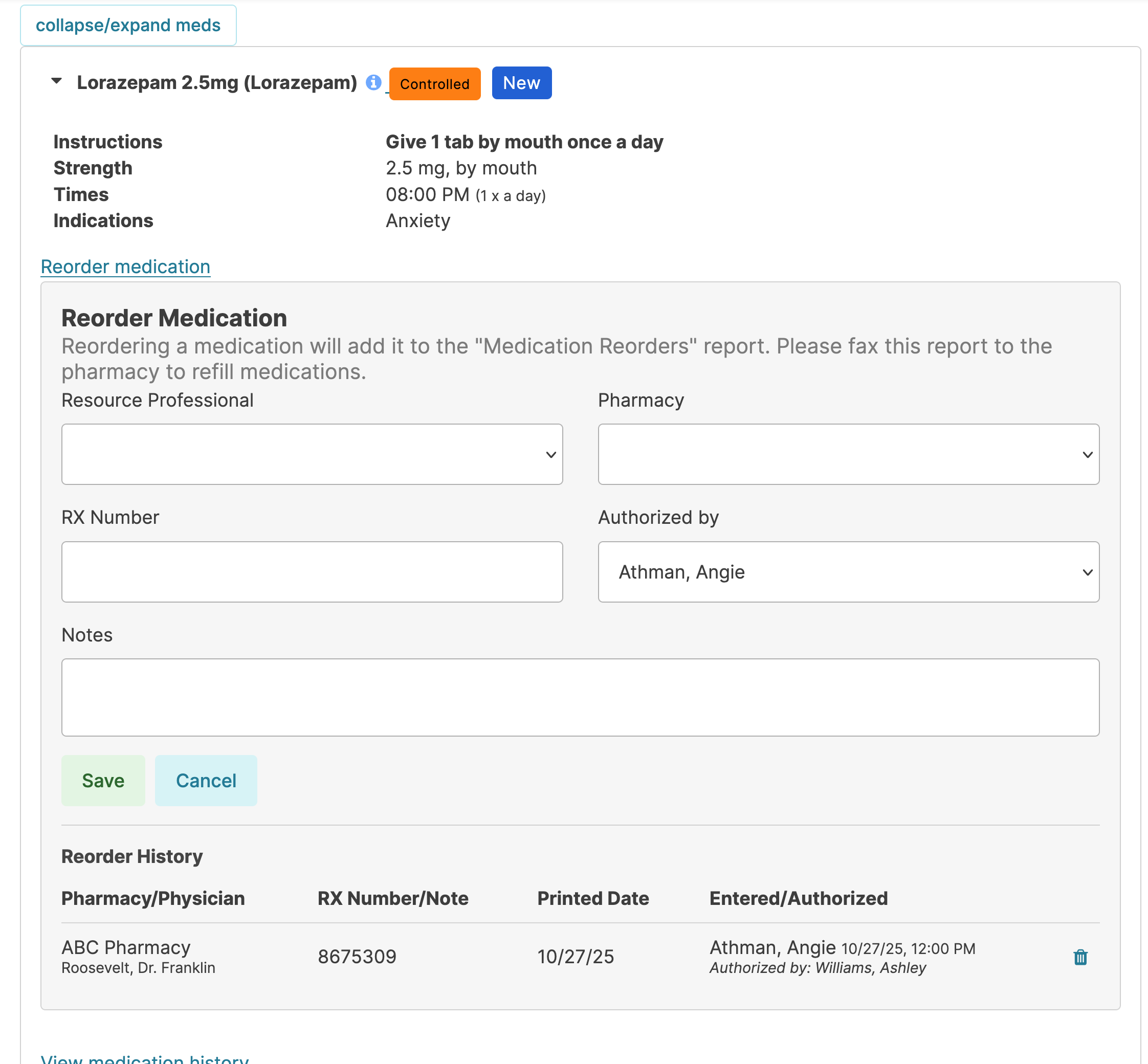
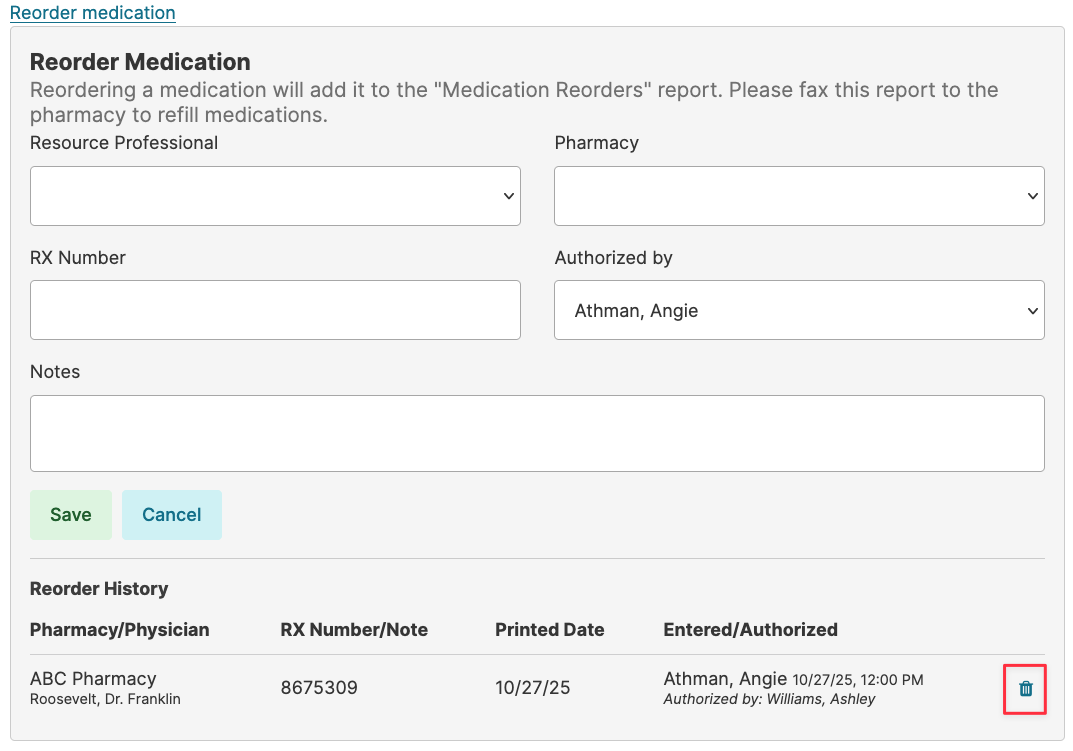
This will open a screen in which details of the order (RX number, prescriber, pharmacy) can be entered. You can also view the history of reorders for that medication.
Once all meds to be reordered have been selected, Residex will sort all orders by pharmacy and the report Medication Reorders is available for printing and/or faxing to the appropriate pharmacy.
Reordering Medications from Clinical > Med Setup / Review screen
You have the opportunity to reorder medications by clicking the [Reorder Medication] button while setting up or reviewing medications. Simply click the button and follow the same steps listed above for reordering medications.
Canceling a Reordered Med
Medications on an order can be removed from the reorder list by clicking the Reorder button for that medication and viewing the history of reorders at the bottom. Click the trash can at the far right to remove from the reorder list.
Controlled Medications
Residex has systems in place for keeping counts of your controlled medications. Counts are kept when medications are received into your building, when administered, when disposed of, and on demand (typically at shift changes).
Scenarios for Scheduling Controlled Medications
When a controlled medication has both a scheduled dose and a PRN (as-needed) dose, each must be set up and documented as two separate transactions in the eMAR — first scheduling the medication, then receiving it. This applies to both the scheduled and PRN lines.
Part 1 – Scheduled the Scheduled Medication
Transaction 1: Schedule the Medication
Open the Scheduled medication line and enter the administration details first.
- Add all scheduled times for the medication on one line, grouped by using the "Add Time" button to add a new line/time
- Example: Lorazepam 0.5mg 9:00 AM and 1:00 PM both appear on the same scheduled medication order
- Enter the instructions (e.g., Take 1 tab by mouth 2 times per day)
- Save
⚠️ Do not create separate entries for each administration time — all scheduled times for the same medication order must be grouped on one line.
⚠️ Exception: Two Separate Pharmacy Cards for the Same Controlled Substance
When a pharmacy dispenses a controlled substance in two separate blister cards — one card per scheduled administration time — you must create two separate medication orders rather than grouping the times on one line.
This is required to keep the counts aligned with each physical card. Using the Add Time function on a single order will not allow you to maintain two independent counts, which is necessary for accurate controlled substance tracking.
How to handle this:
- Order 1: Enter the first scheduled time and the RX number from the first card
- Order 2: Enter the second scheduled time and the RX number from the second card
Each order is then received separately under Clinical > Receive Medications, with the count reflecting what is on each individual card.
This approach has been confirmed with compliance to ensure counts remain accurate and traceable to each physical card received from the pharmacy.
Transaction 2: Receive the Medication
Once the medication is scheduled, navigate to Clinical > Receive Medications to log the received count.
- Count/Quantity Received: Enter the number of doses designated for the scheduled pass
- Total Count/Quantity Remaining: Enter the same amount (include the received amount)
- Note field: Document how the count was split
Example note: Original count: 30. 10 doses pulled for PRN tracking, leaving a scheduled count of 20.
Part 2 – Schedule the PRN Medication
Transaction 1: Schedule the Medication
Open the PRN medication line and enter the administration details first.
Transaction 2: Receive the Medication
Once the PRN medication is scheduled, navigate to Clinical > Receive Medications to log the received count.
Example note: PRN medications are counted separately because they are administered as needed, not on a fixed schedule, and require independent tracking to ensure accurate documentation. Separating off the main count for the PRN count.
Key Reminders
- Always schedule medications before you receive medications
- Always group all scheduled times for the SAME medication order on one line
- Always enter PRN doses on the separate PRN medication line
- If splitting a count between Scheduled and PRN medications, use the Note field on both entries to document how the count was split and why
Counting Controlled Medications
You can conduct counts for controlled medications on demand; most commonly this is done at shift change times.
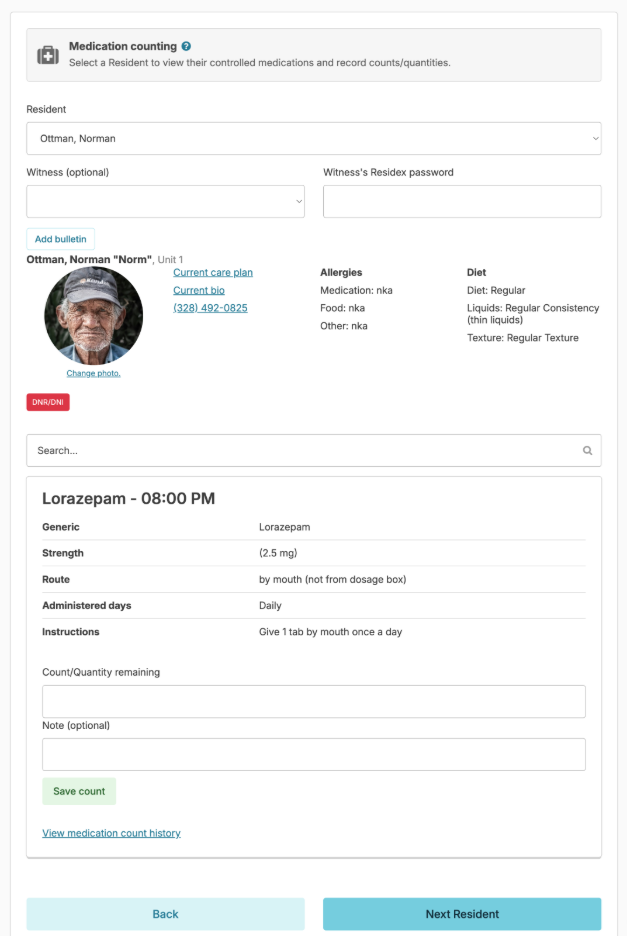
From Clinical > Medication Counting
- Select a Resident - All of the resident's controlled medications will appear.
- Record Counts remaining
- Select a witness (someone else with an Residex account) and have them enter their password, and press Save.
- Repeat this process for all of your residents with controlled medications.
- When a resident is selected in the Clinical > Medication Counting screen, you can View medication count history for any of their medications to see when counts have been recorded, who recorded them, and what the counts were.
- If you need to override a previous count, you can do so through the normal process of recording medication counts by adding an explanatory note.
- When rescheduling a controlled medication, the last recorded medication count will follow through to the new schedule. On View medication count history, this will show as System Med Transfer (Discontinue/Restart). Although the new record received the transferred count, the previous record will remain on the Medication Counting screen until the remaining count is 0.
Note: Medications that have been discontinued will remain on the Medication Counting screen until the remaining count is 0, this can be completed by navigating to the Medication Disposition screen.
Troubleshooting Count History
- When a resident is selected in the Clinical > Medication Counting screen, you can View medication count history for any of their medications to see when counts have been recorded, who recorded them, and what the counts were.
- If you need to override a previous count, you can do so through the normal process of recording medication counts by adding an explanatory note.
- When rescheduling a controlled medication, the last recorded medication count will follow through to the new schedule. On View medication count history, this will show as System Med Transfer (Discontinue/Restart). Although the new record received the transferred count, the previous record will remain on the Medication Counting screen until the remaining count is 0.
Receive Medications and Medication Disposition
Receive Medications
Document quantities of medications received from the pharmacy and add them to the number on hand for a new total.
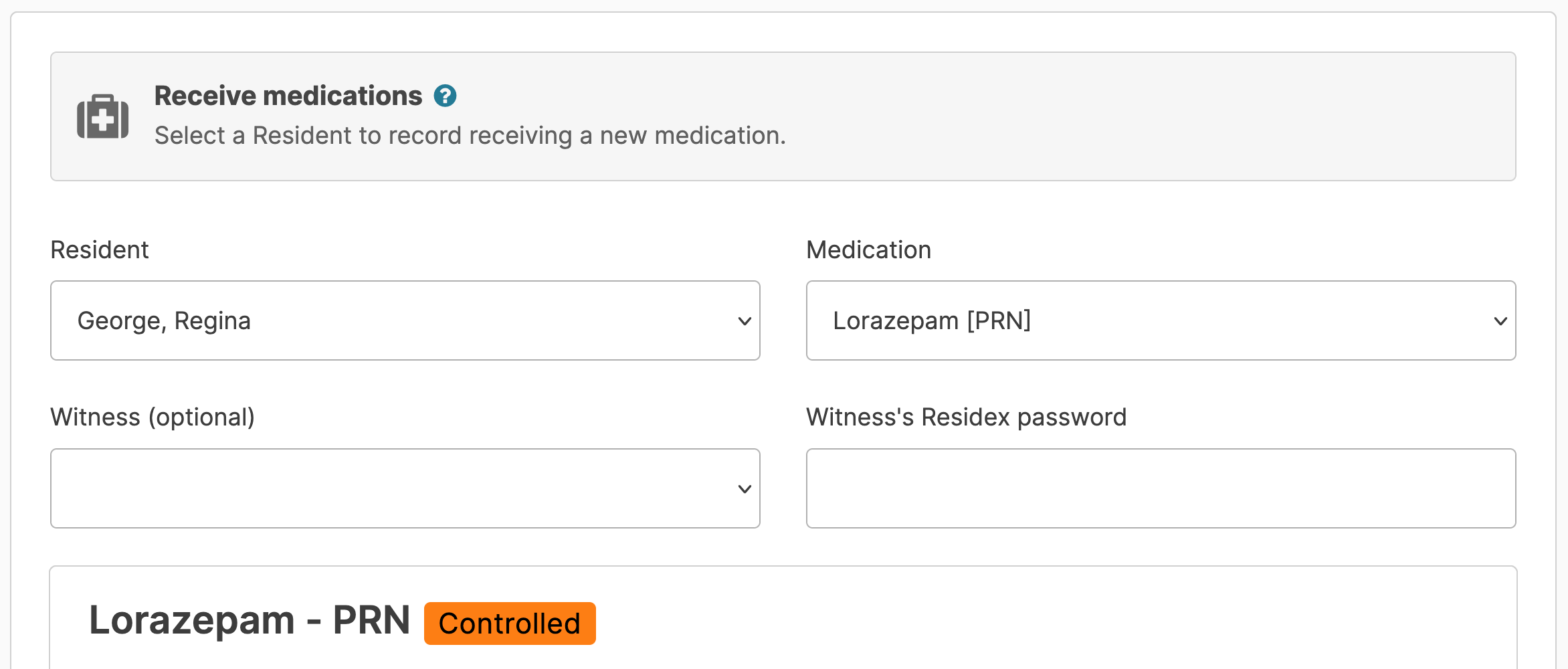
From Clinical > Receive Medications
- Select a resident & medication
- Select a witness if controlled (optional)
- Fill in the remaining details, and Save
Note: If the RX number has changed, but there is still a count remaining under the current RX number, simply use a comma to separate the two RX numbers. Once the first RX number pill count is "0" you would remove that RX number from the list.
Meds Not Appearing?
If the med you are receiving from the pharmacy is not available to select from the dropdown, review the following:
- Is the med active for the Resident?
- Is it designated as Setup by the Nurse or Pharmacy?
Medication Disposition
Navigate to Clinical > Medication Disposition and select the resident (discharged residents will appear as an option for 1 year after discharge date) you want to document the disposition for. The current medications for that resident populate. You can check the box and also view/include medications that have been discontinued in the last year.
Select each med to be marked as disposed, entering the RX number and quantity (a note field is optional).
Once all meds to be disposed have been selected, enter additional details at the bottom.
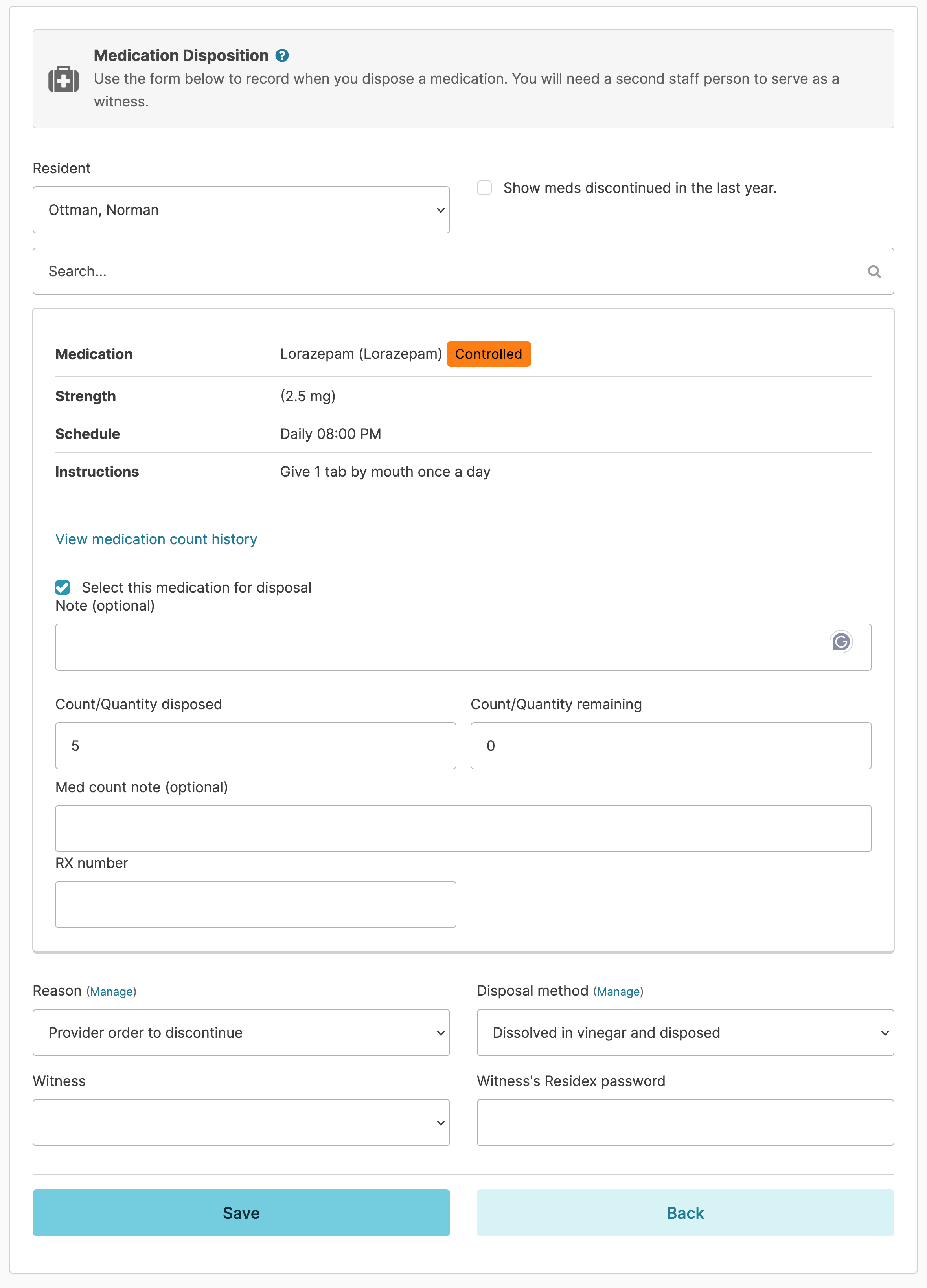
Reasons for disposal and disposal method dropdown options can be edited by clicking the Manage button. Select the name of a witness, have them enter their Residex password, and save.
Reports such as Medication Disposition History and Medication Disposition - Resident can be printed. In addition, Medication Disposition will appear on the Discharge / Transfer Summary for a resident.
Medication Setup/Review
This optional step allows the nurse to document either that the meds have been setup in a dosage box OR that cards/containers sent by the pharmacy have been reviewed by the nurse prior to making those meds available to staff to administer.
Medication Setup / Review
Navigate to Clinical>Setup/Review Medications. (Because the title of this can be customized to the database, your feature may be called something slightly different, such as Nurse Review).
Specify the resident and the date range for which you are reviewing or setting up meds and that resident's medications will populate. Residex will present all the doses of that med to be setup or reviewed for that time period. If a med appears 'grayed out', it is because that med was already administered and a setup/review is not needed.
You have the opportunity to reorder medications by clicking the Reorder Medication button.
As you setup or review the medications, you can click the All button so that all instances of that medication for that time will be checked and flagged as having been setup/reviewed by you.
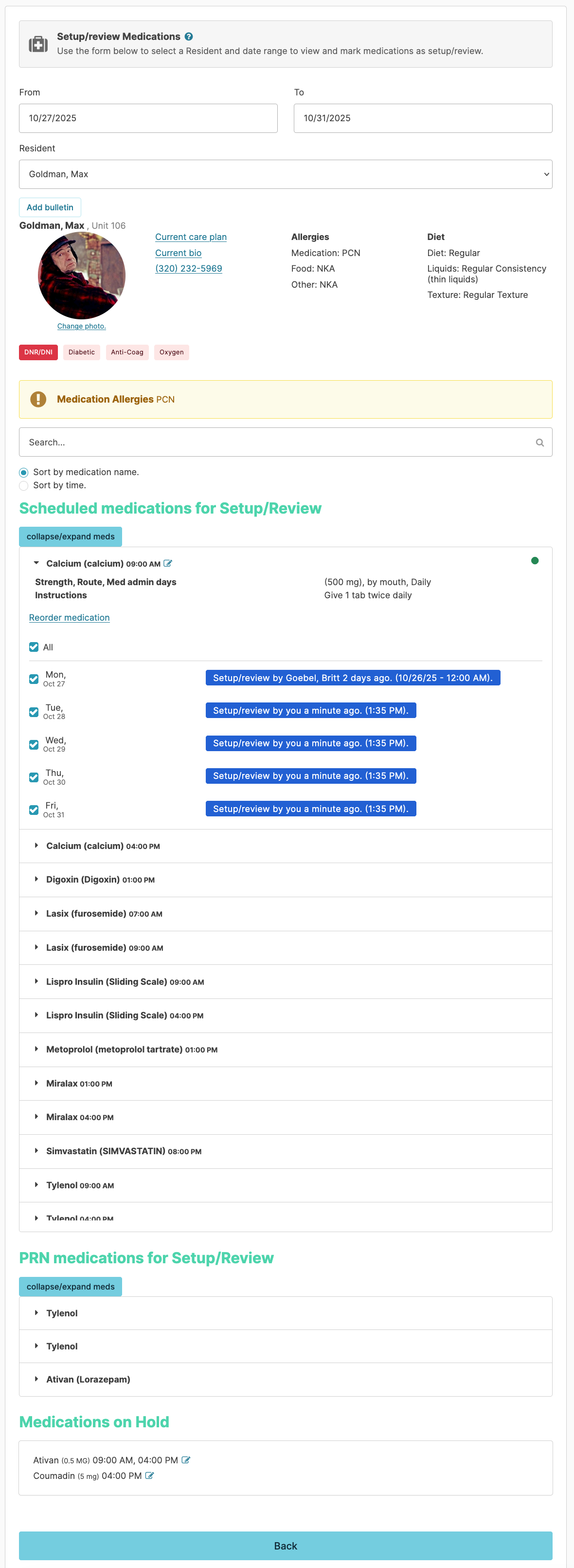
This action will also be visible from the Assignments > Medication Administration service for that resident.
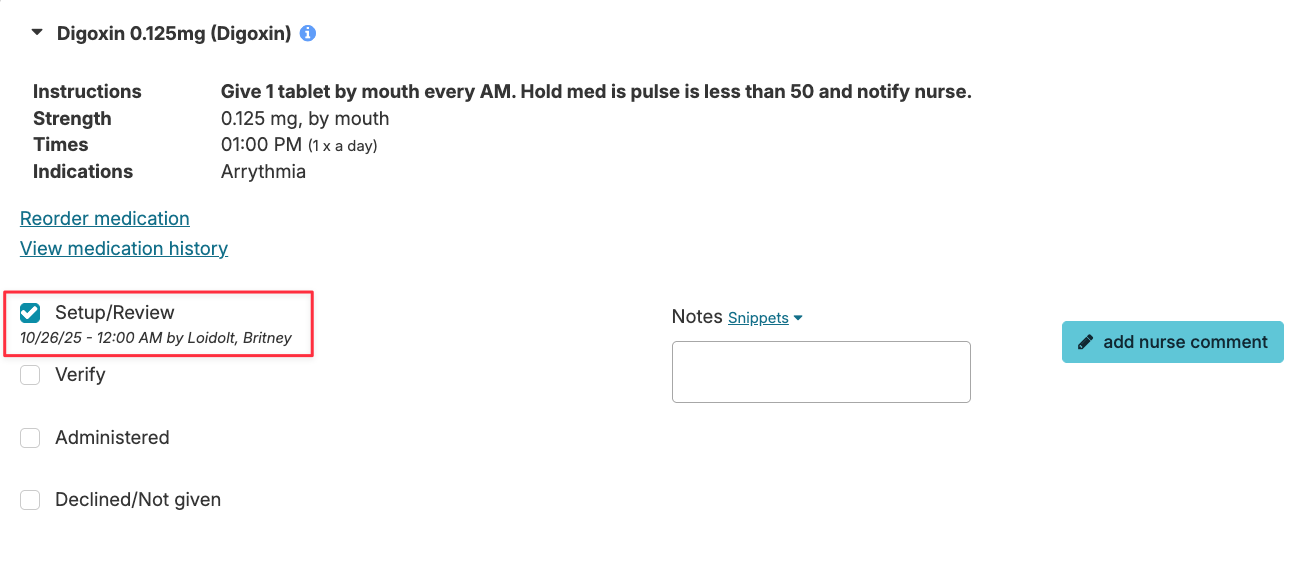
If the nurse fails to set up a medication, the Setup/Review box here will be blank and either staff will need to prompt the nurse to complete this step, or they must check the box themselves prior to performing the Verify and Administer steps.
A dashboard report Meds Not Setup - Next 3 Days will help to ensure medication setup/review is complete.
Dosage Box Setup
This system will present 'by mouth' medications grouped together in a virtual Dosage Box for documentation as one, rather than having each medication documented separately. Of note:
- Residex will recognize that medications with administration routes other than 'by mouth' should be listed separately (e.g. topical, eye drops, ear drops, etc...) and not included in the dosage box.
- Meds that are by mouth but should NOT be included in the dosage box should be assigned the route by mouth (not from dosage box) that is available in the route dropdown option. Examples might include Miralax or Benefiber, or a medication provided in a separate bottle or container.
- Controlled medications that are grouped in a dosage box will not require a count at the point of administration. You will want to remove the count under the Clinical > Setup/Review Medications, unless the controlled meds are supplied in a different manner (individual tabs bubble-packed or in a pill bottle), then set them to be by mouth (not from dosage box) so that staff are prompted to count at the point of administration (not during the setup/review).
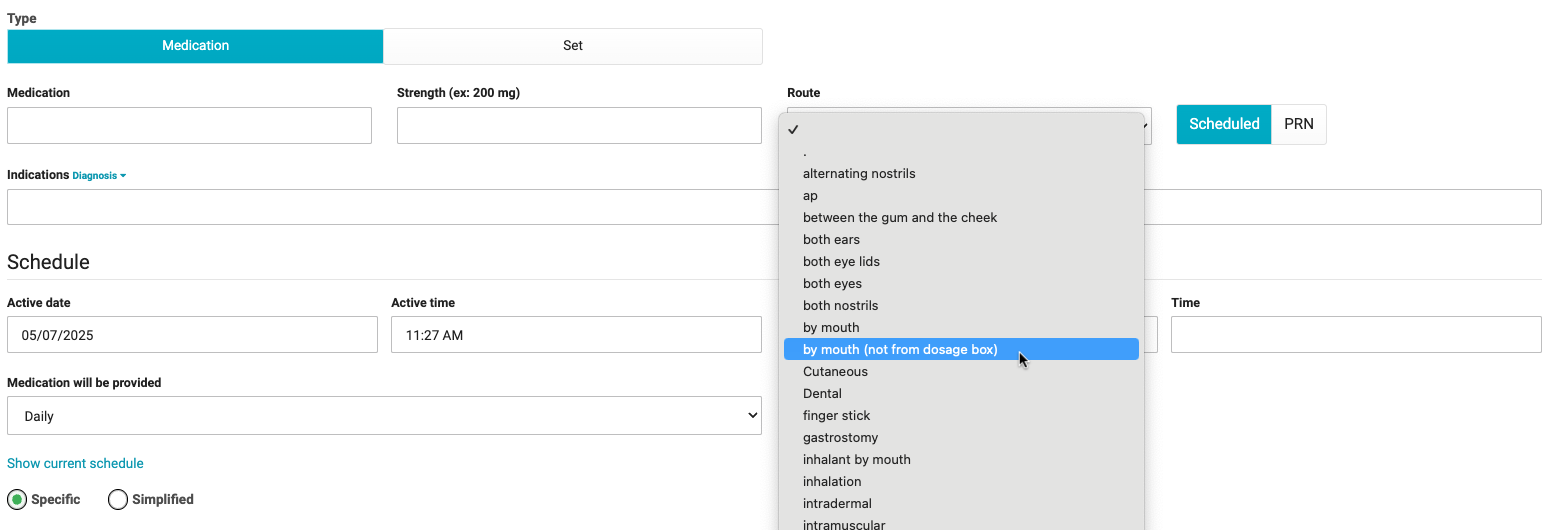
With this dosage box configuration set to 'yes' for your campus, the nurse will need to navigate to Clinical > Setup/Review Medications to document that meds have been set up or reviewed by the nurse in preparation for administration by staff. Essentially, you are either documenting that you are manually setting up meds in a dosage box, or that you have reviewed the cards and the meds are correct and available for staff to administer. This step puts the medications into the Dosage box view for staff.
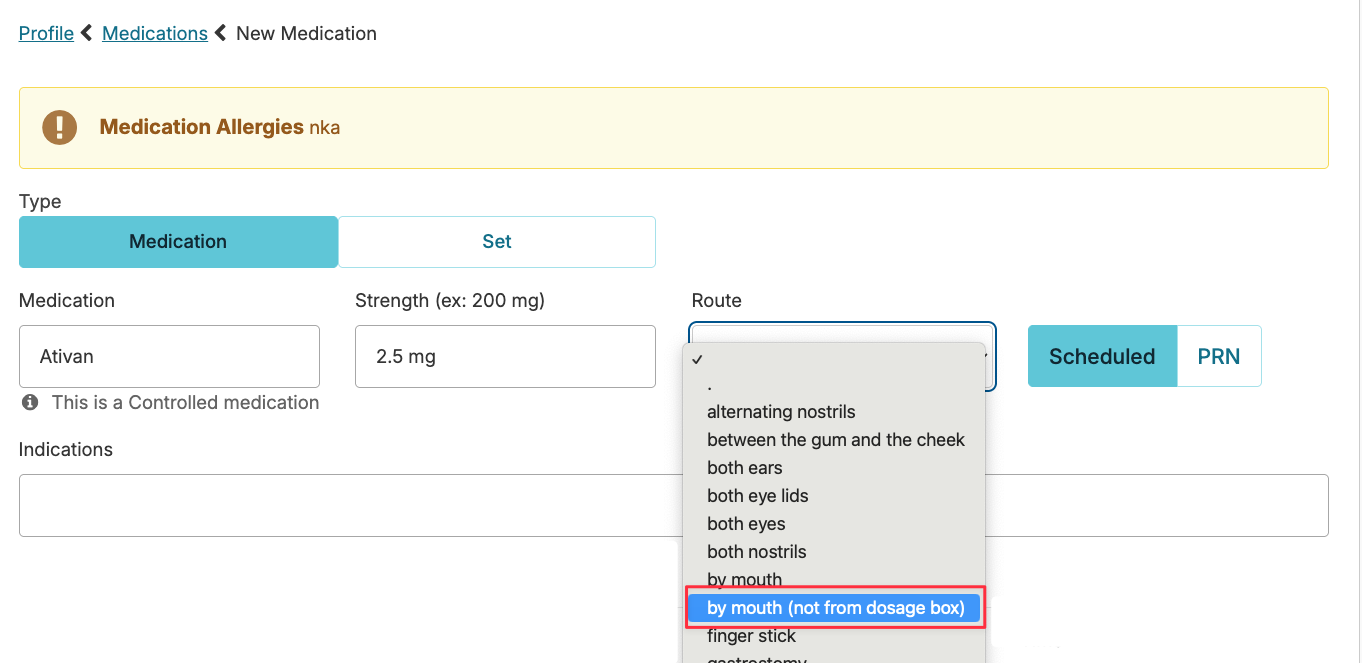
The report Med Setup Summary will demonstrate the nurse setup step.
❗️NOTE: When a medication is edited or rescheduled to a different time or assignment, the previously setup medications will be cleared. The setup/review process will need to be completed again for the updated medications by navigating to Clinical > Setup/Review Medications. This step will ensure that the medication is set up appropriately for the changes that were made.
Managing Late or Missed Medications
Administering Meds 'as ordered' and on-time is the goal. We offer strategies and tools to minimize and manage late or missed medications.
Chart in Real Time
Provide your staff the tools they need to chart on time. Residex can be accessed on smart phones, Ipads, Chromebooks, computers. Portable devices allow staff to carry the device with them, read the instructions for each service, and document their actions at the point of service. Charting is accurate and complete!
If staff are sharing a single stationary computer, they are likely to scan their assignment, possibly work from memory, and chart at a later time. Accuracy is compromised, and the chance of errors - including med errors, late or missed charting - is increased.
Med Scheduling Considerations
Residex allows you to use either a Specific Time (8:00 AM) or a Simplified Time (AM) when scheduling medications. What is the difference?
- Specific Times convey to staff that the med should be given as close to that scheduled time as possible. Charting restrictions for a HHA will allow them to chart Scheduled meds up to 2 hours early or 4 hours late. If charting over 1 hour late, they can mark it as administered but will need to enter a note as to why it was late. A red 'late' flag will appear next to a service that is more than 1 hour late. This is meant to simply grab the attention of the staff and perhaps suggest that they give that service priority.
- Simplified Times give the staff more wiggle room. While best nursing practice suggests that specific times are best for most medications, there are times that a resident has an erratic schedule (a memory care client who may wake up at 5 am some days or 10am others). In this case, assigning meds a simplified time will allow the staff to mark it complete any time on the same calendar day it was scheduled. The nurse may choose to enter additional administration instructions to guide the staff.
Tracking Late or Missed Meds
The Login Report or Alerts can keep staff aware of missed and late meds.
Examples of Alert or Login Report options:
- Late Medications
- Late Medications All Campuses (for supervisors of multi-campus databases)
- Meds Late 3 hours or more
- Meds Late 4 hours or more
- Missing Med Recap - Last 24 hours (meds 2 hours late or missing)
- Missing Med Recap - Last 72 hours
- Missing Med Recap - All Campuses (for supervisors or multi-campus databases)
Adjust report permissions so late or missed medication information can be visible to unlicensed staff as they login. Make review of the login report part of the change-of-shift process.
How to Chart Late or Missed Meds
Meds that are late, whether they were scheduled as specific or simplified times, can be charted by the nurse even when unlicensed staff can no longer chart. Nurses, Supervisors, & Managers can chart care services up to 3 days early or up to 14 days late. Nurses have a much broader time frame in which to chart (up to 12 hours early or 14 days late for medications). So the nurse can:
- Navigate to the Today screen, select the calendar date and the assignment, locate the medication service, and mark meds as administered or declined, with a note of explanation.
- Alternatively, you can go to Clinical > Med Charting History > select the resident and the med > enter a Nursing comment. Entering a comment here will remove the 'missed' flag from this medication.
Pharmacy Connect
Pharmacy Connect is a system that integrates the Residex eMAR with your pharmacies, allowing medication orders entered by your pharmacy into their software to be automatically transferred to Residex for review and approval by a nurse. This can provide you with a number of advantages:
- Medication administrations in the Residex eMAR will list med names, RX numbers, etc. that match exactly what will appear on pharmacy medication labeling/packaging, helping eliminate issues that might arise at the point of care.
- Pharmacy med techs will enter the bulk of medication data, saving your team some time.
- Every med order entered into your system will have been reviewed by both a pharmacy tech and your team, reconciling med lists and serving as an additional cross-check.
- You will be made aware of missed med orders earlier in the process.
Note: Pharmacy View is a great dashboard to help monitor pharmacy connect related items.
Importing Medications via Pharmacy Connect
The Residents > Residents will highlight in blue those residents that have med orders awaiting review.
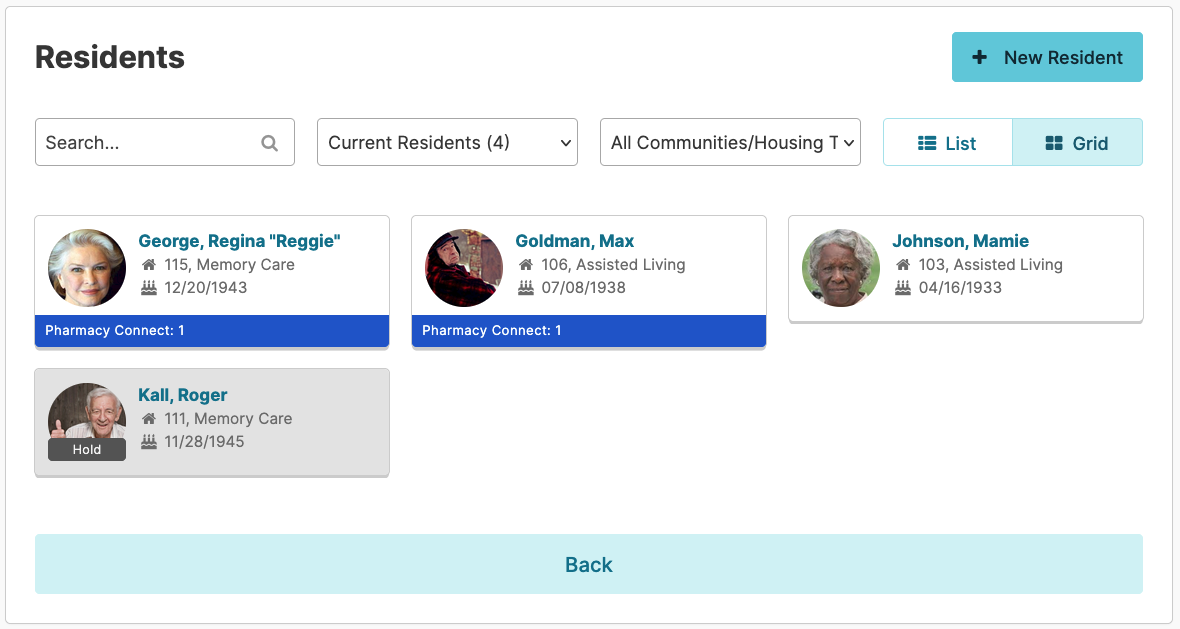
Open a resident Profile > Medications screen, and select the Pharmacy Connect tab to process received orders.
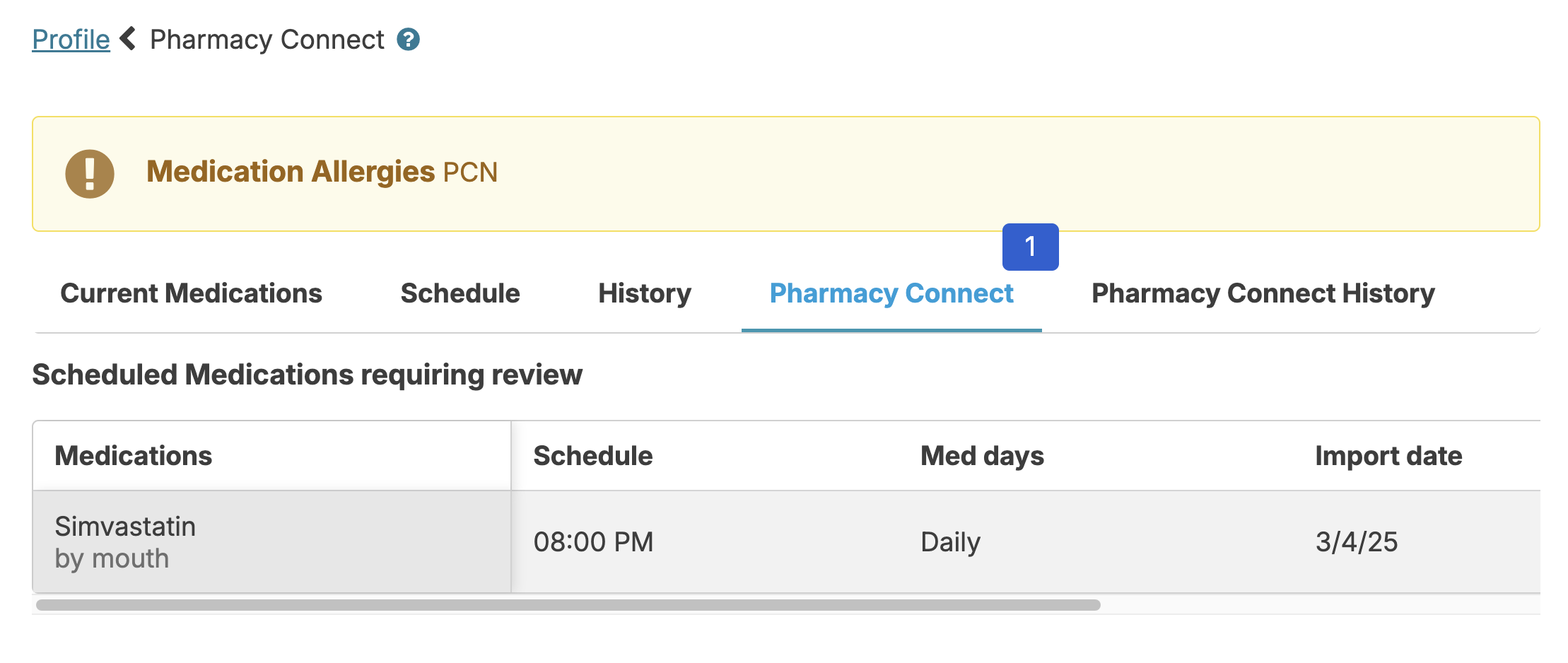
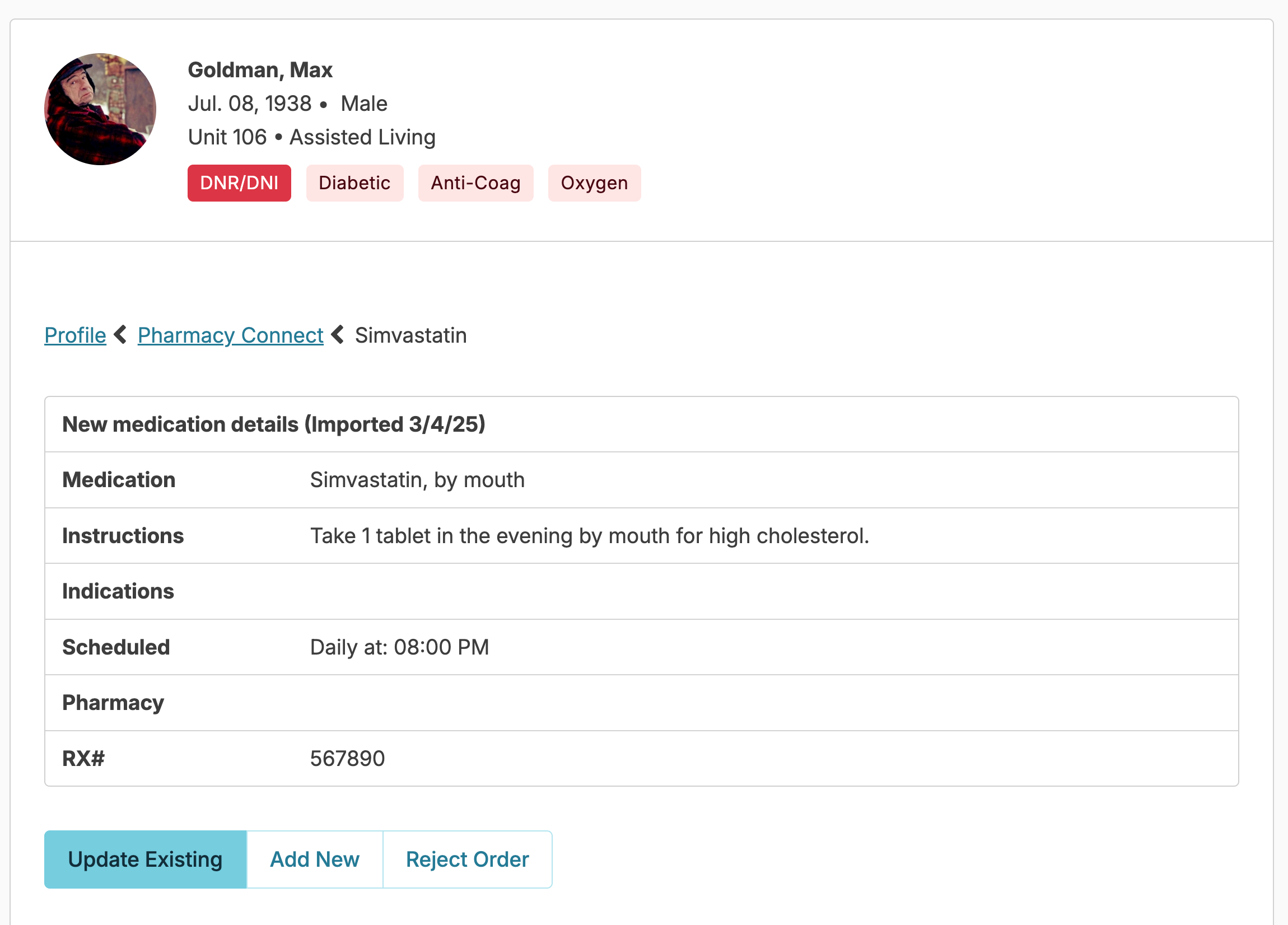
Select any medication to review it. You will have 3 options:
1. Add a new medication
This process will let you add the medication to the resident's current medication list as a new med. You can toggle the 'Controlled', 'Antibiotic' and 'Psychotropic' checkboxes if the medication has not been used previously for a resident. You will need to fill in some additional details that the pharmacy may not have, like charting instructions to your staff, but the process is otherwise a simplified version of scheduling a new medication in Residex manually!
If there is a dose, strength, or instruction change to a medication you will use the Add New option to assure history is maintained. You will then go to the Current Medications list to discontinue the previously prescribed order.
2. Update an existing order
This option should be used if only the brand name or only the RX # changed. This should NOT be used for dose, strength, or instruction changes. Once you've selected update existing, choose the corresponding medication in the What medication is being updated list. If there was a previously determined End Date, this will default in as the newly updated medication's end date as well, but can be updated, if applicable. Compare the order the pharmacy sent with your own medication details. Residex is also comparing the two and will present noted differences at the bottom of the screen. Residex will ask for a second confirmation if the names of the medications selected are decidedly different.
3. Reject order
If there is some problem with the medication order, you can completely ignore or reject it; it will never appear in your eMAR, medication records, etc. If there is a question, contact your pharmacy.
Automatic Filtering
Residex Pharmacy Connect has some filters in place. You may not see every bit of information your pharmacy sends. Typically, Residex does the following checks on each message received from your pharmacy:
- Anything that comes over that is not actually a medication is filtered out. Sometimes pharmacies list supplies as if they were medications. These don't belong on the eMAR, and so they are ignored. Some examples of filtered words include: Tape, paper, monitor, kit, lancets, batteries, gauze, pads, thermometer, wipes, pens, needles, etc.
- Each incoming medication is checked to see if it has an RX number that perfectly matches an existing active medication for the resident. If yes, it is ignored - it's a duplicate and you don't need to do anything!
- Each incoming medication is compared to previous medications imported in the last 90 days for the resident. If a duplicate exists, the med is filtered out. This step catches medications that are repeatedly sent by pharmacies when they perform their monthly cycle fills.
- Any medication order received from a pharmacy and not acknowledged by a nurse in the 14 days after it was received is 'cleaned up' - it is marked automatically 'ignored' and moved to the Pharmacy Connect History tab noting "Automatically filtered because medication was not imported for more than 14 days". A "reimport" button is available if this order needs to be processed.
Medication Start Dates, End Dates, & Indications
Indications
Indications - the reason(s) why a medication is prescribed - are sometimes not included in medication orders received via Pharmacy Connect. Some pharmacies do not send indication data included in the medication order, in which case there is nothing to display. In other cases, pharmacy software platforms will often send this information in non-standard, unexpected ways, due to no fault of the pharmacy.
If you do not see Indications in your Pharmacy Connect medication orders, please discuss with our Support team and we can see if this is something your Pharmacy's software can support.
Medication Start & End Dates
By design, Residex Pharmacy Connect ignores medication Start & End Dates provided by pharmacies in Pharmacy Connect medication orders.
This is done to prevent medication errors and avoid confusion. For example, we will avoid the following undesirable scenarios:
- A Medication order is received in Pharmacy Connect with a Start Date specified by the pharmacy. A nurse does not review and approve the order in Residex until AFTER the specified Start Date. Then, often long after the fact, there is then significant confusion about why the medication was not charted as of the Start Date (answer: it wasn't approved by an Residex user yet, a required step for it to display in the eMAR for charting.)
- End dates specified by pharmacy are also ignored to prevent medication errors. If a Residex user misses an end date when approving a Pharmacy Connect medication order, or the End date was calculated by the pharmacy as being X days after a start date which wasn't correct in practice, this can lead to medications being ended inappropriately early.
Pharmacy Connect History
Not all orders entered by the pharmacy are presented to the nurse to review, as they may be redundant or simply refills of an existing order. Sometimes staff forget what orders they have processed, don't know what another nurse has already done, or what to troubleshoot. The Resident Profiles > Medications > Pharmacy Connect History screen will help in these cases.
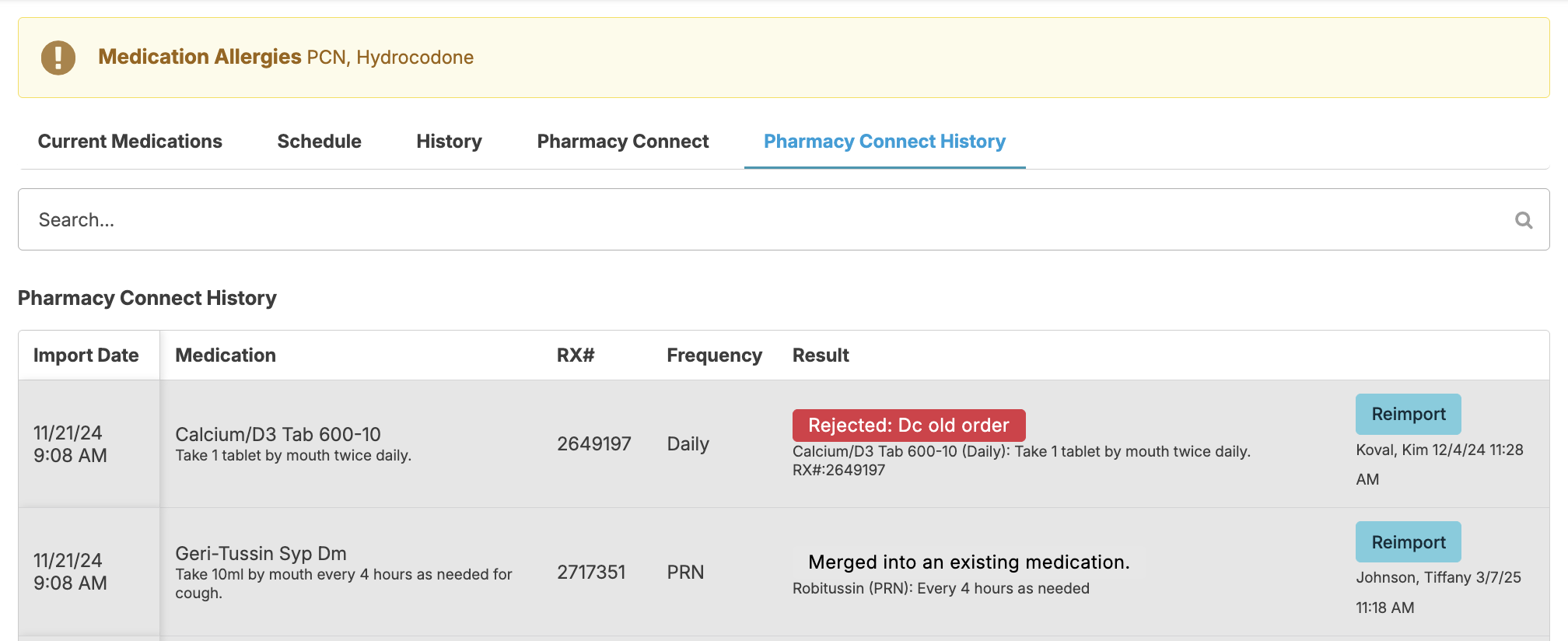
This screen will show you all orders that have been received from a pharmacy for the selected resident. You can see if a medication was previously processed, when, and by whom, or if an order had been ignored due to a duplicate filtering process.
Any med order received can be re-imported at any time!
Matching Resident Names
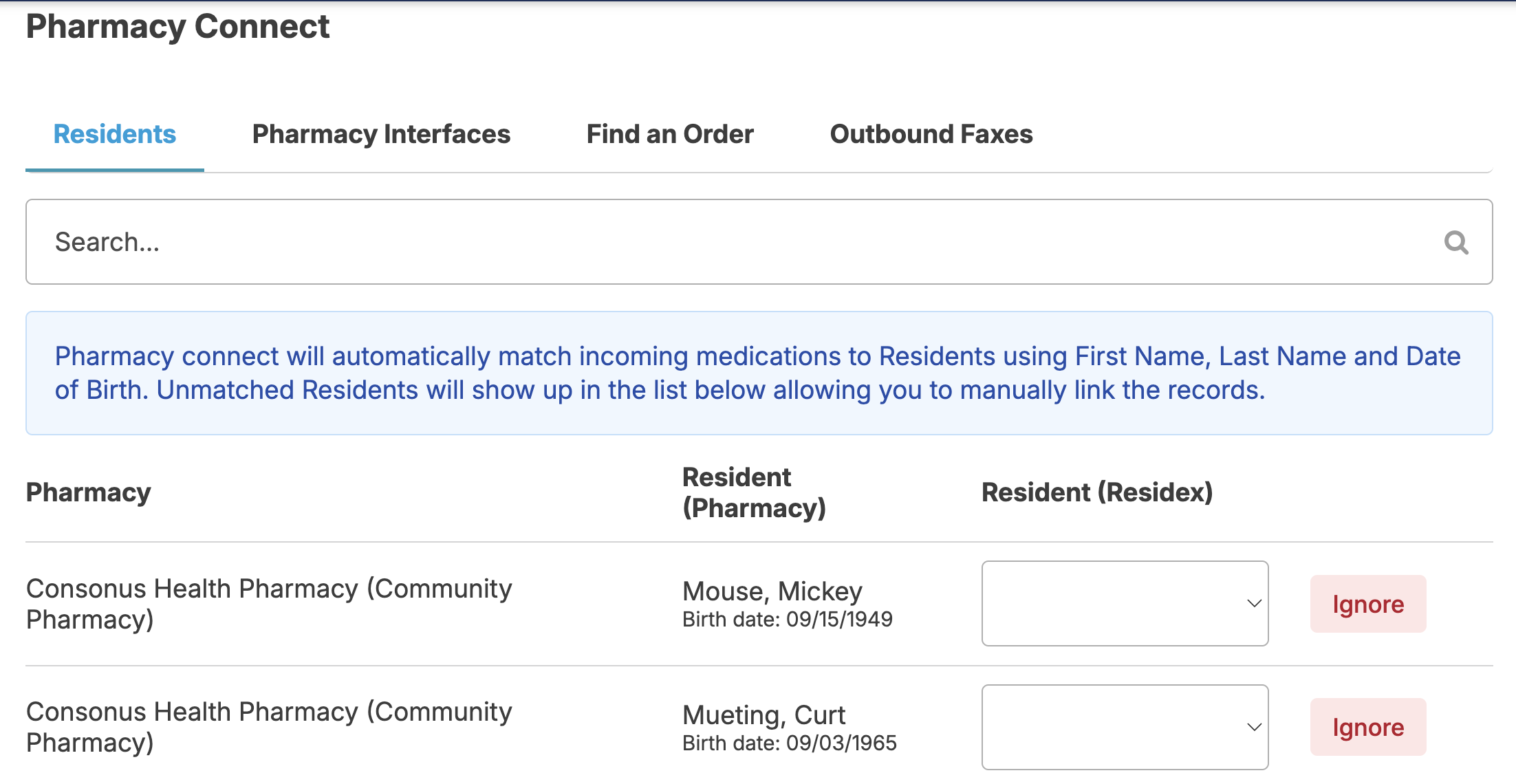
If a pharmacy spells a resident name differently than the name is spelled in Residex, and if other identifying information (e.g. Birthdate) is not present in either system, Residex may not be able to automatically match a pharmacy's resident record to a resident record in Residex. If this happens, you will not see med orders come through from the pharmacy for these mismatched resident names. If this happens, you can manually match data from your pharmacy to the appropriate resident record in Residex.
If a user is a Nurse (RN or LPN) or has the staff roles manager (11) and/or supervisor (13) he/she will be able to do the following steps.
- From Admin > Pharmacy Connect, select the Residents tab
- On this screen you can see a list of resident records provided by your pharmacies, matched to your residents in Residex. If there are any records that are unmatched...
- You can select a resident from your Residex resident list to match with the pharmacy's record (you can select any resident from your current Campus.) - OR -
- You can press the Ignore button, which will cause Residex to ignore any future messages sent from the pharmacy for that individual.
NOTE: A dashboard titled Pharmacy View includes a report called Pharm Connect - Mismatched Residents, which displays any residents who need to be matched. This report can also be added to the main login report for nurses and administrators if desired.
Outbound Faxing allows you to automate sending notifications to a pharmacy, notifying them of the following:
📘 Note: This is setup per pharmacy preference
- Medication reorders
- New medications
- Discontinued medications
- Medication time changes
- Pharmacy rejections
- Controlled pill count notification
- Medications placed on hold
- Medications removed from hold
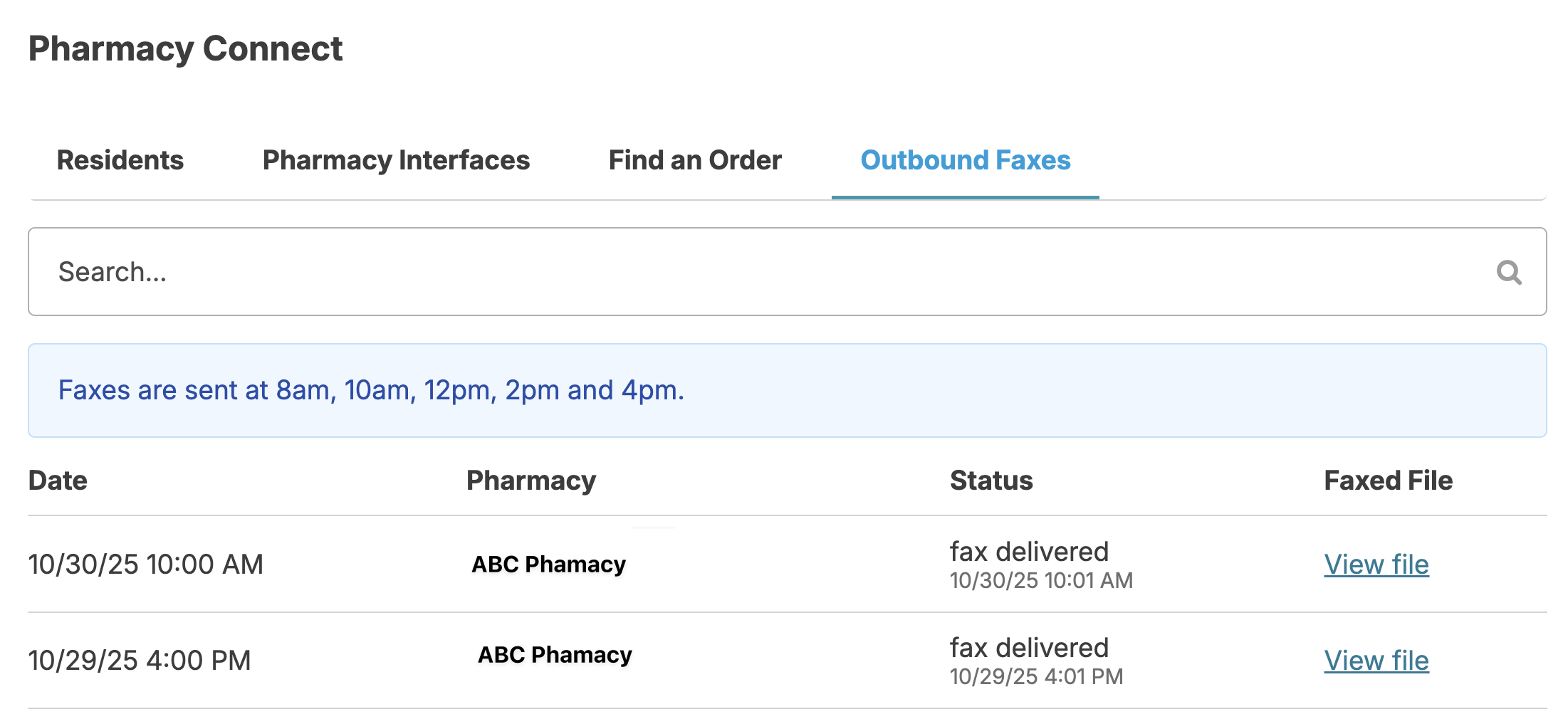
These requests are sent as faxes to the pharmacies at 8 am, 10 am, 12 pm, 2 pm, and 4 pm every day. The fax will be sent only if you have the campus configuration 'Pharmacy Connect - Outbound Faxing enabled, a valid fax number is entered for the Pharmacy, each resident has that pharmacy listed as an organization under Resources , and there is new data waiting to be sent to the pharmacy.
If the campus config is enabled, when you navigate to Admin > Pharmacy Connect you will see a new tab labeled Outbound Faxes where you can view the faxes that are being sent.
This feature does not require that you sign up for e-faxing. If you have eFaxing, the fax will be sent using your eFax number. Otherwise, we use a general number to send faxes.
Manage Pharmacy Access
You may choose to allow your pharmacy to have read-only access to Residex. This can be done by adding them as staff in Residex, just as you would your facility staff.
Navigate to Staff > Staff > + Add Staff Member and enter the pharmacy staff person's information. We do not support the use of a generic login. Each pharmacy staff person should have their own username and password. This will allow for more accurate tracking and accountability. You will want to give them the provider type of Pharmacy.
Once their profile has been created, from Login and access, you will want to toggle can log into Residex, where you will be provided their temporary password. Select Save.
Determine which campus(es) they should have access to.
From Resident data access, you will want to only select the residents for whom they are serving or are otherwise authorized to access. If this is not all of your residents, you will want to toggle '(name) has access to specific residents.'
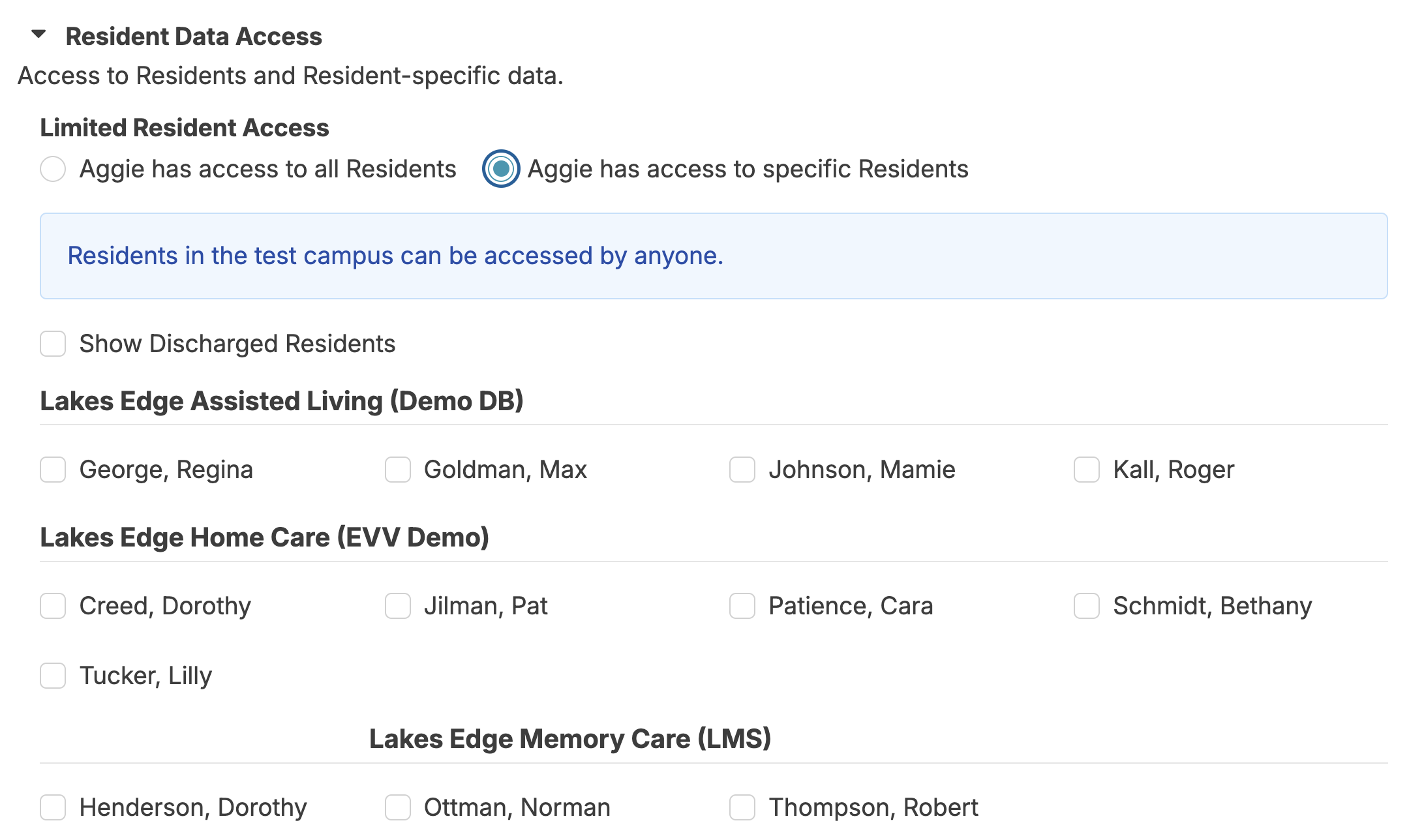
No roles need to be granted. It is recommended the pharmacy staff run reports to access the information they need. You will want to review the reports currently enabled for the pharmacy by running the report Residex Reports by Provider Type - Enabled. You can then navigate to Fax/Print > Reports > Manage report availability and permissions to enable/disable reports.
Controlled Medication - FAQ
Why isn’t there a count for a medication I know is controlled?
Pill counts will only be available for medications marked as ‘controlled’. Once a new medication has been added into Residex, changing the controlled option can only be completed by a user with the 411 or 410 role. This can be done 1 of 2 ways:
- Navigating to Admin > Global Medications > Select the medication > Check the Controlled box.
- Navigating to Residents > Residents > Select the appropriate resident > Medications > Select the appropriate medication > Click edit > Check the ‘controlled’ box.
How do discrepancies occur and how do I fix them?
If a controlled medication is charted, but the medication administration service is not marked ‘complete’ until after the medication is fully charted again, the count will not be in order. This will be indicated as a discrepancy.
Example: I charted the 8 AM pass and count, but did not mark the med pass “complete”. You fully charted the noon pass and count, and marked the med pass “complete”. When I finally mark the 8 AM as “complete”, it will show a discrepancy because the noon med pass was fully charted first. The med passes were charted/saved out of order.
While these counts cannot be edited nor the timestamps changed, it is appropriate to add a note to the count to indicate there was not a missing or extra dose.
- Navigate to Clinical > Medication Counting > Choose the resident > Select the correct medication > Enter the current medication count and appropriate note > Save.
If the most recent count is a discrepancy and entered in error where the entry is incorrect but the true count is as it should be, you can correct this by navigating to Clinical > Receive Medications > Select the Resident > Select the medication with the error > enter the difference as the Count/quantity received > enter the true count as the Total count/quantity remaining > Enter explaining correction (i.e. No additional tablets received to facility; count was adjusted related to a count miss-entry). A negative number can be entered in the Count/quantity received field, when necessary. We recommend having a witness verify these corrections and notes when they occur.
How do I enter tapered dosing for a controlled medication?
Each entry of a controlled medication via Residents > Medications will have it’s own count; thus, needing its own allotted inventory/supply.
- Ensure you have entered the correct Active and End dates and times for the duration of each dose.
- If each dosing was delivered in its own package, remind the med passers that each has it’s own count and timeframe to be given. Consider writing the dates of administration on each package as well as in the medication instruction for clarity and verification.
- If all varying doseages are in one package but with the appropriate number of tablets in each single-dose bubble for the tapering, you might consider visually separating them by sectioning off each group with a pen or marker on the card. You will then need to decide the best way for your team to count them.
Example scenario: 1 tablet 1 x daily x 7 days, then 1.5 tablets 1 x daily x 7 days, and then 2 tablets daily for all future days. You have received a 28-day supply from the pharmacy, equaling 45.5 tablets.
Option 1
Enter each of the 3 doses separately in the resident’s medications.
- 1 tablet 1 x daily to be Active on 7/1/22 at 6 AM - Administration at 8 AM; End date of 7/7/22 at 11:59 PM
- 1.5 tablets 1 x daily to be Active on 7/8/22 at 6 AM - Administration at 8 AM; End date of 7/14/22 at 11:59 PM
- 2 tablets 1 x daily to be Active on 7/15/22 at 6 AM - Administration at 8 AM; No end date
- Navigate to Clinical > Receive Medications, and record the quantity received under medication ‘a’ as 45.5
- On 7/7/22, after the last administration of 1 tablet, navigate to Clinical > Medication Disposition and record the disposition of the remaining 38.5 tablets. Include a note that these were not discarded but transferred to the new order that starts on 7/8/22.
- Navigate to Clinical > Receive Medications, and record the quantity received under medication ‘b’ as 38.5. Include a note that these were transferred from the discontinued/completed order of 1 tablet, 1 x daily.
- On 7/14/22, after the last administration of 1.5 tablets, navigate to Clinical > Medication Disposition and record the disposition of the remaining 28 tablets. Include a note that these were not discarded but transferred to the new order that starts on 7/15/22.
- Navigate to Clinical > Receive Medications, and record the quantity received under medication ‘c’ as 28. Include a note that these were transferred from the discontinued/completed order of 1.5 tablets, 1 x daily.
OR
Option 2
Enter each of the 3 separately in the resident’s medications.
- 1 tablet 1 x daily to be Active on 7/1/22 at 6 AM - Administration at 8 AM; End date of 7/7/22 at 11:59 PM
- 1.5 tablets 1 x daily to be Active on 7/8/22 at 6 AM - Administration at 8 AM; End date of 7/14/22 at 11:59 PM
- 2 tablets 1 x daily to be Active on 7/15/22 at 6 AM - Administration at 8 AM; No end date
- Navigate to Clinical > Receive Medications, and:
- Record the quantity received under medication ‘a’ as 7
- Record the quantity received under medication ‘b’ as 10.5
- Record the quantity received under medication ‘c’ as 28
Indicate on the card the 3 separate counts
How do I count a PRN and Scheduled controlled medication as 1 count?
This cannot be done at this time. Each entry of a controlled medication will have its own count in Residex and will need its own dedicated inventory/supply for counting.
A resident gets the same controlled medication 3 times a day, but the midday dose is 0.5 tablets instead of one. The medication list has this entered twice as it is 2 different instructions: 1 tablet 2 x daily & 0.5 tabs 1 x daily. How do these get counted?
Each entry in the medication list will be a count. The 1 tablet given 2 x daily will be one count; the 0.5 tablets 1 x daily will be its own count.
How do we manage the disposal of a used controlled medication patch, such as fentanyl, without affecting the count of the patches that are yet to be used?
Enter 'Remove fentanyl patch' as a medication. Schedule it on the days the fentanyl patch will need to be removed. Train your med passers to record the disposition under Clinical > Medication Disposition > Remove fentanyl patch. This will not affect the count of the original Fentanyl administration record.
When Are Discharged Residents Removed from the Medication Count Screen?
Once all controlled medications for a discharged resident reflect a remaining count of zero, that resident will no longer appear in the Clinical > Medication Counting list under the 'discharged resident' section. Note that while it is recommended to dispose of all medications, only controlled medications determine a resident's visibility on the Medication Counting screen .
For guidance on disposing of controlled medications, see our medication disposition documentation.