
Table of Contents:
Create a Claims Batch
Claims Status Tracking
Creating a Claims Batch
- Navigate to the Billing > Process Billing tab
- Select the Claims tab
- Click + Create a batch

Selecting Claims for Submission
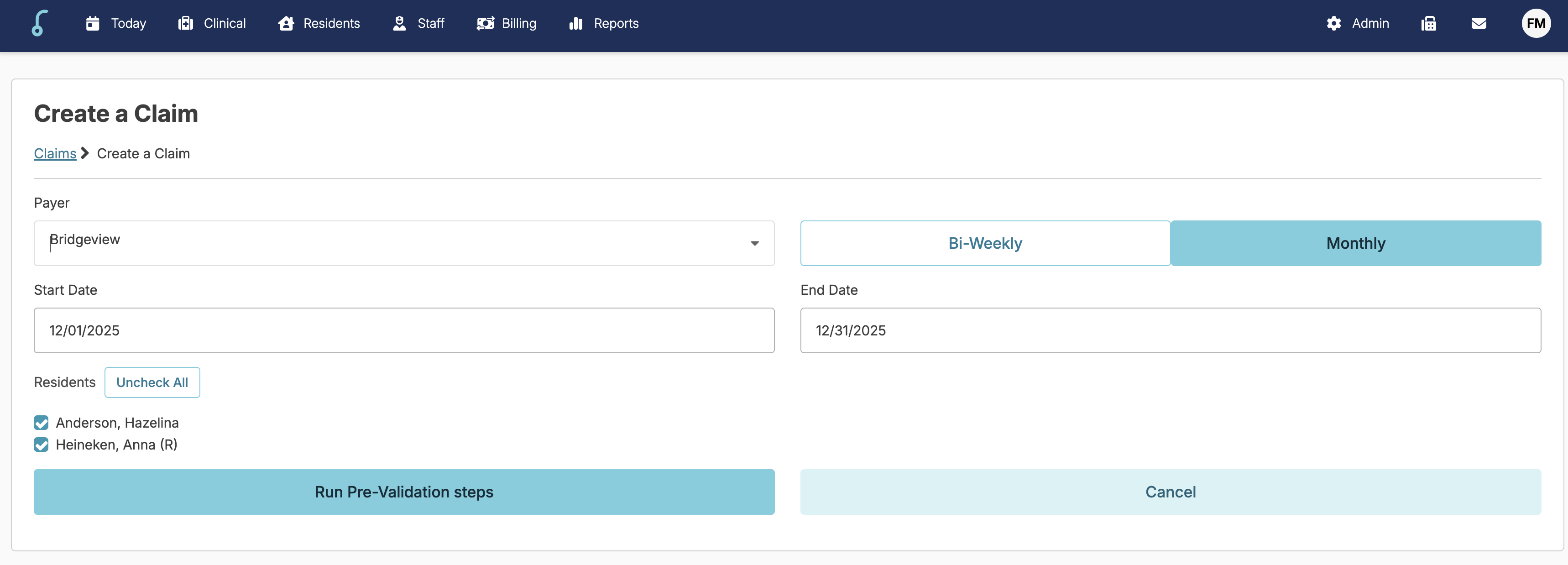
- Choose your payer from the dropdown menu
- Residex will automatically populate a list of residents associated with that payer
- Select your submission dates
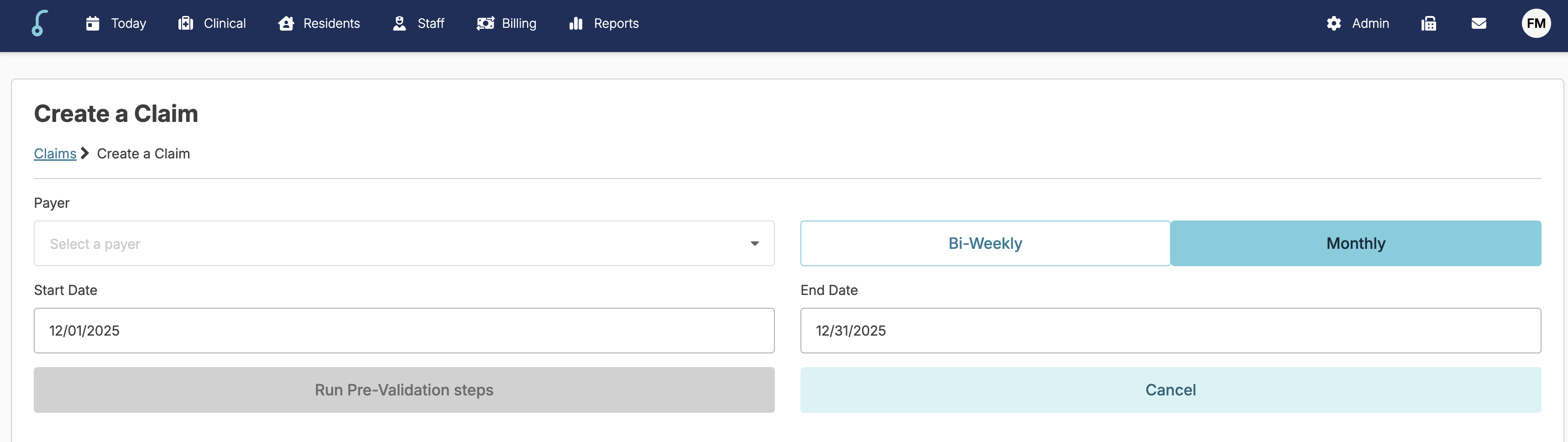
Pre-Validation Process
Before submitting your claims, Residex performs a critical pre-validation check to ensure accuracy.
What Pre-Validation Does
The pre-validation step reviews all residents (selected) in the batch and checks for discrepancies between:
- What was charged
- What will be submitted (accounting for Hold days)
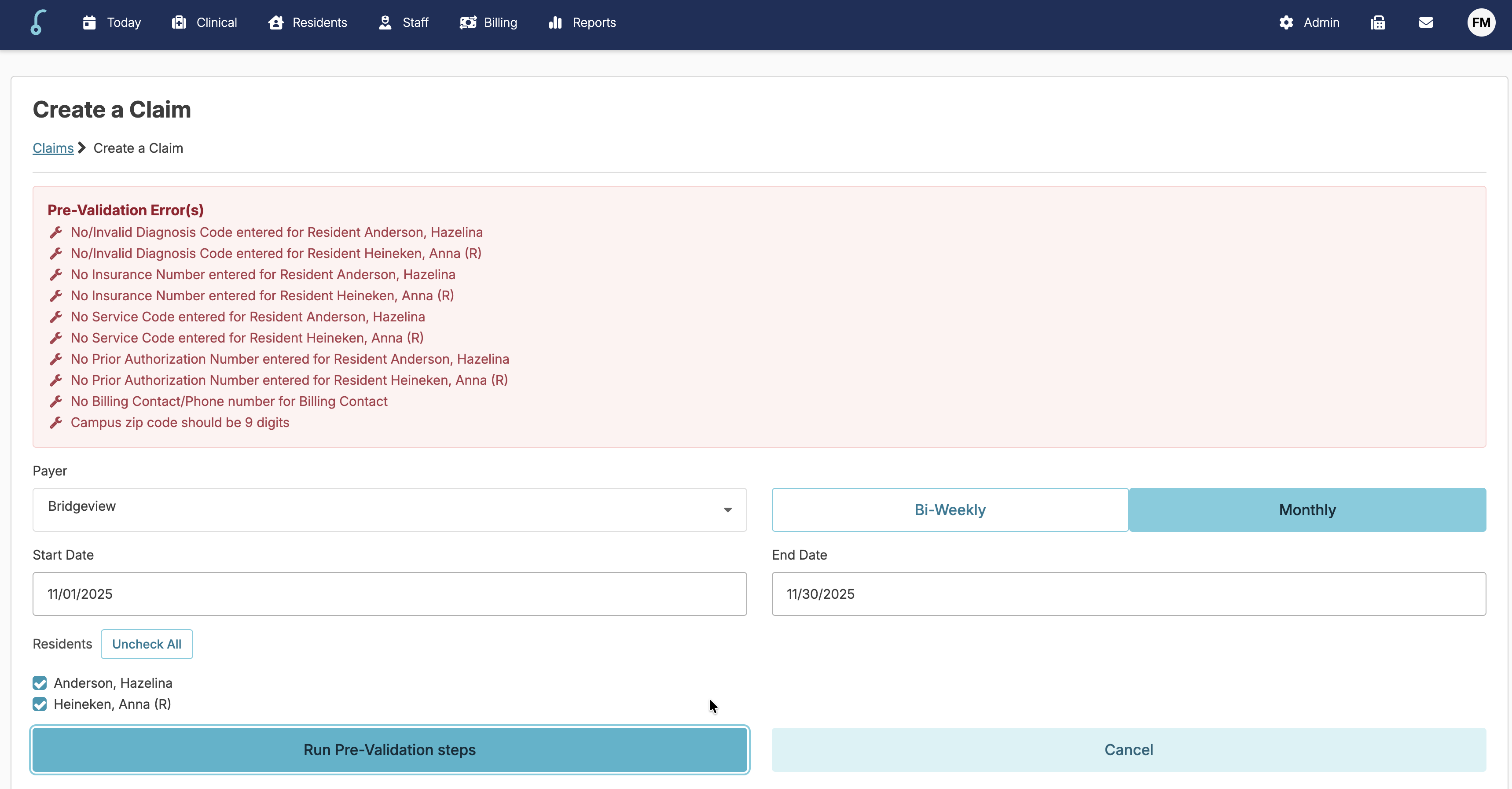
Pre-Validation Results
Success: If no issues are found, you'll see the message "Pre-Validation passed" and can proceed with submission.
Error: If discrepancies exist, you'll receive an error message explaining exactly what needs to be corrected before you can submit.
Claim Status Tracking
Residex provides real-time status updates at every stage of the claims process, saving your billing staff significant time and effort.
Status Messages
🗒️ Each payer may display slightly different messaging about claim status.
Processing/Pending (highlighted yellow)
The payer has received the claims and is processing them.
Accepted (highlighted blue)
Means no problems in the batch but no further updates on payment status
Paid / Paid with Adjustments / Spend downs (highlighted green)
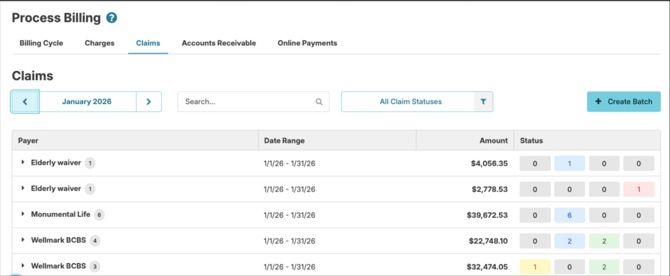
Rejected / Failed (highlighted red)
Means there are errors in the batch
Each payer will display a number to reflect how many claims are in that batch.
Use the drop-down arrow to see the claims in the batch
Click on the resident name to view the status of the claim. It will look similar to this:
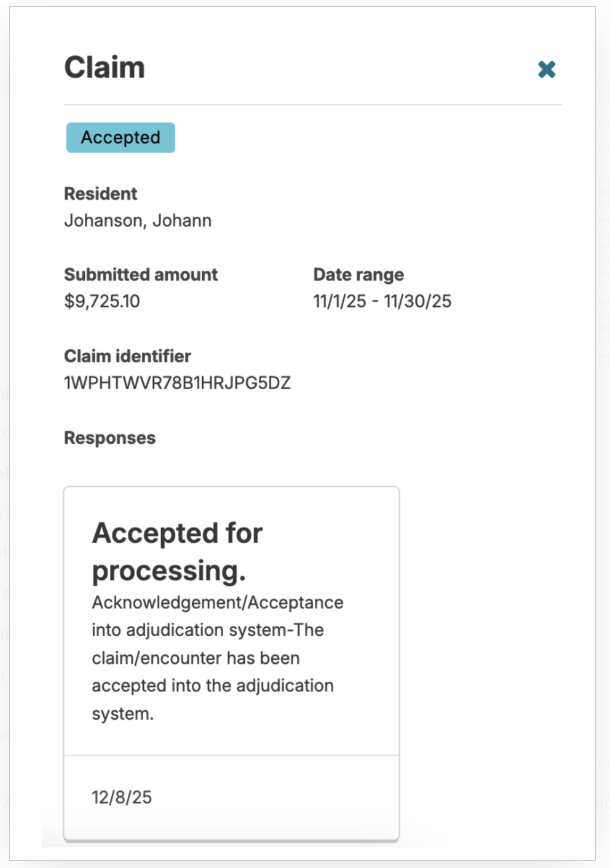
You can scroll down to see the history of "responses" for the claim