
Table of Contents:
Residex Connect Setup
Identify who will be the Designated Facility Staff to send/receive connect messages at your facility by adding security role(s) as applicable. Note: These roles do not appear unless the connect configuration is enabled. Contact support@residex.ai to enable this feature.
- Facility staff users with the role Residex Connect - Resident (Role 43) can send/receive connect messages with a resident or their contacts.
- Facility staff users with the role Residex Connect - Staff (Role 44) this role is not required for your staff to access their staff connect account only for the designated facility staff to manage their accounts and send/receive messages from within Residex.
- Facility staff users with the role Residex Connect - Prospect (Role 45) can send/receive Connect Messages with a prospect or their contacts.
Staff will log in to connect.residex.ai using their Residex username and password. They will be prompted to enter an email address and cell phone and indicate how they want to be notified of new messages.
Manage Connect Access for specific residents, prospects, contacts, and staff.
- Email, Phone Number, and notification preference are required
- Is there a valid release of information on file for this contact? If not, obtain a release of information before enabling Connect
Residex Connect Messages
Send/Receive Messages - Facility View
- Navigate to the specific resident, prospect, contact or staff member you wish to connect with
- Click Connect
- Select who you wish to contact from the Filter dropdown list. You can only message an active connect contact. Designated facility staff may appear in the filter field if they have sent messages to the resident.
- If there are previous messages for the selected contact, you will see the message thread.
- At the bottom of the thread, you will see a field with Type message here. Type your message in that field, then click Send.
- Your message will appear at the end of the current thread.
- When the facility receives a response message, a flag appears at the bottom of the Residex screen similar to a fax or snap message. Once you click into the connect message, the (unread 1) message, the banner (Connect messages:1) and the flag will disappear.
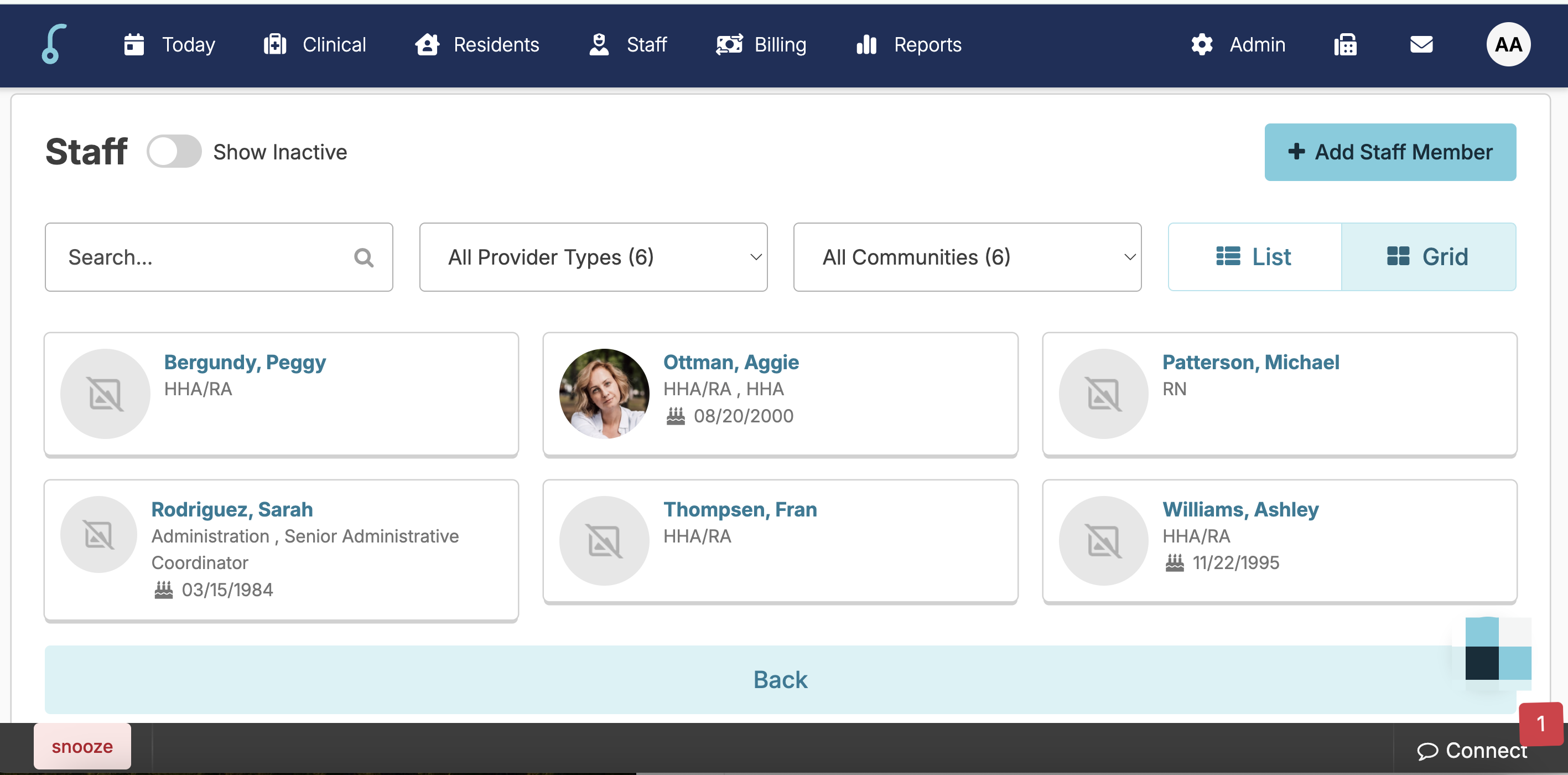
Send/Receive messages - Connect View
- Log into connect.residex.ai with your Residex username/password.
- Click on Messages to view unread messages and existing threads
- Reply to messages by clicking in the New Message field. This box can be expanded by clicking in the lower-right corner and dragging the box diagonally.
Send documents - Facility View
- Navigate to specific resident, prospect, or staff
- Click on reports
- Search for the report name. Note: Reports that are enabled to send via Connect have (D) = Document indicated.
- Click Send Via Connect
- Select the appropriate recipients
- Click Send Via Connect
- Sent reports are visible in the resident’s documents tab
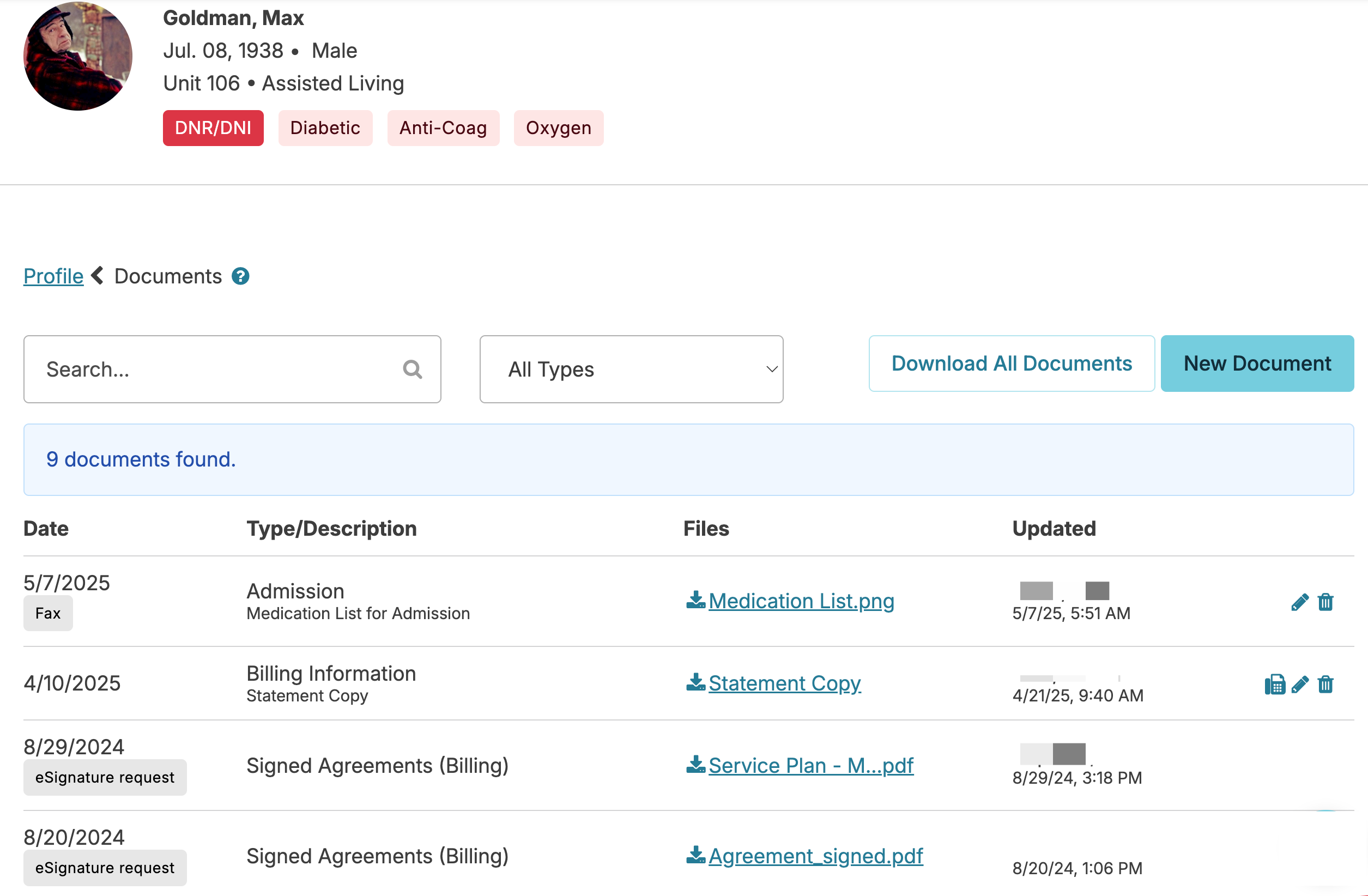
Send documents - Connect View
- Log into connect.residex.ai with your Residex username/password
- Click on Documents to view all documents
- Documents can be downloaded as a PDF if desired
Send eSignature requests - Facility View
- Navigate to specific resident, prospect, or staff
- Click on reports
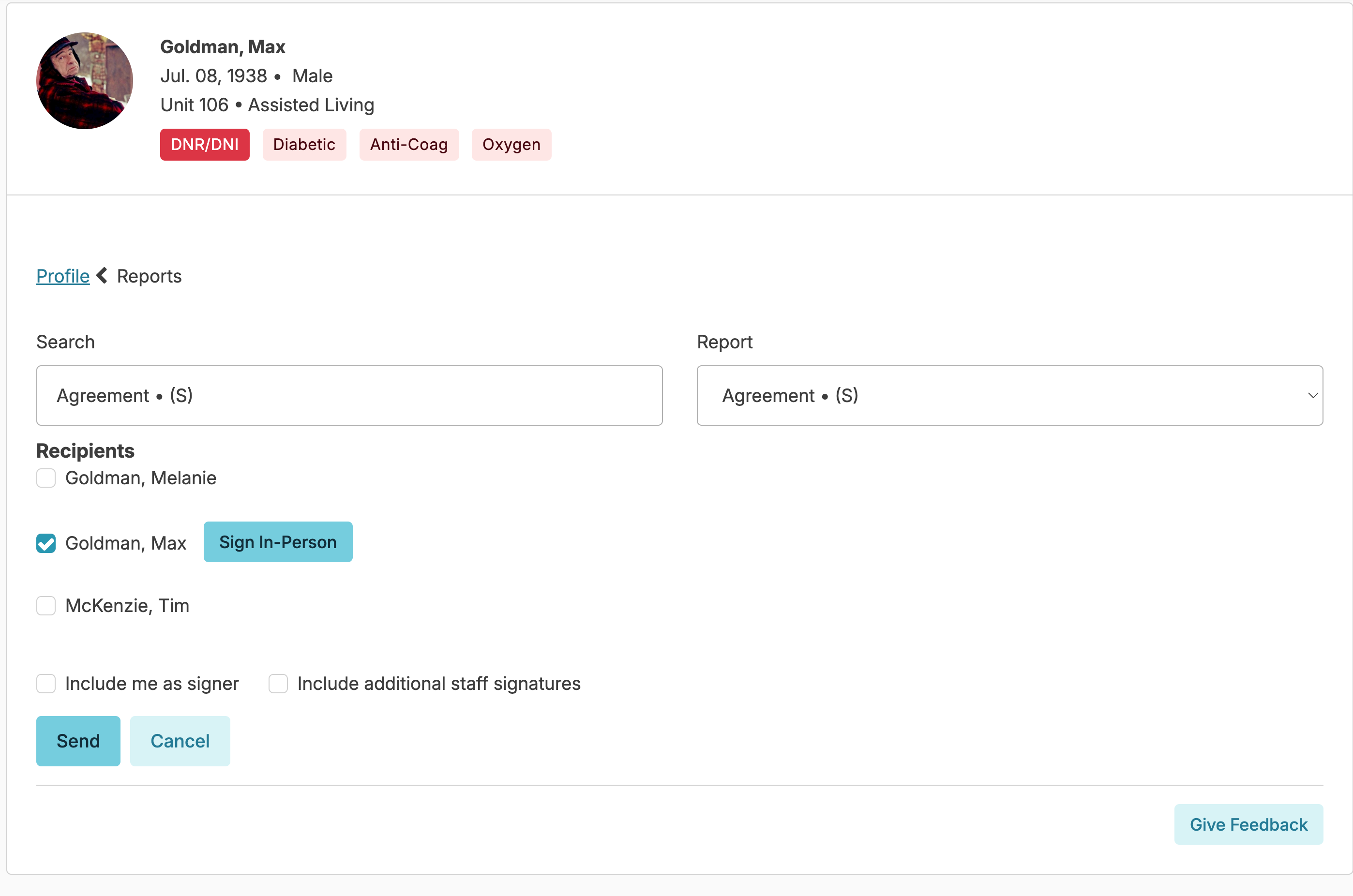
- Search for report name. Note: Reports that are enabled to send via as an eSignature request have (S) = eSignature indicated.
- Click on Send eSignature request
- Select the recipient(s) from the dropdown
- Click Sign in Person if applicable
- Select Include me as signer if needed
- Select Include additional staff signatures, and select additional staff as appropriate
- Click Send
Sign eSignature requests - Connect View
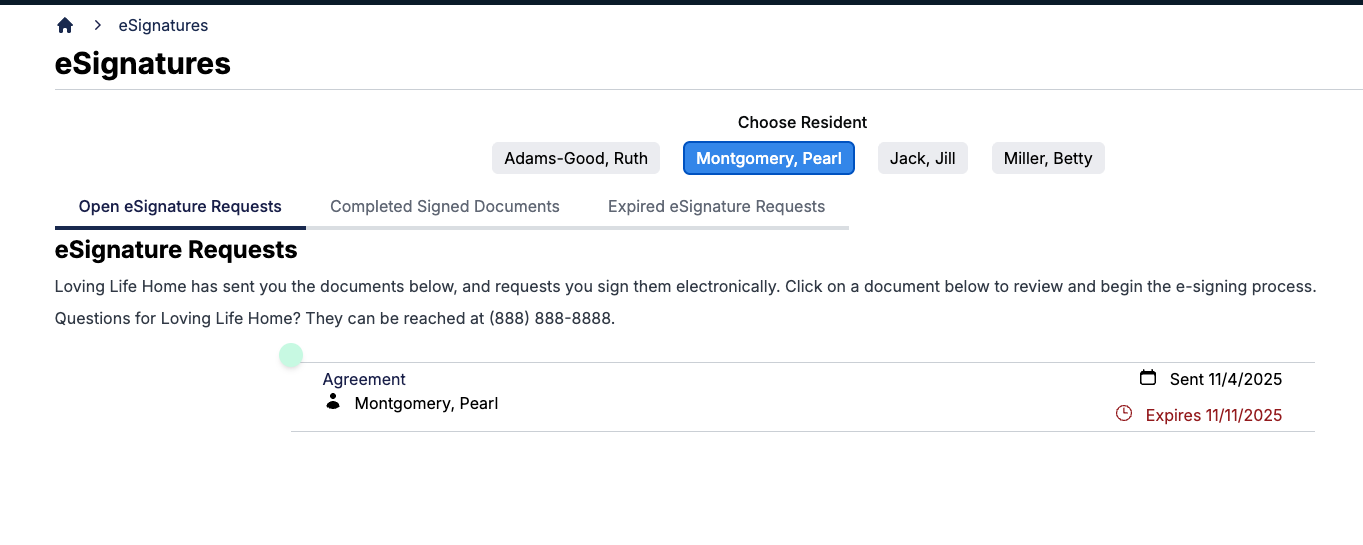
Log into connect.residex.ai with your Residex username/password
-
Click on “eSignatures” to view all signature requests
-
Click on the document that needs to be signed
-
Review the document
-
Follow these steps to complete your electronic signature after reviewing the document below.
- Choose a method (email or text message) to receive a one-time Signature Authentication Code
- Click Send Code
- Enter your full name and Signature Authentication Code
- Click "Confirm and Sign"
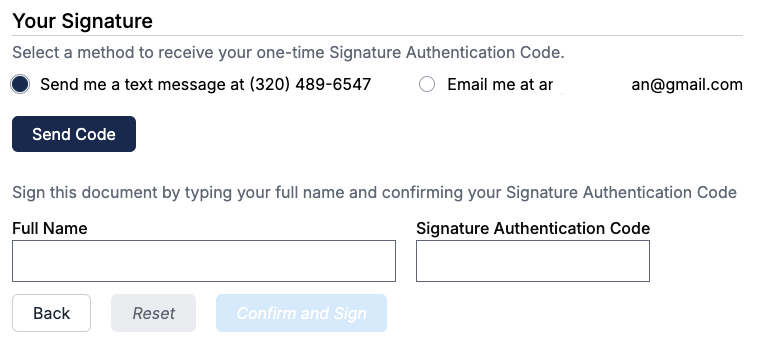
After signing, a link will appear on this page to download the completed document.
Things you should know
- Run the report Connect Reports - Available. Reports are available to enable either a) sending via Residex Connect or b) sending with a request for an eSignature. Users with Supervisor (Role 13) can navigate to Reports > Reports > Manage report availability and permissions to enable reports for Connect and attach a document type to eSignature reports.
- The addendum to contract reports sent for eSignature will not have a place to initial if declining to name a designated representative. Please ensure that you have this listed on the assisted living contract.
- eSignature requests expire after 7 days
- Only designated facility staff (Role 43,44,45) will be able to send/read messages.