Entering an Incident
Enabling staff to enter and view incident reports is a two-step process. First, administrators must grant the Staff with Incidents/Audits (Role 6) permission in Staff Profile > Security. Visibility is then determined by provider type permissions, also set by administrators. (See "Access to Incidents" below.)
Incidents fall into two categories: 'Incident - Resident' and 'Incident - Staff'. Entry time limits vary by role. ULP's with Role 6 can enter resident incidents up to 4 days after occurrence, while nurses (RN, LPN), managers (Role 11), and supervisors (Role 13) have up to 2 weeks. Staff incidents can be entered up to 90 days after the event.
To complete an incident report, go to Clinical > Incidents > New Incident:
- Record the incident date/time
- Select the category (resident or staff) and type from the dropdown menus, then choose the appropriate resident or staff name
- Read all questions thoroughly and provide comprehensive responses
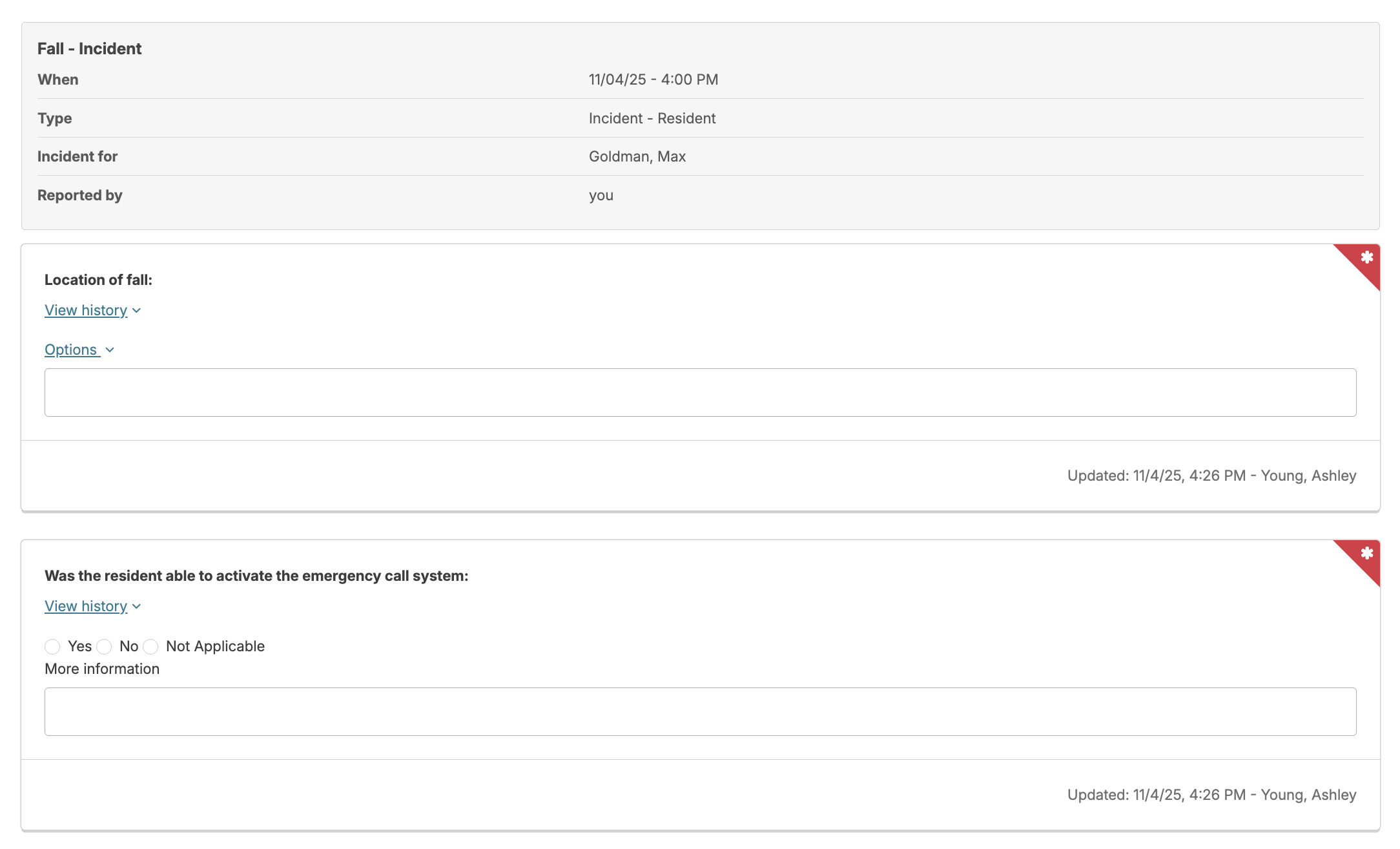
- Red asterisks indicate required fields
- Since changes are autosaved, you can exit and return later to continue, use Complete Review to finalize immediately, or select Cancel to discard changes and start over.
- Supervisors and nurses receive new report alerts (typically on their Dashboard/Login Report)
- Prior to the clinical review incidents can be edited by the original staff member or by nurses (RN, LPN), managers with (Role 11), or supervisors with (Role 13). The amount of time an incident can be edited is configurable per campus.
- Incidents CANNOT be edited once the clinical review step has been completed.
Body Diagram
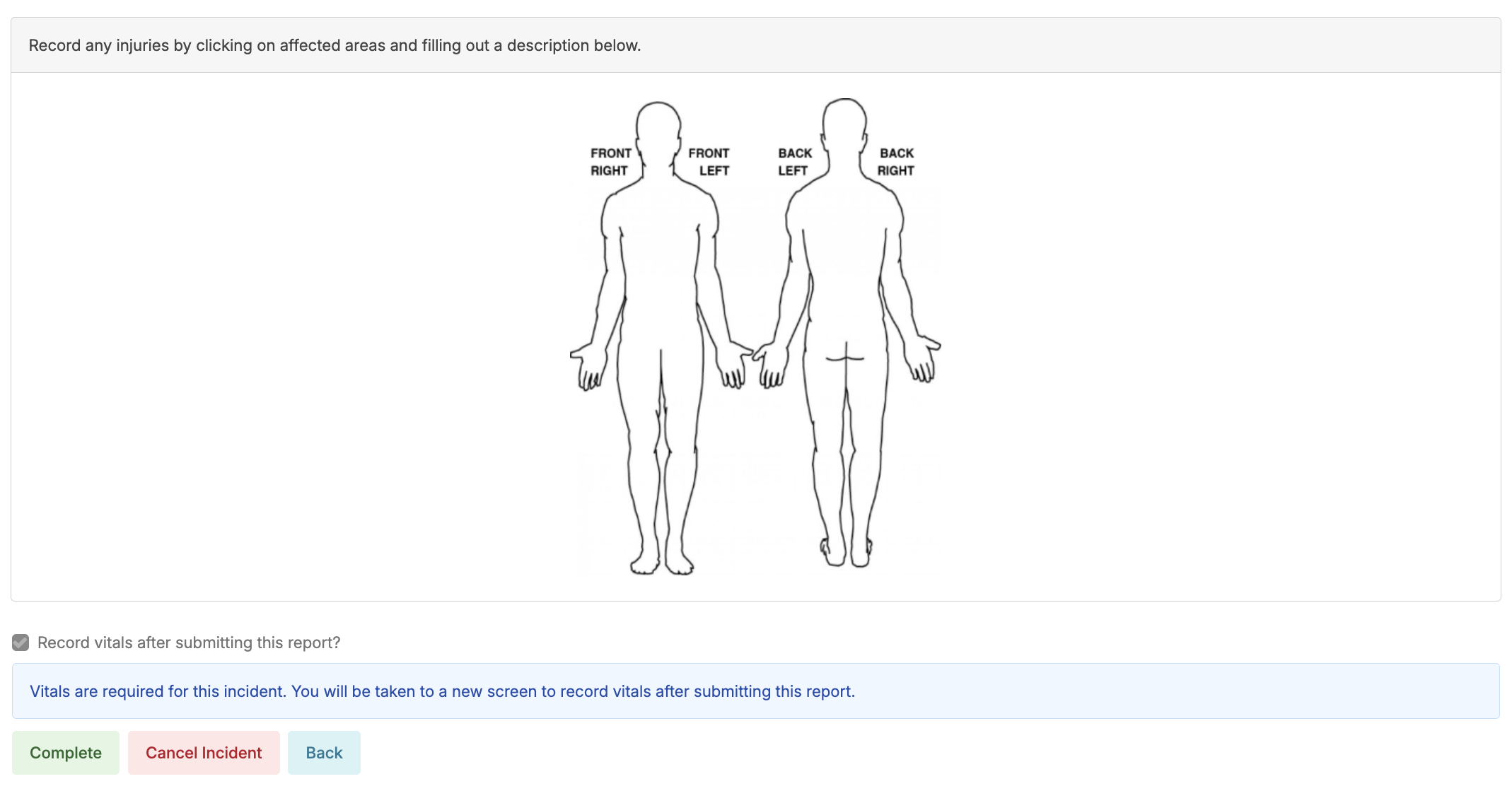
Certain incidents require body diagrams to document the location of bruises, injuries, or areas of concern. To add body diagram requirements to additional incident types, contact Residex support.
Links
Incident questions can include clickable links to relevant documents (policies, procedures) that open in new browser tabs, allowing staff to reference materials while completing the incident report.
Vitals
Some incidents require vital signs documentation, which is indicated when opening the report. After completing the incident report, you'll be directed to the 'Vital Signs' entry screen.
Reviewing an Incident
- Falls and medication errors are examples of incidents requiring nurse follow-up. Navigate to Clinical > Incidents and select the incident to review.
- You can read the caregiver-reported details and provide required follow-up responses. Since changes are autosaved, you can exit and return later to continue, use Complete Review to finalize immediately, or select Cancel to discard changes and start over.
- Clinical Reviews must be completed within 30 days of incident entry (not the actual incident date); reviews cannot be initiated after this deadline.
- Staff incidents can be reviewed for up to 90 days from the date the incident was entered.
- Once the initial review is completed, an OPTIONAL second review will appear for a secondary administrative review.
Incident Follow-Up Notes
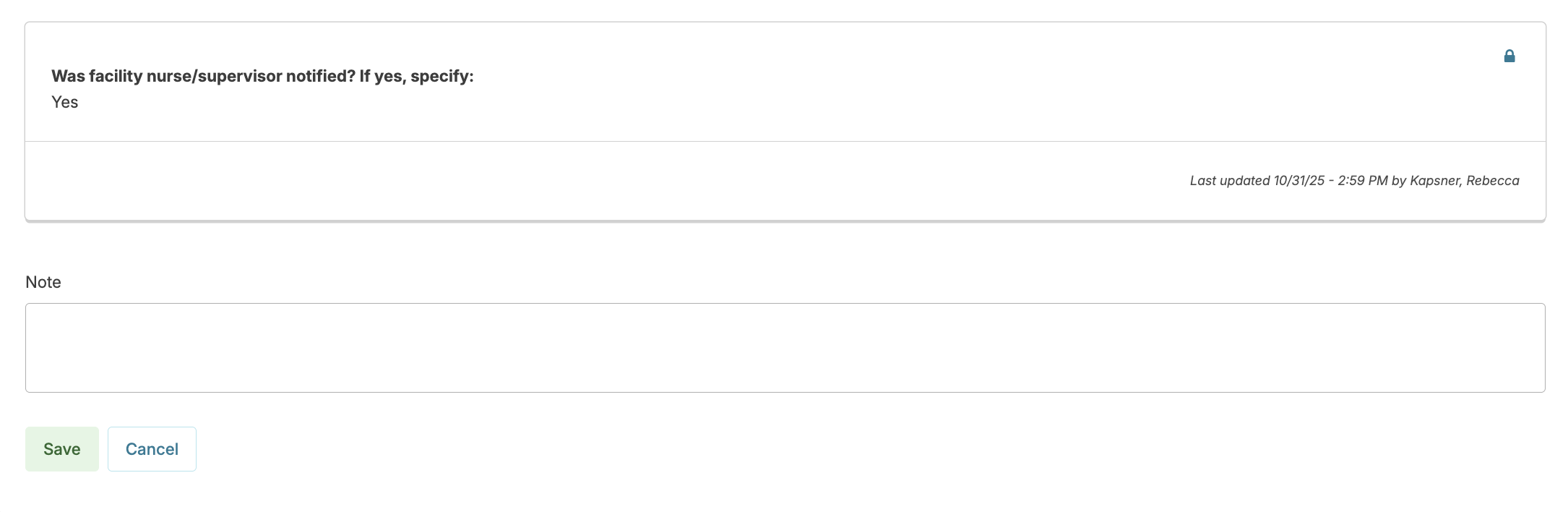
At any time after an incident has been reported, you can add a follow-up note to include additional information, clarifications, status updates, etc. These notes will be included on any relevant documentation generated to summarize the incident report.
- From Clinical > Incidents, select an incident to follow up on.
- Click Add Note
- Enter your note and Save
Incident reports can be configured to prompt a specific staff member to acknowledge the incident (commonly used for Incident reporting documenting medication errors so that a staff member can acknowledge their role in the incident). For these incidents, after the initial Incident report and review are completed, the staff member identified in the incident will receive an on-screen alert within Residex.

The alert remains active until acknowledged. Staff must click the alert, review the completed incident report details, and select Acknowledge to clear it. A summary is then available for viewing.
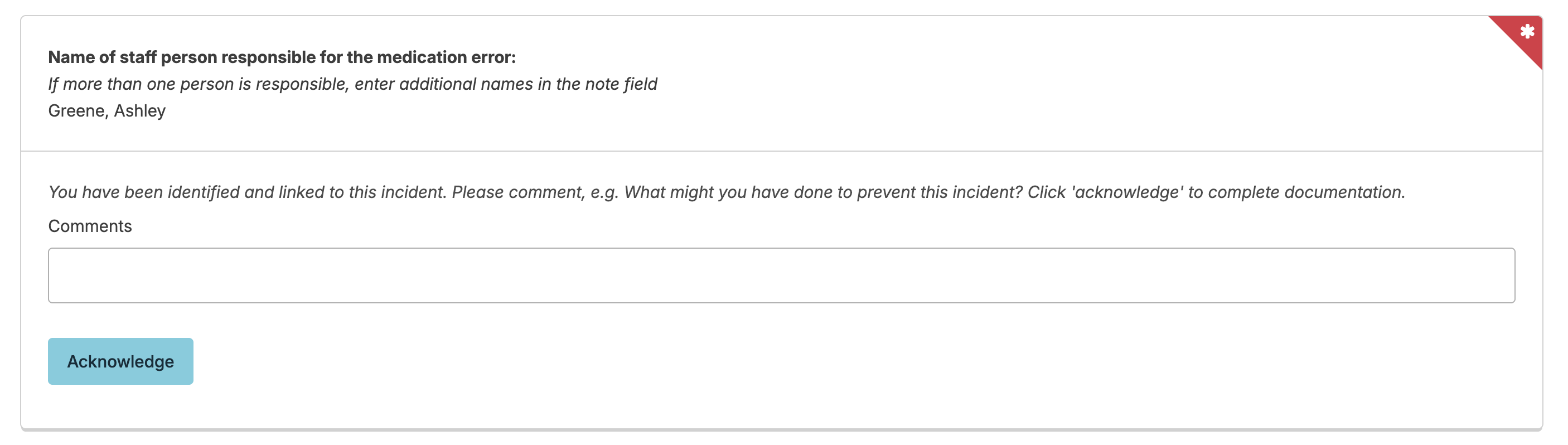
The report 'Incident Report with Staff Acknowledgement' will display the initial incident report, the clinical review, and the staff acknowledgement and comment.
Physician/Provider Review of Incidents
Primary medical providers (PMP) can be notified of incidents using two report options (found in Reports > Reports > 'Incidents' category). The 'Incident - Provider Notification' report displays selected incident elements to share with providers, including current medications, recent medication changes, and recent medications administered. For complete transparency, use the 'Incident Report - For PMP Review', which provides the full report with acknowledgement lines. Both reports can be sent directly through Residex via eFax if available.
Access to Incidents
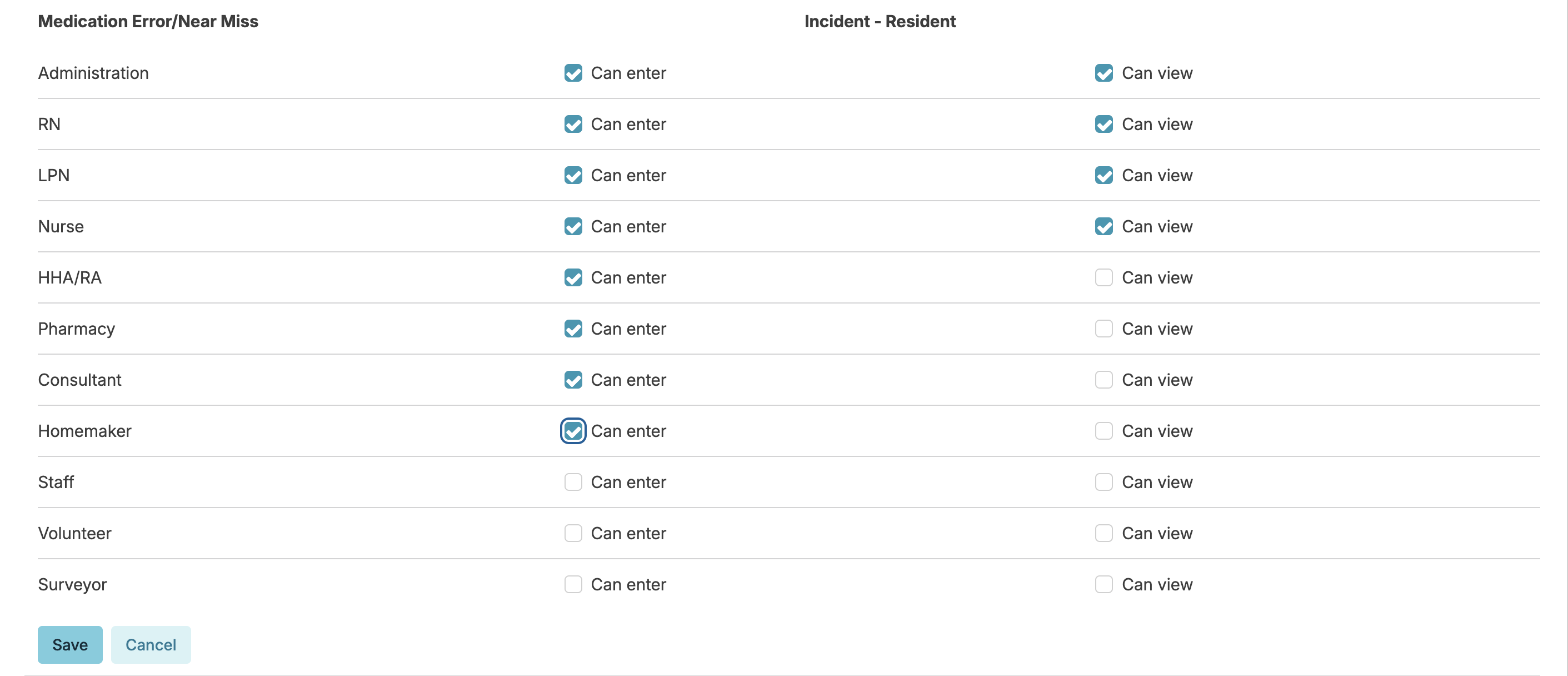
Administrative users with Role 411 are able to set controls as to what provider types can enter and/or view specific incident types. Navigate to:
- Admin > Incident/Audit Types
- Select an incident type
- Select which provider types can enter and/or view
While Incidents/Audits (Role 6) provides access to the Incidents screen, administrative users with Role 411 control which incident types users can enter and/or view.