
Global Service List
In this list, you can manage how services appear, how they are charted, details about their billing, and more.
Because the global service list plays such a key role in day-to-day operations, compliance, and billing, Administrator (Role 411) is required to make any edits to this list. Residex support staff can assign this administrator role in collaboration with your company administrators. Please note this role is typically restricted to as few users as possible.
❗️ Warning
Changes made to the Global Service List can have a direct effect on your current resident charting details, service plans, and billing. We recommend you discuss any changes you wish to make with the Residex Support Team prior to making them.
Access the Global Service List
Admin > Global Services.
On the 'Global Service List' screen you will see the current list of all services that your organization offers. Press the New Service button to add to the global service list, or click on any service to edit it.
Keep in mind when managing your global service list:
- A 'lean' service list means less scrolling for users, and easier service tracking and accounting
- Create variations of a service if billing requires different rate or charge types
- The use of service snippets, used in conjunction with a service, can create variations on instructions for that service without making additional services
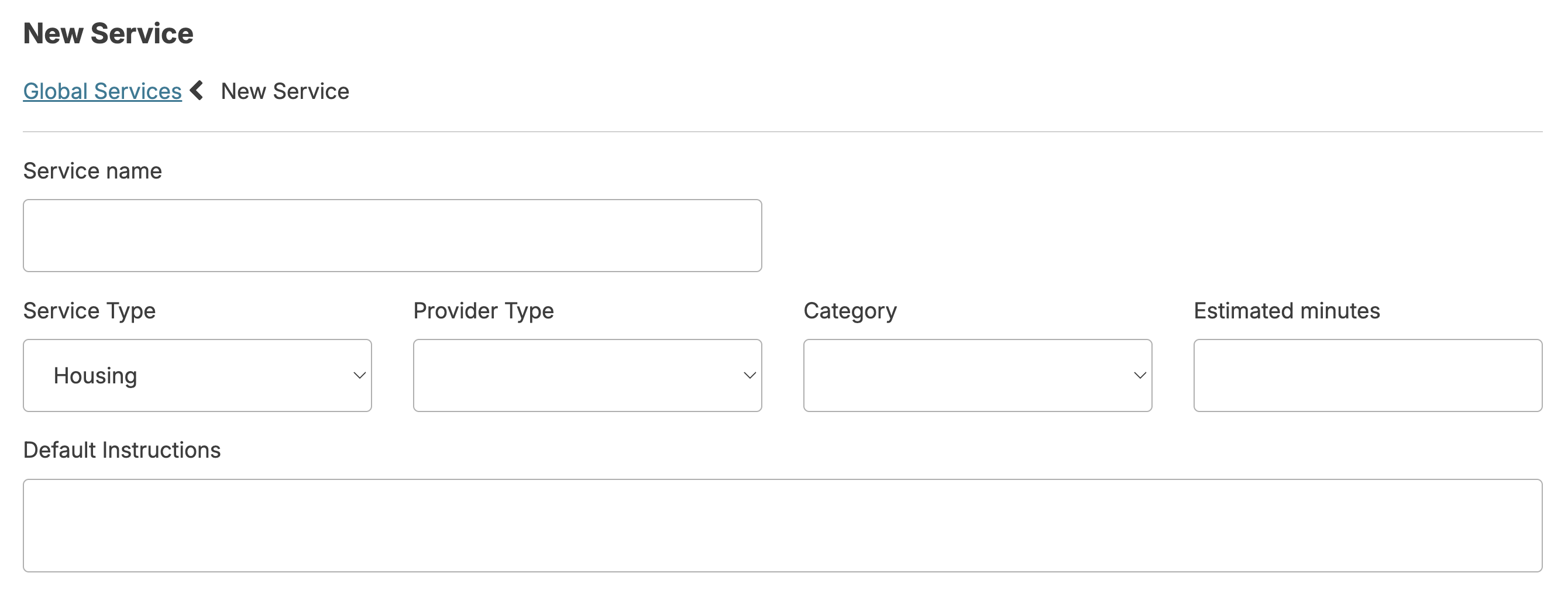
When you select a service to edit, you will first see details about this service (if you are creating a new service, you will need to enter these details). There are links at the top of this screen that allow you to view the residents for whom this service has been added. If you make certain changes to a service currently assigned to those residents, it may affect those residents.
Basic Setting Options for Services
- Service Type lets you differentiate between 'care' services (bathing assist, toileting, etc.), 'housing' services (laundry, housekeeping, etc.), and other services
- Provider Type is a security setting, allowing you to set the minimum provider type that should be assigned this service
- Category is an optional field for most services. It is required for 'Medication Assistance' and 'Medication Setup' services. Specific categories feed into reports (e.g., Client Roster): 'Wound Care' must be in the 'skin' category, 'Record - Blood Glucose' in 'Blood Glucose' category, etc.
- Estimated Minutes the default time to complete a service, auto-populated when scheduling. Used for projecting staff workloads. Can be adjusted per person when adding the service.
- Default Instructions are basic instructions that auto-populate when adding service to resident plans. Use 'Snippets' link to create text options nurses can select from for additional details/variations (e.g., bathing service with sponge bath, shower, tub, whirlpool options). Editing defaults can update all services in database but removes resident-specific instructions.
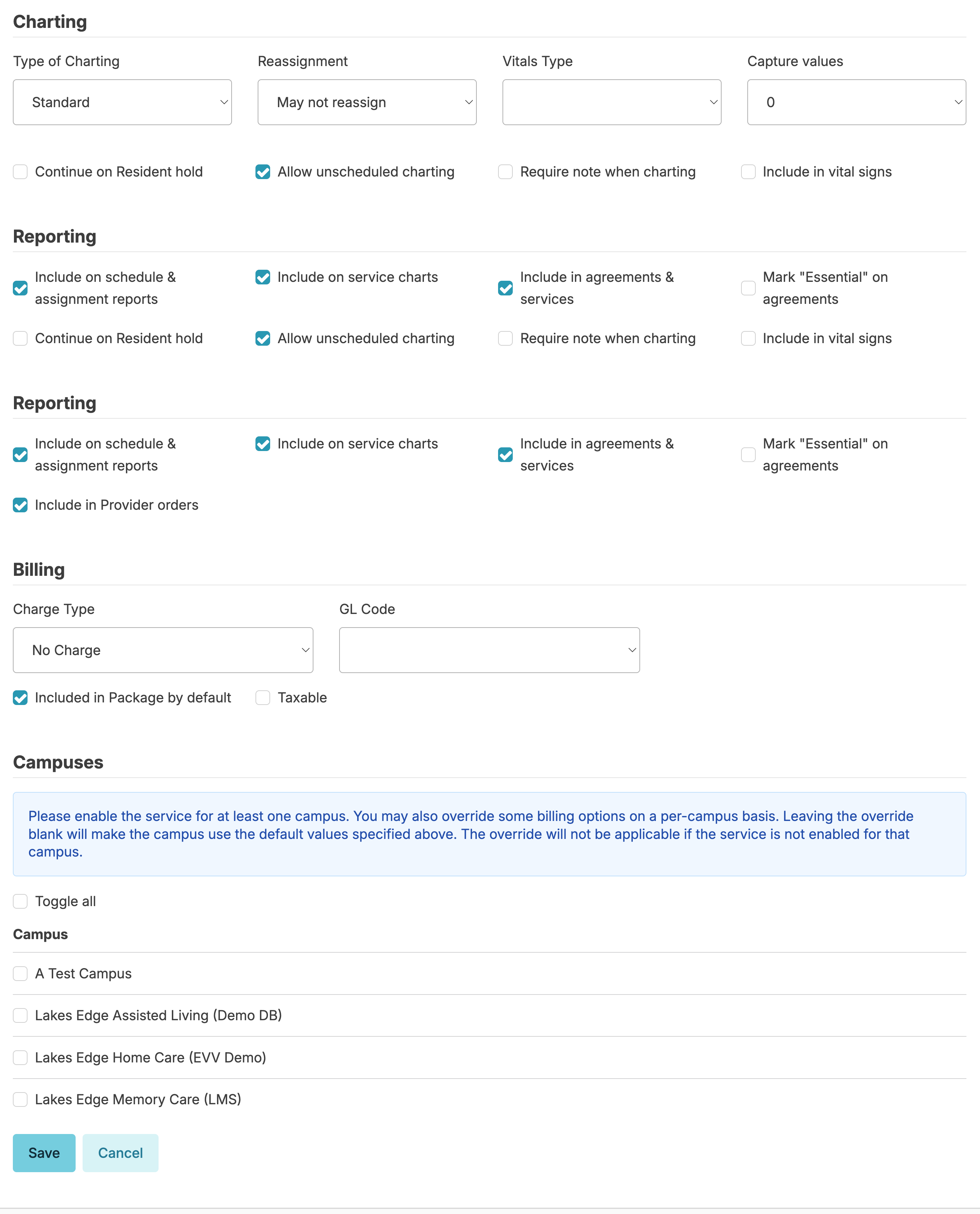
Rules for charting services of this type
Charting Type
- Standard (most services) allows users to chart the service simply as complete or declined
- Goal Tracking requires answers to customized questions when charting (often used to document progress toward a goal for group homes, or get down to greater detail in BM tracking).
- Behavior will require staff to record the number of occurrences and types of interventions used in managing resident behavior. Select the Record Intensity box if you want your staff to document the highest intensity of the behavior during a shift.
- Supervision allows linking a supervision service to a treatment service of a similar name. When adding a treatment service to a service plan, the nurse will have the option of setting up a periodic supervision. This is required in some states, and may be considered a best practice in others.
Reassignment allows staff to reassign a service to a future shift. Examples would be services such as bathing or housekeeping that do not happen daily.
Vitals Type - if the service is a vital sign service, this allows you to categorize that vital sign
Continue on Hold - will allow the service to continue, even if the resident is placed on hold (e.g. housekeeping, laundry)
Allow Unscheduled charting allows staff to document as an unscheduled service.
Require a Note when charting requires users to enter a service note when charting.
Alert if Value < or > is specific to vital signs and meal percentages, and allows users to set default parameters for Vital Sign or intake monitoring...set conditions for nurse notification of vitals outside an acceptable range.
Recap Snippets allow you to add snippets of text that staff can select from when charting this particular service.
Reporting
How and where will this service appear?
- Include on daily schedule and Assignments - includes this service on printed reports like the 'Daily Assignments'
- Include on service charts will appear on the Today > Assignments screen and paper treatment records
- Include in agreements/service plans the service will automatically be included in agreements/service plans.
- Mark Essential on agreements/service plans is this service considered essential to the resident's well- being? This feature is specific to a very few reports, and may be left blank
- Include on Provider Orders this will include the service on 'Provider Orders' reports to allow for sending to providers for review and signature
Billing
How will this service affect billing?
- Charge Type specifies the type of charge that should be applied to the service
- GL Code (optional), General Ledger code is for accounting purposes. This is the only required field in this Billing section.
- Points (fixed) (optional), assign a point value for that service (used by some facilities to determine care levels/charges).
- Points (per minute) assign a point value based upon time spent
- Include in package by default service included in a care package level for a resident/not billed separately unless specially indicated
- Taxable indicates if sales taxes apply to this service
Campuses
Allows users to select the campuses (one, some or all) for whom this service is available. (e.g. perhaps a service is available in one state, but not another).