
Table of Contents:
Global Medication List
Every medication available to select and add to a resident medication list is maintained in the global medication list for your organization.
❗️Warning
Changes made to medications on a global scale could have significant repercussions. We recommend you discuss any changes you wish to make with the Residex Support Team prior to making them.
Managing medications
Admin > Global Medications will display all medications in your global medication list sorted alphabetically, and will display common name, generic name, if it is a controlled, antibiotic, anticoagulant, or a psychotropic medication.
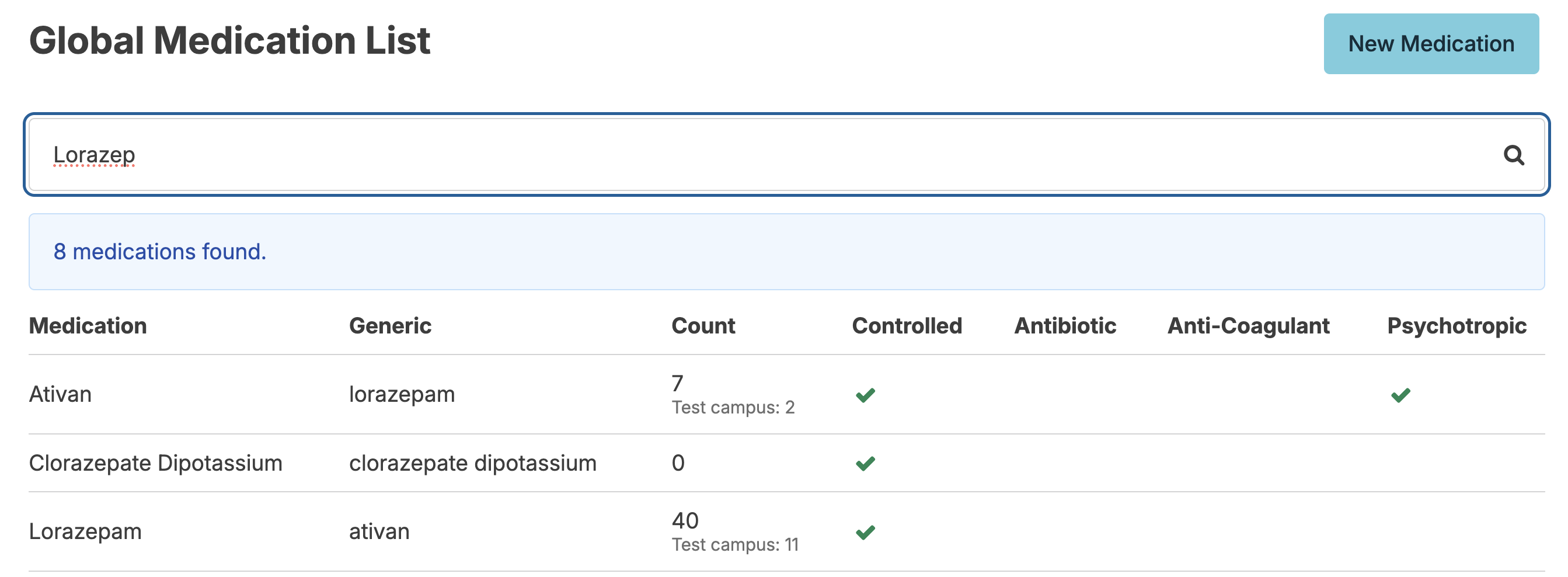
You can manage details about any medication by finding it in the list (use the 'Search' field) and clicking on it.
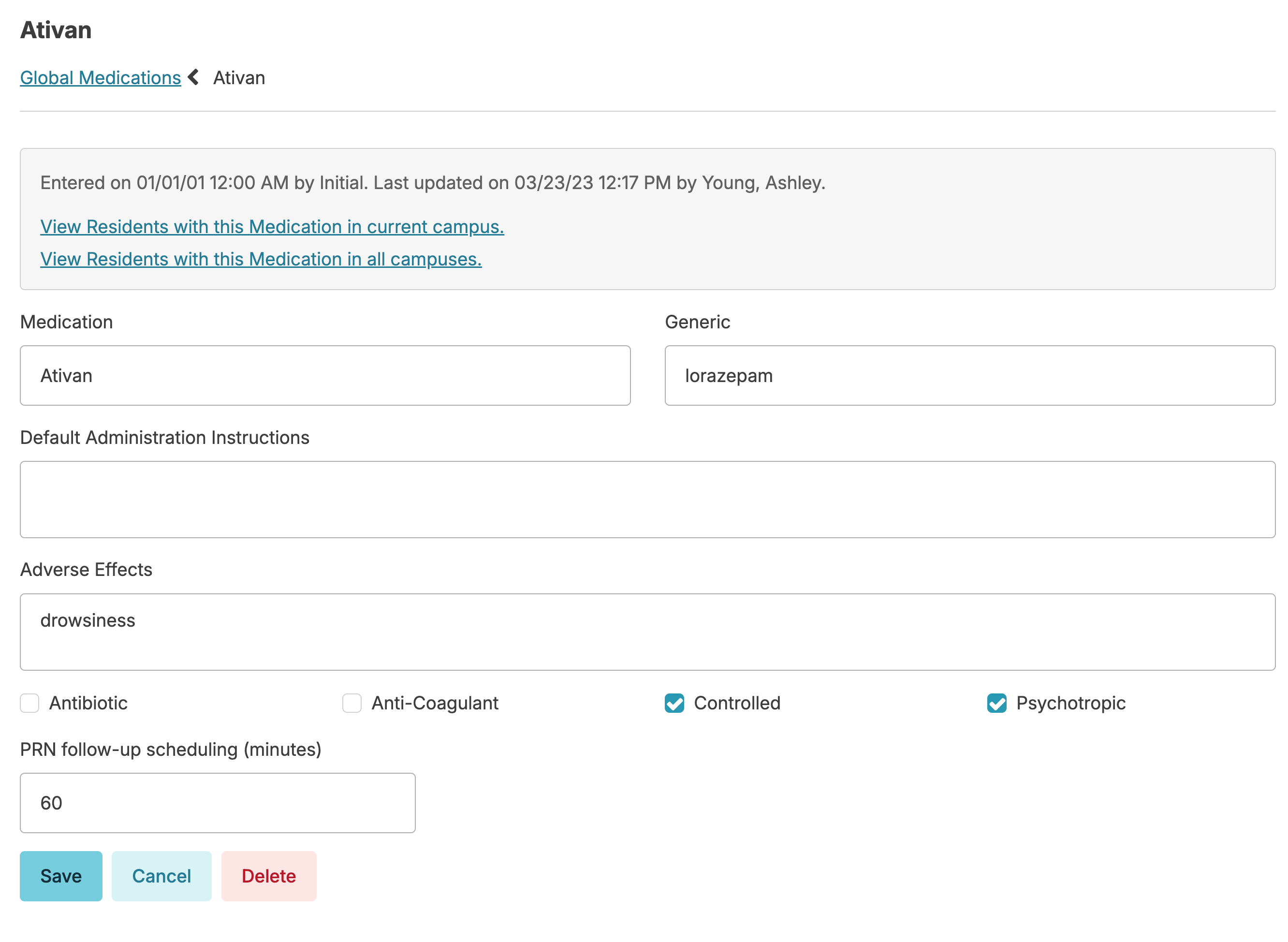
You can correct misspellings in the medication name, but DO NOT CHANGE the medication name.
You may also use this screen to manage the medication's generic name, default administration instructions, adverse effects, and type (antibiotic, controlled, psychotropic ani-coagulant). Medications marked as Controlled will require counting. Finally, you can set a time for when a follow-up must be done to check response if this medication is given on a PRN/as needed basis.
Nurses with Clinical (Role 19) may enter brand new medications to the system when adding to a specific resident's med list. Only users with Administrator (Role 411) are able to edit details of a medication in the global medication list.
Deleting Medications
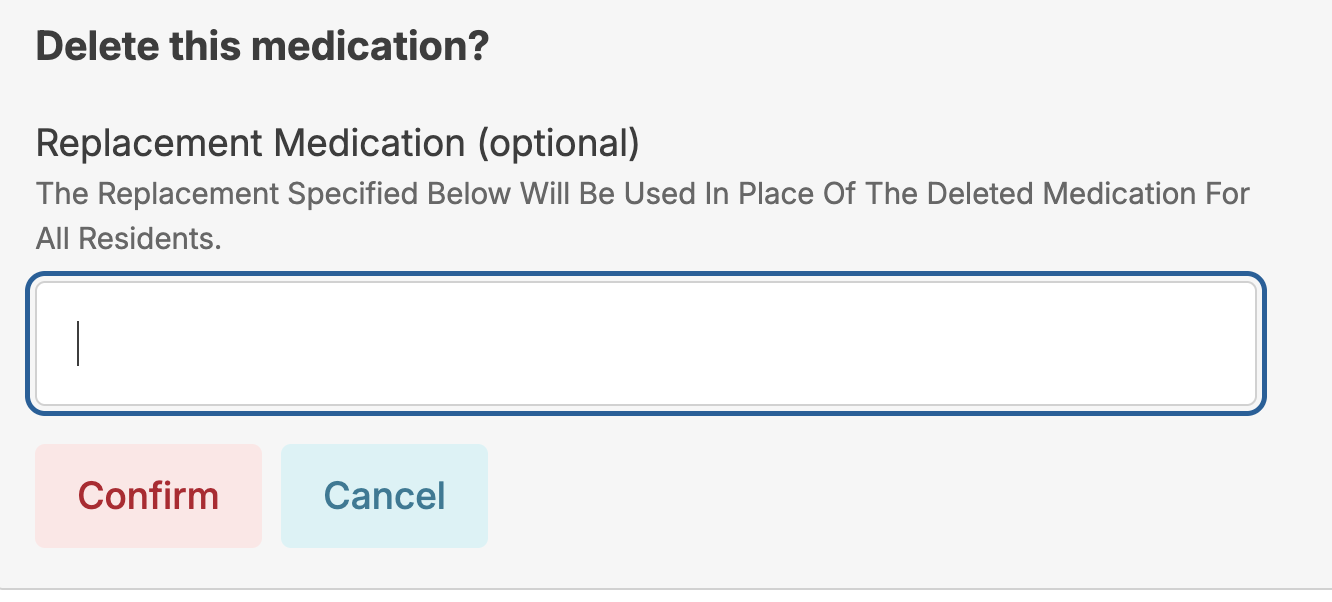
You can delete a medication from your Global Medication List. When you press the Delete button, you will have the option to Merge the medication record with another, identical medication. This is designed to remove redundant medications.
You can enable eMAR by community. If you have a large campus, the entire building does not need to launch or implement the eMAR system at at the same time.
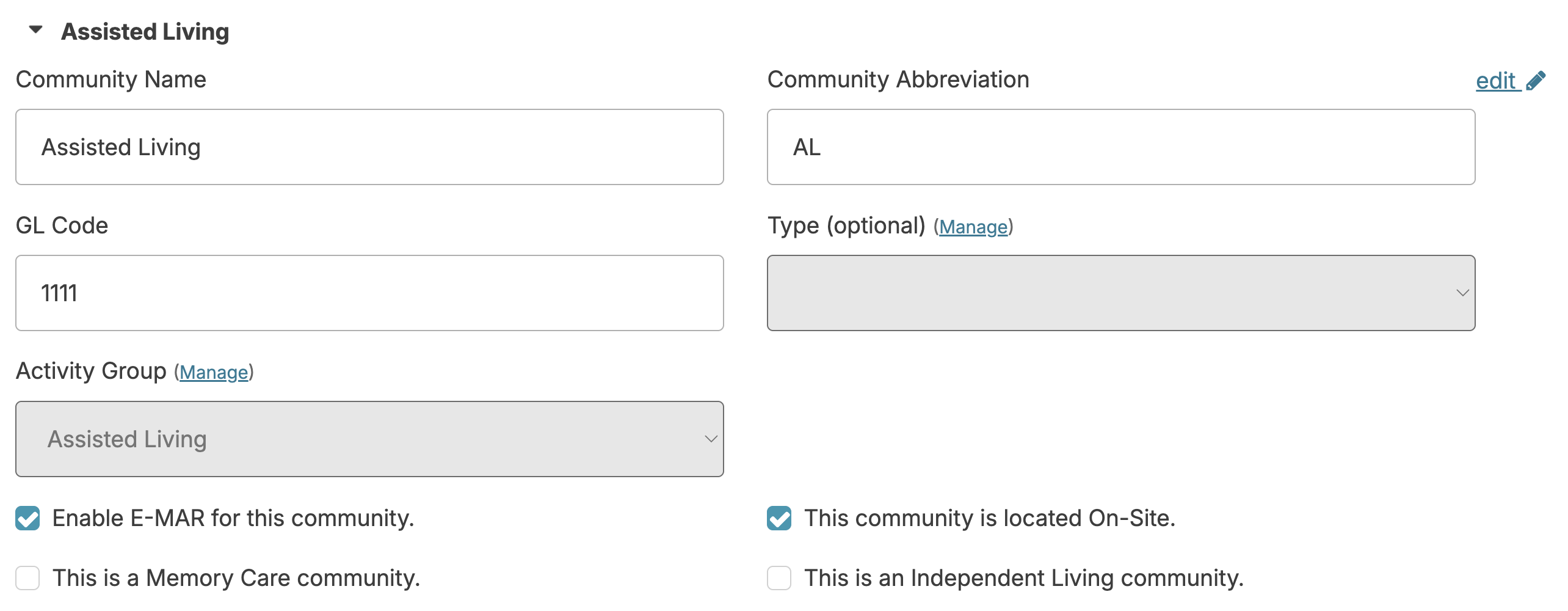
- Go to Admin > Manage Communities
- Check the Enable eMAR for this community box
Immediately after enabling eMAR, residents of the selected community who have scheduled medications will start having medication administrations scheduled for staff to chart.
eMAR Special Configuration: Multiple Medication Administration types
Sometimes due to state requirements, a home requires the ability to specify different types of medication administration (e.g. Massachusetts SAMM and LMA distinctions)
The Residex support team will set up medication administration types for your organization in order to best comply with your state's regulations. Once configured, your users will have the option of selecting the appropriate type when scheduling each med for a resident.
PRN Medication Administration: Configuration Option
- Follow-up after 'As Needed' med - Require response will require a follow-up service to any PRN med charted
- Follow-up after 'As Needed' med - what service: specifies which service is created to document follow-ups to PRN med administrations
- Follow-up after 'As Needed' med - How many minutes specifies the default number of minutes after a PRN medication is administered that a follow-up service should be documented. This default setting can be overridden for each individual type of medication from the global medication list.