Residex Software Support
Support can be found by navigating to your name in the upper right corner > Support > Support Documentation Guide which will bring you here, to our support documentation guide, where you can search for answers to your questions using the seach bar in the upper right corner.
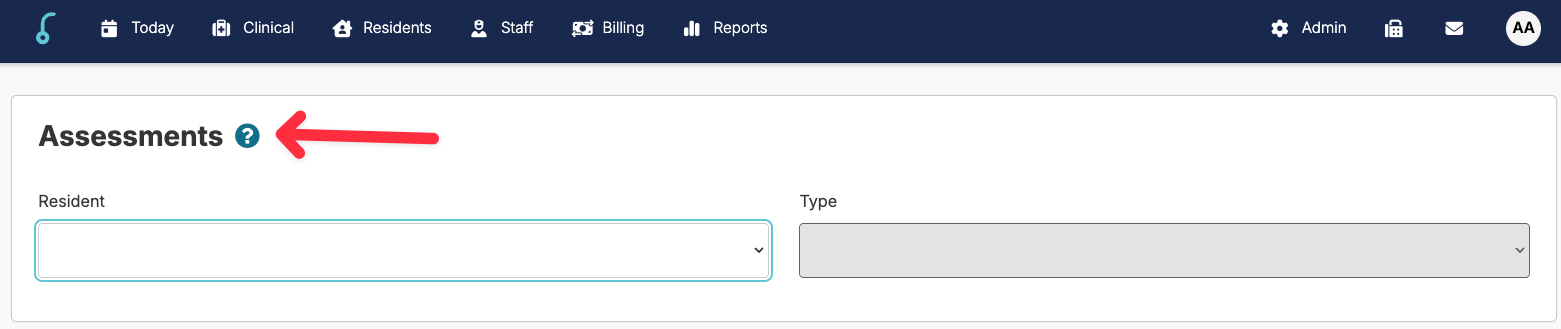
Look for the "?"
❓While using the software, watch for a blue question mark icon. When you click it, you'll find helpful links and tips for whatever page you're viewing, making it easy to get the help you need right away.
Residex Learning Management System (LMS)
Check out our self-paced online Residex training located by navigating to the Staff > Assign LMS Courses > Residex LMS screen. Want to learn how it works? Go to: Residex LMS
Residex Updates
The most recent Residex updates can be found by navigating to Reports > Dashboard > RESIDEX NEWSFEED. Here you will be able to read about recent changes and often find links to help you navigate those changes.
Contacting the Residex Support Team
📘 BUSINESS HOURS: Mon-Fri 7:00 am - 5:00 pm CST (Holidays may affect these hours)
The Residex Software support team is available to assist you via email or phone.
Email: support@residex.ai (Recommended)
Email is our preferred contact method as it allows our support team to thoroughly investigate your issue and provide documentation for future reference.
Phone: 866.512.8369 x2
If you reach our voicemail during business hours (7 AM - 5 PM CST), you have three options:
- Visit docs.residex.ai to access our self-help portal
- Send an email to support@residex.ai
- Leave a detailed voice message including your name, facility name, facility ID, and the reason you are calling
We'll respond to voicemails the same business day, either by email or phone call, depending on what's most effective for your issue.
Before You Contact Us:
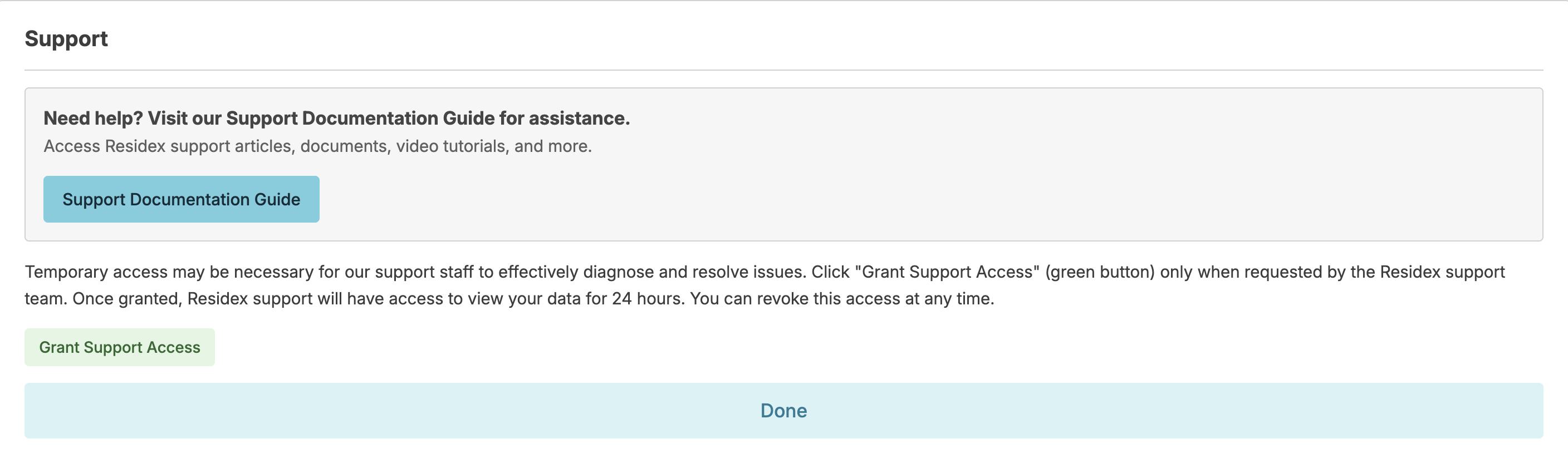
Please have your Residex ID ready—you can find it in the upper right corner under your campus name. To allow our team access to your database for troubleshooting, navigate to your name in the upper right corner > Support > Grant Support Access.
Emergency Support:
For work-stop issues outside business hours, call 866.512.8369 ext 2. All training and implementation services are provided during normal business hours only.
Joining a Microsoft Teams Meeting
One of the tools we use to support you is Microsoft Teams, a virtual meeting tool for screen sharing and phone conferencing.
To join a Microsoft Teams meeting from a link:
- Go to your meeting invite sent by Residex support and select the Join the meeting now link.
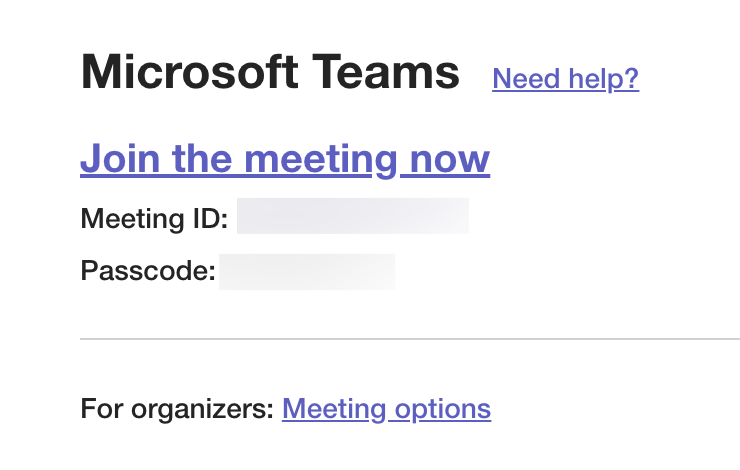
- If you already have the Teams app, the meeting will open there automatically.
- If you don’t have a Teams account, when prompted, select Continue on this browser or Join on the Teams app. You don't need to install the Teams app to join the meeting.
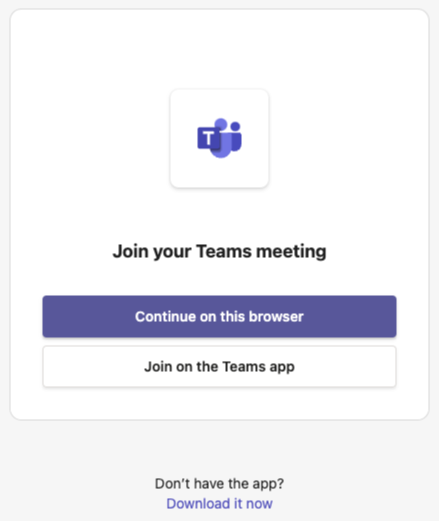
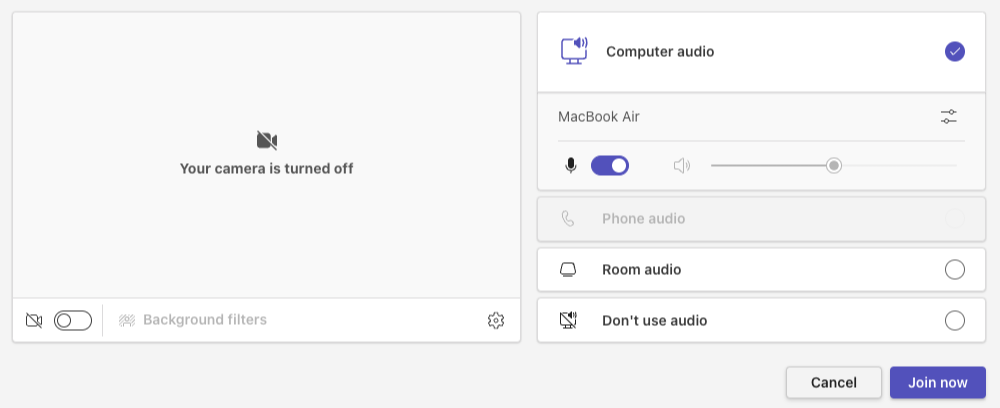
- You can join Teams for web on Microsoft Edge or Google Chrome. You may be prompted to give Teams access to your mic and camera. When you select Allow, you can always turn off your mic and camera once you join the meeting.
- Select Join now.
- In meetings where admin settings prevent unverified people from joining, you’ll be prompted to enter your email address. Enter your email address and select Next. Enter your password if you already have a Microsoft account or select Send code and enter the one-time passcode sent to your email if you don’t have an account. Once verified, select Join now.
- Share your screen by selecting the Share option at the top right of the screen.

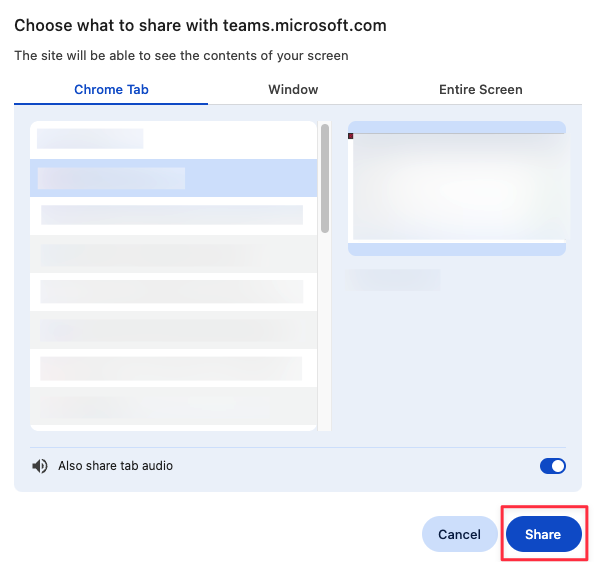
After clicking Share, you will need to select what you would like to share. Your options are either a specific browser tab, a window, or your entire screen. Once you select the appropriate option, click Share.