
View Clock In/Out Records
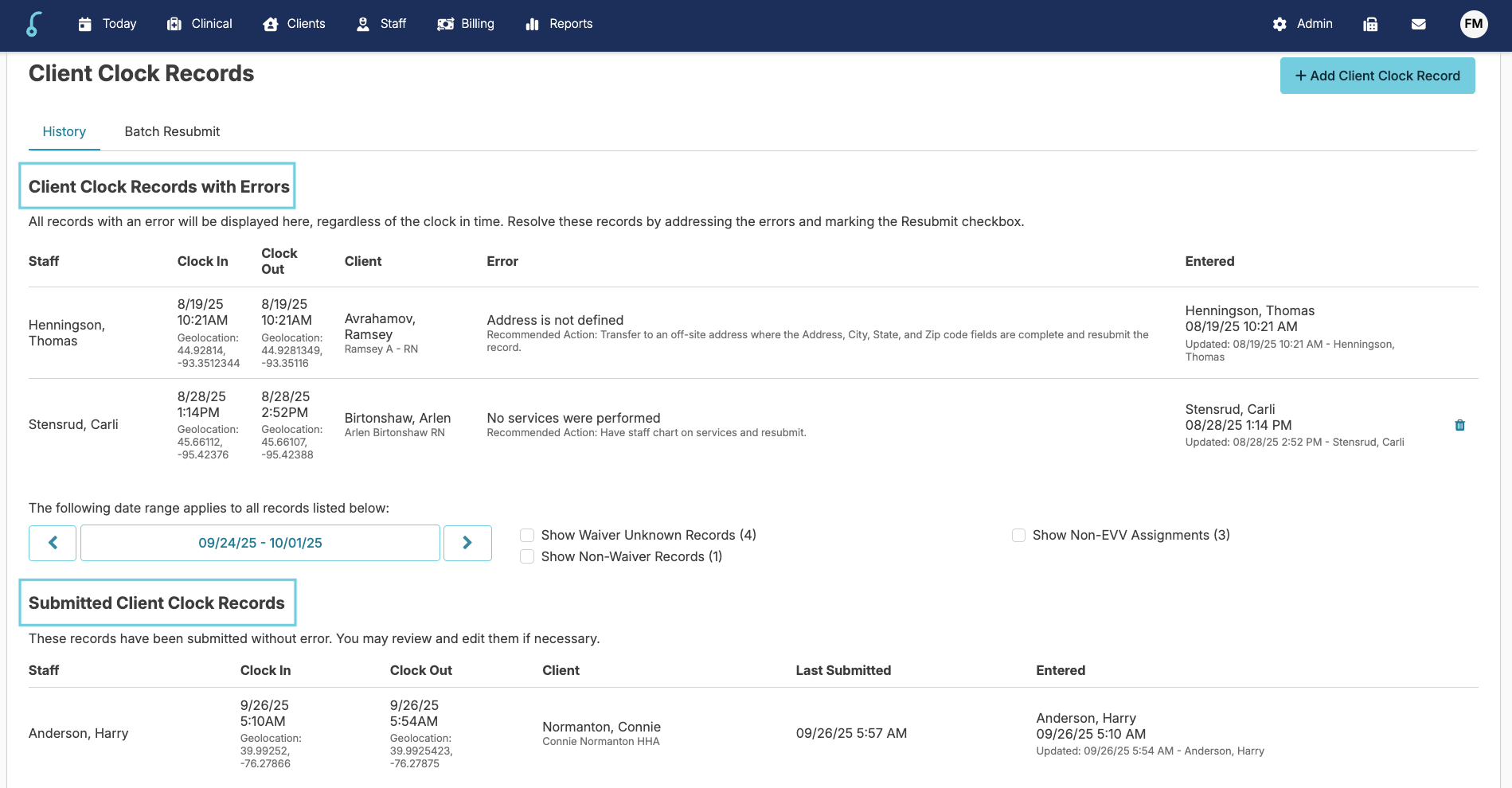
You can navigate to Admin > Client Clock Records > to view:
- Client Clock Records with Errors - these records need to be resolved in order to be submitted to HHAX
- Submitted Client Clock Records
Edit Clock In/Out Records
Once the clock in/out record has been submitted to HHAX, a user with Administrator (Role 411), Administrator Assistant (Role 410) and Supervisor (Role 13) can edit and resubmit for corrections by navigating to Admin > Client Clock Records> Submitted Client Clock Records Click on the record you wish to edit.
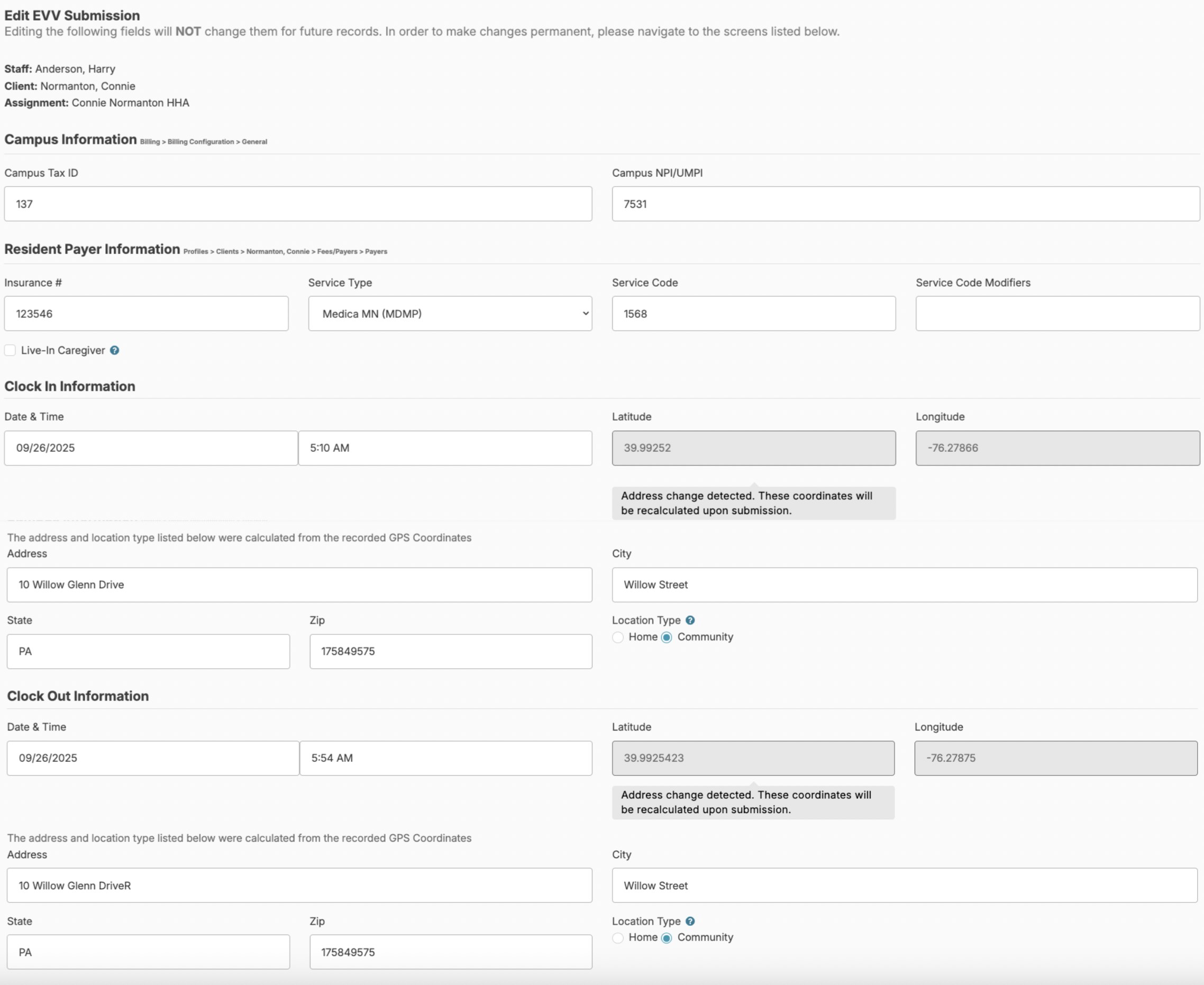
- Edit the details that were incorrect
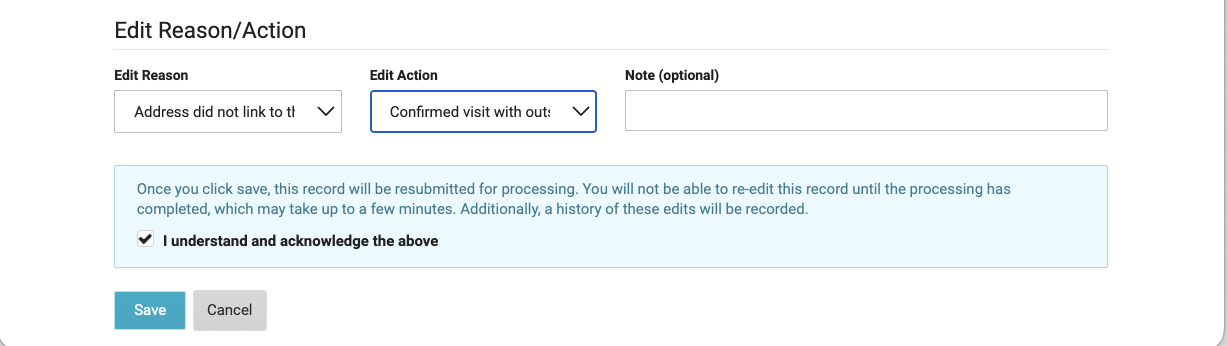
- Add an "Edit Reason" and "Edit Action" and an optional note
- Check the box if you acknowledge and understand the information in the blue box
- Once the box is checked, click Save
Waiver Unknown, Non-Waiver, and Non-EVV Assignments
If you are using the Client Clock for Waiver Unknown, Non-Waiver, or Non-EVV Assignments, these records can also be edited and/or deleted using the same process as above but without submitting to HHAX. Simply click one of the boxes to view the other records and they will display in separate groups.
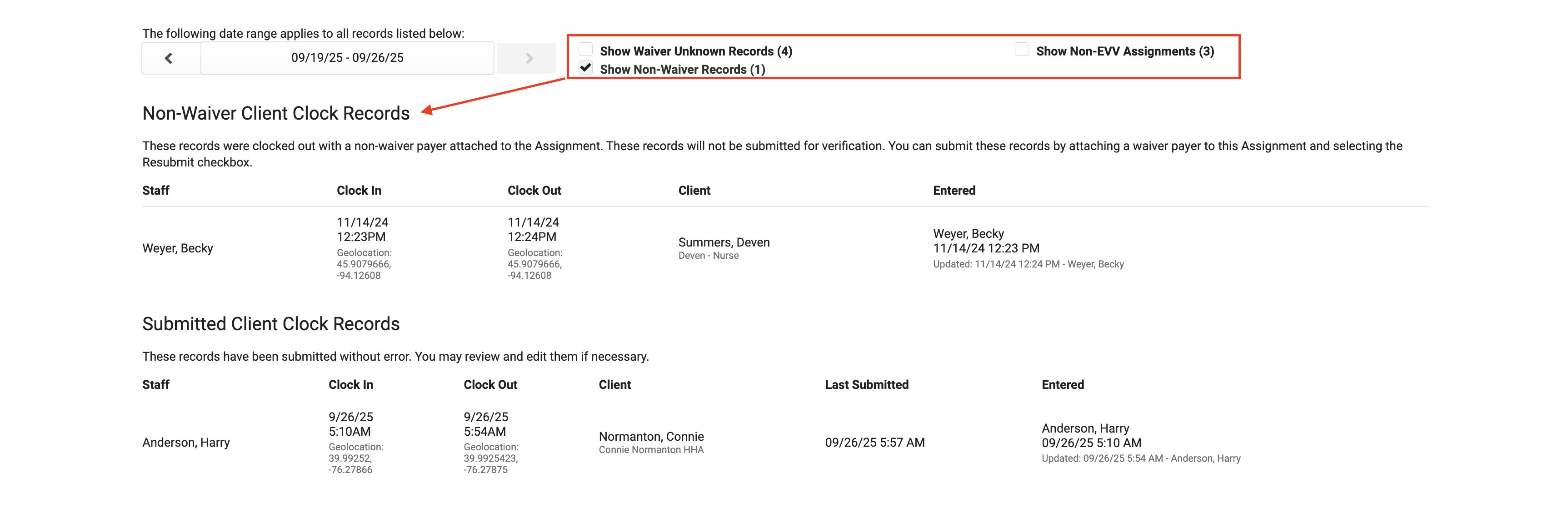
You will notice when click on different records, certain records will allow editing the clock in and out time, while other records will only allow you to delete the record. If a record is deleted, a supervisor or administrator can add a client clock back in if needed using the "Add Client Clock Record" option.
Add Client Clock Records
If a client was not clocked in or a record was deleted and needs to be entered correctly, an administrator or supervisor can do this by navigating to Admin > Client Clock Records > + Add Client Clock Record
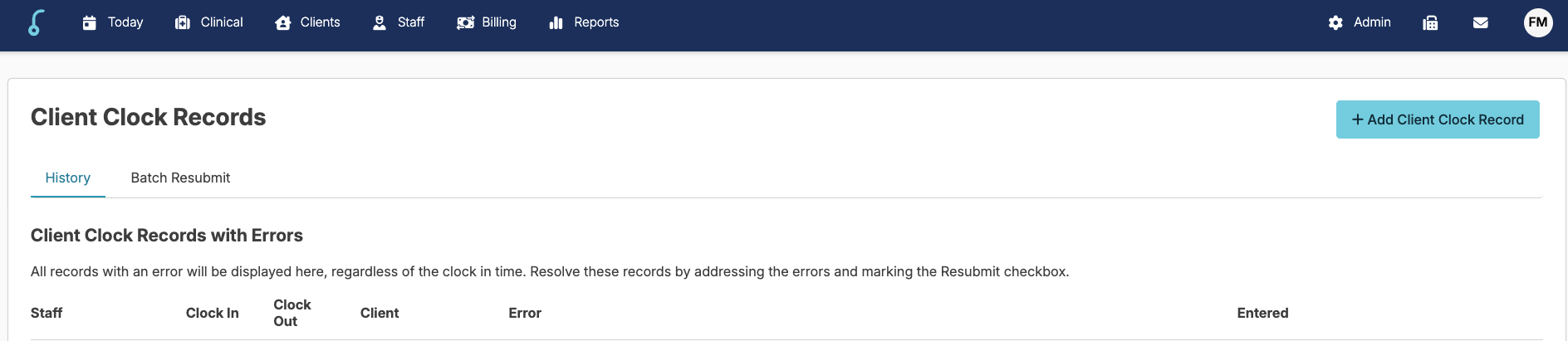
- Select the staff and client
- When a client is selected the assignment field will open to select an assignment
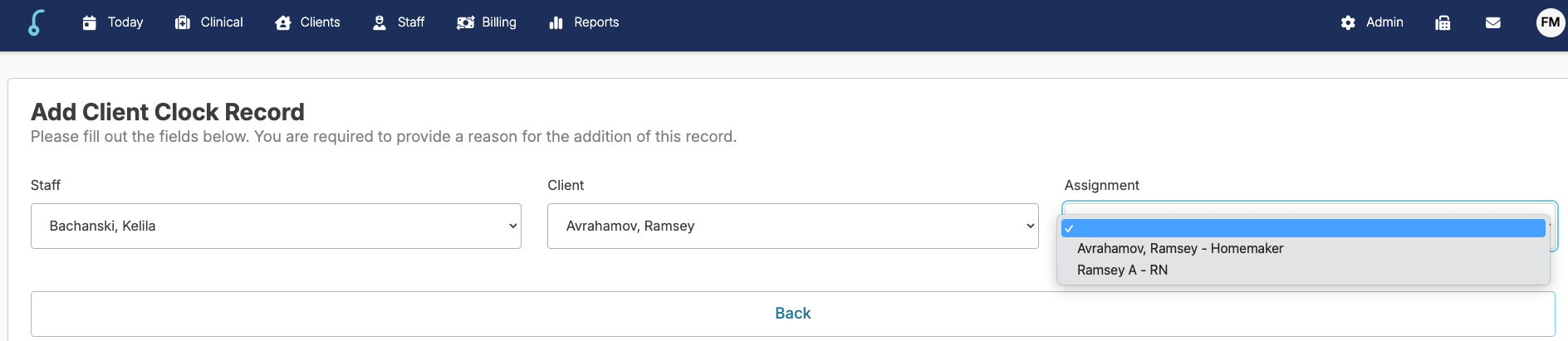
- Enter the clock in and out date and time
- Enter any additional information and fill in the, click the box to acknowledge and press Save.