
Table of Contents:
- Setting Up Your Account
- Manage Your Account
- 2 Factor Verification (2FA/MFA)
- Password
- Alerts
- Record Electronic Signature
- HIPAA Notices
- Avoid Phishing
- General Security Advice
Setting Up Your Account
Your Residex account will be created for you by your organization. If you need to have an Residex account created for you, or changes made to your security settings, please talk with your supervisor. The Residex support team, for your facility's security and privacy, cannot create new accounts for you, change your permissions, or reset your password. These things need to be done by an administrator or supervisor at your organization.
❗️For your initial login, you will either receive an email with a link to create your account, OR your supervisor will be give you a username with a one-time-use password.
Signing in and out of Residex is easy and does not require any special app or installation. Residex can be accessed from any compatible web browser on any desktop or mobile device.
To sign into Residex:
- Open a web browser (we recommend Chrome, Safari, or Firefox)
- In the address bar, type app.ehr.residex.ai
- This will bring you to the Residex sign in screen
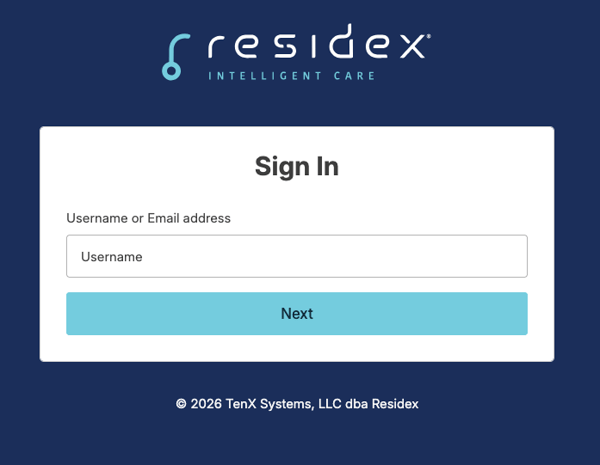
- Enter your Username or Email Address
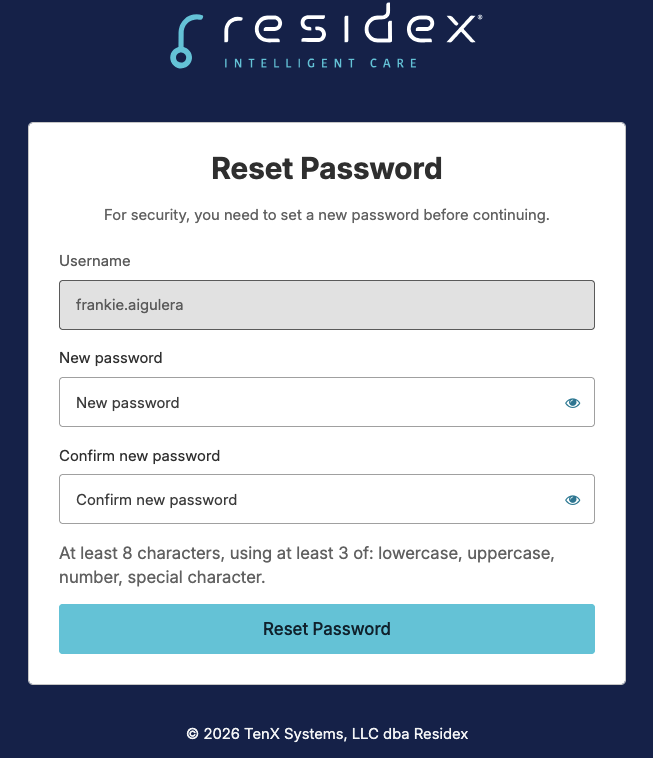
- Enter your Password (If this is your first time logging in, you will use a temporary password for the first time and be prompted to create a new password and provide a phone number for 2FA and resetting your own password. If you click the blue eye before entering your password you will be able to view the characters you are entering for accuracy.
- Click Sign In
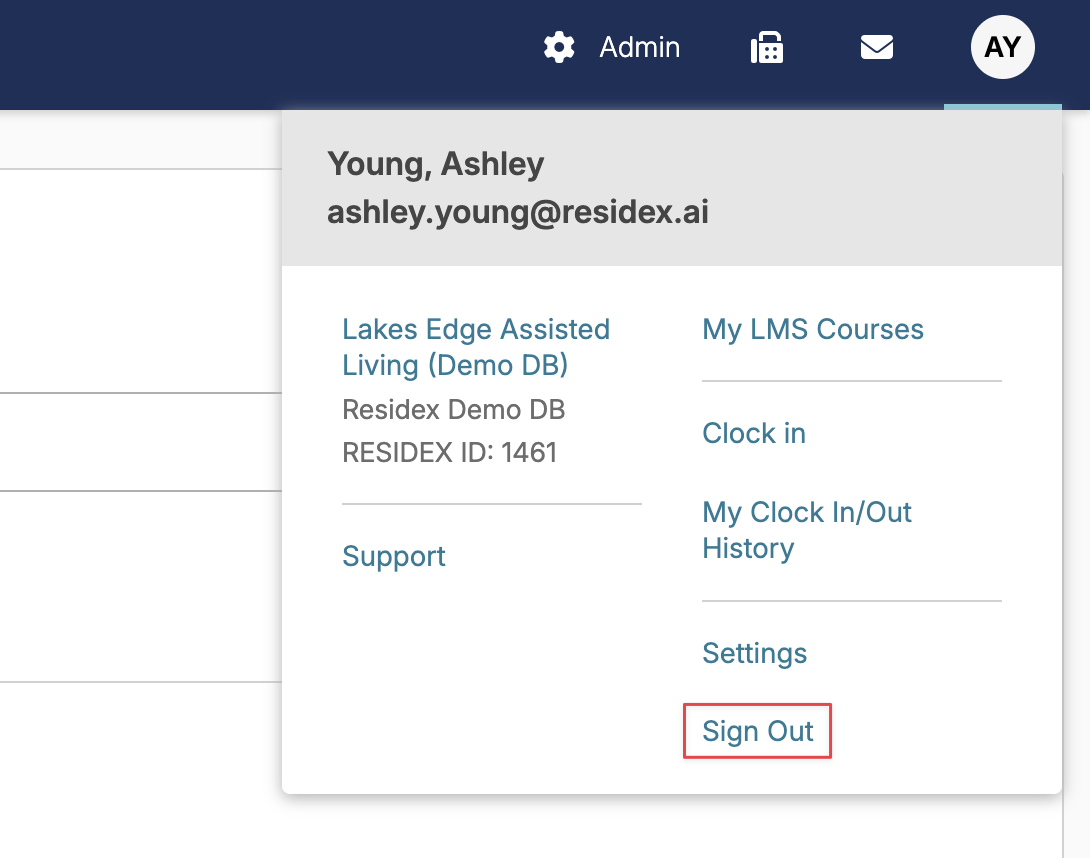
To sign out of Residex:
- Click on your name in the upper right corner
- Click Sign Out
Managing Your Account: To manage your account settings, navigate to the initial circle in the upper right corner of the Residex navigation bar and select Settings. Here you will have the ability to:
- Manage your account security.
- Configure and manage your email/text message alerts.
- Configure the language used in Residex.
- Save a copy of your signature for reports.
Account security

Changing your password
To update your password:
- Click on your initials circle in the upper right corner of the Residex navigation bar.
- Select Settings.
- You will have the option to change your password in the Account security section.
Set Residex PIN
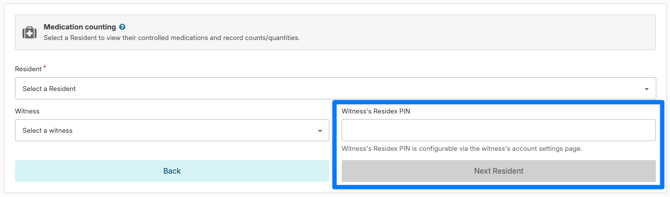
Your PIN is used to verify your identity as a witness in the EHR (Medication Counting & Medication Disposal) and to sign into vault.residex.ai and connect.residex.ai
Navigate to initials/photo > Settings > Set Residex PIN to add or edit your PIN.
Create a PIN that is at least 8 characters long using 3 or more of the following:
- Lowercase letters (a-z)
- Uppercase letters (A-Z)
- Numbers (0-9)
- Special characters (e.g. !@#$%^&*)
An example of what this looks like onscreen
Set up a Backup Phone Number
You can change your backup phone number at any time by clicking the Backup Phone Number option. This allows users to reset their own forgotten password.
If using SMS for password reset, DO NOT block this number on your phone (952) 466-6170
2 Factor Verification (2FA/MFA)
Two-Factor Authentication (2FA), sometimes also referred to as Multifactor Authentication (MFA) protects your account by requiring both your password and a verification code. Enabling 2FA is one of the most important things with the biggest impact you can do to protect your Residex account and the sensitive data your account can access.
WE STRONGLY RECOMMEND ALL USERS ENABLE 2FA FOR THEIR RESIDEX ACCOUNTS - not only that, but we also recommend you enable 2FA with every web service/app you can.
With Residex, you can use an authenticator app like Google Authenticator, Microsoft Authenticator, or Authy for the best security, or receive codes via SMS text message.
Enabling 2FA
- Click on the initials circle in the upper right corner of the Residex navigation bar
- Select Settings
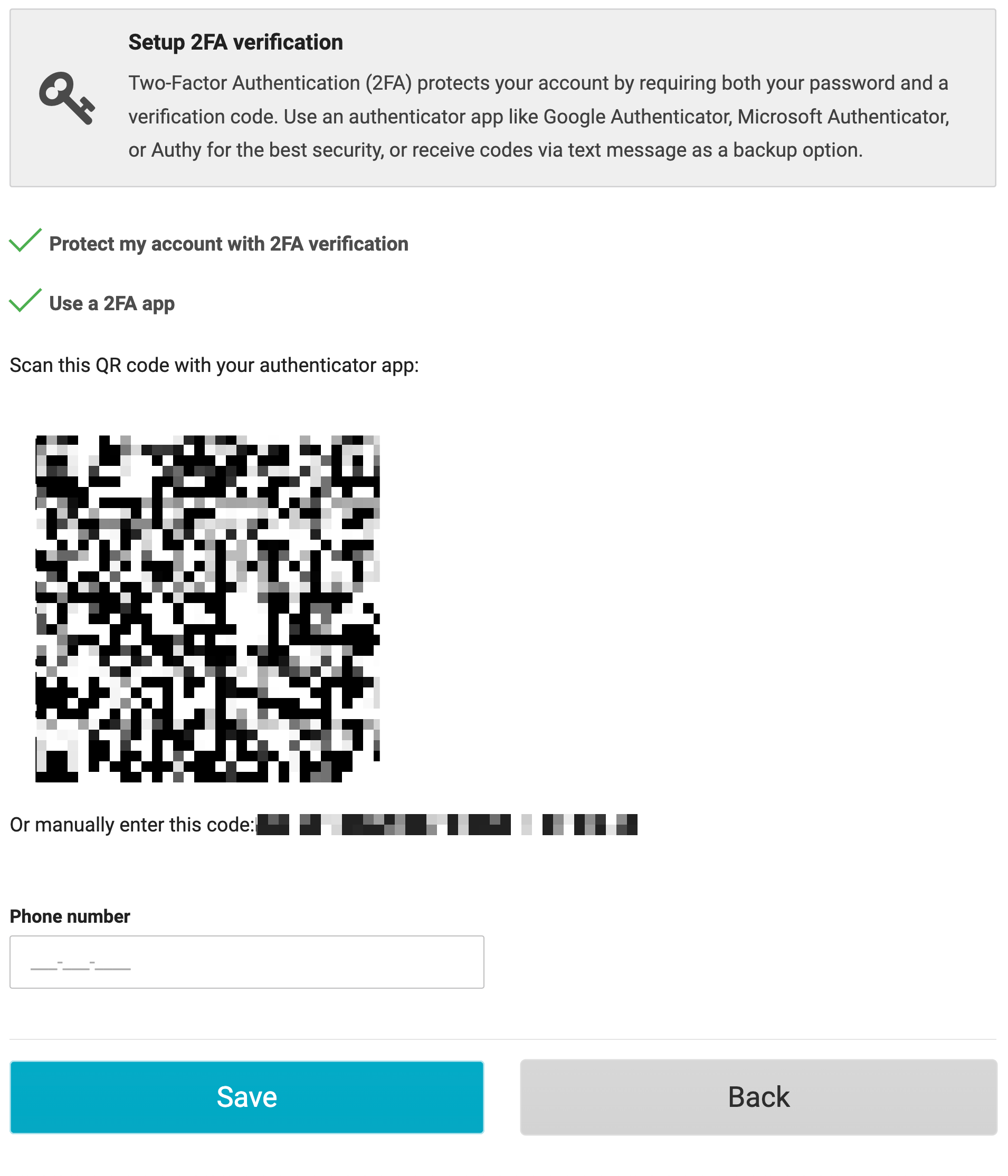
- Select Setup 2-Step verification
- Check the box Protect my account with 2FA verification
- Optionally check Use a 2FA app and scan the QR code with your authenticator app, or enter a phone number to receive a verification code via text message.
- Select Save
Logging in with 2-Step Verification enabled
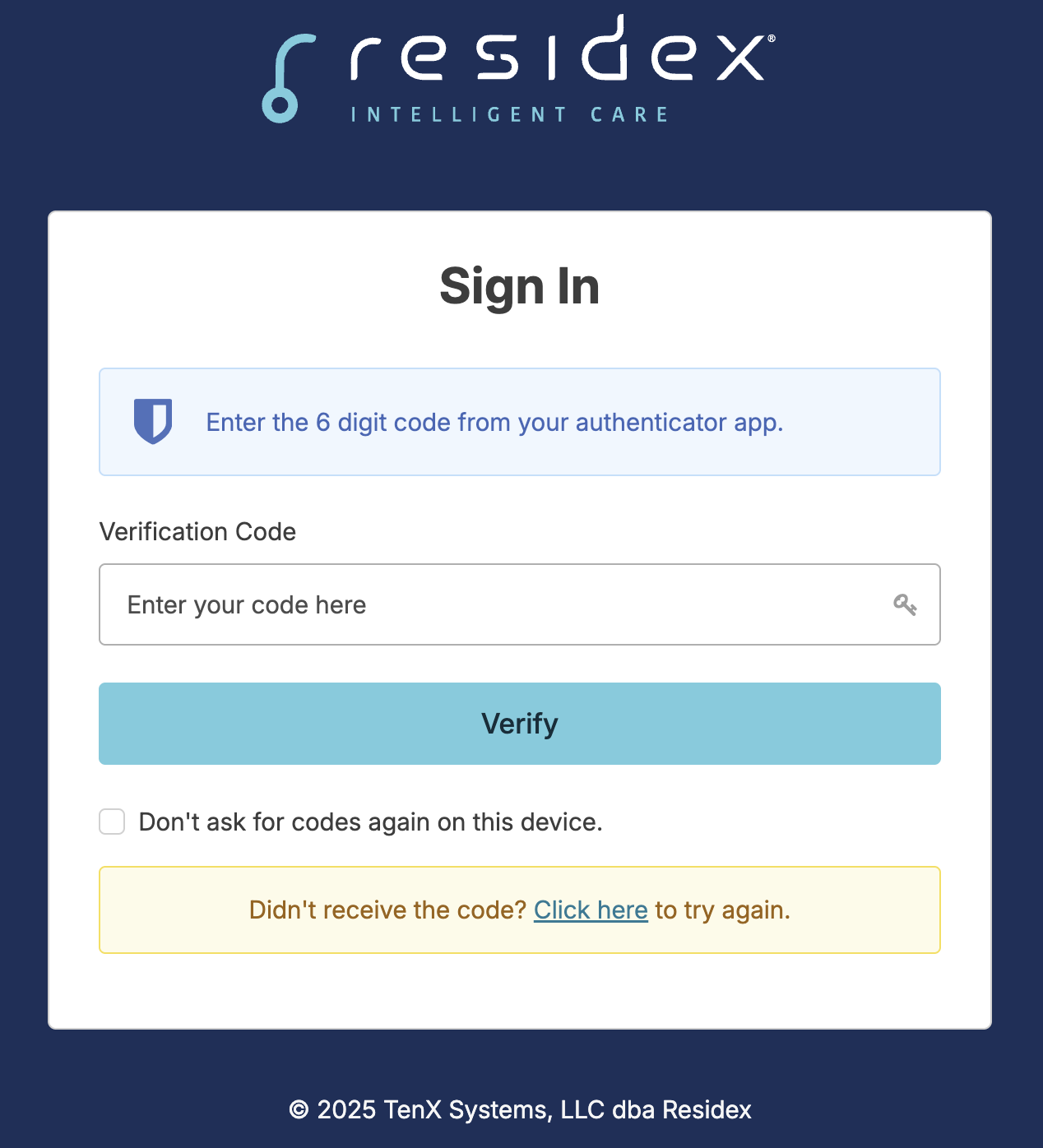
When logging in on a new device, you’ll need to complete two-factor authentication. If you use an authenticator app, enter the code displayed there. If you’ve chosen SMS verification, you’ll receive a text message with a one-time code. Enter the code when prompted by Residex to complete your login.
If you are not receiving a code via SMS (text message), please ensure that you do not have any call filters enabled, such as unknown callers, spam filters, or blocked numbers.
- Open Settings. Tap Settings on the Home Screen.
- Tap Phone. Scroll down and tap Phone.
- Check call-related settings. Look for options like "Silence Unknown Callers," "Call Blocking & Identification," or "Announce Calls." Tap into each to see what's toggled on.
- Review blocked contacts and call filtering apps. Under Call Blocking & Identification, you'll see a list of any apps (like a carrier spam-filter app, Robokiller, Hiya, etc.) that have permission to filter or identify calls. Toggle switches show which ones are active.
- Check Silence, Unknown Callers specifically. If "Silence Unknown Callers" is on, calls from numbers not in your contacts, recent calls, or Siri suggestions get silenced automatically and sent to voicemail — this is a common reason expected calls don't ring through.
If using SMS for verification, DO NOT block this number on your phone (952) 466-6170
Password
Residex follows NIST recommendations for password requirements.
- At least 8 characters, using at least 3 of: lowercase, uppercase, number, special character.
- Passwords are checked against a database of commonly exploited passwords to ensure users do not enter insecure passwords
- We recommend you use unique passwords for every application you use - do not use the same password for Residex that you use for another system
- We recommend you do not include any personal information in your password
- Do not share your Residex password with anybody
- Do not save your Residex password on a shared device
- Residex Support will NEVER ask you to provide ANY passwords
- Residex Support will not reset your password - if you need a password reset, you can click on the Reset Password link on app.ehr.residex.ai, or ask your supervisor to reset your password.
Alerts
Residex can send text messages and email alerts to you to let you know about important events related to your position. What type of alerts you may receive are set by your organization for your provider type.
You can enable alerts for your account by navigating to your name in the upper right corner > Settings > and selecting I would like to receive alerts. Likewise, you can disable alerts by unselecting this box.
If using SMS for alerts, DO NOT block this number on your phone (952) 466-6170
If you text STOP to this number at any point, you will no longer receive alerts. IF you would like to receive alerts again, you can simply text START to (952) 466-6170
Record an electronic signature
You can save a copy of an eSignature for yourself, which will be displayed when you electronically sign documents like provider orders, clinical assessments, and so on.
You can manage your signature by navigating to your name in the upper-right corner and then selecting settings.
HIPAA Notices
Compliance
Because of the sensitive nature of the information accessible within Residex (notably, protected health information covered under HIPAA), your access to information will be limited to the needs of your role, and you will be responsible for the security of your Residex account.
- Do not share your Residex account information or password with others
- Do not log into Residex with someone else's account
- Do not allow a shared device to save your Residex password
- Do not leave a device unattended and logged into Residex
- We recommend you do not use the same password for your Residex account that you use with any of your other accounts
- Your account may be restricted, allowing logins to Residex only from certain locations (depending on your role and your organization)
Residex HIPAA Responsibilities
The Health Insurance Portability and Accountability Act of 1996 (HIPAA) is a federal law that prevents unnecessary sharing of private patient health information. What does this mean for you? This means that you, as a healthcare worker, need to follow rules and guidelines so you do not view or share private patient information with people who do not need to know it.
We at Residex have some guidelines to keep protected information secure. This is not a complete list, but a good rule of thumb is 'if in doubt, don’t give it out.'
Password Security:
- NEVER share your password with anyone else. It may be very tempting to share your password with a coworker who is locked out of Residex so they can log in to chart. Every staff member has roles and permissions that have been granted to them. Sharing your password and allowing another staff member to sign in as you is a HIPAA violation.
- Saving Passwords - If your computer or tablet is shared by multiple staff, you must NEVER allow the computer or tablet to save your password. If you save your Residex password, anyone can sign into your account at any time. When you sign into Residex for the first time (and receive the prompt asking if you want to save your password), select the option 'Never.'
- Saved Passwords - What happens if you arrive at a computer or tablet and someone is currently logged in or you notice someone has saved their password? IMMEDIATELY click their name and sign out. Staying signed in and/or charting is a breach of confidentiality.
If passwords have been saved, they CAN and SHOULD be deleted. If you are unsure how to delete passwords, open a new browser window and search “how to remove saved passwords from **_**” and type in the browser you are using. You will find step-by-step instructions on how to delete saved passwords. Contact Residex support if you still need help. - Signing Out - When stepping away from the computer/device, it is highly recommended that you SIGN OUT. This is especially important if the computer/device is in a common area or room that is not locked and can be accessed by other individuals.
- Login History - What can I do if I feel someone may have access to my password and logged in with my account? Immediately change your password. This can be done under ‘Settings’ in Residex. Residex can track each time a user logs into Residex. Detailed information containing the date/time, IP address, browser, and login status is included in the staff login history.
- Resident Information/Staff Access - If you sign into Residex and feel you are missing information or are seeing information that you do not need to see, please talk to your supervisor. Administrators can add or remove staff roles to maintain HIPAA compliance.
Passwords and Residex Support - Residex staff cannot reset passwords. Resetting passwords needs to be done by administrators at the campus.
Sending Resident Information to Residex Support
There are times when Residex users need to share documents with Residex Support to help in solving an issue. Here are guidelines to securely share information:
- When sending an email, use room numbers and abbreviations, not full resident names.
- If emailing a screenshot, crop or black out resident-protected information.
- Use Fax or Residex Send to send documents containing confidential resident data.
Residex Support Access
As part of our Master SaaS Agreement, Residex is designated as a Business Associate under HIPAA, and your organization is considered a Covered Entity. This relationship is formally outlined in the Business Associate Addendum included with your contract.
Under HIPAA, Business Associates are permitted to access Protected Health Information (PHI) only as necessary to perform services on behalf of a Covered Entity. For Residex, this includes providing technical support, implementing features, managing billing setup, or ensuring system functionality.
We also maintain strict safeguards—including administrative, physical, and technical controls—to protect your data. Additionally, any Residex staff or subcontractors with access to PHI are required to follow the same HIPAA privacy and security standards.
Our team may access limited client data only when needed to support you—and always in a secure, HIPAA-compliant manner.
Avoiding Phishing
Cyber threats are always increasing. To help keep yourself safe, you should know what to expect from Residex Support.
- You can contact our support team at 866.512.8369 x2, or by email at support@residex.ai Our team will respond with email addresses ending in @residex.ai. We will not contact you from any other email addresses.
- Residex support will not contact you with requests for sensitive data, passwords, etc. We will not ask for access to your network. We will not send you confusingly named files or executable files.
- Logging in: https://www.app.residex.ai is the only site where you should enter your Residex username and password. Residex.ai does have 'subdomain' sites - sites with names like: [something].residex.ai (e.g. vault.residex.ai) - these are ok! Do not use your Residex credentials on any other site or app.
- If you have any doubts or concerns about security, the authenticity of an email, etc, anything related to Residex, please contact our support team right away.
General Security Advice
Though not related to Residex, we can provide some general additional recommendations on cybersecurity:
- Keep your Operating System up-to-date- Windows, MacOS, iOS, Android, ChromeOS - we recommend installing updates to these systems as soon as they are available.
- Keep your web browsers up-to-date - update your Chrome, Safari, and Firefox browsers as soon as updates become available.
- Enable 2FA for your personal accounts, especially your primary personal email account.
- Use an antivirus system on your workstation - even a free antivirus system is better than nothing.
- Password Manager + Unique Password: If you do not share your device with any other user, use a password manager. Chrome, Safari, and Firefox have built-in password managers that will keep your passwords in sync across devices and will warn you about insecure or compromised passwords. Using a password manager will make it possible to have unique, complex passwords for each site, making it much harder for an attacker to compromise multiple accounts if they are able to get access to one password.