
Table of Contents:
Key things to know about the A/R Process:
- Deposits: one or more Payments - typically a batch of multiple payments that match up with bank deposits.
- Payment: a single Payment (cash, check, credit card, etc) is applied to one or more of a resident's specific Charges.
- Charges: Each resident account is composed of one or more payer that contains Charges; (rent, home care services, housing services, packages, etc) which are generated during the billing process.
Recording a Deposit
To record funds select Billing > Process Billing > Accounts Receivable. This will take you to the Receive Payments screen.
Individual payments are recorded in batches as part of a 'deposit.'
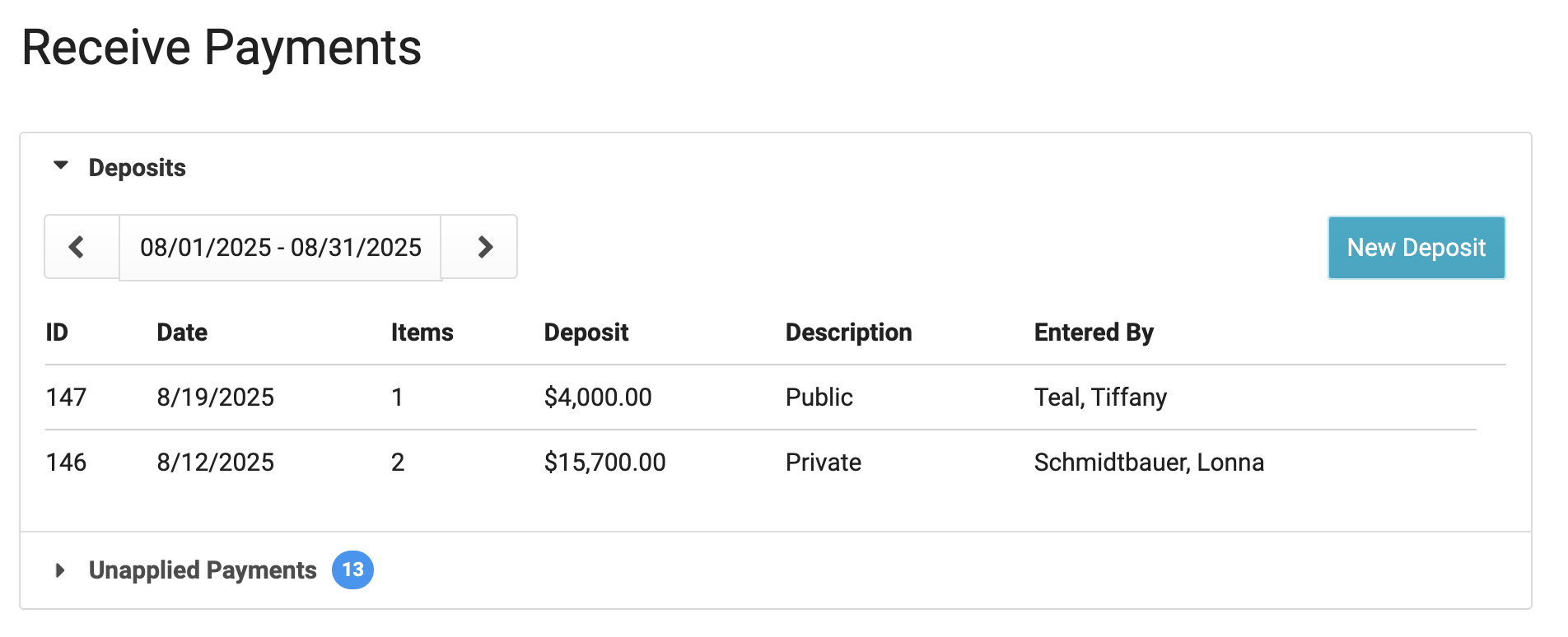
A Deposit with no payments can be deleted, if needed.
Start a Deposit
- Press the New Deposit button to begin a new deposit
- Specify the Deposit Date and Deposit Description (Optional)
- Click Save.
- You will be taken to the Deposit screen, where you can record as many payments as you need as a batch / single bank deposit. You can also add Other Receipts here.
- Press the Add Payment button - this will take you to a screen where you can record payment details.
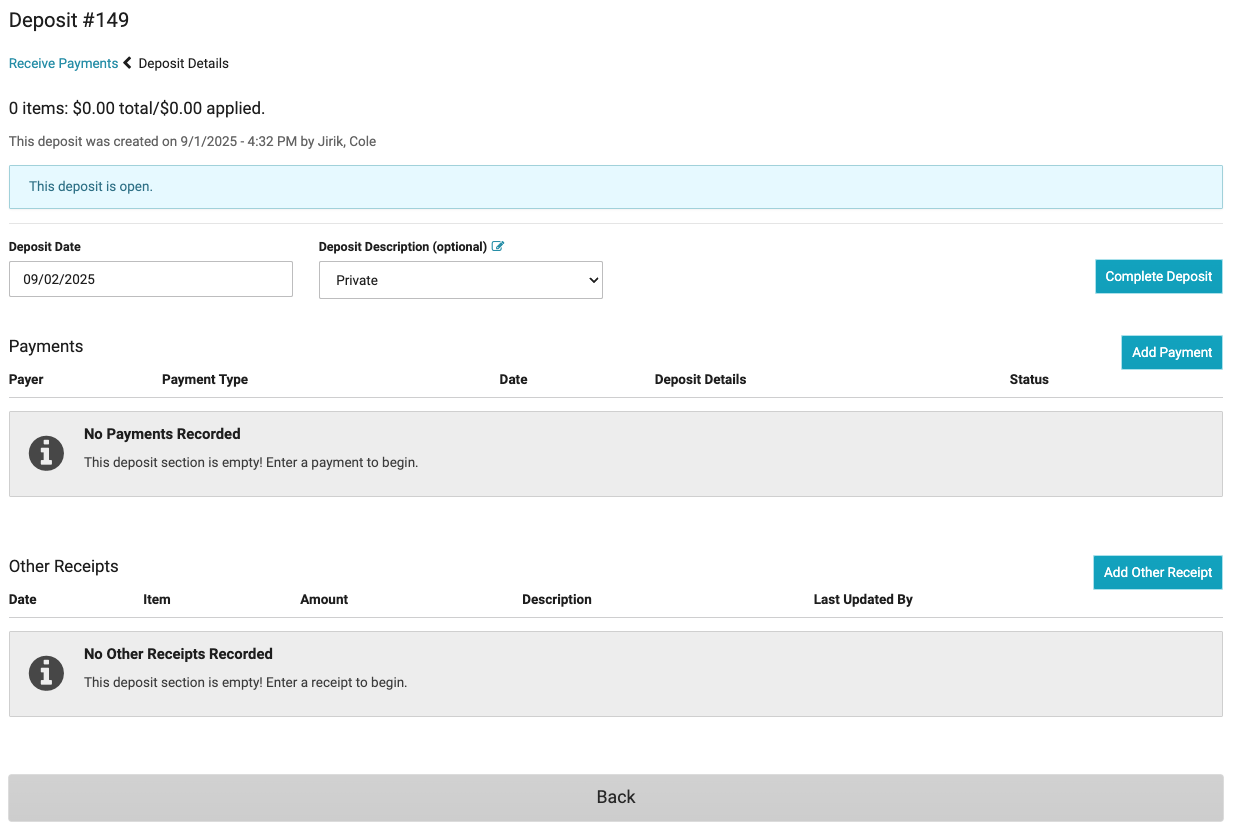
Repeat the below process of entering AND applying payments for all of the payments included in your batch/Deposit. When done, press the Complete Deposit button.
Adding a Payment to a Deposit (Private & Non-private)
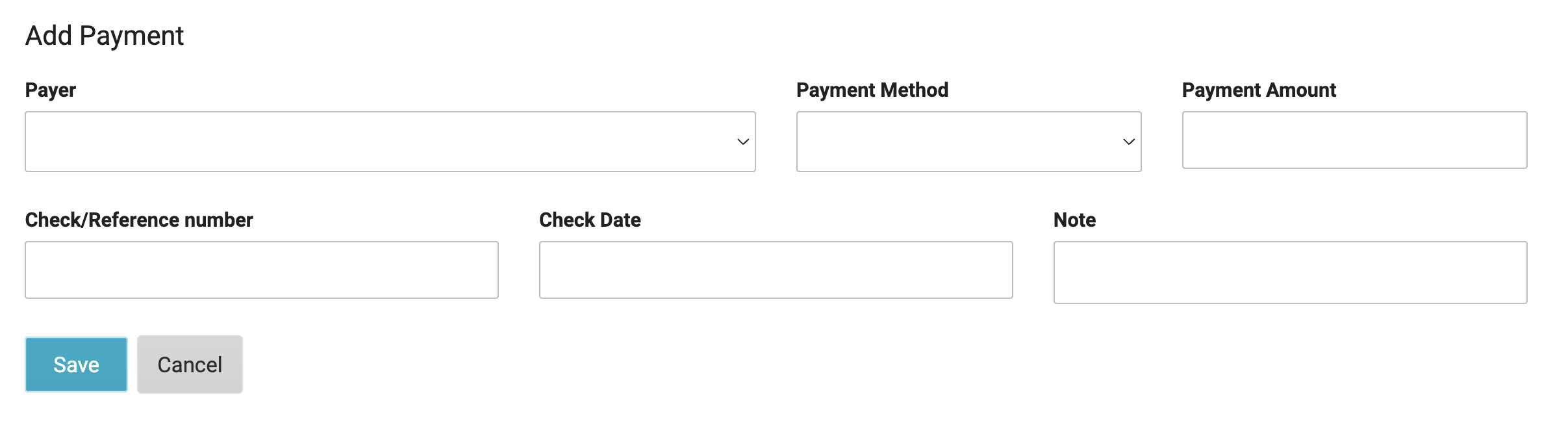
- For the Payer field: for PRIVATE PAY payments, select a resident name.
- For NON-PRIVATE PAY payments, select the appropriate Payer (e.g. Elderly Waiver, GRG, Alternative Care Grant, CADI, etc); a second Resident field will appear to specify whom the payment is for.
- Record the rest of the payment details: Payment Method, Payment Amount, Check/Reference number, Check Date, and an optional Note - press Save when complete.
Note: Payments can be added to active residents even if an invoice/statement has not been created. The money entered will be considered "unapplied" and will not be able to be applied to an invoice/statement until invoices are posted and charges for this resident have been created.
Applying a Payment as part of the Deposit Process
You can then apply the payment to specific charge line items. A payment can cover any open charge, such as rent only or care services only, or it can be split across multiple charges.
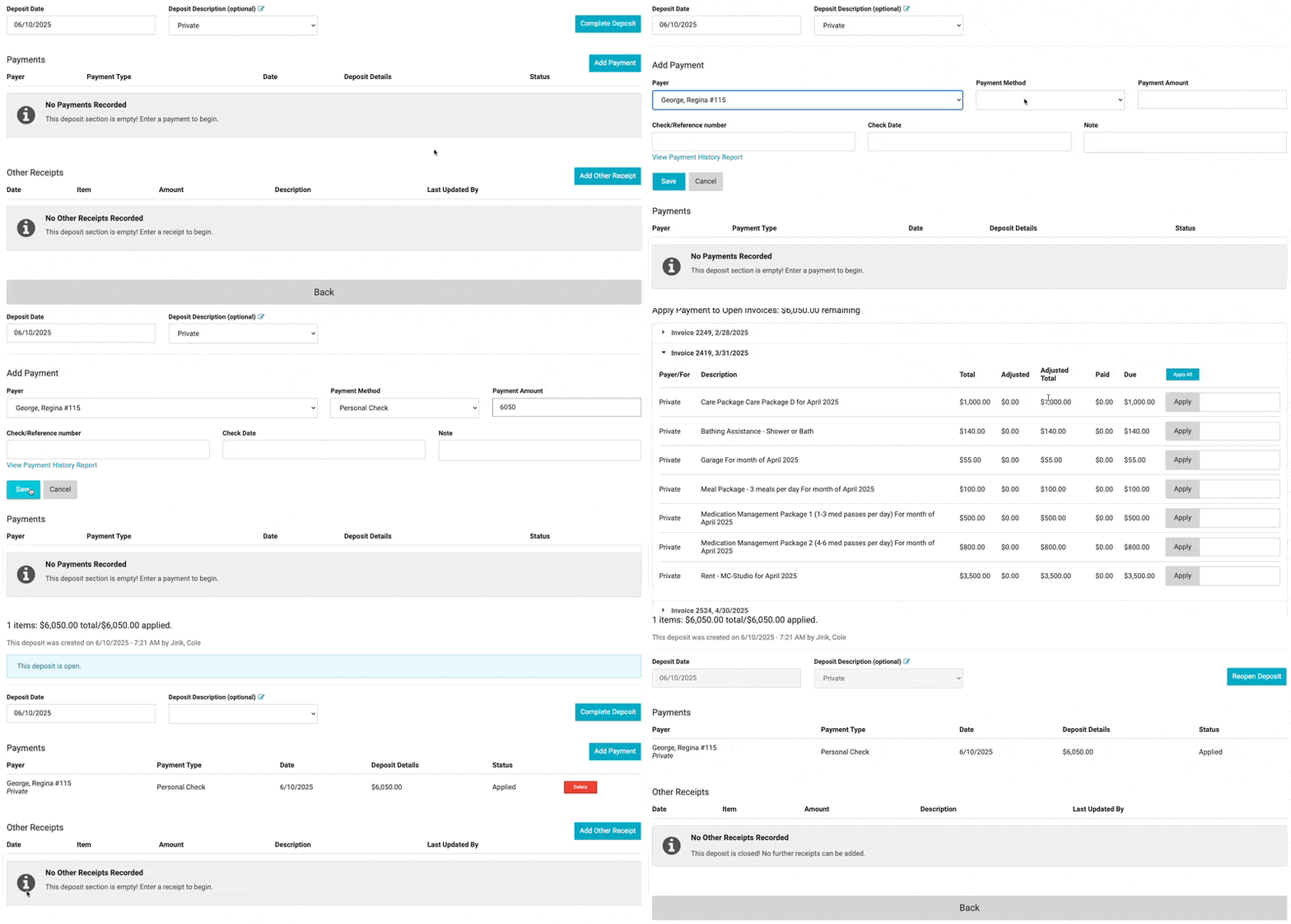
Once you’ve entered and applied all payments in your batch or deposit, click Complete Deposit. If any batches are still open when you leave, you’ll see an alert.
Applying Payments
If you weren’t able to apply a payment when you entered it, you can go back and apply it later.
- From the Billing > Process Billing > Accounts Receivable screen, select the Unapplied payments drop down tab to view ALL unapplied Payments from all Deposits to quickly go through them, OR from the Deposits drop down tab, click on Deposits individually.
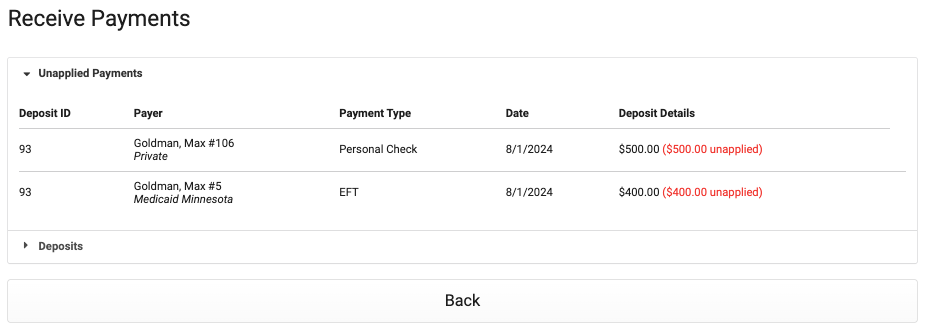
- Click on any Payment to apply it
- Specify amounts from the payment to apply to individual any charge line(s). When the entire amount of the payment has been applied to different charge lines, press Save and return to the previous screen.
Note: If a resident overpays an invoice, you can enter the full payment amount, and apply a partial amount to a current invoice. The remaining payment balance will show as a credit on the next month's invoice, and will be able to be applied at that time.
Negative Payments - Take Backs
Reasons you may add a take back/negative payment:
-
A private payer issues a 'stop payment' on a check
-
A check is returned due to Non-Sufficient Funds (NSF)
-
A contracted payer "takes back" funds in an ACH / EFT transaction
If a payment is taken back or fails due to insufficient funds (NSF), enter it as a negative payment. When a remittance from the state includes both a take-back and a different payment amount, enter these as two separate transactions.
Corrections in these scenarios are recorded by entering a new payment, in exactly the same manner as you would record any other new payment.
When a negative payment is entered, all previous invoices (including those paid in full) for this resident will be displayed; Apply the negative payment to the appropriate invoice charge(s).
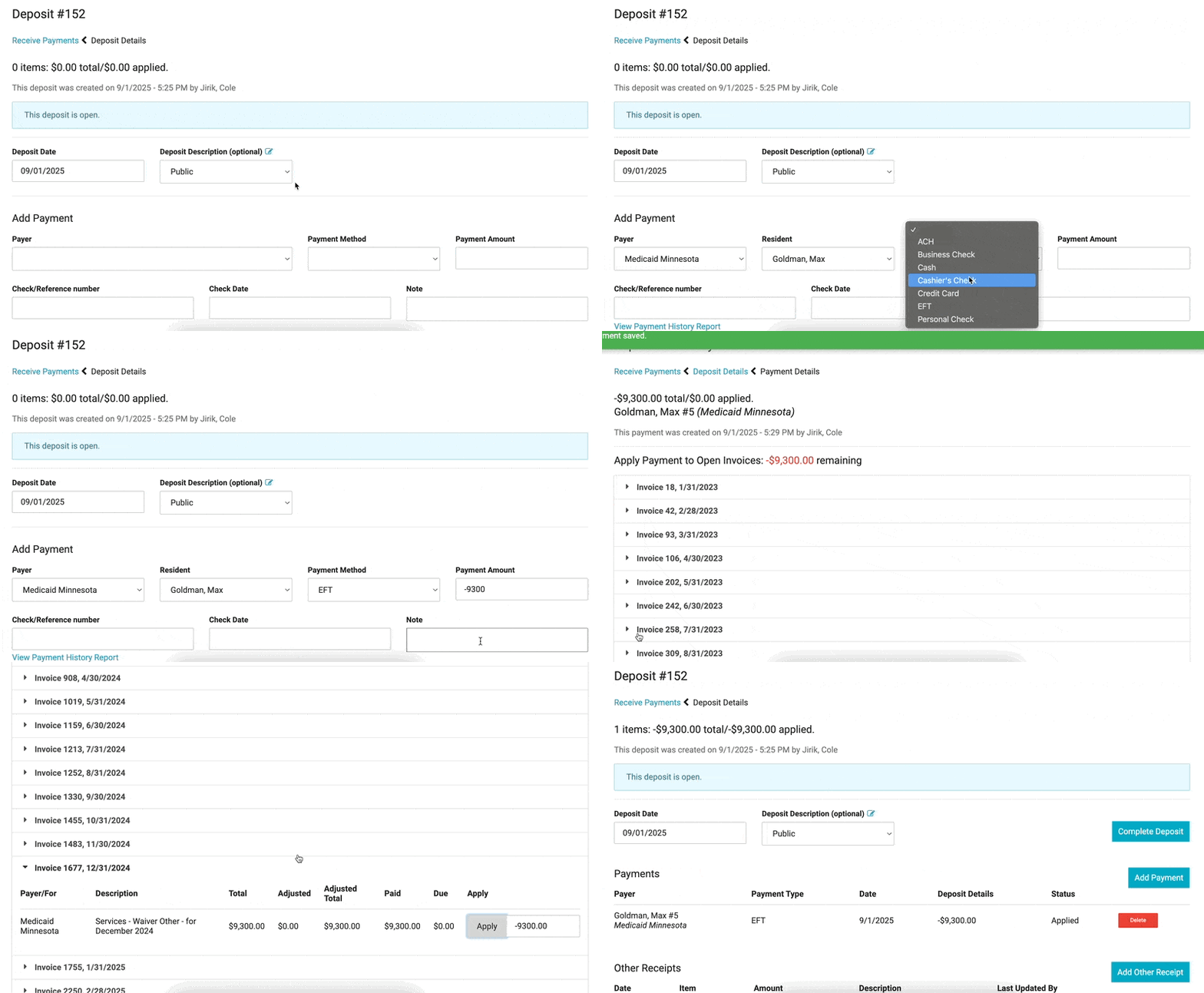
To enter a negative payment:
- Within a deposit, click Add Payment
- Select the payer (For example, Elderly Waiver or the resident name)
- If selecting an "Other" non-private payer, select the resident
- Select the payment method
- Enter the amount as a negative value (for example, -156.00)
- Optionally enter the Check/Reference number, check date, and/or note
- Click Save — you will then be prompted to apply the payment to an invoice
- Select the invoice originally paid with the previous payment, or the date of the charges on the remittance
- Click Apply by the charge line, then click Save
Unapplying Payments
If a payment is applied to the wrong invoice or to an invoice that needs to be unposted, you can unapply the payment. This process removes the payment application without deleting the payment itself.
To unapply a payment:
- Navigate to Billing Process > Accounts Receivable
- Click on the Deposit, then select the payment that was entered
- Review the invoice dates where the payment is currently applied
- Choose one of the following options:
- Click Unapply on a specific line to remove the payment from that invoice only
- Click Unapply All to remove the payment from all invoices at once
- The payment will remain in your system and can be reapplied to the correct invoice as needed.
Other Receipts
Other Receipts are funds you receive that are not to be applied to Charges that appear on resident invoices, often used for general reimbursement for non-residential accounts, recording security deposit payments, etc. Other Receipts:
-
May be associated with a resident name, but are not required to be.
-
Are NOT displayed on resident statements or account overviews.
-
WILL appear in other reporting, including Total Cash Receipts & Total Bank Deposits
-
May be deleted as long as the month they have been recorded in has not been Closed.
-
Select Billing > Process Billing > Accounts Receivable
-
Select the New Deposit tab
-
Enter Deposit Date and Save
-
Press Add Other Receipts
-
Enter details of the funds you are receiving: Received Date, Payment Method, Amount, Type and GL Code are required, everything else is optional. Press Save when finished.
-
When all receipts for specified deposit date have been entered, select Complete Deposit.
Note: To view deposit history run the report Total Cash Receipts
Editing a Deposit
-
From Billing > Process Billing > Accounts Receivable you can view a list of past deposits.
-
Deposits will be flagged as 'Open' if they are still being worked on; otherwise deposits on this screen will be considered 'Closed' - either way, you can edit a Deposit's details by clicking on it.
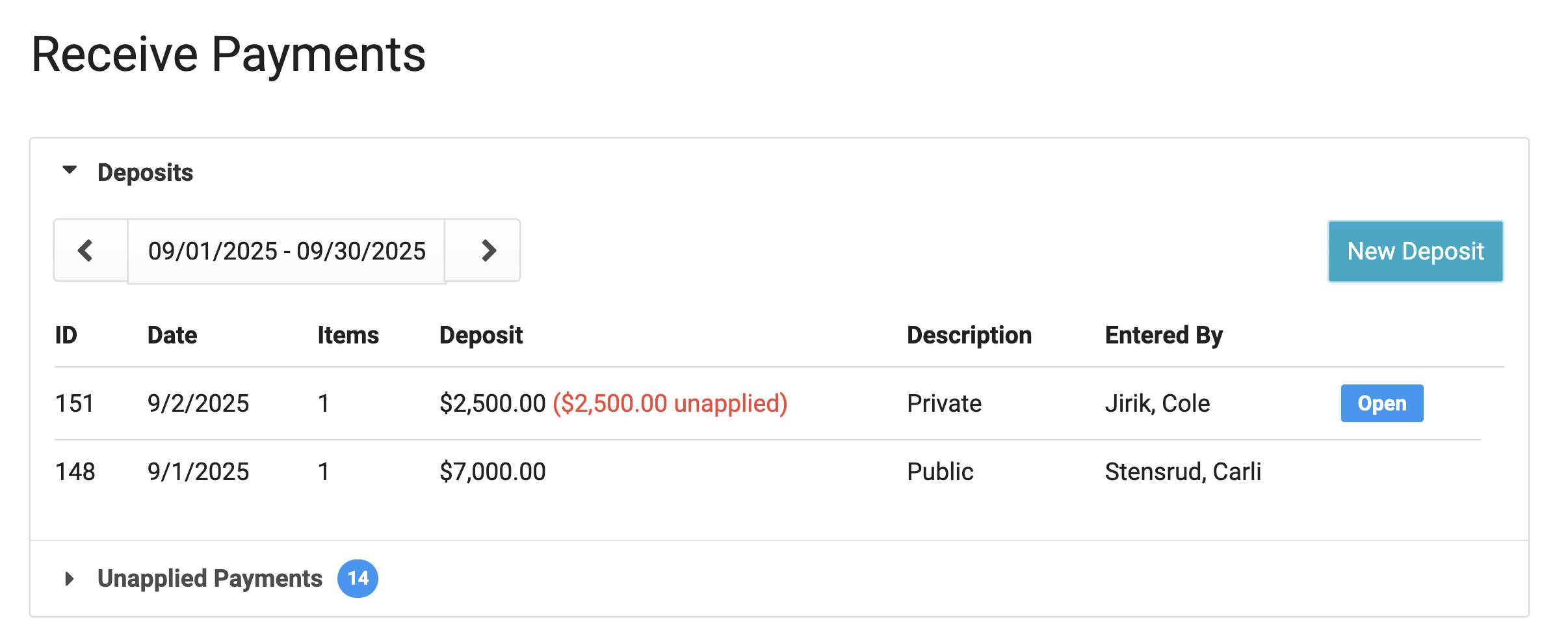
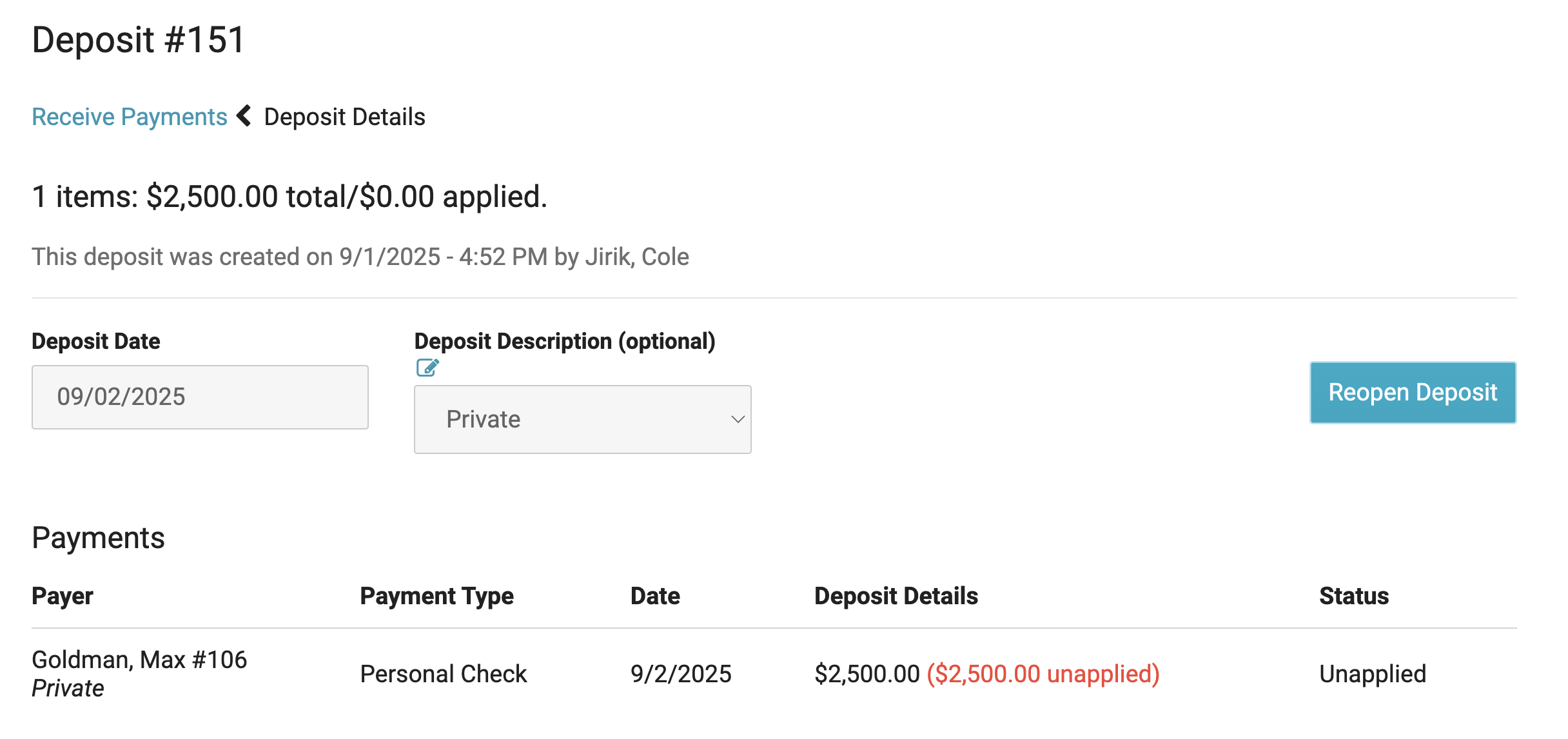
When you select a Deposit, you will see the Deposit Screen. If the Deposit has been marked 'Closed', you can enable edits by pressing the Reopen Deposit button. From here you can add & remove Payments, as well as un-apply / re-apply Payments
Press the Complete Deposit button when you have made all necessary changes.
Note: Deposits can only be edited during the current billing cycle. To make a change to a past billing cycle, add a new deposit with the needed adjustments.
For example, if a payment was entered under the wrong payer, add a negative payment to the incorrect payer and a positive payment to the correct payer. The two amounts offset each other, creating a $0 deposit batch because the funds were simply moved from one payer to another.
Delete a Payment
When a Deposit is open, you can Delete any Payment within the deposit. If a deposit was added to a wrong payer, simply delete the incorrect payment, and add the correct payment.
Note: This process can only be done in the current month if the configuration 'Strict Close' is enabled.

Note: Payments can only be edited during the current billing cycle.
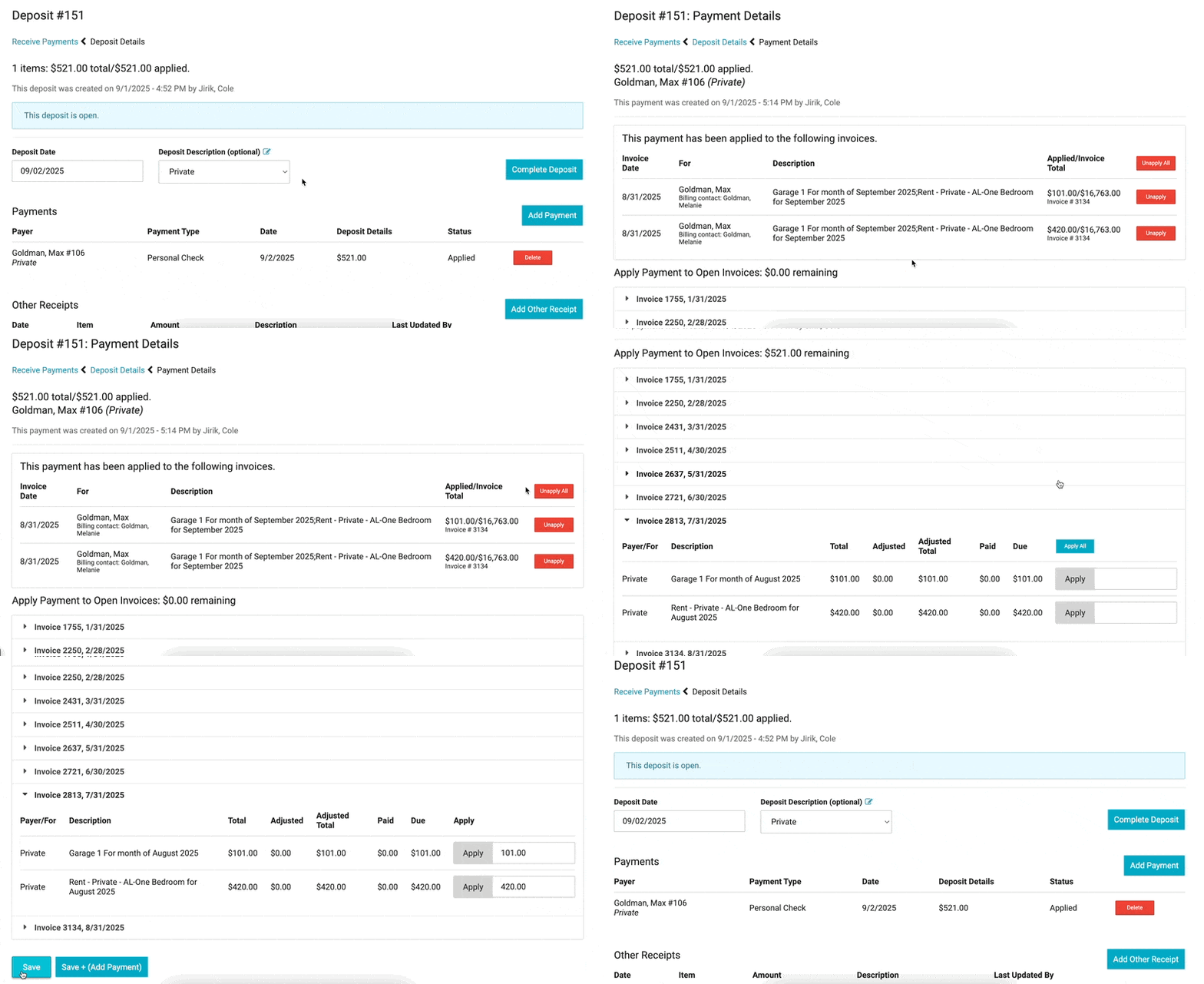
Un-Apply / Re-Apply Payment
In the current month if you wish to change what charge line a Payment has been applied to:
-
Click on a Payment to open the Payment Details
-
Click Unapply to adjust where the payment is applied
-
Apply it to the correct Charge.
Transfer Payment Credit Balance Between Residents
There are times when one resident has a credit on their account that needs to be transferred to another resident who has a remaining balance. You can handle this by doing a negative and positive payment.
-
Navigate to Billing > Billing Process > Accounts Receivable
-
Create a new payment batch
-
Remove the credit from the first resident's account
-
Select the resident who has the credit on their account
-
Enter the payment amount as a negative number
-
Apply the payment to the appropriate invoice
-
Click Save + Add Payment
-
-
Apply the credit to the other resident's account:
-
Select the resident who should receive the credit
-
Enter the same amount as a positive number (e.g., $100.00)
-
This will reduce what the resident owes
-
Apply the payment to the appropriate invoice
-
Click Save
-
Result: The credit has now been transferred from the first resident's account to the second resident's account.