
Clinical LMS is an additional feature that provides you with courses designed to help meet regulatory orientation and annual training requirements. If you are interested in getting signed up for this feature, please contact sales@residex.ai or 866.51.8369 ext. 1.
Manage Course Sets
With Clinical LMS enabled, the Administrator (Role 411) will have the ability to designate a default clinical LMS set by navigating to the Admin > Manage Clinical LMS Sets. This is typically only done once, unless new courses are needing to be added or removed or you would like to make adjustments to how annual courses deploy.
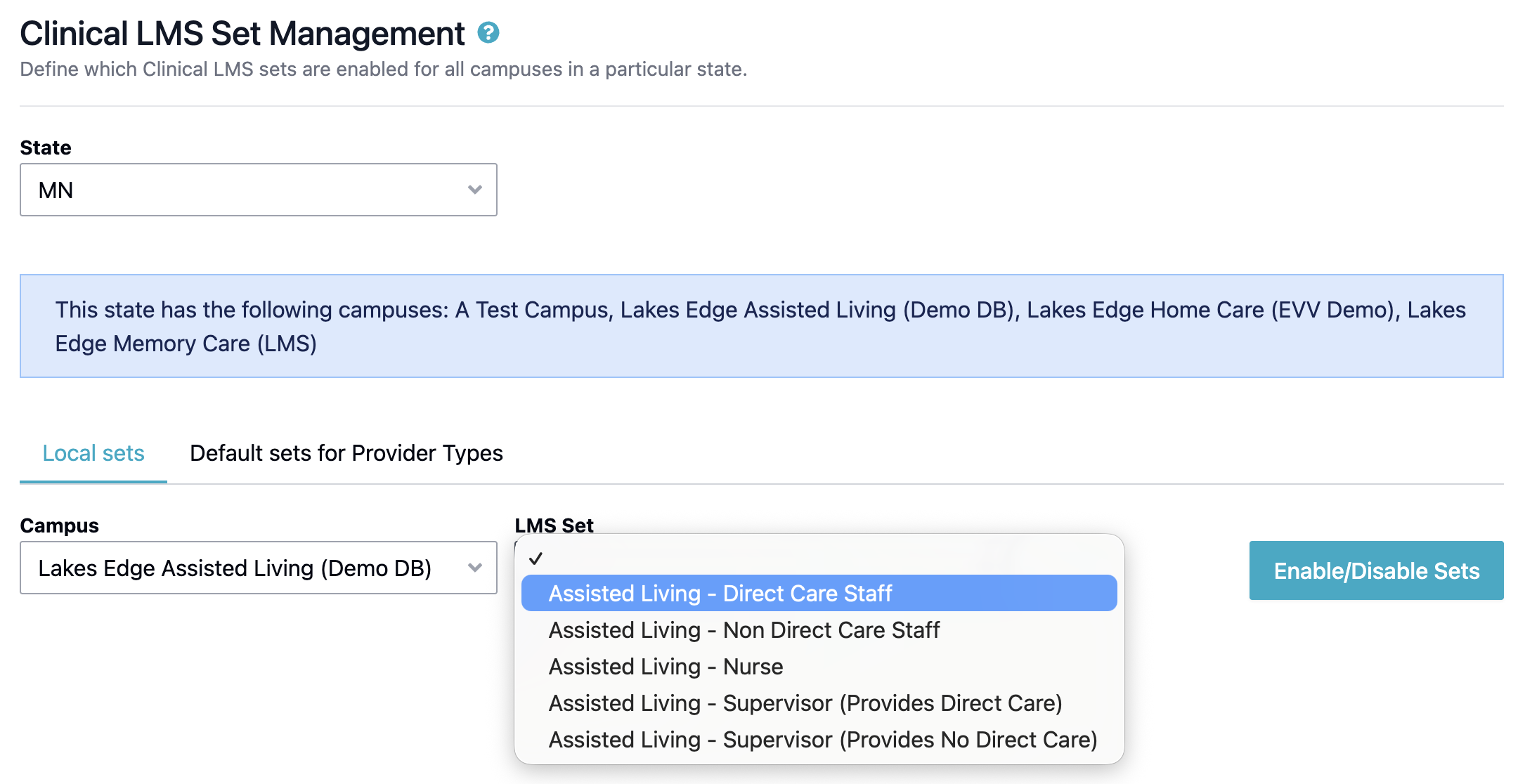
From this screen, select the state you are setting up courses for. If this is your first time setting up clinical LMS for your database, you will first need to enable 'default sets' that are pre-determined template course sets, designed to help meet the training requirements for the specified state. To enable these default sets, select the 'Campus' for which you are setting up courses for and click Enable/Disable Sets.
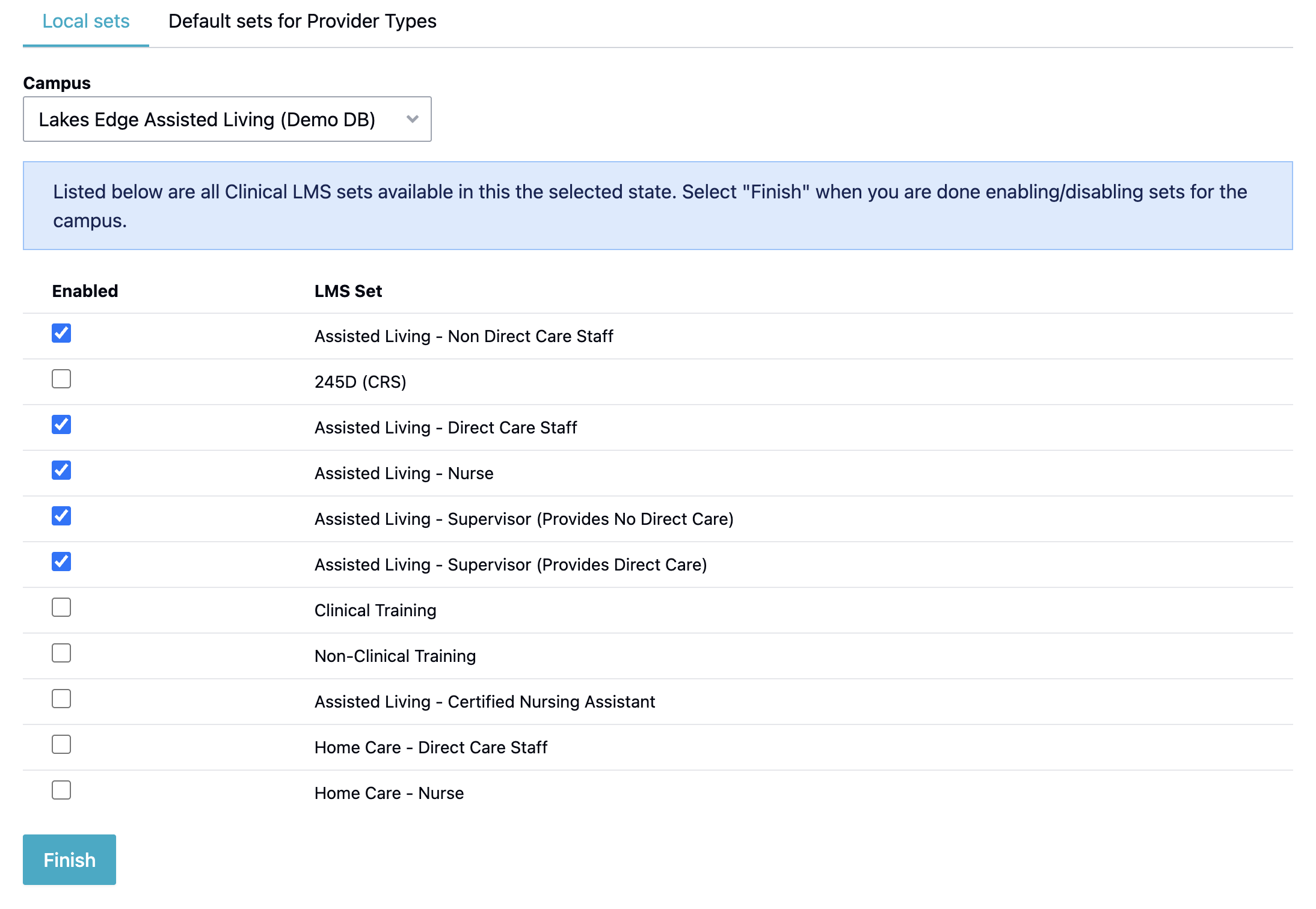
Select the boxes next to the sets that apply for your facility > click Finish
Next to the 'Campus' dropdown, select one of the default sets you just enabled from the LMS Set dropdown. You will see the pre-set annual course listing display for the chosen set. You can toggle the 'Orientation Set' to view the orientation courses.
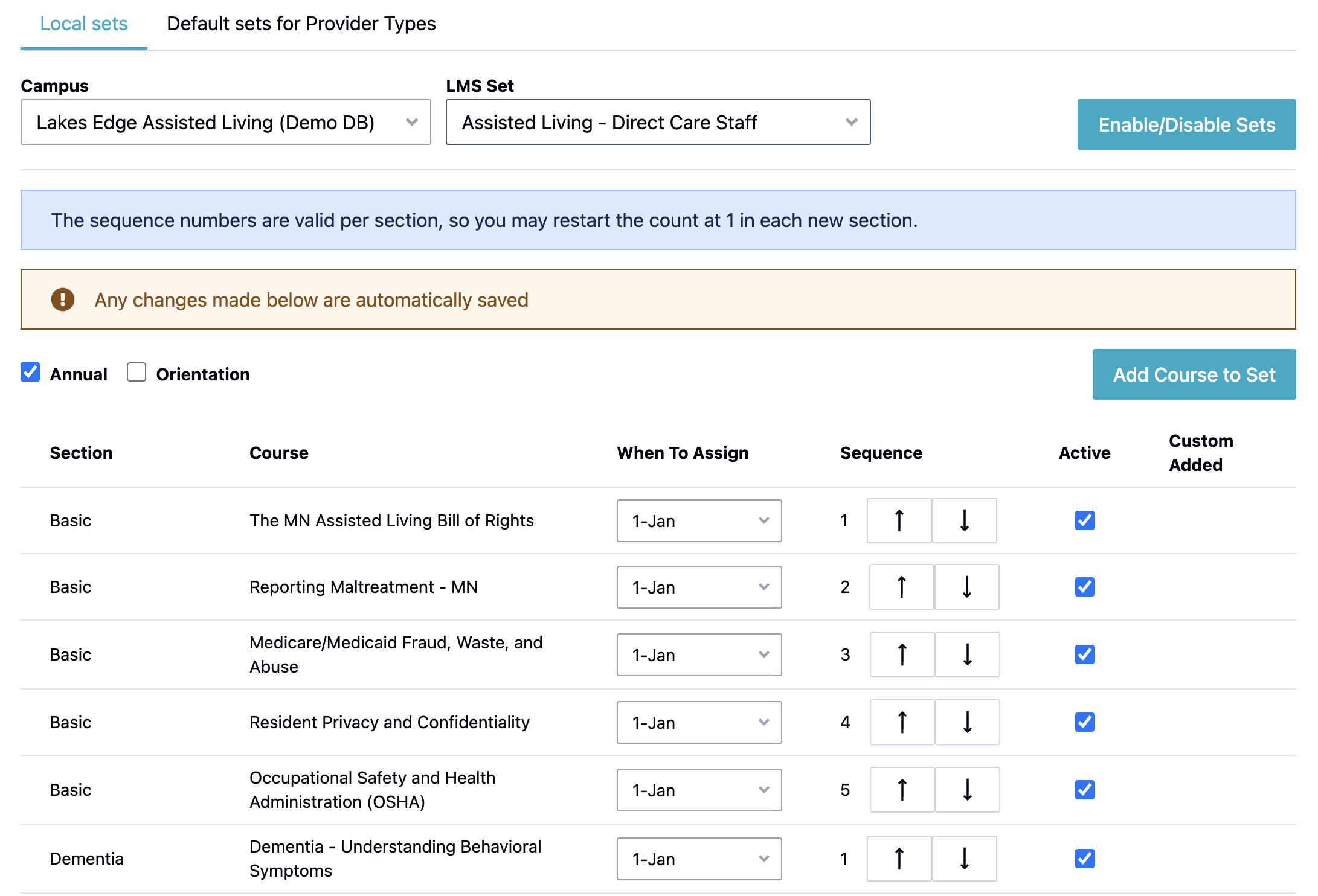
From this screen, you can configure the following:
- Additional courses: Select the Add Course to Set button to add additional courses
- When your annual courses push to staff: Select the 'When To Assign' dropdown to select the schedule for which you want courses assigned. You can choose from any day of the year, anniversary of hire date, or opt to manually assign.
- Which course you want listed first: When multiple courses are scheduled at the same time, you can determine which order your staff will see them listed for each 'section'. For example: You may want your staff to learn about dementia and Alzheimer's disease before they learn about challenging behaviors related to dementia.
- Removal of courses: If a course that is a part of the original default set is no longer needed, you can unselect the 'Active' check box to remove it from the schedule. If a course is needing to be removed that was not part of the original default set, you can click the blue trash can icon to the right of the course to remove.
Once your courses are set up and you are ready to begin utilizing the Clinical LMS feature, you will want to designate what course set each of your staff will be assigned. We have simplified this step for you! Navigate to the Default Sets for Provider Types link.
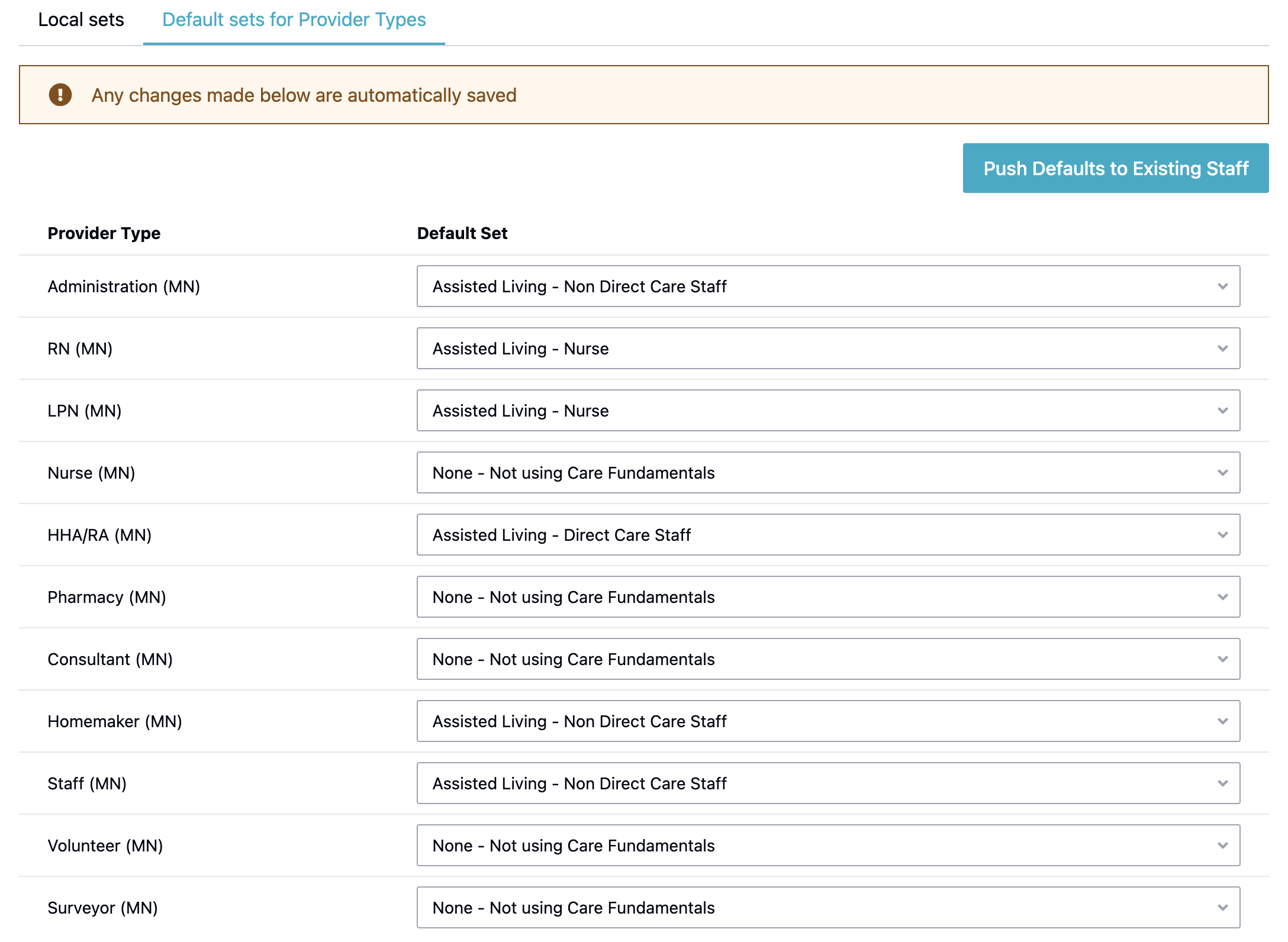
From here, you can choose the default set desired for each provider type. Once all sets are configured for each provider type, you can select the Push Defaults to Existing Staff button. This will assign the set designated for each staff person's provider type.

You will only want to Push Defaults to Existing Staff during initial set up of clinical LMS. Doing so later in time, will reset any overridden clinical LMS set designations, with the set identified by provider type.
Assign Courses
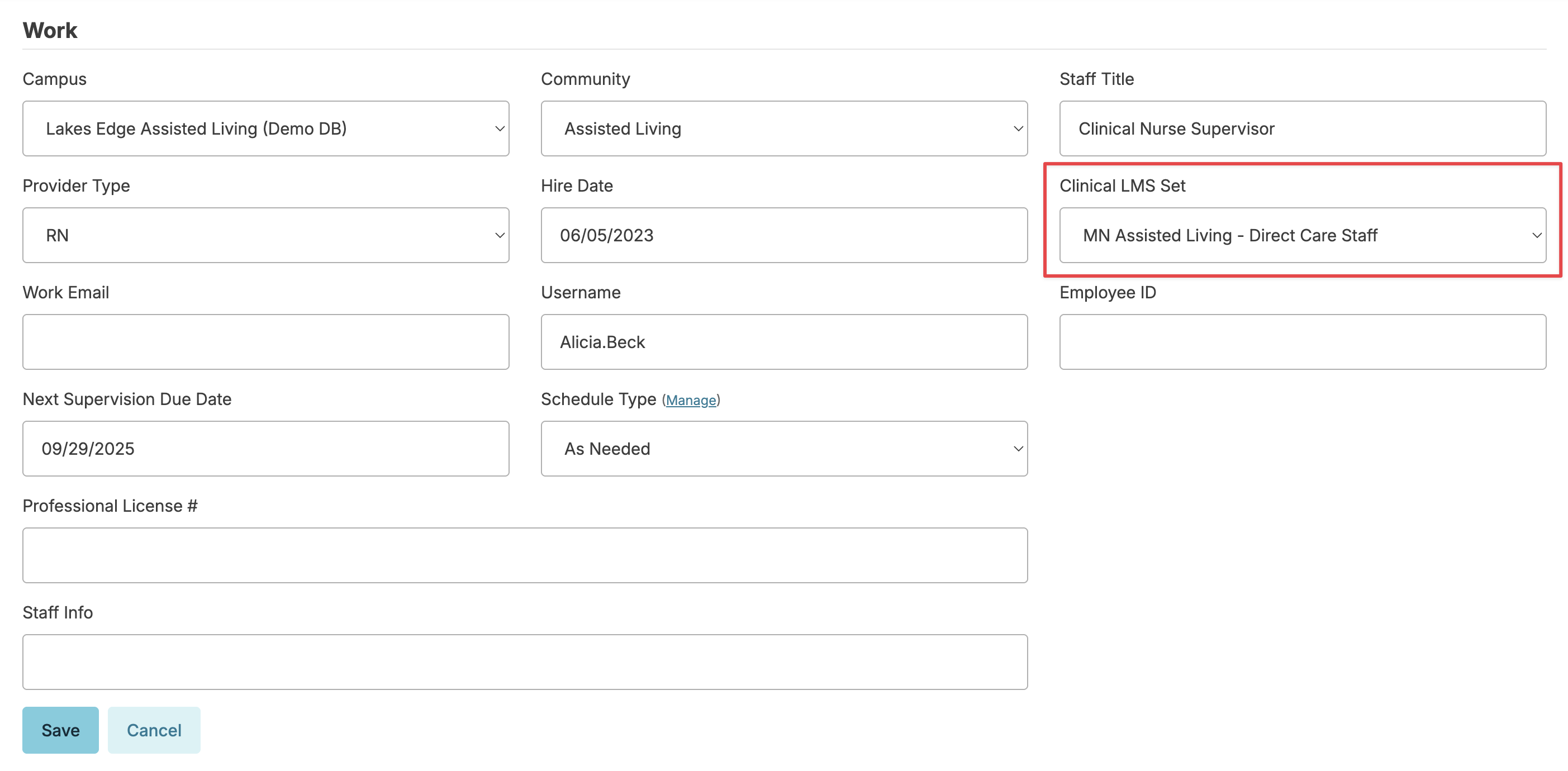
With a default set assigned, when adding a new staff member from the Staff > Staff > Add Staff Member screen, assigning the appropriate provider type will auto fill the 'Clinical LMS Set' in the drop down. If you wish for your staff to receive their clinical LMS orientation set, this step needs to be completed upon initial staff profile entry. The default clinical LMS set can be overridden if an alternative course set is desired. Changing a set at any time will remove any courses previously assigned and not taken and will push out the new course set as scheduled.
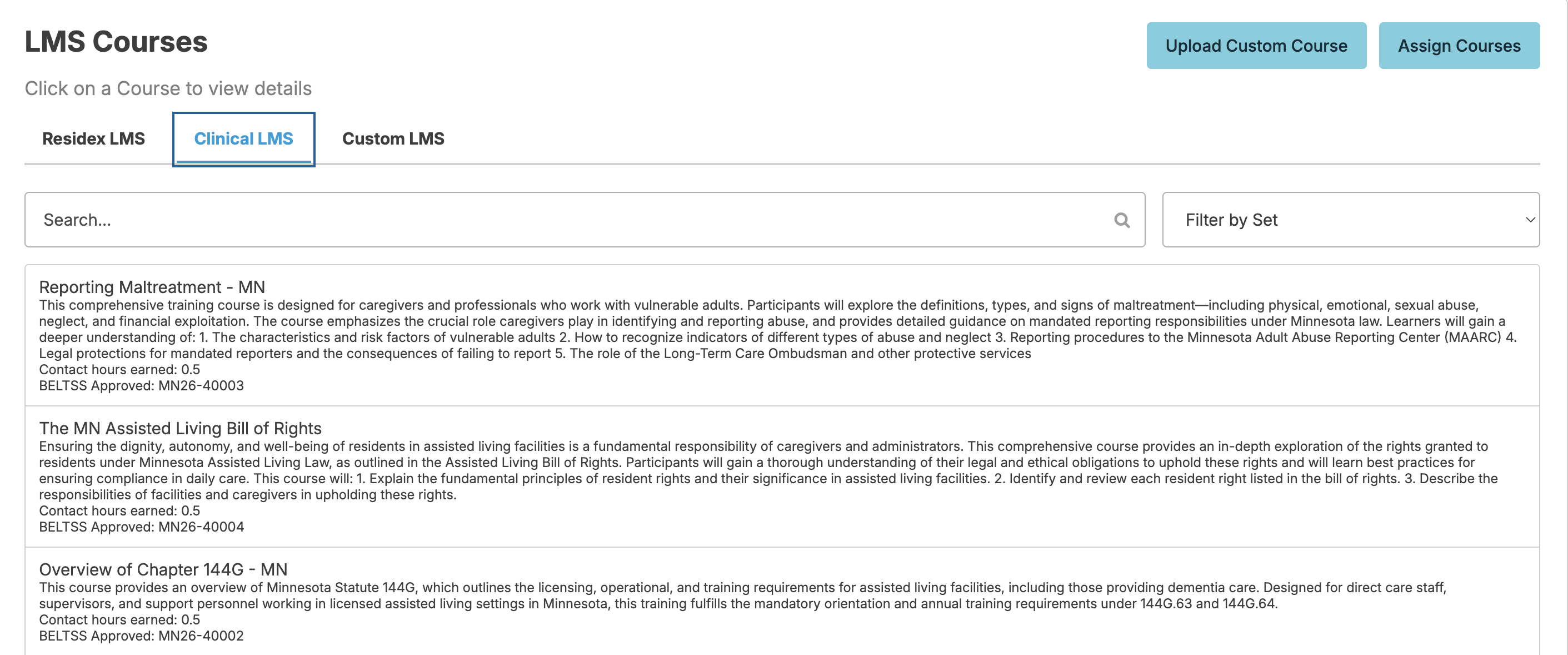
Like Residex LMS, users with Manager (Role 11) or Supervisor (Role 13) are able to assign one or multiple courses by navigating to: Staff > Assign LMS Courses > Clinical LMS > Assign Courses. Alternatively, we can limit the management of course assignments to those with Staff Roles (15).
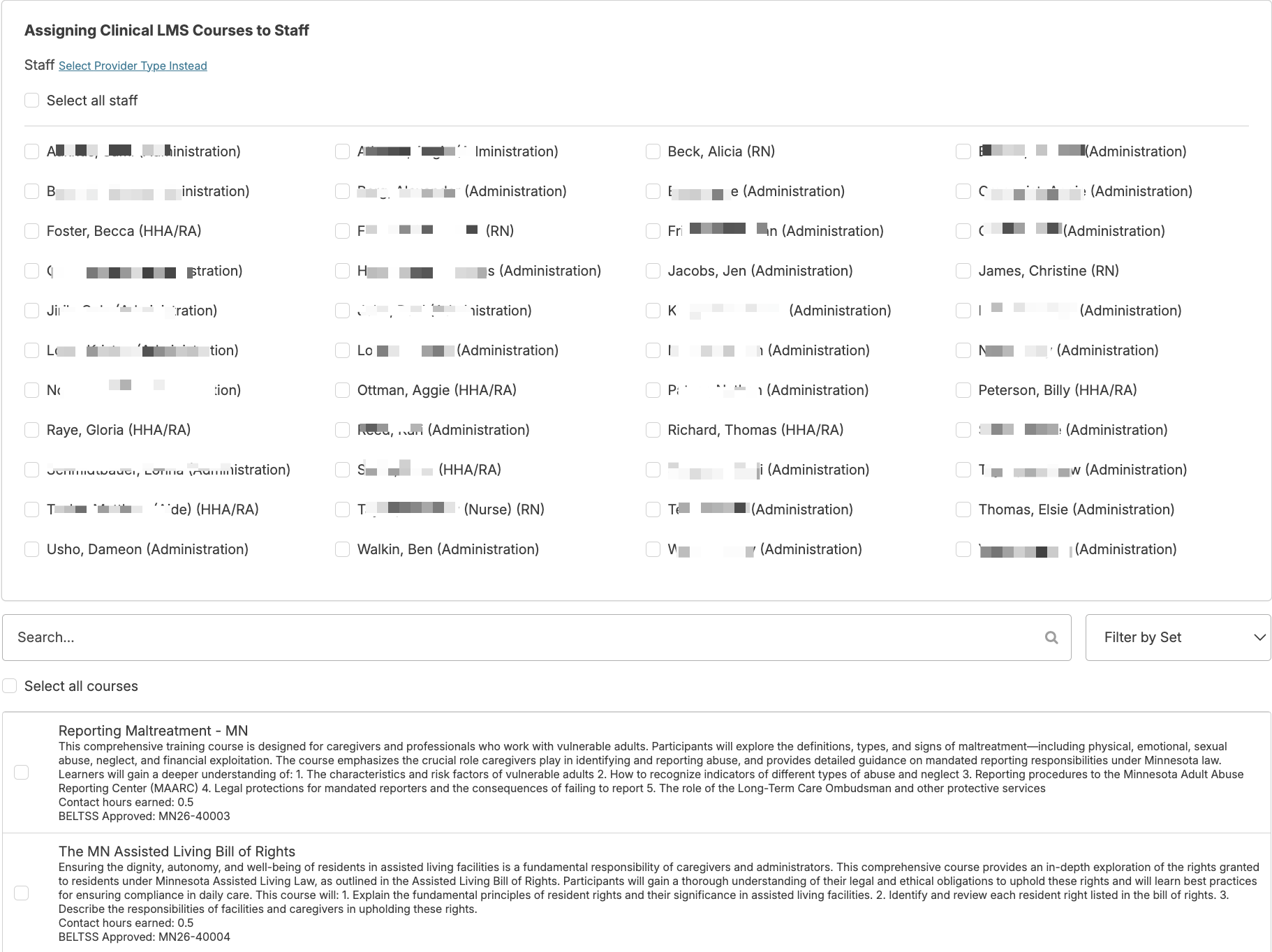
Once you select Assign Courses you can select staff by name or by provider type > select course(s) you wish to assign > click Save.
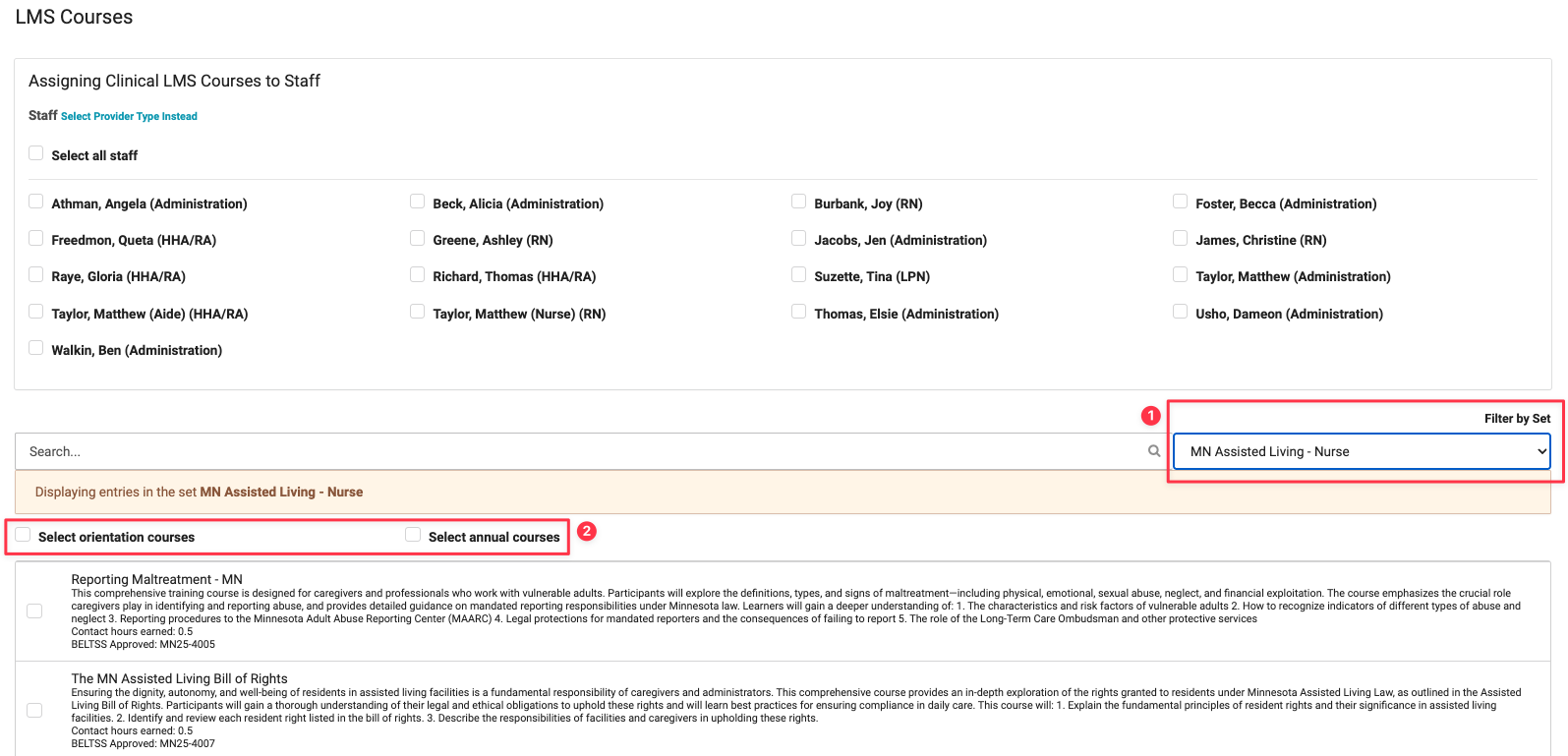
Manually Assigning Training Sets:
After selecting staff members, use the 'Filter by Set' dropdown to choose the applicable training set. You can then either check the 'Orientation' or 'Annual' box to auto-select all courses in that set, or manually select individual courses as needed. Click Save when complete.
You can view to whom the course has been assigned, whether they have completed the course, and the date/time the course was completed by navigating to Staff > Assign LMS Courses > select course you want to see this information on.
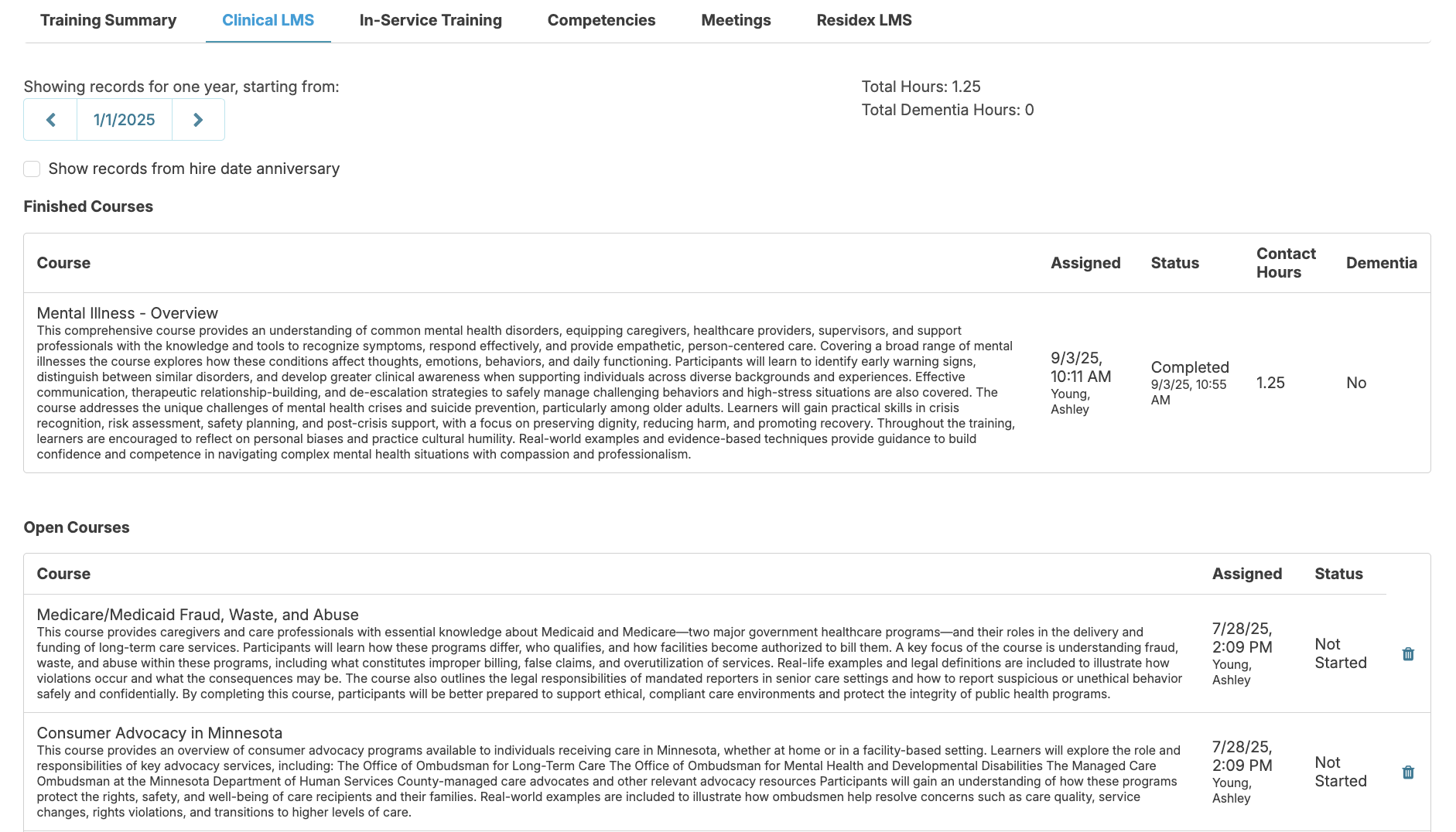
You can also view courses assigned to a staff by navigating to Staff > Staff > staff profile > Training > Clinical LMS tab or by running the report LMS Results Overview.
Delete Courses
You can delete courses assigned in error by navigating to Staff > Staff > staff profile > Training > Clinical LMS > scroll to 'Open Courses' > click the blue trash can to the right of the course you wish to delete.
My Courses
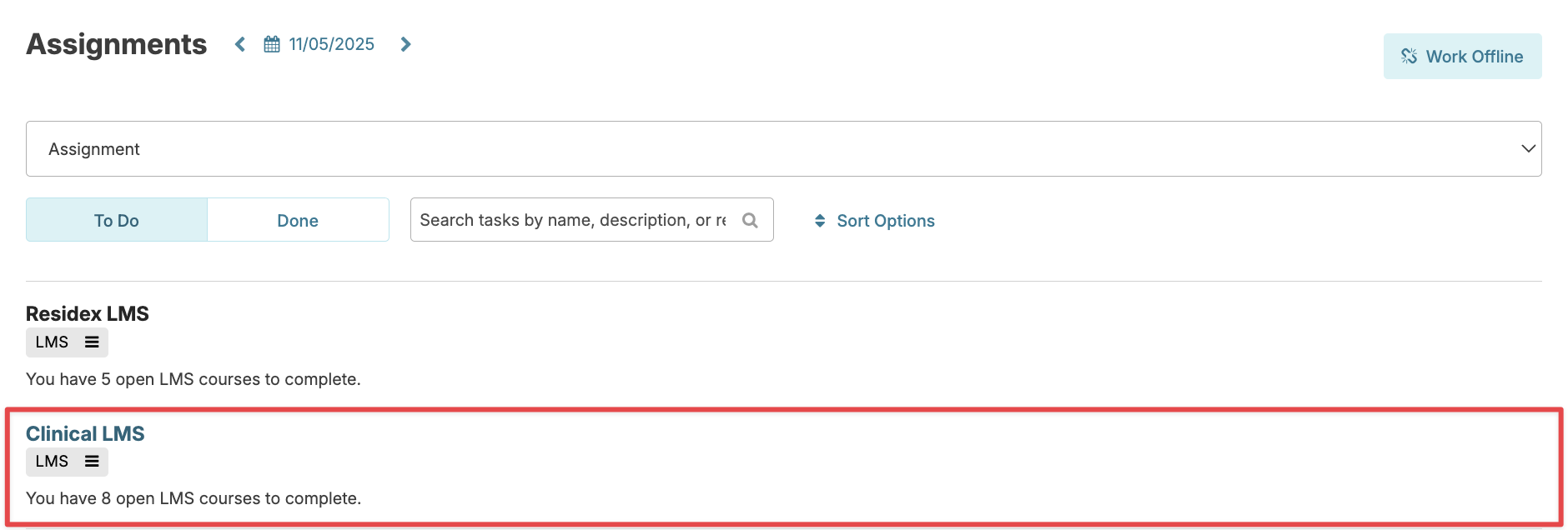
From the Today > Assignments screen, staff will click Clinical LMS to view their 'My Courses' screen. Note: Alternatively, a user can access their courses by navigating to their name icon in the upper right hand corner > My LMS Courses to view the courses they've been assigned.
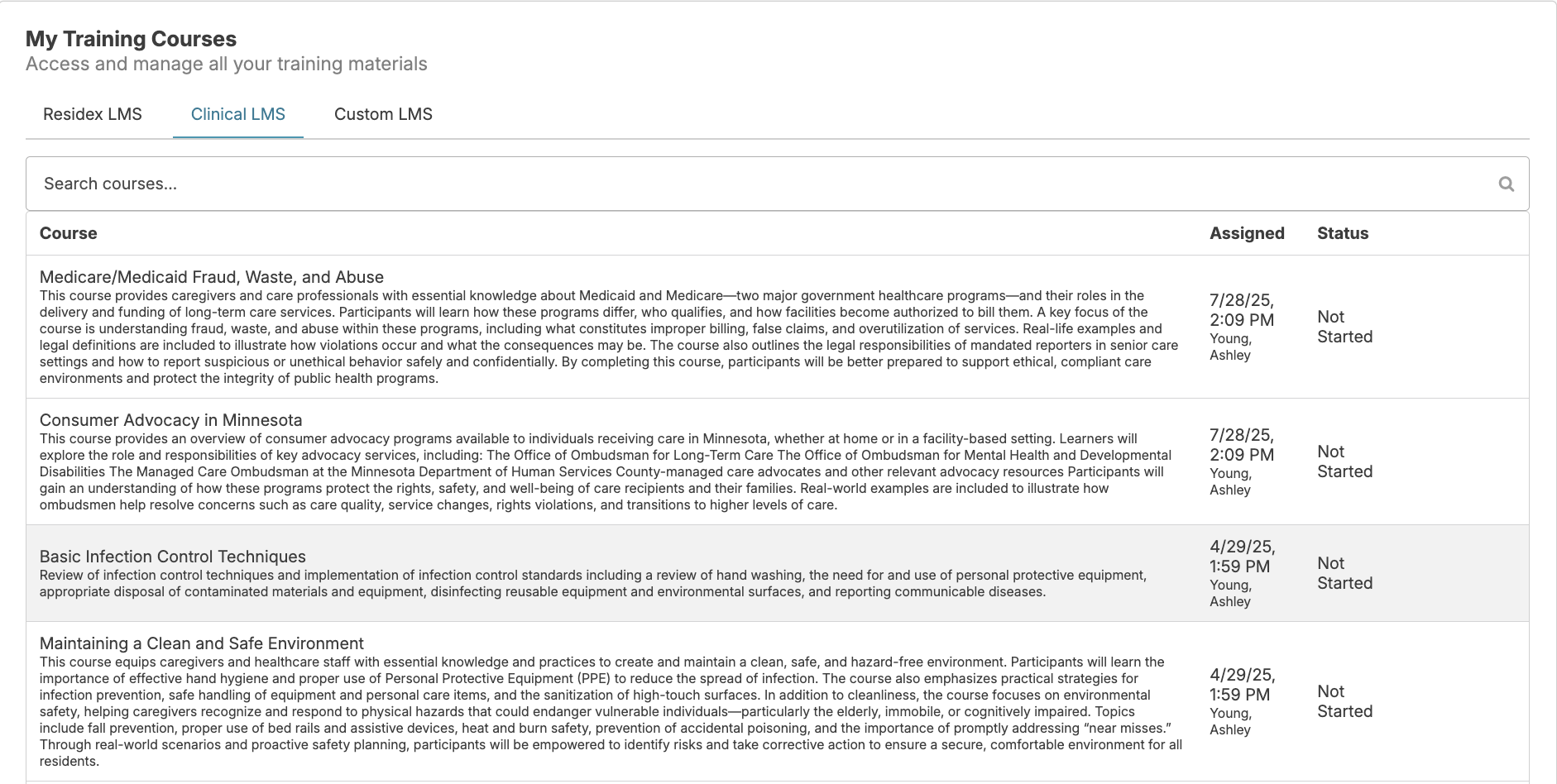
From this list, staff can view training courses needing to be completed filtered to the top, and completed courses filtered below.
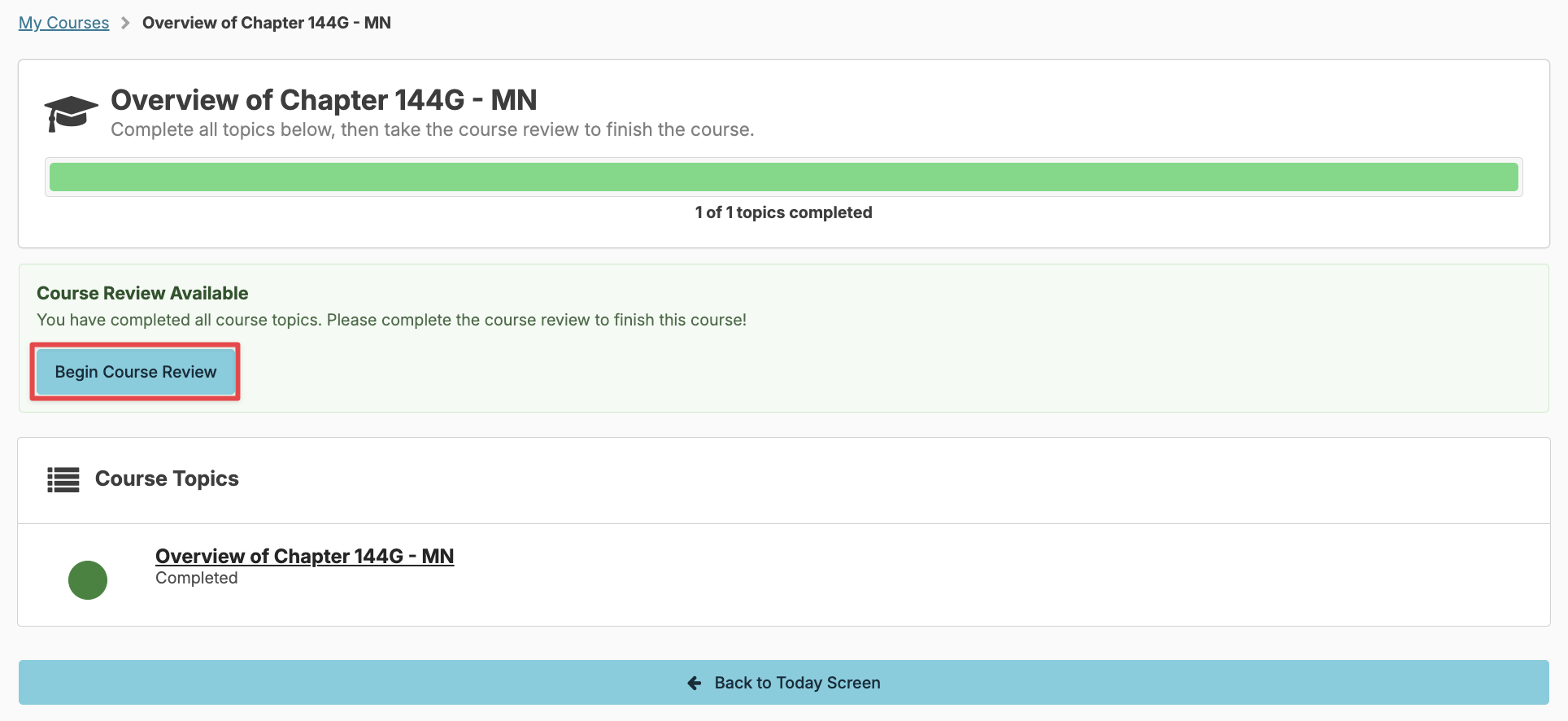
Once you click into a course, you can click on the hyperlink to view the video. Course materials may include videos with on-screen demonstrations, and/or impactful personal experiences in addition to a wealth of educational content. After viewing all topics/videos you will be prompted to Begin Course Review.
Completed courses will have a Create Report button to print the certificate of completion.
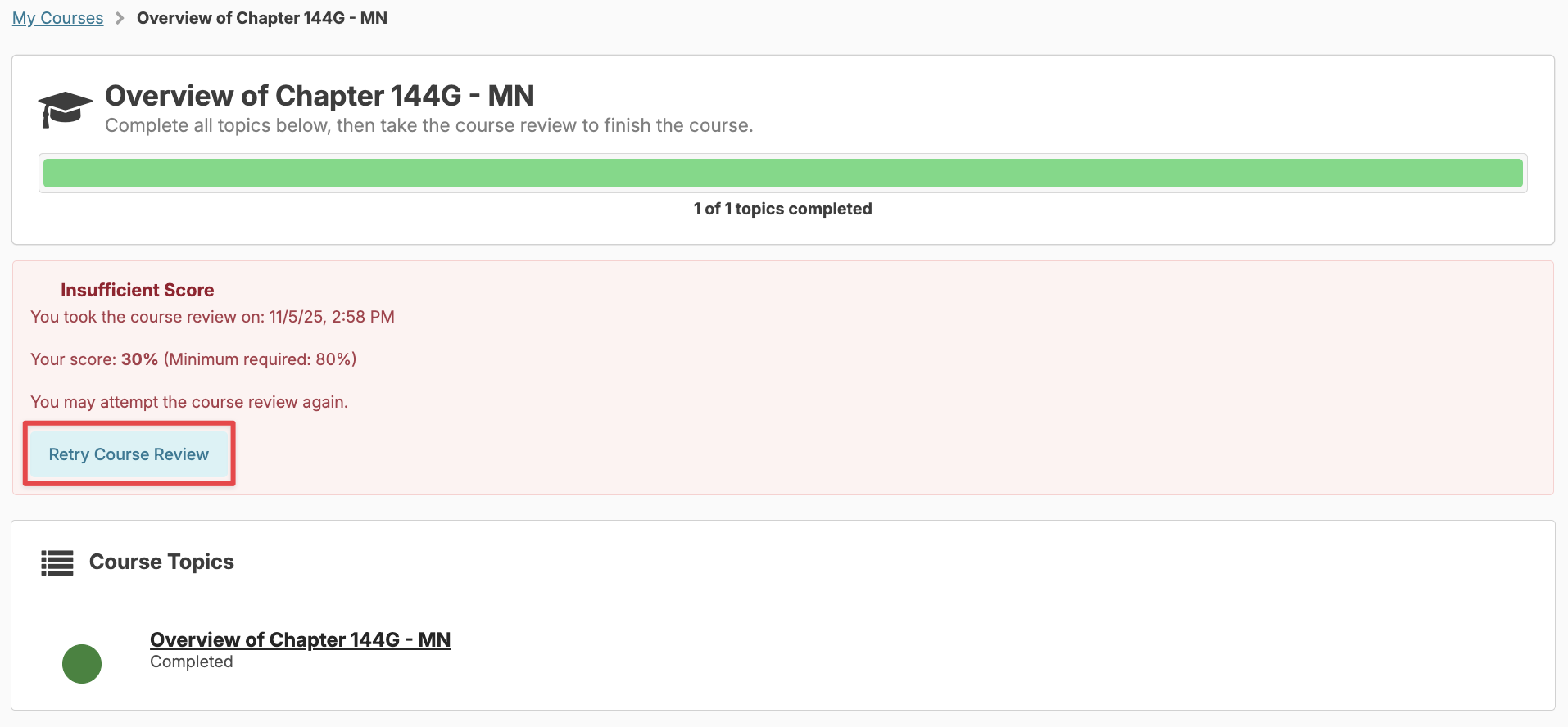
The questions within the course review are designed to capture the understanding of the material presented. Once all questions have been answered, click Finish Test at the bottom of the screen. You will need to answer at least 80% of the questions correctly to successfully pass the course review and complete the course. Residex does provide learning objectives for any incorrect answers. If you do not successfully pass the course review, you will have two additional opportunities to retake the course review before your supervisor will need to reassign the course from the Staff > Assign LMS Courses screen.
Reports
You can go to Reports > Reports and locate the category LMS** to find reports that show staff progress and completion. Some helpful reports are:
- LMS Results Overview - List of all LMS courses that have been pushed out to staff displaying the date assigned and course status (not started/in progress/date completed).
- Clinical LMS - Certificate of Completion This can be printed right from Residex after completing the course review.
- Clinical LMS - Courses to Reassign - Lists courses that staff have failed three times and require reassigning to complete.
- Clinical LMS - Local Sets - Lists the course sets and the schedule they are set to auto-assign.
Competencies
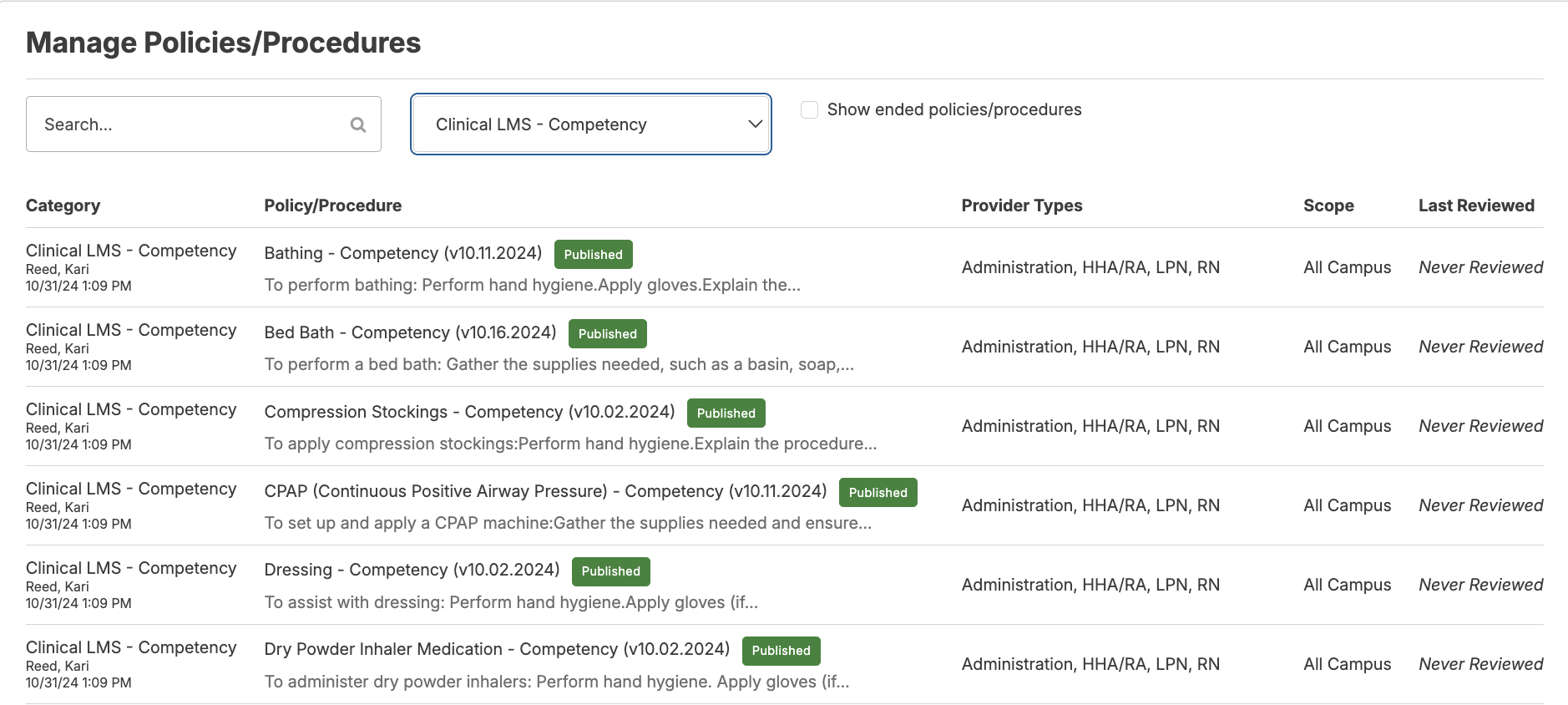
A set of competencies to go with the Clinical LMS courses is available in Policies/Procedures. Navigate to Administration > Policies & Procedures in the support guide for more information on this!
Clinical LMS - FAQ
Q: Is training on hearing loss required in MN?
A: In MN, it is optional to take a course on hearing loss and on strategies and technology that
may enhance communication. We have included this course in the suggested course sets as it is
best practice for those who care for individuals with hearing loss.
Q: Are your dementia courses approved by the Minnesota Department of Health?
A: Our dementia courses have been approved by the Minnesota Department of Health (MDH).
We offer the full 8 hours of dementia training content. For annual training we have added three
courses that will meet the full two hours needed. It is required to train on communication skills
and behavioral symptoms related to dementia. You may choose to swap out the Dementia -
Meaningful Engagement and Activities for another dementia course if you prefer.
Q: Are your courses approved by the Minnesota Board of Nursing?
A: The MN Board of Nursing does not approve courses. These courses have been designed to
meet the Minnesota Board of Nursing continuing education requirements. However, the nurse is
responsible for determining whether this activity meets the requirements for acceptable
continuing education.
Q: Do you have any BELTSS approved courses?
A: Yes, most of our Clinical LMS courses are approved by the Board of Executives for
Long-Term Care Services and Supports (BELTSS) for LALD. The reports called Clinical LMS - Course Listing and Clinical LMS - Index have the
BELTSS approval numbers listed.
Q: Will I be notified when new Clinical LMS courses are added?
A: When courses are updated or a new course is added we will continue to communicate that via
the Residex Newsfeed in the Dashboard/Login Report.
Q: Is there a quick way to see if staff have completed the assigned courses or need courses
reassigned?
A: The Dashboard Learning Management (LMS) can be helpful to keep you up to date with
where staff are at with completing their training or needing courses reassigned. To access dashboards after you have logged in navigate to Reports > Dashboard > Dashboards >
select the dropdown option 'Learning Management (LMS)'.