
Table of Contents:
Billing Options can be configured to meet your organization's specific needs and preferences. Once billing is configured for your campus, you will be able to set up individual residents' rates from their Profile screen.
Billing configurations can be largely managed from the Billing > Billing Configuration screen.
General
You can manage the campus's Remit-to Address by selecting the blue 'manage' icon pictured below.
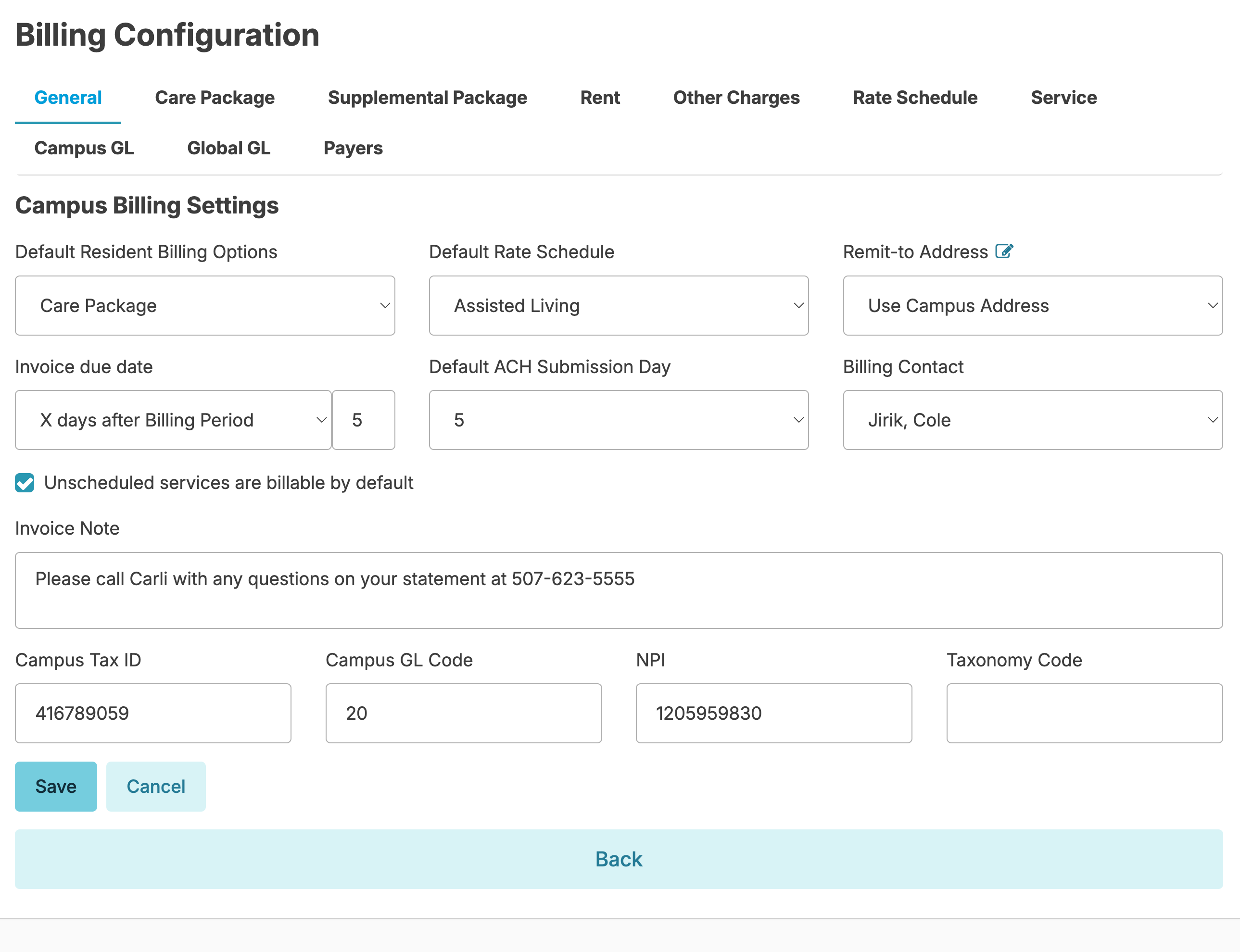
Only users with Billing (Role 4) and either Billing Supervisor (Role 23) or Billing Manager (Role 28) can manage the Billing Contact.
Care Packages
Also called "Levels" or "Tiers", care packages are used as the base cost of a resident's care. It is often based on resident needs / service level / or a point scoring system. Each resident may be assigned one care package at a time, as the primary cost of their healthcare services.
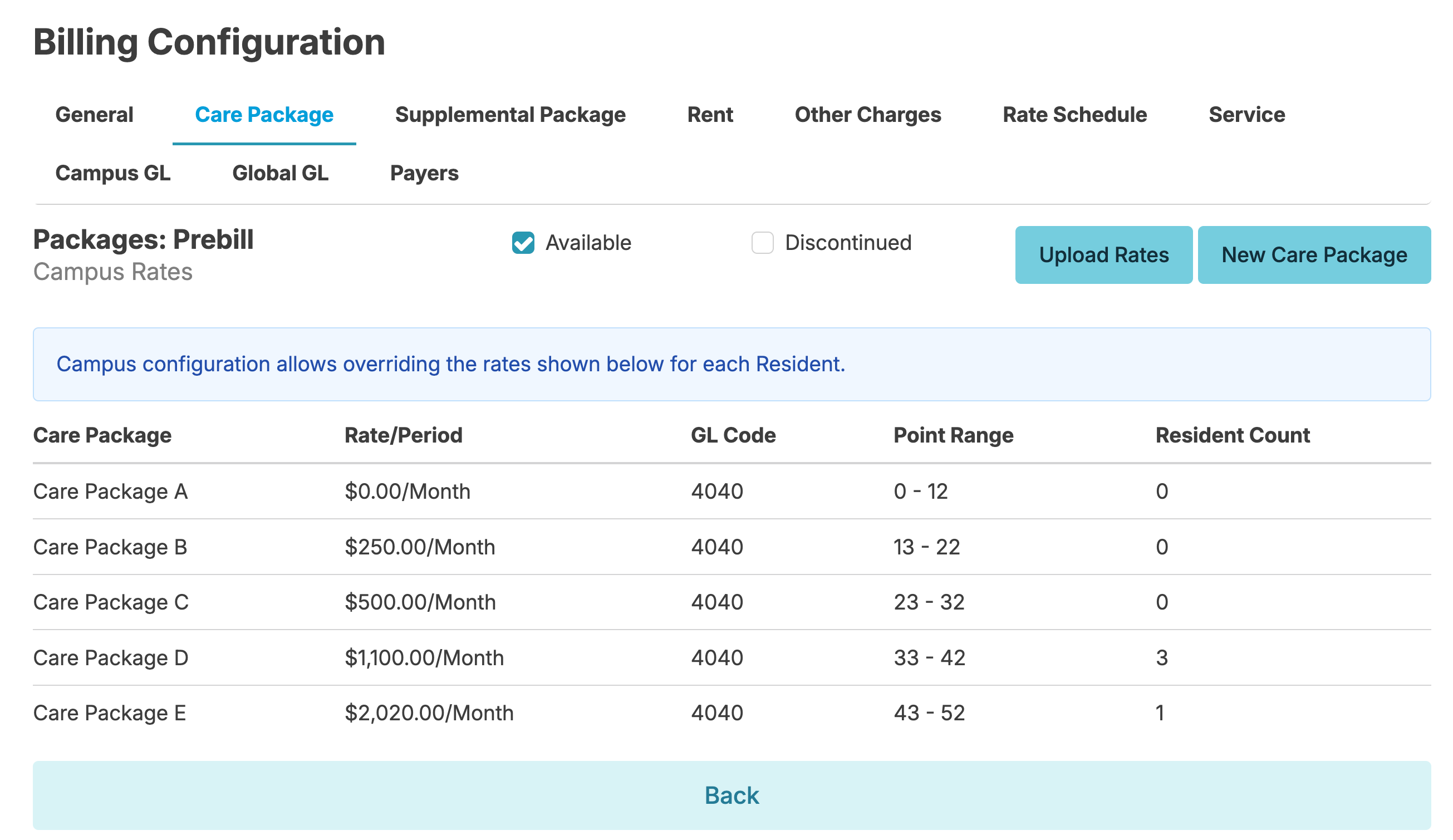
Add a new Care Package
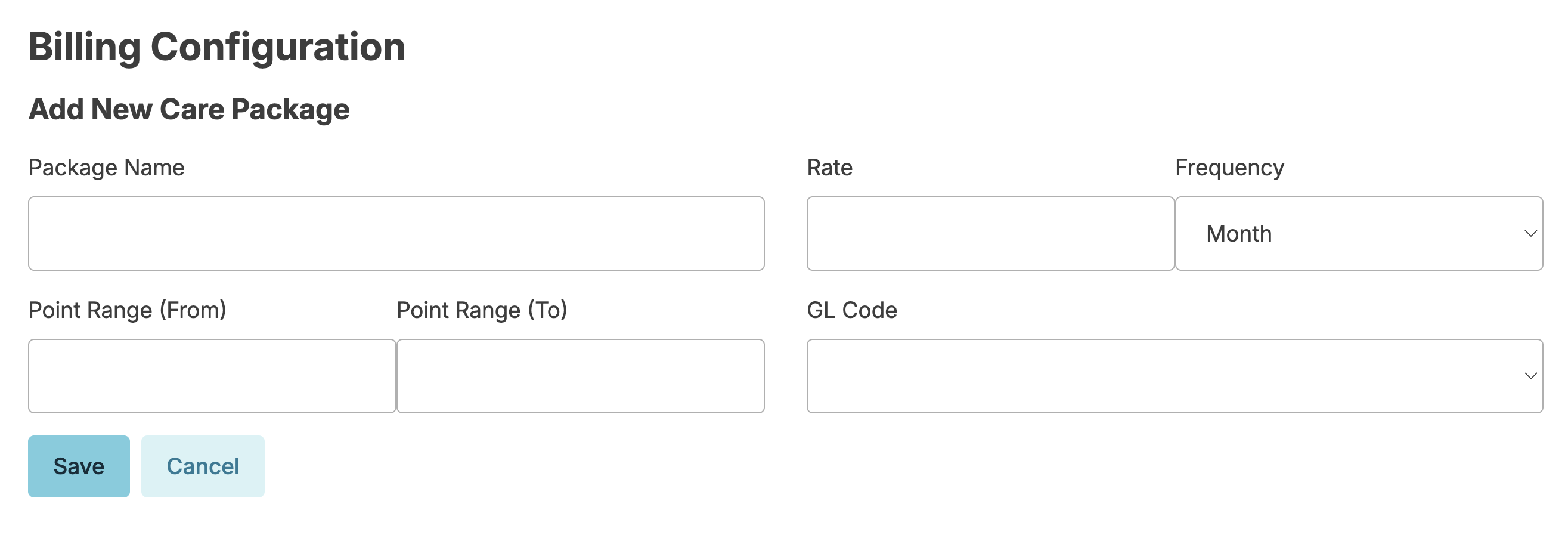
- Users with Billing (Role 4) and either Billing Supervisor (Role 23) or Billing Manager (Role 28) can click the New Care Package button which will take you to a screen to provide details for the Care Package.
- Package Name, Rate, and Frequency (determines how monthly charges are calculated), and GL Code (if your home does not use GL codes, you can use a catch-all) are required.
Point Ranges are optional and are only relevant if your organization uses a point scoring system to calculate rates. - Care Packages no longer in use can be deactivated.
- Care Packages are campus specific.
- Care Packages can be set to not invoice for days a resident is on hold. If care packages are set to pre-bill, the hold days will credit on the next months invoice. Please reach out to our billing support team if you would like to make adjustments to these configurations.
Update a Care Package
- Click on any care package to view or edit its details. When viewing an active care package, you can also see details about it: when it was created, last updated, history of changes, and which residents at your campus are presently assigned to it, so you have an idea of whom any changes will affect.
- When editing a package rate, you will be prompted for an effective date. Effective dates can be backdated up to a month.
Updating Multiple Care Package Rates at Once
Users with Billing Manager (Role 28) also have the option to update multiple Care Package rates at once. This can quickly be done by downloading the provided spreadsheet template, entering the new rates, and uploading the file back into Residex. Once the file has been uploaded, you will have a chance to review for errors and make any necessary changes before saving. Please note that this process can only be used to updating existing Care Packages and can not be used to add new Care Packages.
Supplemental Packages
Supplemental packages are services, groups of services or other recurring charges (e.g. cable tv) that are billed for in addition to a primary care package or any fee-for-service charges. These can be billed once monthly and calculated at a daily or monthly rate.
Supplemental Packages can be managed by users with Billing (Role 4) and either Billing Supervisor (Role 23) or Billing Manager (Role 28) from the Billing > Billing Configuration > Supplemental Package tab.
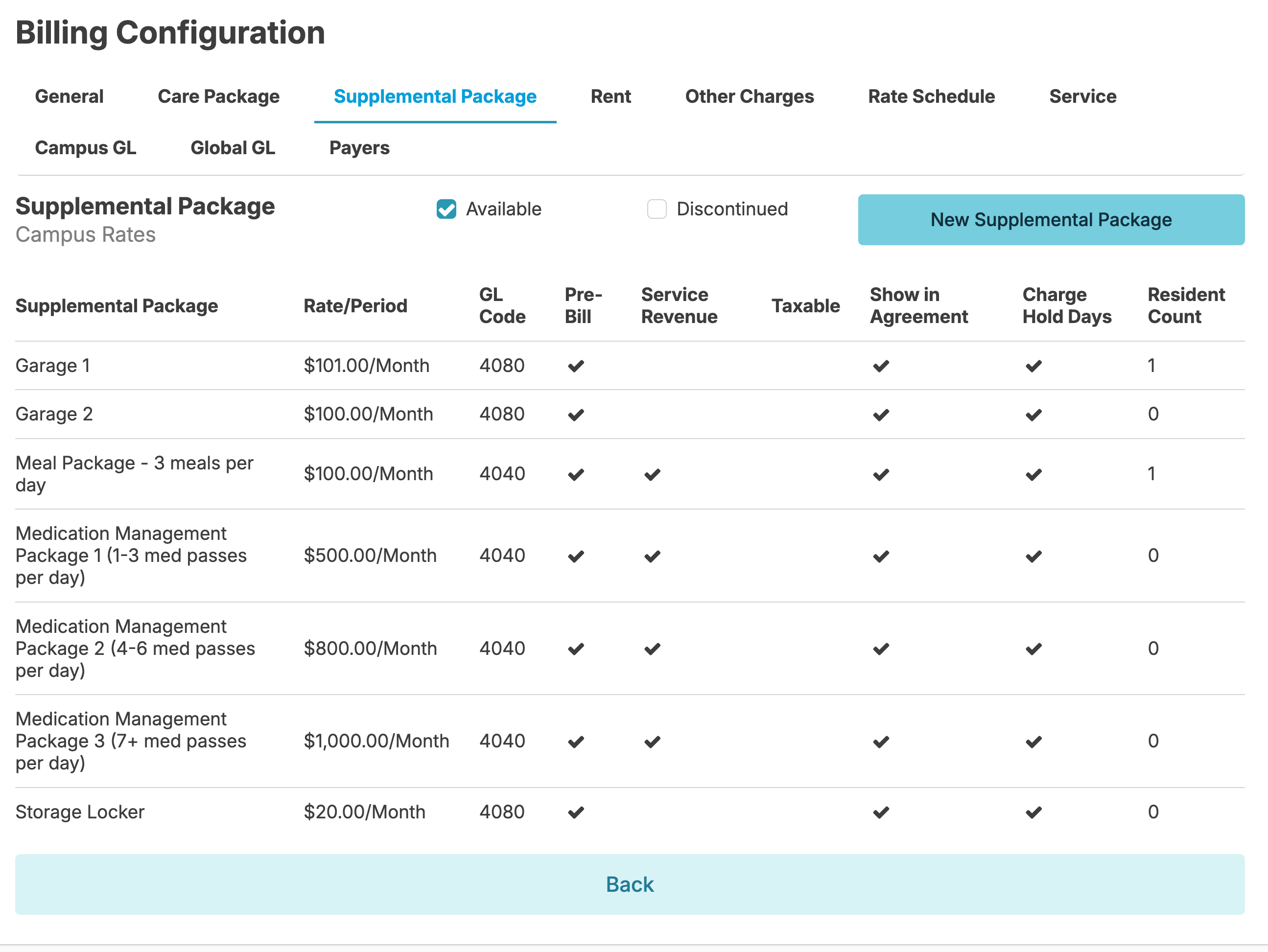
Add a New Supplemental Package
- Press the New Supplemental Package button which will take you to a screen to provide details for the supplemental package.
- Rates for supplemental packages can be calculated on a daily or monthly frequency based on your preferences. This will result in a single supplemental charge added to a resident's invoice calculated based on a daily rate or a flat monthly rate.
- Supplemental packages are campus specific.
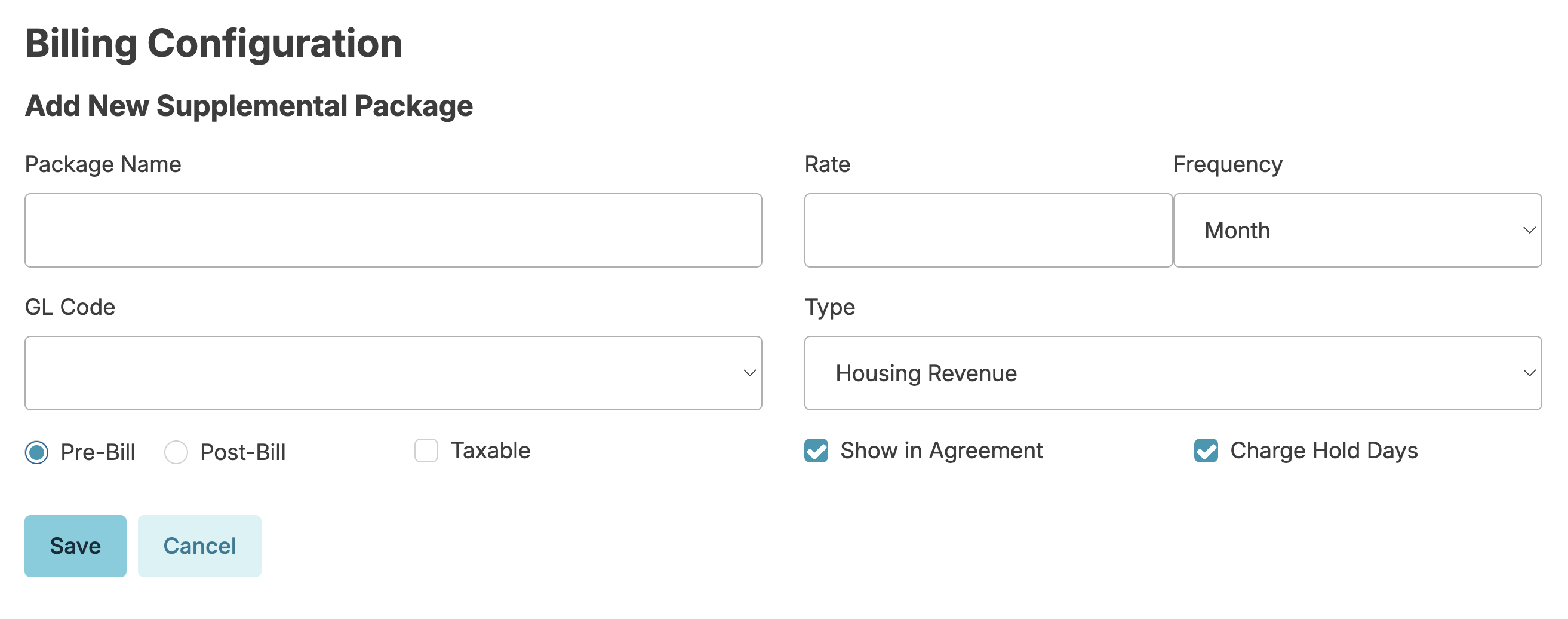
Update a Supplemental Package
Click on any supplemental package to view or edit its details. As happens with care packages, when viewing supplemental packages, you can also see details about it - when it was created, last updated, and to which residents at your campus are presently assigned this care package, so you have an idea of whom changes will affect; changes made to the supplemental package will immediately be deployed to all residents.
Q: Can I update supplemental package rates for multiple residents at once?
A: Yes. Supplemental package rates can be updated in bulk via Billing > Billing Configuration > Supplemental Packages > Choose Package > Update Rate > Save.
Q: When do I need to make the rate change if I want it to apply to, for example, July billing?
A: If you prebill, the rate must be updated before closing in June. Any changes made after June are closed will not apply to July.
Q: What if I don't want the new rate to take effect until, for example, August?
A: Finish June billing first, then update the supplemental package rate. Changes made after June is closed will apply to the August billing cycle.
Q: Where do I go to update a supplemental package rate en masse?
A: Navigate to Billing > Billing Configuration > Supplemental Packages > Choose Package > Update Rate > Save.
Rent
A user with Billing (Role 4) and either Billing Supervisor (Role 23) or Billing Manager (Role 28) can assign each unit of your campus one or more rent type(s). Rent rates are based upon the type/size of the apartment (Efficiency, Shared Suite, 1-bedroom, etc). Secondary or tertiary rent types are often set up for units to accommodate special situations (shared occupancy, etc). Additionally, a rent type no longer in use can be deactivated. Rent rates are campus specific, and need to be set up separately for each campus within your database.
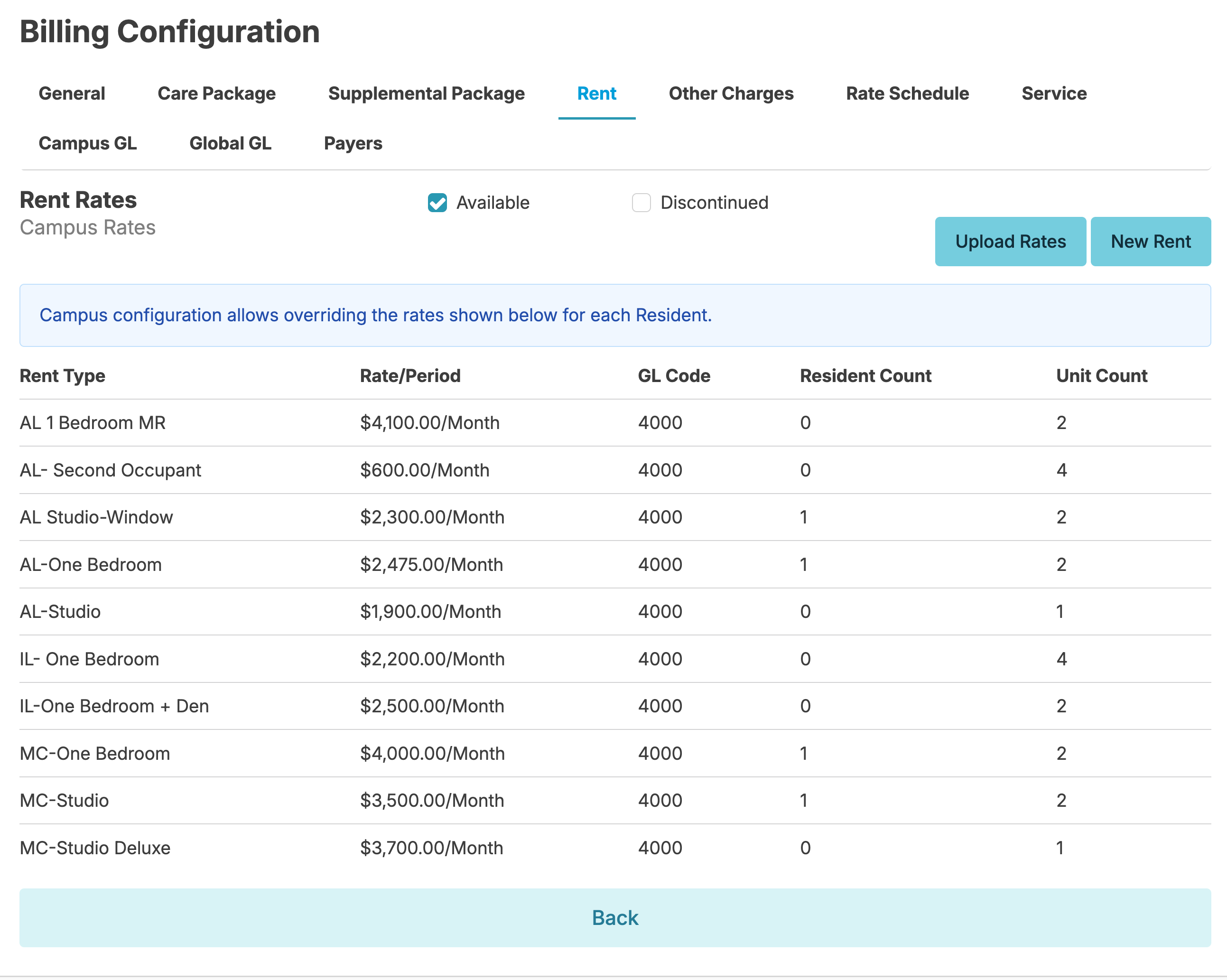
Add a new Rent
Pressing the New Rent button will allow you to add a new rent type. Each rent type needs a Name, Rate, Frequency, GL Code , and Effective Date. You can then see a list of all of the units in your campus and can specify what units will have this rent type as an option.
- If you have a resident sharing a room with a discounted rent rate or does not pay additional rent, you can create a specific rent type (ex. Shared Room - $0 rate). Use that rent type for the resident that will not be charged the full rent.
Update Rent
Click on any rent to view (when it was created, last updated, which units the rent is for, and to which residents at your campus) or edit its details. If the rent type is not in use by any Residents you can make that rent Inactive.
When rent rates increase for everyone, they can be updated by navigating to:
- Billing > Billing configuration - Rent
- Select the rent
- Update the amount
- Enter the start date of the new rate
- Click Save
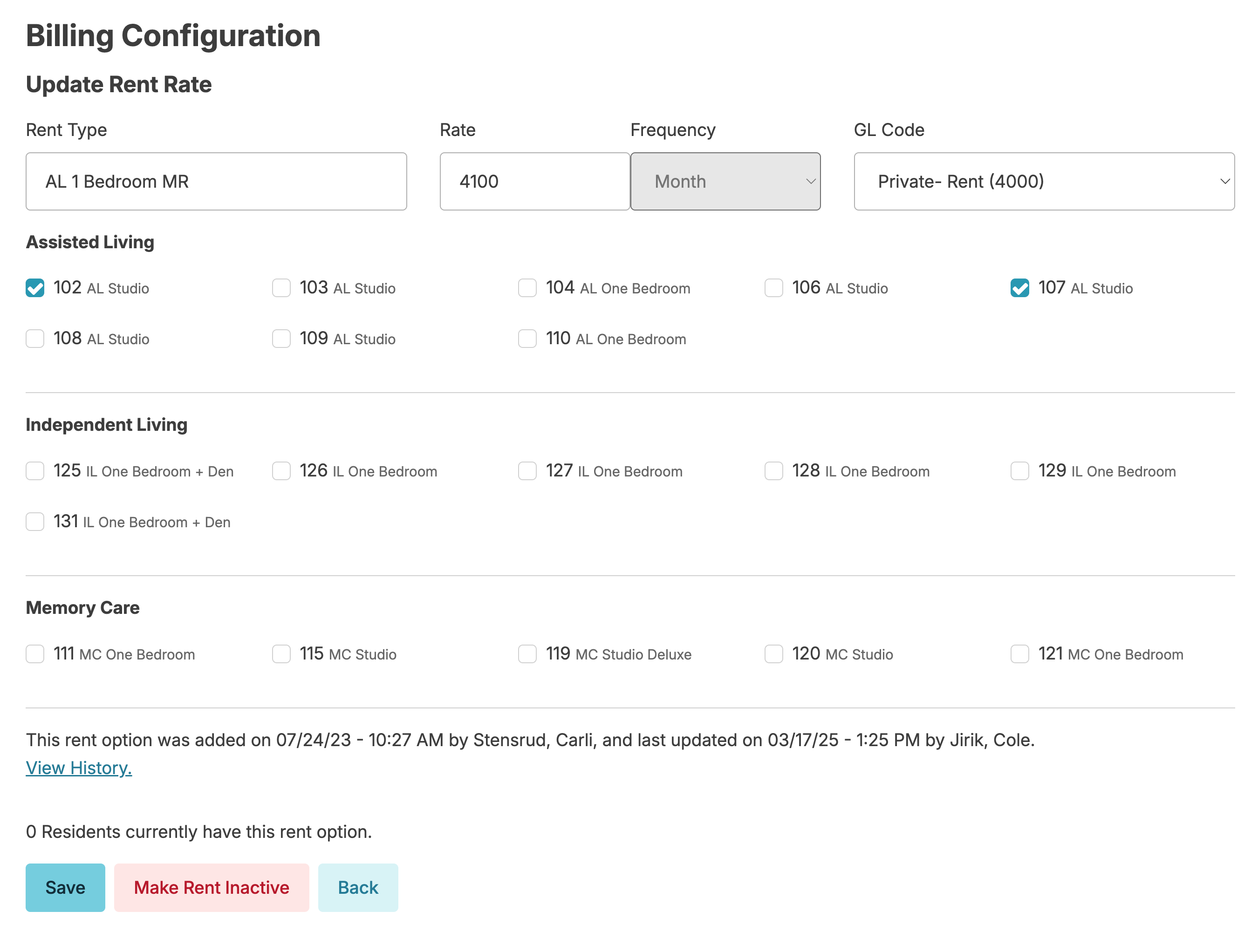
This will add a new line to every resident's Fees/Payers rent option with the new rate.
Please note that if your campus is configured to allow editing rent amounts per resident, updating rent rates en masse will override any custom rates that have been entered for a resident in their fees/payers screen.
Updating Multiple Rent Rates at Once
Users with Billing Manager (Role 28) also have the option to update multiple Rent rates at once. This can quickly be done by downloading the provided spreadsheet template, entering the new rates, and uploading the file back into Residex. Once the file has been uploaded, you will have a chance to review for errors and make any necessary changes before saving. Please note that this process can only be used to updating existing Rents and can not be used to add new Rents.
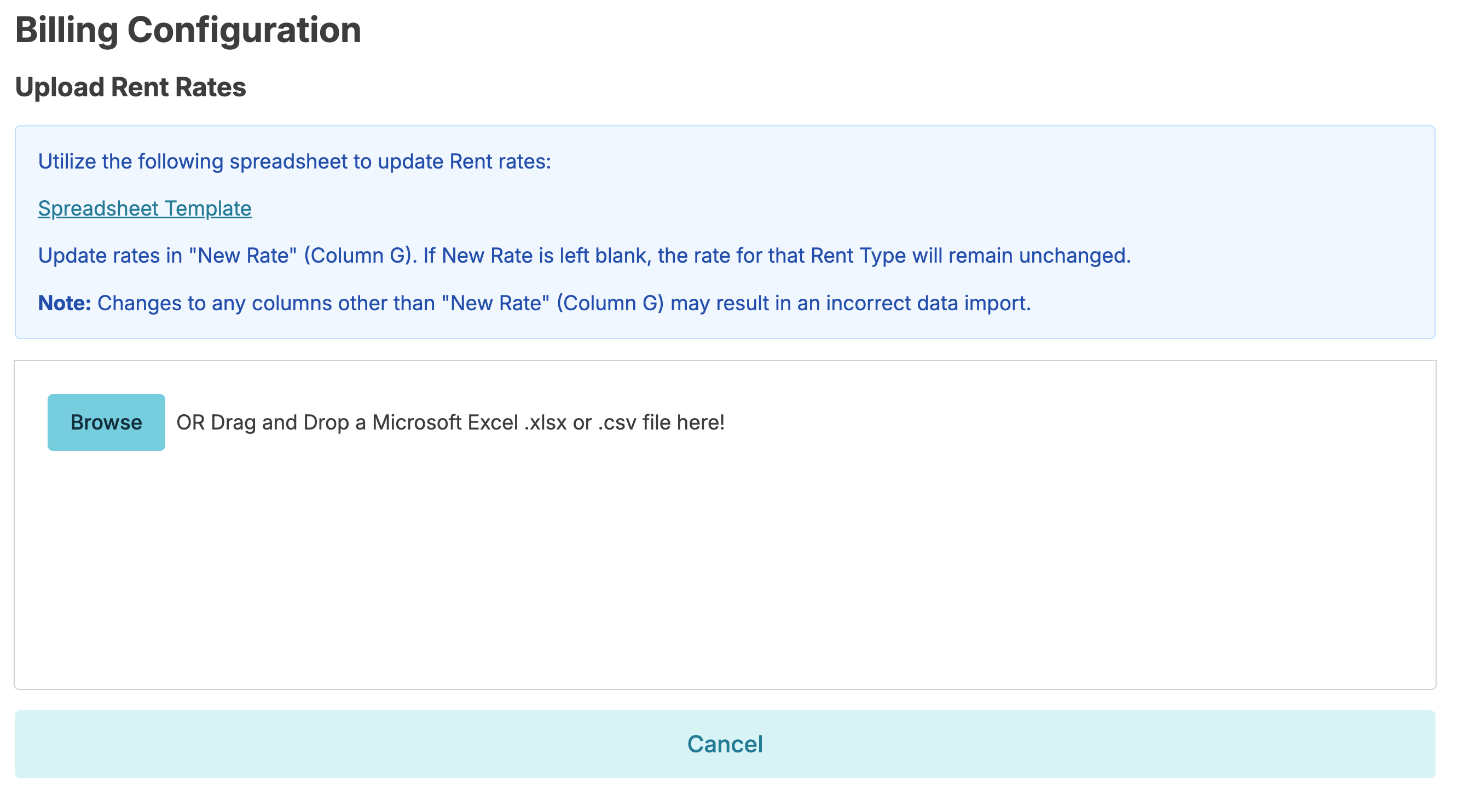
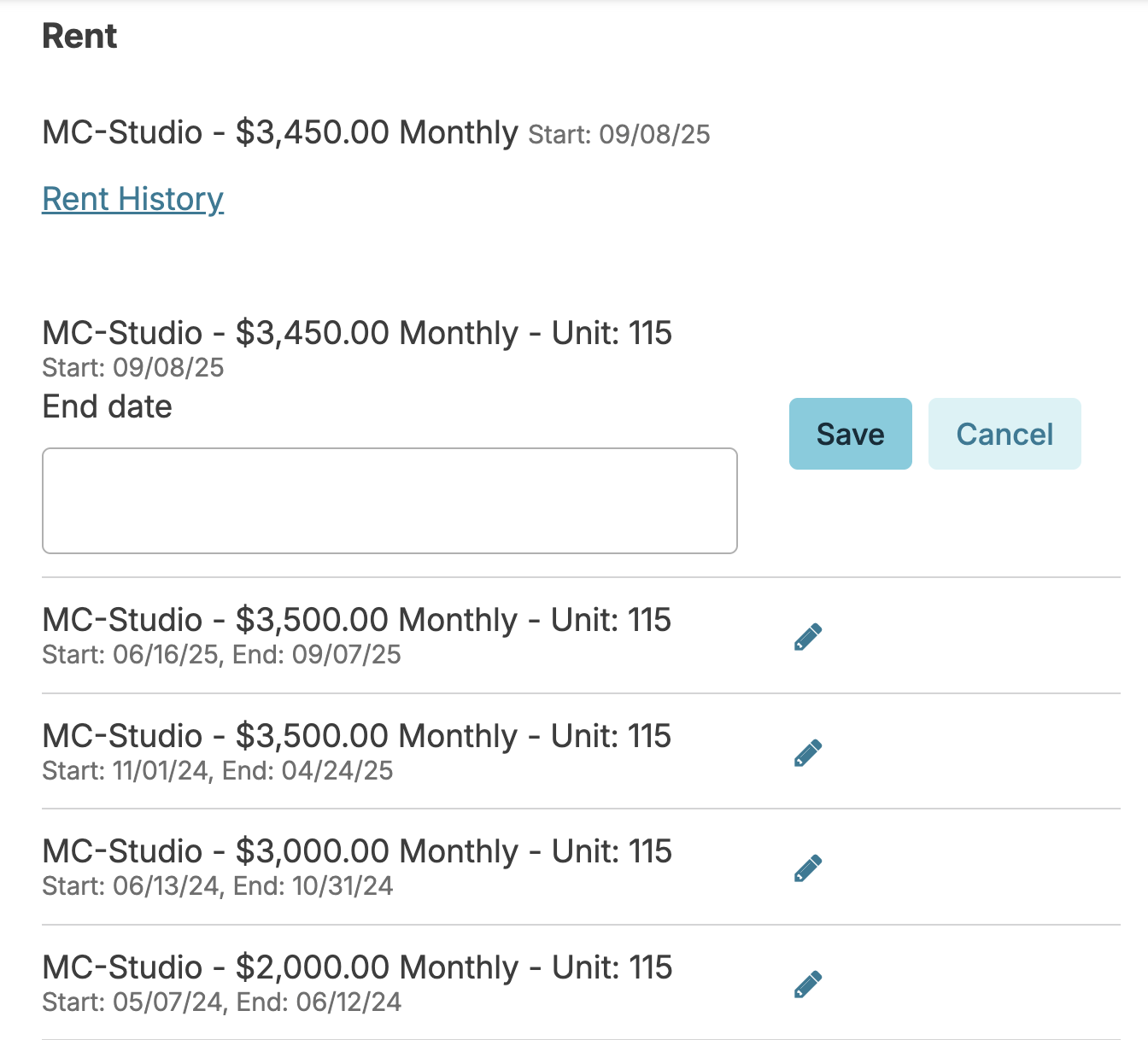
Allow Rent End Dates
If set to 'yes', this configuration allows Rent End dates to display. This helps in situations in which you are continuing to charge rent (after resident discharge) until a unit is vacated, or if you are 'holding' an IL unit for a resident who temporarily needs more care in the AL setting. Email support@residex.ai for a assistance with setting this configuration. Once set, you can navigate to Resident Profile > Billing & Finance > Rent > Rent History > Edit > and enter the Rent End Date.
Rate Schedules
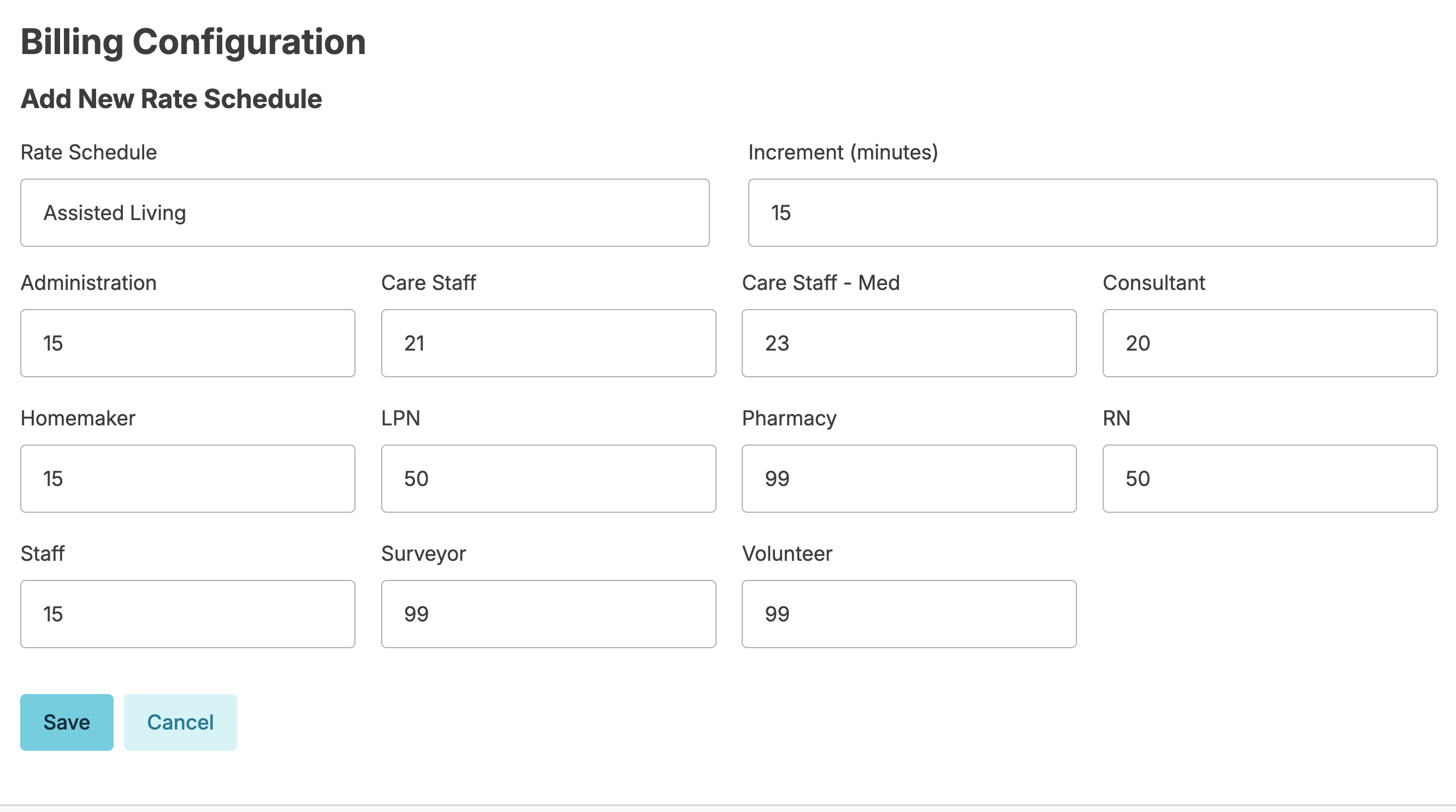
A rate schedule is the price of a unit of caregiver time that varies by caregiver ($9 for 15 minutes of HHA time, $25 for 15 minutes of RN time.) Rate Schedules are set for the campus to determine how charges will be calculated for services configured for "variable rate" billing. Rate schedules may be used to bill clients for fee-for-service cares based on actual or scheduled time spent as recorded by charting staff.
Rate Schedules may also be used in conjunction with care packages and supplemental packages.
From the Rate Schedule screen a user with both Billing (Role 4) and Billing Manager (Role 28) can:
- Click on any item to edit it or press the New Rate Schedule button to add a new one.
- When viewing an individual schedule, specify how increments of time are to be measured (how many minutes is the minimum block of time you will bill for)
- Manage rates for each provider type to dictate how the time of different types of caregivers will be billed (the cost per increment you specified above).
Other Charges
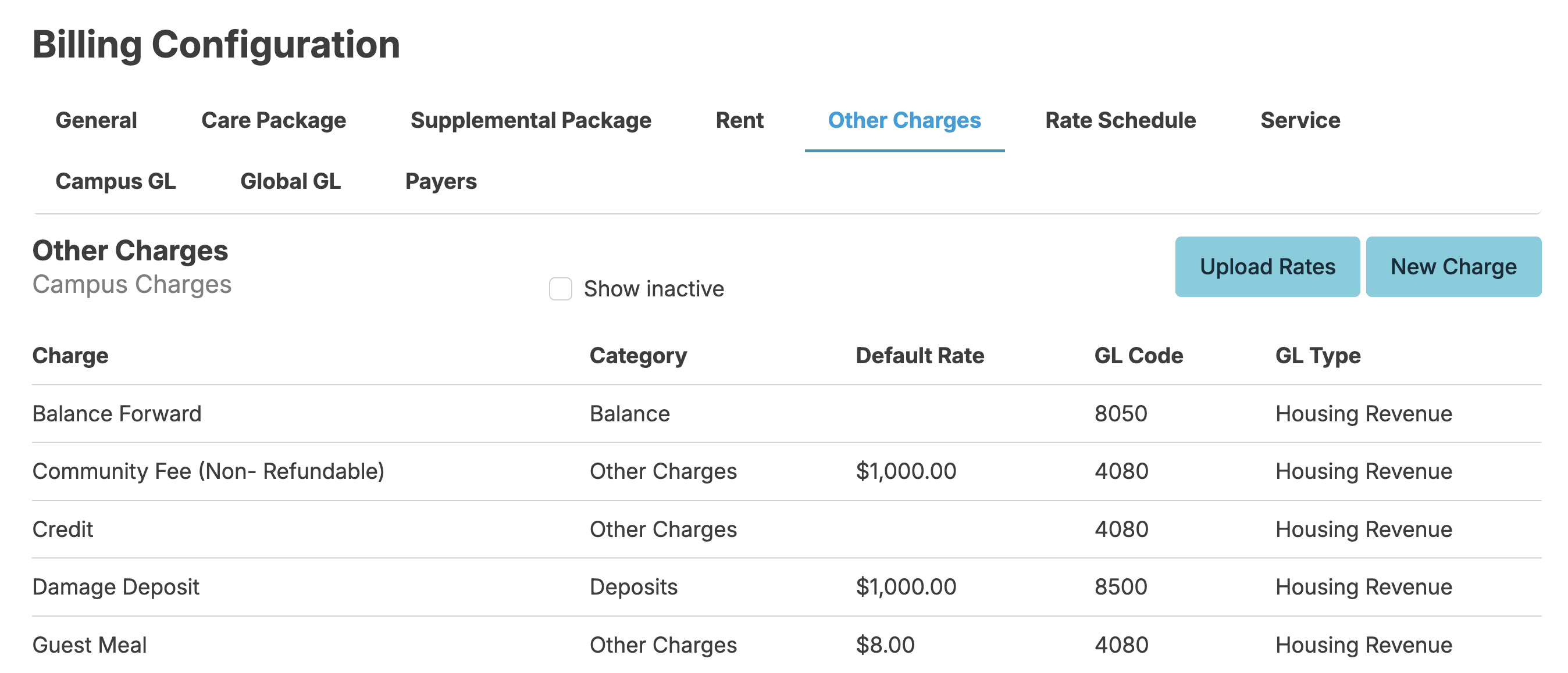
Incidental charges (not scheduled services) that are incurred by the resident and recorded by charting staff or uploaded by charting billing staff.
In order to make changes to the Other Charges option, users will need both Billing (Role 4) and Billing Supervisor (Role 23). From the Other Charges screen, update existing charges by selecting one, add new charge types, or inactivate/activate old charge types. Additionally, users who also have the Billing Manager (Role 28) have the option to add an Other Charge to multiple campuses at once.
Updating Multiple Other Charge Rates at Once
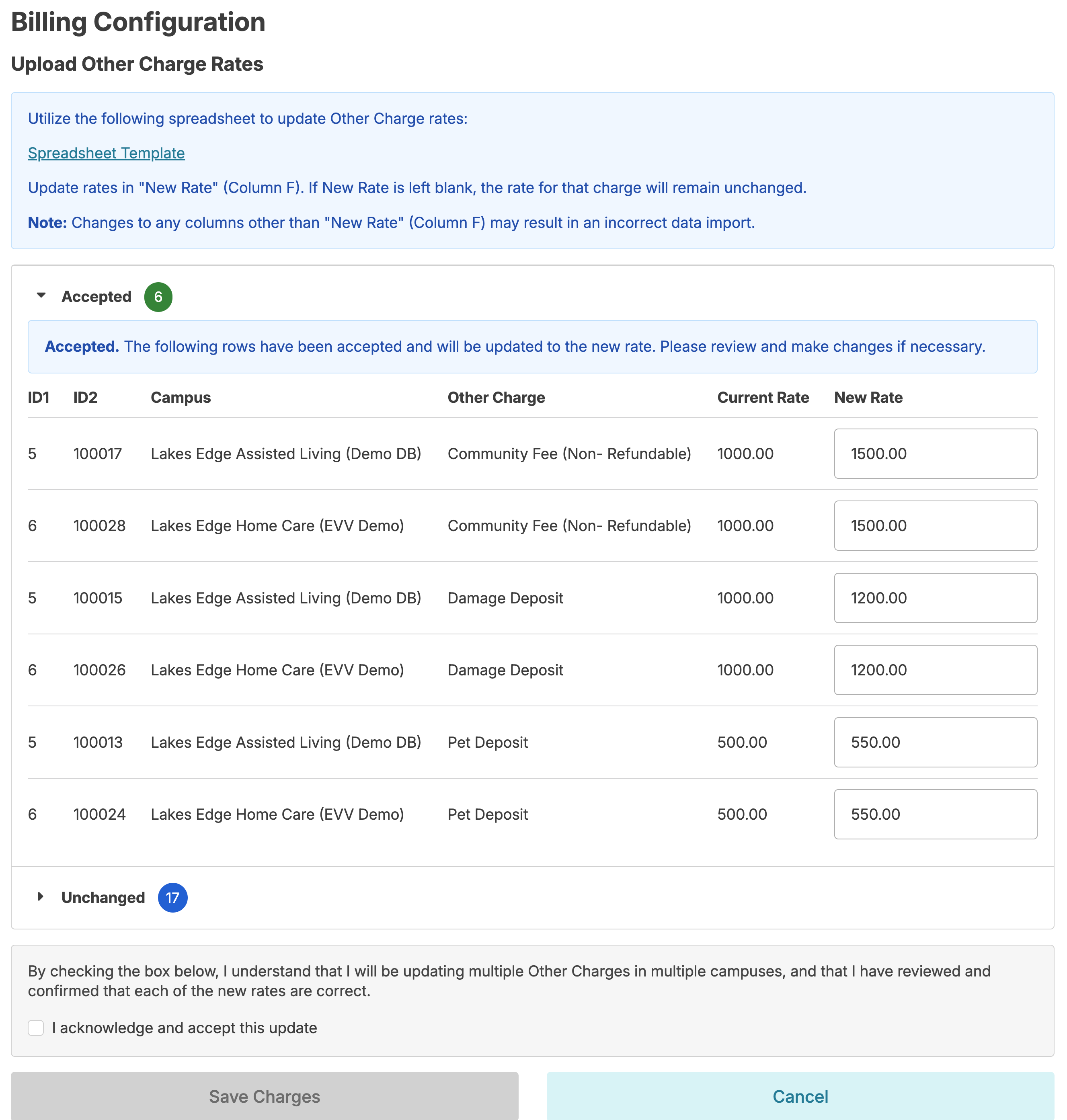
Users with Billing Manager (Role 28) also have the option to update multiple Other Charge rates at once. This can quickly be done by downloading the provided spreadsheet template, entering the new rates, and uploading the file back into Residex. Once the file has been uploaded, you will have a chance to review for errors and make any necessary changes before saving. Please note that this process can only be used to updating existing Other Charges and can not be used to add new Other Charges.
Service Charges
Service Charges are used to specify rates for fee-for-service billing when services are not included as part of a care package / supplemental package.
Adding / Editing a Service Charge
Users with both Billing (Role 4) and Billing Manager (Role 28) can select any Service, & modify details of the Billing section:
You can set the Charge Type for each service to one of the following:
- Fixed Postbill: a set rate per time for that service, billed after services are provided
- Fixed Prebill: a set rate per time for that service, billed prior to time services are provided
- Fixed Count: a set rate per "count" entered for that service
- Fixed Month Postbill : a set monthly amount, billed after services are provided
- Fixed Month Prebill : a set monthly amount, billed prior to time services are provided
- No Charge: free; will generate no charges when charted.
- Variable - Charges for these services will be based upon the rate schedule and the time spent in performing the service as documented by charting staff. Variable rates will always round up to the next increment. For example, if you charge in 15 minute increments and staff chart a service that takes 17 minutes, the system will round up and charge for for 30 minutes (two increments).
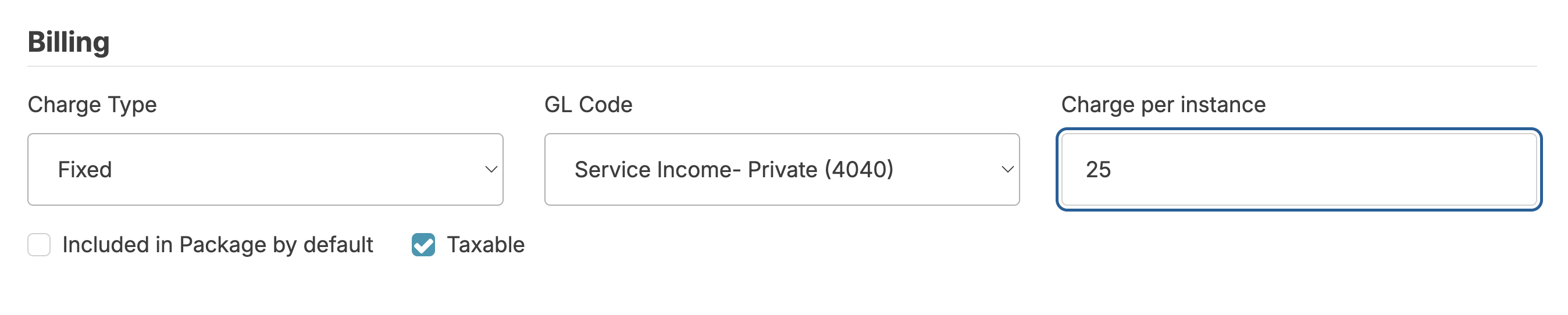
Fixed Charge Override per Campus
Overview
The Fixed Charge Override per Campus feature allows care providers to define unique fixed rates for billing services on a per-campus basis. Instead of applying a single system-wide rate for a fixed-rate service, each campus instance can carry its own rate — giving multi-campus operators the flexibility to reflect location-specific pricing structures.
|
Feature Name |
Fixed Charge Override per Campus |
|
Who Activates |
Residex Staff (back-end database configuration) |
|
Who Manages Rates |
Users with Role 411 |
|
Where Rates Are Managed |
Global Services list – per instance, fixed-rate services only |
|
Scope |
Per campus / per service instance |
Activation by Residex Staff
Before any campus-level rates can be configured, a Residex staff member must enable the global configuration flag for the operator’s database. This is a one-time setup step performed in the back-end environment.
This feature is managed across two levels:
- Residex staff enable the global configuration setting for the database.
- Authorized users (Role 411) then manage per-campus rates directly within the Global Services list.
Managing Per-Campus Rates (Role 411)
Once the global configuration has been enabled by Residex staff, users assigned Role 411 can manage fixed rates at the campus level. This is done through the Global Services list within the platform.
Access Requirements
- User must be assigned Role 411.
- The Fixed Charge Override per Campus global setting must be active for the database (enabled by Residex staff – see Section 1).
- The service must be configured as a fixed-rate service in the Global Services list.
Steps to Set a Per-Campus Rate
|
1 |
Open Global Services |
Navigate to the Global Services list within the Admin option |
|
2 |
Locate the Service |
Find the fixed-rate service for which you want to apply a campus-specific rate. Only services configured as fixed-rate will display the per-campus override option. |
|
3 |
Select the Campus Instance |
Within the service record, select the specific campus instance (community) to which the rate override will apply. |
|
4 |
Enter the Rate |
Enter the desired fixed rate for that campus. |
|
5 |
Save |
Save the record. The campus-specific rate is now active and will be applied when billing runs for that service at that location. |
Note: Rates can be updated at any time by a Role 411 user following the same process. Changes take effect for subsequent billing runs; previously posted charges are not retroactively adjusted.
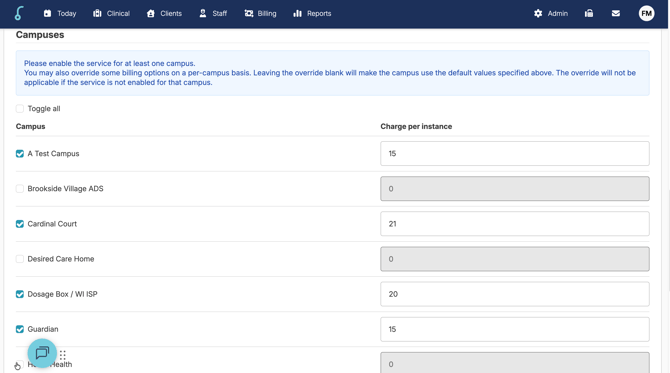
Other optional elements of Service billing configuration:
- GL Code: Assigns a GL code to each service for accounting purposes
- Points (Fixed): Specifies a set point value for the service. Points accrued determine care levels.
- Points (per minute): Applies points based upon the time spent performing that service.
- Include in Package by default: will automatically set that service to be included in a resident's care package, if present. This default setting can be overridden on a per resident basis.
- Taxable: If sales tax should be applied.
Global GL
GL codes can be set up in Residex by users with both Billing (Role 4) and Billing Manager (Role 28) by navigating to Billing > Billing Configuration > GL Codes > Click New GL Code.
You can view where a code is being used by selecting a specific GL Code Description and clicking the blue View where this code is used link.
Campus GL
Shows access to GL specific campus configurations.
Payers
A user with both Billing (Role 4) and Billing Manager (Role 28) can manage Payers from the Billing > Billing Configuration > Payers tab.
- Click New Payer to add a new payer. Complete the fields and select which campus the payer should be available for.
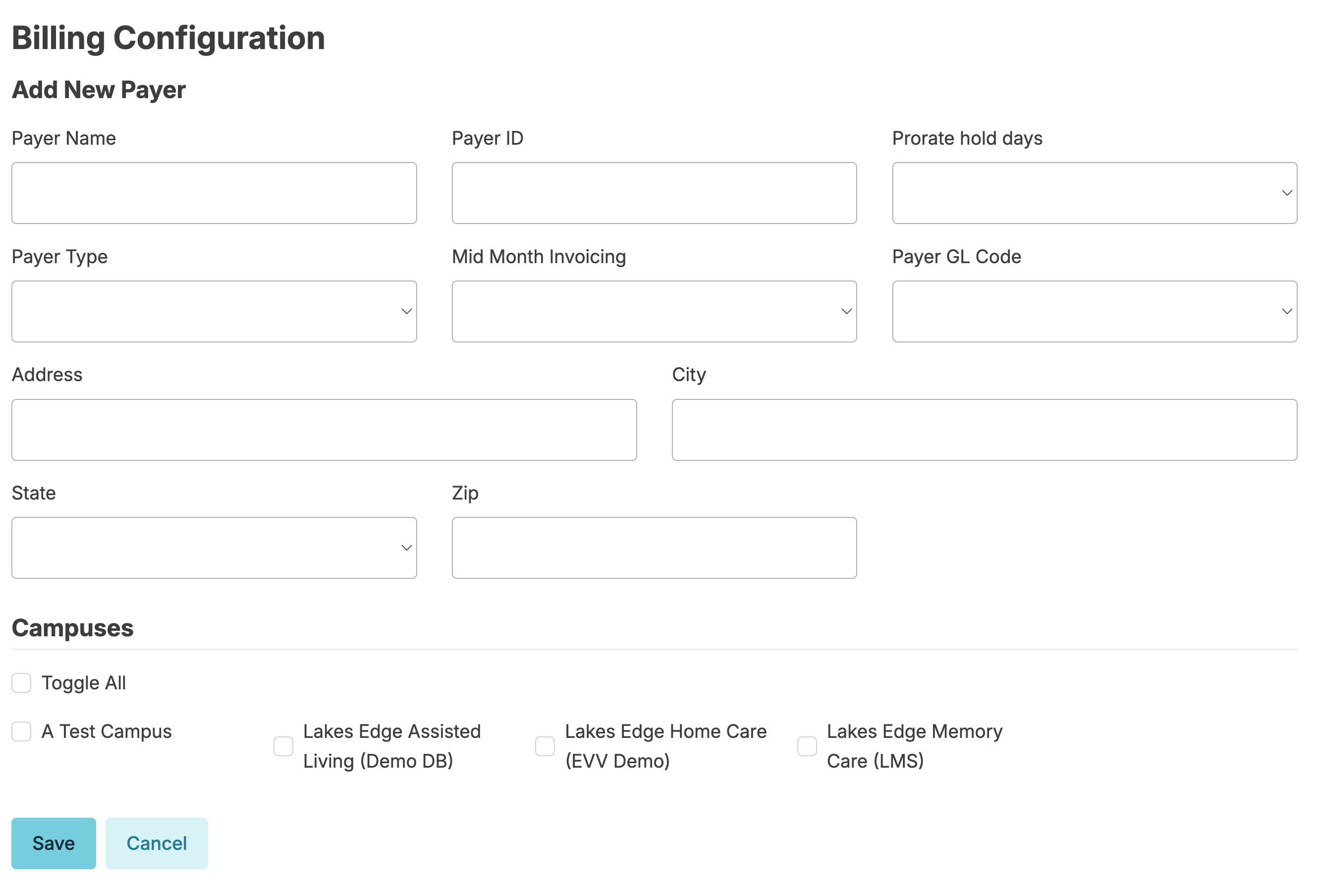
- Click into an existing payer to edit details or deactivate a payer. Note: a payer cannot be deactivated unless it is no longer in use with any residents. Deactivating a payer will not remove any history from that payer.
- Check the box Disabled to view inactivate payers. Click into an inactive payer and select Activate Payer > Save to reactivate payer.
Pro-Rating, Pre-Bill, and Post-Bill
Residex will automatically handle the calculation of pro-rating changes based on start and end dates. Prorating can be set to calculate annual days in a month (Daily rate = RATE * 12/365), or on the days in the month (Daily rate = RATE / # of days in month).
Care packages and supplemental packages can be configured to be pre-billed or post-billed based on your preferences.
Strict Close
You can prevent edits to closed months. Strict Close is a configuration that will prevent you from doing the following: Reopening a closed month, adding payments to a closed month, and backdating adjustments.
Supplies
If you provide supplies to your residents, you can charge for these supplies by enabling the configuration Track Supply Usage.
Residents > Record Supply Usage is the screen you and your staff can use to record any supply usage. If you manage billing for your organization, you can also use this screen to Manage supply list of the supplies you offer.
To manage the supply list, users with Billing (Role 4) and either the Manager (Role 11), Supervisor (Role 13) or Nurse Provider (RN, LPN, Nurse) will have the blue Manage Supply List option next to the Item field. Clicking on the blue Manage Supply List next to Item option will allow you to view & edit your existing types of supplies, and add new types.