
Alerts are text messages or emails that Residex will automatically send out to users to notify them of certain events as they happen (medication administrations are late, an incident was recorded, etc.). Alerts are sent out hourly throughout the day and night until resolved or expired.
Dashboards, specifically the Login Report, greets users when they log into Residex (also available under Reports > Dashboard). You can configure the Login Report to include reports relevant to each provider type. In addition, users can move between a number of specific, pre-set dashboards that give enhanced access to topic-specific information. These additional dashboards are curated and managed by Residex staff.
The QA Status screen compiles reports that cover key quality indicators into a single screen.
Managing Alerts, Login Report, Dashboard, & QA Status
Individuals with Role 411 are able to manage Alerts, Login Reports, Dashboards and QA status, select Admin > Manage Alerts
- If any of these features are not enabled, you will have the option to enable them by clicking the associated button. You also have the option to disable any of these features.
- Use the search feature to search for a specific Report, or browse by selecting a Category, and seeing which reports are available for that category.
- Once you select a report, you have options to Add report to Alerts, Add report to Login Reports, and/or Add report to QA Status - select any that are appropriate. Some reports may not be appropriate or available as alerts, and so the button displays in gray scale and is not available.
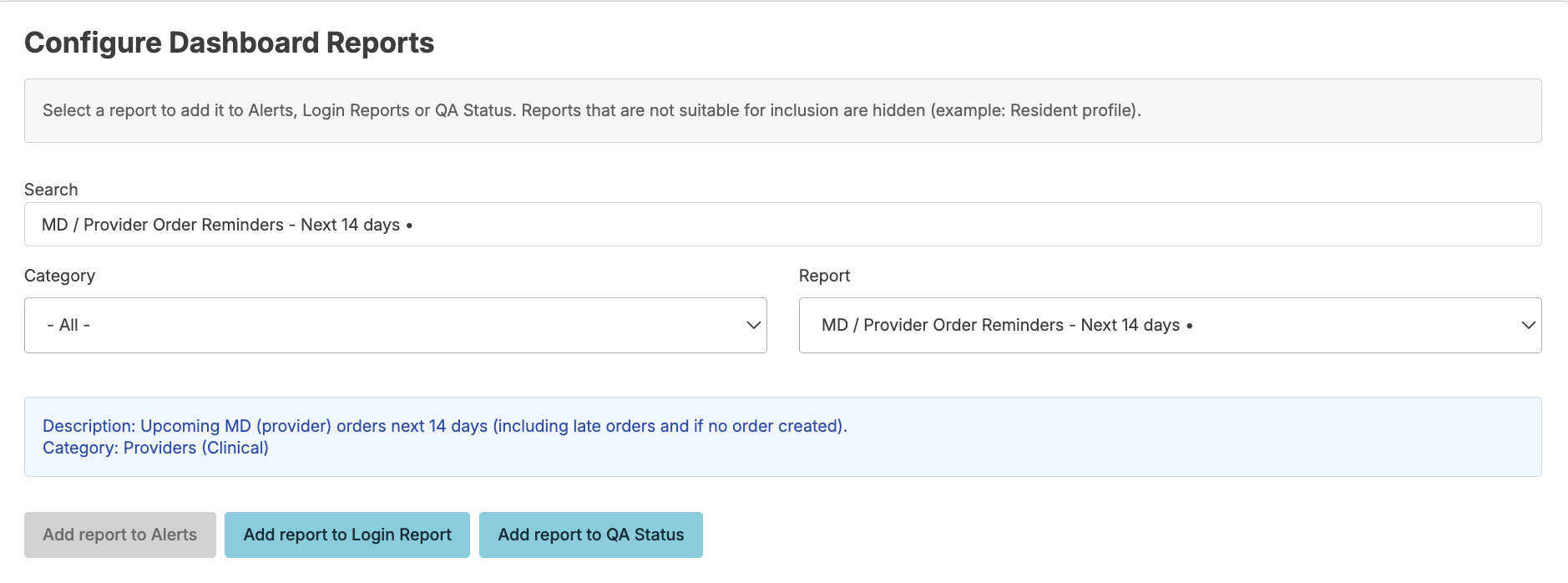
- Once you have selected your Alerts, Login Report, and/or QA status, you can remove an item by clicking on the Delete (trash can icon) button or edit who will see the item by clicking on the Pencil.

- Dashboards contain a pre-determined group of reports. You do not have the option of selecting reports for inclusion, but you can deactivate a report (which prevents its inclusion in the dashboard) and also set which provider types are able to view each type of dashboard.
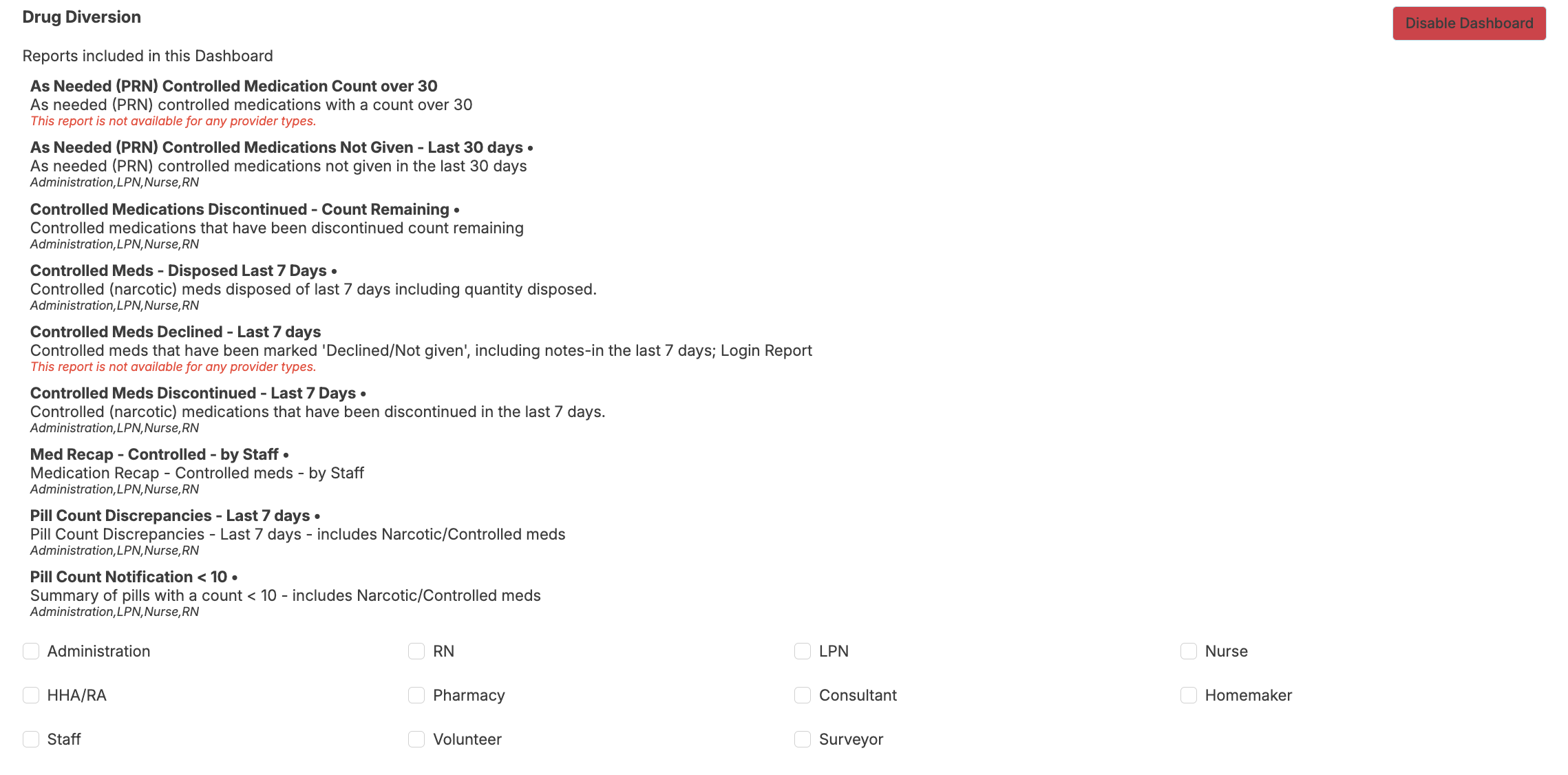
Any changes you make on this screen will go into effect immediately.