Table of Contents:
- About eMAR
- PRN Medication Administration
- Controlled Medications
- Medications Sent out of Facility
- Dosage Box-Style eMAR
- Charting a medication when it has been entered late
About eMAR
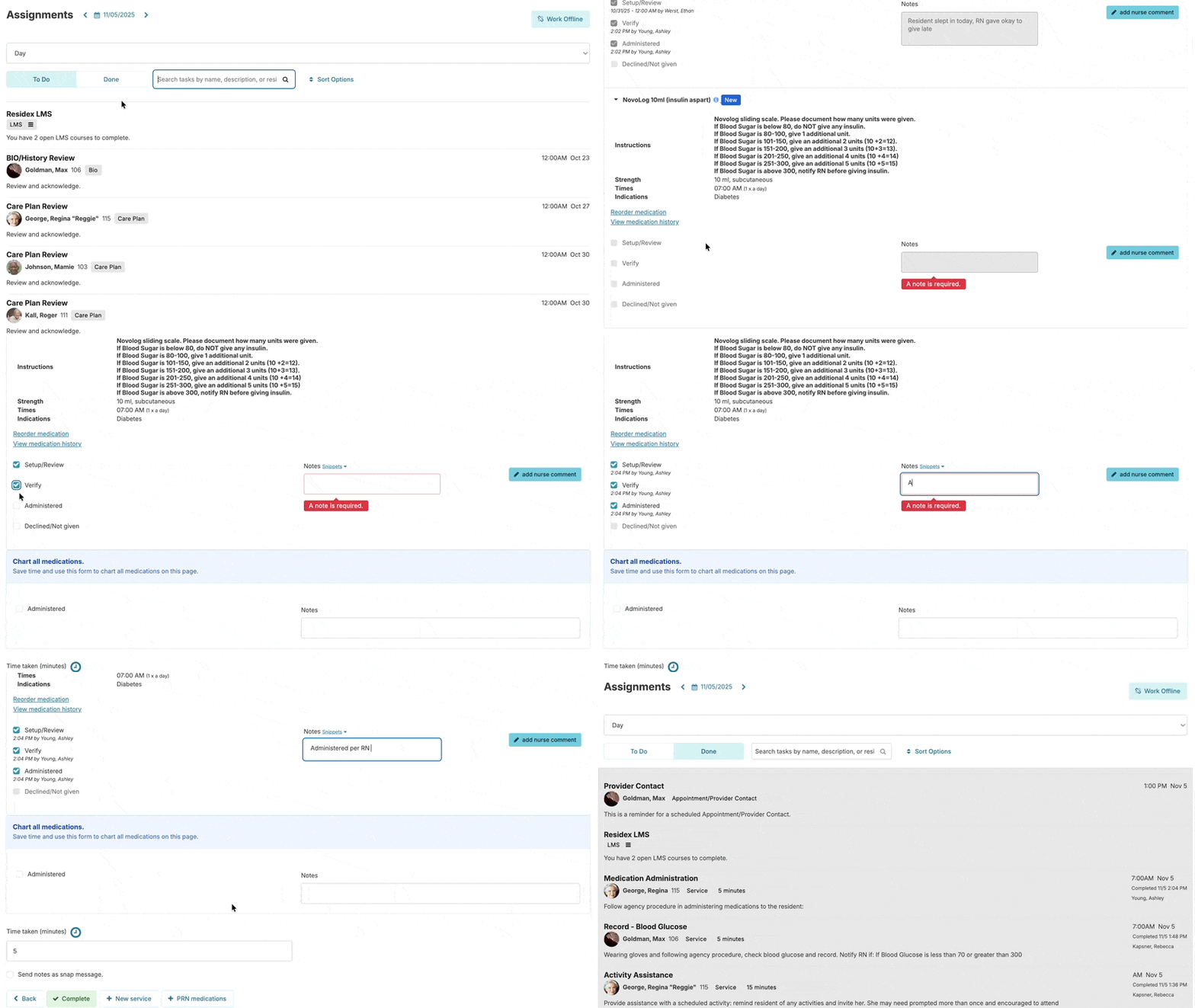
The Residex eMAR is integrated directly into the Residex's Assignments Screen. If you are using the eMAR, medication administration services will appear on the Assignments screen just like any service you might provide, except they will require more detailed information from you when they are charted.
The Residex eMAR is very configurable and what options display depend on your state regulations and your organization's preferences.
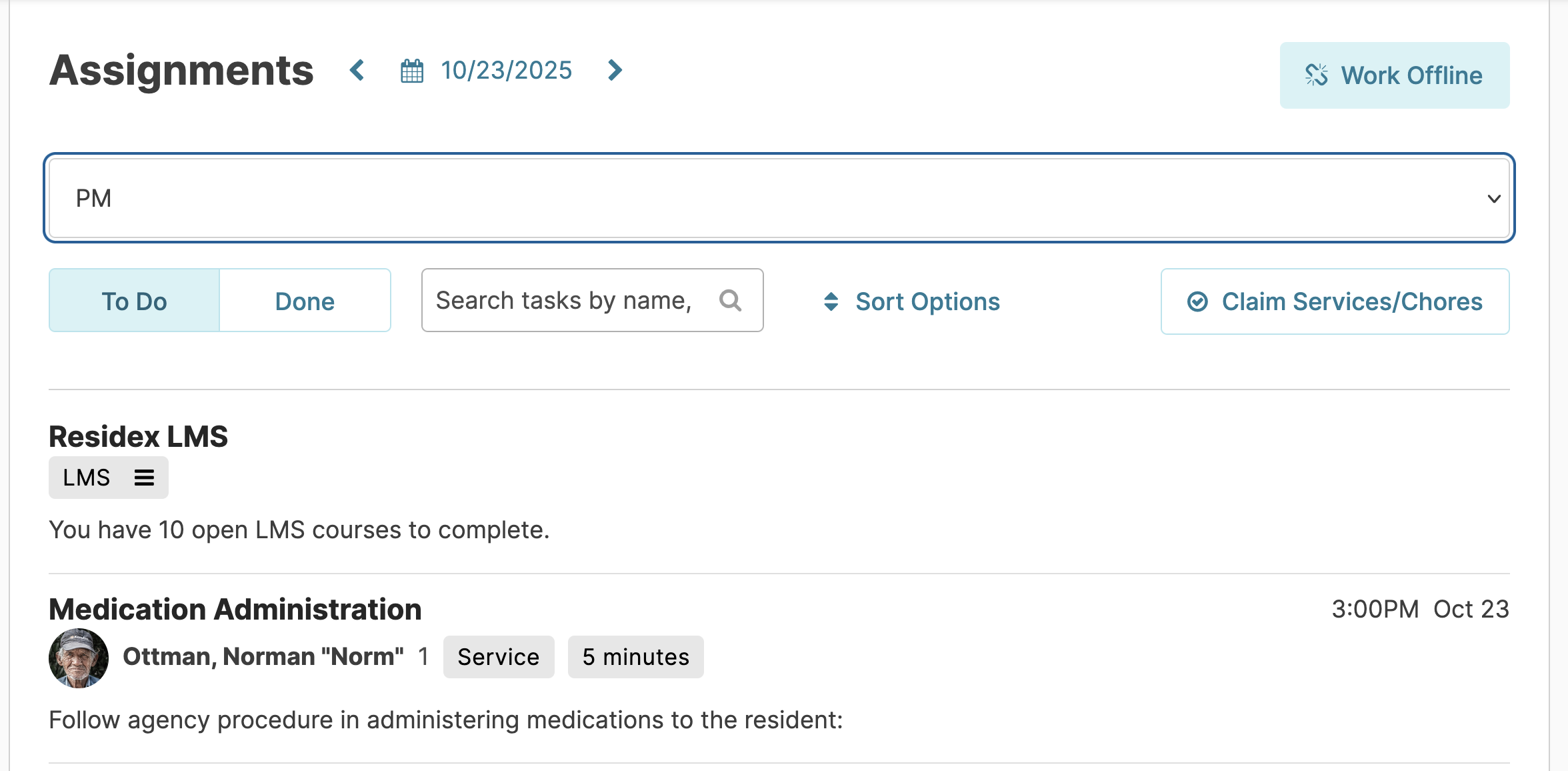
Documenting Medication Administration
From the Assignments screen, click on a medication administration service - this will open a page with the details of this med pass.
If this resident has vital signs that must be checked before their medications are given, you will be notified by a prompt to record those vitals first.

You will see a list of all medications scheduled for administration for the resident and time you selected. you can collapse/expand this list to make for easier navigation.
There are two blue links available for each medication. View Medication History, if clicked, will show the recent history of administrations for that med. Reorder Medications will allow you to add details of that med (RX number, prescriber, and pharmacy) and add that med to a list of meds to be faxed to the pharmacy.
You will also notice a blue "i" to the right of each medication. This will take the user to the National Institute of Health Database where they can view current, reliable information about the uses, dosage, side effects, contraindications, black box warnings, etc.
Next, it's time to chart. Your charting options may be labeled differently if your organization has configured custom labels.
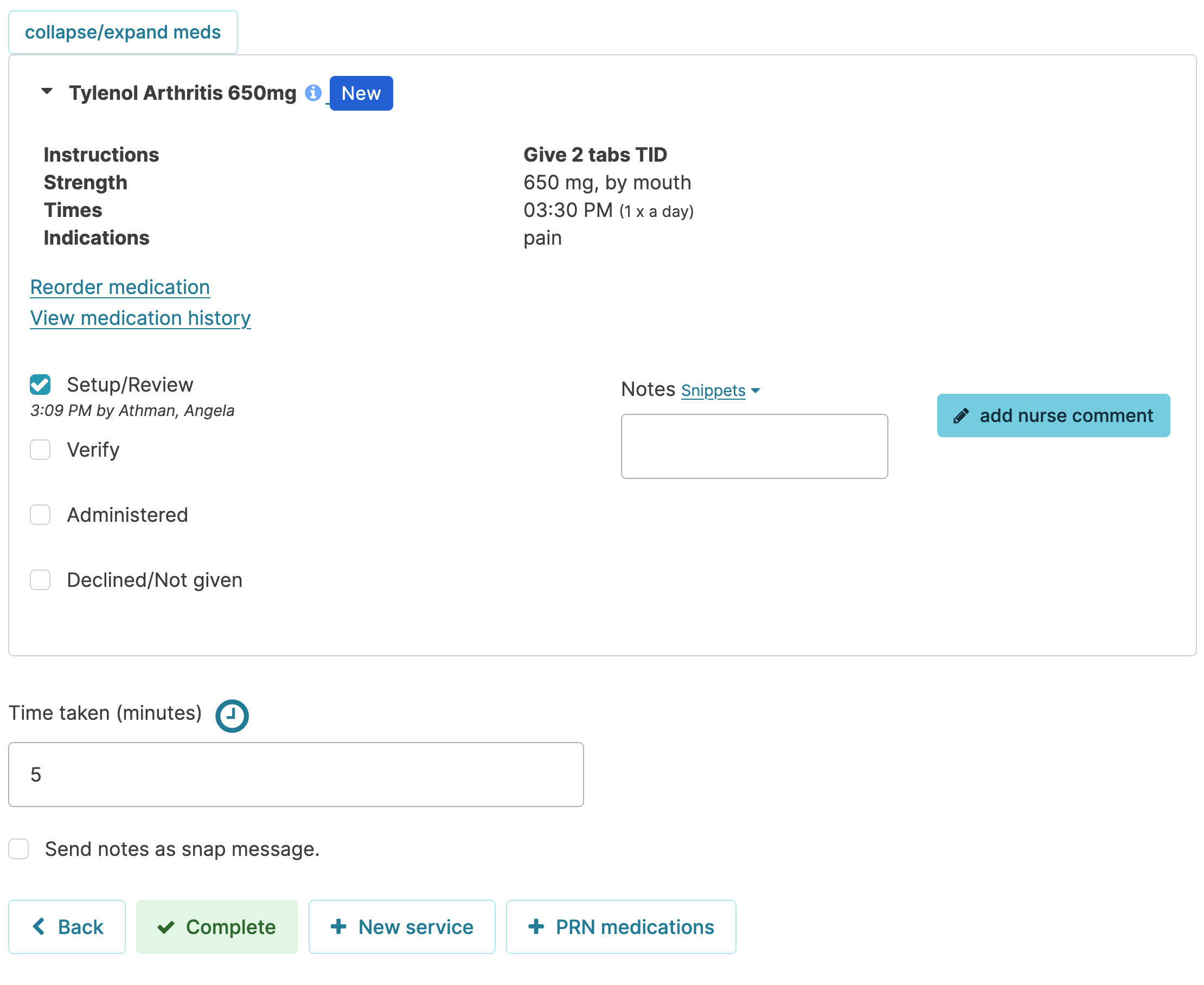
- If your nurses do a Medication Setup or Review step, the first box will be visible and should be checked for you.
- If you are required to do a step to verify you have the correct medication before administration, the "verify' checkbox will be visible. Check this box to verify you have the correct medication, correct resident, and correct time.
- Check the "Administered" or "Declined" options as appropriate, and record notes about the administration if necessary.
Next, repeat this process for all other medications scheduled at this time.
Finally, when you are done with all of your charting, press the Complete button at the bottom of the screen to finish charting this medication administration service.
Barcode Scanning
The barcode scanning feature in Residex Software is an optional tool designed to help users streamline medication administration.
Controlled Medications
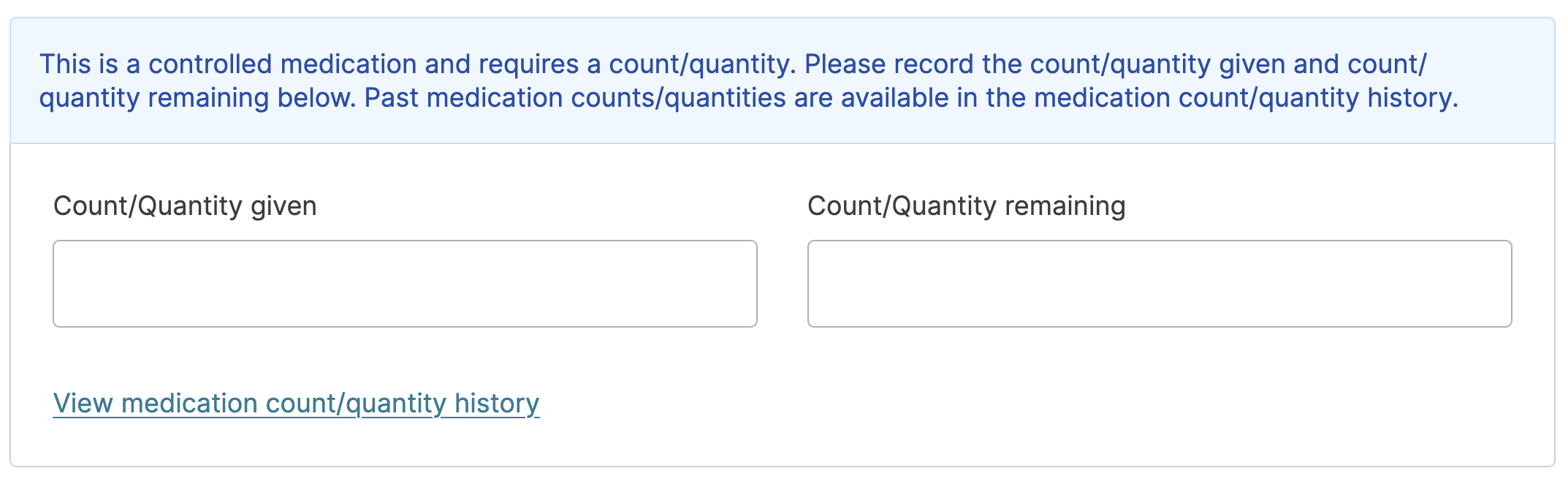
When administering a controlled medication in your list, you will also be prompted to record a count given, and a count remaining.
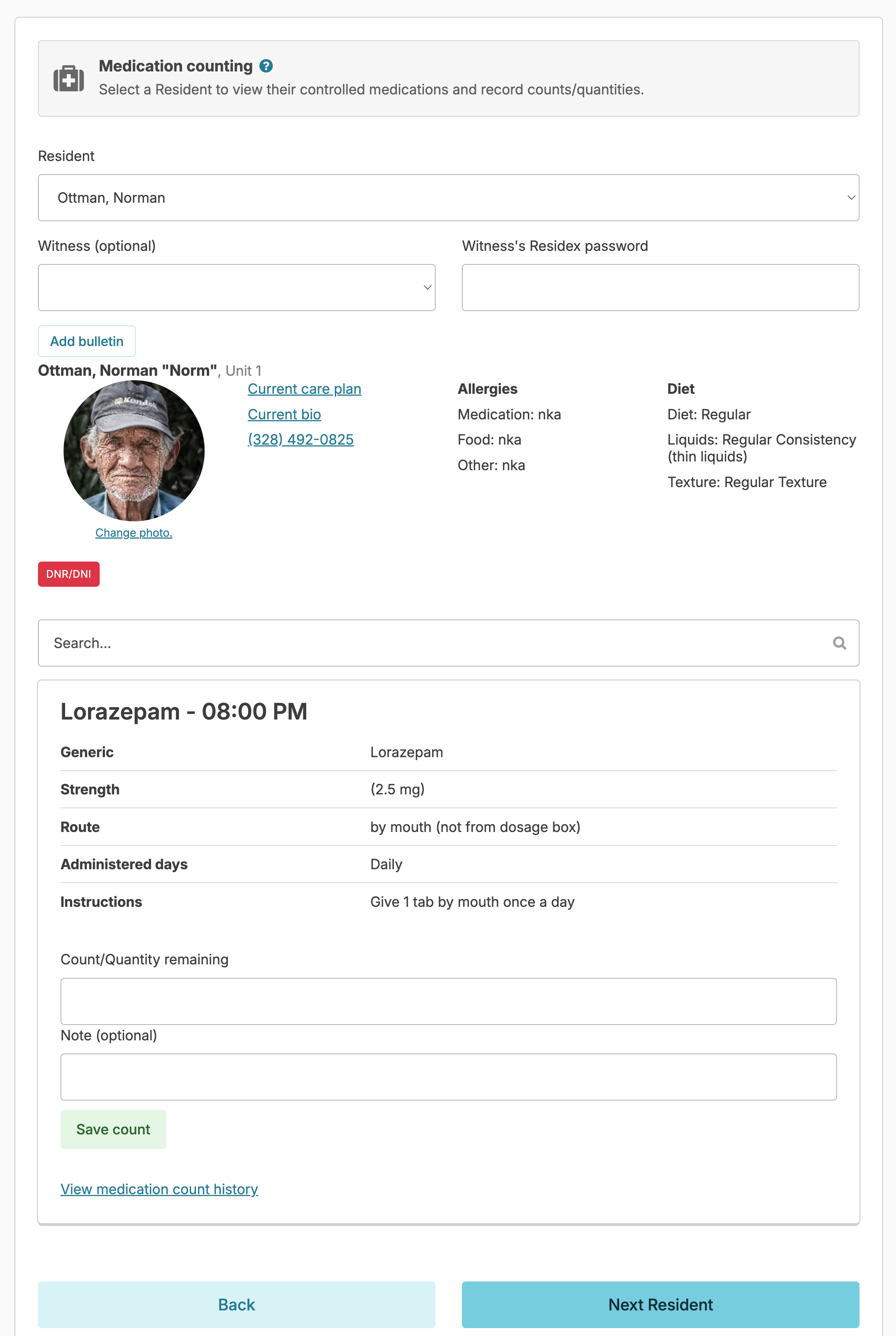
Counting Medications
You can conduct counts for controlled medications on demand; most commonly, this is done at shift change times.
From Clinical > Medication Counting
- Select a Resident - All of the resident's controlled medications will appear.
- Record Counts remaining
- Select a witness (someone else with a Residex account) and have them enter their password and press Save.
- NOTE: If you are working in the NEW URL and being prompted to enter a PIN rather than a password, your default PIN is your OLD URL Residex password. This can be updated by navigating to the upper right corner of Residex Initials/Photo > Settings > Account Security > Set Residex PIN
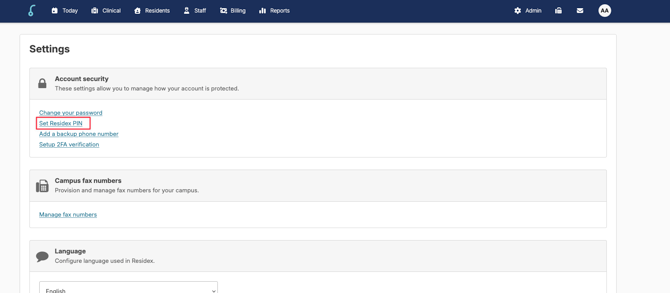
- NOTE: If you are working in the NEW URL and being prompted to enter a PIN rather than a password, your default PIN is your OLD URL Residex password. This can be updated by navigating to the upper right corner of Residex Initials/Photo > Settings > Account Security > Set Residex PIN
- Repeat this process for all of your residents with controlled medications.
Note: Medications that have been discontinued will remain on the Medication Counting screen until the remaining count is 0, this can be completed by navigating to the Medication Disposition screen.
Sliding Scale Insulin
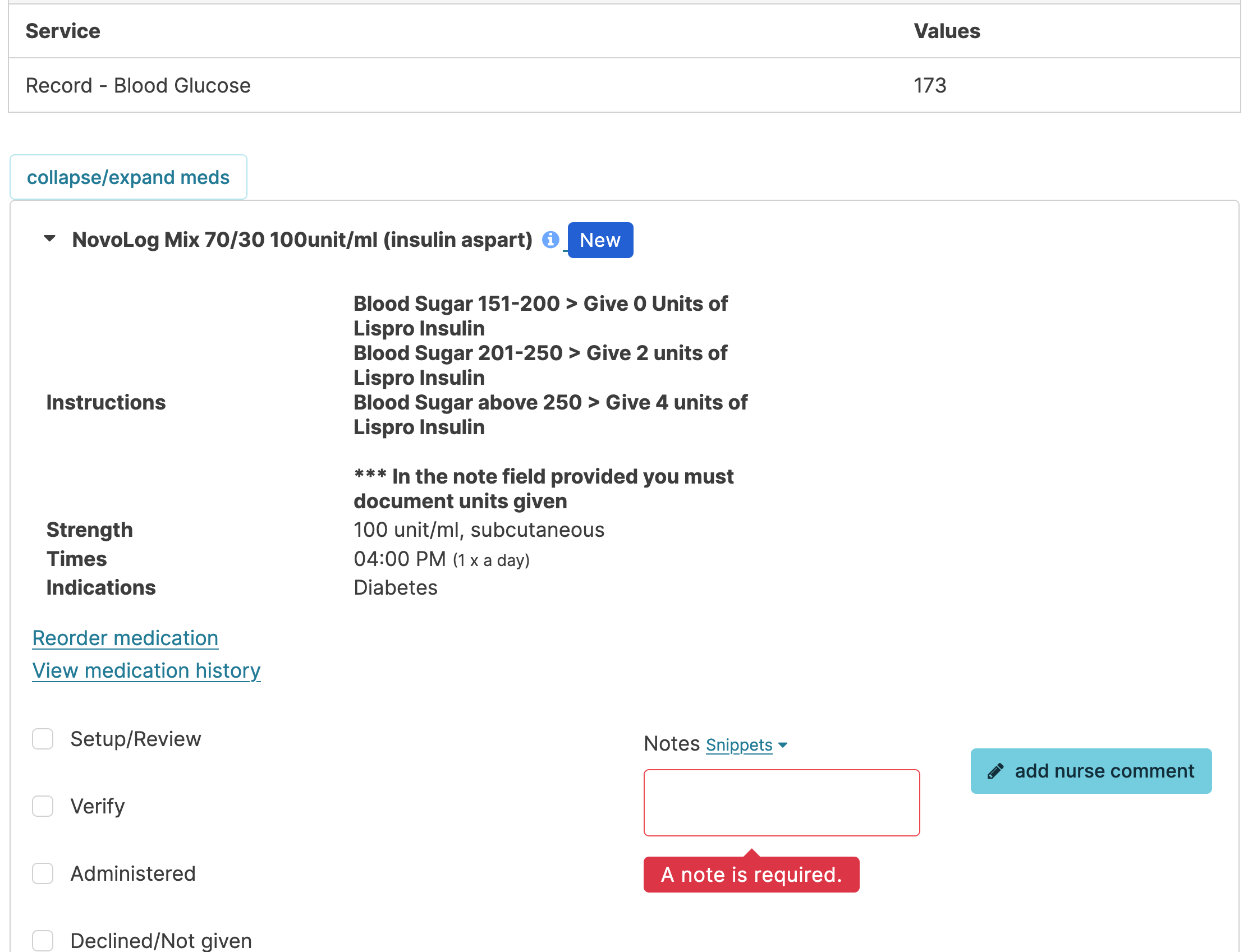
When administering insulin, you should be prompted to first record a resident's blood glucose level, and then will be required to add details about how many units were administered and where.
eMAR Charting Restrictions
Residex offers two options for charting restrictions, detailed below. In addition, provider type and roles will determine how far in advance or how late an individual can chart a medication administration.
PRN Medications
- No one may chart a PRN med at any future time
- Nurses and Staff with Manager or Supervisor Role may chart a PRN up to 3 days late.
- All other staff may chart a PRN med as having been given up to 1 hour ago.
With Charting Restrictions turned on (Recommended)
- Nurses, Managers, and Supervisors may chart scheduled medications up to 2 hours early or 4 hours late without a note being required.
- Nurses, Managers, and Supervisors may chart scheduled medications up to 12 hours early or 14 days late with a note included explaining the circumstances. Outside these parameters, no medication charting is possible.
- Aides/unlicensed staff may chart meds 2 hours early or 1 hour late with no note required.
- Aides/unlicensed staff may chart meds 1-4 hours late with a note required. Outside these parameters, the med passes are locked and they should call a Supervisor.
Simplified Times are an exception to the above. A med with a time such as AM, PM, or Bedtime may be marked complete any time the same calendar day it was scheduled.
With NO Charting Restrictions Set
- Any scheduled medication may be charted by any staff up to 3 days early or up to 14 days late.
This setting can produce confusion if a staff person selects a wrong date on the Today screen, resulting in mis-charted services and medications.
PRN Medication Administration
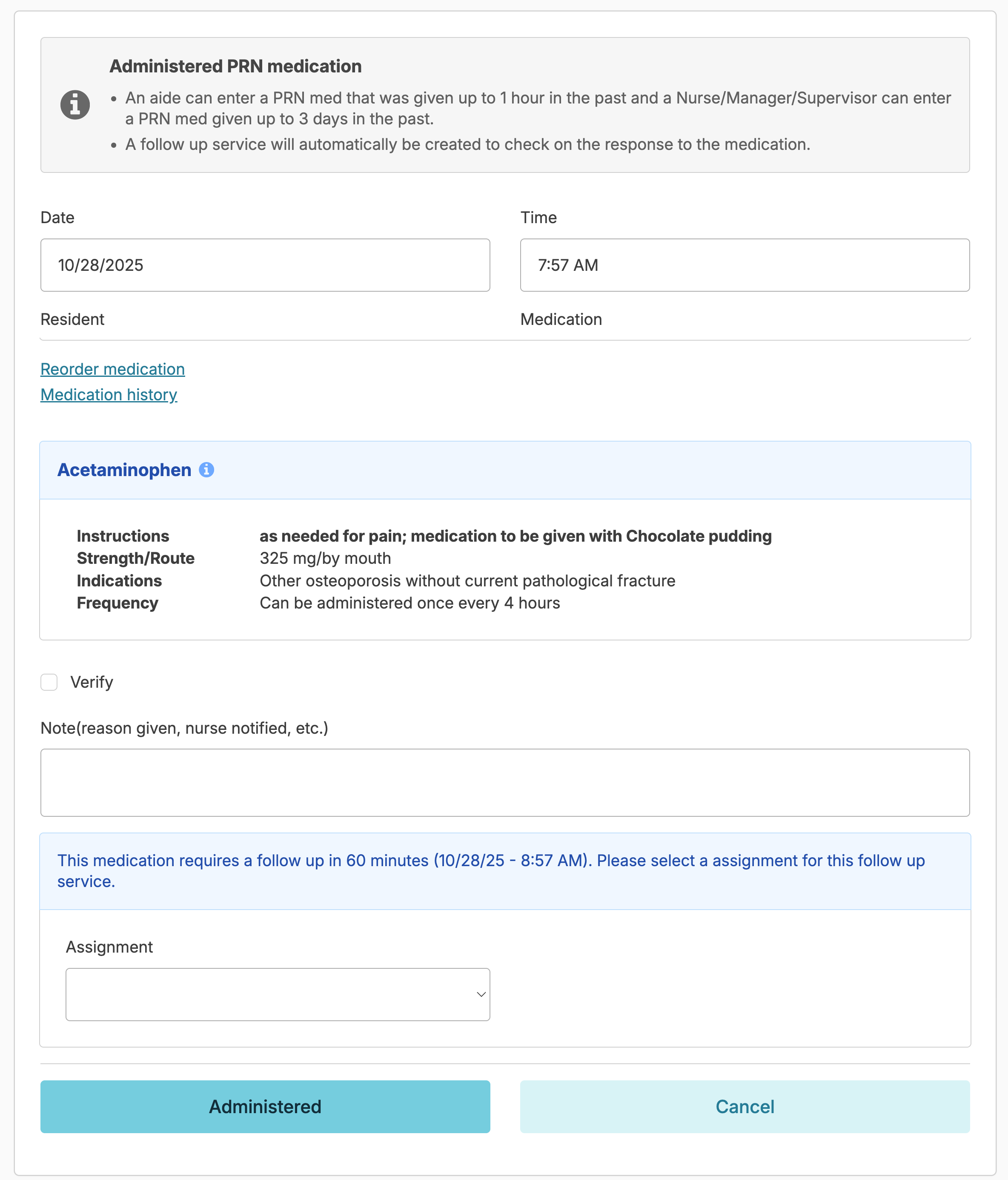
In addition to charting regularly scheduled medication administration, you may also chart medications administered on an unscheduled or as needed (PRN) basis.
To administer a PRN medication, navigate to Clinical > Chart PRN Medication
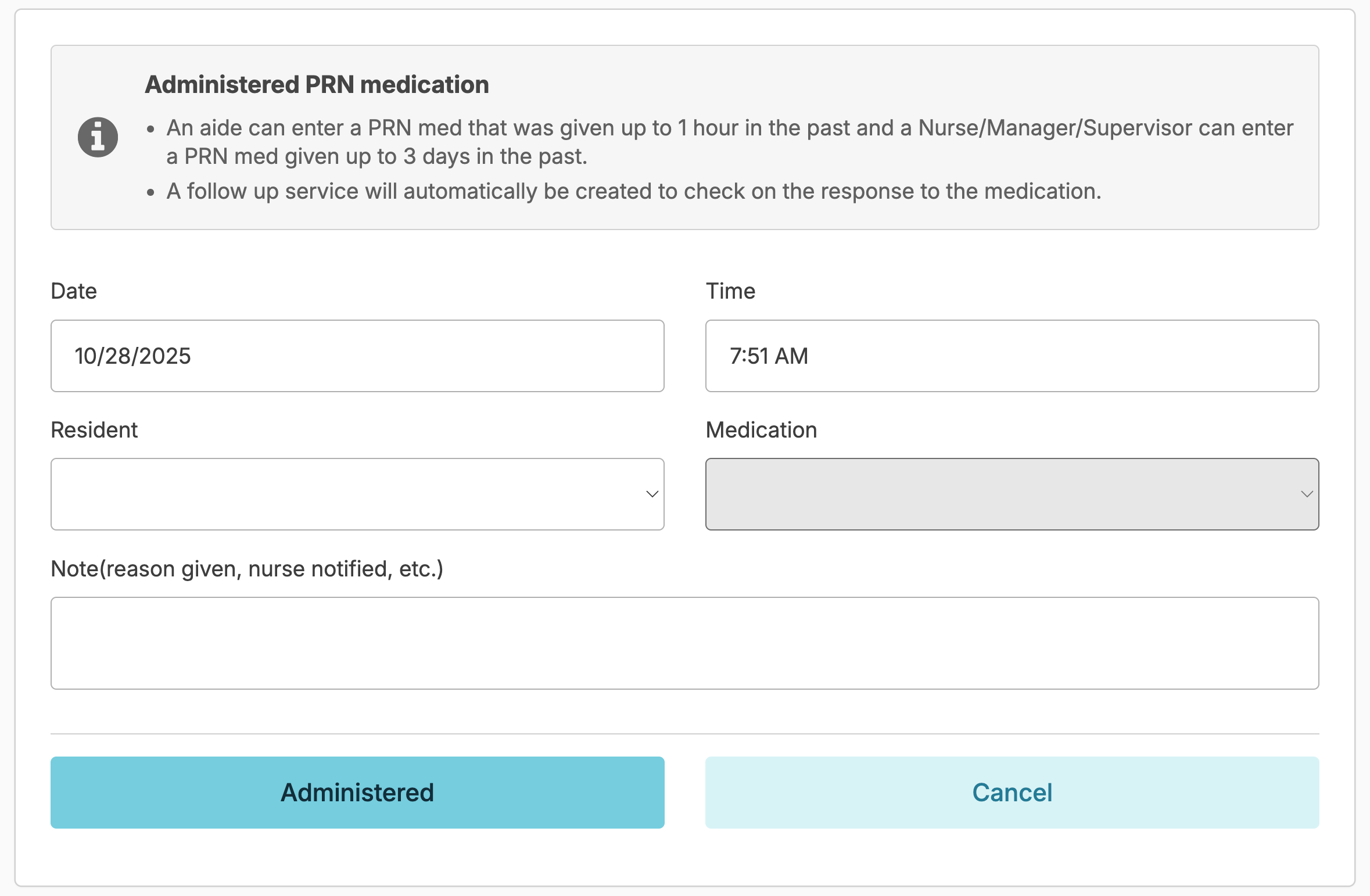
Make the appropriate selections. Once you select a Resident, you will be able to view what PRN medications you can administer to your specified resident and why. Administration notes are required when administering a PRN.
If the medication you have selected has been administered in the last 24 hours, you will be warned, and you will have an option to review the entire medication administration history for the resident.

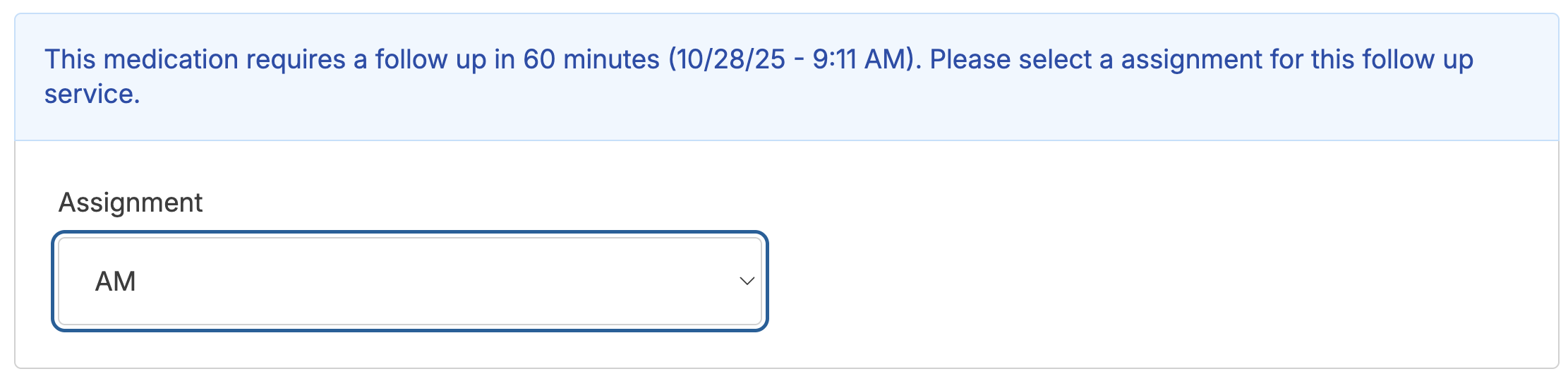
To complete the PRN administration, you will need to schedule a follow-up to document the response to the PRN. Select an assignment to do this documentation, and a new job will be created on the Today screen for the assignment you have specified.
NOTE: If the PRN medication is charted late (after the allotted follow-up time required), the PRN follow-up service will not appear because the required follow-up time is now in the past. To ensure follow-up tasks appear, chart PRN medications at administration or in "real time". For example, if a PRN is charted as being administered at 6:00 AM and the follow-up would be 1 hour later, but staff is actually charting it in the system at 7:01 AM the follow-up service will not appear on the today screen. If this happens it is recommended that staff enter the follow-up in the PRN Note field when charting.
Medications Sent out of Facility
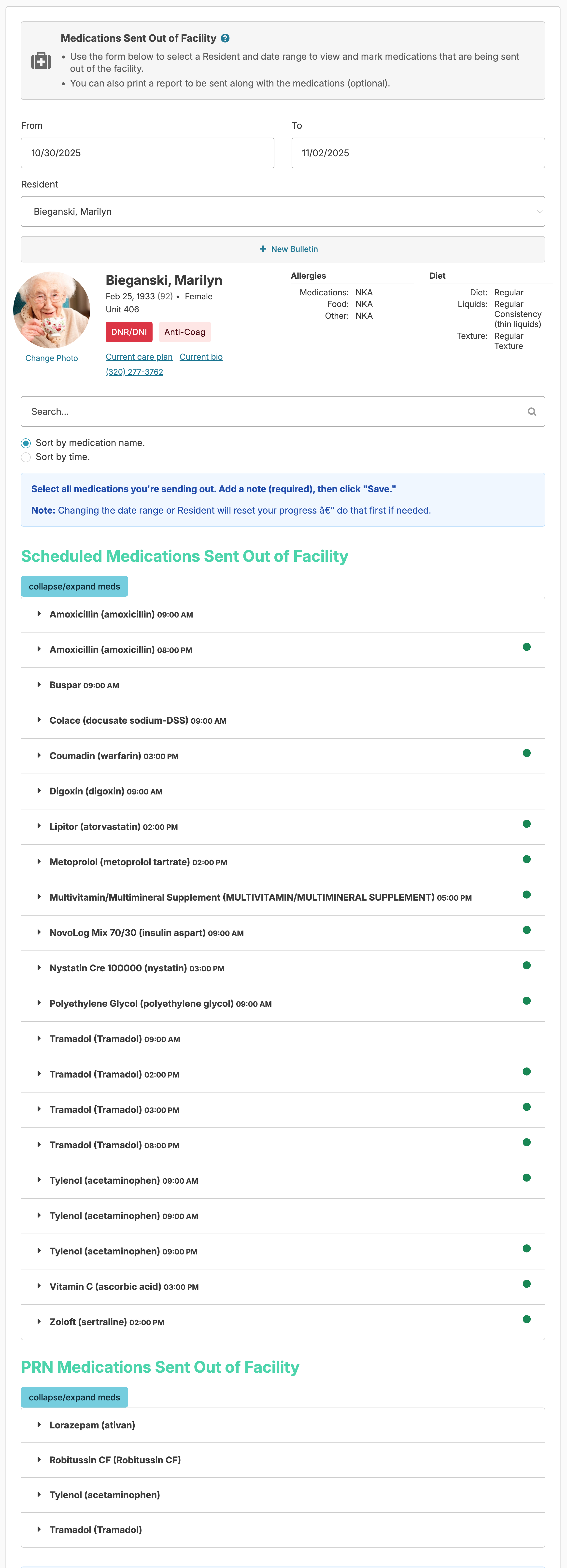
When a resident takes a leave of absence from your facility, you may need to send their medications with them. With Residex, you may document which medications have been sent with a resident, and provides a summary report of those medications that can be provided to the responsible party. Residex allows you to specify up to 35 days (5 weeks worth) of medication as sent out of facility. In addition, the nurse can review and mark as reviewed those medications sent with the resident.
Sending medications with a resident
From Clinical > Medications sent out of facility, specify a resident and a date range they will be out of your care. This will present a list of all medications for the selected resident that are scheduled to be given in the selected time frame.
Note: Changing the date range or resident will reset your progress - do that first if needed.
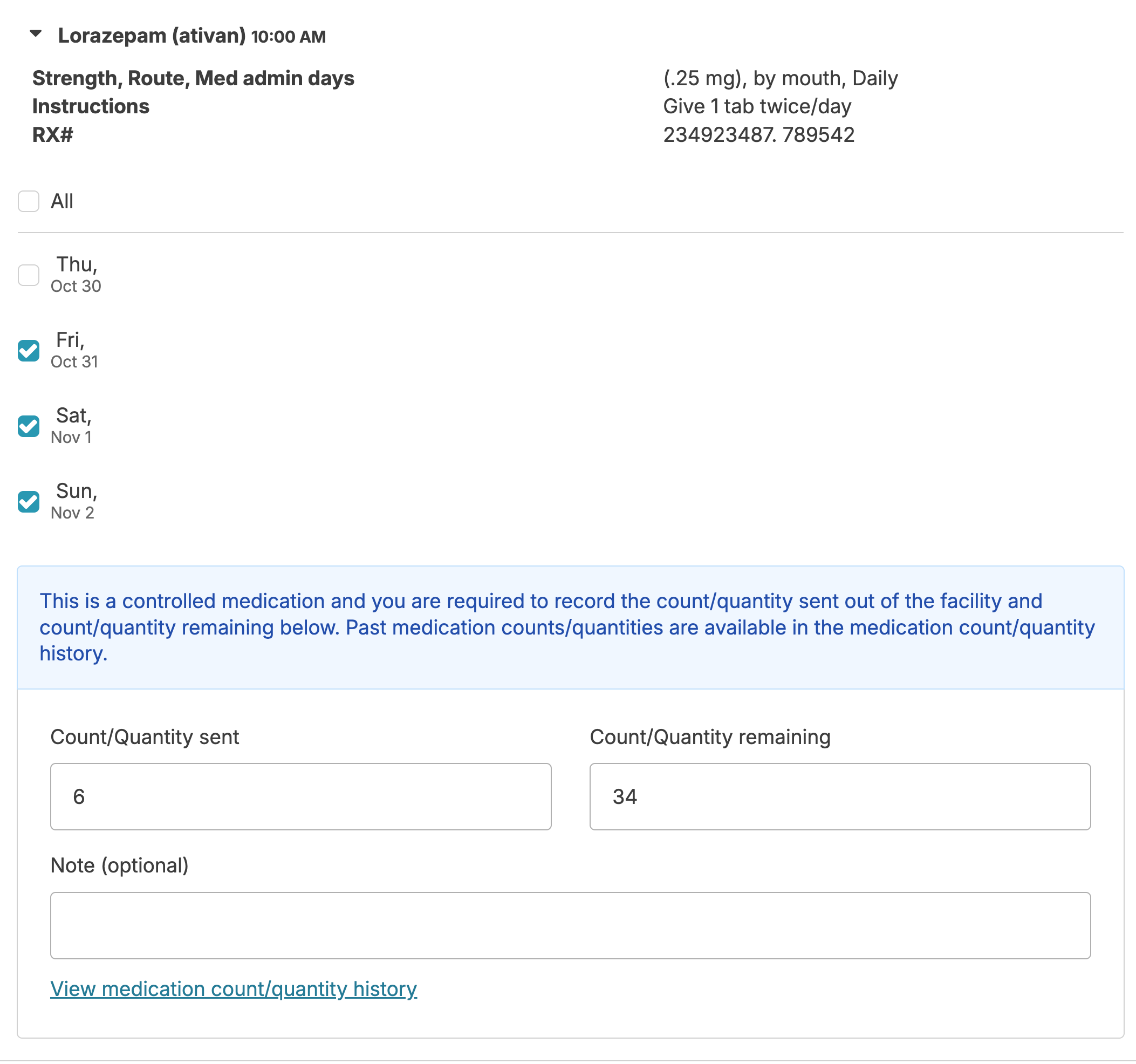
When sending controlled medications out of the facility you will be required to enter a Count/Quantity sent and Count/Quantity remaining.
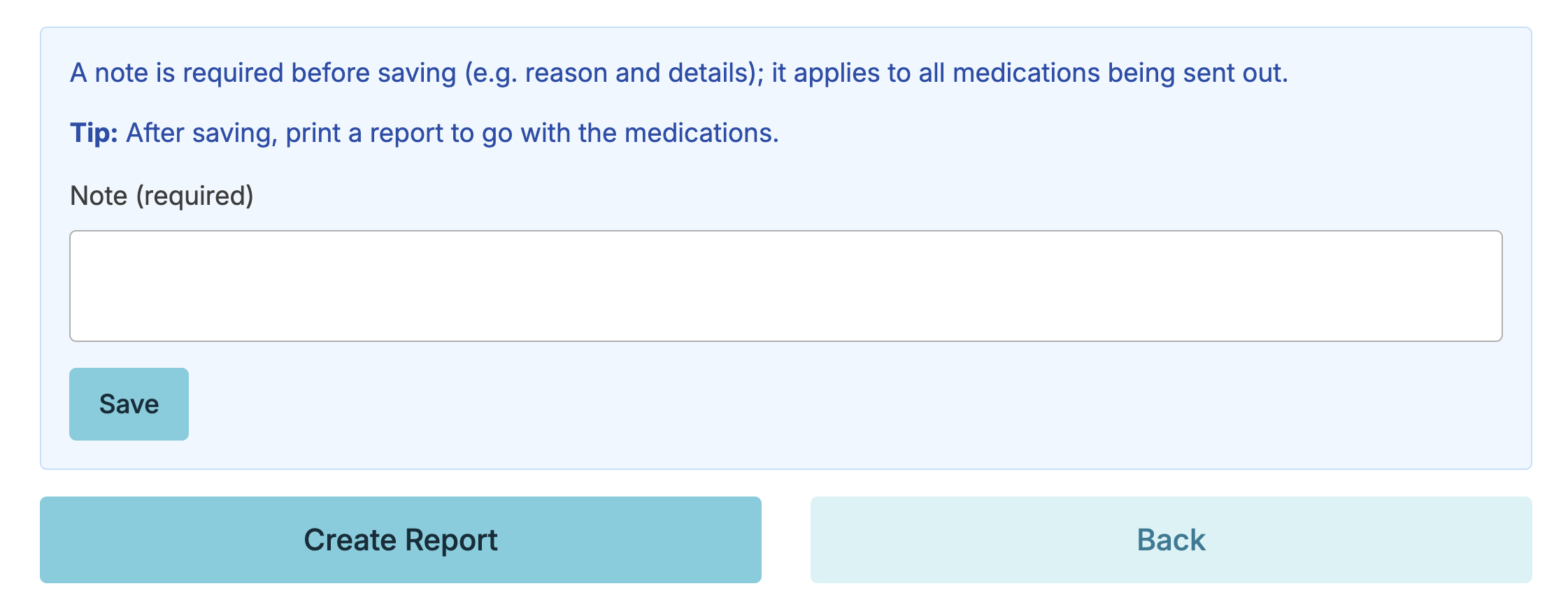
When you have reviewed all of the medications to be sent with the resident, you will be required to enter a note regarding the details of why the medications are being sent out. Once you have checked all of the meds out and entered the note, you are required to click 'save'. Once saved a report Medications Sent out of Facility - By Resident can be printed by clicking the Print Report button below. This report can be used as a release document, including a very detailed 'layman's MAR', with specific day-by-day instructions for medication administration.
Impact on Charting
When medications are sent out of the facility in this way and the resident placed on hold, the meds will no longer be presented to staff for charting at the facility. Your eMAR & medication administration history records will reflect that the meds were sent out.
Resident Early Return
If the resident returns early from their leave, the original person who sent the medications out, a nurse, or someone with Supervisor (Role 13) may return to this screen and uncheck any doses returned with the resident. Once clicking 'save', the medication doses will be available to administer again through the eMAR.
If the medications are controlled, the count will need to be adjusted to reflect accurately. To add the controlled medication back to the count, navigate to Clinical > Receive Medications > choose resident > choose medication > indicate count/quantity received, enter a note, then click 'save.'
Dosage Box-Style eMAR
eMAR view
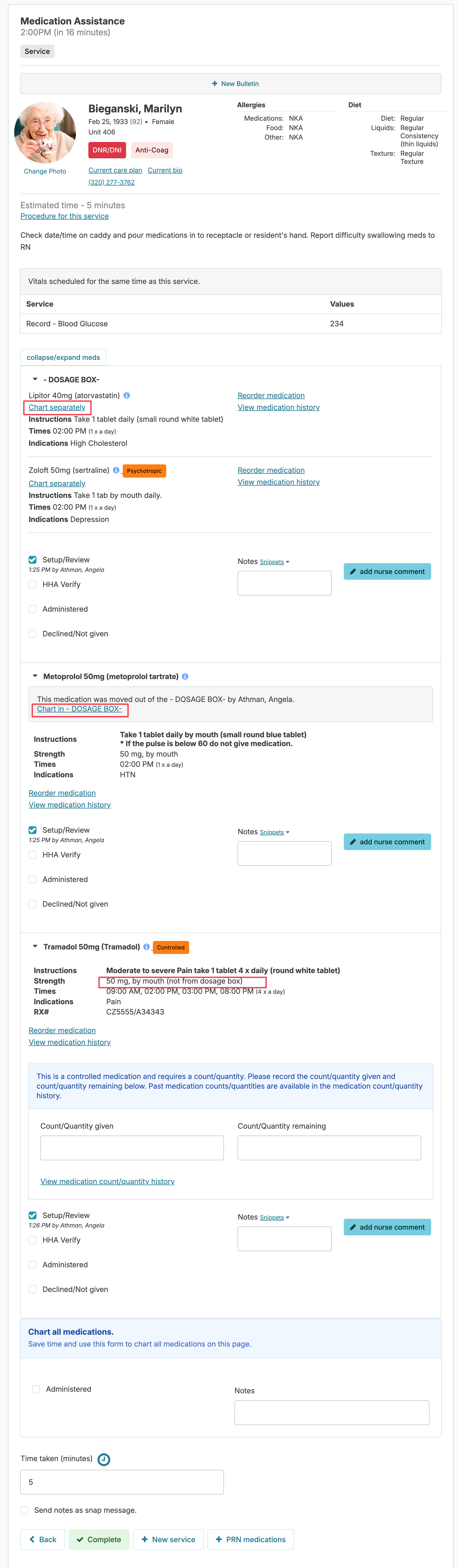
From the Assignment screen, the Medication Administration service will appear with 'by mouth' meds grouped together in the dosage box. Note that the nurse has performed the setup/review step and staff are asked to verify and them mark the meds contained in the dosage box as administered or declined as a group.
If any of the meds in the dosage box need to be charted separately (e.g. if the resident is declining one and taking the others), they are able to click the chart separately link that will simply remove it from the dosage box and allow it to be charted separately. Likewise, they can click the Chart in DOSAGE BOX and move it back into the Dosage box view.
As stated before, meds marked as by mouth (Not from Dosage Box) will be listed separately, along with meds by different routes.
If a new medication was not included on the eMAR but was administered, and the medication pass for that time has been closed prior to the nurse adding that medication into the Residex eMAR schedule, you can still chart the new medication.
- Navigate to Today > Assignment > Done
- Find and select the already documented medication administration service
- Select the Redo button
- The newly added medication will now appear on the screen. Chart this medication administration, and mark the service Complete