
Table of Contents:
Overview
Residex eFaxing is an additional feature that allows you to both send and receive information to/from care providers and organizations, and eliminates the need to print, scan, and send documents from an office fax machine. All faxing operations can be done directly from Residex.
How does a senior living community activate eFax?
If your community is already a Residex customer, reach out to your account team to activate eFax. If you're not yet using Residex, contact us to schedule a demo — we'd love to talk about how the full platform can support your community. Contact Residex Sales at: sales@residex.ai
eFaxing
eFaxing in Residex involves assigning a fax number to a campus so that information can be received or sent directly into that campus. If your database has multiple campuses, you can assign a fax number to each or can utilize faxing in a slightly modified way by following these instructions.
- Staff with both Faxing/Files roles can send faxes, receive faxes, or do both
- Authorized users can fax documents from anywhere, view received faxes from anywhere, all without printing anything
- Sent and received eFaxes are retained unless deleted, and can be included as part of a resident, prospect, or staff member's file in Residex, or as a campus document. Deleted eFaxes are moved to Trash and permanently removed after 30 days.
Receiving Faxes
Anyone can send faxes to Residex, exactly the same way they would send a fax to a physical fax machine.
If you have received a new fax and have the Receive fax role, you will see an alert at the bottom of your screen until you or someone else from your team reviews the fax and processes it.

You can also configure your scanner to send documents right into Residex's fax/files inbox by configuring your scanner to send to [your fax number]@fax.residex.ai. You are then able to process this exactly like a typical fax, but with much better photo quality. Note: this also works to send in from a phone or other devices with email capabilities.
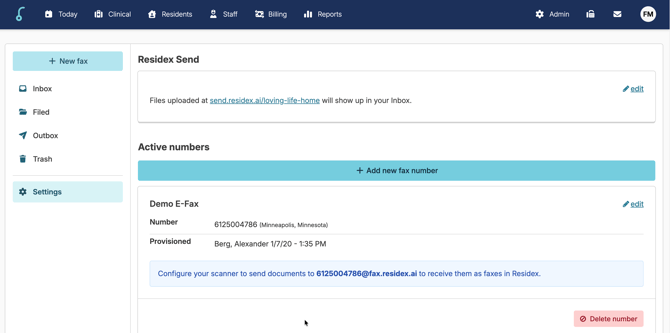
You can view your received faxes by clicking on this notification, or by navigating to the fax icon > and selecting the Inbox section. From here, you can see your history of received faxes, with new unread faxes sorting to the top.
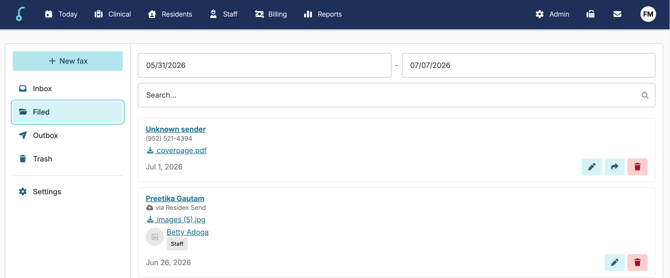
- Click on the files ink to view fax within the same tab
- Select the folder icon to 'File Fax' where you can link the fax to a resident, staff, or campus document storage, and add other details, if needed. Discharged residents and inactive staff will remain as available to link to for 90 days post status change.
- You can delete a fax you've received by clicking the trash icon. Deleted eFaxes move to the Trash and are permanently removed after 30 days. If you do not delete a fax, it will be kept indefinitely.
- Once reviewed, press File.
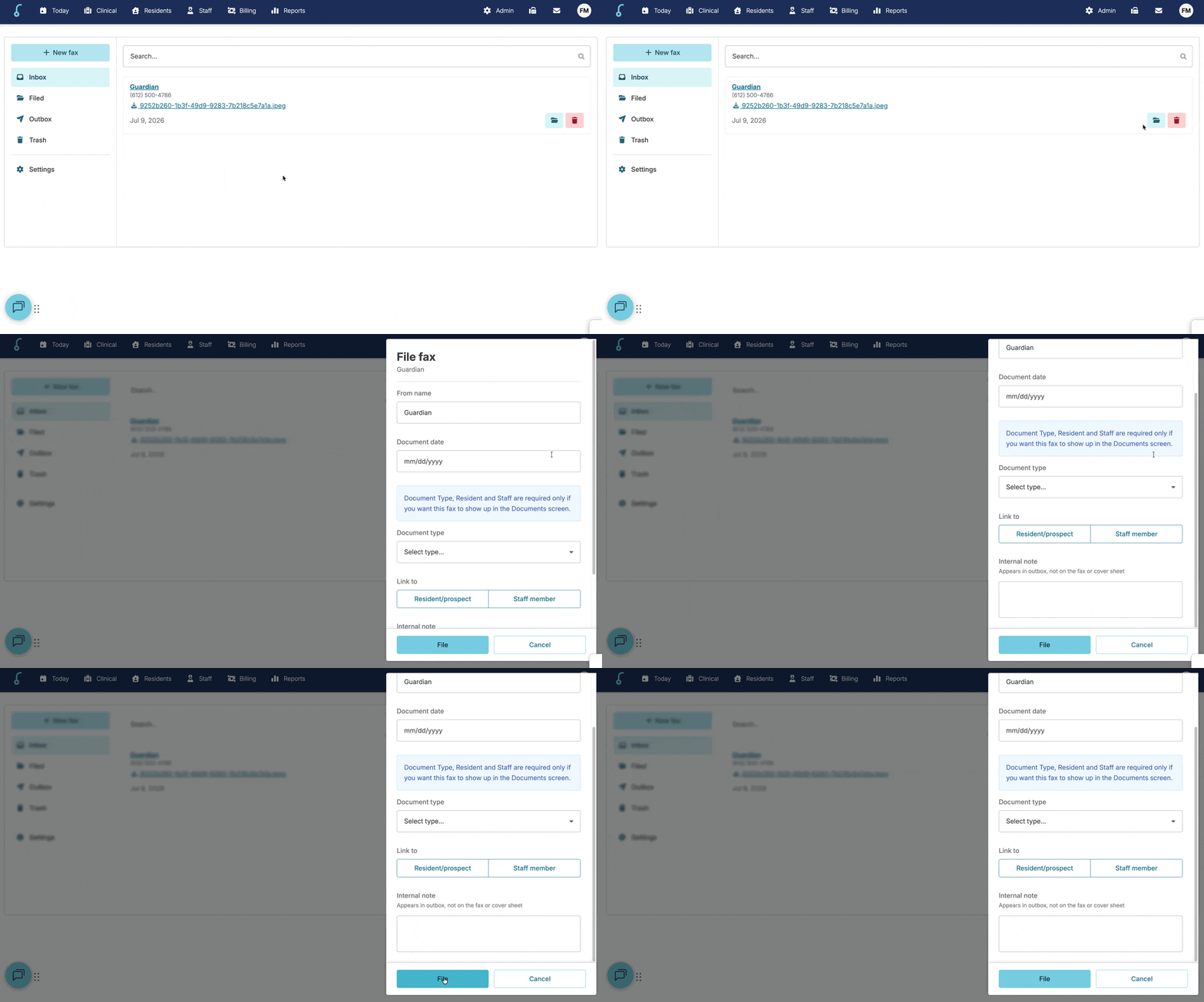
- There is no need to delete the received faxes from the fax inbox; they are saved here as history. If you choose to (for confidentiality purposes), the document will still be saved in the resident/staff/campus document areas you specified -- all of which have controls on who can upload or view by document type.
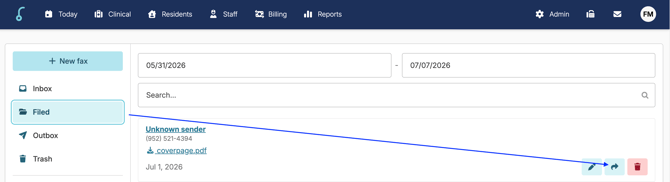
Filed faxes can be forwarded to another number if needed by clicking the Forward arrow icon.
If you have the Send Faxes (Role 41), you will be able to send faxes from Residex.
You can fax a simple cover sheet with a message, a Residex report, a staff, resident, or campus document, or an uploaded attachment.
- Cover Sheet with Message
Use Send fax with or without attaching or uploading a report or document. Add a message to the cover sheet and send to the appropriate destination. - Faxing Reports
You can send any Residex report from Reports, Provider Orders, and the Care Coordination screen. You can also upload or drag and drop additional documents to a fax from these locations. Select the report you wish to fax, and instead of pressing the Create Report button, press the Send fax button.
- Faxing Documents
From Resident, Staff, or Campus documents, simply click the fax icon to the right of the document, enter recipient information, and fax! - Fax an uploaded file
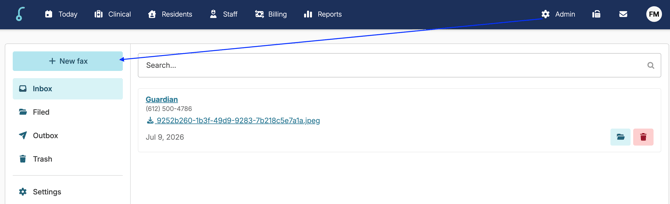
Upload any document you already have by navigating to the the fax icon > + New fax, and then drag and drop any document into the 'Attachments' field.
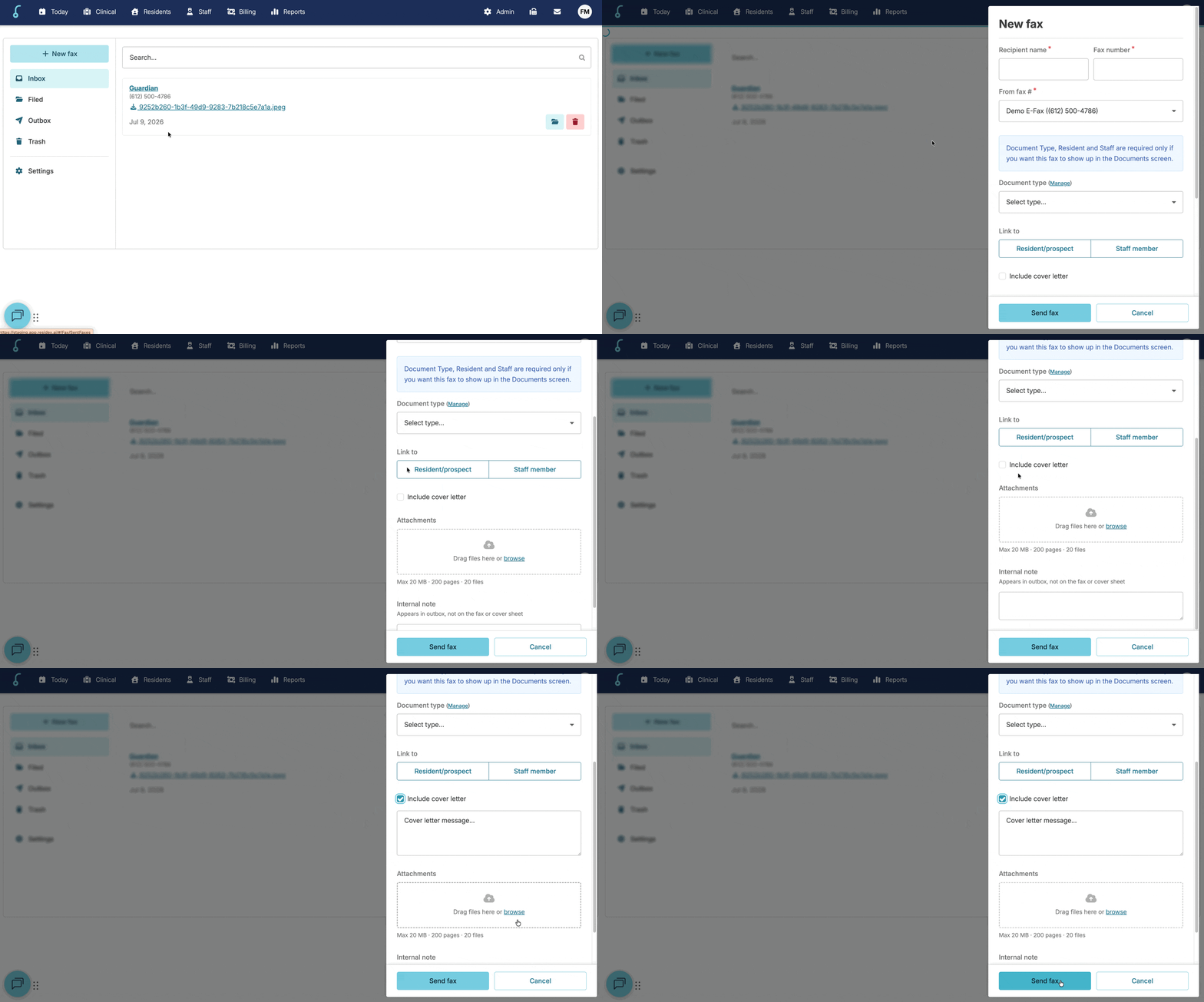
Next, you will fill in the details on the fax screen:
- Recipient Name & Fax Number - Residex will offer to autofill any matches it finds from your Resources.
- Document Type - This field allows you to categorize faxes you send out, to make it easier to find them in the future. You can also manage Document Types by clicking the blue 'Manage' icon to the right.
- Link to Resident Or Staff Documents: Optionally save the item you're faxing to the Documents section for a resident, prospect, staff member, or campus document.
- Cover Letter - Optionally include a cover letter in your fax and add a note.
- Internal note: Optionally enter a description of what you're faxing - this is a private record for your future reference only (and will not be sent out as part of the fax).
- Hit Send when you're ready!
- If a fax fails, you'll be alerted by a flag at the bottom of your Residex screen. You can either acknowledge the failed send, attempt to Resend, or Forward to send to a different number. The failed fax alert will appear for 14 days.
Outbox
This section will allow you to view what has previously been faxed out from your organization's eFax. You will then be able to search through all faxes you have sent - filtered by time range and searchable by your internal notes, recipient, etc. For any previously sent fax, you can:
- View the original fax
- Resend a fax
- Forward a fax to a different number
- Edit details for your records
- Delete the fax from your history altogether
Faxing Limitations
To successfully send, observe the following:
- The total request size for sending a fax may not exceed 20MB
- The total number of pages for any fax may not exceed 200 pages
- A maximum of 20 files may be submitted per fax
Faxing With One Number for Multiple Campuses
In this scenario, all faxes would be sent or received from only one of your campuses.
- In order to send a document related to one of the other campuses, you would open reports, download that report to your computer, then go to the campus with the fax icon > Send Fax and upload the document to be sent.
- Likewise, when receiving a document intended for one of your other campuses, you would download the received document and then upload it in the appropriate campus to resident, staff, or campus documents.
- You may wish to activate a Dashboard/Login Report 'Faxes Unacknowledged - All Campuses' so that you can easily see when a fax is received (without having to switch campuses).
Reports
Reports located in the Reports > Reports > category Faxing are helpful in understanding faxing history from your campus or for a particular resident.
Fax Troubleshooting
Residex’s fax service is powered by a third-party platform called Phaxio, which handles the sending and receiving of faxes electronically.
Like any cloud-based service, Phaxio may occasionally experience outages or disruptions, which can impact fax transmission. These issues are typically posted and tracked in real time at https://status.phaxio.com.
If Phaxio is experiencing an outage, users may notice:
- Faxes not sending or receiving as expected
- Delayed fax confirmations
- Failed transmissions without clear error messages
In the event of an outage:
- Residex will continue to queue fax attempts until they can be sent.
- You can check the current status directly at https://status.phaxio.com.
- Our team may also communicate known disruptions and updates as needed by posting a Newsfeed on the Residex dashboard