
Table of Contents:
A/R Supervisor users are able to edit Deposits and Payment records for months that have not been closed.
Editing a Deposit
-
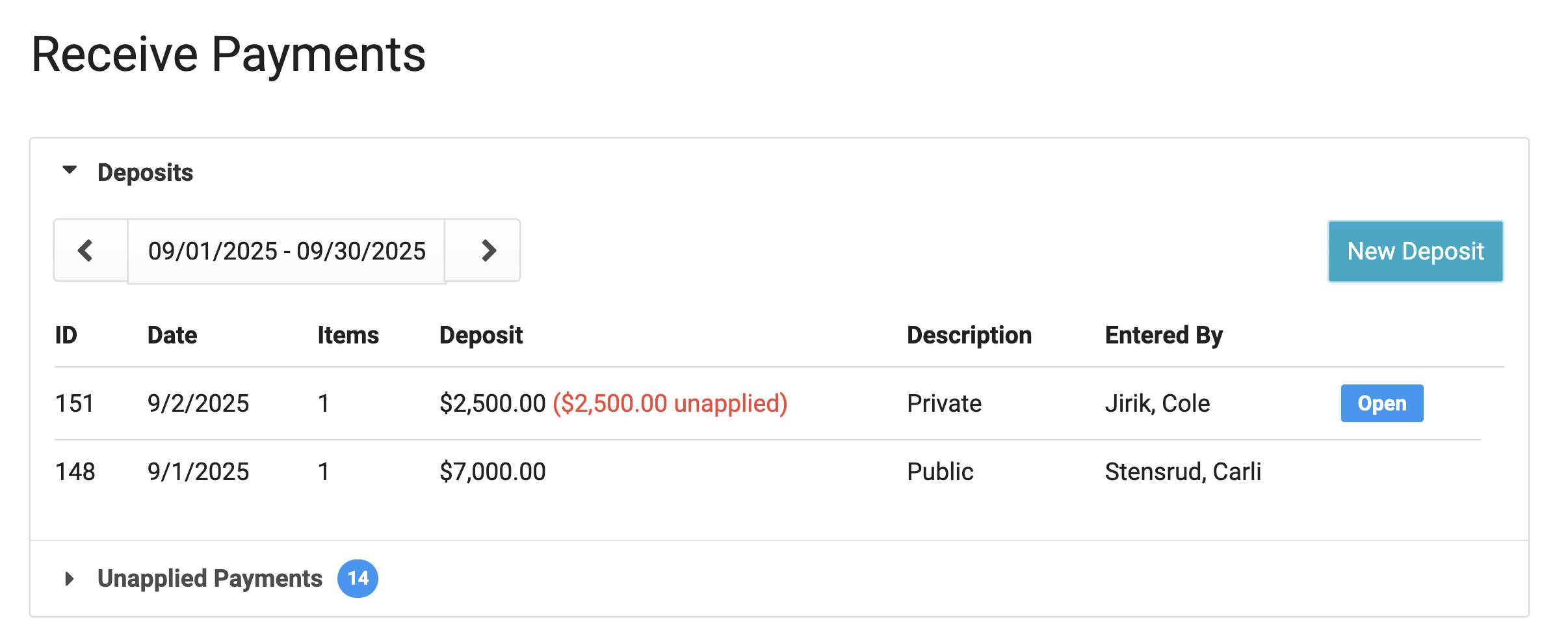
From Billing > Process Billing > Accounts Receivable you can view a list of past deposits.
-
Deposits will be flagged as 'Open' if they are still being worked on; otherwise deposits on this screen will be considered 'Closed' - either way, you can edit a Deposit's details by clicking on it.
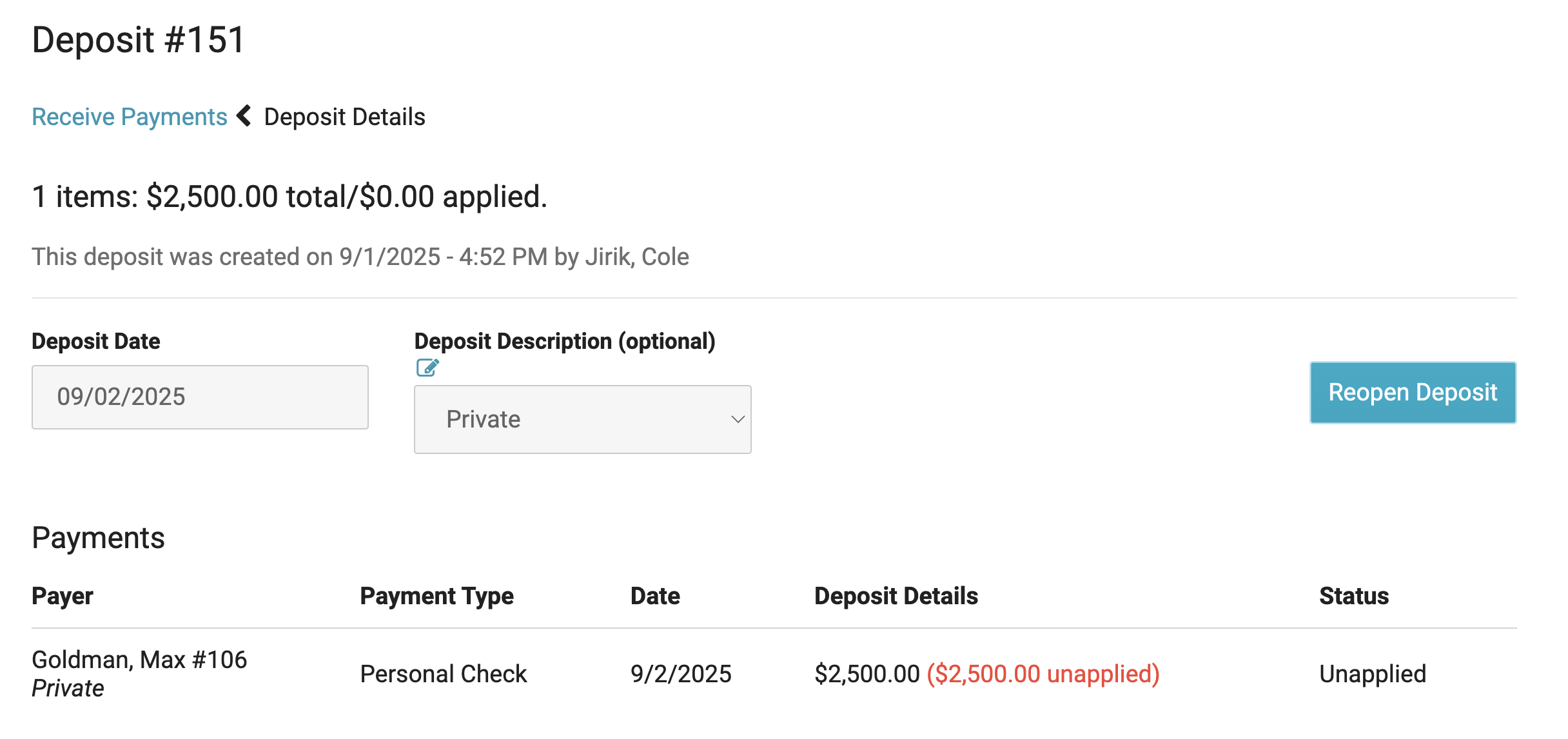
When you select a Deposit, you will see the Deposit Screen. If the Deposit has been marked 'Closed', you can enable edits by pressing the Reopen Deposit button. From here you can add & remove Payments, as well as un-apply / re-apply Payments
Press the Complete Deposit button when you have made all necessary changes.
Delete a Payment
When a Deposit is open, you can Delete any Payment within the deposit. If a deposit was added to a wrong payer, simply delete the incorrect payment, and add the correct payment.
Note: This process can only be done in the current month if the configuration 'Strict Close' is enabled.

Un-Apply / Re-Apply Payment
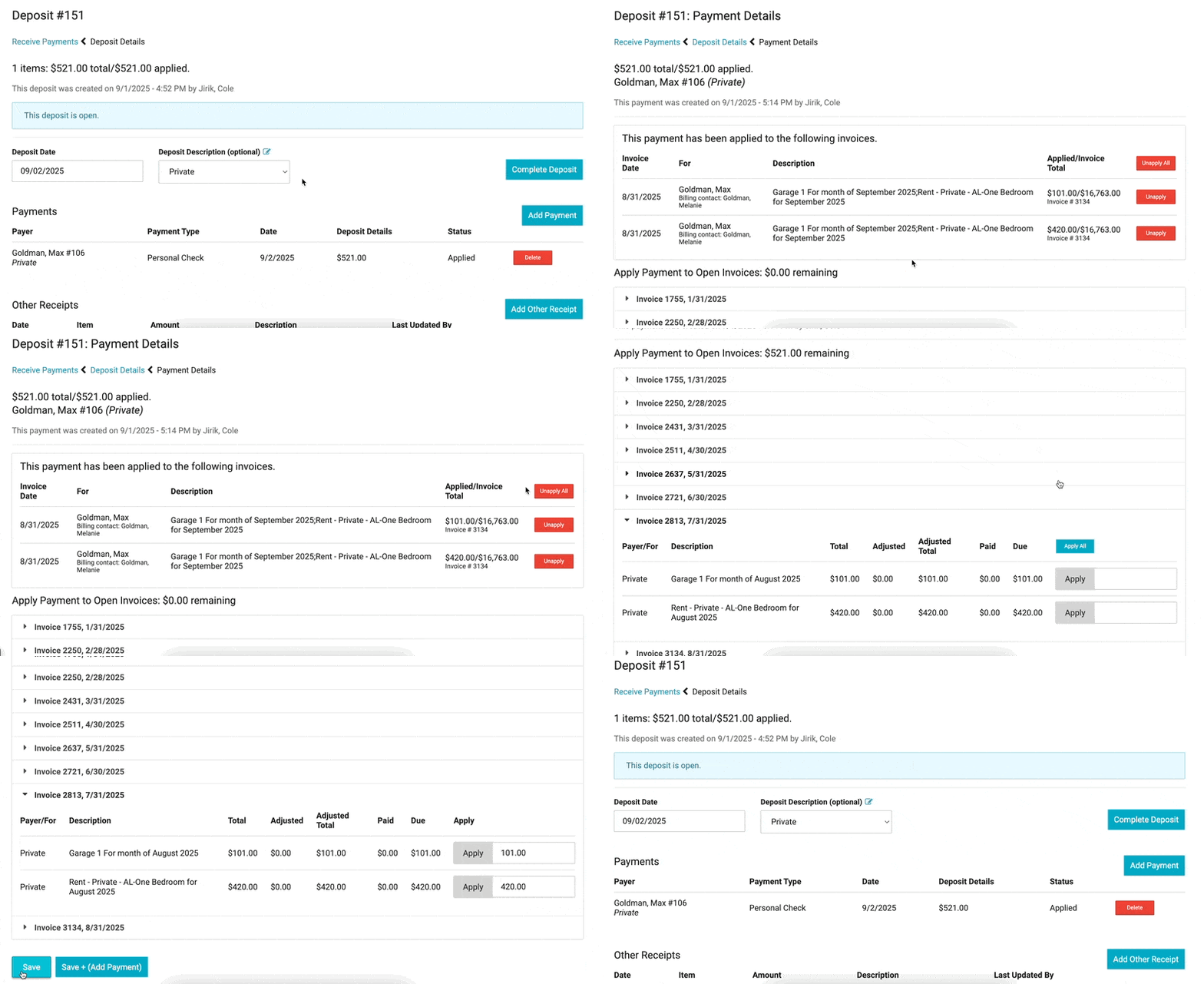
When you wish to change what charge line a Payment has been applied to:
-
Click on a Payment to open the Payment Details
-
Click Unapply to adjust where the payment is applied
-
Leave the Payment unapplied if needed, or apply it to another open Charge.
Payment Take Back / NSF
You may need to make corrections to your Accounts Receivable history if:
-
A private payer issues a 'stop payment' on a check
-
A check is returned due to Non-Sufficient Funds (NSF)
-
A contracted payer "takes back" funds in an ACH / EFT transaction
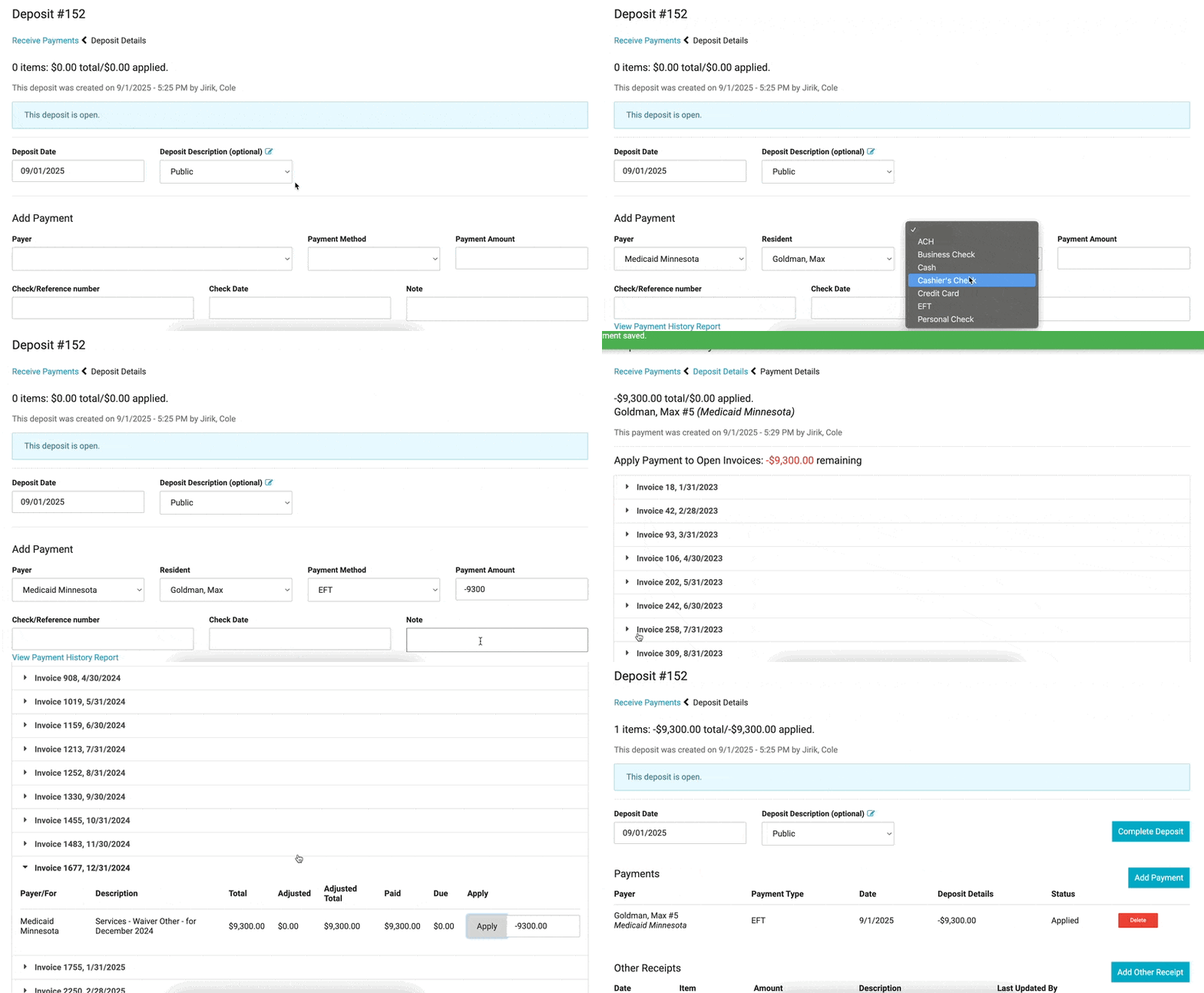
Corrections in these scenarios can be recorded as entering new Payment in exactly the same manner as if you were recording a new check you've received- except you will specify a NEGATIVE payment amount.
When a negative payment is entered, all previous invoices (including those paid in full) for this resident will be displayed; Apply the negative payment to the appropriate invoice charge(s).
Transfer Payment Credit Balance Between Residents
There are times when one resident has a credit on their account that needs to be transferred to another resident who has a remaining balance. You can handle this by doing a negative and positive payment.
-
Navigate to Billing > Billing Process > Accounts Receivable
-
Either create a new payment batch or select an existing open batch
-
Remove the credit from the first resident's account
-
Select the resident who has the credit on their account
-
Enter the payment amount as a negative number
-
Apply the payment to the appropriate invoice
-
Click Save + Add Payment
-
-
Apply the credit to the other resident's account:
-
Select the resident who should receive the credit
-
Enter the same amount as a positive number (e.g., $100.00)
-
This will reduce what the resident owes
-
Apply the payment to the appropriate invoice
-
Click Save
-
Result: The credit has now been transferred from the first resident's account to the second resident's account.