Upload Custom LMS
Users with Administrator (Role 411) and Administrator Assistant (Role 410) have the ability to upload site-specific/customized training into Residex for continued management and tracking.
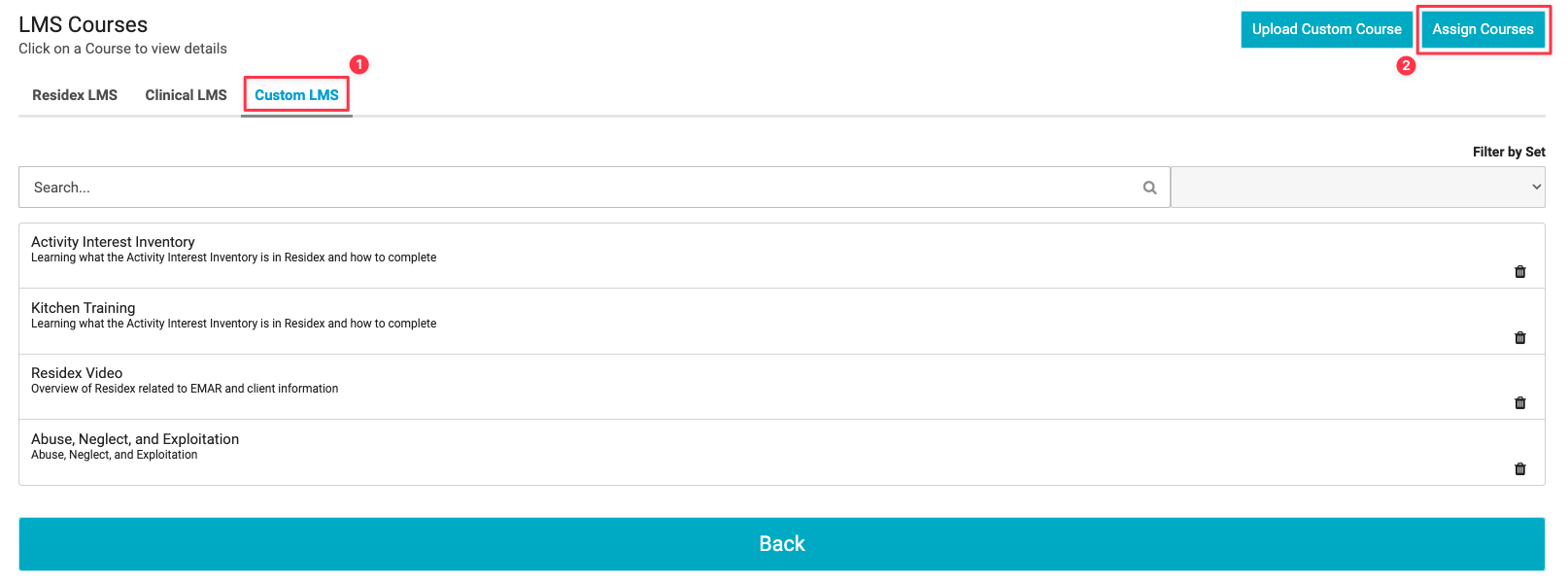
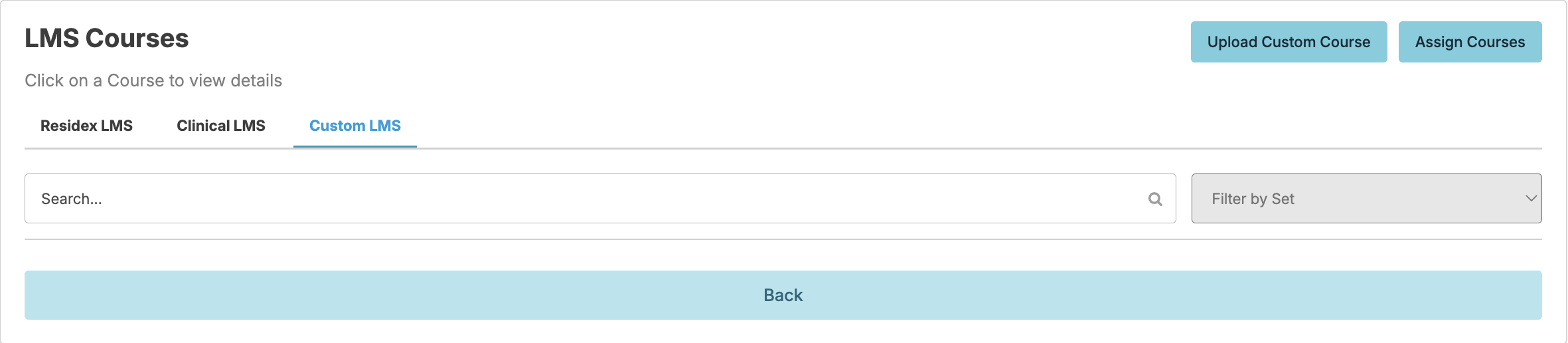
To upload a customized course, navigate to Staff > Assign LMS Courses > Custom LMS > Upload Custom Course.
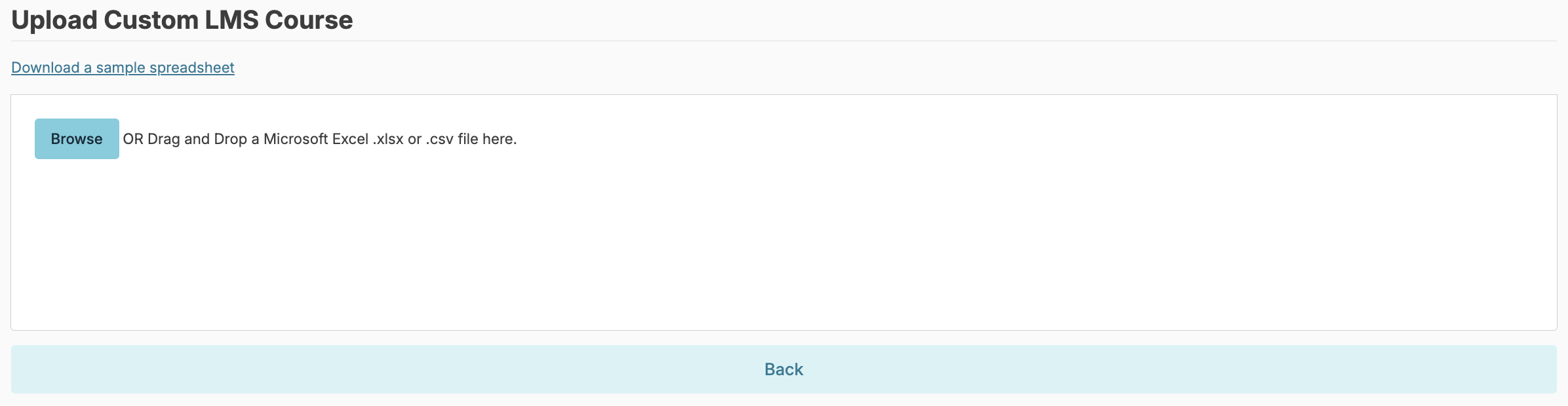
Click the blue Download a sample spreadsheet and complete the spreadsheet according to the examples provided. Make sure to remove the example rows before uploading. You will need a new spreadsheet for each course you wish to upload.
Once the spreadsheet is complete, save it to your computer.
You can Browse to upload or drag and drop the file.
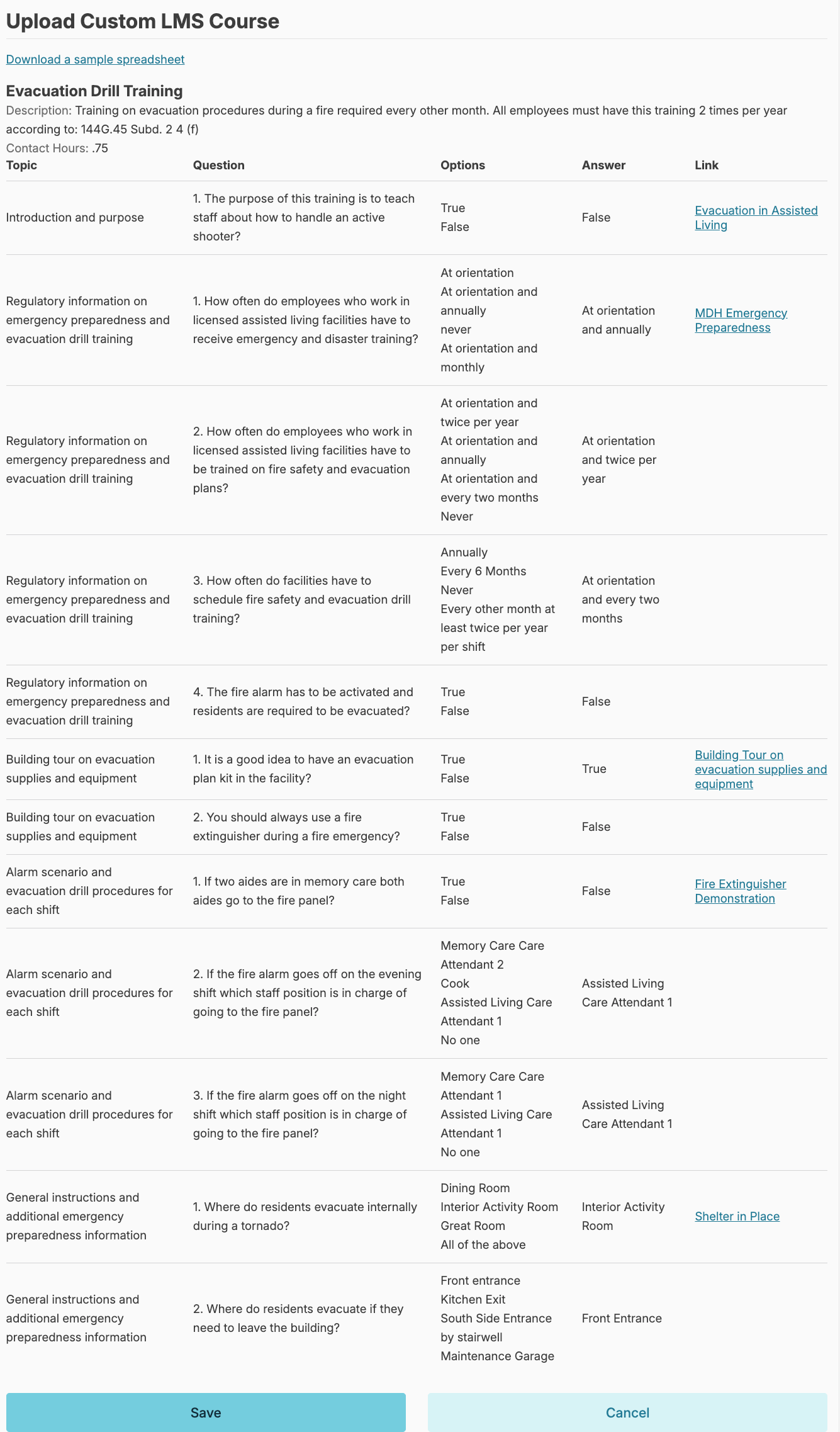
Upon uploading, you will have an opportunity to review the information entered.
Click Save.
Delete Custom LMS
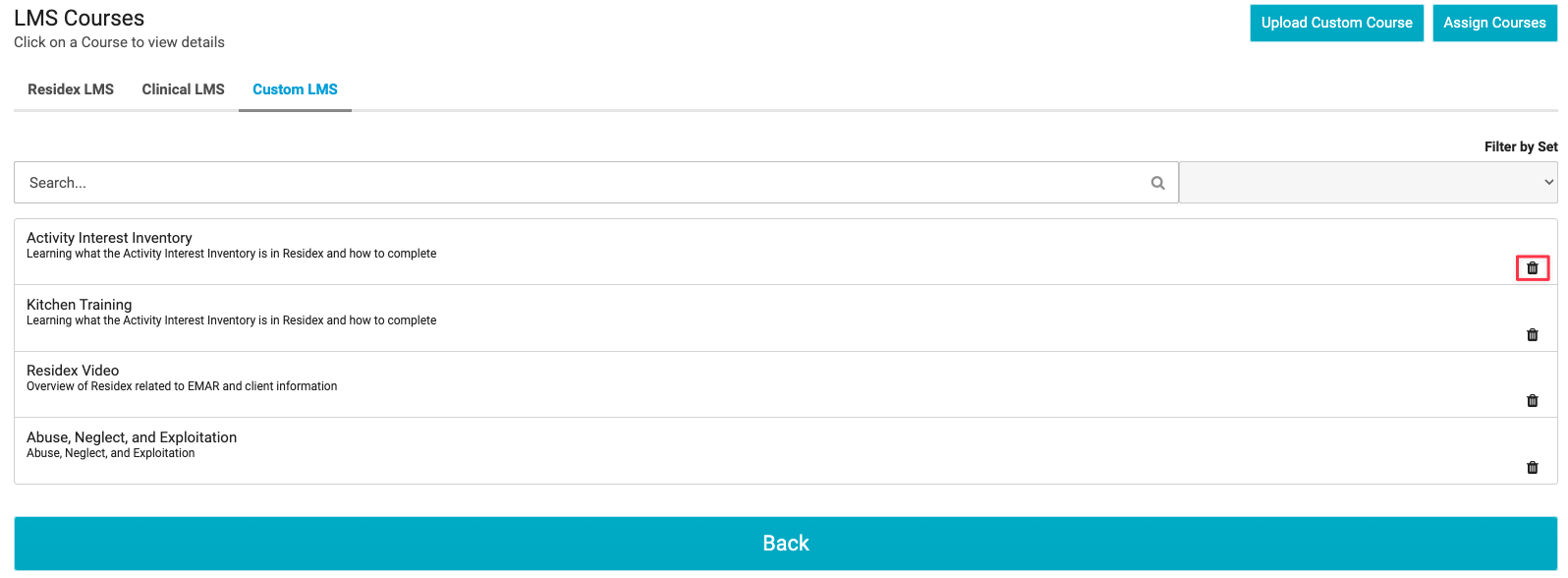
You can delete a course by navigating to Staff > Assign LMS Courses > Custom LMS > Select the trash can to the far right of the screen > Confirm you wish to no longer have this course available by selecting Delete.
Complete Custom LMS
You can assign these custom courses to your staff by navigating to Staff > Assign LMS Courses > Custom LMS > Select Assign Courses and select the course(s) and the staff you wish to assign > Select Save.