How to log in
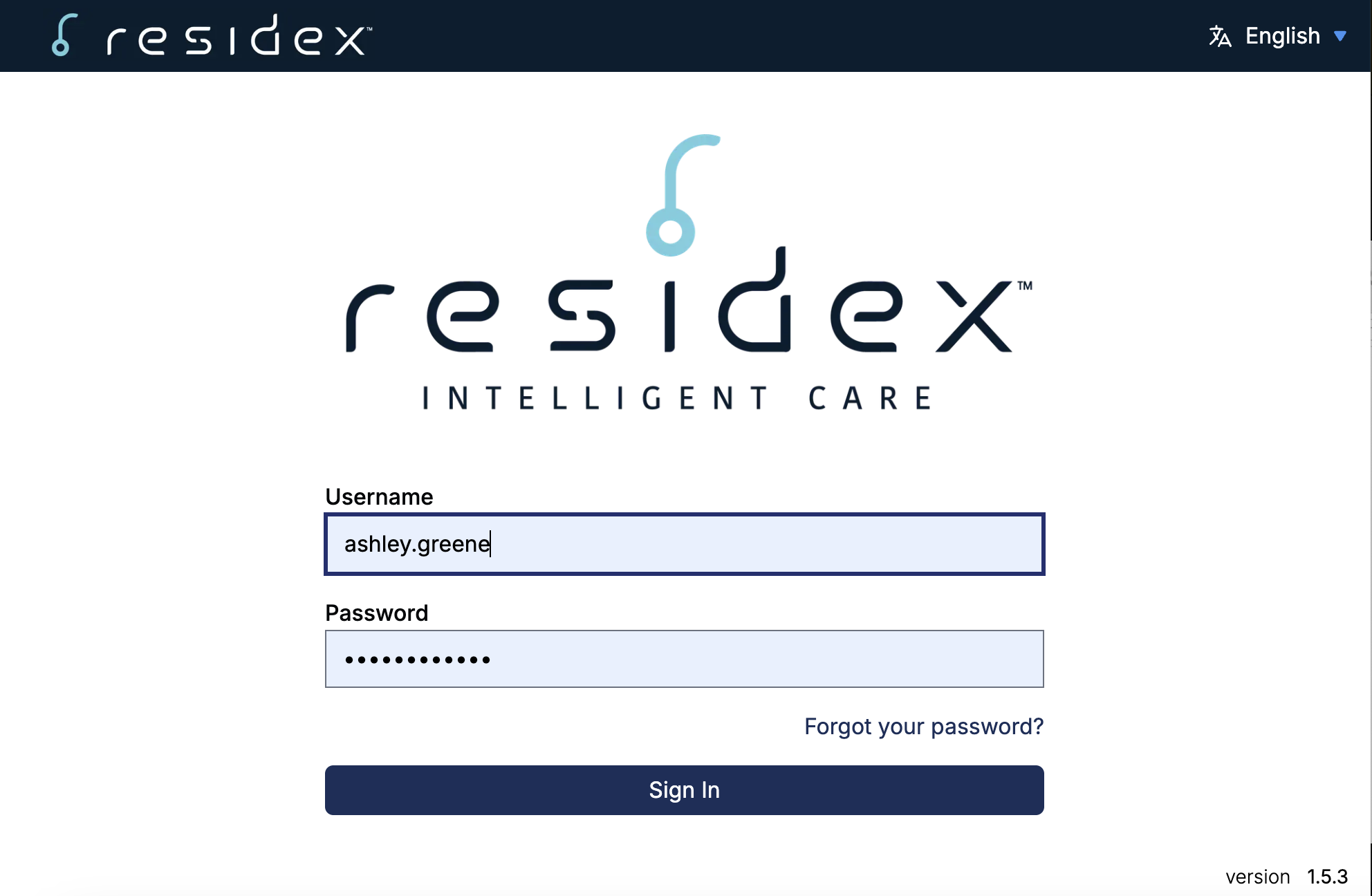
The facility manager will use your email address to send you a login link.
- Click on the link to set your password. Note: your username is your email address.
-
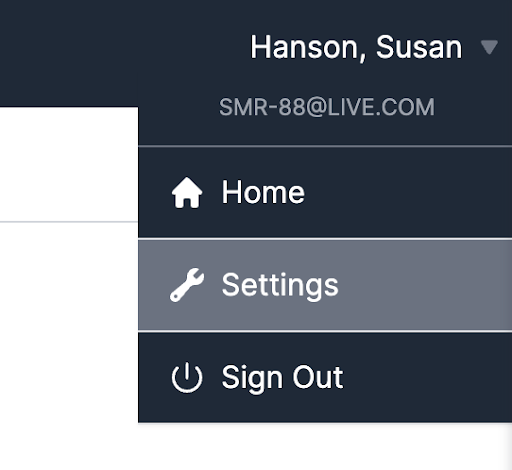
Once logged in, you have the option to change your preferred communication (email or text message) under Settings.
How to send/receive messages
-
Log into connect.residex.ai with your Residex username/password
-
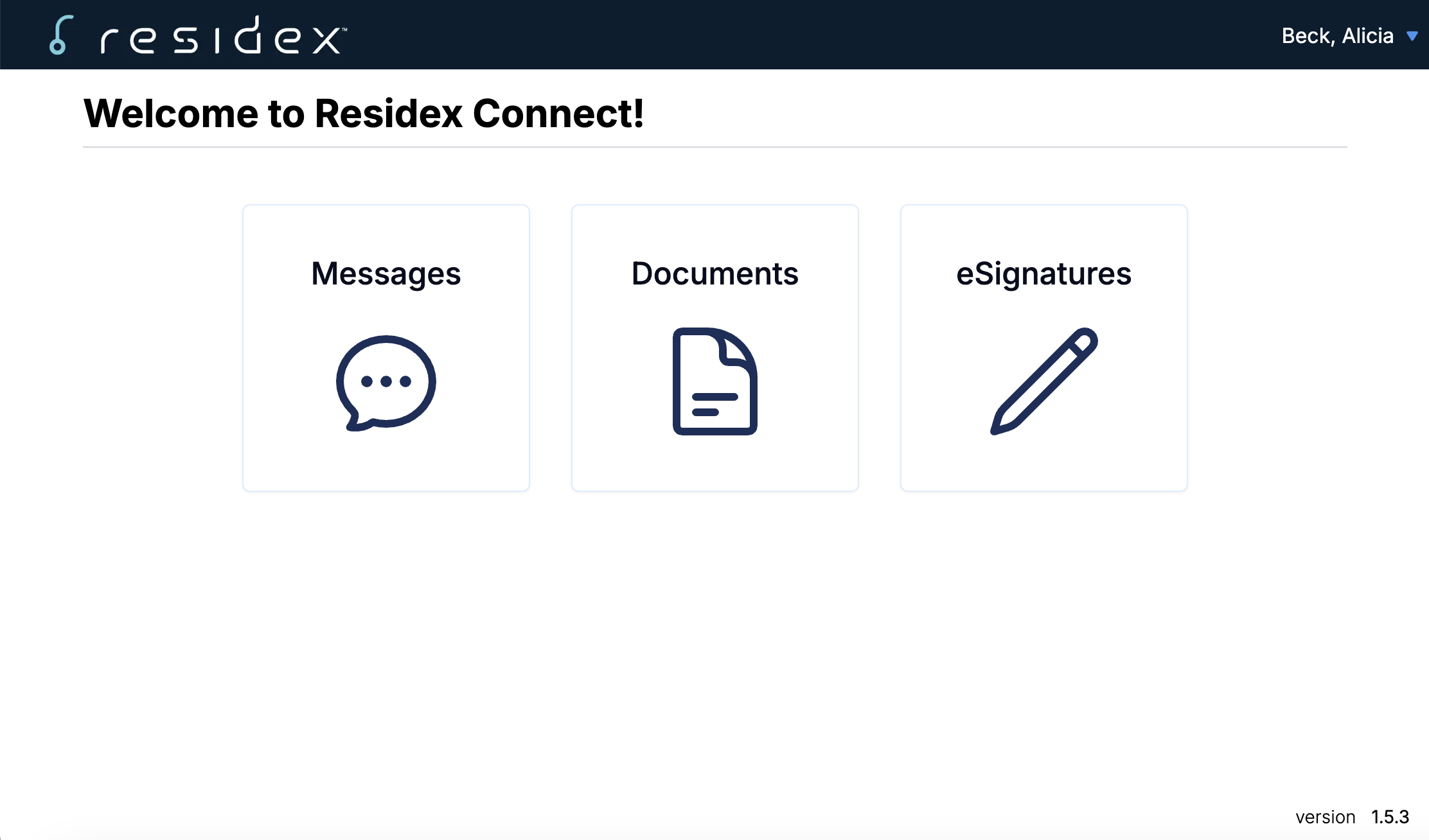
Click on Messages to view unread messages and existing threads
Reply to messages by clicking in the New Message field. This box can be expanded by clicking in the lower-right corner and dragging the box diagonally.
How to view sent documents
- Log into connect.residex.ai with your Residex username/password
- Click on Documents to view all documents
- Click on individual documents to view
- Documents can be downloaded as a PDF if desired
How to respond to e-signature requests
-
Log into connect.residex.ai with your Residex username/password
-
Click on eSignatures to view all signature requests
-
If there is an unsigned eSignature request, a banner will appear
-
Click in the blue box or on eSignatures to view
-
Click on the document that needs to be signed
-
Review the document
-
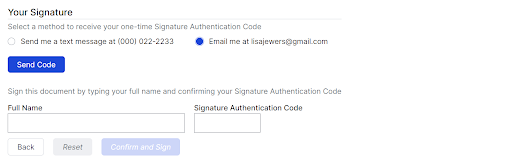
Follow these steps to complete your electronic signature after reviewing the document below.
- Choose a method (email or text message) to receive a one-time Signature Authentication Code
- Click Send Code
- Enter your full name and Signature Authentication Code
- Click Confirm and Sign
- After signing, a link will appear on this page to download the completed document.