
Table of Contents:
Review Administered PRN Medications
Review Declined Medications
Review Medications Sent Out of Facility
Review Medication Charting History
Review Service Charting History
Review Out of Range Vitals
Review Incidents
Review Administered PRN Medications
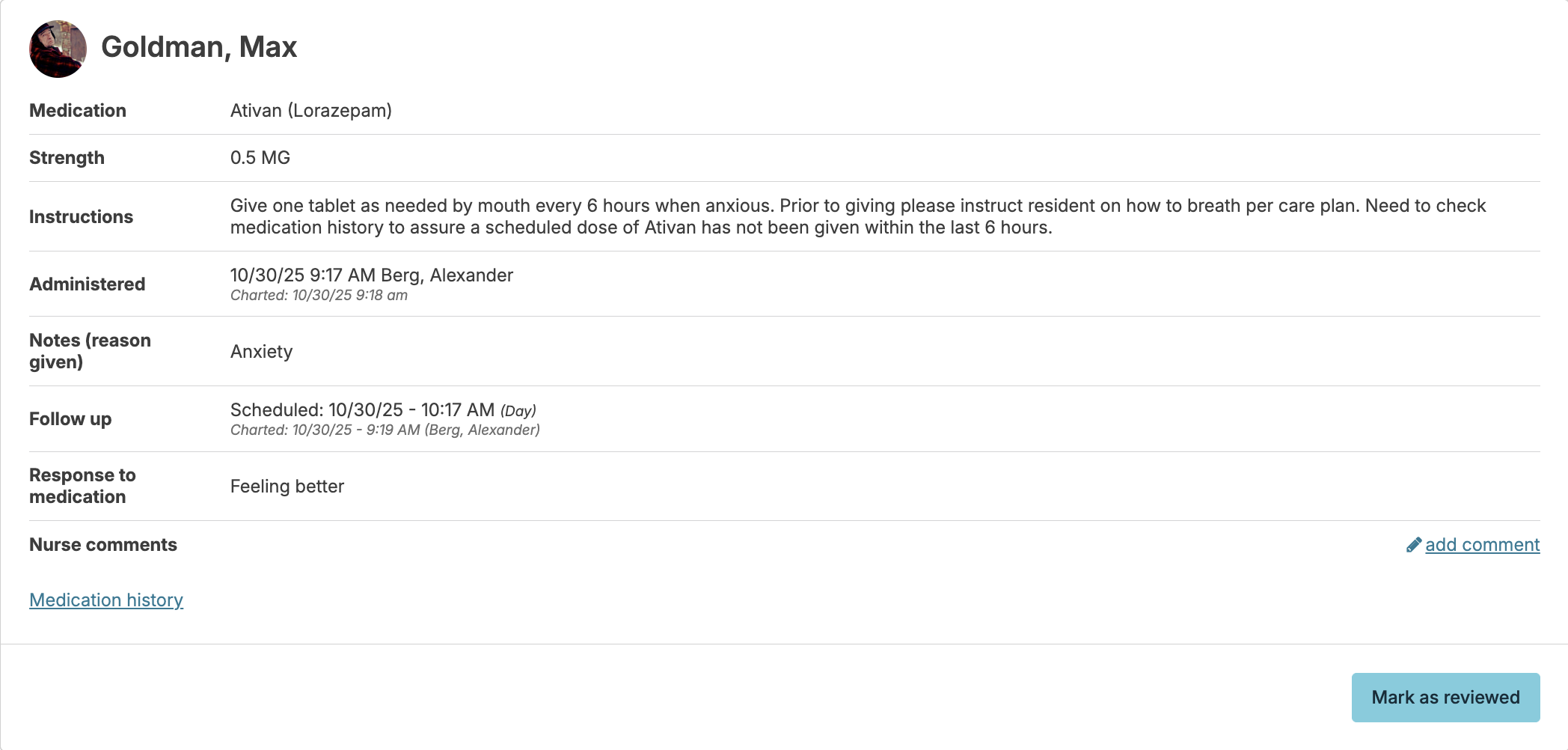
Review PRN medications for administration details, efficacy, and usage frequency. Add comments and mark medications as reviewed. When administration times differ from charting times (such as late entries), both the actual administration and charting date/time are displayed.
Strike a PRN Medication
If a PRN medication was charted but not actually administered, you can strike that record to correct the documentation. Striking a record removes it from the medication pass history and from related reports. It also ensures that other staff are not misled by an inaccurate "last administered" time when deciding whether to give the medication again.
This option is available to users with the Nurse provider type, or users assigned one of the following roles: Supervisor (Role 13), Administrator Assistant (Role 410), or Administrator (Role 411).
Steps to Strike a PRN Medication
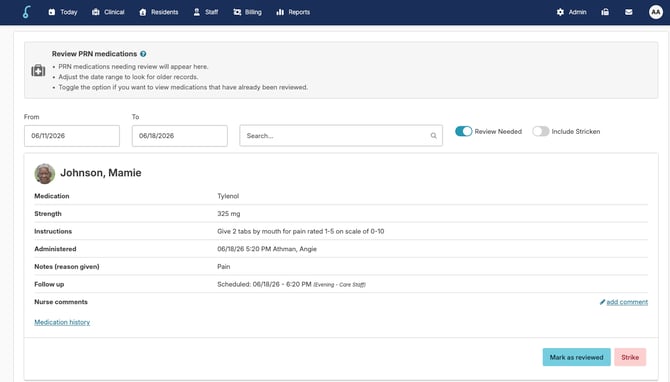
- From the main menu, go to Clinical > Review Administered PRN Medications.
- Locate the PRN record that needs to be stricken. Use the available page filters to narrow the list if needed.
- Click Strike on the record.
- In the pop-up that appears, enter a strike reason. This is required before the strike can be completed.
- If the medication is a controlled medication, you will see the following warning:
⚠️ This is a controlled medication and requires a count/quantity.Enter the correct count/quantity remaining. This field is required for controlled medications. Add a count note if needed.
The count may be inaccurate after striking the medication administration from the record. Please verify the count is correct before proceeding.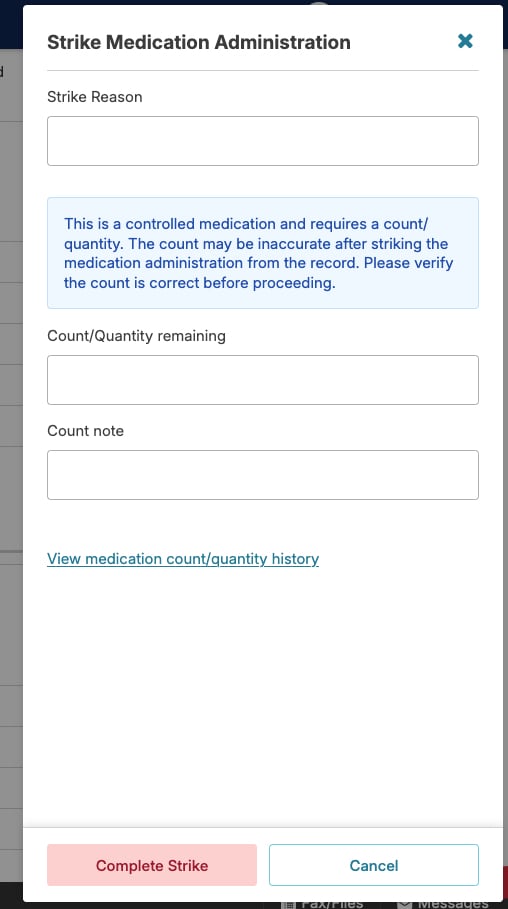
- Click Complete Strike to finalize.
What Happens After a Record Is Stricken
- The record is removed from the medication pass history and will not appear in related reports.
- When a Med Passer goes to administer the medication, they will not receive a warning that it is too soon to give it again.
- Stricken records are not shown by default on the Review Administered PRN Medications screen. To view them, toggle the Include Stricken filter.
- Striken PRN Medications records can also be found on the following reports: Stricken PRN Medications - By Resident and Stricken PRN Medications
Review Declined Medications
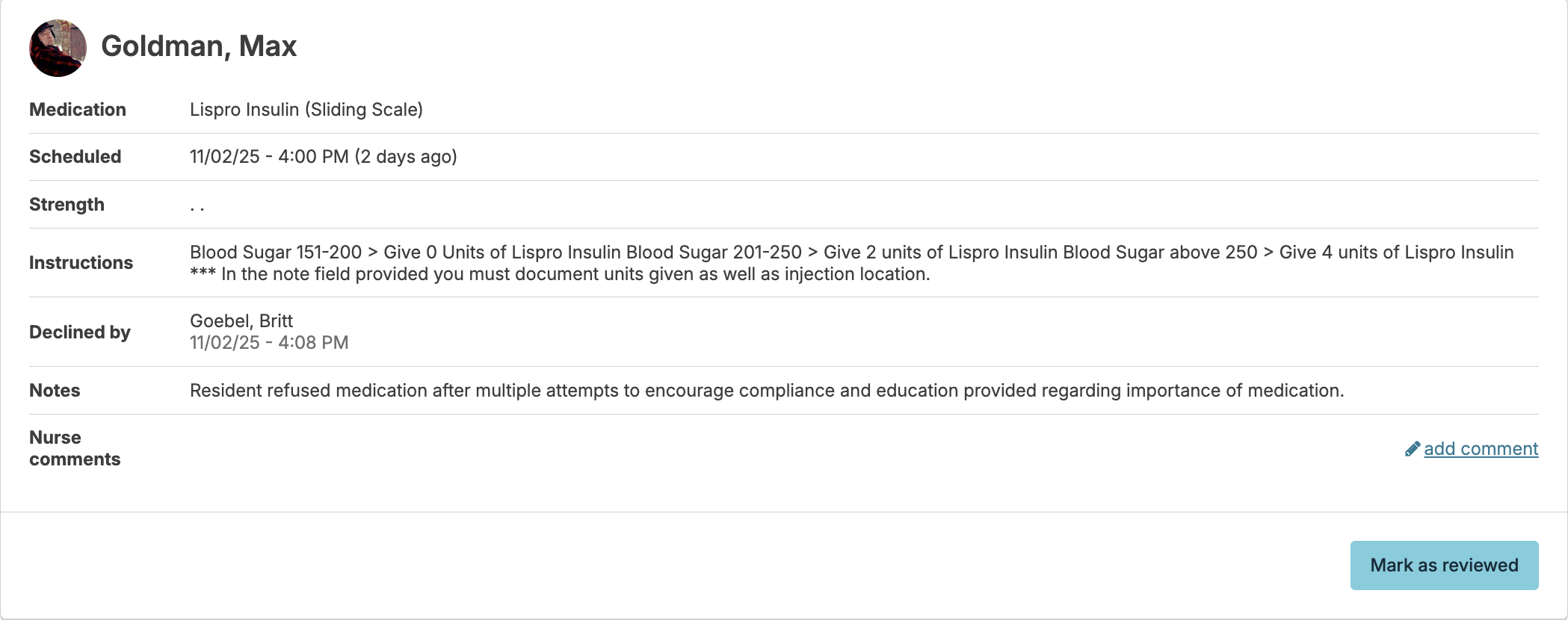
This tool works almost identically to the Review Administered PRN Medications tool. It allows you, the nurse, to view the medications that have been declined or otherwise not given by medication passers, and the reasons noted. The Mark as reviewed button will document that you were aware of the medication refusal, and the optional add comment button will allow you to add notes if needed.
Review Medications Sent Out of Facility
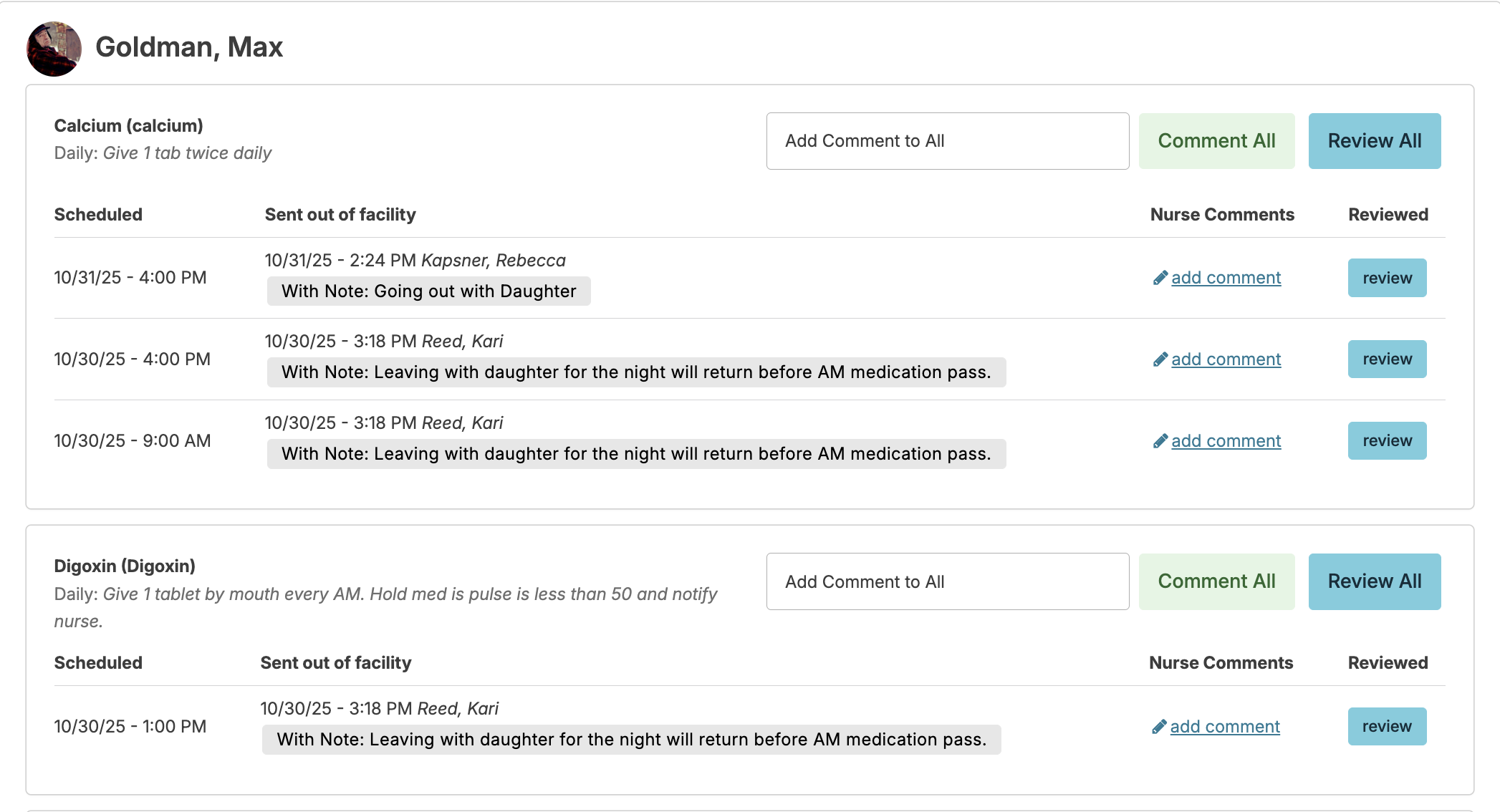
Nurses/supervisors use this to review medications that have been documented as sent out of the facility by staff. Select the date range that you would like to review, and use the add comment link to add an individual comment to one dose of a specific medication or select the Comment All to make a comment on all of the doses sent out of the facility for one medication. Similar in concept, select the review button next to one dose of a specific medication to mark as reviewed or select the Review All button to mark all doses sent of out facility of a specific medication as reviewed.
Navigate to Clinical > Medication Charting History to view medication documentation history for selected resident and date range. Nurses can add comments to the charting history as needed.
Review Service Charting History
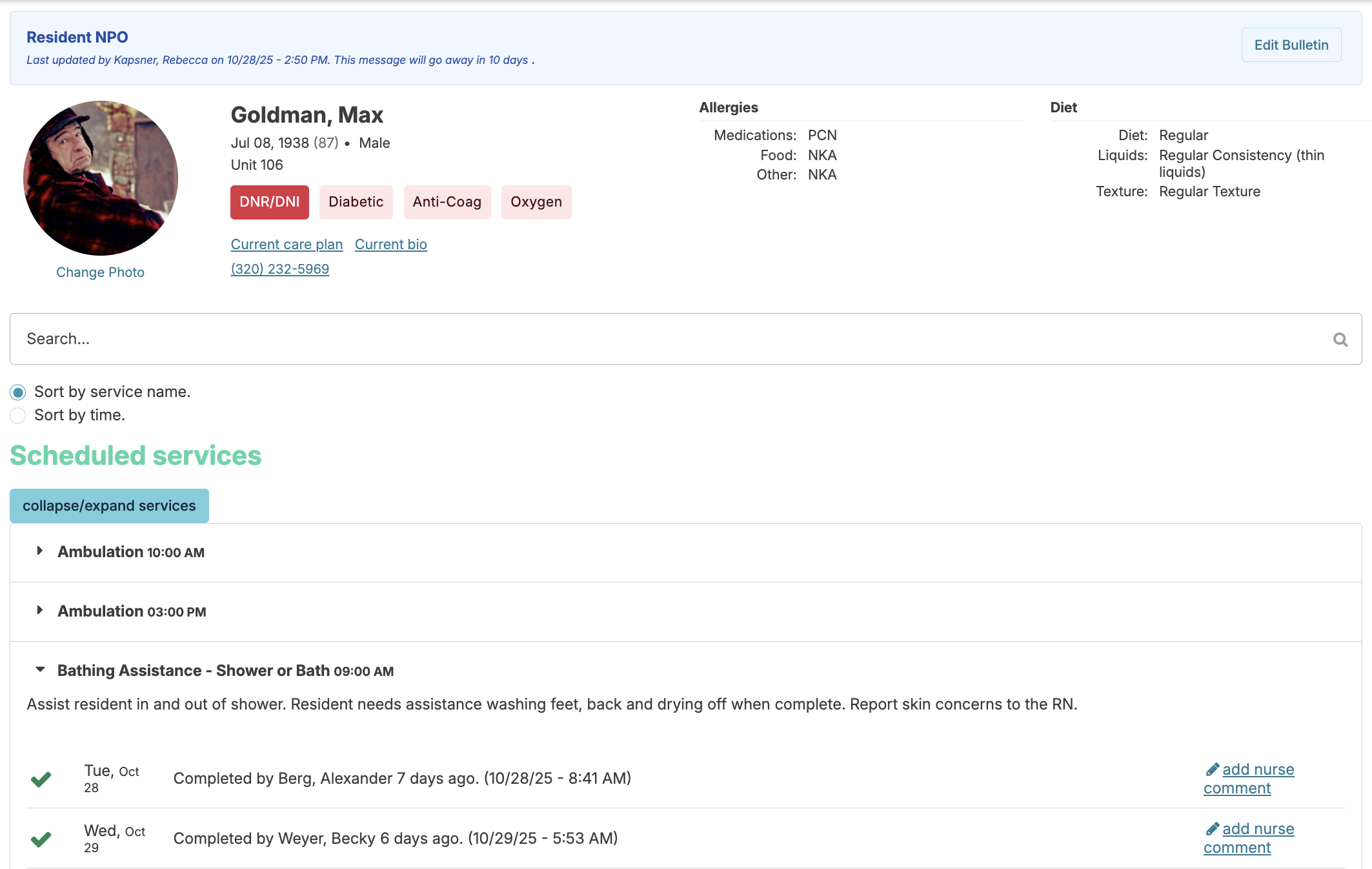
Navigate to Clinical > Service Charting History to review service history for the selected resident and date range. Nurses can add comments to the charting history as needed.
Review Vital Signs Out-of-Range
Vital sign parameters can be configured globally (in the Global Service List) or individually when adding services to a resident's profile. Nurses can access vitals that fall outside these ranges via Clinical > Review Out of Range Vitals, where they can mark items as reviewed and include a note if applicable.
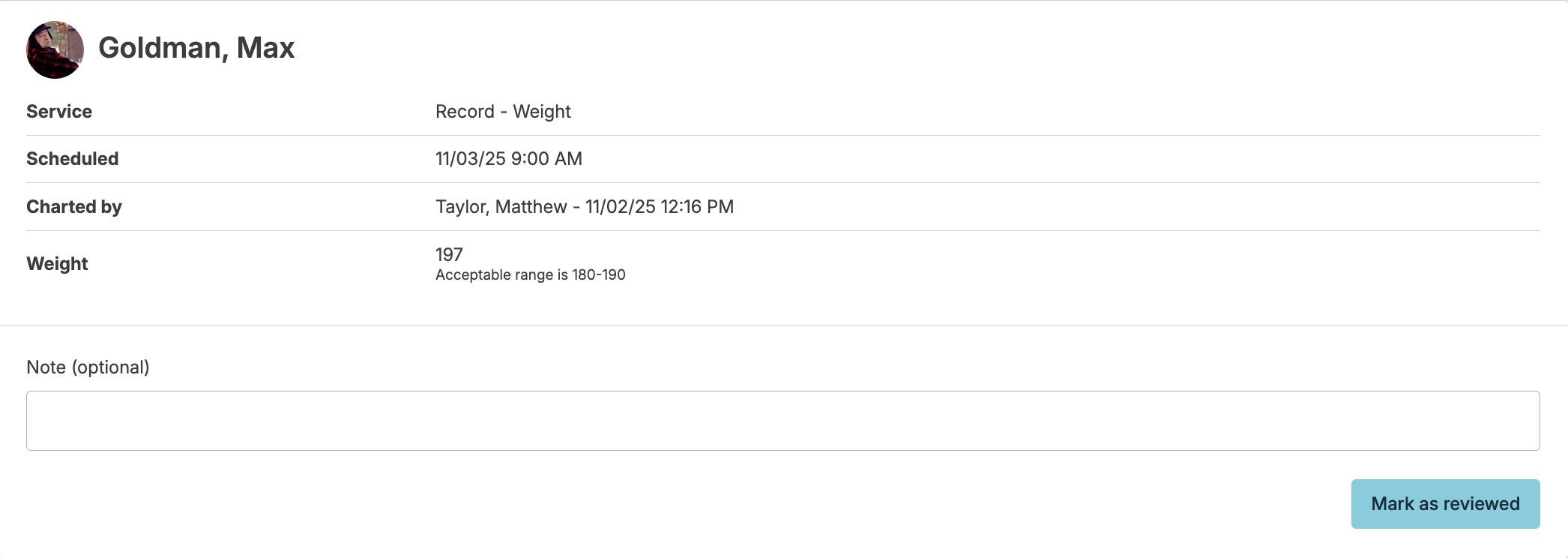
If you wish to assign additional vital signs as follow-up, you can navigate to Clinical > Unscheduled/PRN Service > and schedule a future PRN vital service to an assignment. This will appear on their Today > Assignments screen at the scheduled date and time.
Resident Trend Analysis
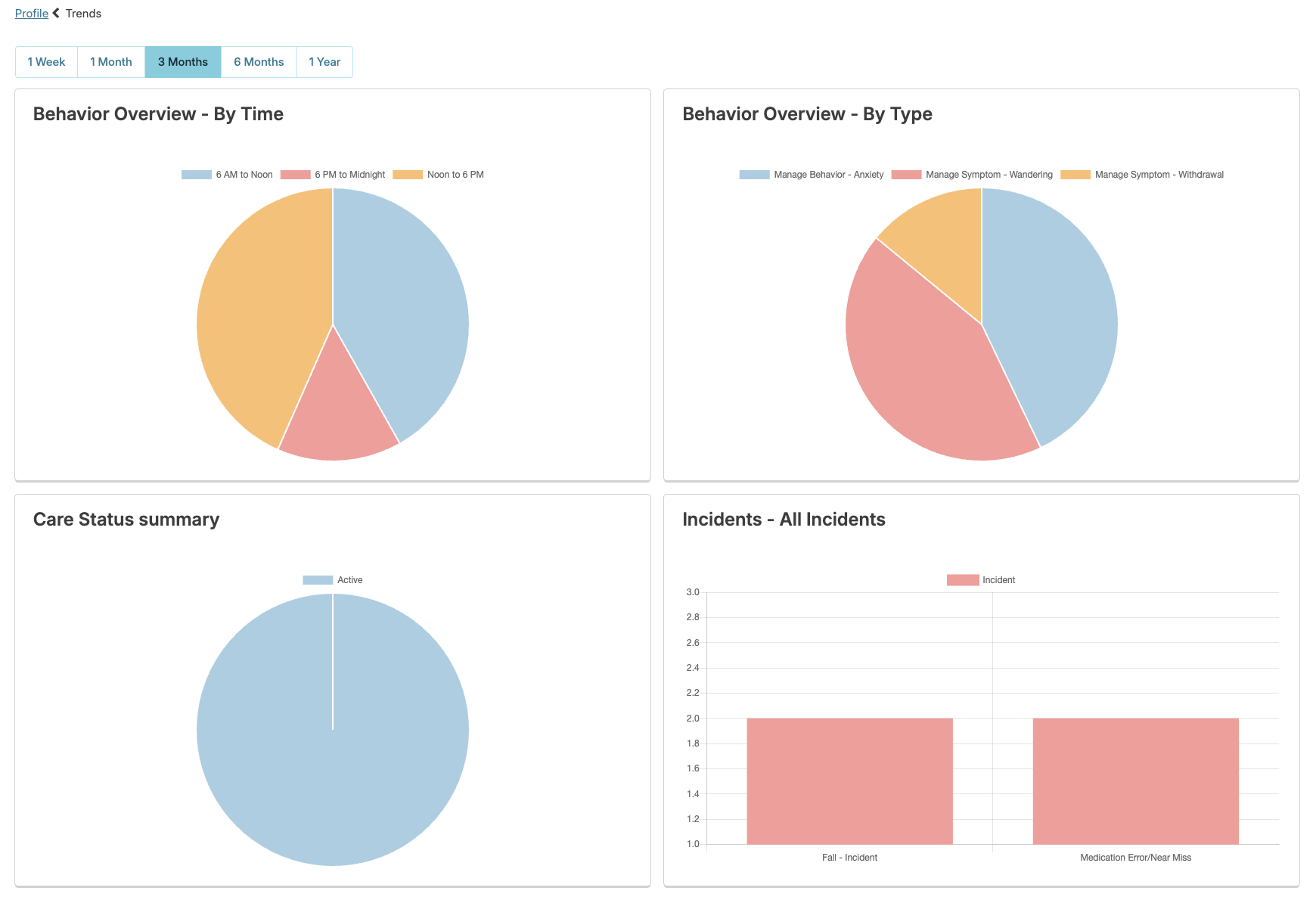
Monitoring trends in vital signs, medication usage, and service needs helps nurses identify gradual changes in resident conditions and make informed care decisions. Access Trends from the resident profile to view data across selected time periods, displayed through bar graphs, line graphs, and pie charts for clear visualization.
Incident Review Process
Review, edit, and address staff-entered incidents to gather information, guide staff through facility policies, and document follow-up actions to prevent reoccurrence. Clinical Reviews must be completed within 30 days of the incident entry date (not the actual incident date).