
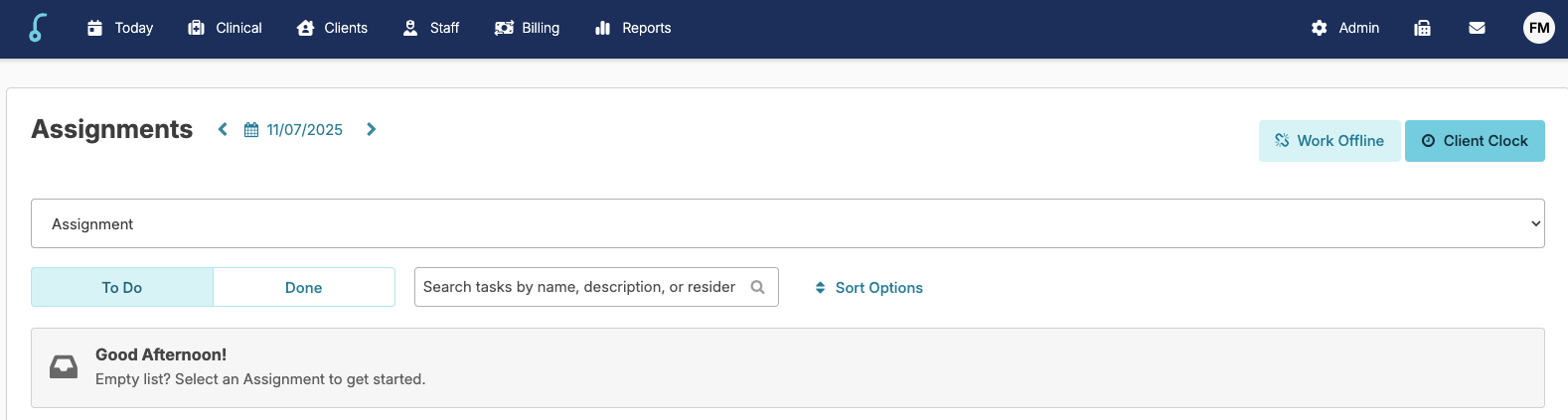
Staff can clock into their client's location by navigating to Today > Assignments > Client Clock screen.
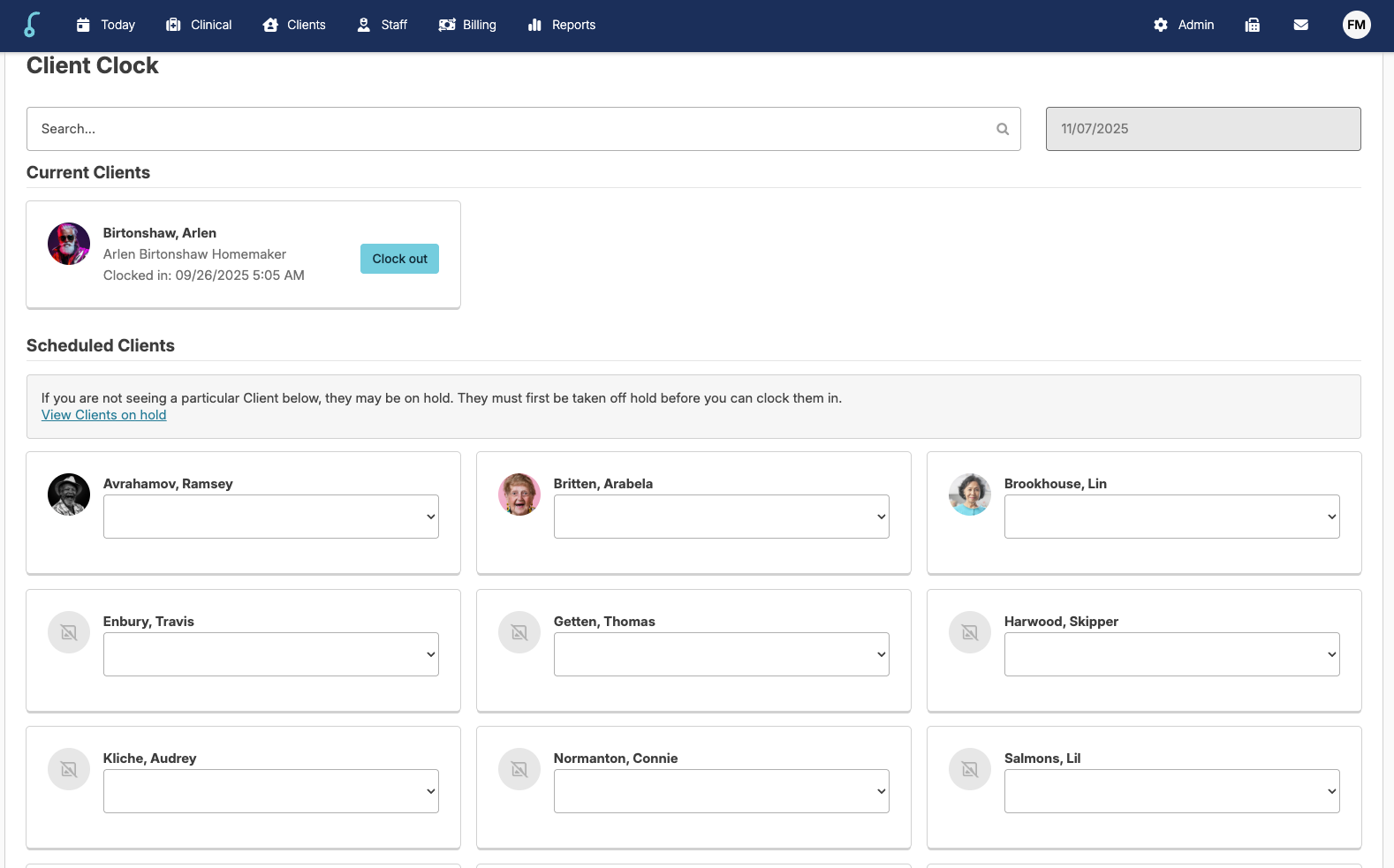
From the Client Clock screen you can see:
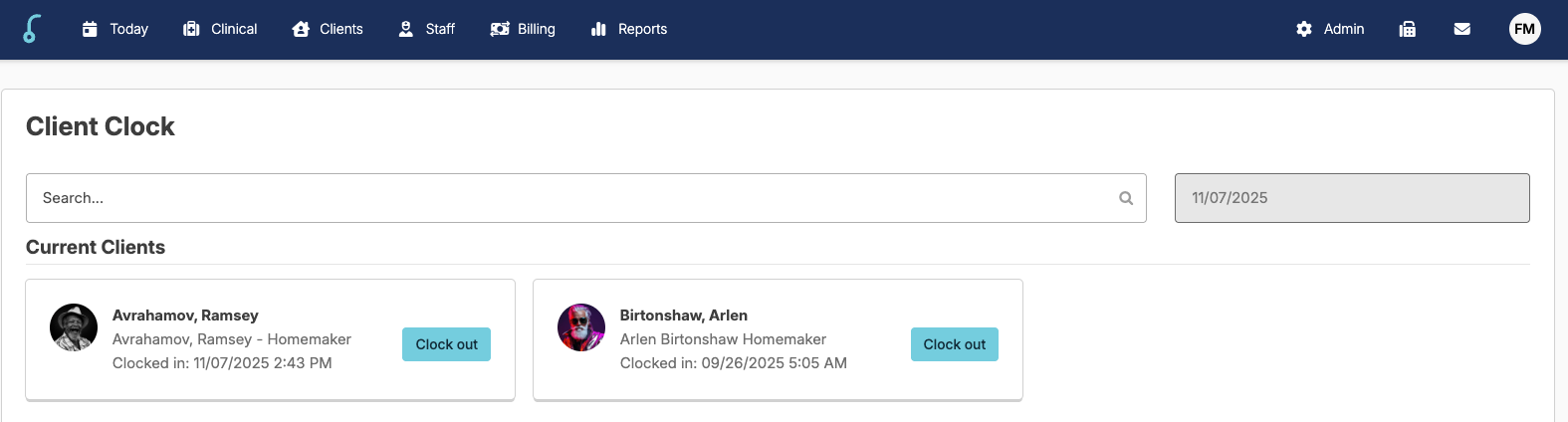
- Current Clients: Clients you (the user) has already clocked in
- Scheduled Clients: Clients with scheduled services for the day will have a drop-down selection for the appropriate assignments associated with the client.
- Seen Clients: Clients who have received their care visit and have completed services.
🗒️ No assignments available means that this client has services scheduled for the day but your staff provider type is not authorized to perform those services.
Browser Setup
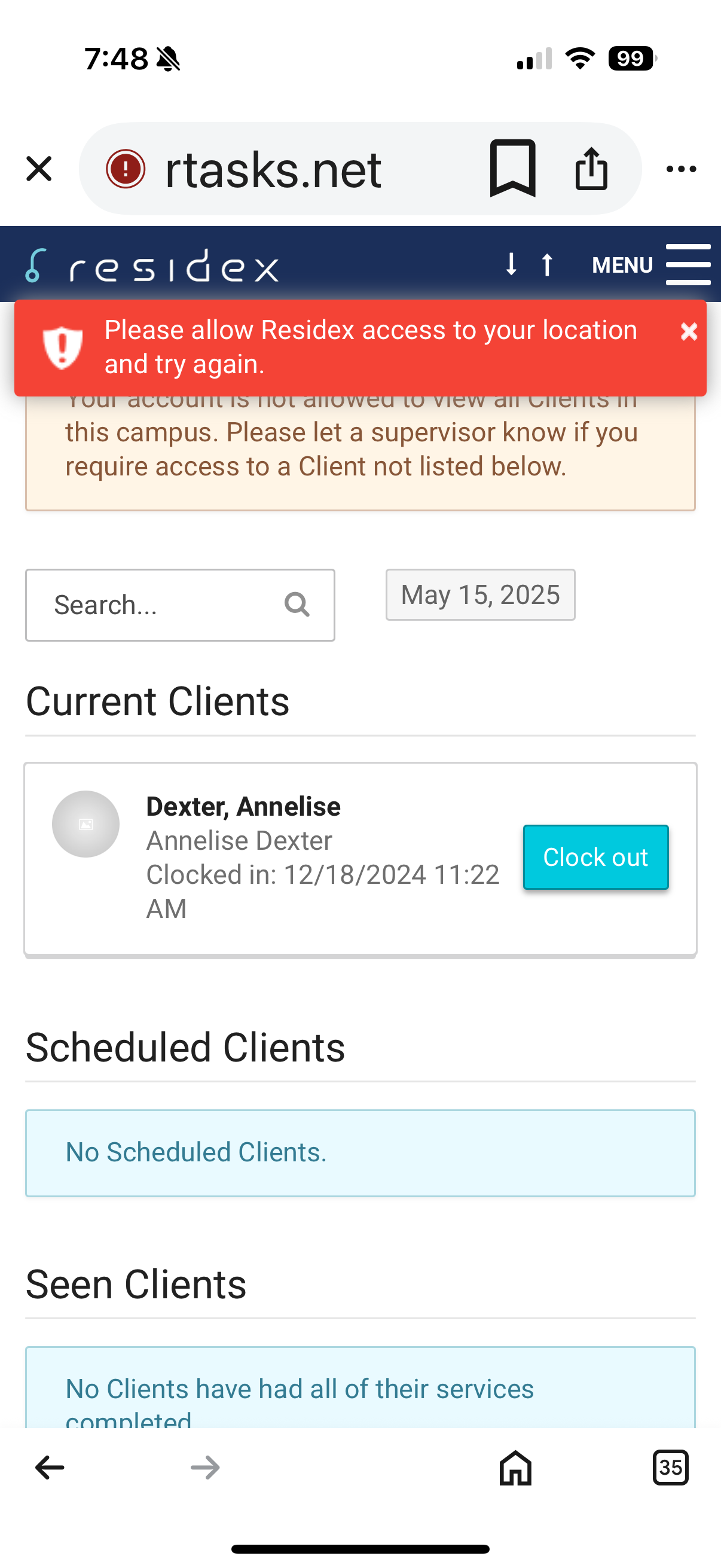
Are you seeing an error when you're trying to clock a client in? Click here: Allow access
Clock In
Select the dropdown menu associated with the client you are clocking in and choose the appropriate assignment from the dropdown. Your staff provider type will determine what options you see and can select.
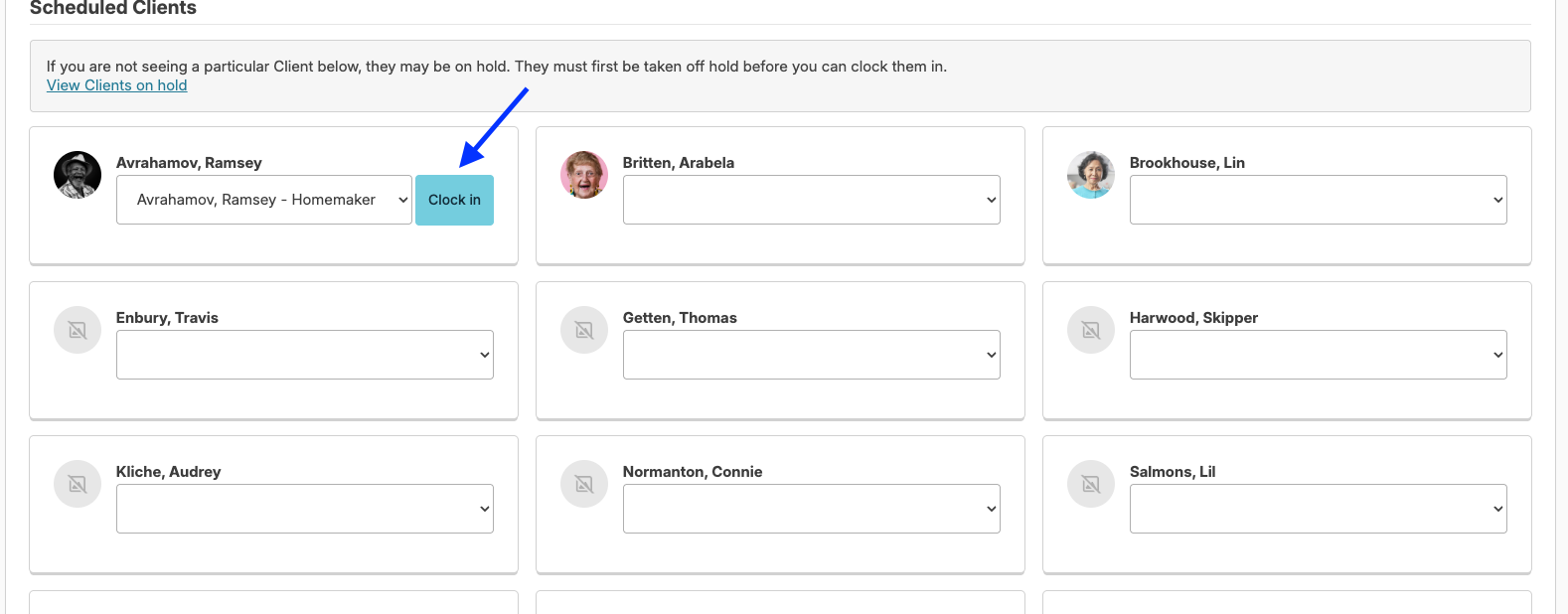
Once selected, a Clock In button will appear to confirm your location and the start of your shift.
Based on your permissions, you may have the ability to clock in more than one client at a time
When you navigate to the Today screen, that client's assignment will be available to select
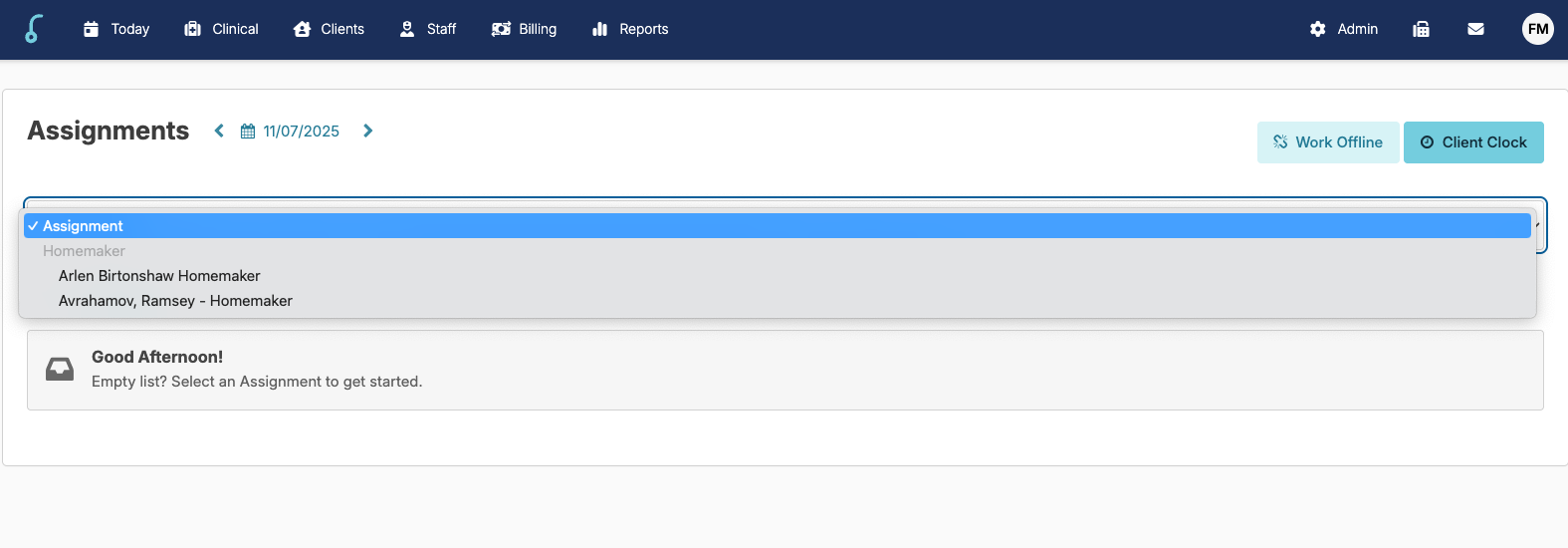
📘 Note: If a user clocks in and out without charting services, they will be able to select their assignment (as charting configurations allow) from the Today screen > Assignment drop down from a previous calendar date without having to clock back in to complete their late charting.
Clock Out
On the Today screen, when clocked-in for a client, you will see services scheduled for the client along with a reminder service at the bottom of your 'To Do' list to remind you to Clock-out for the client.
Before you clock the client out, be sure to document the services that were completed for the client
Once all services are charted, click the Clock Out button when your shift is finished
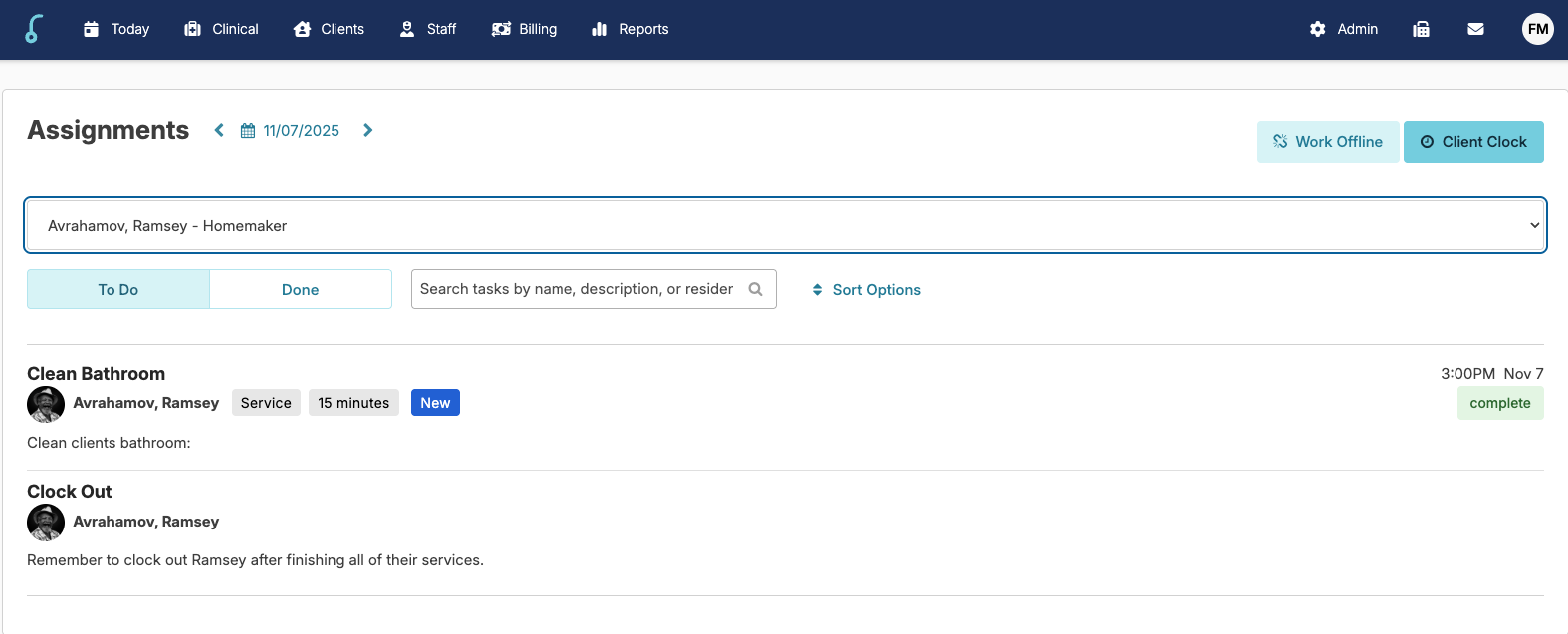
Once selected, it will automatically bring you to the Today > Client Clock screen where you can Clock out the current client.
❗️Notice
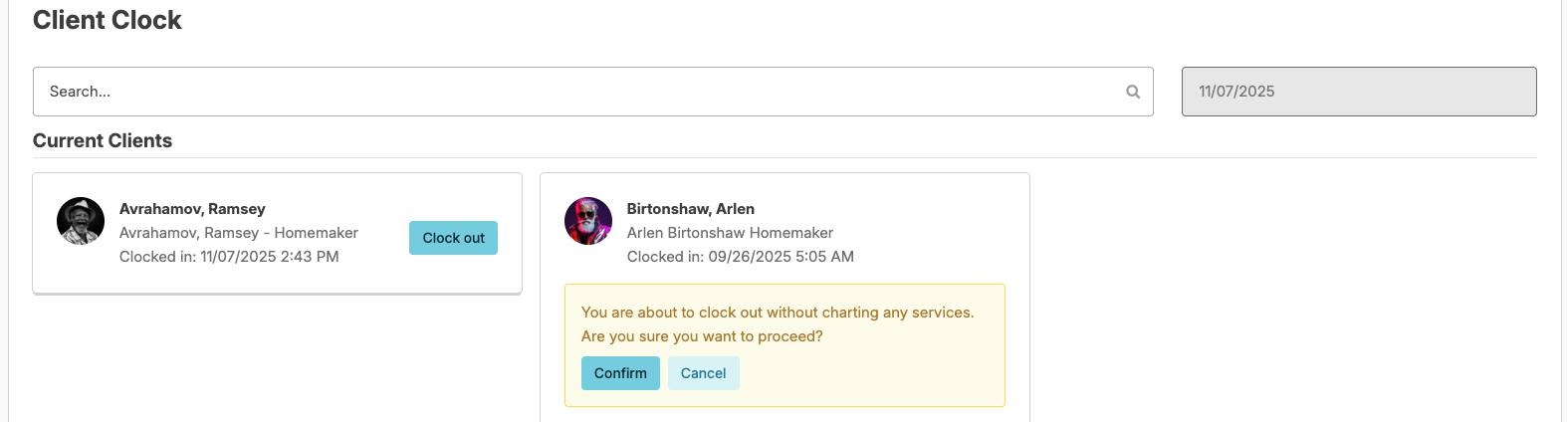
If services were not charted for the client, a warning will appear. Click cancel if you wish to return to the Today screen to chart any scheduled services.
Afterward, each service or resident note marked complete will track:
- The service being completed or note entered.
- The individual receiving the service or note.
- Date and time of the service completion.
- Date and time of service initiation (derived from the time of the service and recorded duration of the service).
- Name of the staff person charting the service or note.
- The GPS coordinates of the staff person at the time the service was charted.