
Table of Contents:
Client Billing & Finance Information
The next step is to enter the client's payer information. This information will be taken directly from the service agreement given by the county. Navigate to Clients > Clients > Select a client > Billing & Finance.
Fees Tab
Make sure the Billing Option is set to Fee for Service
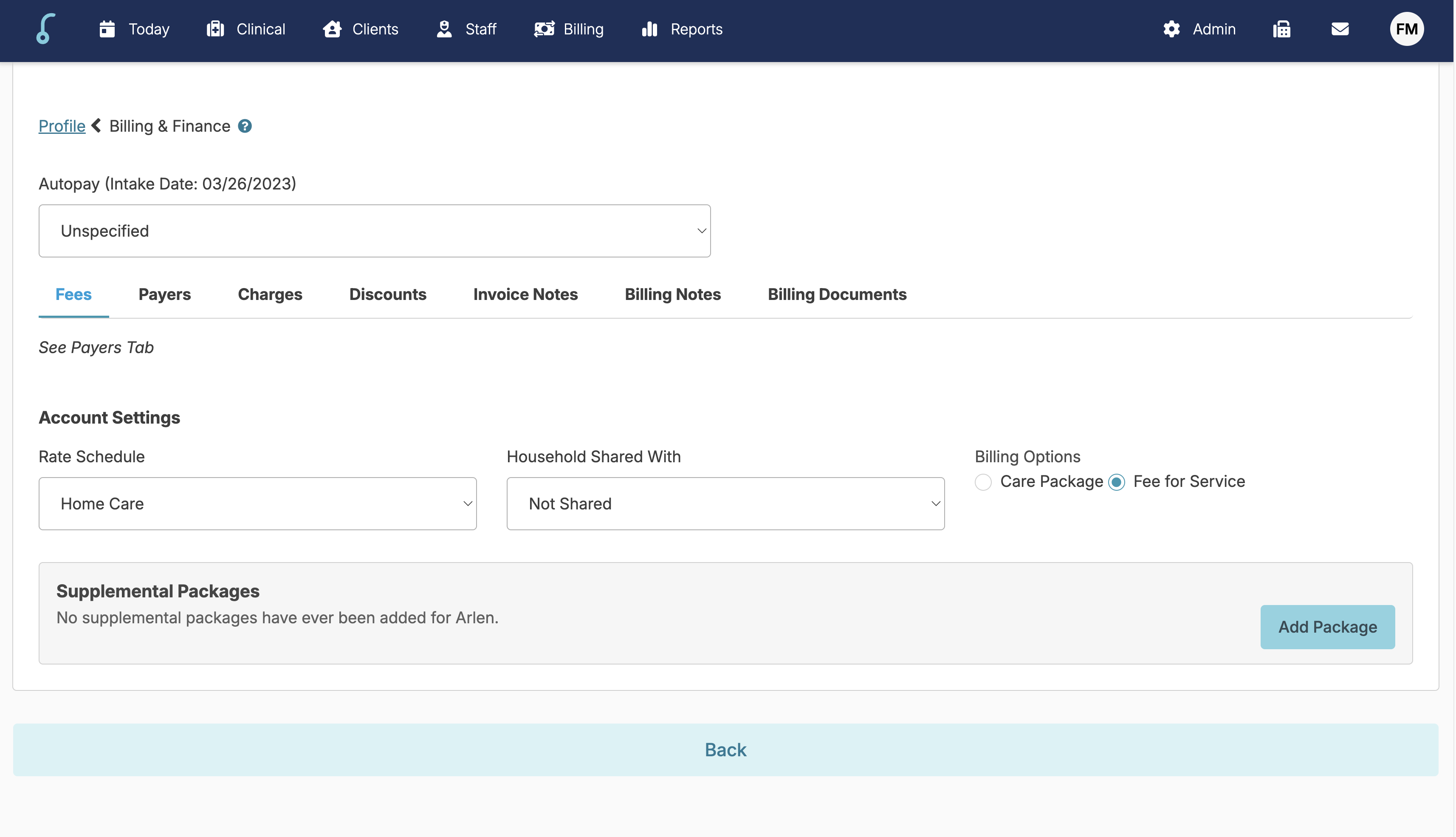
Payers Tab:
- Under Billing & Finances > Payers
- Click Add Payer
- When a non-private payer is selected, additional fields will appear
- This information can be entered using the Service Agreement as indicated below
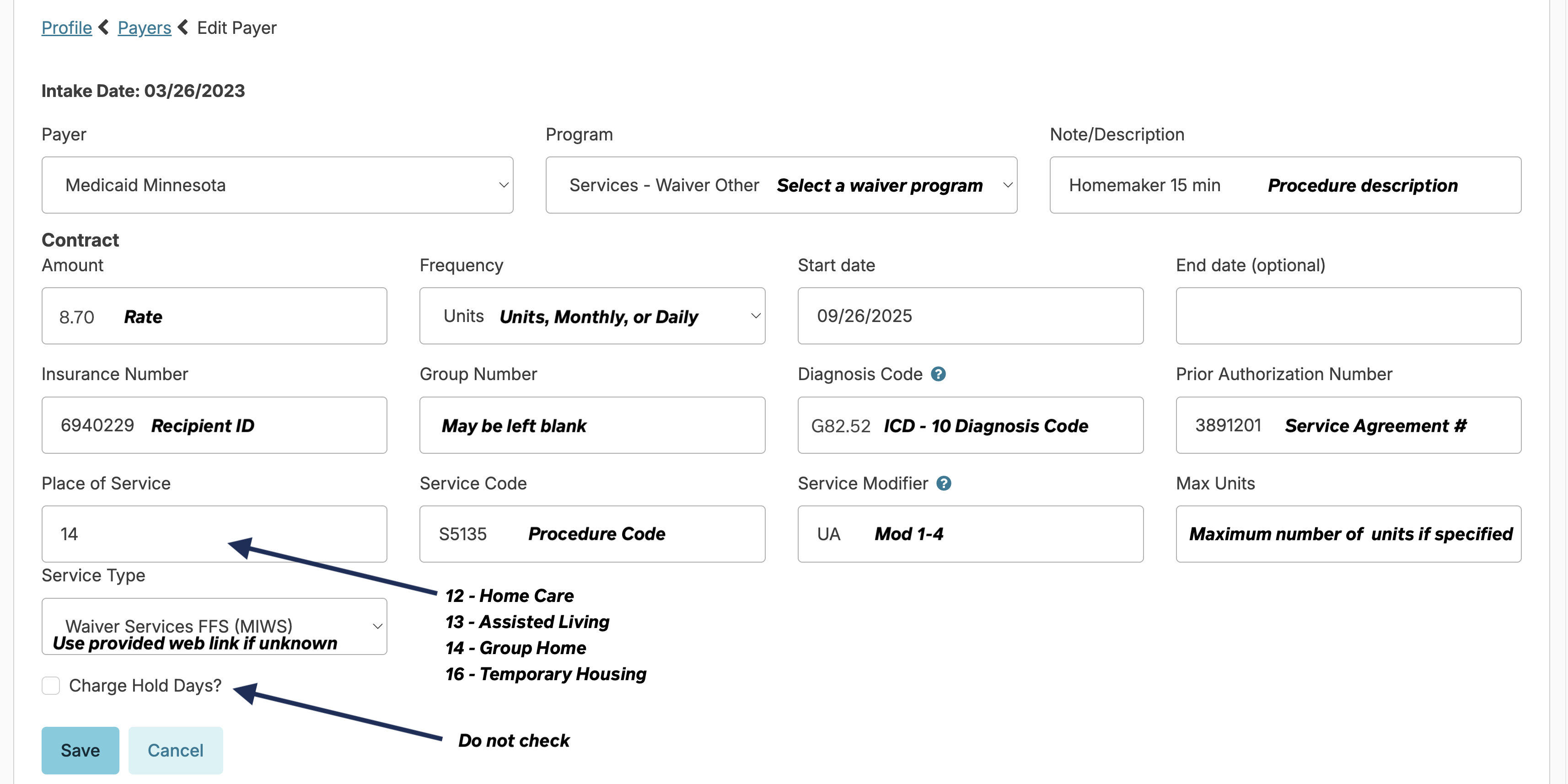
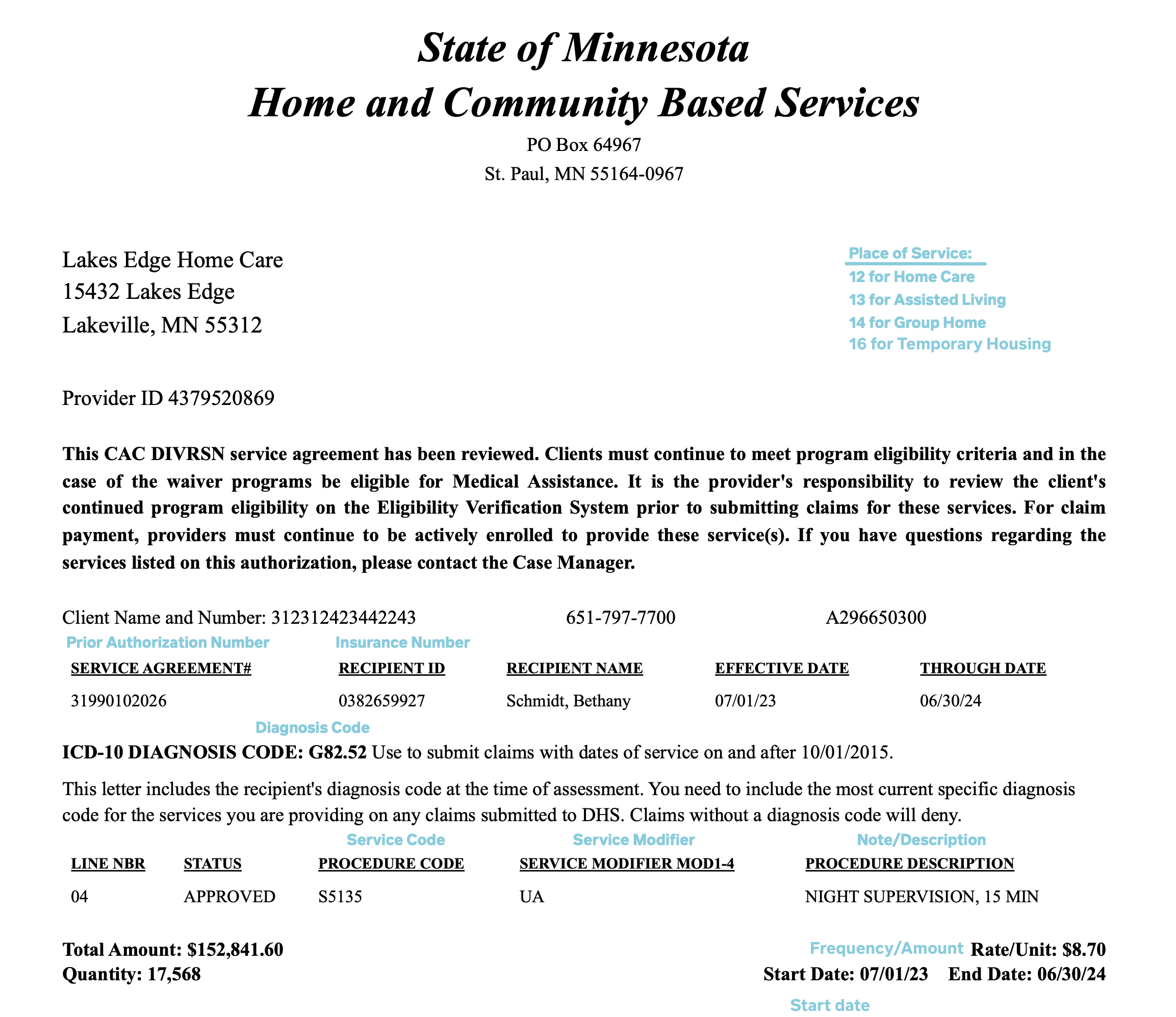
This example service agreement shows what information needs to be entered into Residex from the service agreement and which field it needs to be added to when setting up a new payer for a client.
Rates may be specified as Units, Monthly, or Daily. Here is an example of an authorization with a daily rate.
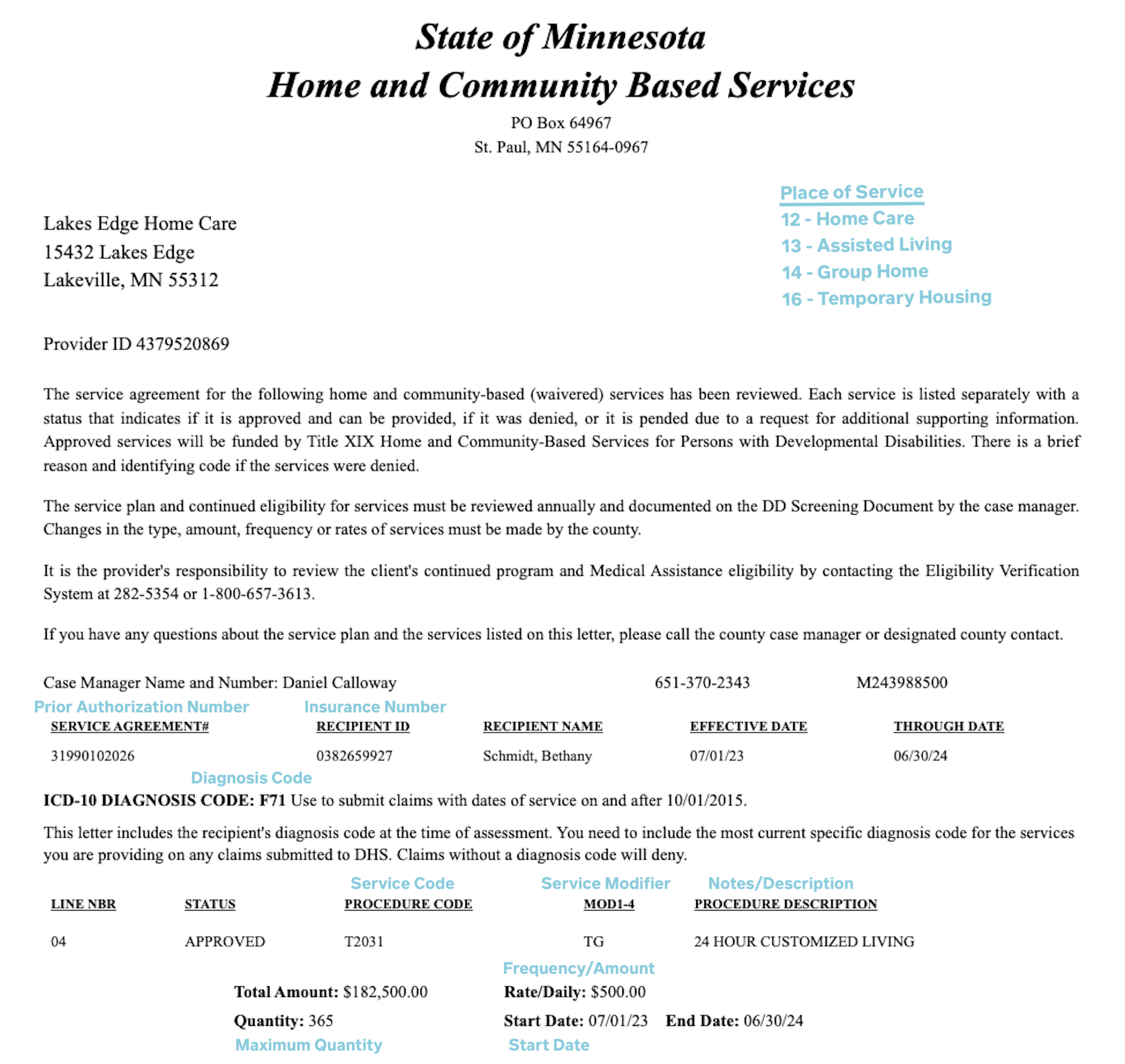
If you would like to enter the max number of units that can be billed for a client, this can be done by choosing the appropriate payer/program that is entered for the client and then selecting Edit.
Finding the Service Type
-
Use this link if you are unsure of the procedure code
- Open the above link and click onProcedure Codes
- Use your browser's "Find" option (CMD + F or Ctrl + F)
- Expand one of the Program Procedure Code option lists
- Type in the service code and press enter
- If this payer has the procedure code the search will show a #/# result
- This is the Service Type you will select in the Residex payer screen
NOTE: If the search results show 0/0, expand another program and click on the search field again and press enter. This will search in the expanded Program Procedure Code list.
If No Agreement is Available
If a service agreement for a client has not yet been received, a temporary placeholder payer called "Waiver Unknown" should be used. If this payer is selected, records will not automatically be submitted to HHAX upon clocking out.
Renew Payer
If a payer rate expires, it will be removed from visibility by default. You can "renew" these payers to update the rate and authorization period by doing the following:
- Navigate to the Profile > Billing & Finance scree
- Click the button to "Show ended payers"
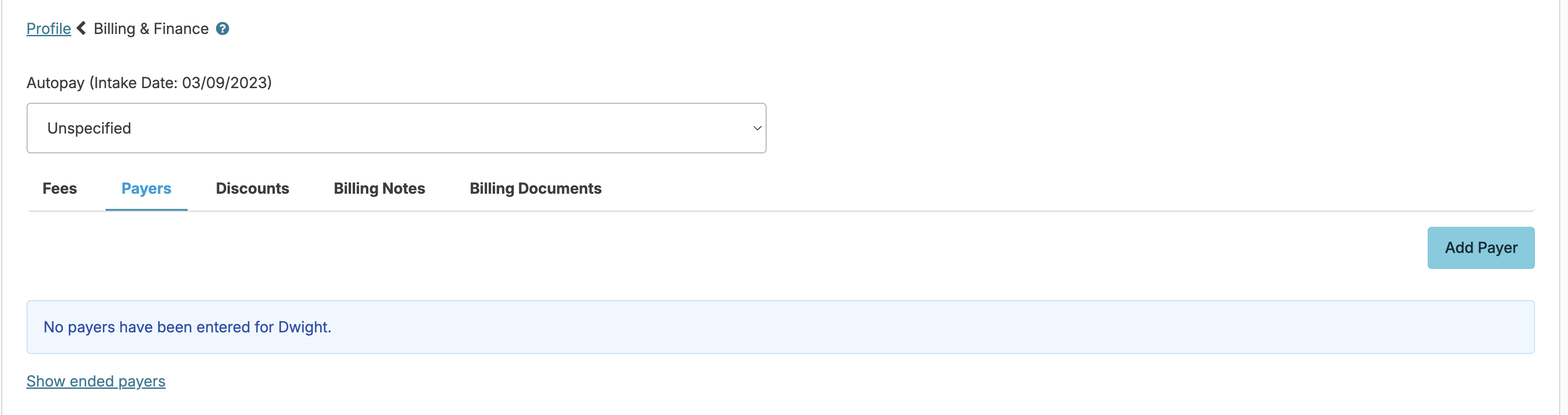
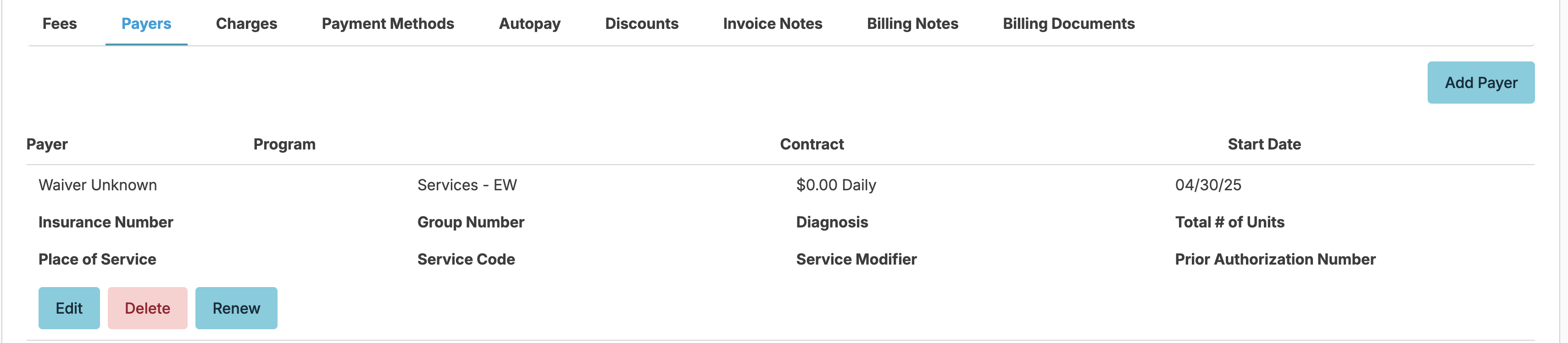
- Click on the payer and click the Renew button
- Update the payer information and press Save
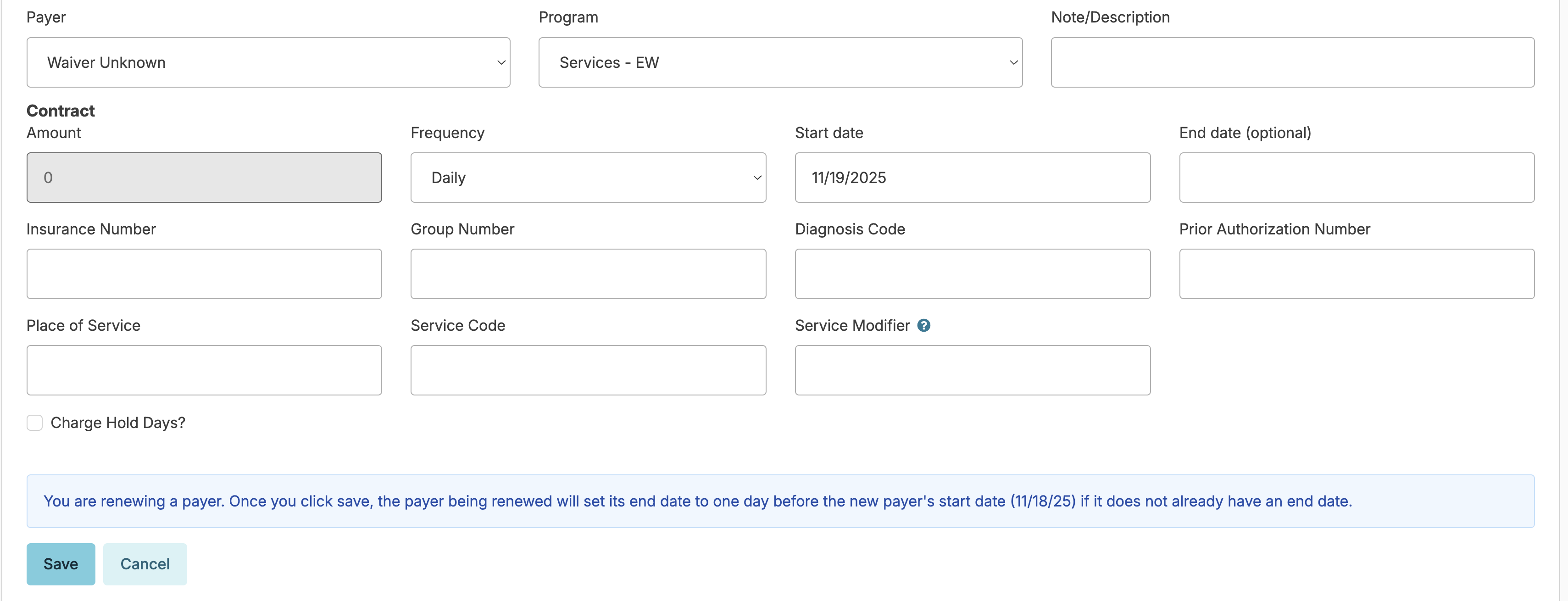
Add Payer vs. Renew Payer
When you receive a new agreement for an existing payer, click on the payer name and select "Renew" instead of using the Add Payer option.
Using "Add Payer" for an existing payer will hide the original payer entry (even though it has the same name) and cause an EVV submission error indicating the payer is expired.
Only use "Add Payer" when entering a payer for the first time.
If you need to Renew a payer and it has already expired, click the button to "Show ended payers".