
Table of Contents:
Create Assignments
To create assignments in Residex, you need either Administrator (Role 411), Administrator Assistnat (Role 410), Manager (Role 11), or Supervisor (Role 13) permissions.
- Navigate to Admin > Assignments
- Click New Assignment
- Select the client's name from the option list
- Select the Payer from the option list (If the client has 2 different payer types such as homemaker and HHA, the client will have 2 different assignments as well)
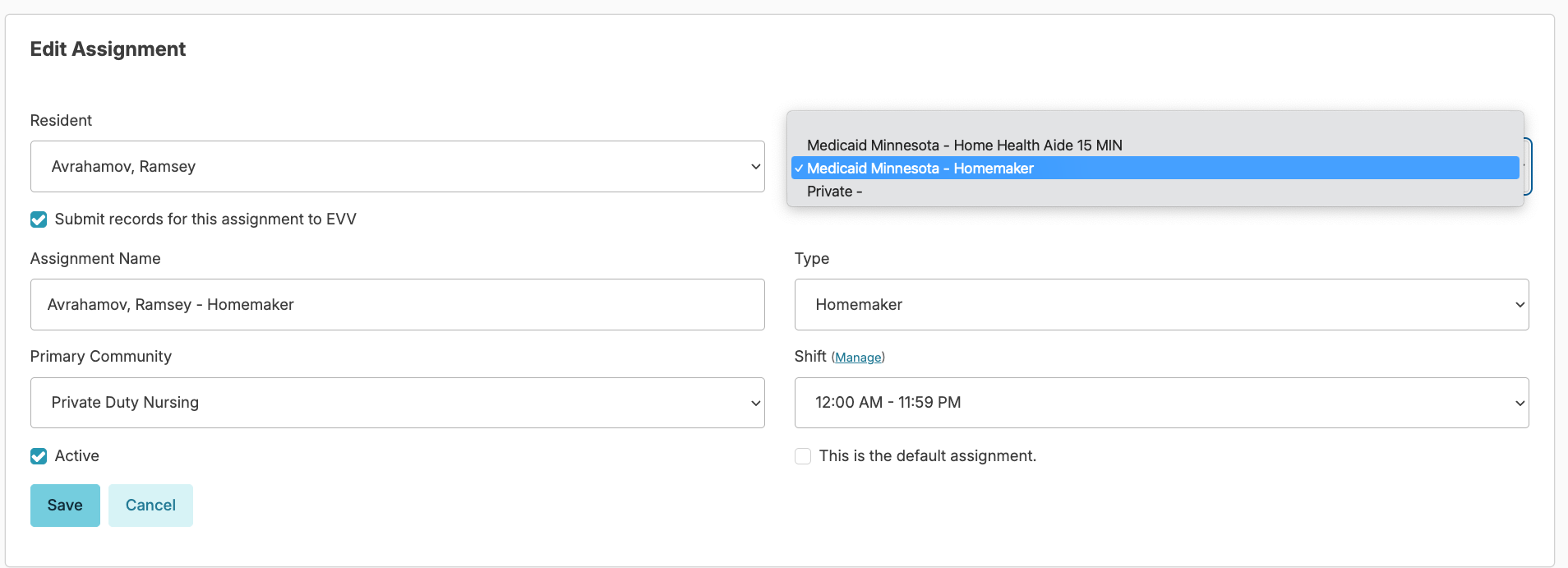
- If EVV is turned on, the check box for “Submit records for this assignment to EVV” will automatically be checked
- ✅ Check ONLY if required for EVV submission
- Verify if service is on the "Required services" tab on DHS website
- ❌ Uncheck if not required by Medicaid
- Enter an assignment name (for example: Client name – Homemaker)
- Select the assignment type such as HHA/RA, Homemaker, RN, etc. (Select lowest provider type authorized to provide the service)
- Select the Primary Community
- Select the shift (for all assignments select 12:00 AM – 11:59 PM)
- Click Save
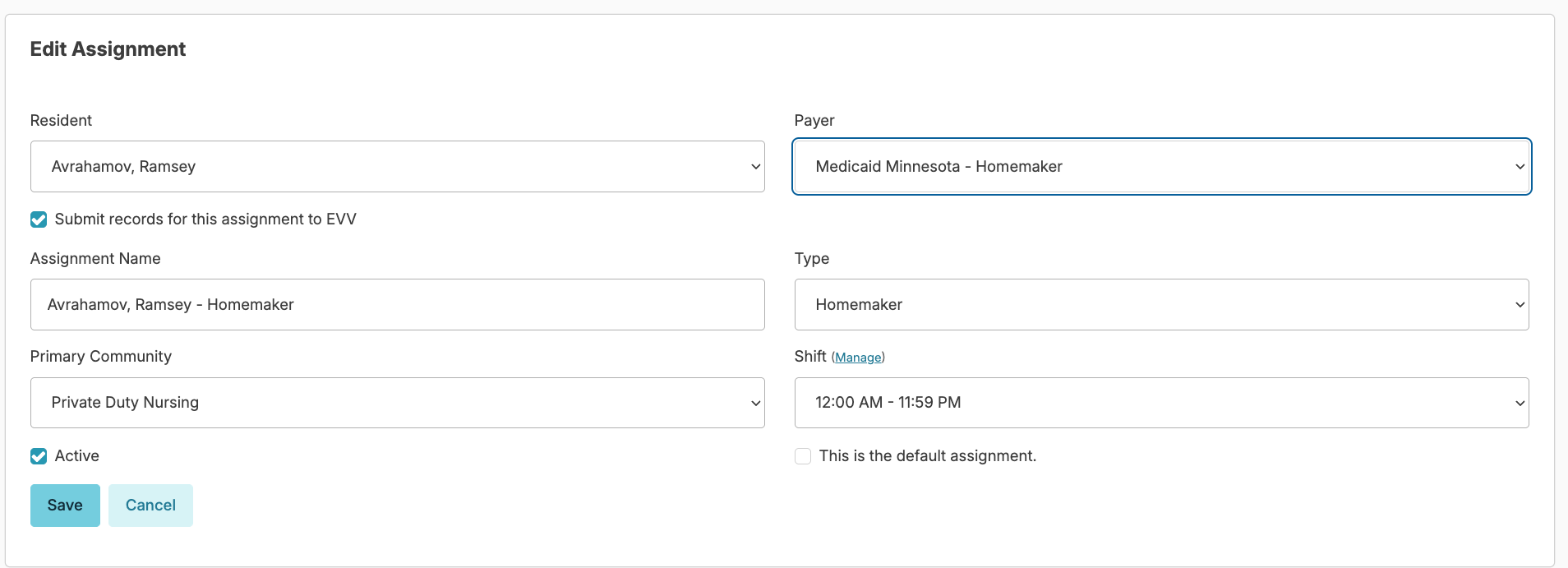
- Repeat this for all clients, payers, and service type
📘 If a client has both RN and Homemaker services, enter the assignment name once using the following format 'Client's Name - RN' or 'Clients Name - Homemaker'
Add a Service to Each Client
To add a service, staff must have Services (Role 2)
- Navigate to Clients > Clients
- Select client profile
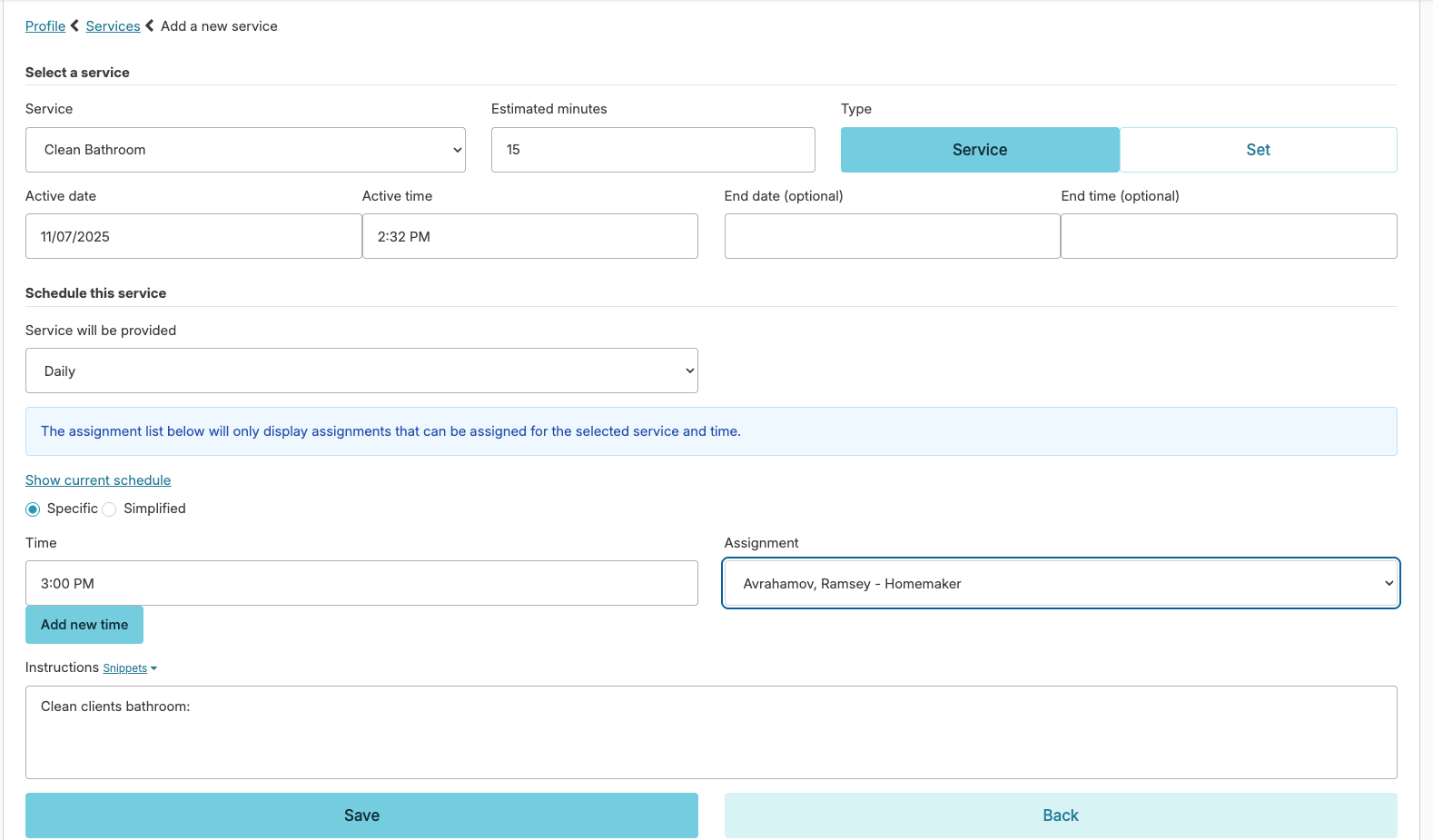
- Click Services > Add New Service
- We recommend being specific when adding services – if a client gets bathroom assistance, add that specific service
- The estimated minutes is useful for giving staff an idea of how long the service should typically take
- The active date will determine the first date/time this service will start populating to the Today screen
- Select when the service will be provided, if not daily, use the option list to select another option
- Times can be Specific (1:00 PM) or Simplified (AM, PM, Overnight)
- When entering the service, make sure the correct assignment is selected (this is the named assignment linked to the client)
- Enter instructions that you want the caregiver to be aware of
- When finished, press Save
Check for Readiness
The report “Client Clock Readiness” is found under Reports > Reports > Category: Client Clock. This report will alert users to a few pieces of key information that are missing. If the report is blank and you entered payer and staff information for your clients, you should be ready.
Once all these steps are completed, please email us at Support@Residex.ai so we can activate the Client Clock feature and prepare for HHAexchange submission.