
'Care Coordination' is an effective system of managing your residents' appointments or provider contacts. This feature allows you to create an appointment schedule for residents that have virtual and/or in-person appointments.
Care coordination is also used for any contact made with a provider whether you are contacting the provider by phone, fax, or if the provider is rounding at your facility. Care coordination allows the user to document various types of contact, and they are easily visible when a provider has not responded to a fax or phone messages.
This feature will allow you to:
- Schedule upcoming appointments (even months ahead)
- Schedule repeating appointments (dialysis, lab draws, salon appointments, etc)
- Add resident-specific details and any concerns
- Set up notifications of upcoming appointments, alerting and advising staff on steps they need to take to get residents ready and transported to and from their visits
- Document new orders and follow-ups to any appointments. This will be visible on the 'Care Coordination' screen, but also in resident notes
Care Coordination Management
There are two different ways of managing appointment/provider contacts:
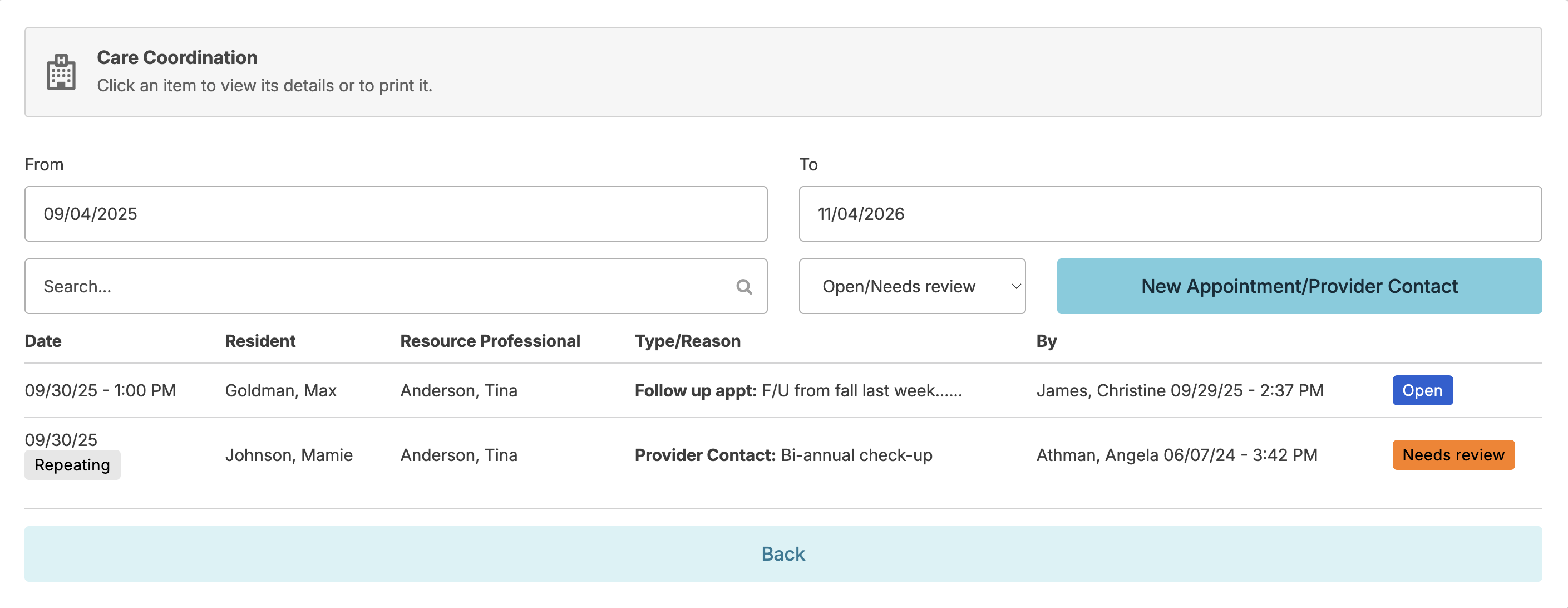
The Clinical > Care Coordination screen lets you manage appointment/provider contacts for all residents.
The Residents > Residents > resident profile > Care Coordination screen lets you manage appointment/provider contacts for just one resident.
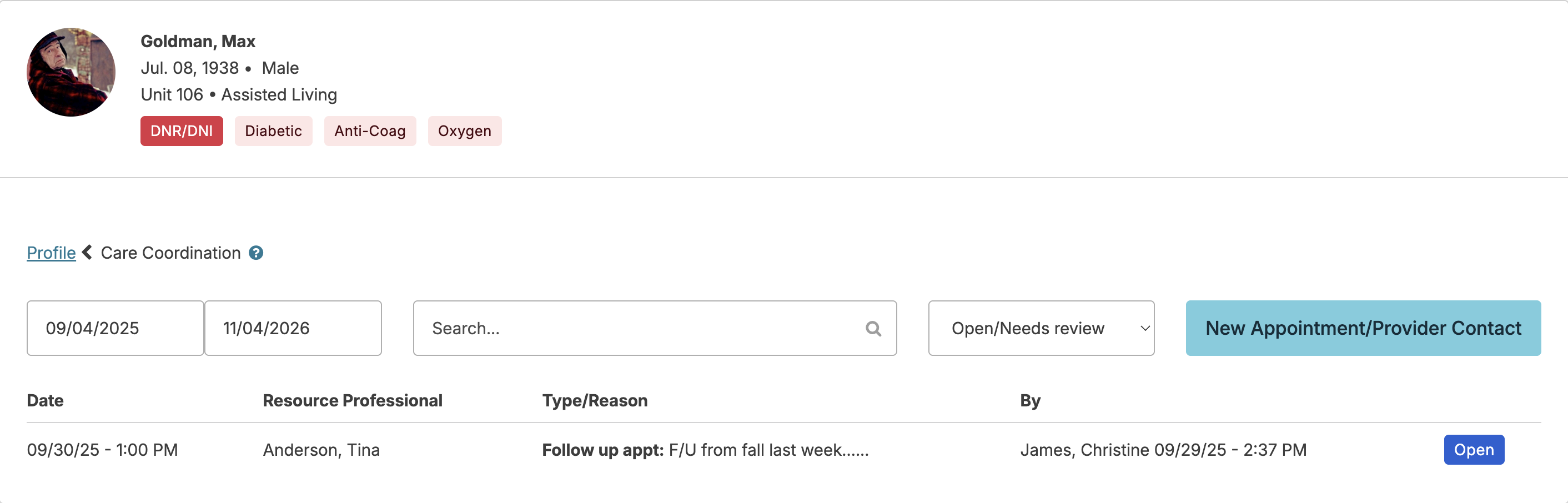
From either screen you can:
- See and search through all appointments filtering by status of 'Open/Needs review,' 'Completed/Reviewed,' or 'Cancelled'
- Select any appointment to update its details
- Record new appointments
- Manage types of appointment/provider contacts
- Attach a completed care coordination document
Scheduling a New Appointment
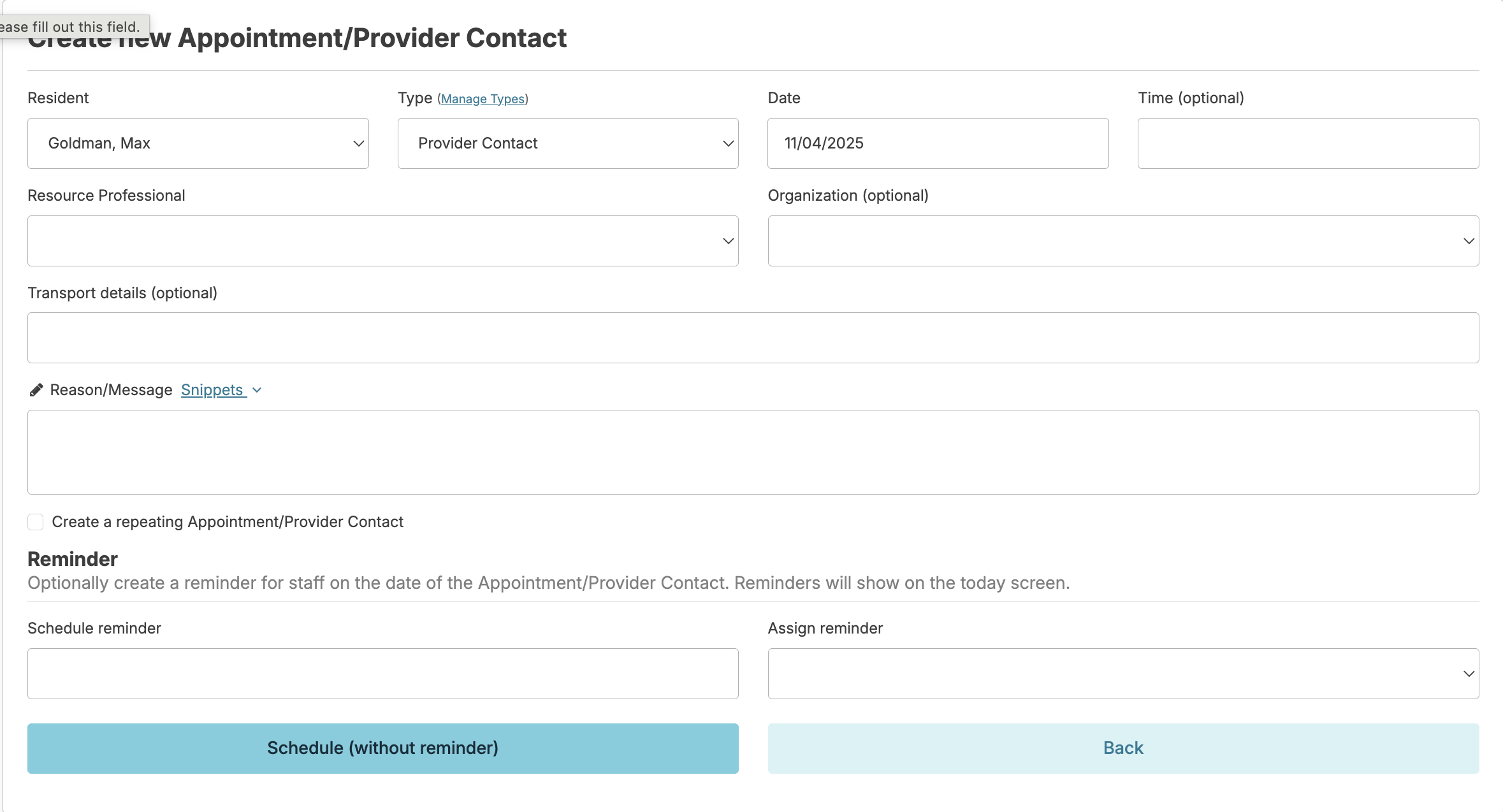
When recording a new appointment, specify the resident name, type of appointment, date of the appointment, reason, notes for the visit and whether or not this will be a repeating appointment/provider contact. You can also record additional details such as time of day for the appointment, who the resident is seeing, what the transportation details are, and reminder details for your staff. NOTE: Repeating appointments/provider contacts will only display 30 days before the scheduled appointment
Rescheduling an Appointment
You can update a non-repeating appointment/provider contact by navigating to:
- Clinical > Care Coordination OR Residents > Residents resident profile > Care Coordination
- Select the appointment/provider contact that needs to be updated
- Select edit
- Update the date as needed
- Schedule the reminder service as needed
- Click Schedule
You can reschedule a recurring appointment/provider contact by navigating to:
- Clinical > Care Coordination OR Residents > Residents > resident profile > Care Coordination
- Select the appointment/provider contact that needs to be rescheduled
- Scroll down to the 'Repeats' section
- Select Reschedule
- Click Confirm to end the current schedule
Note: Clicking Confirm will end the current schedule and remove all recurring appointments. A new appointment/provider contact will be created, directing you to the corresponding entry screen.
Ending a Repeating Appointment/Provider Contact
- Click on the repeating appointment/provider contact that needs to end
- Click edit in the upper right-hand corner
- Leave the button "Apply changes made above to all future occurrences of this repeating appointment/provider contact" checked
- Enter an end date
- Click Confirm
Charting an Appointment/Provider Contact
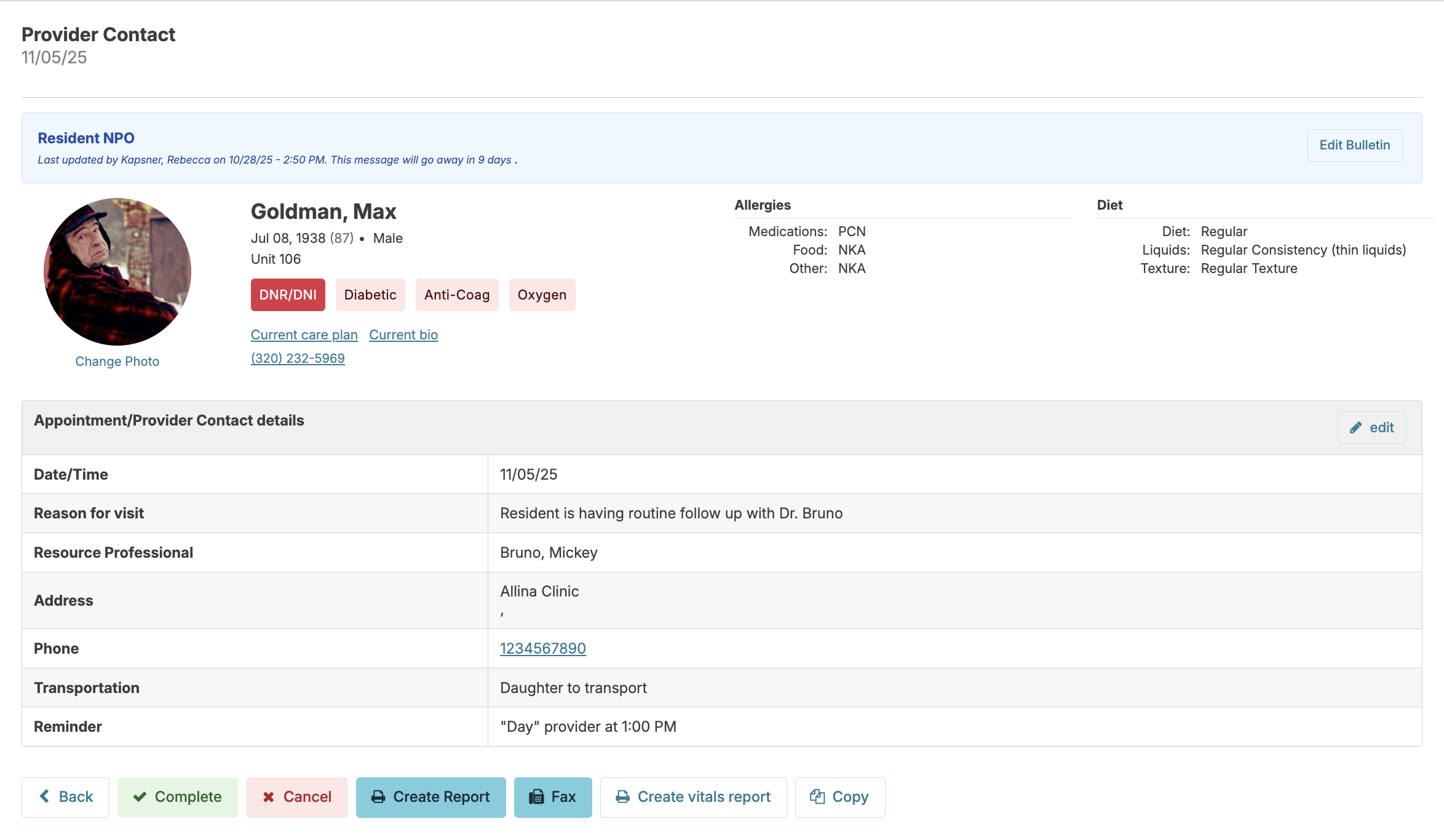
When a appointment/provider contact reminder is created for your staff to chart, they will have an item appear on the Today > Assignments screen that gives them the details of the visit. This allows them to print an appointment/provider contact report to send with the resident and optionally vitals history as well, or fax the appointment/provider contact report to the provider directly.
When this is done, they would press the Complete button.
Attaching a Appointment/Provider Contact Document
After the appointment has been completed, documents pertaining to the appointment/provider contact can be attached by selecting the appointment/provider contact and clicking the Edit button to the right of appointment/provider contact details.
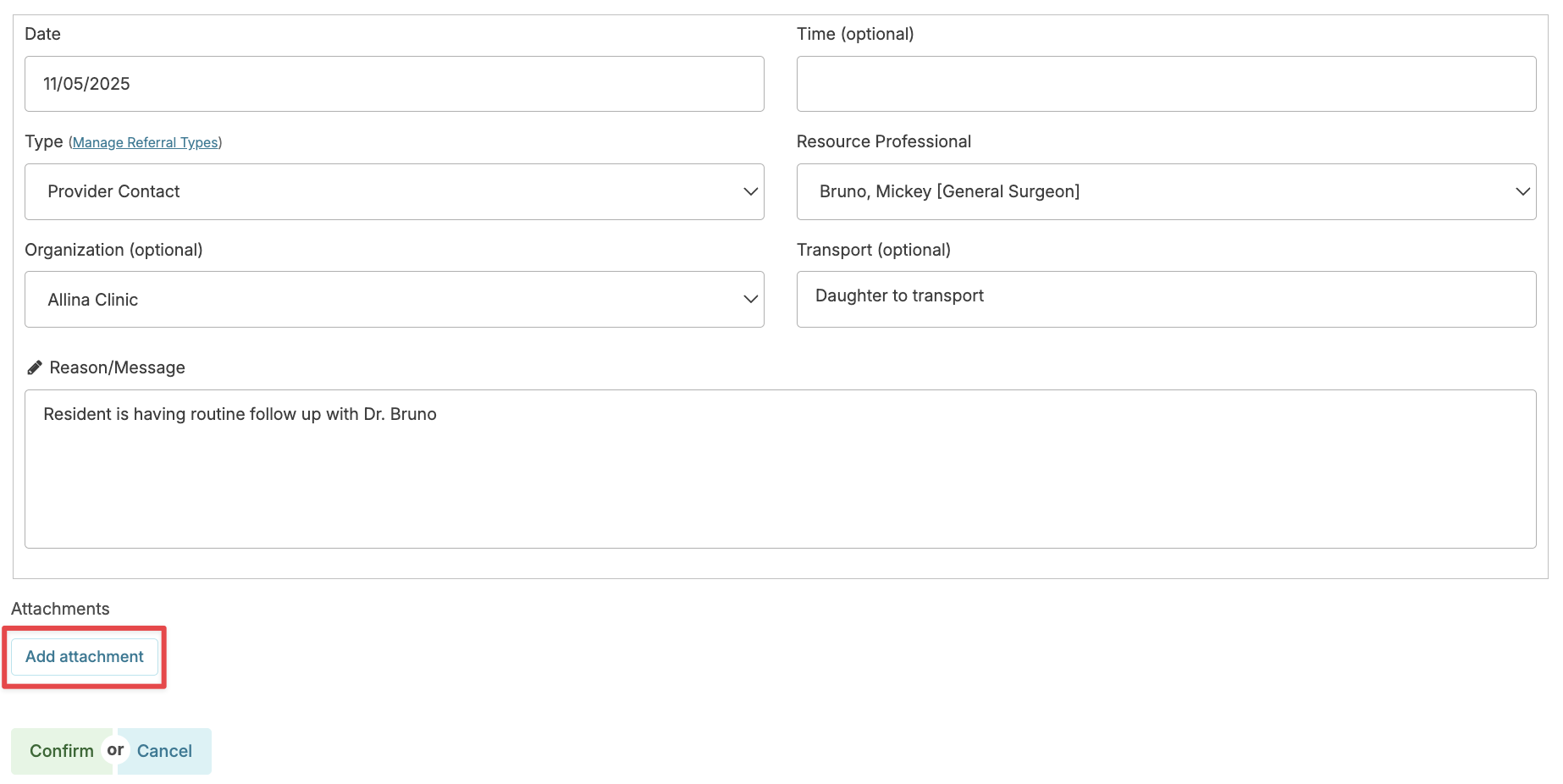
Click on Add Attachment and upload the document. Appointment/provider contact documents here are visible in the documents section of the resident profile. To edit the name or to delete a document, it must be done here in care coordination.
Reviewing an Appointment
After an appointment has been completed, nurses or users with Manager (Role 11) will have an opportunity to select that appointment to add notes regarding the outcome, and then change the appointment status to Mark as Reviewed.

Care Coordination Types
You can customize what types of care coordination can be scheduled for your organization.
From Clinical > Care Coordination > New Appointment/Provider Contact > Manage Types
- Press the Add Care Coordination Type button to add new types
- Select any care coordination type to edit its details and custom note format