Table of Contents
- Fees
- Payers
- Charges
- Payments Methods
- Autopay
- Discounts
- Invoice Notes
- Billing Notes
- Billing Documents
- Billing Contact
Billing & Finance
From the Residents > Residents > Resident's Profile, the Billing & Finance screen serves as your central hub for managing financial aspects of a resident's account in Residex. A user needs Fees and Payers (Role 21) to access both the Fees and Payers tab from the resident profile.
Private pay rates are entered on the Fees tab, under Billing & Finance > Fees.
For residents who are private pay, these rates create the charges that pull into the resident’s charge lines.
For residents on a public pay program, the private pay rate is still entered in addition to the public pay amount in the Payers section. Setting it up this way lets you see what the resident’s invoice would be if they were private pay. This is helpful in two situations:
- A resident loses their public pay contract. You will already know what their private pay cost would be, so when they need to know what there new rate will be it is easy to pull.
- Comparing revenue. You can see the difference between the revenue the community receives under public pay and what it would receive under private pay.
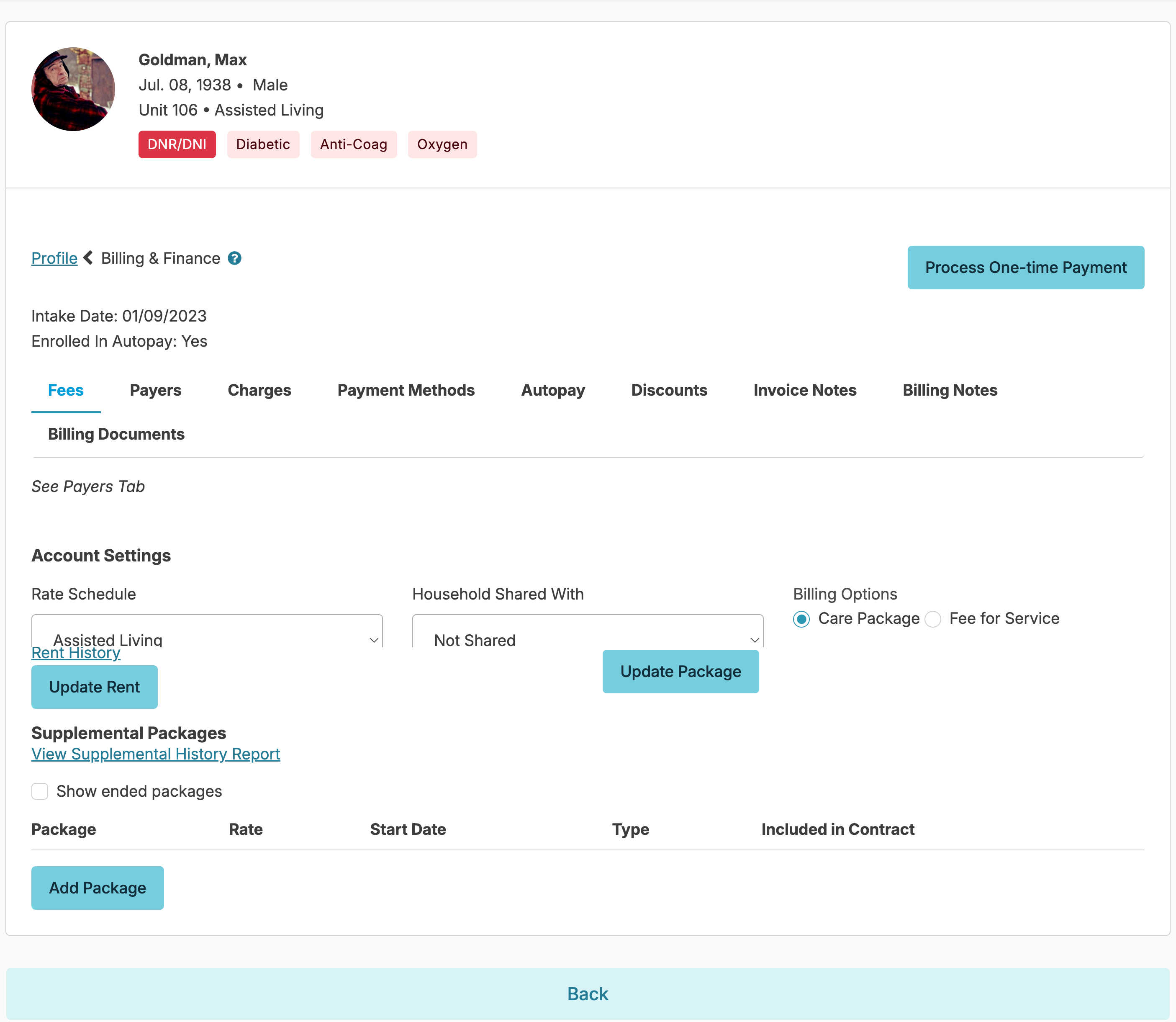
Rate Schedule
If you charge for services based upon time spent and the staff providing the service, rate schedules will allow you to set those parameters (example: $9 per 15 minutes of HHA time, $25 per 15 minutes of RN time, etc). The provider type rate for each service can be managed from the Global Service List. Users with Billing (Role 4) can view the rate schedules by navigating to Billing > Billing Configurations > Rate Schedules
Household Shared with
Household Shared with is used to generate consolidated invoices - charges for two residents (e.g. a married couple living together) to print on one invoice.
Billing Options
Care Package vs. Fee For Service
Billing Options determine how a resident is charged for care. Choose the option that best fits how your community bills.
- Care Package: The resident is assigned to a level of care based on their needs and is billed a set rate for the services included in that package. You can also bill additional Fee For Service charges for services that are not included in the package. Because you choose which services pull charges, Care Package gives you more control, and many communities prefer it for that reason.
- Fee For Service: The resident is billed for all services that carry a charge, with no Care Package. Every service that has a rate associated with it pulls that rate as a charge, there is no ability to select if a service is chargable or not, if the charge is configured with a rate it and that resident receives that servcie it will pull the charge.
Residents with a Care Package are assigned to a level of care based on their needs.
- If you select the Care Package billing option, you can specify a Care Package and its effective date for the resident.
- You can enter new Care Package rates with a future start date. You will be prompted for an effective date,
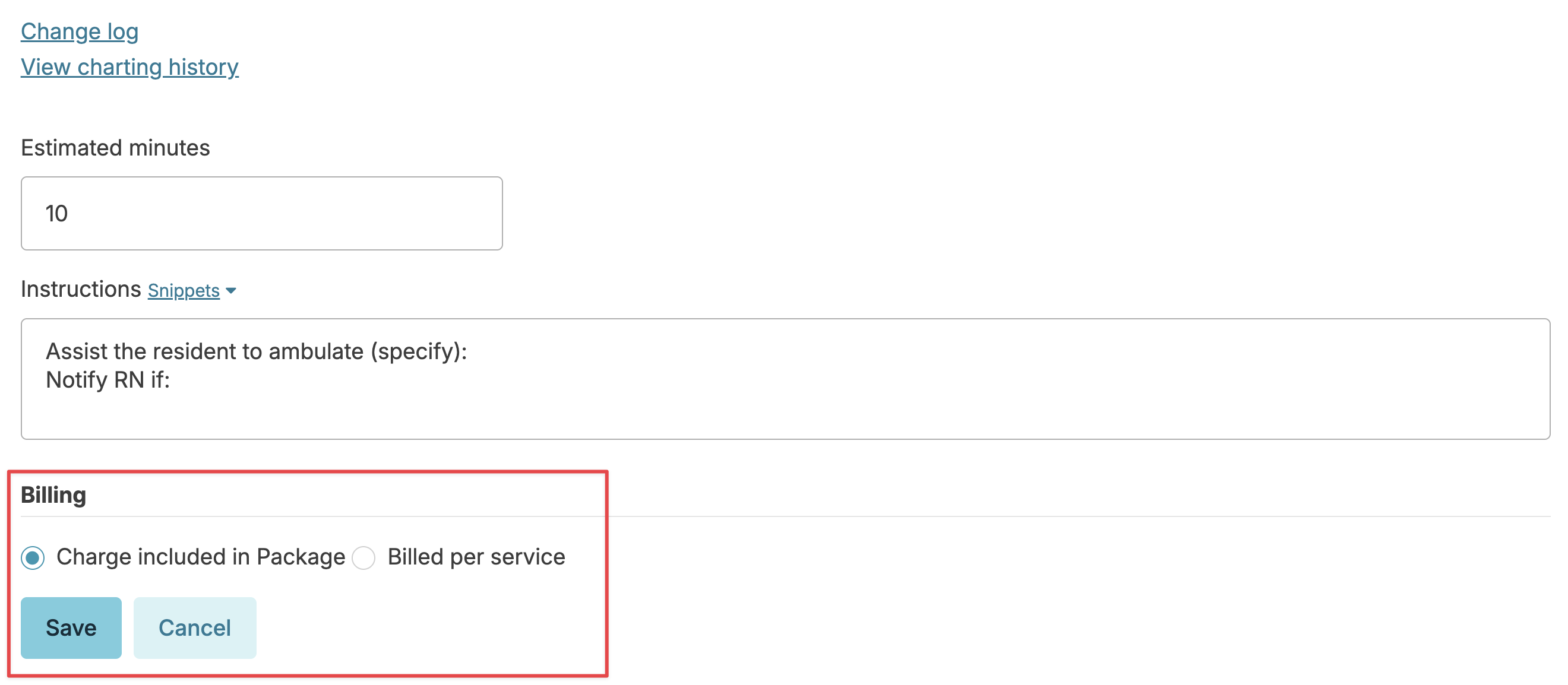
- You can optionally bill additional Fee For Service charges for services that are not included in the Care Package. To do this, go to the resident’s profile > Services, click the service, click Edit, and check the “Billed per service” option.
Custom Care Package Rate: If your community uses the Custom Care Package Rate option, you can enter any dollar amount as a care package rate for an individual resident. This is helpful if you have grandfathered a resident in at a rate that differs from your standard rates. Contact Residex support if you are not seeing this option and would like it turned on.
Fee For Service bills based only on the services a resident receives. There is no Care Package.
- If you select Fee For Service as the billing option, the Care Package section does not appear on the resident’s screen, and a Care Package cannot be assigned.
- Any service with a rate associated with it will pull that rate as a charge.
Rent
Rent rates are set up for each Unit. If the correct rent rate is not available, users with both Billing (Role 4) and Billing Supervisor (Role 23) will need to associate the correct rent rate with the unit.
You can:
- Select a resident's Rent rate from the options available and specify the effective date for that rent
- If new rent rates have been set up in billing configuration with a future effective date, you will be able to select either the old or new rate. The old rate will display for 30 days.
- If your Campus uses our 'Custom rent rate' option, you can simply specify any dollar amount for rent and an effective date directly from this screen. Contact Residex support if you are not seeing this option and would like it turned on.
-
When you update a resident’s rent rate, you can select box “Update Rent End Dates.”
- If selected: Any existing rent with no end date, or an end date after the new rent’s start date, will automatically end one day before the new rent starts. Any rents scheduled to start after the new rent will be deleted.
- If not selected: Existing rents’ end dates are left unchanged. Use this when you need to add a second rent without entering an end date for the current one.
Supplemental Packages
- Supplemental package charges can then be set up as service or housing revenue. Users with both Billing (Role 4) and Billing Supervisor (Role 23) can add a new supplemental package from the billing > billing configuration screen.
- Supplemental Packages can be assigned regardless of Billing Option (Care Package vs Fee For Service).
- A resident may be assigned multiple Supplemental Packages
- A supplemental package can be marked as "Included in Contract". When this is done, the supplemental package will not show on an invoice or statement. However, the supplemental package will be listed on the service plan as "Included in Contract".
- Common examples of Supplemental Packages include fees for Cable TV, telephone, Escort packages, medication management, garage rental, etc.

Add a Supplemental Package:
- When you add a Supplemental Package, you can specify the Start Date.
- When adding a Supplemental Package for a resident on an assistance program (and so has Payers with contracted amounts), you can specify if a Supplemental Package is to be 'Included in Contract'. If this is selected, a single charge will be generated for appropriate contract payers, and not billed privately as a separate charge.
Remove a Supplemental Package:
You can click on any existing supplemental package to reveal a Remove Package button; click this button and specify an End Date.
A resident can have multiple supplemental packages active at one time. However, they can not have a duplicate of the same supplemental package, even if the package has ended. If you are trying to add a supplemental package that has been ended, navigate to:
- Resident’s profile > fees/payers
- Click show ended packages
- Click on the package
- Change the start date and remove the end date to reactivate the supplemental package
Services included in Package
You can specify which of a resident's services are to be included in their Care Package or Supplemental Packages. Services that are included in a Care Package will not generate separate charges for a resident; services that are not specified 'included in Care Package' will generate separate Fee For Service charges.
Each Service will have a default setting for its inclusion in the Care Package - this default setting can be changed or individualized for each resident.
From the resident profile > Services, you can view all services scheduled for a resident and whether they are set to be included in the Care Package.
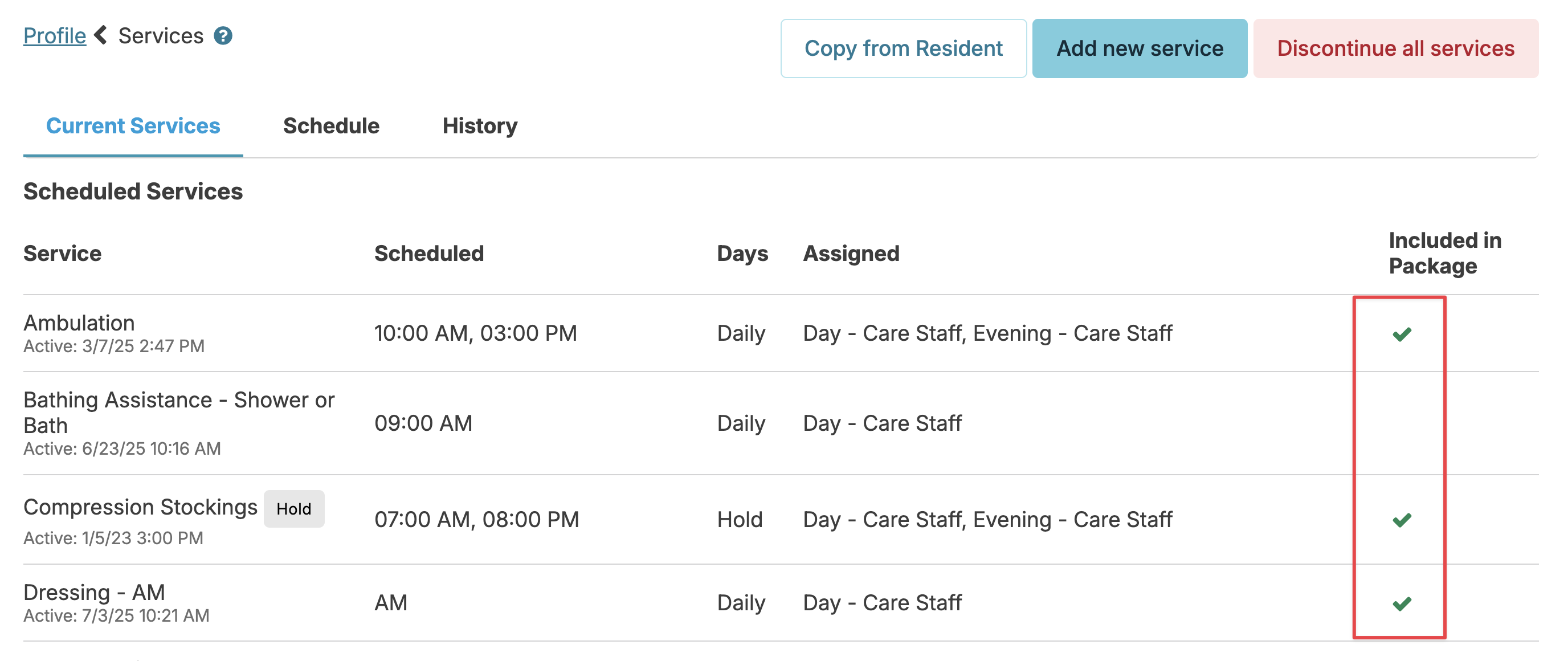
You can edit this by selecting the service and press the Edit button to update the setting for that resident's service.
Payers
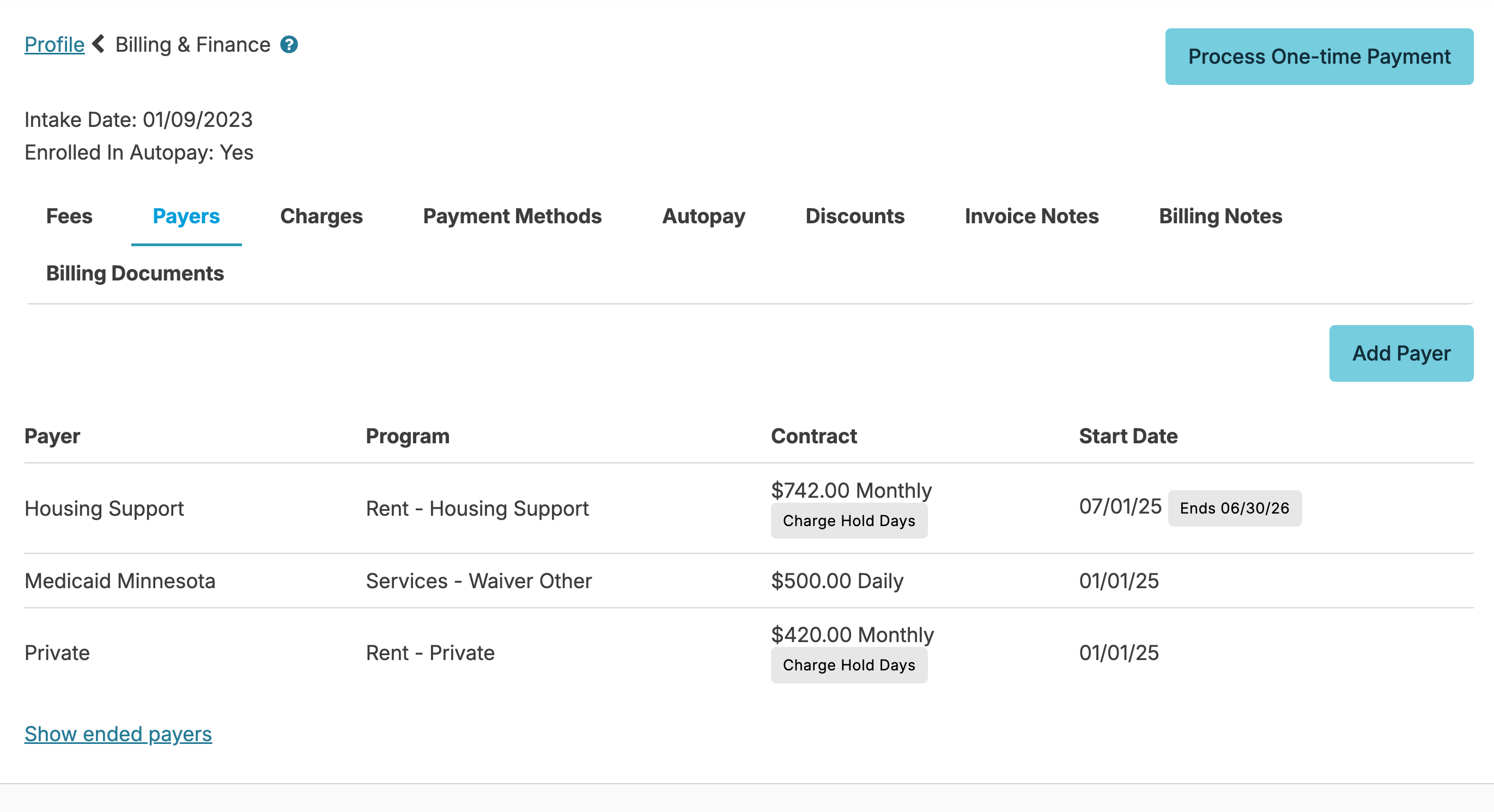
Residents are private pay by default. When a resident is set up, their Payer screen automatically includes a Private Pay line item of $0. If the resident is private pay only, no changes to the Payer screen are needed. The $0 amount isn’t a charge; it simply indicates there is no contract payer override, so the system pulls the private pay rates from the Fees and Services screens.
Residents with non private payers (waiver programs or those with contracted amounts) should have Payers set up - allowing you to identify the programs covering costs, and the contracted amount/s paid.
Note: You can also indicate a resident is on public pay prior to knowing the contract information by utilizing the 'Unknown' payer option.
Common examples of Payers include: Medicaid, BluePlus, Medica and Housing Support
To manage Payers, go to the resident profile > Billing & Finance > Payers tab.
Adding Payers
The Add Payer button will open a new screen.
- Select a Payer from the dropdown.
- Select a Program: If the configuration option “Enable Prorating of Public Payers” is enabled, the following Programs may be added multiple times: Services - Waiver and Services - Waiver Other.
- Enter amount, frequency and start and end date (optional).
- Check Charge Hold Days if a resident will be charged for the program while on hold.
A resident may have any combination of the following:
- Private: with Program "Services - Private"
- Private: with Program "Rent - Private"
- Private: with Program "Spend down Private (Services)" Note: If the configuration option “Enable Prorating of Public Payers” is enabled, any payers with Program “Spend Down - Private (Services)” will require you to specify a secondary payer to subtract from
- Medicaid (or any other Payer): with Program: "Services - Waiver"
- Medicaid (or any other Payer): with Program "Services - Waiver other"
- Housing Support (or any other Payer): with Program "Rent Housing Support"
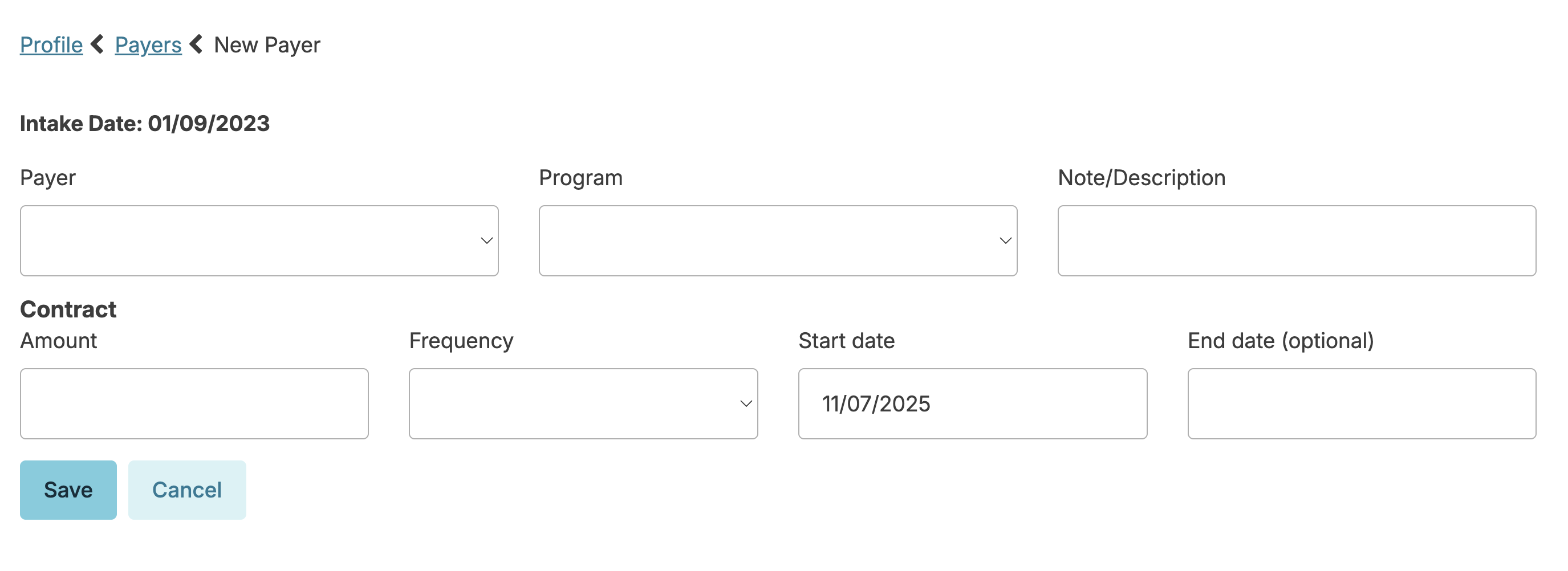
Note: Selecting a service program will prompt for additional fields to be completed.
Editing Payers
When a resident has a change in a contract rate paid by one of their Payers, you can make this change by going to resident profile > Billing & Finance > Payers tab, and selecting the Payer to be updated.
You can edit the amount, frequency, start and end date fields as needed. When you do this, you have the option to Auto Apply Adjustments for the new amount - if checked, when you press the Save button, it will trigger Residex to retroactively adjust past charges based on the new contract amount - particularly useful for updating your records when a state waiver program makes retroactive changes.
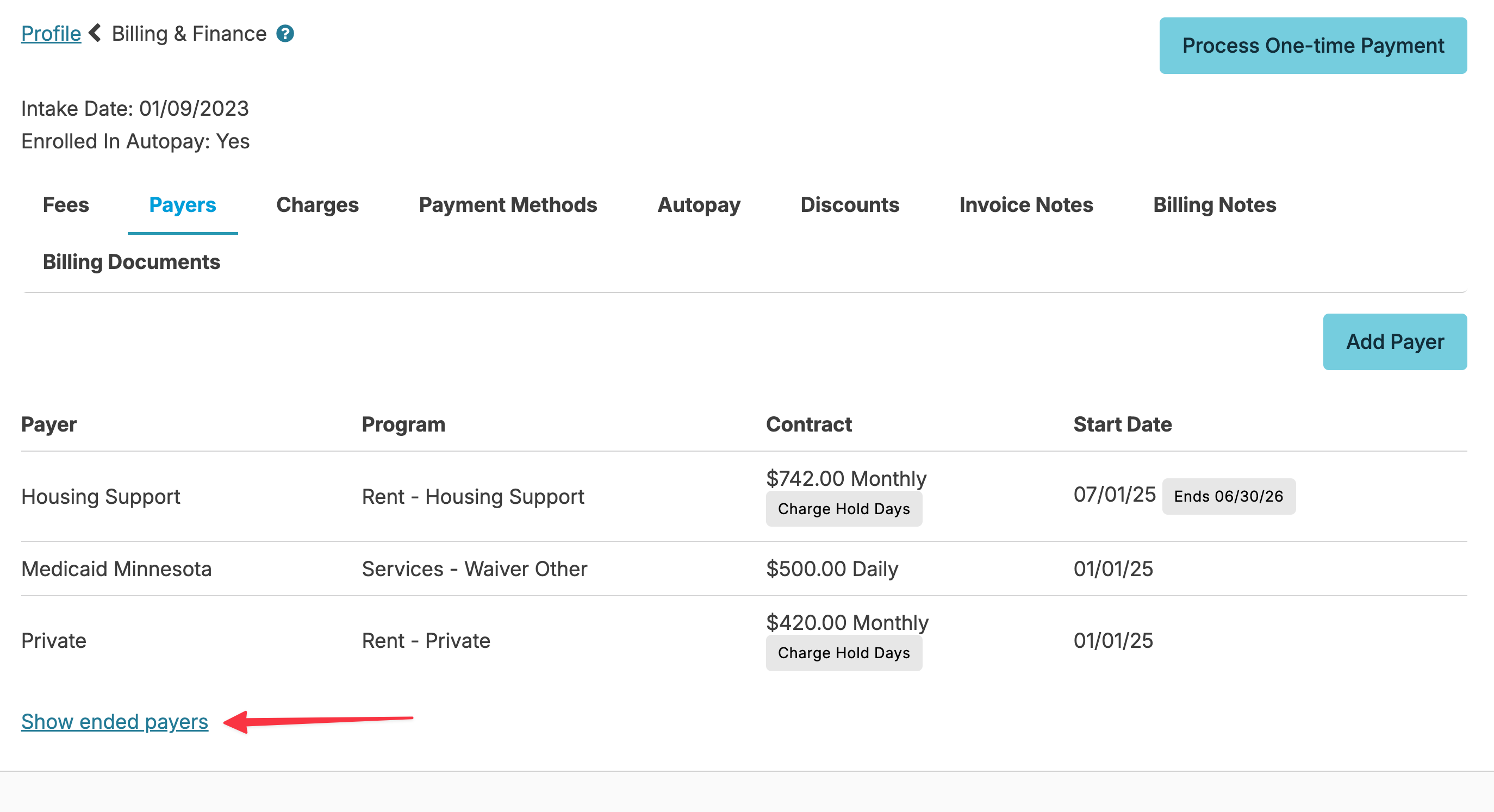
Note: Ended payers can be edited by clicking on Show ended payers, and selecting the payer you wish to edit.
Renew Payers
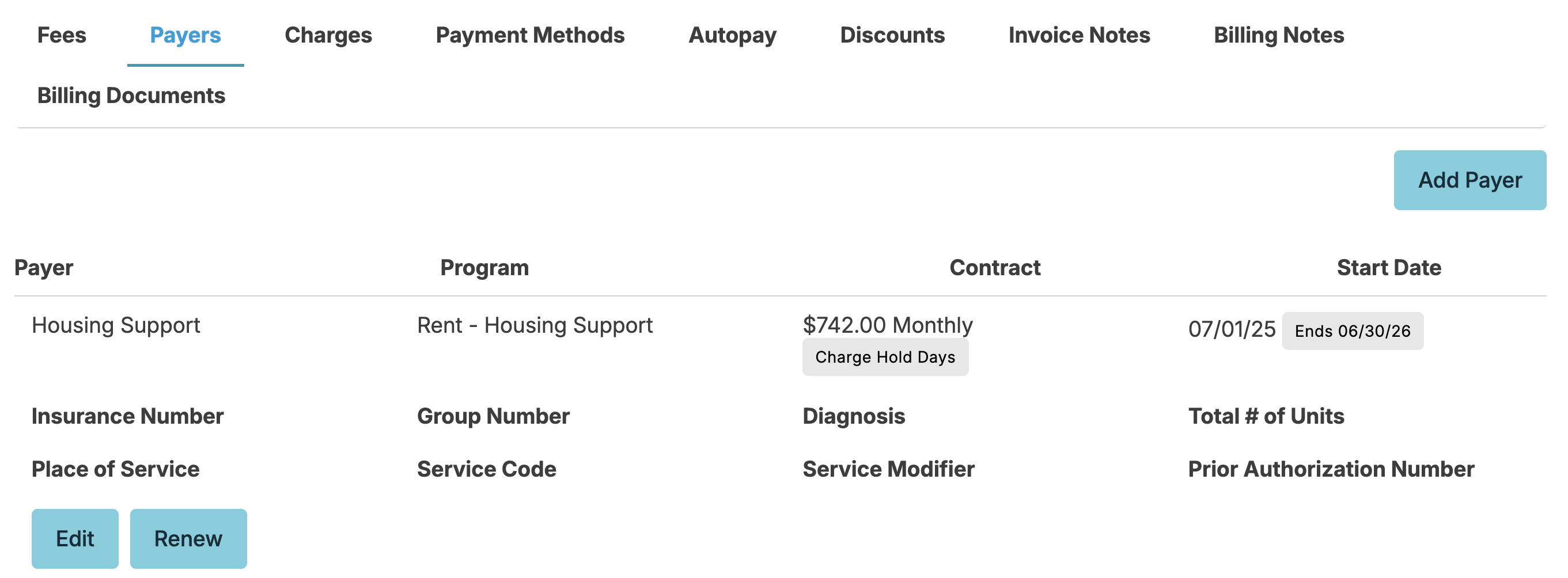
You can renew a previously used payer by clicking into that payer (current or ended) and clicking the 'Renew' button. Update/complete the fields and click Save.
Billing Notes
Billing notes can be added to a resident's Billing & Finance > Billing Notes screen. Billing notes are helpful to communicate anything for billing for a resident. For example, a note could be about family communication in regards to billing. There are several reports that can be run to view billing notes. They are Billing Notes - Date Range and Billing Notes.
Billing Documents
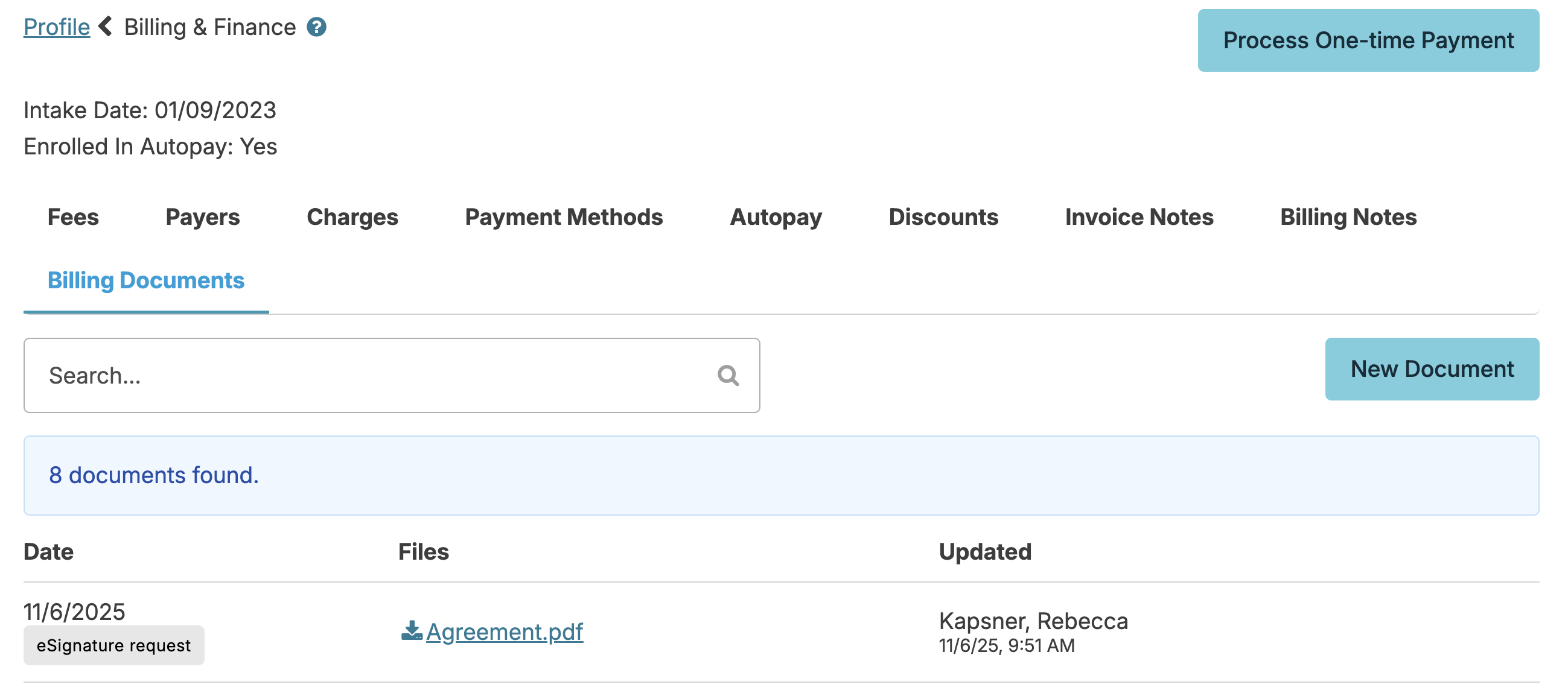
Selecting the Billing Documents tab will display all the resident's documents that have a document type that contains the word "billing." New billing documents can also be added for a resident on this tab.
Discounts
To add a discount to a residents rent, navigate to resident profile > Billing & Finance > Discounts
- The Discounts tab will open a new screen.
- Select the Start date. If not using Residex billing, discount dates will be a date selection in calendar view. For those using Residex billing, discounts do not prorate and will be set to a date drop-down selection.
- If the end date is known, select End date. This can be left blank if an end date is unknown or the discount does not have an end date. If using Residex billing the end date options are the last day of each month. The discount will continue until end date has been reached or upon discharge of the resident.
- Add the discount amount that the resident receives per month during the period selected.
- Enter any notes, if applicable
- Save
The discount, by default, will be applied to the GL Code for Rent. Contact billing@residexsoftware.com to have this updated to an alternative GL code, if desired.
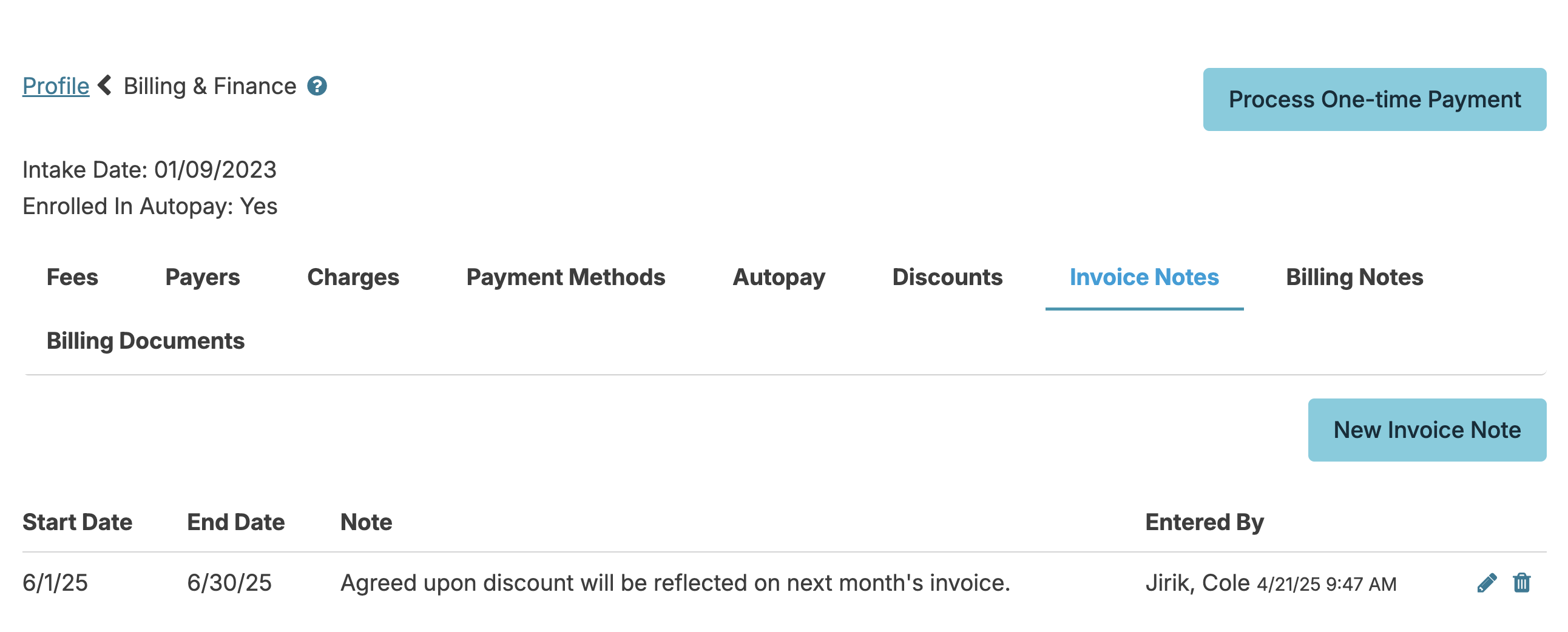
Invoice Notes
If you are utilizing Residex billing, you can add an invoice note to a resident's invoice/statement. Enter an end date for when you want this note to no longer appear on an invoice. Not indicating an end date will mean the invoice note will recur with every invoice until an end date is indicated.