Table of Contents
From the Residents > Residents > Resident's Profile, the Billing & Finance screen serves as your central hub for managing financial aspects of a resident's account in Residex. A user needs Fees and Payers (Role 21) to access both the Fees and Payers tab from the resident profile > Billing & Finance screen.
A bill may include any of the items listed below, which can be found on the Billing & Finance > Fees tab.:
- Rent
- Care Package
- Supplemental Package(s)
- Fee For Service Charges
- Other additional Charges
When residents participate in programs like Medicaid or have payment arrangements beyond private pay, you will want to include these other payment sources on the Billing & Finance > Payers tab.
The first step in configuring billing for a resident is to set up the rates for which you are expecting to bill, including:
- Rent
- Care Package
- Supplemental Package(s)
- Services (if any) billed on a Fee for Service basis
- Non-private Payers
Additional Charges such as incidentals, beauty shop charges, and guest meals can be recorded under the Charges tab as they are incurred.
The facility default ACH submission date, set in Billing > Billing Configuration > General will automatically display in the resident profile > Billing & Finance > Autopay > Enroll in Autopay with the ability to adjust if needed.
Lastly, you will want to make sure the resident has 'billing' and 'copy of bill' Contacts entered.
Resident Billing
Billing for a resident can be configured by navigating to the resident profile > Billing & Finance section for the individual resident.
If a resident is private pay, billing information will be entered under the Billing & Finance > Fees tab.
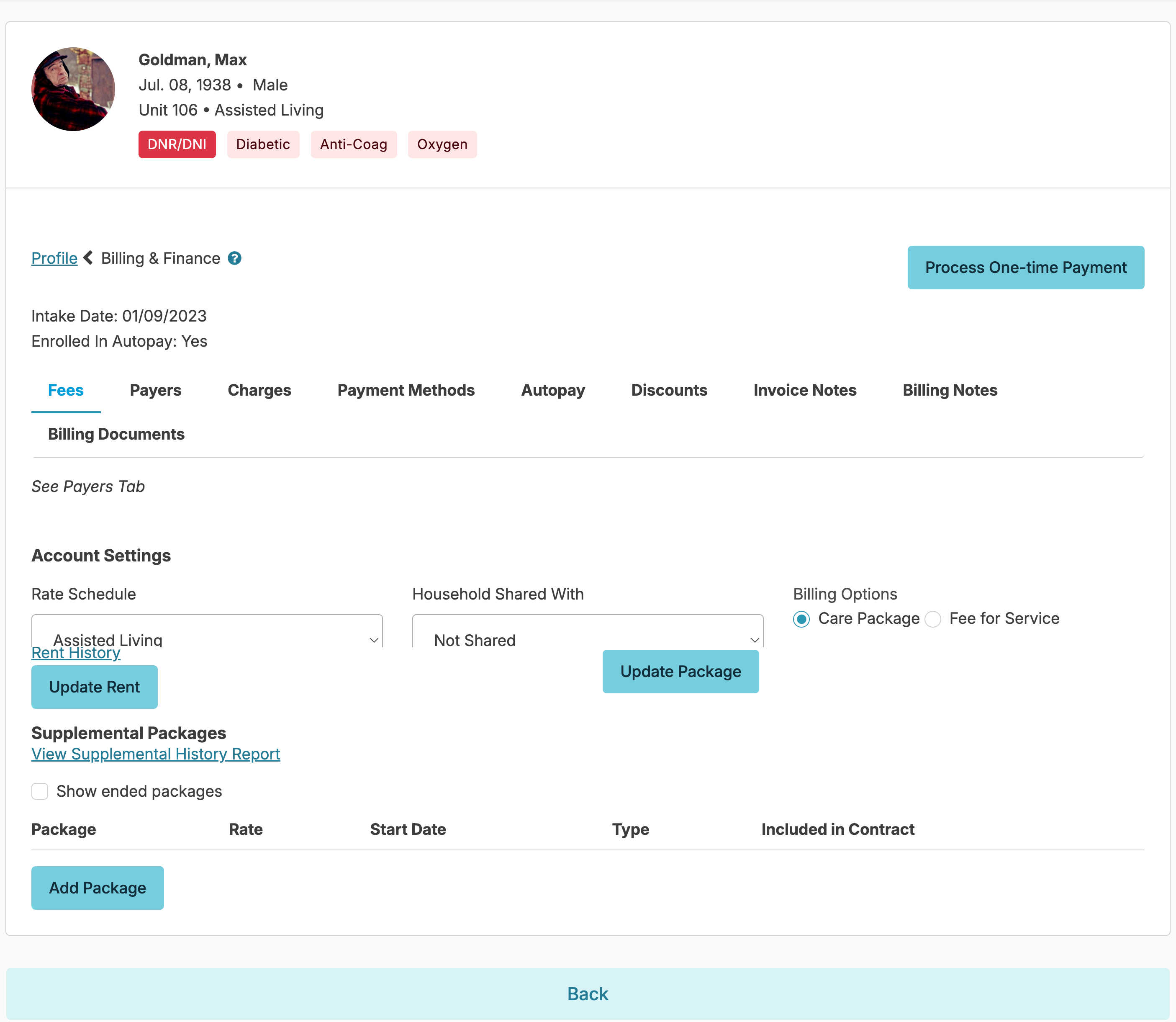
Rate Schedule
If you charge for services based upon time spent and the staff providing the service, rate schedules will allow you to set those parameters (example: $9 per 15 minutes of HHA time, $25 per 15 minutes of RN time, etc). The provider type rate for each service can be managed from the Global Service List. Users with Billing (Role 4) can view the rate schedules by navigating to Billing > Billing Configurations > Rate Schedules
Household
Household Shared with is used to generate consolidated invoices - charges for two residents (e.g. a married couple living together) to print on one invoice.
Care Package vs. Fee For Service
Care Package
Residents with a Care Package are assigned to a level of care based upon their needs, and billed for the services included in that Care Package.
- If you select the Care Package Billing Option, you may specify a Care Package & its effective date for a resident.
- New Care Package rates with a future start can be entered. You will be prompted for an effective date and this will allow both the old and new rates to be displayed as options for 30 days after the new rate is entered.
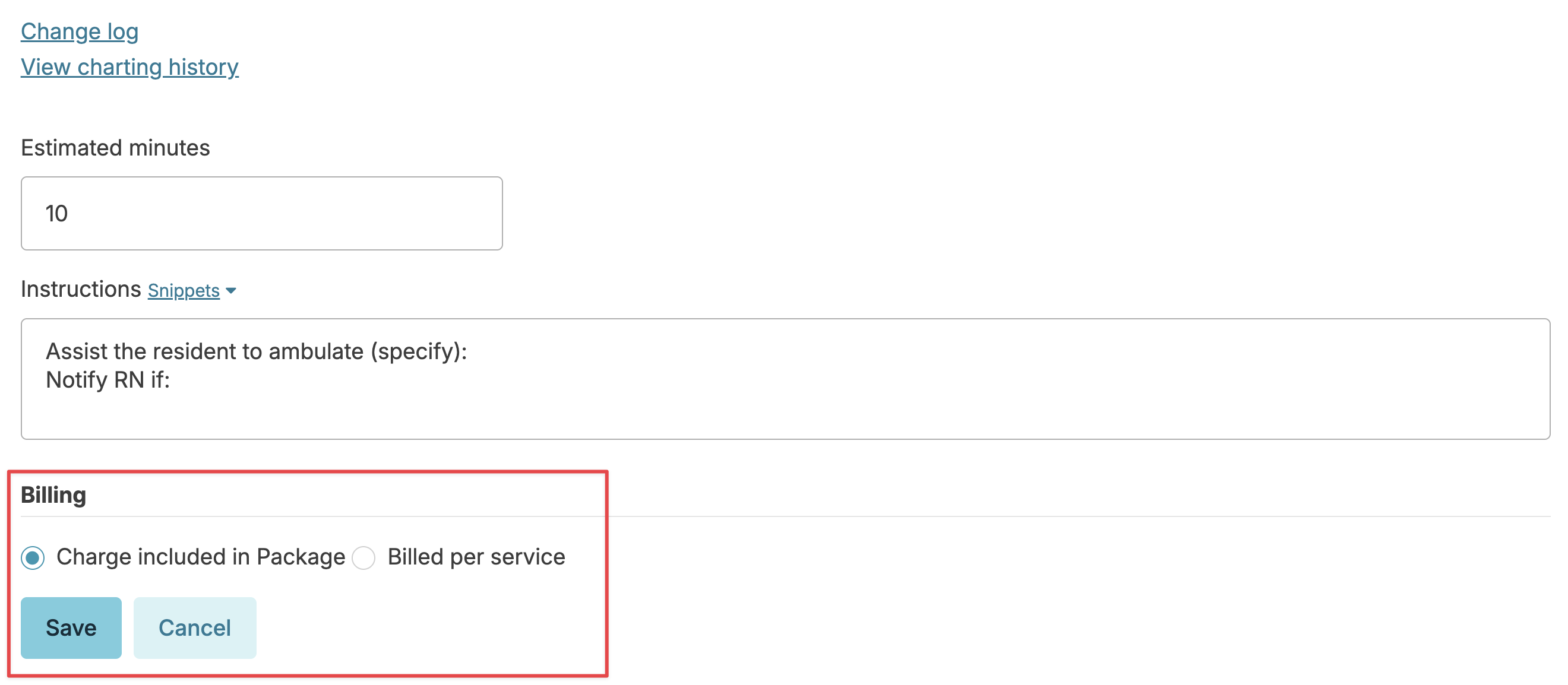
- You may also optionally bill additional Fee For Service charges that are NOT included in the Care Package. To do this, you will need to select a resident’s profile > Services > click on the service > click edit > check the “billed per service” option.
If your Campus uses our 'Custom Care Package Rate' option, you can simply specify any dollar amount for a care package custom for a resident. This can be helpful if you have grandfathered a resident in at a rate different than standard rates. Please contact ResiDex support if you would like this option turned on.
Fee For Service
Fee for Service bills based only upon the services received; there is NO Care Package.
If you selected Fee For Service as the Billing Option, the Care Package section will not appear on the screen for this resident, and a Care Package may not be assigned.
Fee For Service billing may generate charges in several ways:
- Fixed Rate- a flat rate for a service (e.g. Room clean $25.00)
- Variable Rate - factors in the amount of time spent and uses the Rate Schedule to determine the charge
- Fixed Count - a fixed charge multiplied by a count (e.g. number of laundry loads @ $9.00/load)
- Fixed Month - Charged once monthly (post-bill)
- Fixed Month Pre-bill - Charged once monthly (pre-bill)
Rent
Rent rates are set up for each room type. If the correct rent rate is not available, users with both Billing (Role 4) and Billing Supervisor (Role 23) will need to associate the correct rent rate with the unit.
You can:
- Select a resident's Rent rate from the options available and specify the effective date for that rent
- If new rent rates have been set up in billing configuration with a future effective date, you will be able to select either the old or new rate. The old rate will display for 30 days.
- If your Campus uses our 'Custom rent rate' option, you can simply specify any dollar amount for rent and an effective date directly from this screen. Contact ResiDex support if you'd like this option turned on.
- When updating a resident’s rent rate, you have the option to select “Update Rent End Dates.” If selected, this option will automatically set end dates that are either not entered or set past this new rent’s start date, to one day before this new rent starts. All rents that are set to start after this new rent will be deleted in favor of this new rent. If not selected, the new rent will not update any rent’s end dates when you add it. This is useful when a second rent needs to be added without entering an end date for the current rent.
Supplemental Packages
- A supplemental package is a daily or monthly charge. These charges can then be set up as service or housing revenue. Users with both Billing (Role 4) and Billing Supervisor (Role 23) can add a new supplemental package from the billing > billing configuration screen.
- Supplemental Packages can be assigned regardless of Billing Option (Care Package vs Fee For Service).
- A resident may be assigned multiple Supplemental Packages
- A supplemental package can be marked as "Included in Contract". When this is done, the supplemental package will not show on an invoice or statement. However, the supplemental package will be listed on the service plan as "Included in Contract".
- Common examples of Supplemental Packages include fees for Cable TV, telephone, Escort packages, medication management, garage rental, etc.

Add a Supplemental Package:
- When you add a Supplemental Package, you can specify the Start Date.
- When adding a Supplemental Package for a resident on an assistance program (and so has Payers with contracted amounts), you can specify if a Supplemental Package is to be 'Included in Contract'. If this is selected, a single charge will be generated for appropriate contract payers, and not billed privately as a separate charge.
Remove a Supplemental Package:
You can click on any existing supplemental package to reveal a Remove Package button; click this button and specify an End Date.
A resident can have multiple supplemental packages active at one time. However, they can not have a duplicate of the same supplemental package, even if the package is inactive. If you are trying to add a supplemental package that has been ended, navigate to:
- Resident’s profile > fees/payers
- Click show ended packages
- Click on the package
- Change the start date and remove the end date to reactivate the supplemental package
Services included in Package
You can specify which of a resident's services are to be included in their Care Package or Supplemental Packages. Services that are included in a Care Package will not generate separate charges for a resident; services that are not specified 'included in Care Package' will generate separate Fee For Service charges.
Each Service will have a default setting for its inclusion in the Care Package - this default setting can be changed or individualized for each resident.
From the resident profile > Services, you can view all services scheduled for a resident and whether they are set to be included in the Care Package.
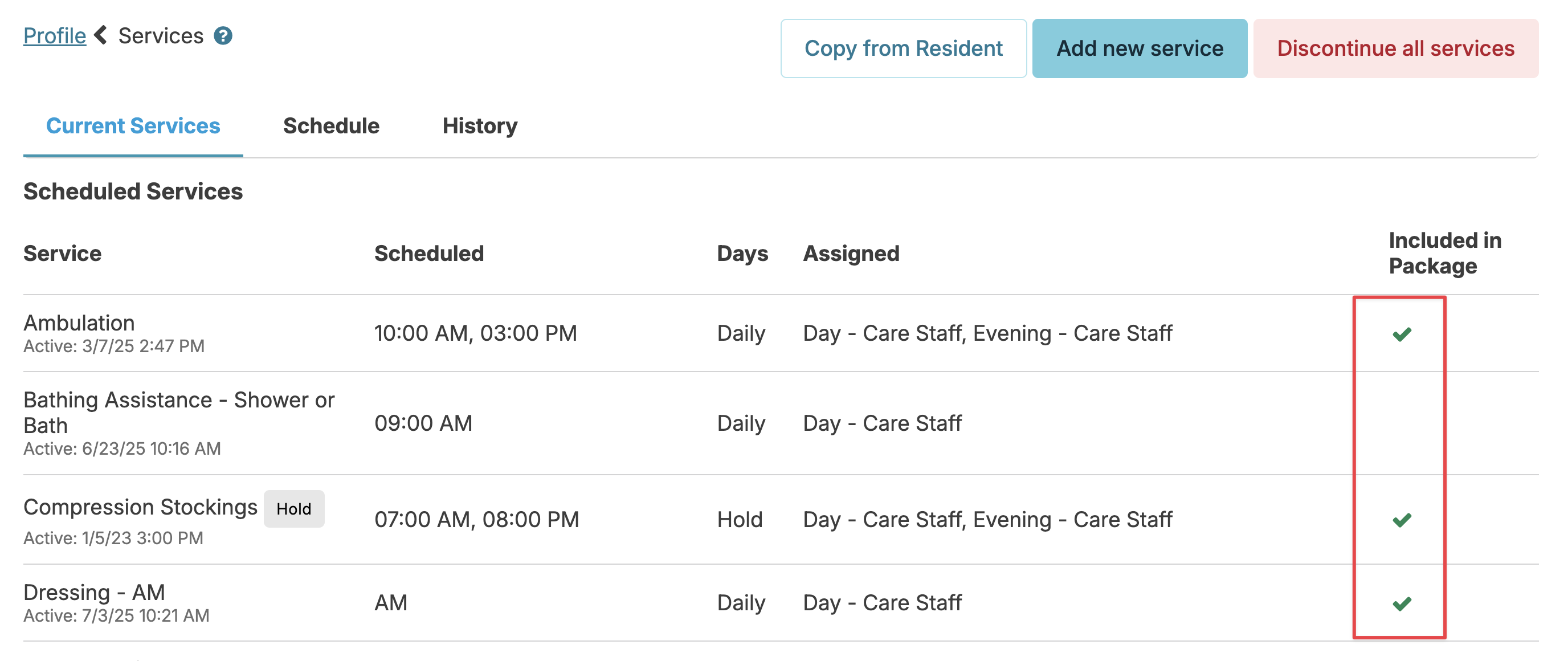
You can edit this by selecting the service and press the Edit button to update the setting for that resident's service.
Resident Payers
Each resident by default is considered to be a private pay resident. Upon setup, each resident Payer screen will have a default private pay, zero dollar line item. If the resident is private pay only, no other line items need to be added, and the default line item should not be edited.
Residents receiving financial assistance (waiver programs or those with contracted amounts) should have Payers set up - allowing you to identify the programs covering costs, and the contracted amount/s paid.
Note: You can also indicate a resident is on public pay prior to knowing the contract information by utilizing the 'Unknown' payer options.
Common examples of Payers include: Elderly Waiver ("EW"), Housing Support, Community Access for Disability Inclusion ("CADI").
During the monthly billing process, residents with Payers set up will have contractual adjustments applied to their charges. Rent charges will be adjusted by Rent Housing Support / Rent Private Payer contract amounts; Care Packages, Service Supplemental Packages marked 'included in contract', and Fee For Service charges will be contractually adjusted based on Services Payers.
To manage Payers, go to the resident profile > Billing & Finance > Payers tab.
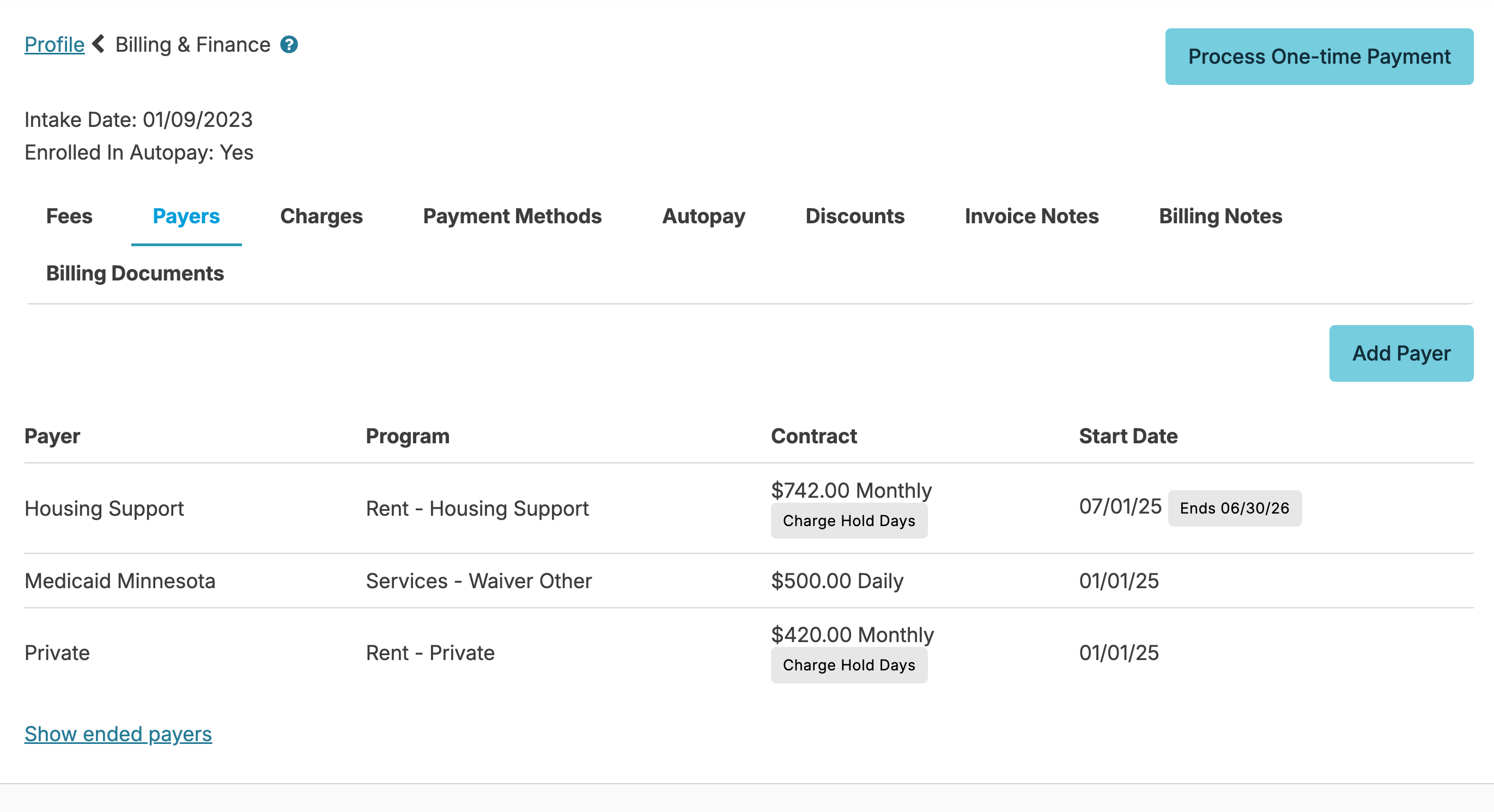
Adding Payers
The Add Payer button will open a new screen.
- Select a Payer from the dropdown.
- If the configuration option “Enable Prorating of Public Payers” is enabled, the following Programs may be added multiple times: Services - Waiver and Services - Waiver Other.
- Enter amount, frequency and start and end date (optional).
- Check Charge Hold Days if a resident will be charged for the program while on hold.
A resident may have any combination of the following:
- Private: with Program "Services - Private"
- Private: with Program "Rent - Private"
- Private: with Program "Spend down Private (Services)" Note: If the configuration option “Enable Prorating of Public Payers” is enabled, any payers with Program “Spend Down - Private (Services)” will require you to specify a secondary payer to subtract from
- Medicaid (or any other Payer): with Program: "Services - Waiver"
- Medicaid (or any other Payer): with Program "Services - Waiver other"
- Housing Support (or any other Payer): with Program "Rent Housing Support"
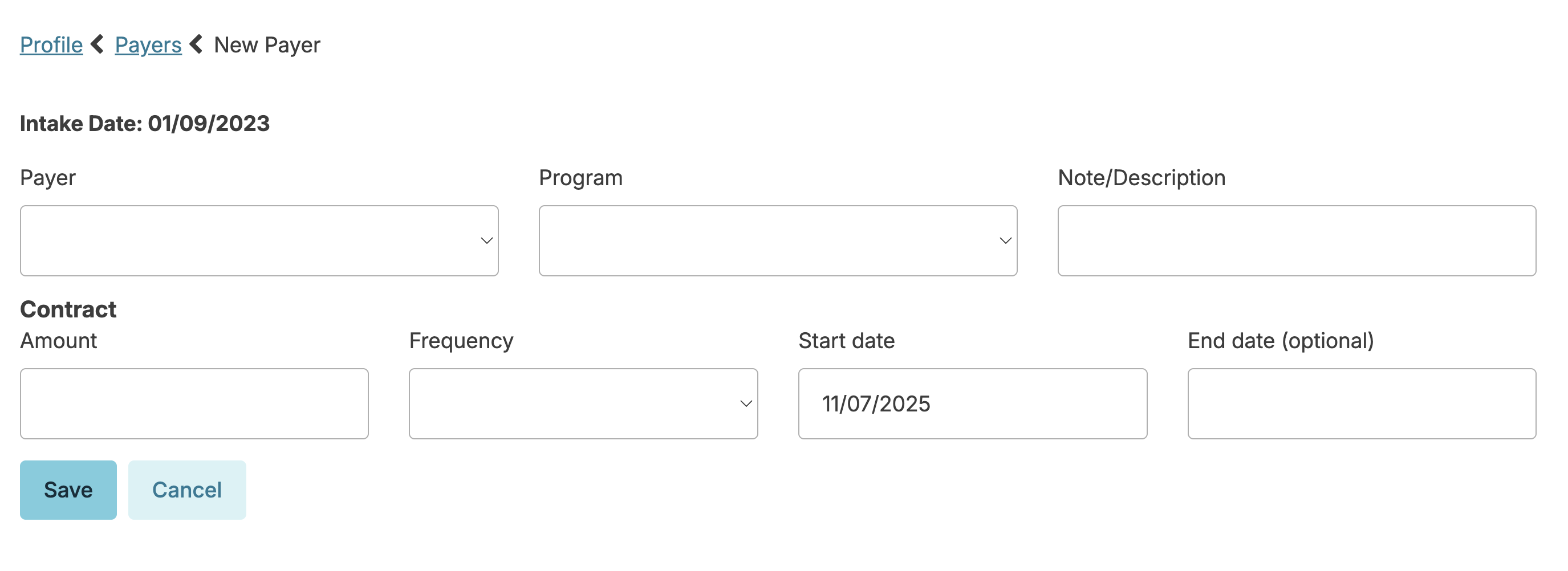
Note: Selecting a service program will prompt for additional fields to be completed.
Editing Payers
When a resident has a change in a contract rate paid by one of their Payers, you can make this change by going to resident profile > Billing & Finance > Payers tab, and selecting the Payer to be updated.
You can edit the amount, frequency, start and end date fields as needed. When you do this, you have the option to Auto Apply Adjustments for the new amount - if checked, when you press the Save button, it will trigger Residex to retroactively adjust past charges based on the new contract amount - particularly useful for updating your records when a state waiver program makes retroactive changes.
Note: Ended payers can be edited by clicking on Show ended payers, and selecting the payer you wish to edit.
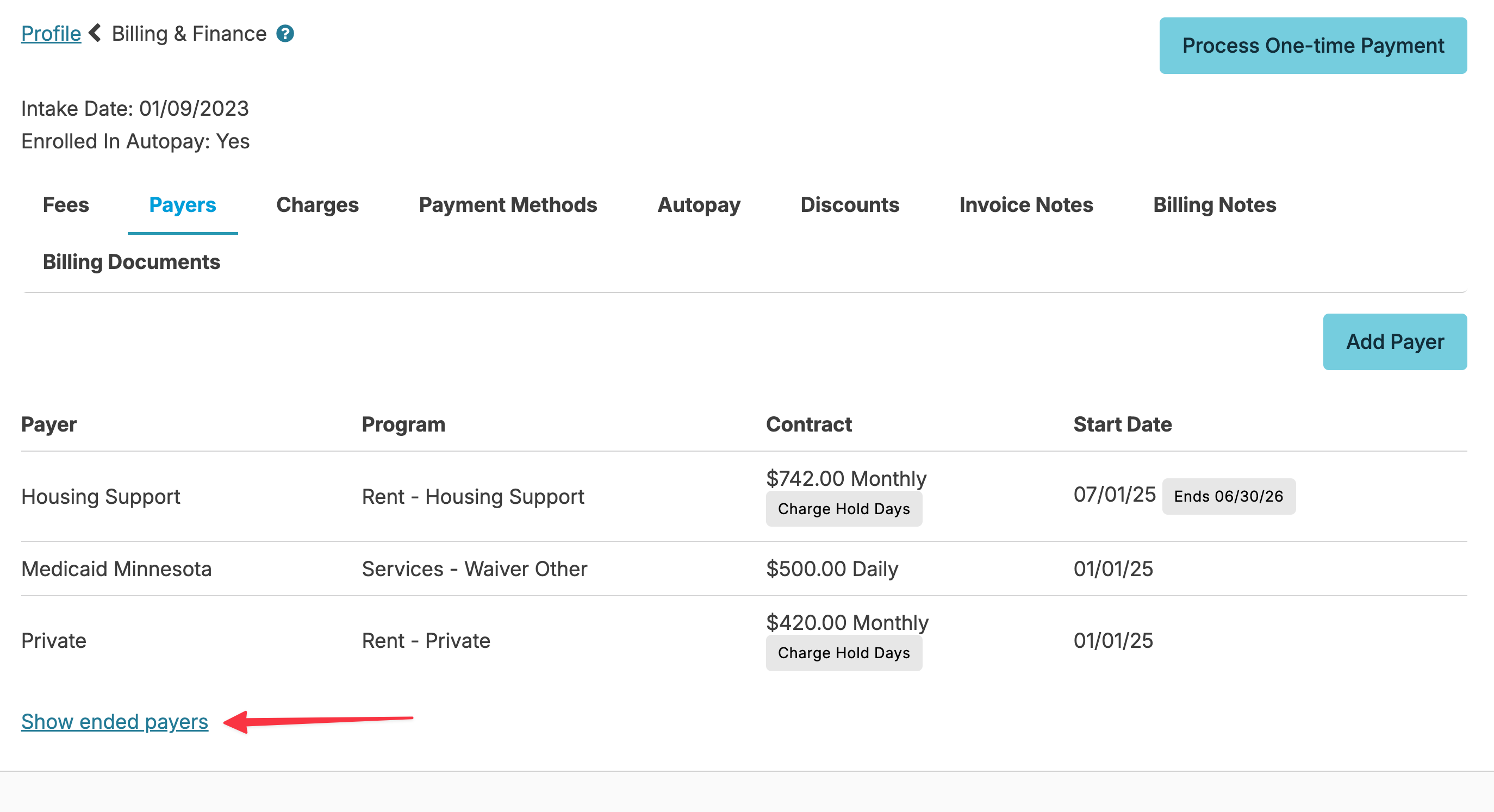
Renew Payers
You can renew a previously used payer by clicking into that payer (current or ended) and clicking the 'Renew' button. Update/complete the fields and click Save.
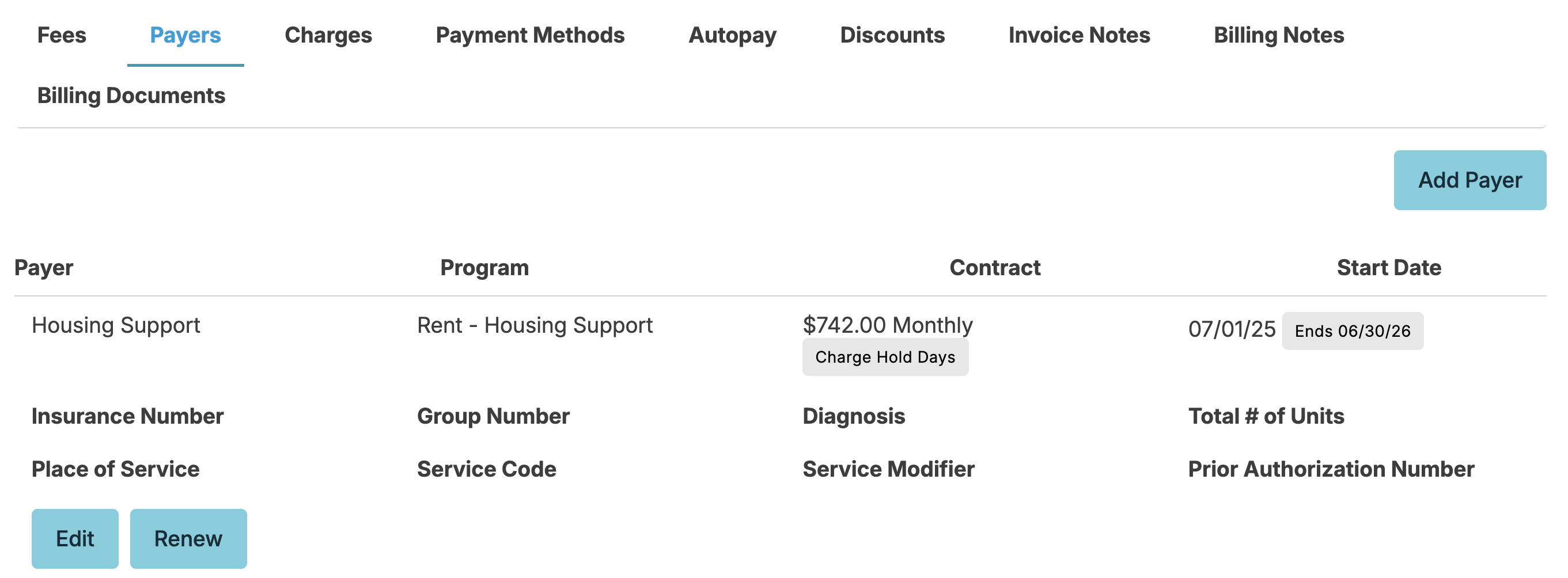
Billing Notes
Billing notes can be added to a resident's Billing & Finance > Billing Notes screen. Billing notes are helpful to communicate anything for billing for a resident. For example, a note could be about family communication in regards to billing. There are several reports that can be run to view billing notes. They are Billing Notes - Date Range and Billing Notes.
Billing Documents
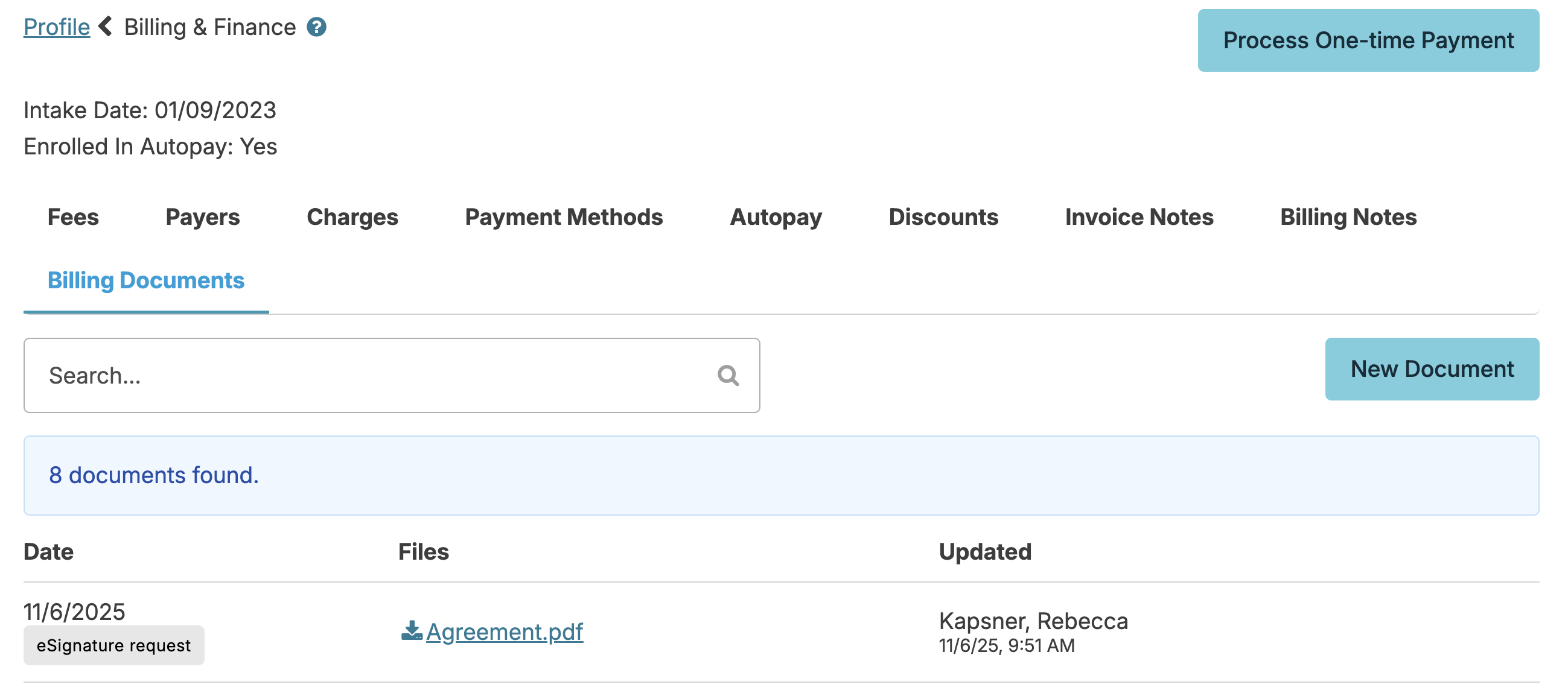
Selecting the Billing Documents tab will display all the resident's documents that have a document type that contains the word "billing." New billing documents can also be added for a resident on this tab.
Discounts
To add a discount to a residents rent, navigate to resident profile > Billing & Finance > Discounts
- The Discounts tab will open a new screen.
- Select the Start date. If not using Residex billing, discount dates will be a date selection in calendar view. For those using Residex billing, discounts do not prorate and will be set to a date drop-down selection.
- If the end date is known, select End date. This can be left blank if an end date is unknown or the discount does not have an end date. If using Residex billing the end date options are the last day of each month. The discount will continue until end date has been reached or upon discharge of the resident.
- Add the discount amount that the resident receives per month during the period selected.
- Enter any notes, if applicable
- Save
The discount, by default, will be applied to the GL Code for Rent. Contact billing@residexsoftware.com to have this updated to an alternative GL code, if desired.
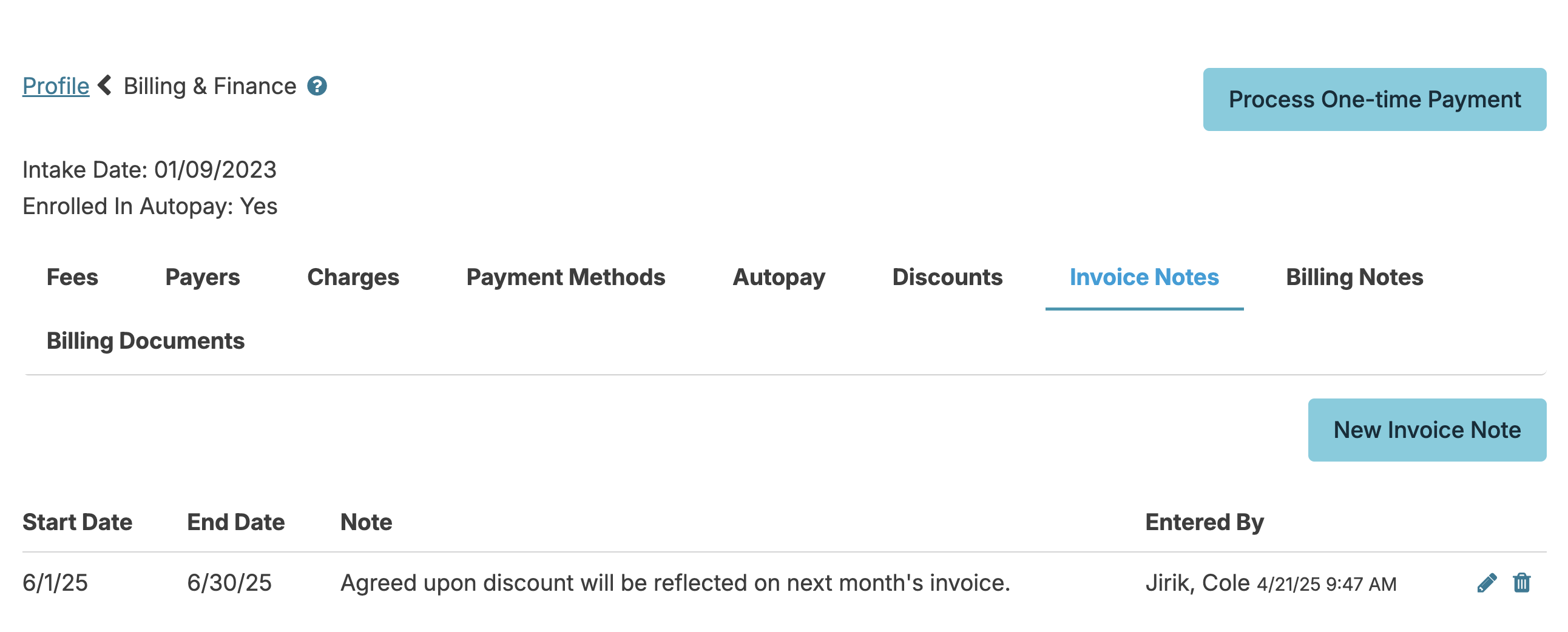
Invoice Notes
If you are utilizing Residex billing, you can add an invoice note to a resident's invoice/statement. Enter an end date for when you want this note to no longer appear on an invoice. Not indicating an end date will mean the invoice note will recur with every invoice until an end date is indicated.