Autopay
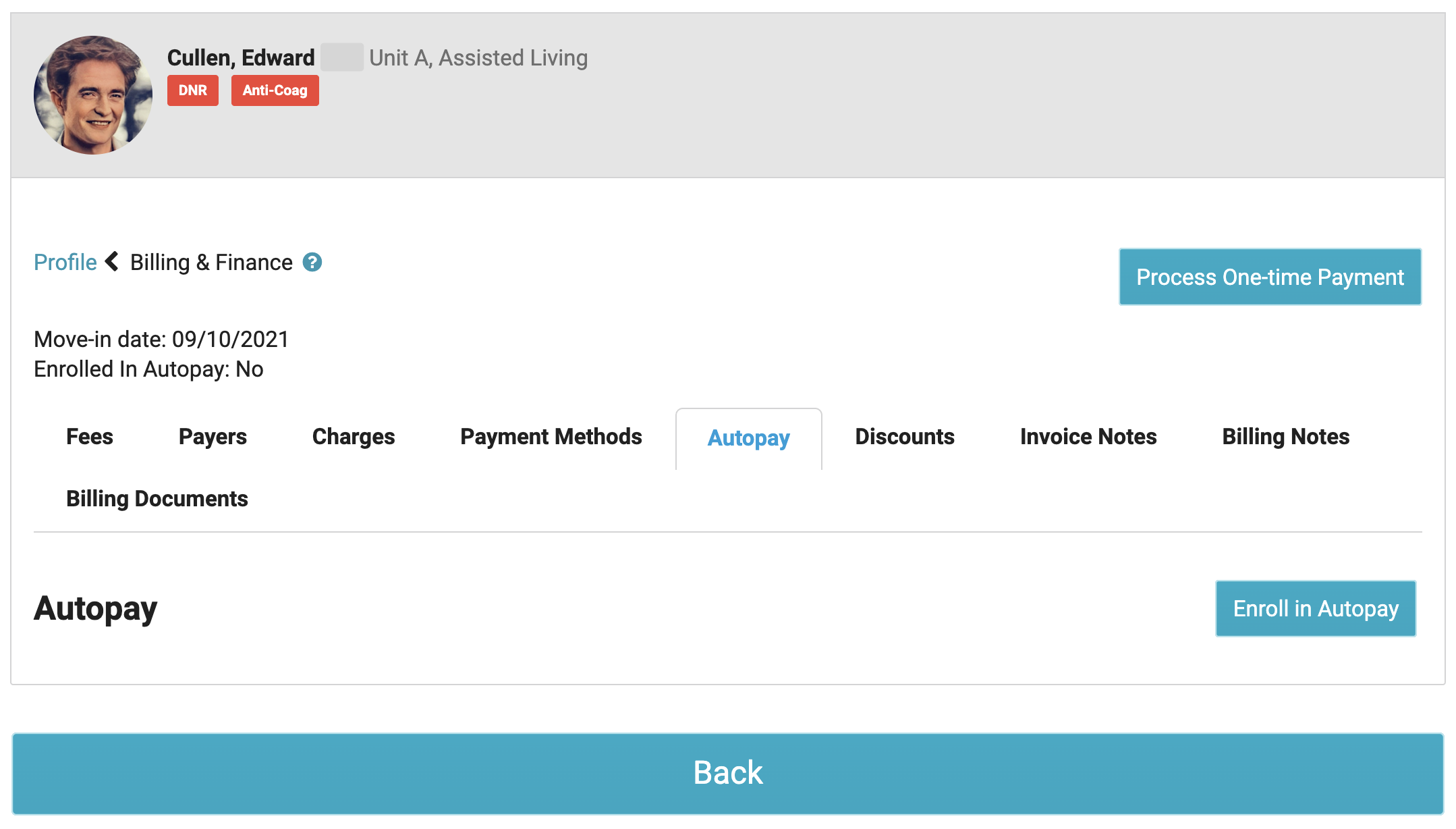
To set up autopay, navigate to Profiles > Residents > Select a resident > Billing & Finance > Autopay> Enroll in Autopay.
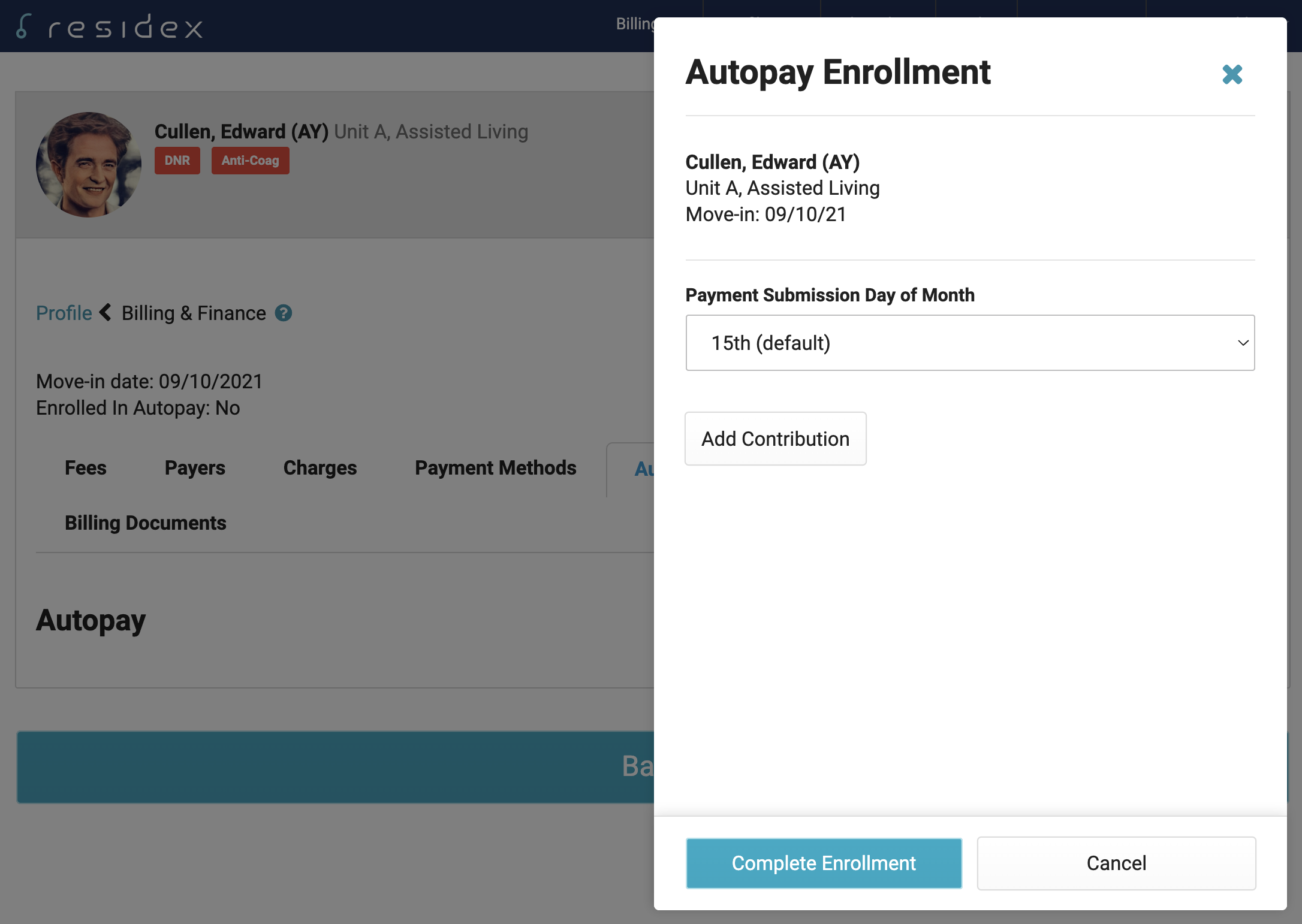
In the side sheet, select a “Payment Submission Day of Month”, then select Add Contribution.
The contribution list will show the name of the Resident in addition to any billing contacts as options to choose from. Select to whom the owner of the account is being enrolled for and select Add New Payment Method.
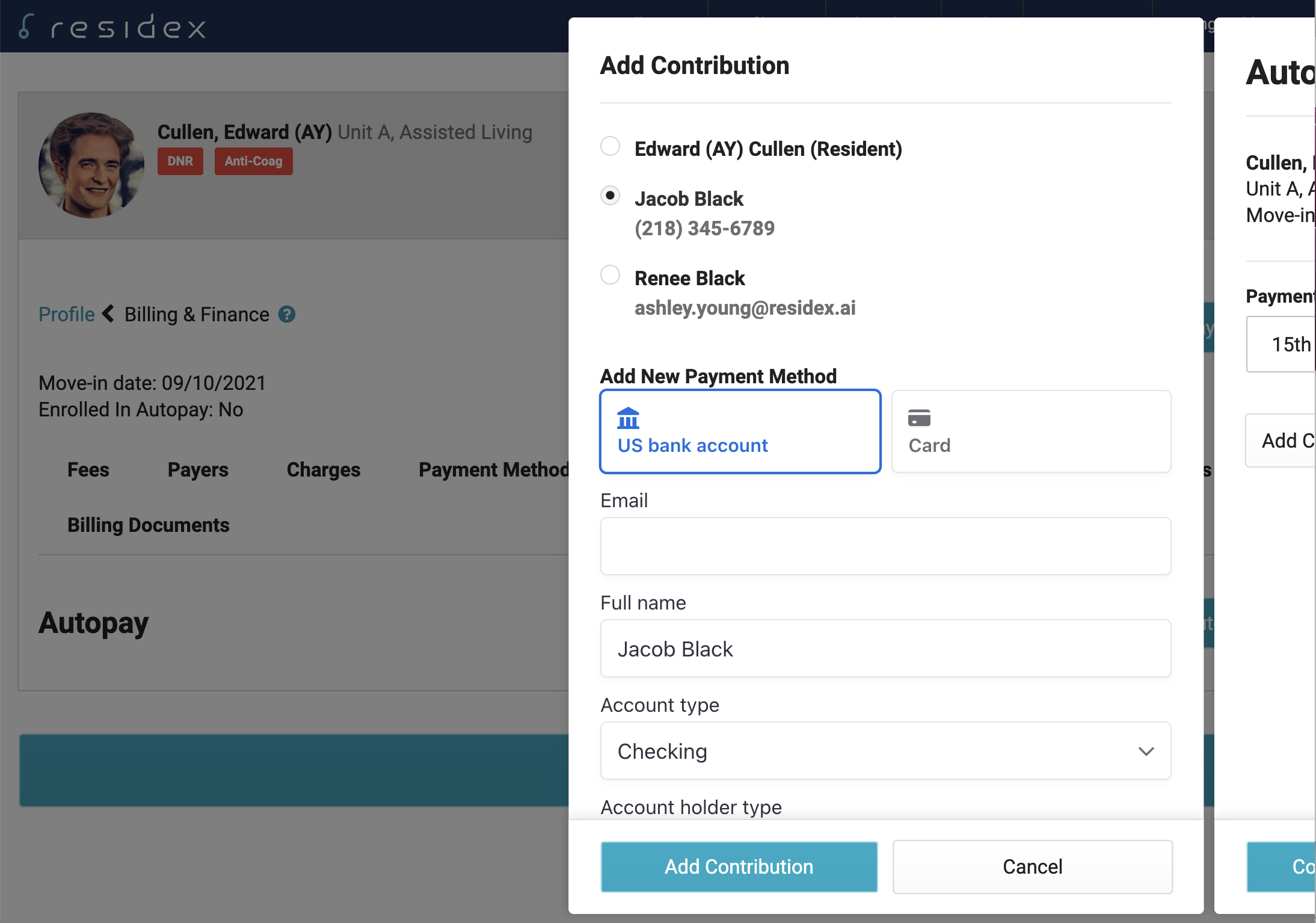
Once the payment method is added, select “Add Contribution” at the bottom of the side screen to confirm.
If this account is paying the statement balance (Pays Total Due) and the payment date is correct you will select “Complete Enrollment”.
NOTE: If the statement is being paid with multiple accounts, you can “change the set amount” and enter the amount this enrollee/method will be paying. You will then select “Add Enrollee/Method” again to add additional.
Example of multiple payment methods: The resident wants $50 to come from one account and the remaining balance on another.
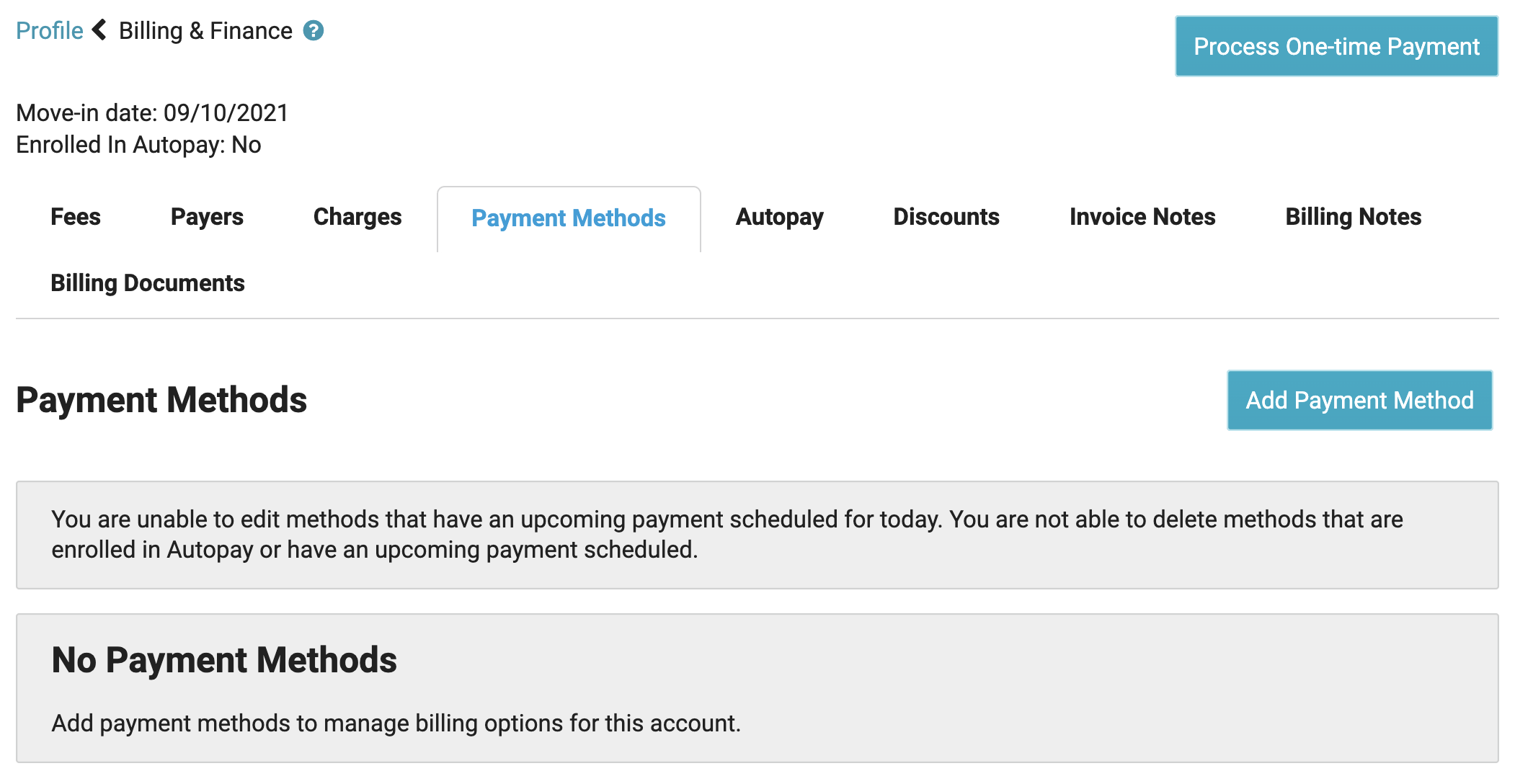
Manage Payment Methods
To add a new payment method, delete an existing method or edit an expiration date, navigate to Profiles > Residents > Select a resident > Billing & Finance > Payment Methods.
Schedule Autopay
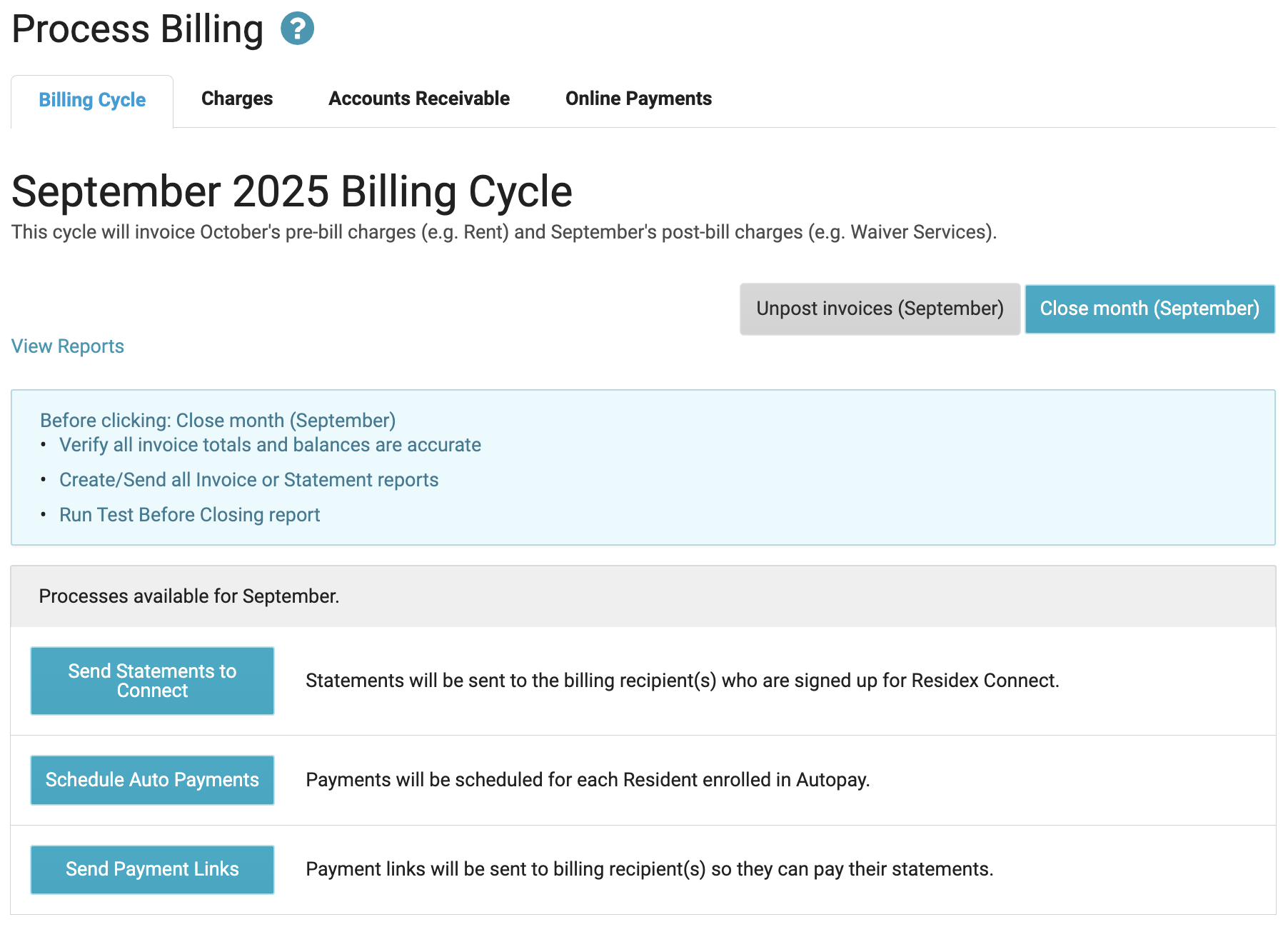
During monthly billing, navigate to Billing > Process Billing> Schedule Auto Payments to queue payments for withdrawal on their specified submission dates. After scheduling, you can modify payment amounts or cancel autopay transactions up until 11:59pm the night before the scheduled withdrawal date.
Sending Payment Links
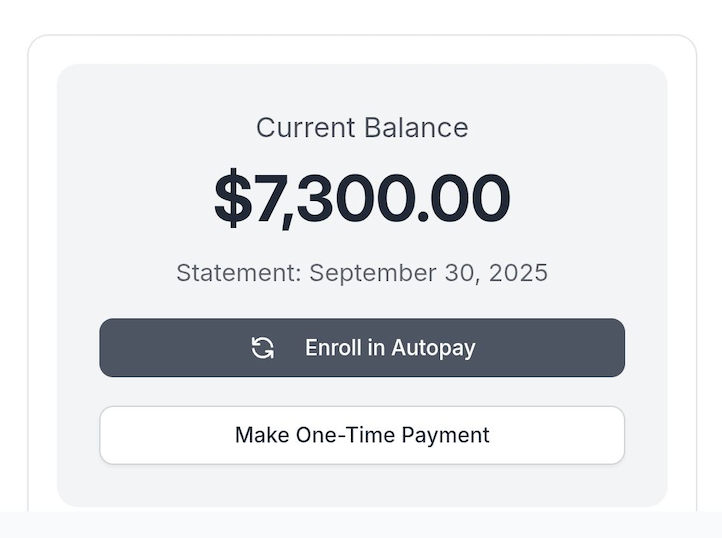
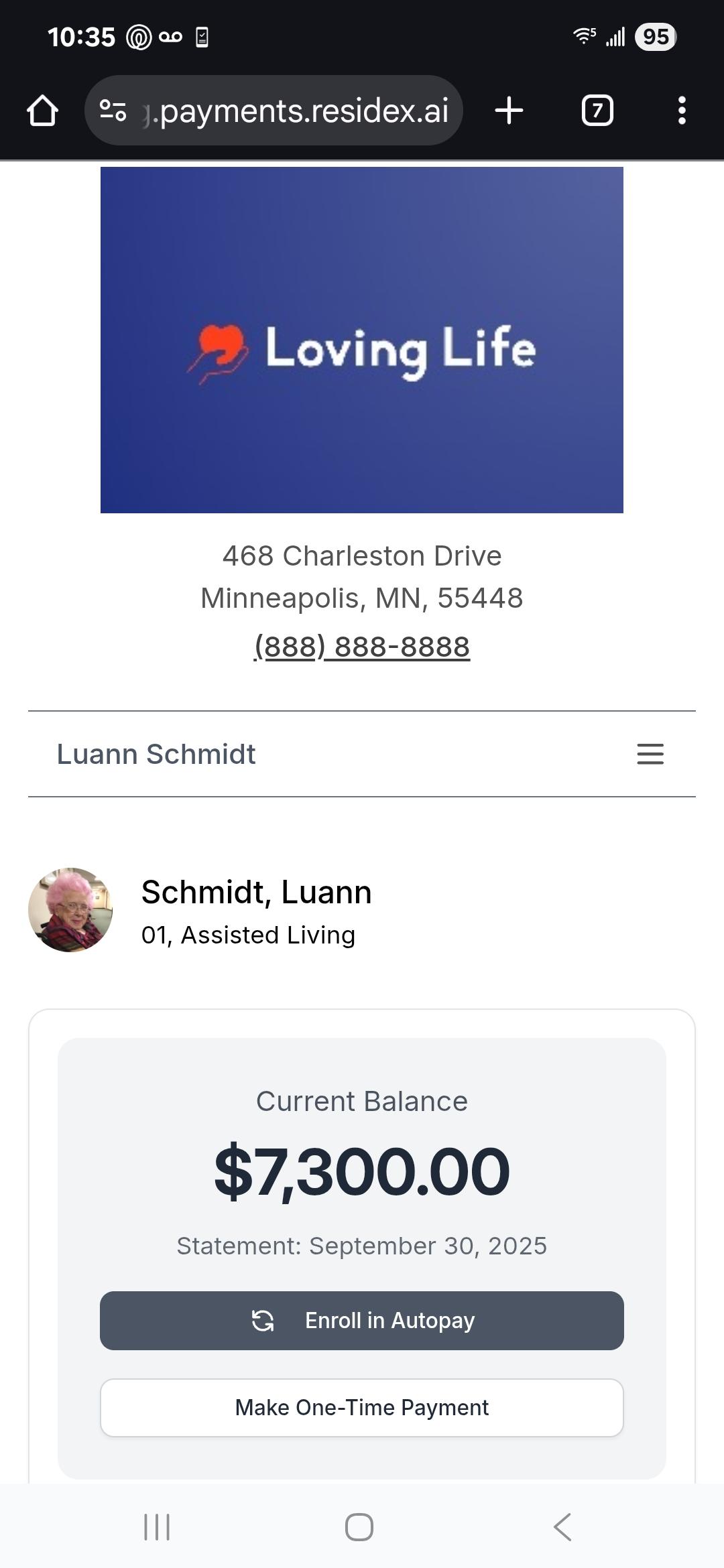
Navigate to Billing > Process Billing > Send Payment Links to send online payments to a billing recipient(s). The billing recipient will need to have either a cell phone number or an email listed in their profile, if a resident, or Contacts profile if a billing contact. If both are entered, they will get the payment link sent to both their phone and email. When selecting “Send Statement Payment Links”, you will have the option to send a one-time payment link for those residents not set up with autopay.
Recipients who are not enrolled in autopay will have the opportunity to enroll when receiving their payment link.
Online Payments
To view processed payments or make adjustments to a scheduled payment, navigate to Billing > Process Billing > Online Payments
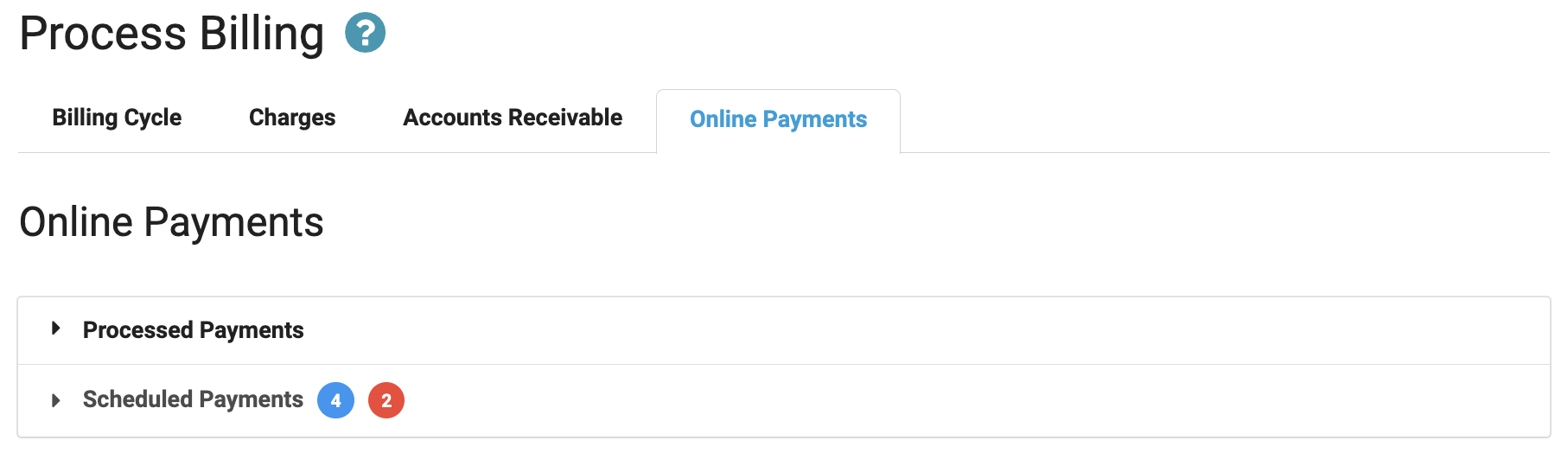
Processed Payments will show both autopay and one-time payments that have been processed and whether the payments were processed successfully or need further attention.
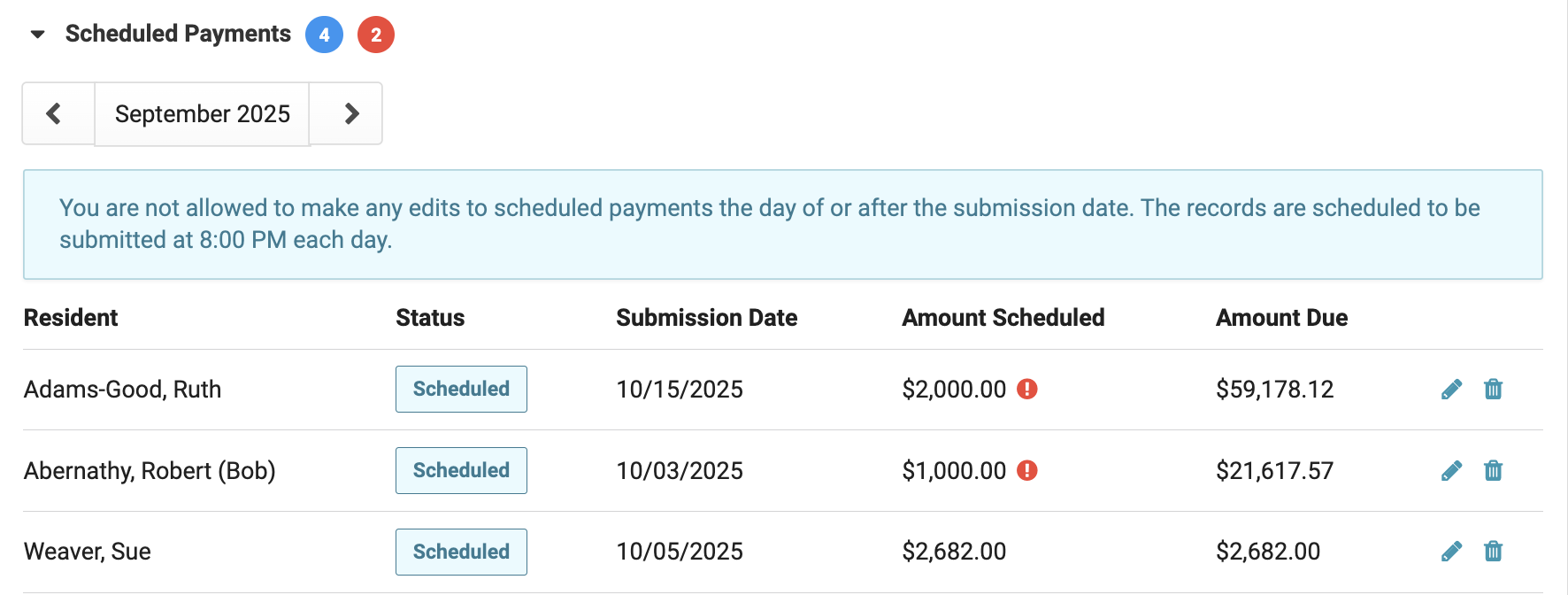
Scheduled payments show the scheduled autopay and provide them with the ability to cancel or edit the amount up until 11:59pm the night prior to the withdrawal date.
A red exclamation point will be placed next to the amount when a scheduled autopay is less than the total amount due.
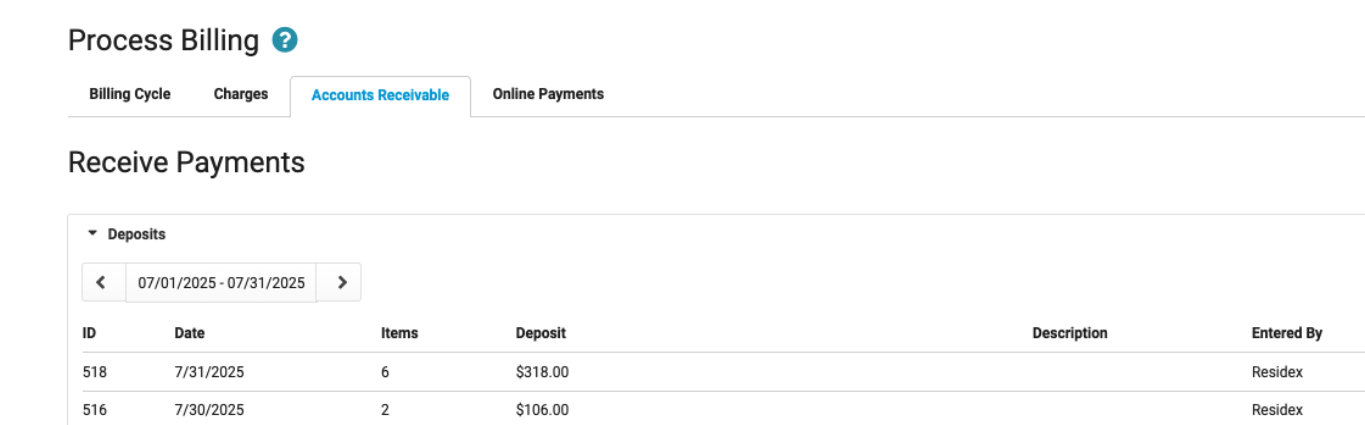
Processed payments will show as deposits entered by Residex on the Accounts Receivable tab.