
Table of Contents:
- Assessment Types
- Assessment Entry
- Fall Risk Tool
- Bio/History
- Assessment Management
- Assessment Type Availability
To document an assessment, navigate to Clinical > Assessments > select the resident name > select the type of assessment you would like to open > click Start Assessment . You can also navigate to Residents > Residents > resident profile > Assessments > the resident name will be prefilled > select the type of assessment you would like to open > click Start Assessment.
Assessment Types
Assessments include clinical assessments, focused subset assessments, and some optional lifestyle assessments. Lifestyle assessments can be set to be performed by non-clinical staff if preferred.
- Pre-Admission assessment is performed on prospective residents prior to move-in, allowing you to identify resident needs and determine appropriate placement. Questions answered here will flow into the admission assessment, requiring no redundant entry. A care plan will be pushed to staff only if the prospect becomes a resident.
- Admission assessment is a clinical assessment completed upon resident admission. Data is entered for the first time, and notes added; once marked complete, a care plan can be pushed out to staff for their review and acknowledgment.
- Clinical Update is used for each full clinical assessment after the admission assessment. Instead of entering data from scratch, you are reviewing how items were previously answered, updating responses and notes, and then marking the assessment complete. Updated care plans are pushed out to staff to review and acknowledge.
- Discharge/Transfer assessments are short assessments that can be completed at resident discharge, or if transferring to another campus or level of care within the database.
- Review Assessment Details provides access to view and make minor edits to assessment items without completing an assessment. This bypass method should be used sparingly as changes made here do NOT update the care plan.
- Clinical Subsets are focused assessments that can be setup and customized by database. Up to 8 subset assessments are available to setup. Completion of a subset assessment can be set to send an updated care plan to staff to review, and users can select a 'next due' date for that subset assessment. To clear a next due date for a subset assessment a nurse will go to assessment history. Click on the blue pencil next to 'Next due:' they can edit the date or remove the date if no next assessment is due.
- Dietary Preferences allows you to document dietary preferences that can guide meal planning
- Activity/Leisure documents hobbies, interests, and can guide activity planning
- Bio/History documents biographical data as well as routines and personal care preferences. This also sends a copy of the 'Bio/History' to staff for their review, acknowledgment, and ongoing access.
Note: Some assessment types will not be available until all open assessments are completed.
Assessment Entry
After selecting the resident and assessment type, specify whether it's conducted 'in-person' or 'remotely.' Clinical Update assessments require a reason (e.g., 30-day reassessment, 90-day reassessment, significant change of condition). Once configured, begin the assessment. If you need to pause, a bookmark marks your last category for easy resumption.
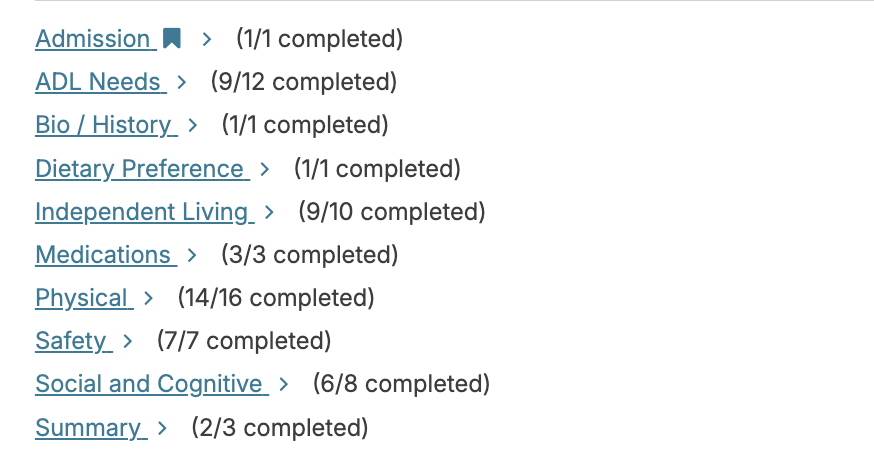
Select the first assessment category. If this is an admission or pre-admission assessment, you may be answering this for the first time. If a 'Clinical Update,' simply review what was previously entered and make changes only if needed. There is no need to uncheck and recheck items if there is no change needed. At the bottom, navigate to the next category.
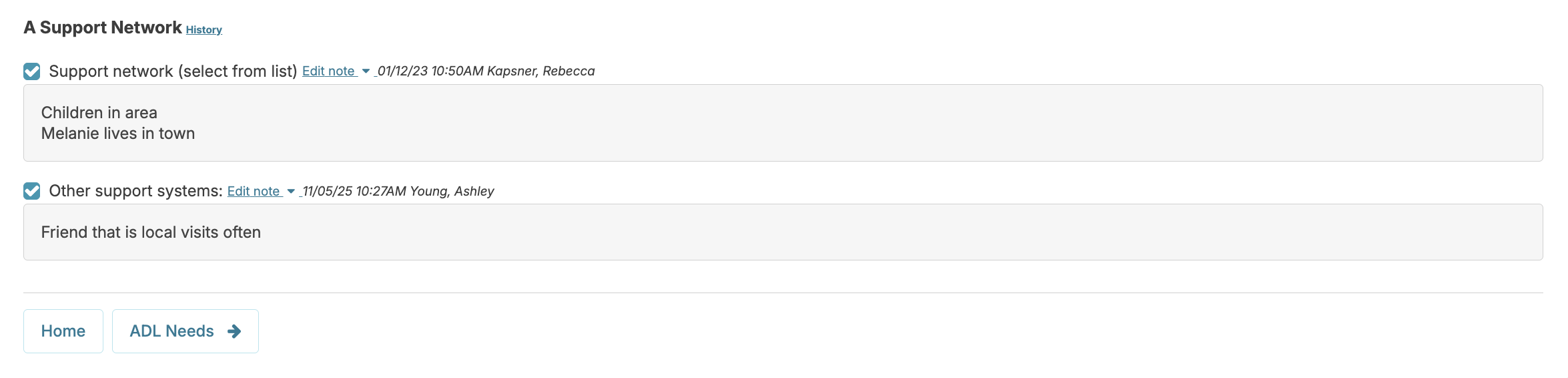
The ongoing documentation process includes selecting the appropriate option in each assessment item, then entering a note as needed to add additional detail. When adding notes, you can type in the detail, and/or use snippets (standard 'bits of text' that can be selected and applied to the note field). Snippets can be created and discarded by any Residex user with the ability to enter a clinical assessment with Clinical (Role 19). Residex tracks the date and time each item is selected or deselected and when notes are added or edited, therefore saving the history of each item.

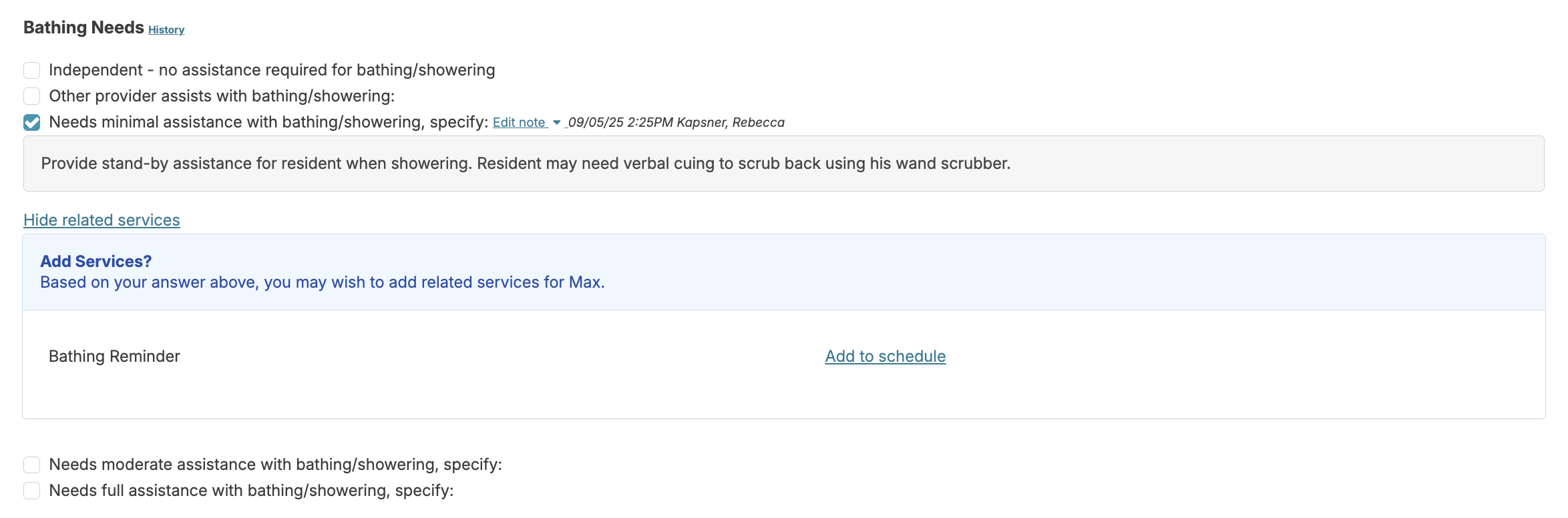
The Show Related Services link that appears in some assessment items is a quick link that displays associated services and allows the user to view, add, edit, or end services to/from the resident's service plan as you perform the assessment. Click to view linked services; click again to add or edit that service for the resident, and click Back to go back to the assessment.
Auto-Scoring Assessment Options
Standardized assessment options may include fall risk assessments (Missouri Alliance for Health Care 10), Saint Louis University Mental Status Examination (SLUMS), Mental Status Questionnaire (MSQ) and others. Clicking on the Auto Score button associated with these items will provide a total score. Note: The configuration Assessment Auto Scoring must be set to yes to use auto scoring.
You will click on any of the Auto Score buttons in the assessment category. This will auto-score the assessment based on questions answered or completed in the assessment. Note: the auto-scored assessments will be cleared of past data each time an assessment occasion is opened. This ensures the most current data based on the most recent score.
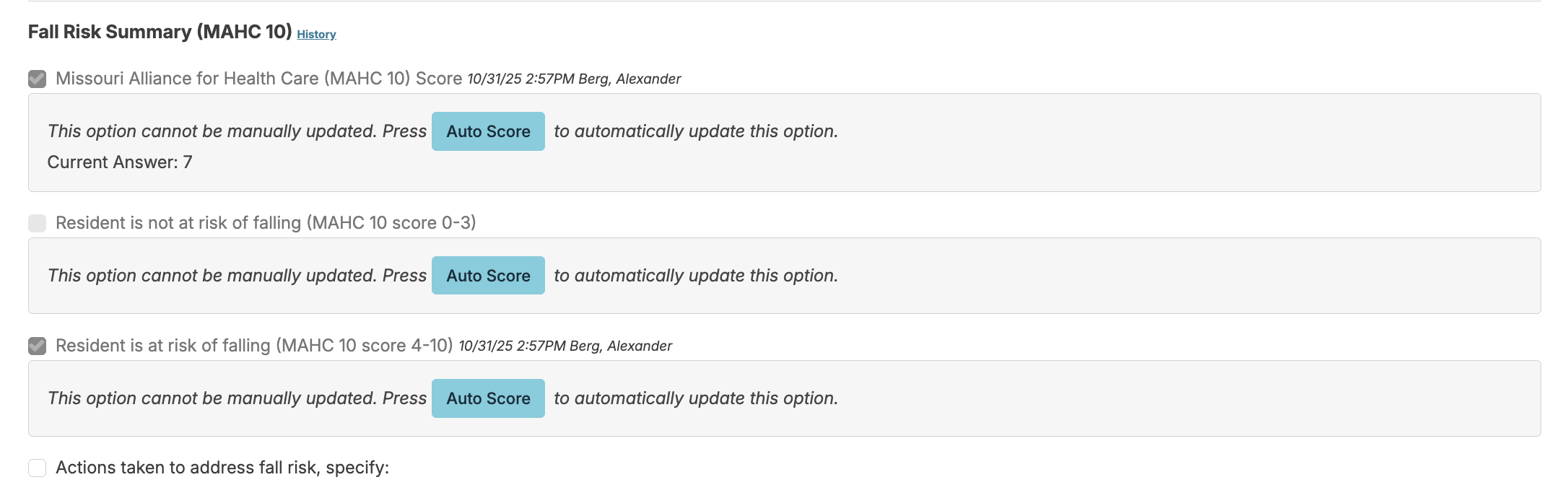
Once the Auto Score button is pushed it will then score this assessment category. It will show the current score, and also allow the user to view the current data report.
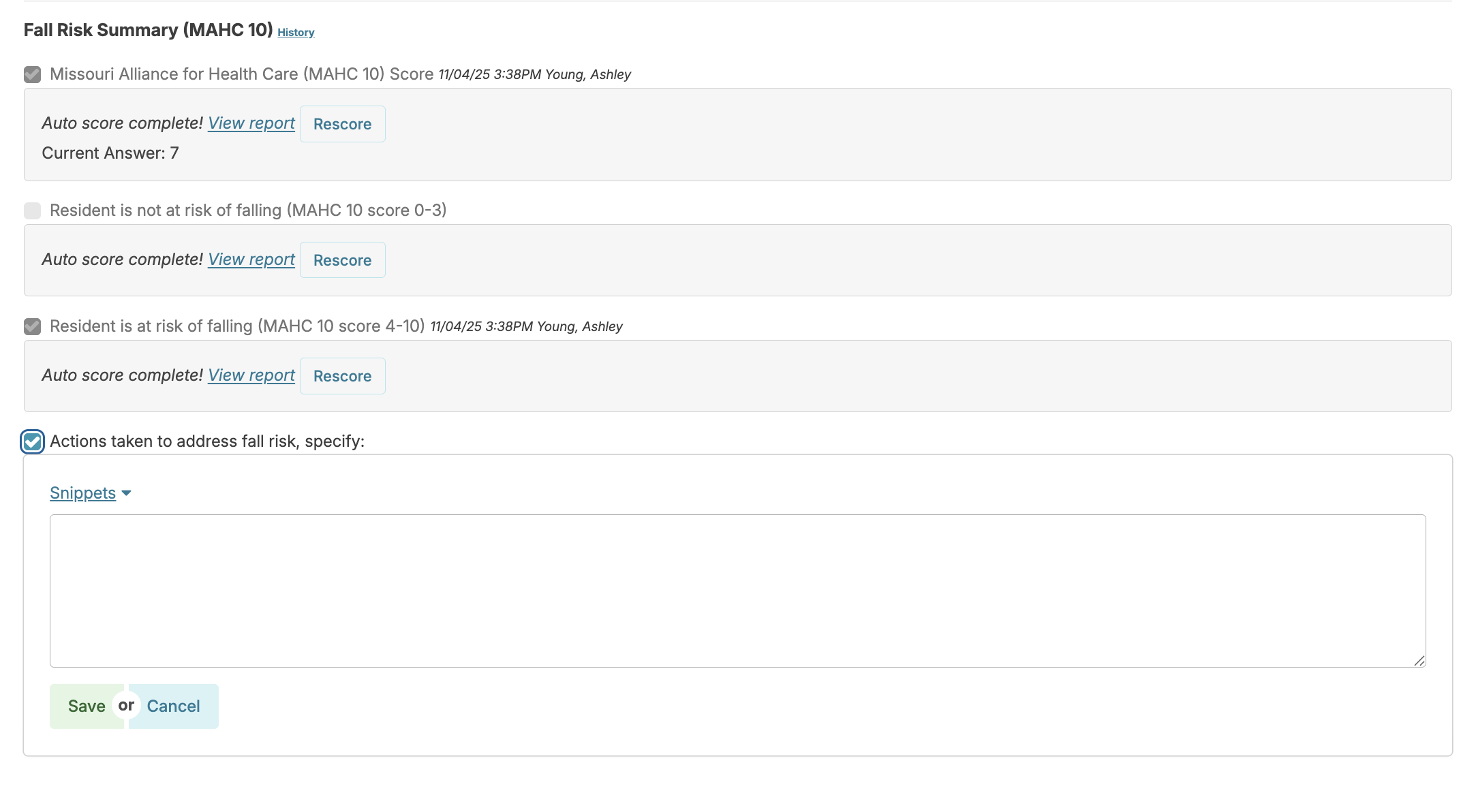
If you want to see the history of how this assessment category was completed previously, you can click on the History link.
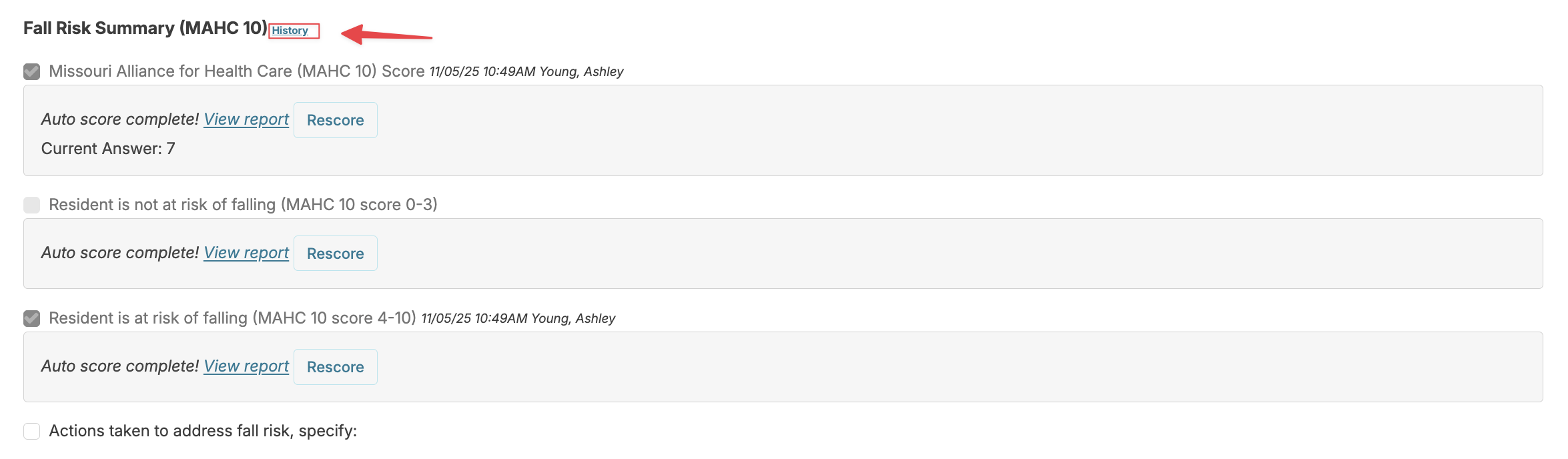
If any edits to the items are made, the user can click Rescore to recalculate the score.
Resident Data Links
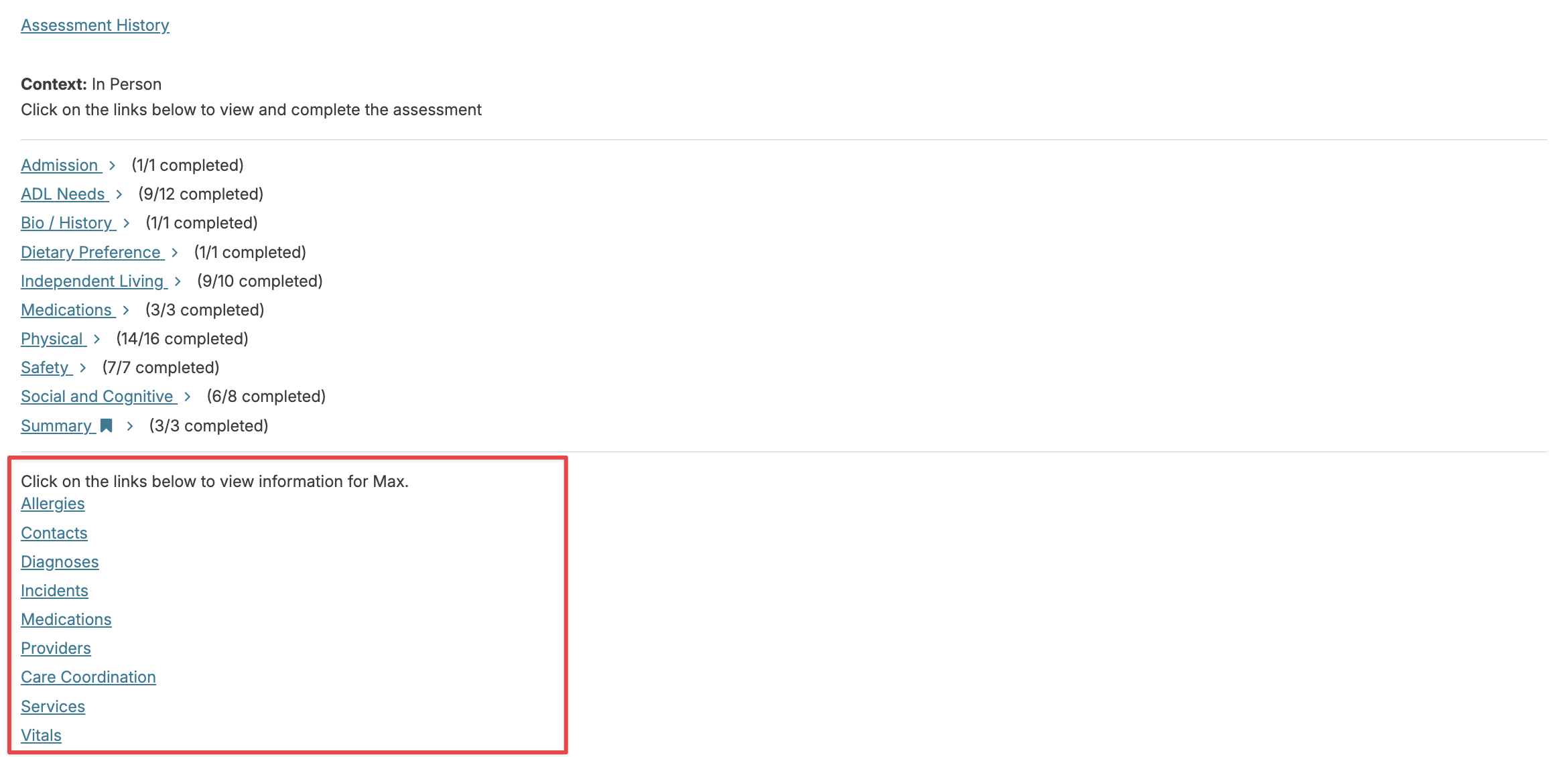
When doing an assessment, you may need to refer to resident data entered elsewhere (recent incidents or vital signs, current meds or diagnoses) or you may wish to enter a set of vital signs. There are links available at the bottom of the home screen or at the top of the assessment sections screen that can give you easy access to the information without having to leave the assessment.
Completing an Assessment
In much the same way, you will continue to work through each category, answering questions, adding notes, until the final category, when you can click Mark assessment as completed. You'll be reminded to select the next required instance of an assessment (so you can be reminded of this on the dashboard/login report). Either enter a date or use the quick select feature to calculate a date due. Optionally, enter why you'll be completing the assessment at that time, and mark complete. This action will push out an updated care plan to the Today > Assignments screen for staff to review and acknowledge.
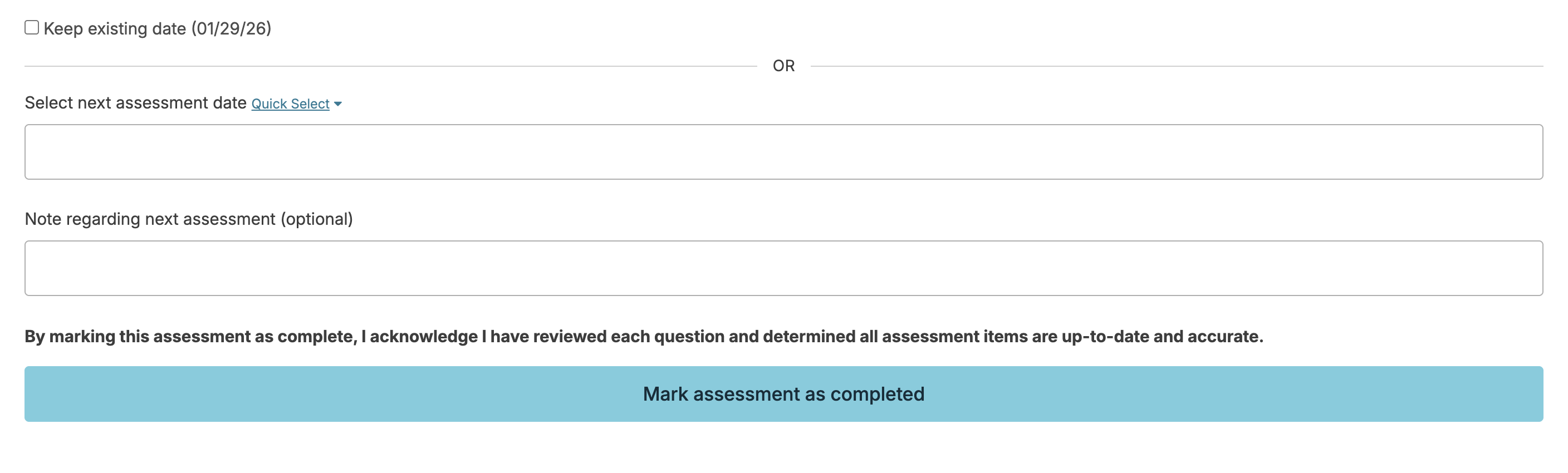
The date that the next assessment is due and the optional note regarding the next assessment can be edited under the Assessment History for that resident by clicking on the blue pencil icon to the right of the next assessment date, editing the information needed, and clicking Save.
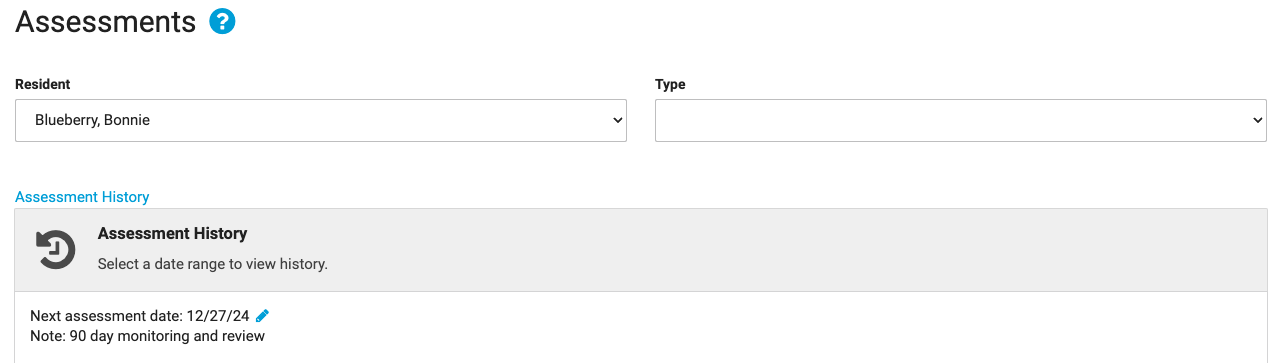
Suppress Assessments for a Resident
People residing in independent living settings (or without home care services) may not require nursing assessment or physician orders.
Suppressing assessments is an option in the resident profile that prevents you from receiving notifications for assessments and also removes the option to complete any clinical assessments for a resident. This action can be updated at whatever point the resident requires nursing care, providing those notifications to you once again. Navigate to the resident profile > Edit Profile > and scroll to the bottom of the screen.
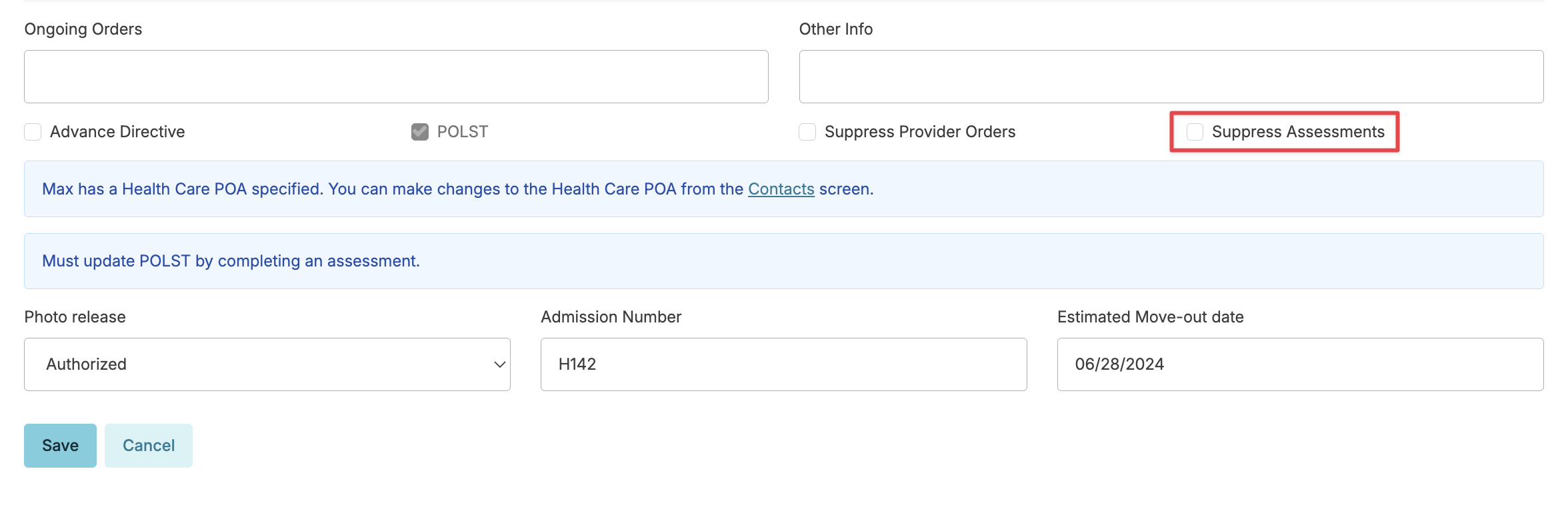
Non-clinical assessments and access to the 'Review or Edit Details' will still be available to enter details.
Fall Risk Tool
Integrating the fall risk tool into the assessment allows you to automatically calculate and evaluate fall risk of your residents.
Missouri Alliance for Health Care 10 (MAHC 10)
The MAHC-10 is a tested and validated tool that factors resident age, condition, number of medications, diagnoses, and recent history of falls to calculate a resident's risk of falling. By incorporating this into the existing clinical assessment, it's an integral part of the process. Click on the 'Auto Score' to calculate the score.
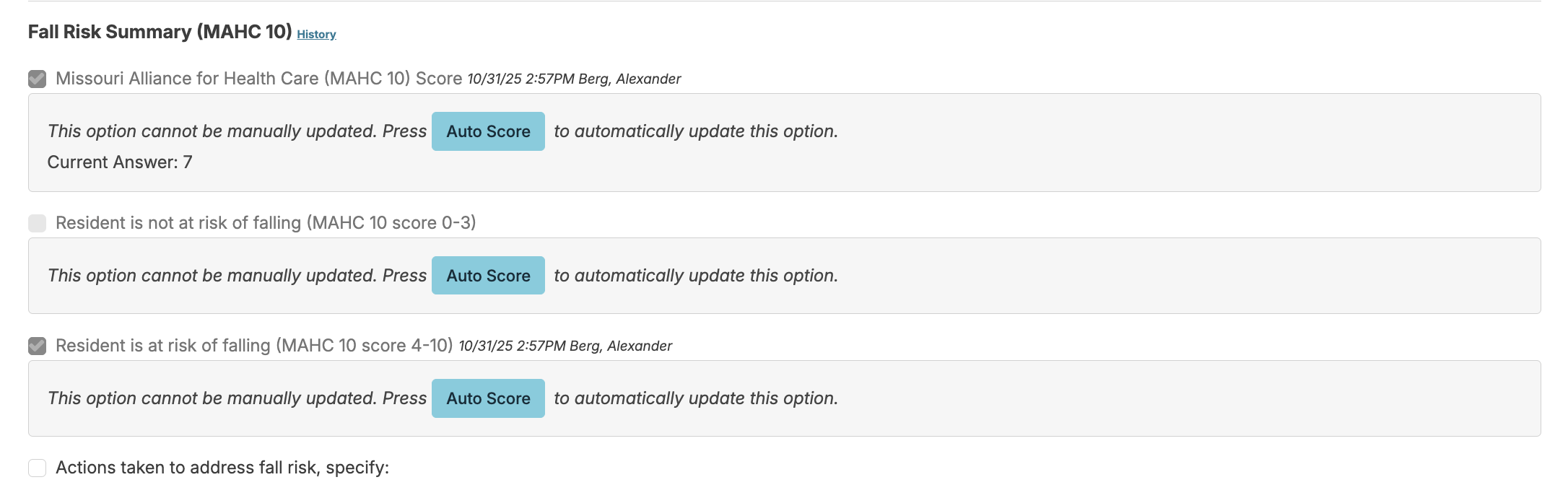
You will then be able to click a View report link to view the details, or click Rescore if you need to edit an answer and then recalculate the score.
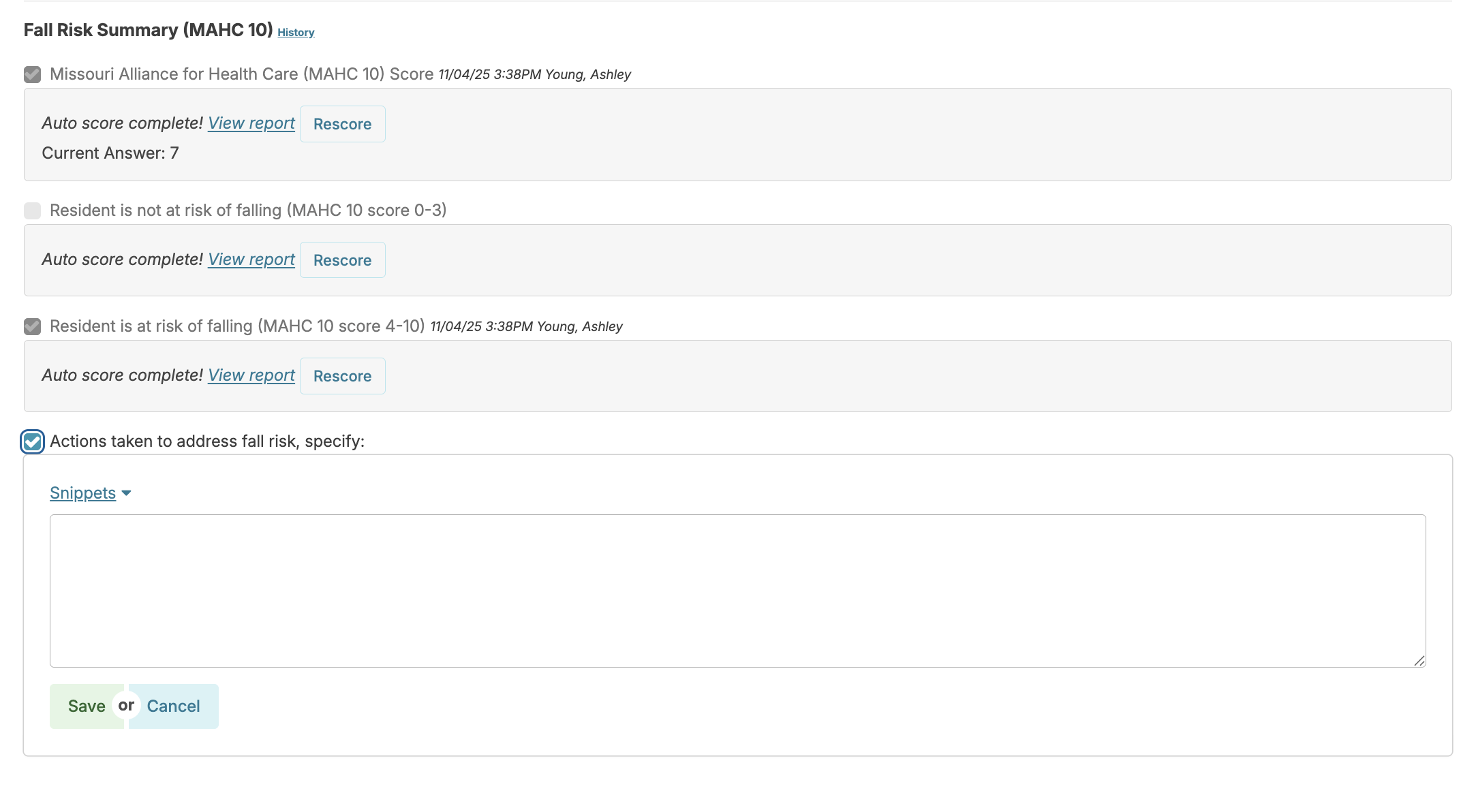
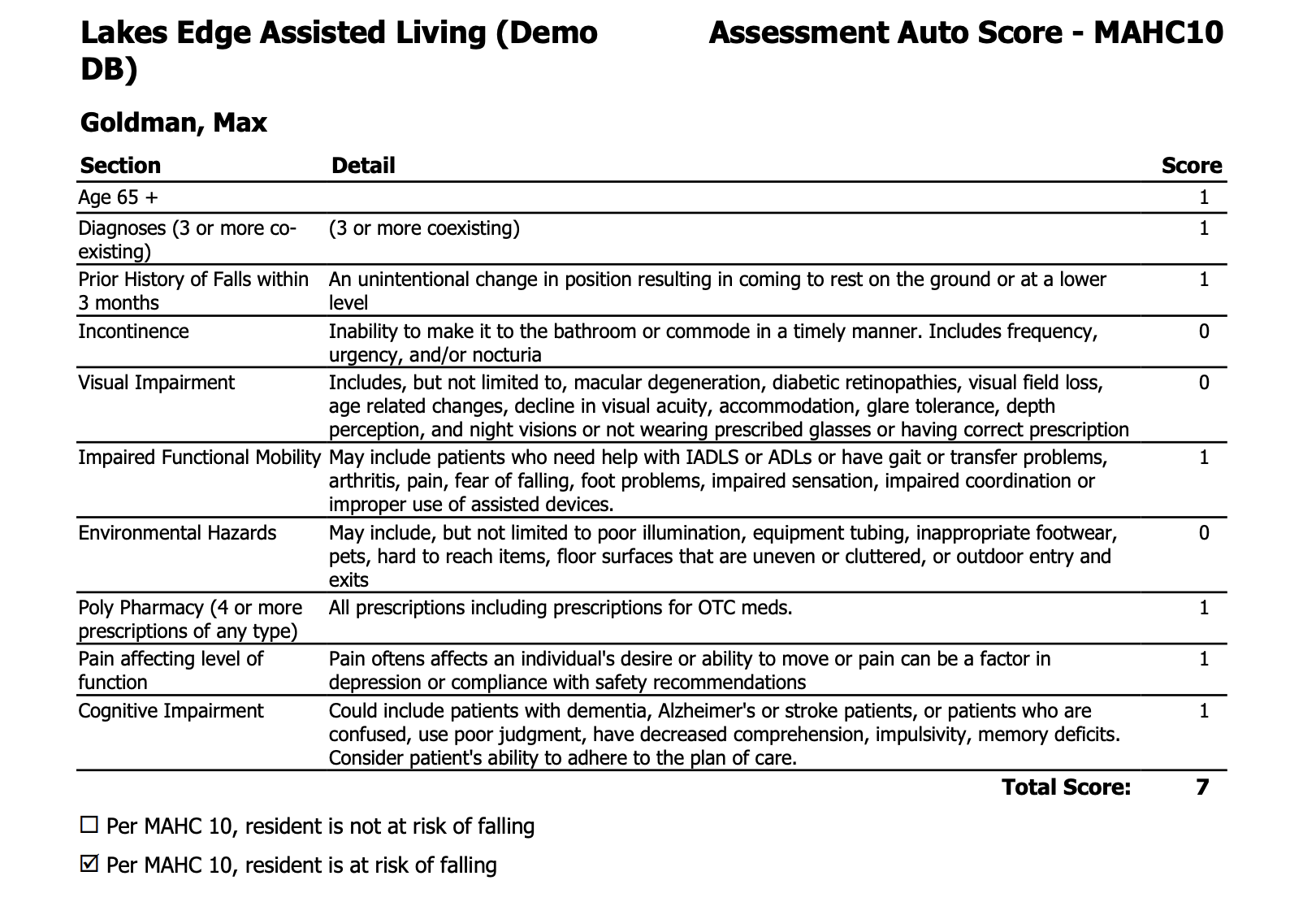
Additional questions can allow you to identify actions taken to minimize risk of falls, based upon this assessment.
The 'Fall Risk Assessment' can also be created as a subset assessment, allowing you to perform a focused re-assessment after a resident fall.
Bio/History
The Bio/History assessment is fully customizable and includes biographical questions, information about preferred routines, care preferences, etc. Once the data is entered and marked complete, the bio/history displays on the staff's today screen to review and acknowledge. The information is also available as a link in any service for that resident.
Enter a Bio/History
Entry of data for the Bio/History can be performed by a nurse or may be delegated to non-nursing staff if desired.
Navigate to Clinical > Assessments > Resident > Resident Bio/History > select the 'Context' ('In Person' or 'Remote') > Start assessment. Select options that apply, and add notes and details as needed.
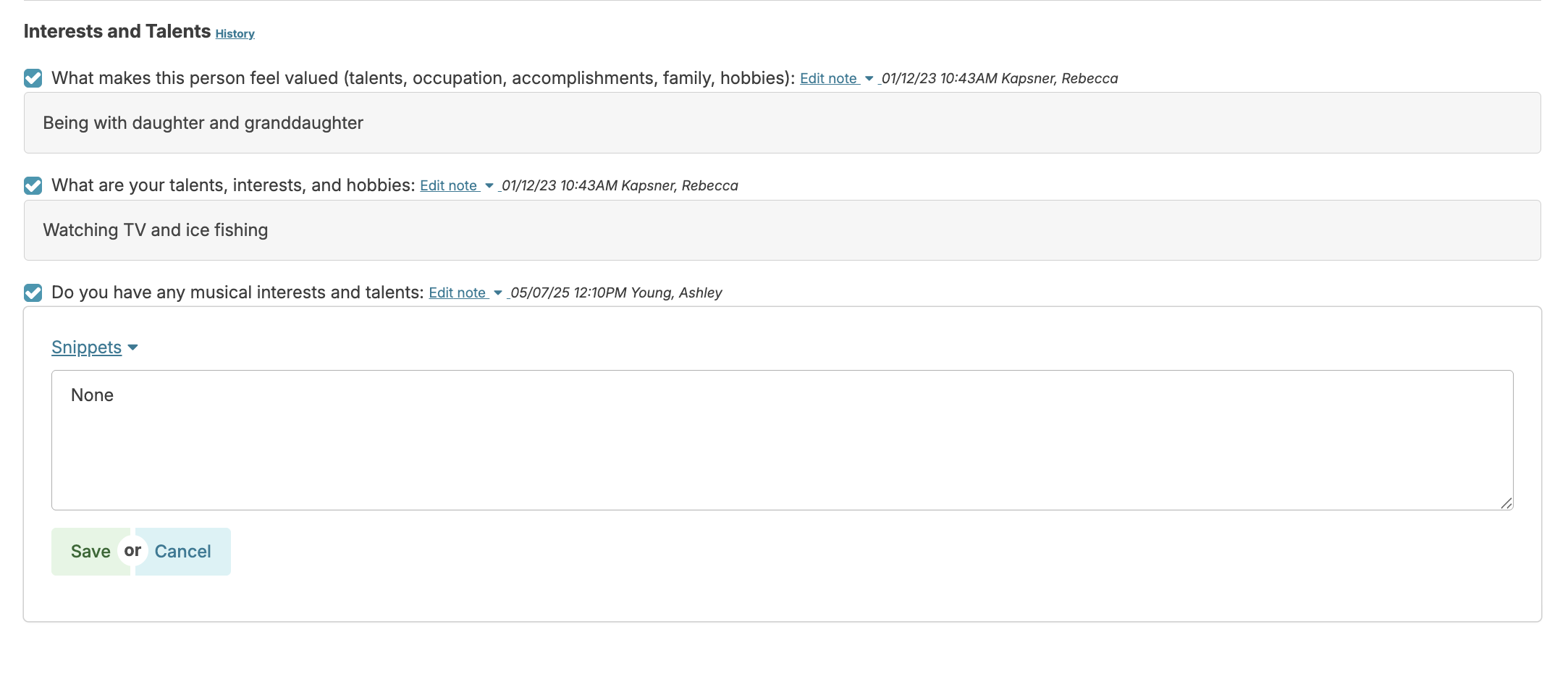
Once items have been answered, mark the assessment as complete. This will push a copy of the completed 'Bio/History' out to staff to review and acknowledge on their Today > Assignments screen.
Review Bio/History
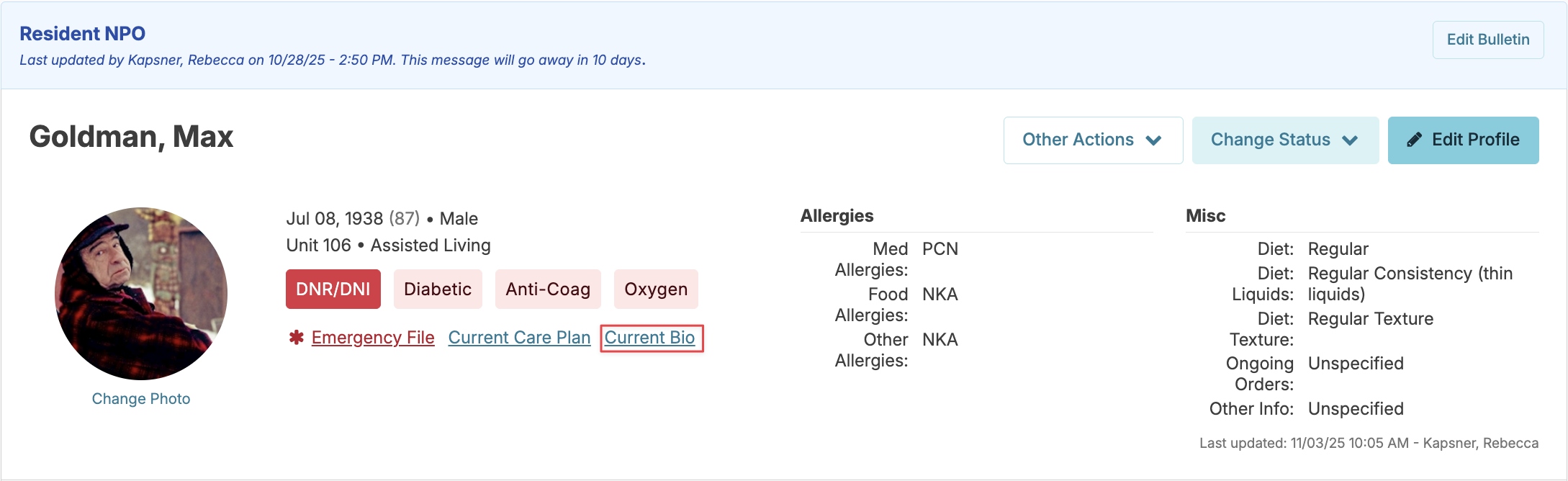
The Bio/History will remain accessible to staff as a link, 'Current Bio,' in the resident profile, on each service or as a printable report.
Assessment Management
Assessment History
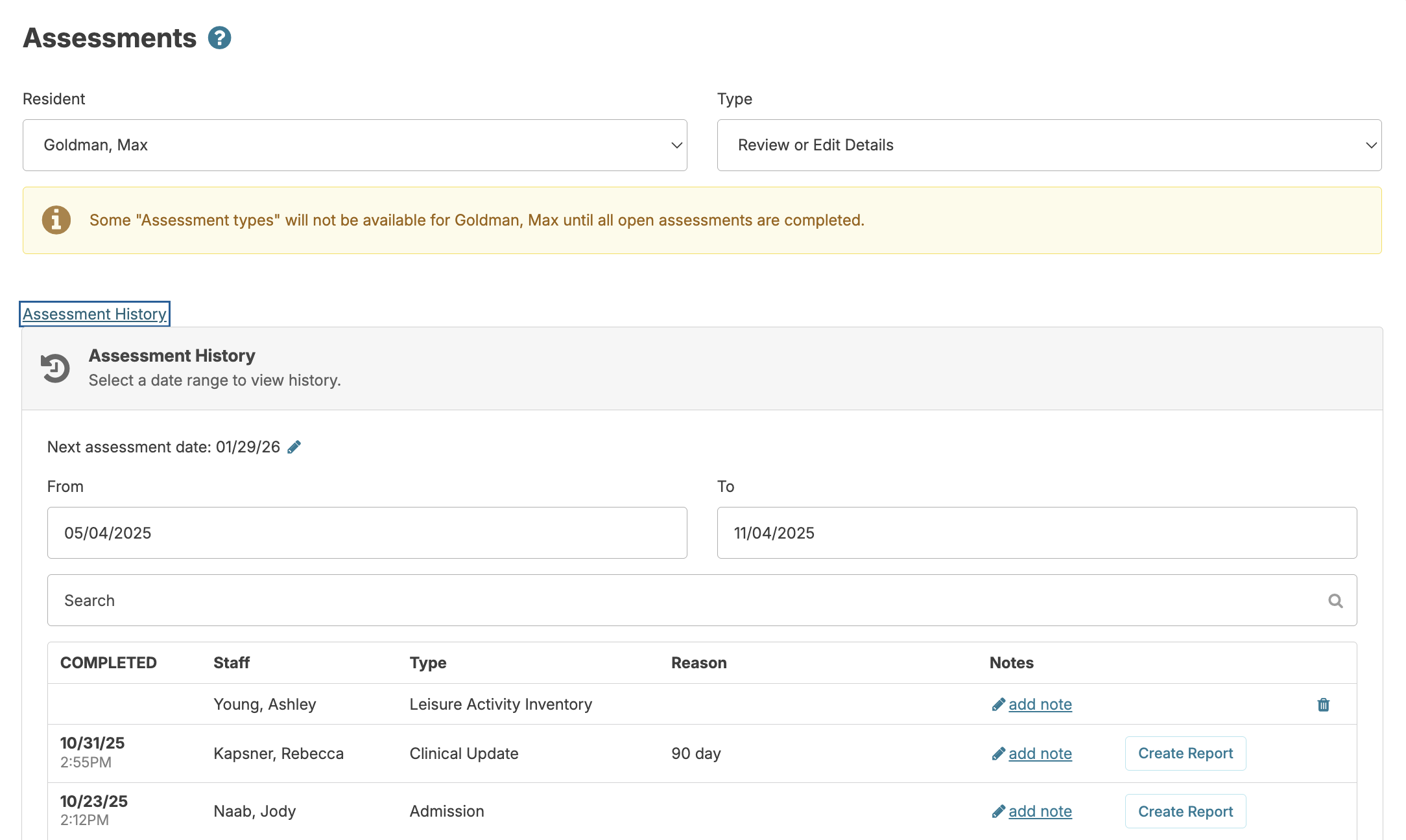
The Assessment History link is available when navigating from Clinical > Assessments, once you select the resident. 'Assessment History' provides detailed information on all assessments completed for a given time period, including:
- Date and time the assessment was completed
- Name of the staff member who completed the assessment
- Assessment type and, if a 'Clinical Update,' the reason for the assessment
- The 'add note' field allows for additional context. For example, if an assessment was entered late due to resident hospitalization, this explanation will appear on the printed assessment to clarify any unusual circumstances.
- The 'Create Report' button allows you to view and print each assessment
- The trash icon allows the person who entered the assessment to remove/delete that assessment occasion
📘 Deleting an Assessment
When an assessment occasion is deleted with the trash can icon, it is simply removing the record of that assessment being completed. None of the changes made will be removed.
Assessment Notifications
The Dashboard or Login Report serves as the Residex notification board, reminding nurses of upcoming clinical assessments due. Depending upon preferences, the nurse can be notified 14 or 30 days prior to the due date.
Assessment Snippets
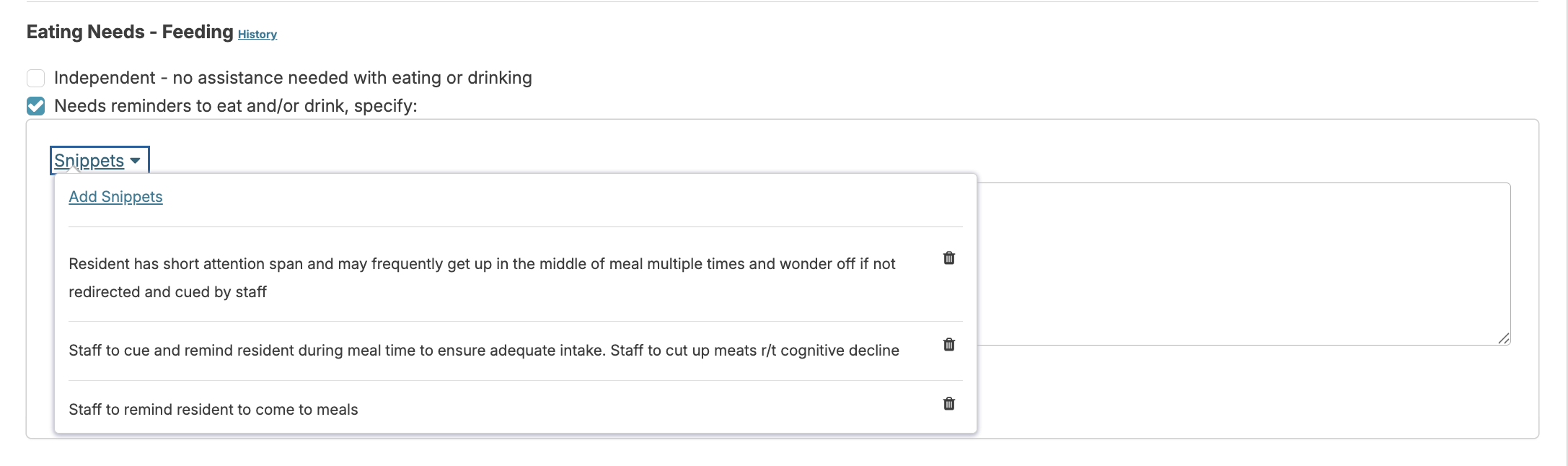
Assessment 'Snippets' are phrases, sentences, or paragraphs that are created and saved to a particular note field, allowing you to select them as options while performing an assessment. Snippets are shared among users of a database; nurses, in essence, can create a shared library of snippets to be used for each note field. Users must have Clinical (Role 19) to create or delete snippets.
Create a Snippet
To create a new snippet, navigate to Clinical > Assessments. Snippets can be made in two ways: when completing an assessment, or outside of an assessment occasion using the 'Review Assessment Details' option. Each assessment item offers a note field. Click either Add Note or Edit Note > the Snippets link above the note field > Add Snippets.
Use Snippets
When entering a note, simply click Snippets and select from available options, these will populate in your text box where you can add additional text as needed. Keep snippets general and universal without resident names or specific details. After inserting snippets, be sure to add resident-specific information to create an individualized care plan rather than a generic one.
Assessment Reports
- Assessment Worksheets- Paper worksheets for performing assessments offline when needed
- Assessment Management- Includes the 'Campus Assessment Overview' report showing campus-wide assessment status
- Campus Assessments Overview - Including Subsets
- Assessment Reminders Next 14 days
- Assessments Open
- Assessment History by Client
- Assessment Results- Contains essential reports including:
- 'Admission Assessment' - All resident admission assessments
- 'Assessment As of Date' - Resident assessments at any point during their stay
- 'Assessment By Date' - Resident assessments based on completion date
- 'Individual Abuse Prevention Plan' - required in some states, identifies resident vulnerabilities and intervention strategies
- 'Assessment Data - One Option' - Shows responses to a single assessment item across all campus assessments
- 'Master Care Plan' - Printable version of the electronic care plan for staff reference
- Assessment Auto Score - (GDS, MACH10, Slums, MSQ) will display the questions and score for those assessments
Assessment Type Availability
Overview
When a resident has an open assessment occasion, the list of available assessment types for that resident will be limited to prevent duplicate or conflicting assessments.
Viewing the Full List of Assessment Types
If you need to access the complete list of assessment types for a resident who has an open assessment, follow these steps:
- Click on the open assessment occasion for the resident
- Mark the assessment as complete
- The system will then display the full list of available assessment types
Why This Happens
This limitation is in place to ensure assessment integrity and prevent overlapping assessment periods. Once the current assessment occasion is completed, all assessment type options become available again for selection.