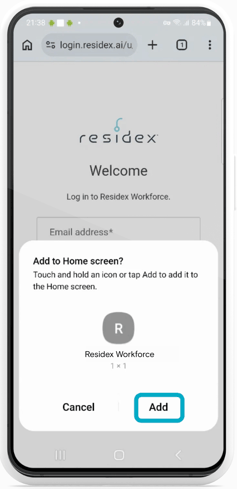
Here are instructions on how to add a shortcut for Residex Workforce to the home screen of your mobile device.
For iPhone:
- Go to Residex Workforce on your web browser (you don't have to log in for this)
- Click the share icon.
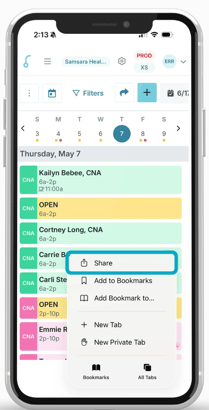
- Now click Add to Home Screen.
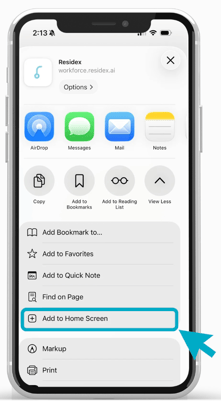
- Then name the shortcut "Residex Workforce" or anything you would like. Then click Add.
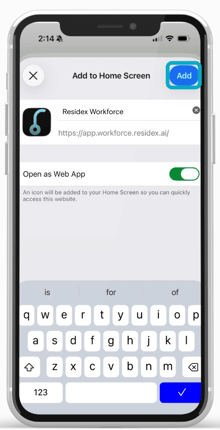
- Now you can access your Residex schedule straight from your home screen!
For Android:
-
Go to Residex Workforce on your web browser (you don't have to log in for this)
-
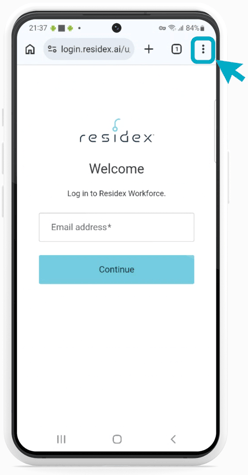
Tap the menu icon (3 dots in upper right-hand corner)
-
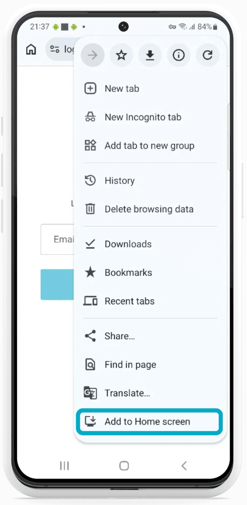
Then click Add to home screen.
- Then name the shortcut "Residex Workforce" or anything you would like. Then click Add.
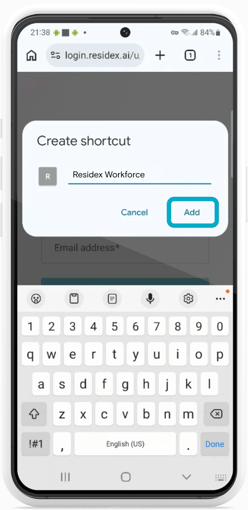
- Click "Add" again to create the shortcut and add to your home screen!