All of the information you track and manage in Residex can be presented in a variety of reporting formats.
All reports can be printed or generated as PDFs, and many can be exported as Microsoft Excel (.xlsx) or Comma Separated (.csv) documents.
A configuration option to allow printing in duplex (double-sided) can be set per campus; reports can also be made exportable to an Excel spreadsheet.
Note: Access reports for inactive staff and discharged residents by navigating to their profile.
Finding a Report
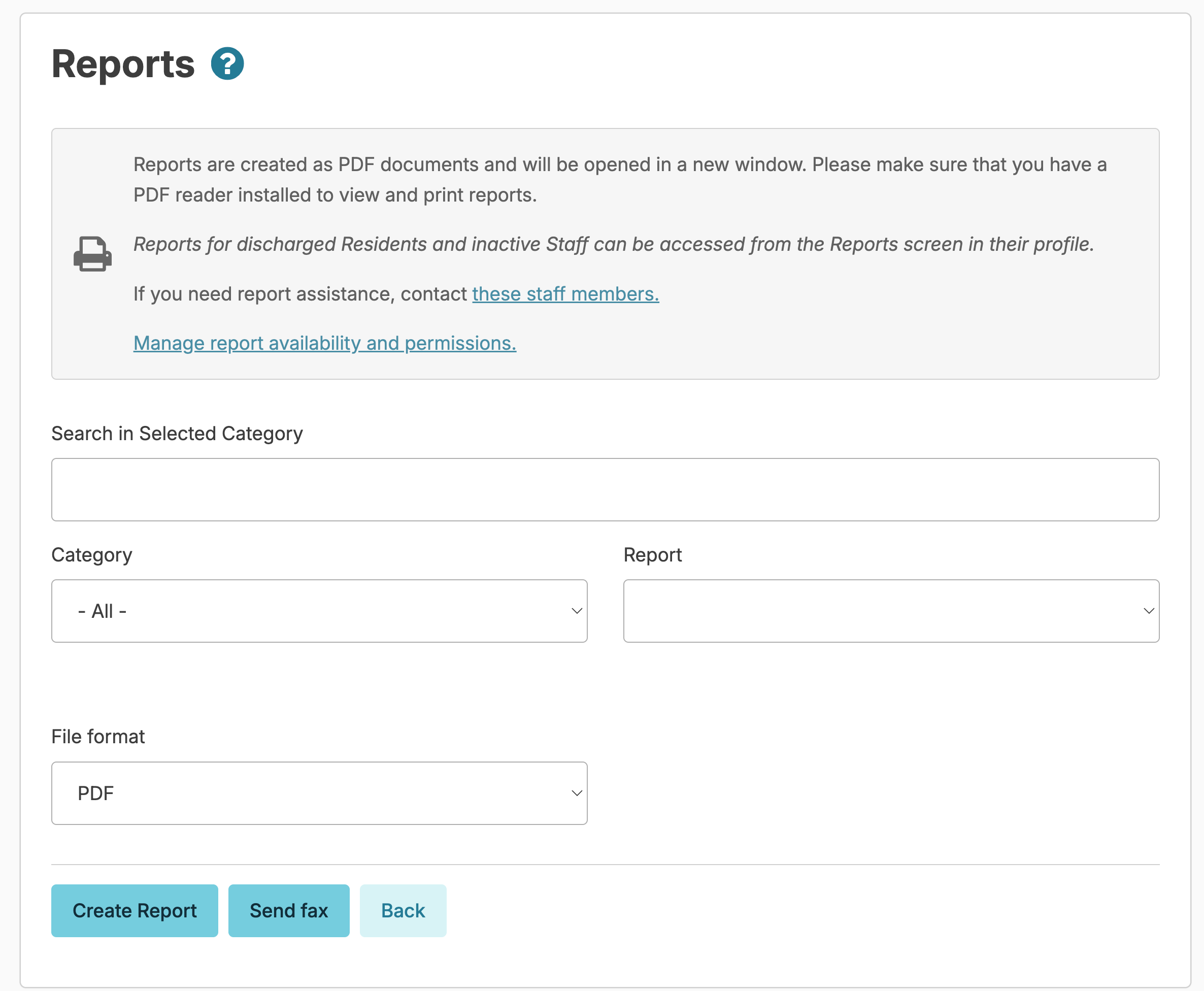
From the navigation bar, select Reports > Reports to open the Reports screen
Use the 'Search in Selected Category' field to search for the report you are looking for
Use the Category menu to select from all categories of reports > Use the Report menu to select the specific report you're looking for.
Depending on what report you select, you may be prompted below to specify additional details about what you're looking for.
You can identify which Role or Provider Types the report is enabled for, 'Category' for which the report is in, and additional report specifics as identified in the key below:
« Staff see data only for residents they have access to
¢ Billing Role 4 Needed
$ AR Module Needed
(S) Report Available for eSignatures
(D) Report Available to Send to Connect Users
When you have selected a report, and have entered any specifications needed, press Create Report to view the report on screen! You can then print the report if you wish.
Not able to find a report? Click the these staff members link on the reports screen or Run the Staff Report Assistance report to help you find someone in your agency who can.
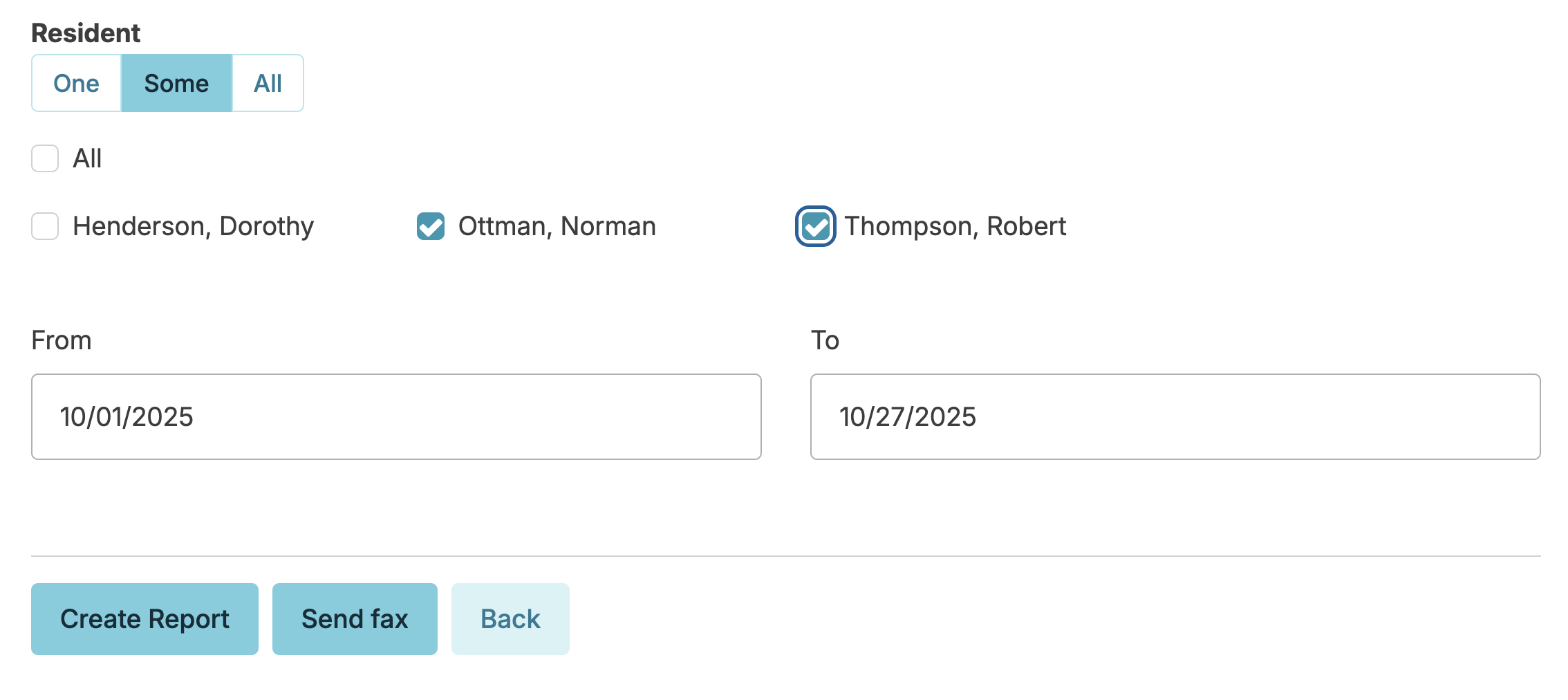
In some cases you can choose to generate separate copies of the same report for some or all residents, staff etc. Simply select for whom you'd like to generate a report.
- To print from a mobile device, such as a smartphone or tablet, you will need to have a specially configured printer (e.g. IOS devices will need printers that support Apple's AirPrint capability, or Google Cloud Print for Android devices).
Quick Reports
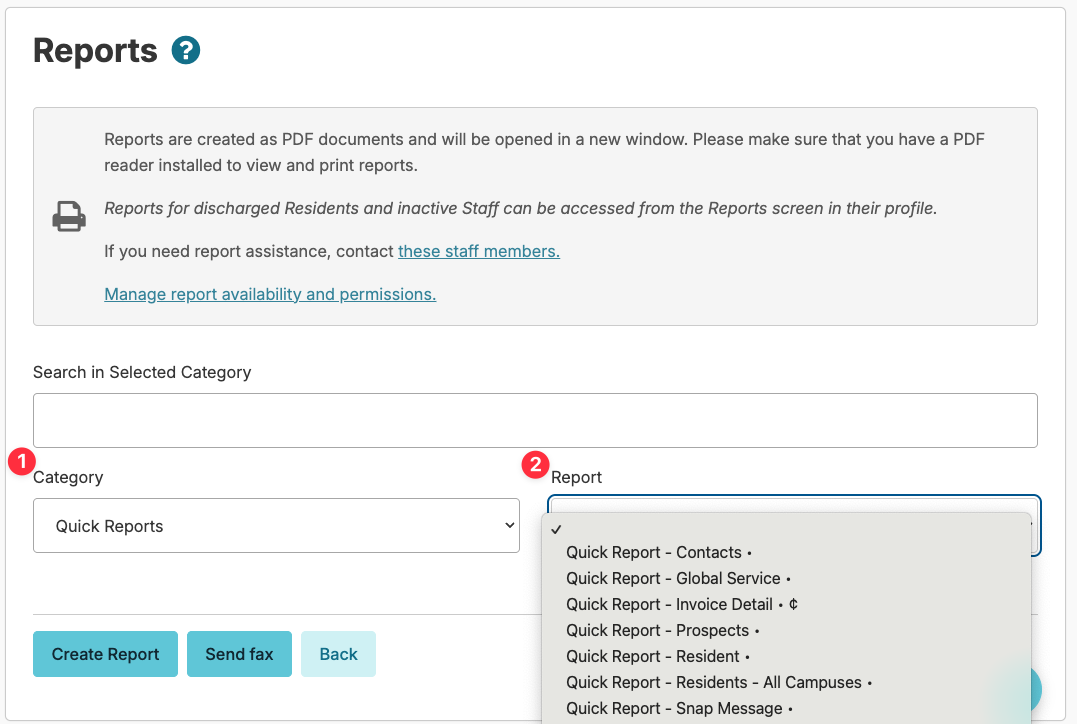
Quick Reports are customizable-on-demand reports that allow you to quickly generate a specific report to export you might need. All Quick Reports are printable, and can be exported to Microsoft Excel (.xlsx) format, or PDF.
- From the Reports screen, select the Category Quick Reports
- Select a Quick Report (e.g. Quick Report - Resident or Quick Report - Staff)
- Select the types of data you would like included in this report
- Select a filter option (e.g. Active, Hold and Reserved, etc)
- Select a Sort option (how will the report be organized)?
- Select the report format: PDF, CSV or Excel, & press the Create report button
To provide feedback, select a report from the Reports screen, and press the Give Feedback button shown at the bottom of the screen.
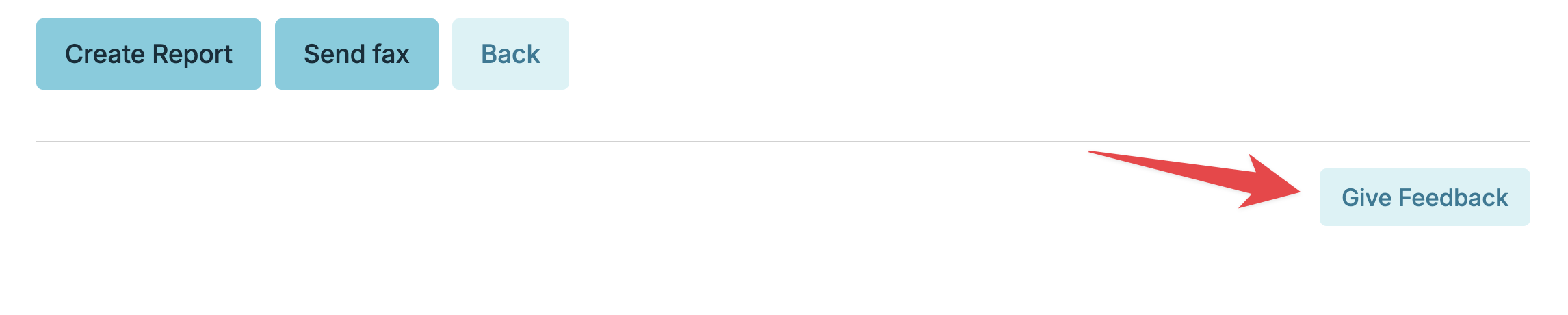
Provide your feedback in the form that follows. For example:
- General: report is missing something or the 'Campus name is not displayed on the top of page 2 (Please be as specific as you can).
- Report modification request: such as: 'Can you add a column showing the as needed med response?' or, 'please include discharged residents'
- New Report Request: You may find a report that is close to what you need but it needs too many modifications. Spell out what you need such as: How will the report be used? Who will use the report and when? What should the new report be called? What specific information does the report need to present? How should it be organized or sorted.
- Press the Send button to provide the feedback to the ResiDex Support team for review!
Managing Report Access
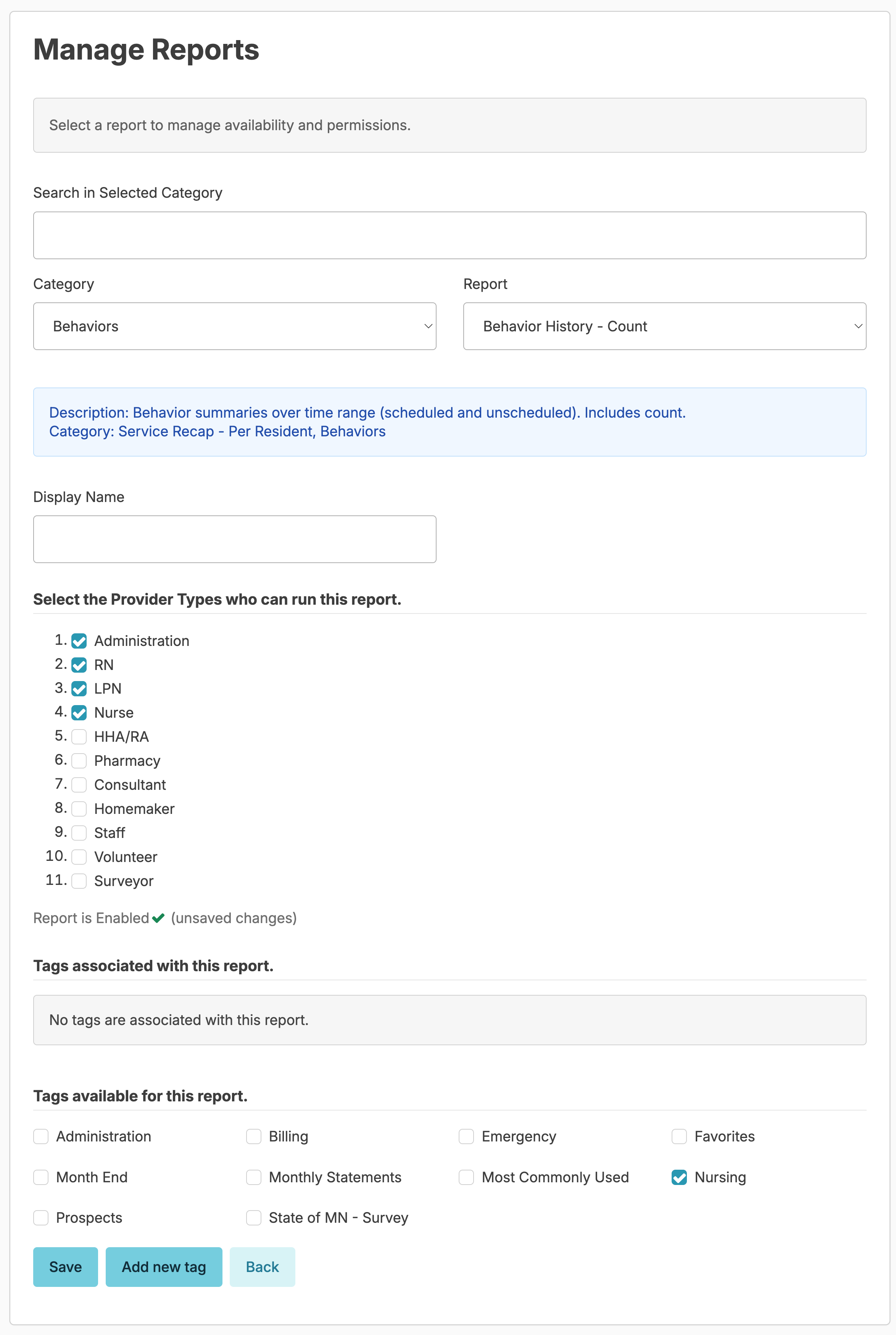
Residex has a large number of reports that can be run on demand via the Reports screen. If you have the 411, 410 or Supervisor role, you will see the option Manage report availability and permissions on this screen, which will allow you control over your organization's reporting options.
Helpful tip: The Residex Reports by Category - All report shows all available reports in Residex with brief descriptions. Use Ctrl+F (or Cmd+F on Mac) to search for specific keywords.
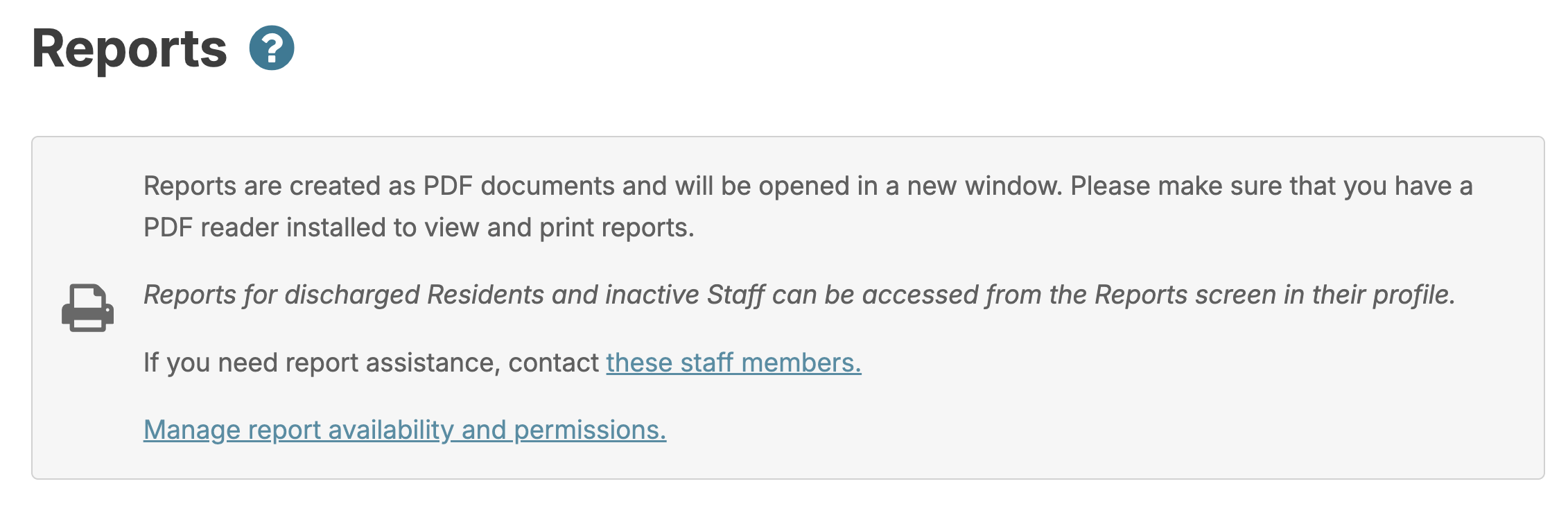
From this screen, you can select All from the Category menu to view the entire library of reports available, or you can search for a specific report / view a specific report category.
When you select a report, you will be able to manage it's settings. You can...
- Rename the report with a custom name for your organization
- Provider Types determine which types of staff from your organization should be able to access this report (e.g. Nurses should be able to view Assessment reports typically, but should other staff be able to?).
- Tags allow you to save a report to a tagged folder, making them easy to locate. Tagged reports appear at the top of report categories when searching for a report.
- Save your changes
Note: Some reports will allow you to preview what the report looks like before enabling by clicking the Click here to preview this report link.